Post Stripe payouts to your ledger
Stripe doesn't send you each payment separately. It collects your customers' payments, takes its fees, and pays the rest into your bank in a payout. The Payouts page of a Stripe account shows every payout with its charges, refunds and fees split out, links each charge to the payment on your sales order, and posts the payout to your ledger as one journal. The posted payout then matches the deposit on your bank statement.
Before you begin
- Connect a Stripe account.
- Turn on ledger generation under Accounting › Settings › General. Payouts can't post while it's off.
- Map two accounts in Accounting › Settings › Nominal Code Mappings, under Default Nominal Code Mappings:
- Payment Processing Fees: the expense account Stripe's processing, Radar and dispute fees post to.
- Processor Clearing: the clearing account your card and bank receipts sit in until the payout that settles them reaches your bank. Map your Stripe Payment payment type's deposit account to this same account.
- To post payouts, your role needs the accounting sync permission. To sync them, it needs Integrations → Sync.
Steps
-
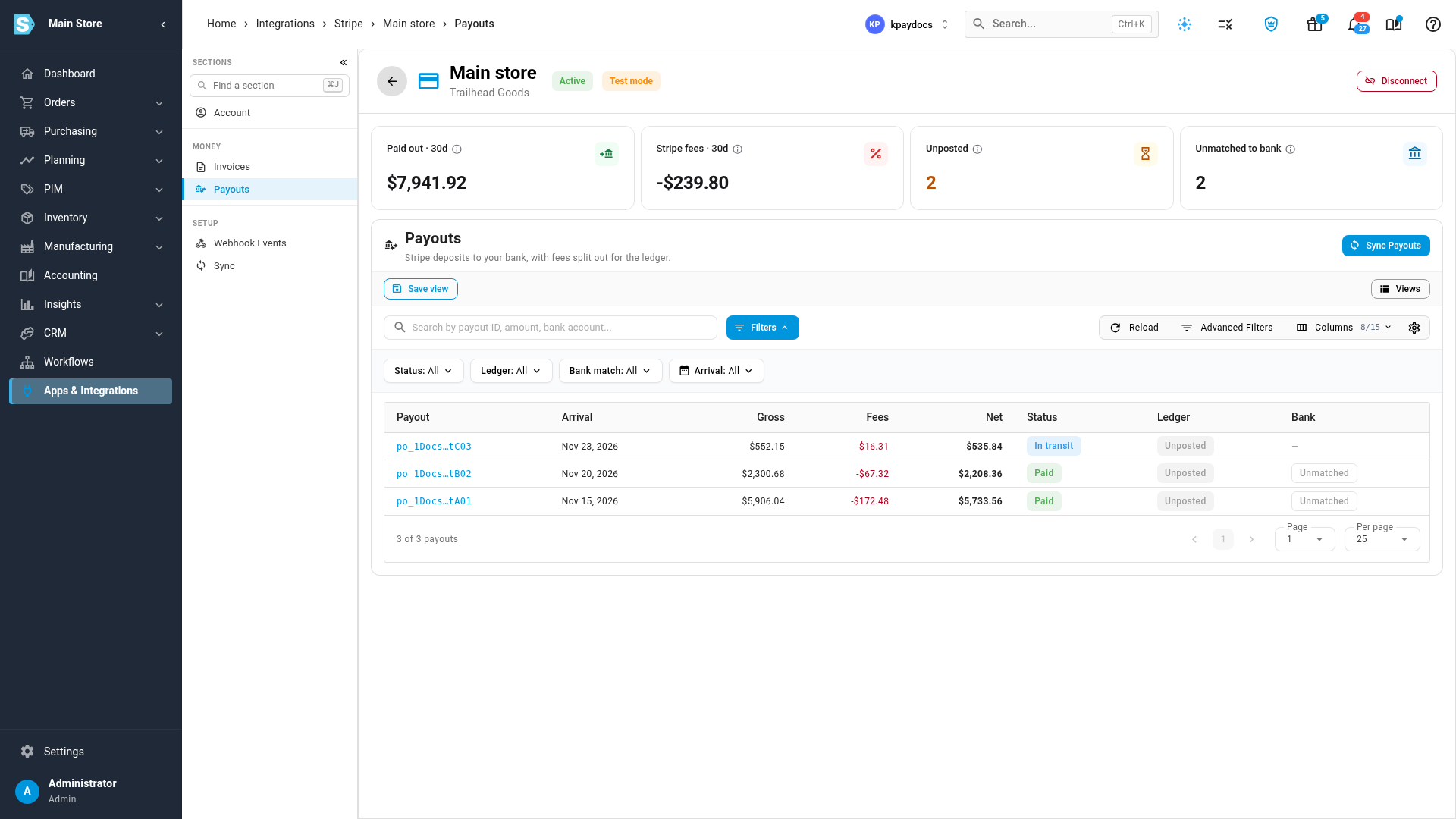
Go to Apps & Integrations, open your Stripe account, and choose Payouts in its sections.
-
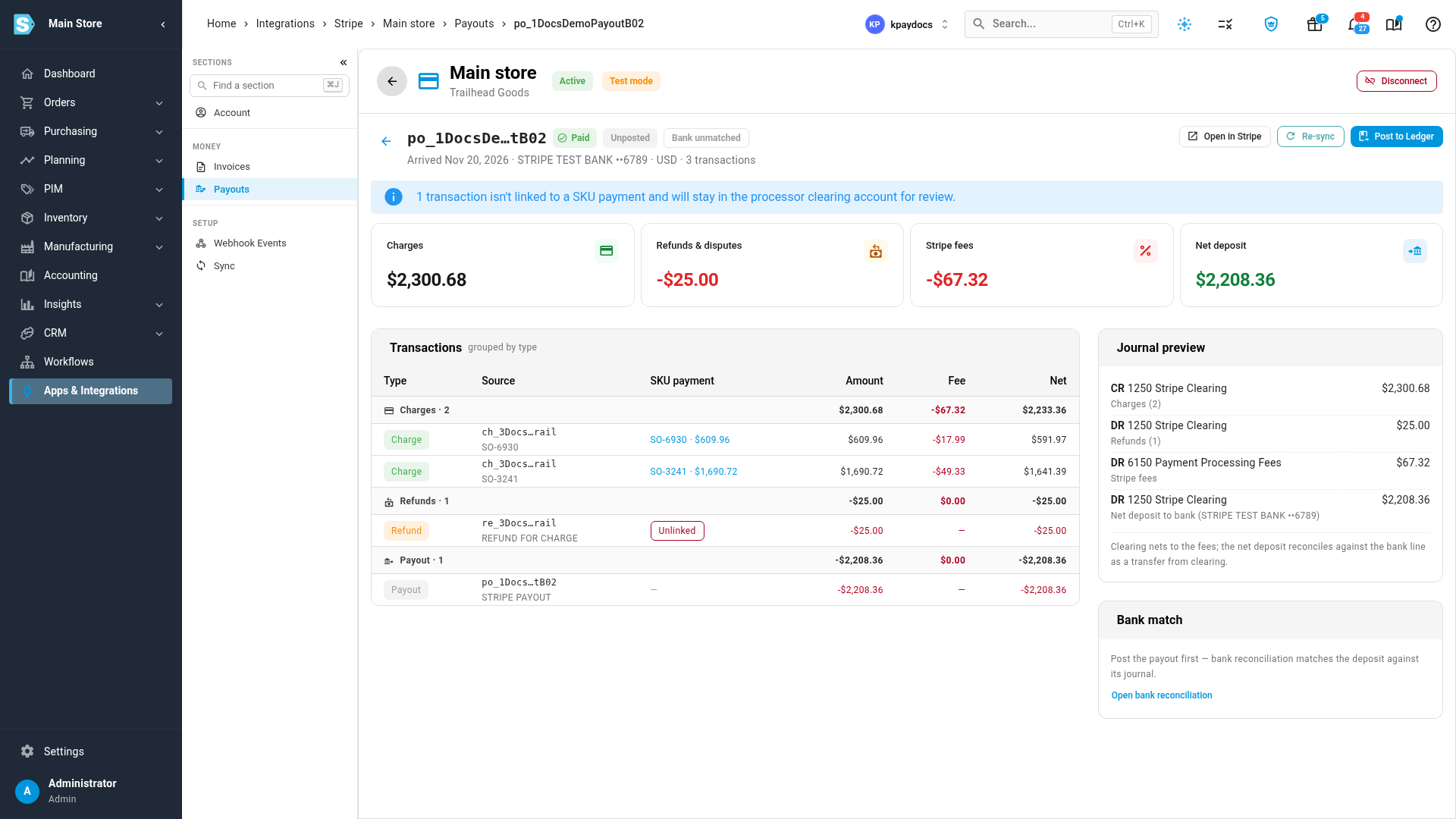
Click a payout to open it.
-
Check Transactions, which lists the charges, refunds, disputes and fees the payout settles, grouped by type. Each charge links to its payment on a sales order under SKU payment.
-
Check Journal preview, which shows the entry SKU.io will post.
-
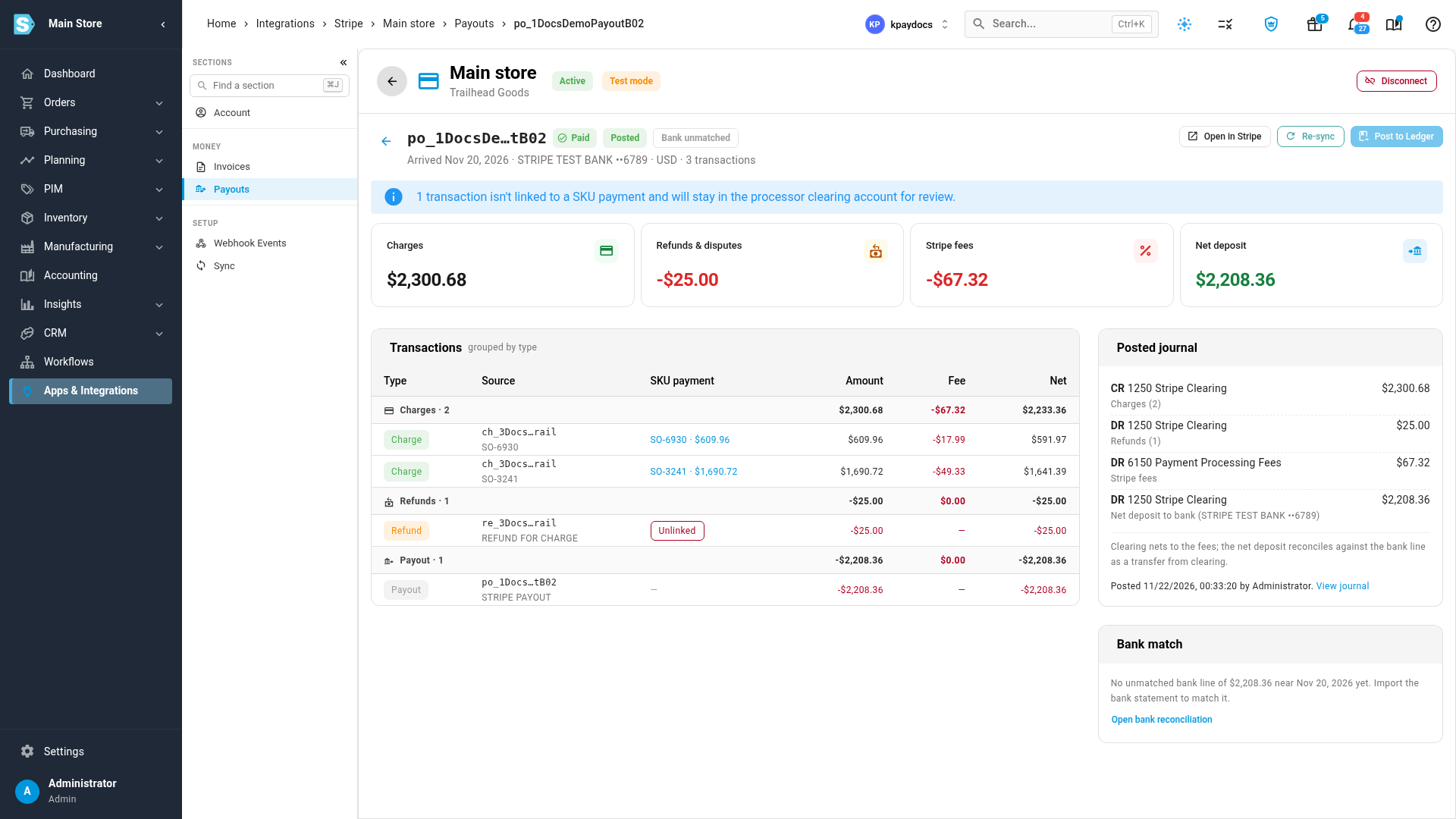
Click Post to Ledger, then Post to Ledger again to confirm.
What you'll see: Payout posted to the ledger. The payout shows Posted, and Journal preview becomes Posted journal, with who posted it and when, and a View journal link.
How payouts arrive
SKU.io pulls your payouts and their transactions from Stripe every night, and again when Stripe tells it a payout was paid or failed. To pull them now, click Sync Payouts on the Payouts page. The sync runs in the background: follow it in the job tray. On a payout's page, Re-sync pulls that one payout again.
The Payouts page
The cards at the top show:
| Card | What it shows |
|---|---|
| Paid out · 30d | The total Stripe paid into your bank in the last 30 days |
| Stripe fees · 30d | Stripe's fees on those payouts |
| Unposted | Payouts not yet posted to your ledger, and how many are blocked by missing mappings |
| Unmatched to bank | Paid payouts not yet matched to a bank statement line |
Each row is one payout:
| Column | What it shows |
|---|---|
| Payout | Stripe's payout ID. Click it to open the payout |
| Arrival | When the money reaches your bank |
| Gross, Fees, Net | The payments it settles, Stripe's fees, and what you receive |
| Status | From Stripe: Pending, In transit, Paid, Failed or Canceled |
| Ledger | Unposted, Posted, Blocked (an account isn't mapped yet), or Not postable (failed and canceled payouts never reached your bank, so they never post) |
| Bank | Matched or Unmatched to a bank statement line |
Filter by Status, Ledger, Bank match and Arrival. Columns adds more, such as Refunds & disputes, Bank account and Unlinked. A row's menu has Open payout and Open in Stripe.
Transactions that aren't linked
A charge links to its sales order payment when it came from a payment link, a card charged on file, or a Stripe invoice sent from SKU.io. A charge or refund with no matching payment, for example one made in your Stripe Dashboard, is marked Unlinked. Its amount stays in your clearing account for you to review, and the payout still posts.
What the journal posts
For each payout, SKU.io posts one journal:
- the payout's charges come out of your Processor Clearing account, where your recorded payments put them;
- refunds and disputes go back into it;
- Stripe's fees go to your Payment Processing Fees account;
- the net deposit is what lands in your bank, and it reconciles against the bank line as a transfer from the clearing account.
Once a payout is posted, its journal doesn't change. If Stripe later changes the payout's amounts, the payout is marked Changed after posting, and a note on the Payouts page asks you to review it.
When you can't post
Post to Ledger explains what's in the way:
- Can't post yet — Payment Processing Fees and Processor Clearing aren't mapped. The link takes you to the mappings.
- Only paid payouts can post. Wait until the payout shows Paid.
- This payout's transactions haven't synced from Stripe yet — re-sync it first.
- Ledger generation is turned off.
Match the deposit to your bank
After you post a payout, the Bank match card suggests the bank statement line for its deposit. Click Confirm in bank reconciliation to match it in Accounting › Reconciliation. If there's no line yet, import your bank statement first. See Match bank statement lines.
Next steps
Video transcript
Stripe pays your money out to your bank in payouts, after taking its fees. Open your Stripe account under Apps and Integrations, and choose Payouts. Each row is one deposit, with its gross, fees and net amount. Status comes from Stripe, so a payout still on its way shows In transit. Ledger shows whether it's posted to your books, and Bank shows whether it matches your statement. The cards along the top of the page count the payouts that still need your attention. Click a payout's ID in the first column to open it and see what's inside. Transactions lists the charges, refunds and fees it settles, grouped by type. Each charge links to the payment it came from on your sales order. This refund has no matching payment on any order, so it's marked Unlinked. Unlinked amounts stay in your clearing account for you to review. Journal preview shows the entry SKU.io will post. Stripe's fees go to your processing fees account, and the rest moves through your clearing account. The net deposit is what lands in your bank. When everything looks right, click Post to Ledger, at the top right of the payout, and then confirm it in the dialog that opens. The payout now shows Posted, with the posted journal in place of the preview. Below it, the Bank match card helps you match the deposit to a line on your bank statement.