Collect payment with a Stripe payment link
A payment link lets your customer pay a sales order online, by card or from their US bank account, through your Stripe account. You create the link on the order, send it however you like, and the payment is recorded on the order when the customer pays. Each link asks for a set amount, such as the full balance or a deposit, and stops working after the expiry you choose.
Before you begin
- Connect a Stripe account that shows Active. Until you do, Create Payment Link reads Connect Stripe or Authorize.net in Integrations.
- The order must be approved, not a draft or cancelled, and have a balance due.
- To create and void links, your role needs Sales Orders → Manage payments (
sales_orders.manage_payments). - To offer bank transfer (ACH) or add a card surcharge, turn them on first in Payment Collection.
Steps
-
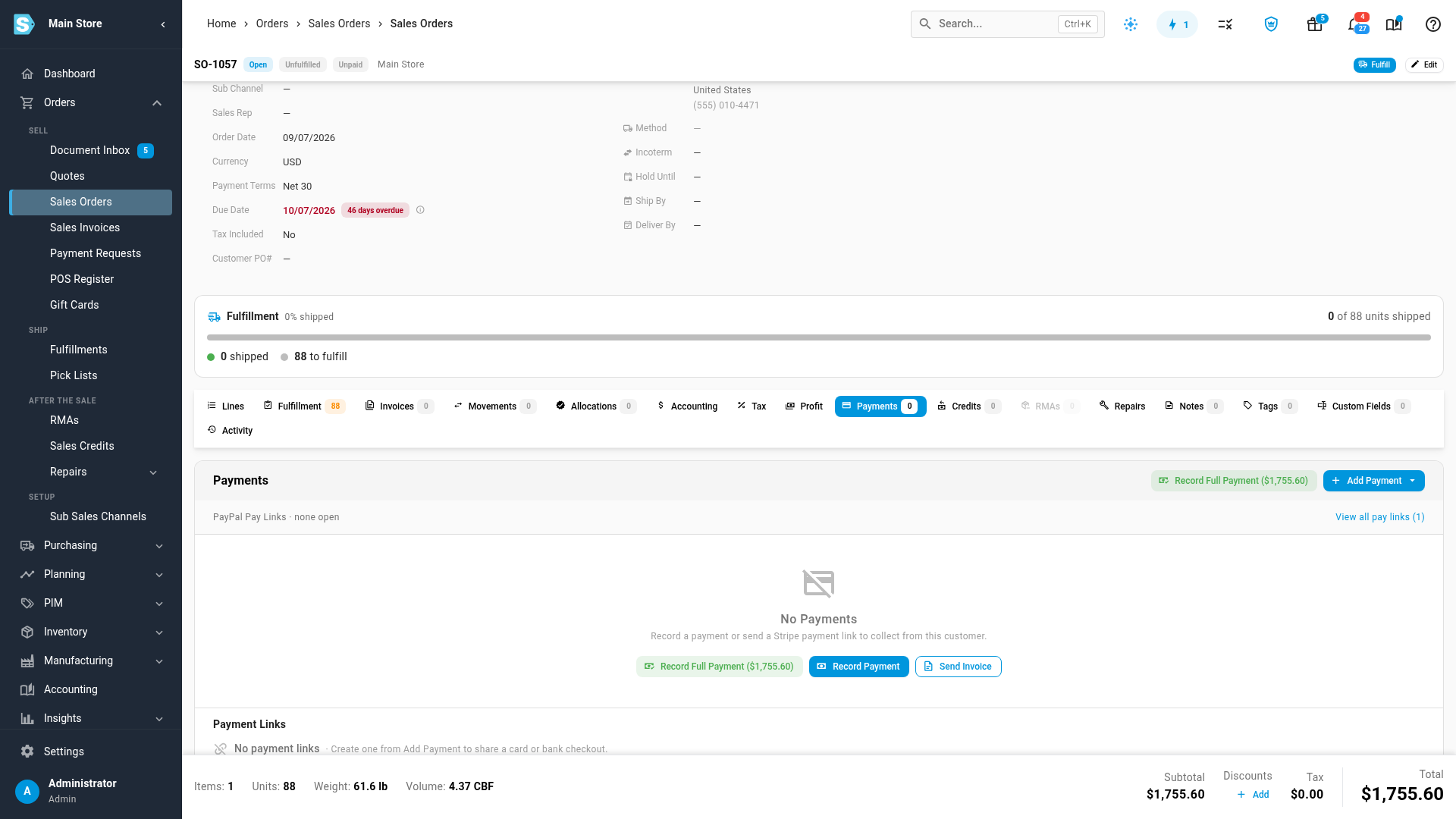
Open the sales order, and click its Payments tab.
-
Click Add Payment, and choose Create Payment Link. If you've connected both Stripe and Authorize.net, choose Stripe and click Continue.
-
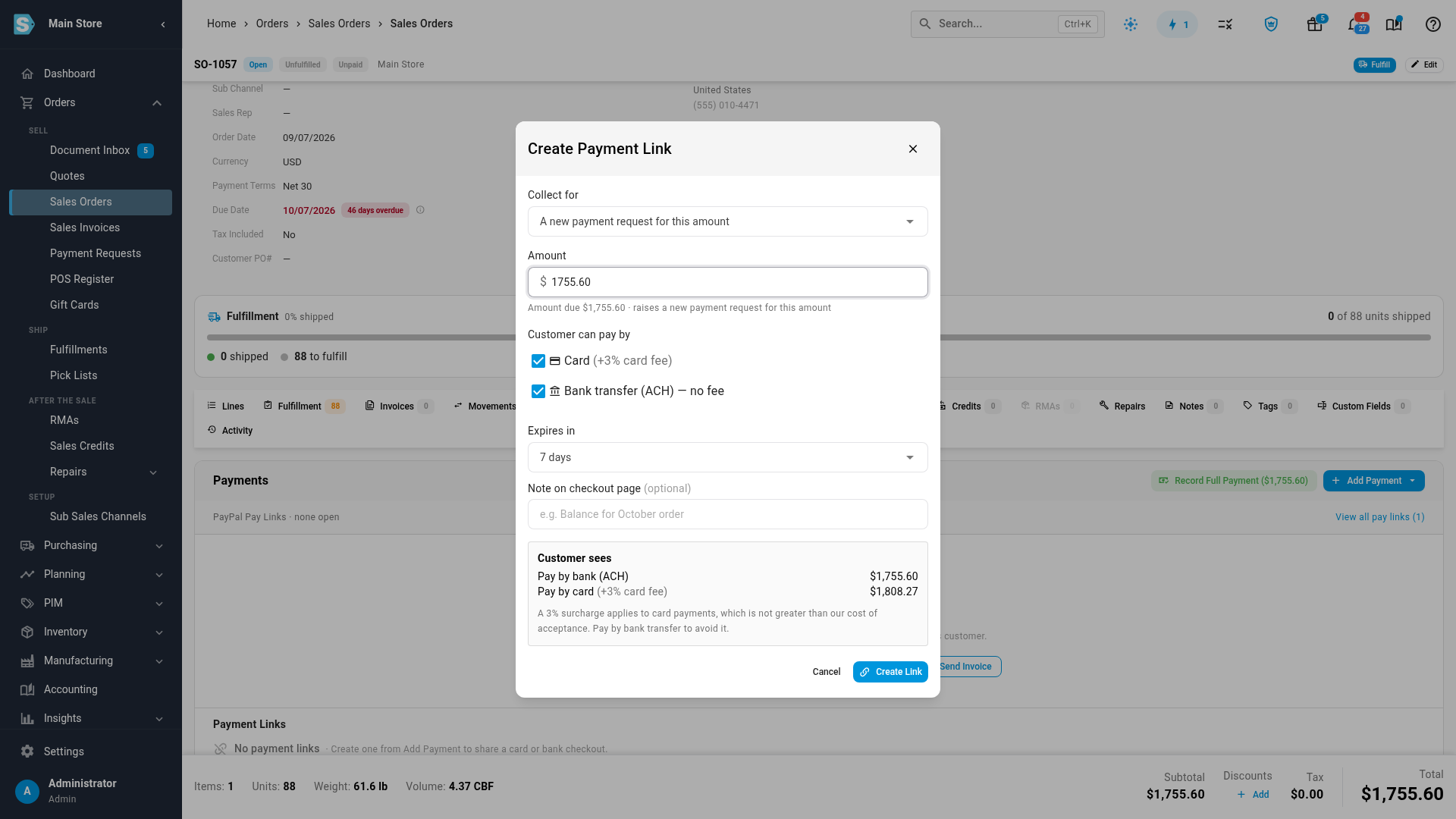
Check the Amount. It starts at the balance due. Enter a smaller amount for a deposit.
-
Under Customer can pay by, tick Card, Bank transfer (ACH) — no fee, or both.
-
In Expires in, choose how long the link stays payable.
-
Optionally, type a Note on checkout page (optional), such as what the payment is for.
-
Check Customer sees, which shows each price the customer can pay.
-
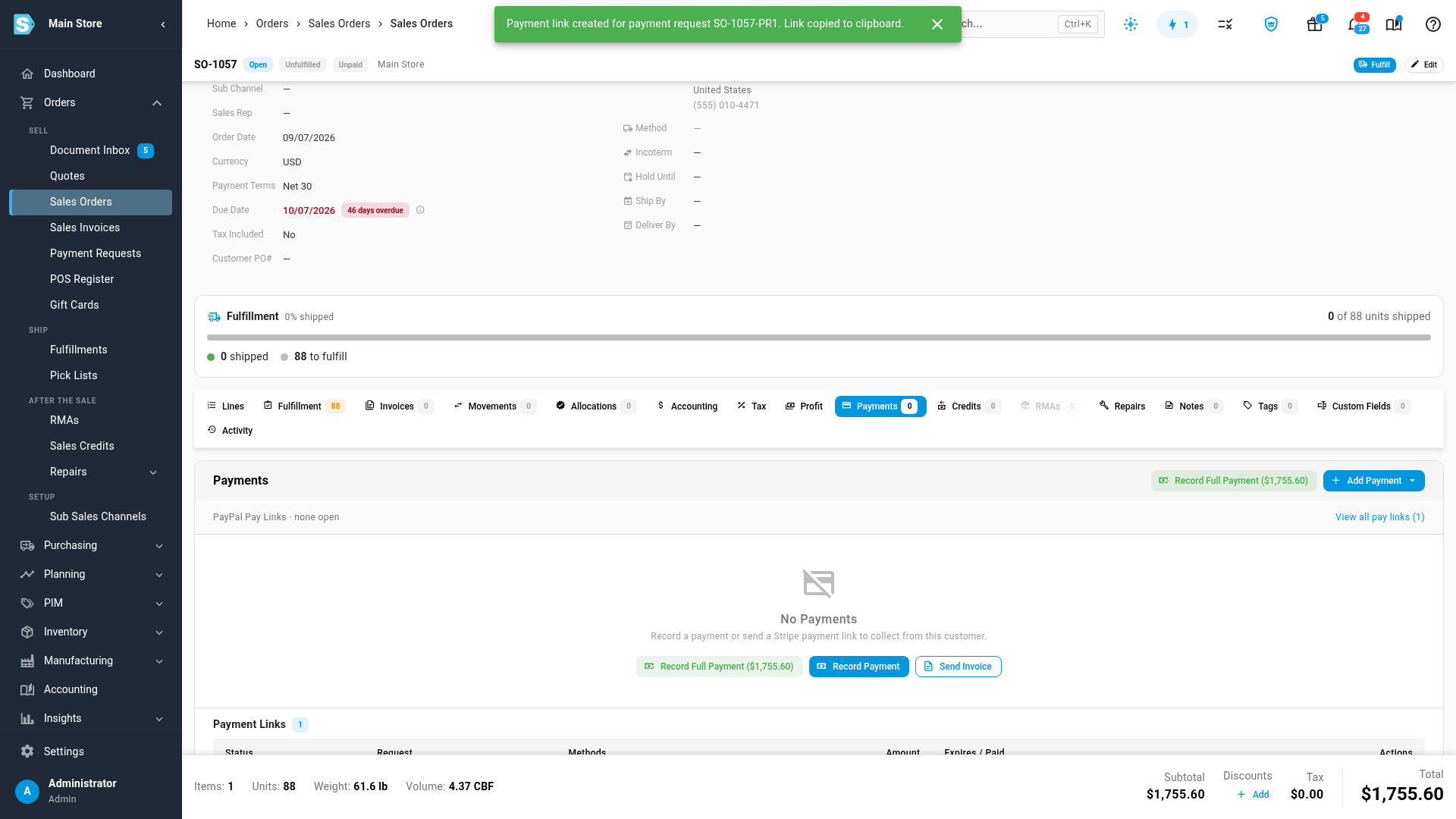
Click Create Link.
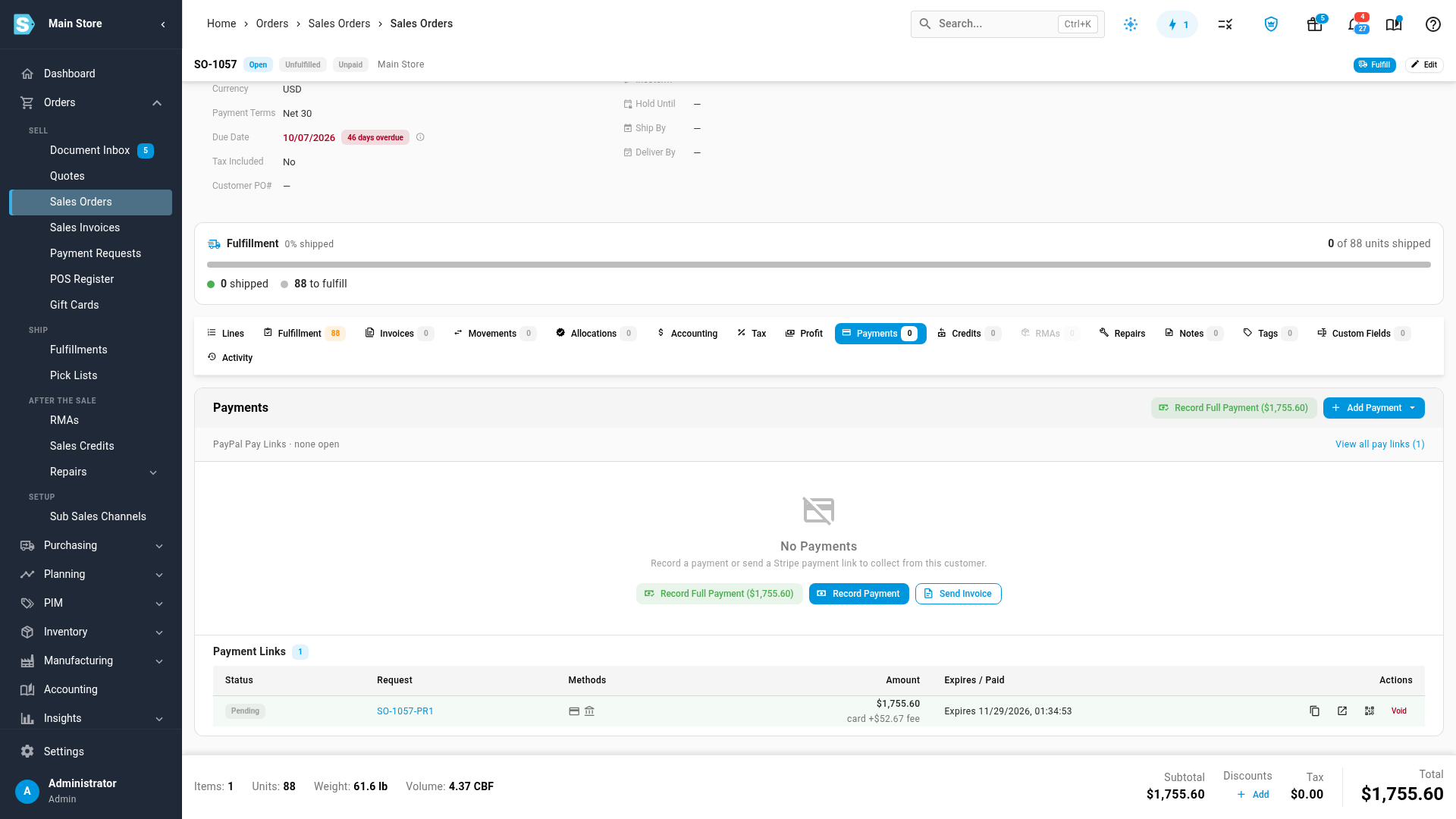
What you'll see: Payment link created. Link copied to clipboard. The link is listed under Payment Links, marked Pending. Paste it into an email or a message to your customer.
The fields in the dialog
| Field | What it does |
|---|---|
| Collect for | A new payment request for this amount, or an open payment request on the order. Every link collects for a payment request, so a new link raises one for its amount. A request that already has an open link shows (has an open link): a request has one open link at a time |
| Amount | What the link asks for, before any card surcharge. It can't be more than the order still owes |
| Customer can pay by | Card, and Bank transfer (ACH) — no fee when bank payments are on and the order is in USD. Tick at least one. With a surcharge on, the card option shows the extra percentage |
| Expires in | 1, 3, 7, 14 or 30 days. Starts at your Default expiry |
| Stripe account | Only when you've connected more than one Stripe account |
| Note on checkout page (optional) | Shown to the customer above the pay buttons |
Share the link
Each row under Payment Links has three buttons:
- Copy link copies the address again.
- Open the customer's page opens the page your customer sees.
- QR code shows a code the customer can scan to pay on their phone.
What your customer sees
The link opens a page that names your store, the order and the amount, and shows your note.
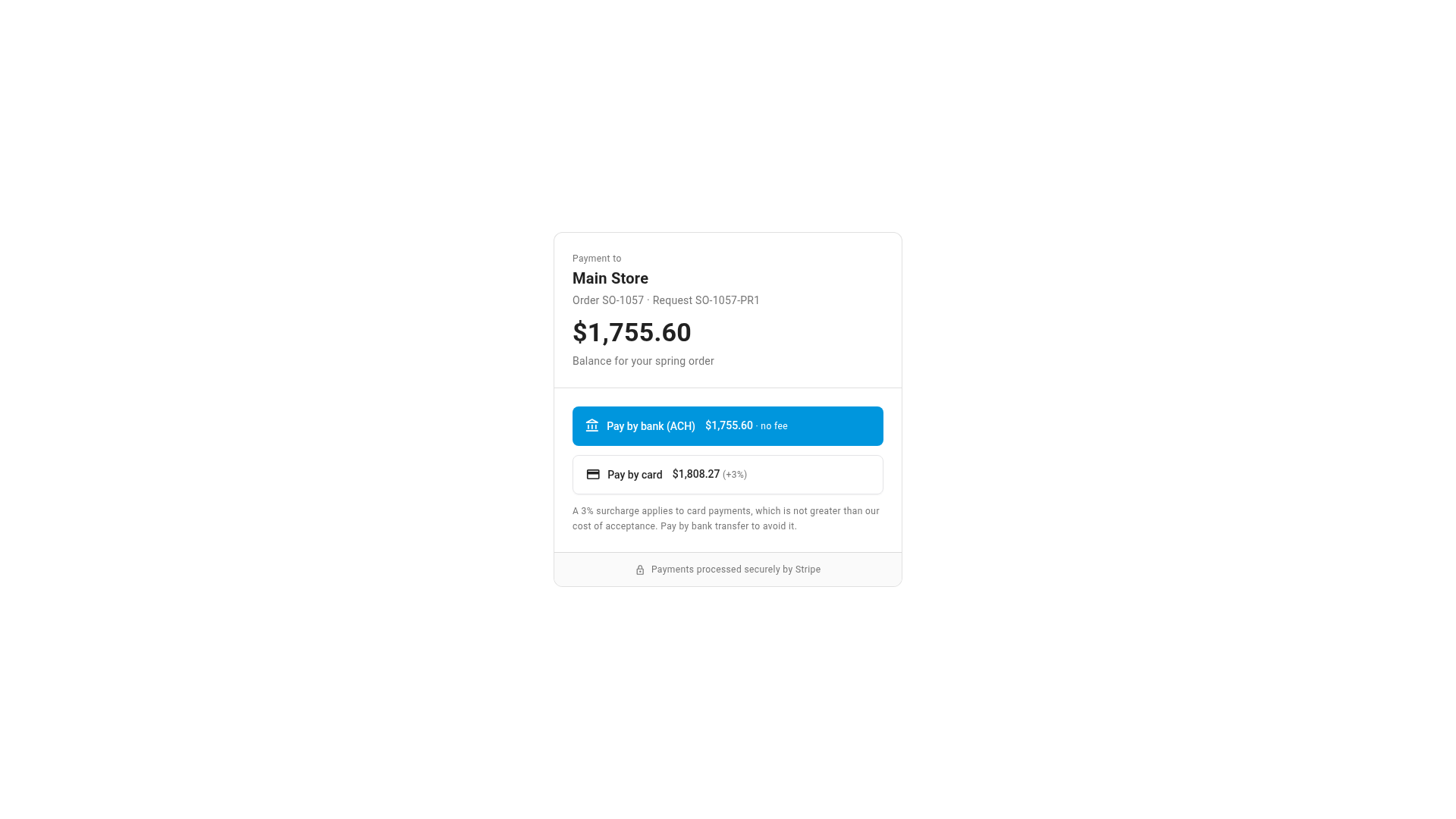
- With a card surcharge on, the page shows Pay by bank (ACH) with no fee first, then Pay by card with the surcharge, and the disclosure below them.
- Without a surcharge, the page shows one Pay button, and the customer picks card or bank transfer on the next page.
Either button opens Stripe's secure checkout, where the customer enters their card or bank details. SKU.io never sees them. When they finish, the page shows Payment complete. If they go back without paying, it says nothing was charged and they can try again.
A link that's expired shows This link has expired, and asks the customer to contact you for a new one. A voided link shows This link is no longer active.
When the customer pays
- Card: the payment is recorded on the order's Payments tab as a Stripe payment, and the link shows Paid, with the date and Stripe's reference. The order's payment status updates, and the payment request is marked paid.
- Bank transfer: the link shows Processing with Bank debit started — usually settles in 4 business days. The payment is recorded when the money arrives. If the bank payment fails, the link goes back to Pending so the customer can try again.
- Card surcharge: what the customer paid includes the fee, shown under the amount as incl. … card fee. The fee is added to the order as a Card Surcharge line, so the order and the payment match.
A link never collects more than the order owes. If part of the order is paid another way first, create a new link for what's left.
Void a link
To stop a link before it's paid, click Void on its row, then Void link. The customer's link stops working straight away. If a bank payment had already started, it can still settle, and it's recorded if it does. You can't void a paid link: refund the payment instead.
Request a deposit on a quote
On a quote with a deposit, the Deposit card has Request Deposit Link. It opens the same dialog, for the deposit amount. When the customer pays, the deposit is recorded on the quote and carried to the sales order when the quote is ordered. The quote must be sent first, and deposit links are Stripe only.
Next steps
- Offer bank payments and a card surcharge
- Save a customer's card and charge it
- Send a payment request
- Post Stripe payouts to your ledger
Video transcript
A payment link lets your customer pay a sales order online, by card or from their bank. Open the order, and then its Payments tab. This order still owes its full balance. Click Add Payment, and choose Create Payment Link. The amount starts at the balance due, and the link raises a payment request for it. Under Customer can pay by, tick each way your customer is allowed to pay. Card payments carry your surcharge, and bank transfers have no fee. Pick how long the link stays payable, and if you like, add a short note that your customer sees when they pay. Customer sees shows both prices before you send anything. The bank price is the balance, and the card price adds the surcharge. Click Create Link, and the link is created and copied for you. Paste it into an email or a message to your customer. It also appears under Payment Links, marked Pending. Its buttons copy it again, open the customer's page, or show a code to scan. This is the page your customer opens from the link. They choose to pay by bank with no fee, or by card with the surcharge. Either button takes them on to Stripe's secure checkout page, where they enter their card or bank details. When the customer pays, the payment lands on the order's Payments tab, and the link shows Paid. A bank payment takes a few business days to settle before it's recorded. To stop a link before it's paid, click Void on its row.