Track Stripe invoices and webhook events
Every Stripe invoice you send from SKU.io is listed on its Stripe account, with what has been paid and refunded since. Open an invoice to see its whole history. When you need to know why an order's payment looks wrong, the Webhook Events tab shows every update Stripe sent and whether SKU.io applied it.
Before you begin
- You need a connected Stripe account.
- To void an invoice or replay a webhook event, your role needs Integrations → Manage. To refund, it needs Sales Orders → Refund. See Roles and permissions reference.
Open the Invoices tab
- Go to Apps & Integrations → All Integrations, type Stripe in the search box, and choose Stripe under Payment Processors.
- In the panel on the right, select the Stripe account. It opens on its Account tab.
- Click the Invoices tab.
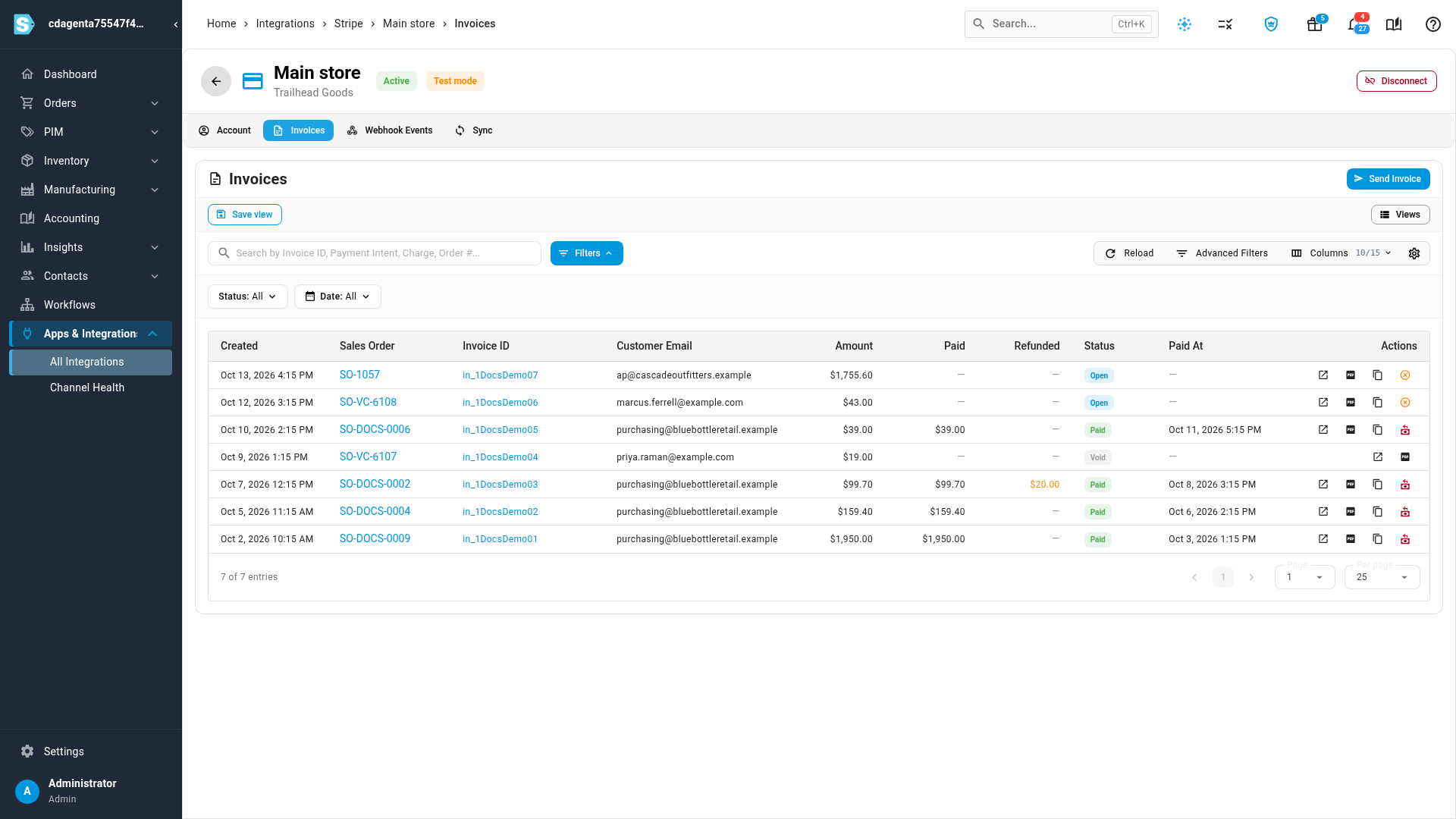
Each row is one invoice:
| Column | What it shows |
|---|---|
| Created | When the invoice was created in SKU.io |
| Sales Order | The order the invoice bills. Click it to open the order |
| Invoice ID | Stripe's number for the invoice. Click it to open the invoice |
| Customer Email | Where Stripe emailed the invoice |
| Amount | The invoice total |
| Paid | What the customer has paid |
| Refunded | What has been refunded, from SKU.io or from your Stripe Dashboard |
| Status | Where the invoice is. See the next table |
| Paid At | When the customer paid |
Currency, Finalized, Voided, Last Refunded and Updated are hidden at first. Add them with Columns.
| Status | What it means |
|---|---|
| Draft | Stripe hasn't finalized the invoice yet |
| Open | Sent, and waiting for the customer to pay |
| Paid | The customer paid. The payment is on the sales order's Payments tab |
| Void | Cancelled. The customer can't pay it any more |
| Uncollectible | Marked as uncollectible in your Stripe Dashboard |
To narrow the list, use the Status and Date filters, or search by Invoice ID, Customer ID, Customer Email, Payment Intent ID, Charge ID or Sales Order #. Columns shows or hides columns, and Save view keeps a set of filters and columns for next time.
Share, void or refund an invoice
The buttons at the end of each row act on that invoice. Hold the pointer over a button to see its name.
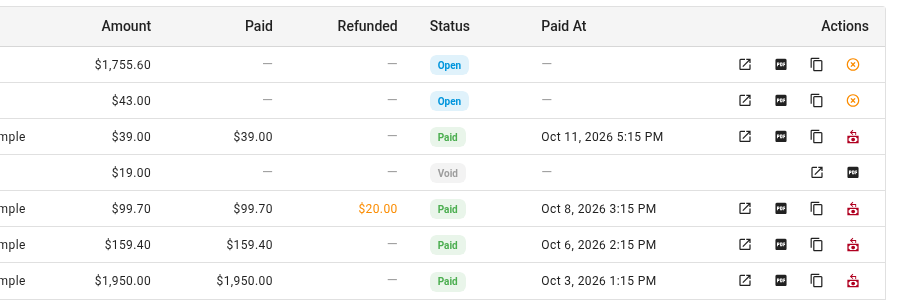
| Button | What it does |
|---|---|
| Open hosted invoice | Opens the invoice page your customer pays on |
| Download PDF | Opens the invoice as a PDF |
| Copy hosted invoice URL | Copies the link to the invoice page, so you can send it yourself. Shown on open and paid invoices |
| Void invoice | Cancels a draft or open invoice on Stripe. The customer's link stops working. You can't undo it. To collect after voiding, send a new invoice |
| Refund | Shown on a paid invoice that still has money to refund. Sends all or part of the payment back through Stripe |
To void an invoice:
- Click Void invoice on its row.
- In the Void invoice dialog, click Void invoice.
The invoice's status changes to Void.
To refund a paid invoice:
- Click Refund on its row.
- In Refund Invoice, check Amount Paid, Already refunded and Refundable now.
- Enter a Refund Amount, or leave it blank to refund everything still refundable.
- Optionally, choose a Reason: Requested by customer, Duplicate charge or Fraudulent.
- Click Process Refund.
Stripe sends the money back to your customer. SKU.io records the refund on the sales order, and the order's payment status changes to Partially Refunded or Refunded. You can also refund from the sales order's Payments tab. See Collect payment through Stripe.
Open an invoice
Click an invoice's Invoice ID to open it. The header shows its status, a link to its sales order, and Hosted Page and PDF buttons.
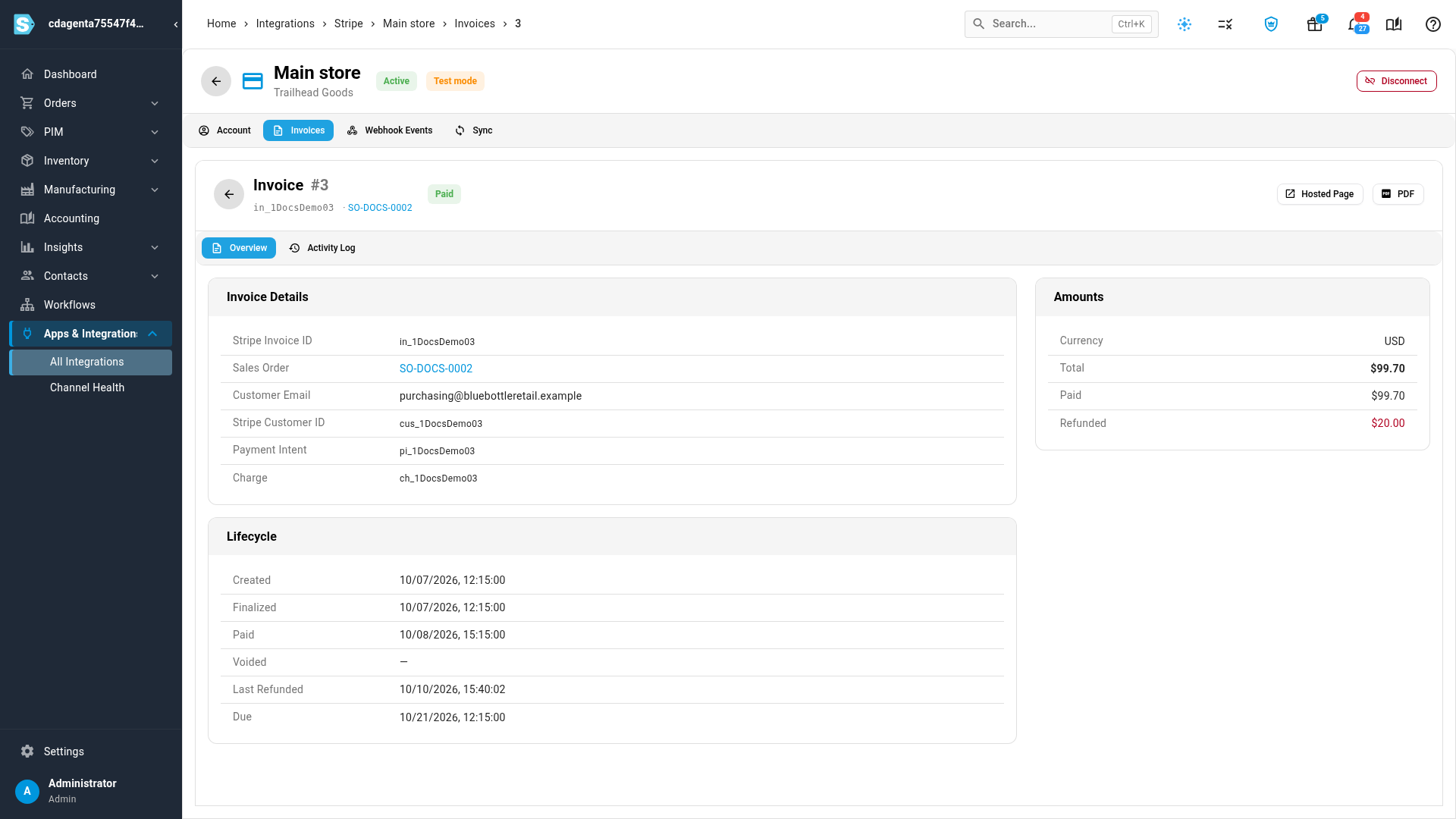
The Overview tab has three cards:
- Invoice Details: the Stripe Invoice ID, the Sales Order, the Customer Email, and Stripe's Stripe Customer ID, Payment Intent and Charge for the payment. Give these to Stripe support if you ask about a payment.
- Lifecycle: when the invoice was Created, Finalized, Paid, Voided and Last Refunded, and when it's Due.
- Amounts: the Currency, Total, Paid and Refunded.
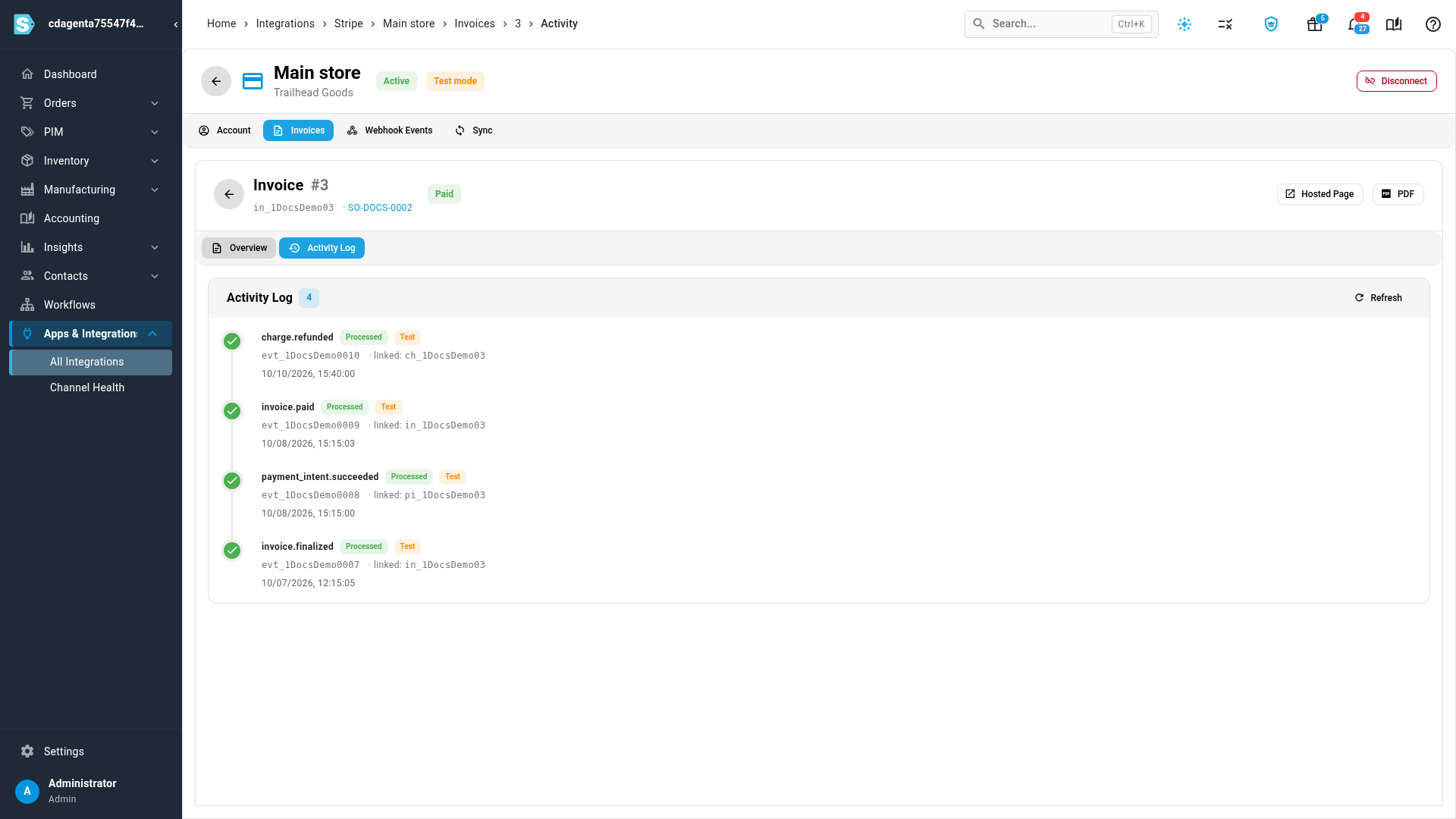
Click Activity Log to see each update Stripe sent about this invoice, newest first, with its status. For example: sent (invoice.finalized), paid (payment_intent.succeeded and invoice.paid) and refunded (charge.refunded).
Check webhook events
Stripe tells SKU.io about each change to your invoices as it happens: an invoice sent, paid, voided or refunded, or a payment disputed. The Webhook Events tab lists every one of these updates for the account.
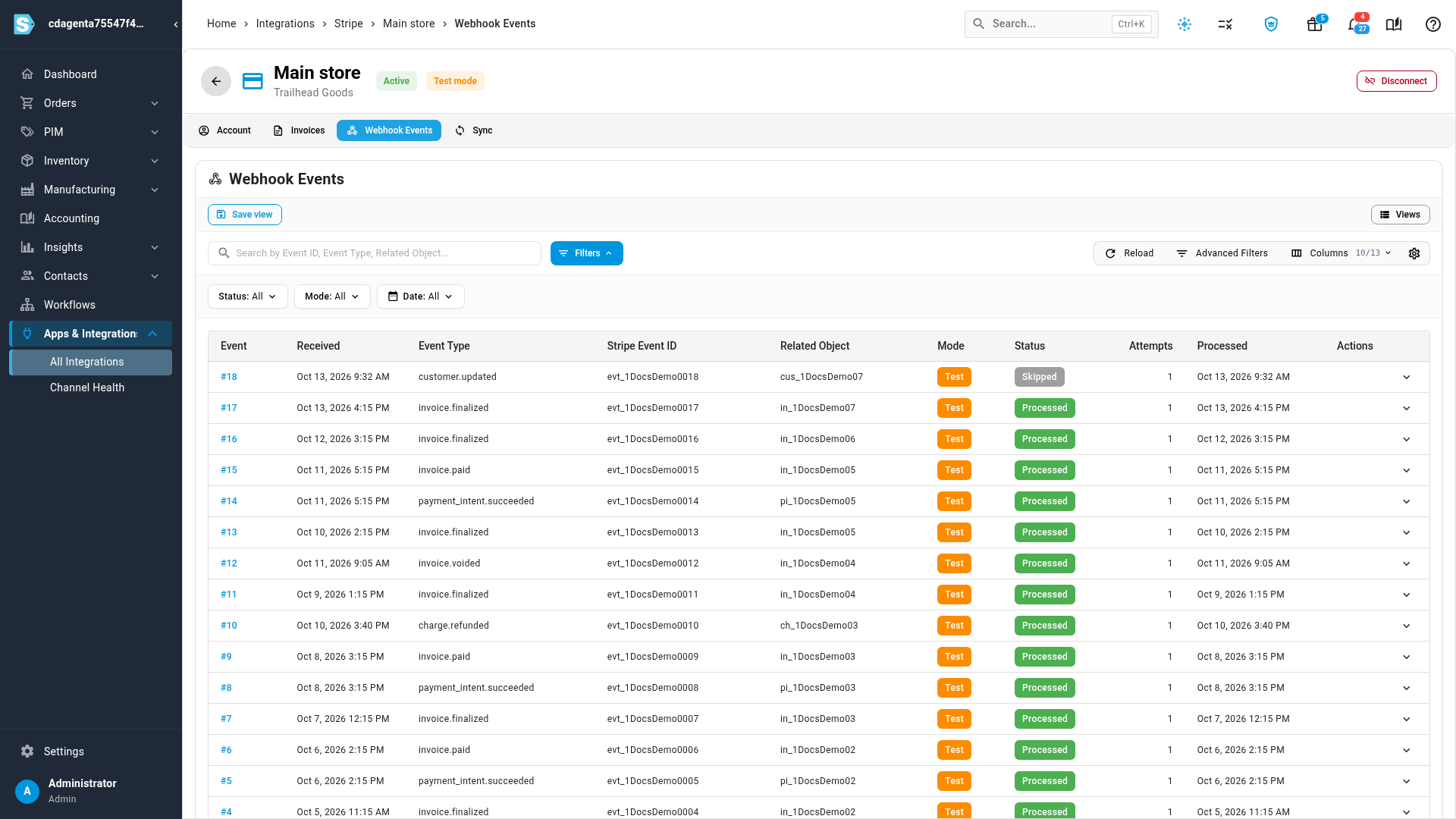
| Status | What it means |
|---|---|
| Received | Stripe sent it and SKU.io hasn't applied it yet |
| Processing | SKU.io is applying it now |
| Processed | SKU.io applied it to the invoice and its sales order |
| Skipped | SKU.io doesn't act on that kind of update, so it kept it without changing anything |
| Failed | SKU.io couldn't apply it. Click its number in the Event column to see the error |
- Filter by Status, Mode (Live or Test) and Date, or search by event ID, event type or related object.
- Click an event's number in the Event column to expand it and see the error, if there is one, and the update exactly as Stripe sent it.
- On a Failed, Received or Processing event, click Replay event to try it again. You see Webhook replay queued.
- Attempts counts how many times SKU.io has tried to apply the event.
- Account, Created and Updated are hidden at first. Add them with Columns.
Every day SKU.io also checks open invoices against Stripe, so a missed update is usually caught within a day. See Keep the daily check on.
Send an invoice
To bill another order from this account, click Send Invoice on the Invoices tab. Choose the Sales Order, and optionally set an Amount Override or a Customer Email Override. Then click Send Invoice. Send Invoice is greyed out until the account can take charges. Hold the pointer over it to see why.
You can also send an invoice straight from the sales order. See Collect payment through Stripe.
Next steps
- Collect payment through Stripe: send, void and refund Stripe invoices from a sales order.
- Connect Stripe: add another Stripe account, or check, pause or disconnect one.
- Stripe: what Stripe does in SKU.io.
Video transcript
To follow the Stripe invoices you've sent, open Apps and Integrations from the menu on the left. Type Stripe into the search box at the top of the list, then choose it under Payment Processors. The panel lists your accounts, so select the one you want. Then open its Invoices tab, the second tab along the top. Each row is one invoice, with its sales order and customer email. Amount is the invoice total, and Paid and Refunded show what's happened since. Status shows whether the customer has paid yet. A voided invoice reads Void, and can't be paid any more. To narrow the list, filter by Status or by Date. Or type in the search box, to find an order number or a customer email. The buttons at the end of each row act on that invoice. On an unpaid invoice, you can copy the link to the customer's invoice page, to send it yourself. Void invoice cancels it, so the customer can't pay that invoice any more. On a paid invoice, Refund returns some or all of the payment, using Stripe. To see one invoice in full, click its invoice ID. Overview shows the sales order, the customer, and Stripe's payment details. Lifecycle dates when it was finalized, paid, voided or refunded. Amounts shows the total, and what was paid and refunded. Next, open the second tab, which lists this invoice's activity. It shows each update about this invoice, newest first. Here it was sent, paid, and then partly refunded. For every update on this account, open the Webhook Events tab. Processed means SKU.io applied the update to the invoice and its order. Skipped means there was nothing to change. If an update ever fails, a button on its row tries it again. To bill another order from this account, open the Invoices tab and click Send Invoice. You can also send one straight from the sales order's Payments tab.