Buy shipping labels with ShipRush
ShipRush can do more than print labels from its own order feed. Once you add your ShipRush Shipping API token, SKU.io buys labels through ShipRush in label batches, on the carrier accounts and rates you already have in ShipRush. SKU.io rates every order on each of your ShipRush carrier accounts, buys and prints the labels, and records each shipment with its tracking number and the ShipRush charge. At the end of the day, ShipRush makes the USPS SCAN form.
SKU.io builds these calls from ShipRush's published Shipping API documentation. They haven't yet been run against a live ShipRush account, and the screens in this guide were recorded against a stand-in that answers the way that documentation describes. Try a small batch first, and contact support if ShipRush answers with something this guide doesn't describe.
Before you begin
- Connect ShipRush. The same connection runs the order feed and buys labels.
- Get your Shipping API token from ShipRush. In ShipRush, open Settings → User Settings → Developer Tokens. Descartes approves the token, which usually takes one to two business days, and shows it once.
- Your ShipRush carrier accounts are active in ShipRush. SKU.io rates every active carrier account on your ShipRush account. Labels from a ShipRush sandbox account are test labels.
- The orders are open fulfillment orders shipped from your own warehouse, inside the US. See Buy shipping labels in a batch for the full list.
- Your role has the Fulfillment Orders Ship permission (
fulfillment_orders.ship) to buy labels and create SCAN forms.
Add the Shipping API token
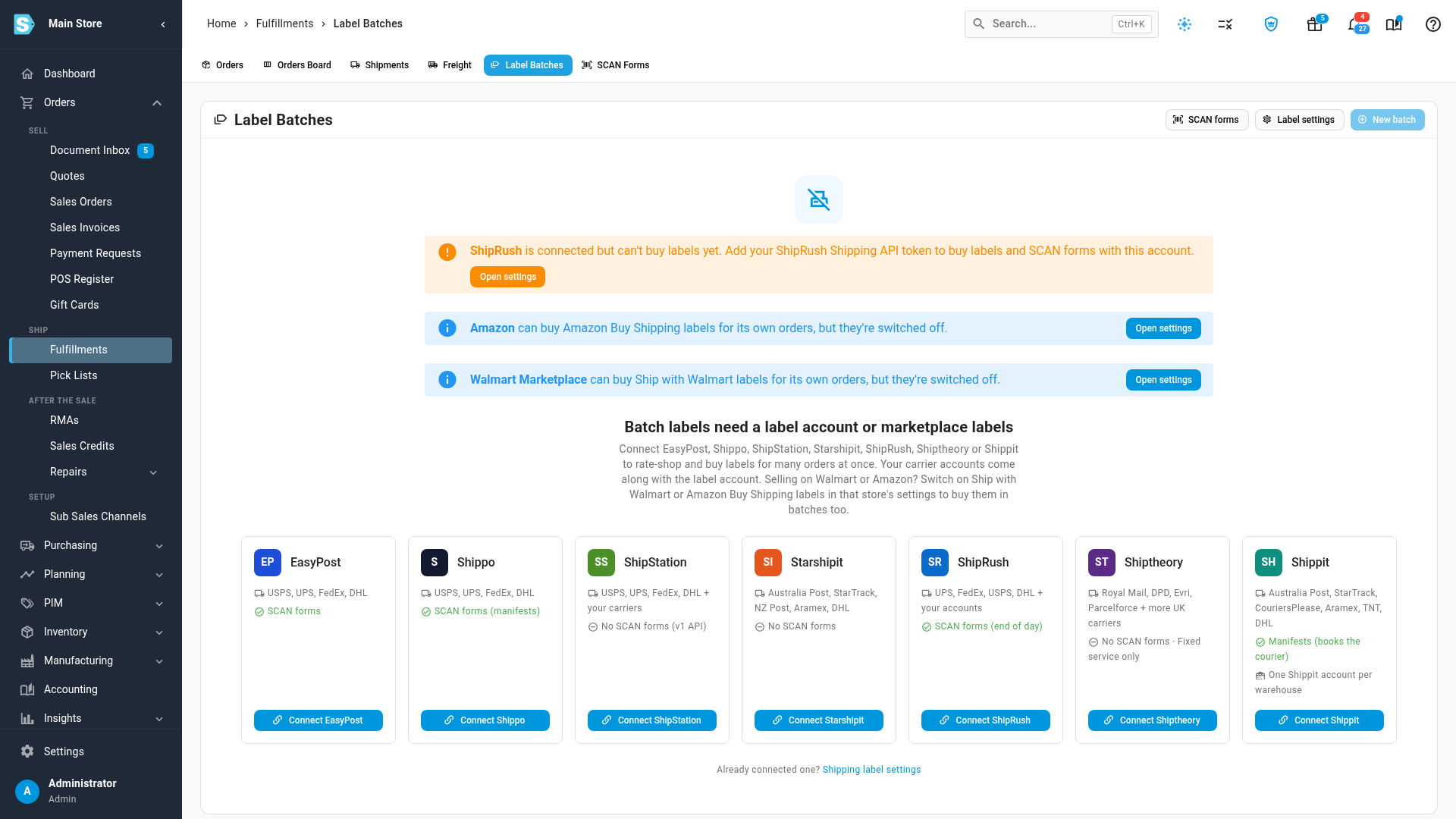
Until ShipRush has a token, Label Batches and Settings → Fulfillment → Shipping Labels both say so: ShipRush is connected but can't buy labels yet. Add your ShipRush Shipping API token to buy labels and SCAN forms with this account.
-
Go to Orders → Fulfillments, and click the Label Batches tab.
-
On the warning, click Open settings. The ShipRush Connection settings open with the cursor in Shipping API token (optional).
-
Paste your token, and click Save Changes.
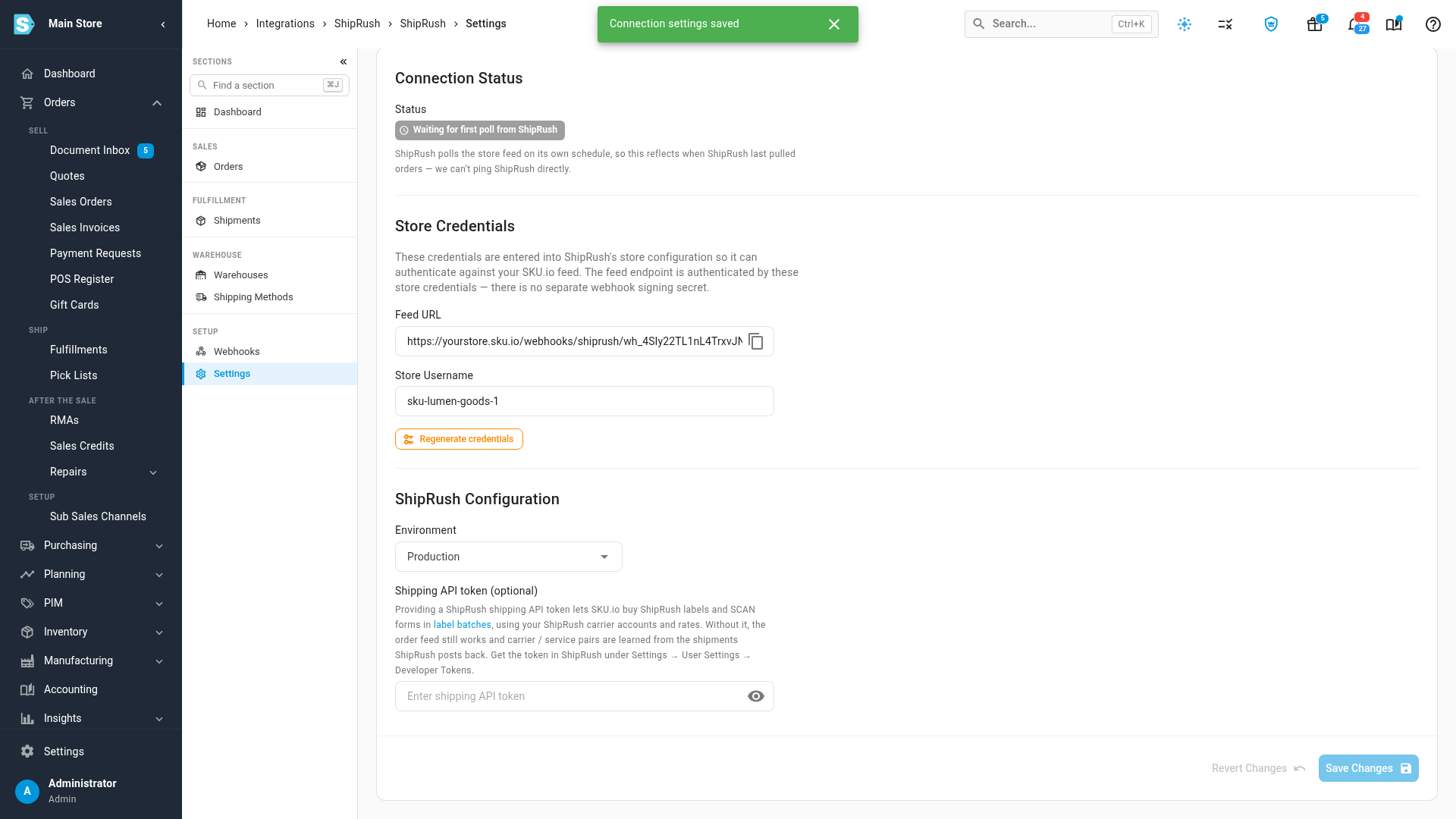
The warning goes away, and ShipRush is now a label account. Without a token, the order feed still works as before.
Buy the labels
-
On Label Batches, click New batch.
-
In Warehouse, choose the warehouse the orders ship from, and narrow the orders with the other filters if you need to.
-
Leave Get rates right after creating switched on, and click Create batch & get rates.
-
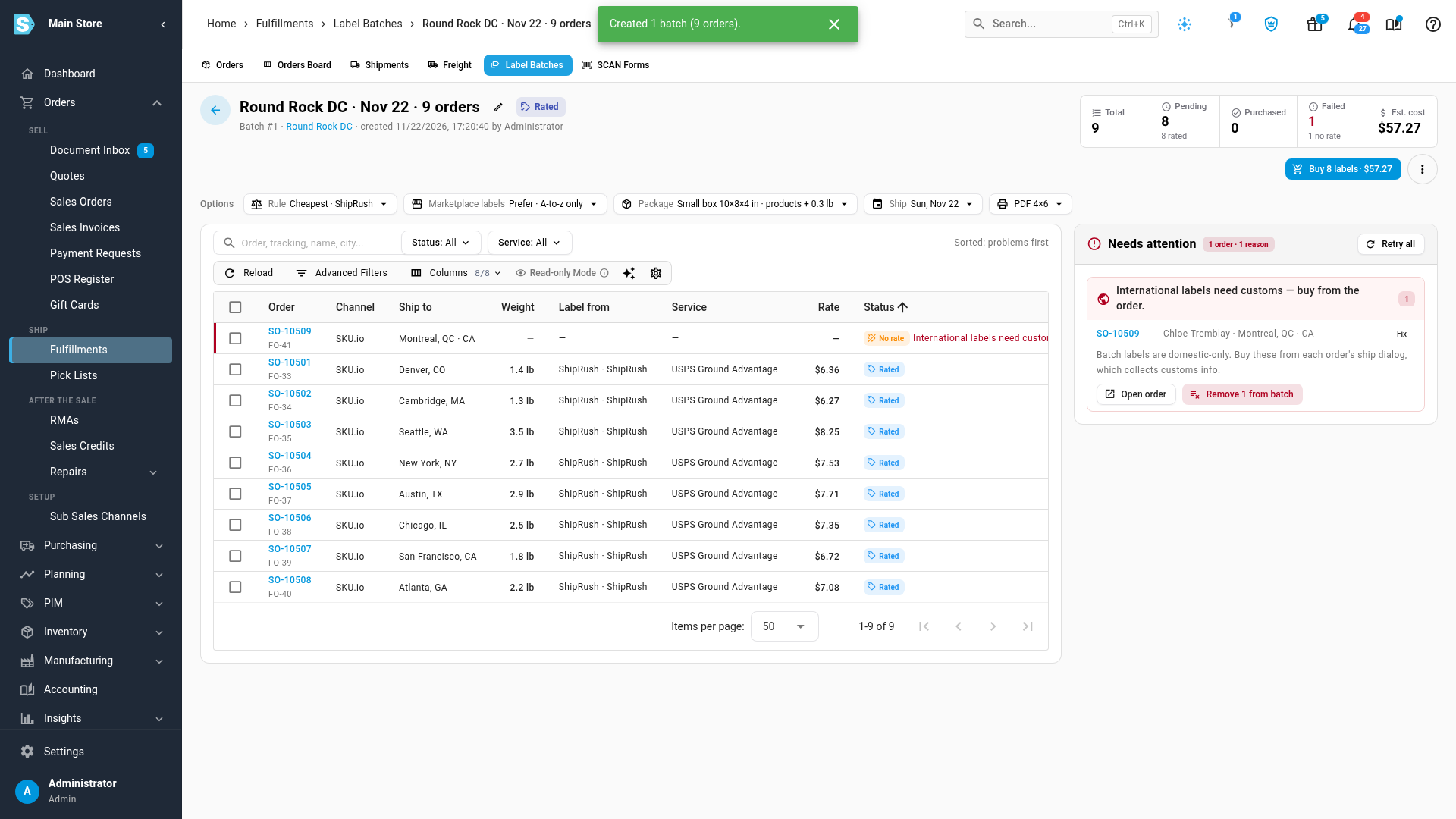
Review the rates. SKU.io asks ShipRush for rates on each of your carrier accounts and keeps the one your batch rule picks. A rate shows the ShipRush total, markup included.
-
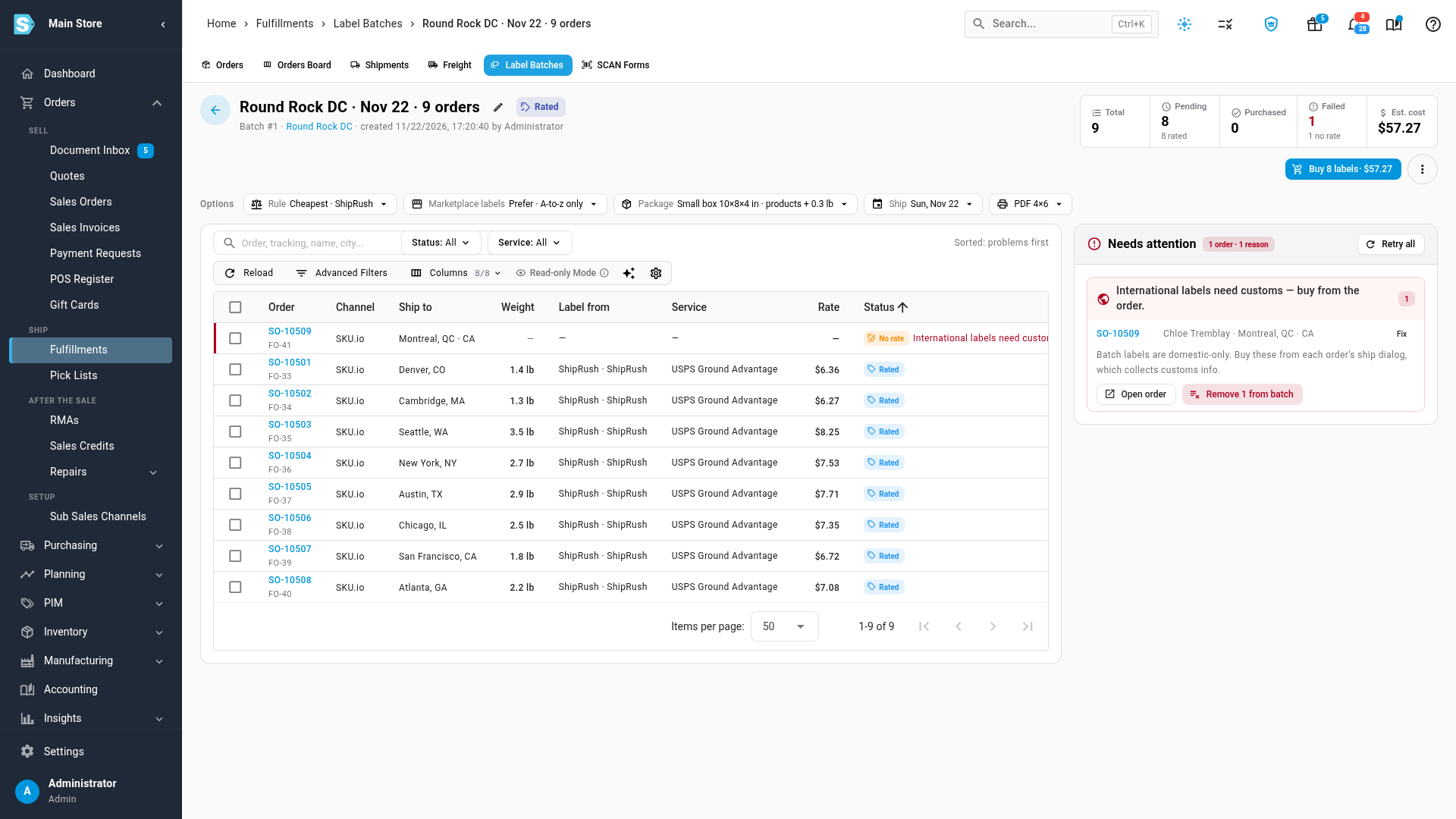
Fix the orders under Needs attention. An order to another country needs customs details, so click Remove and buy its label from the order.
-
Click Buy labels, then Buy labels again in the confirmation.
-
When the batch shows Completed, click Print labels.
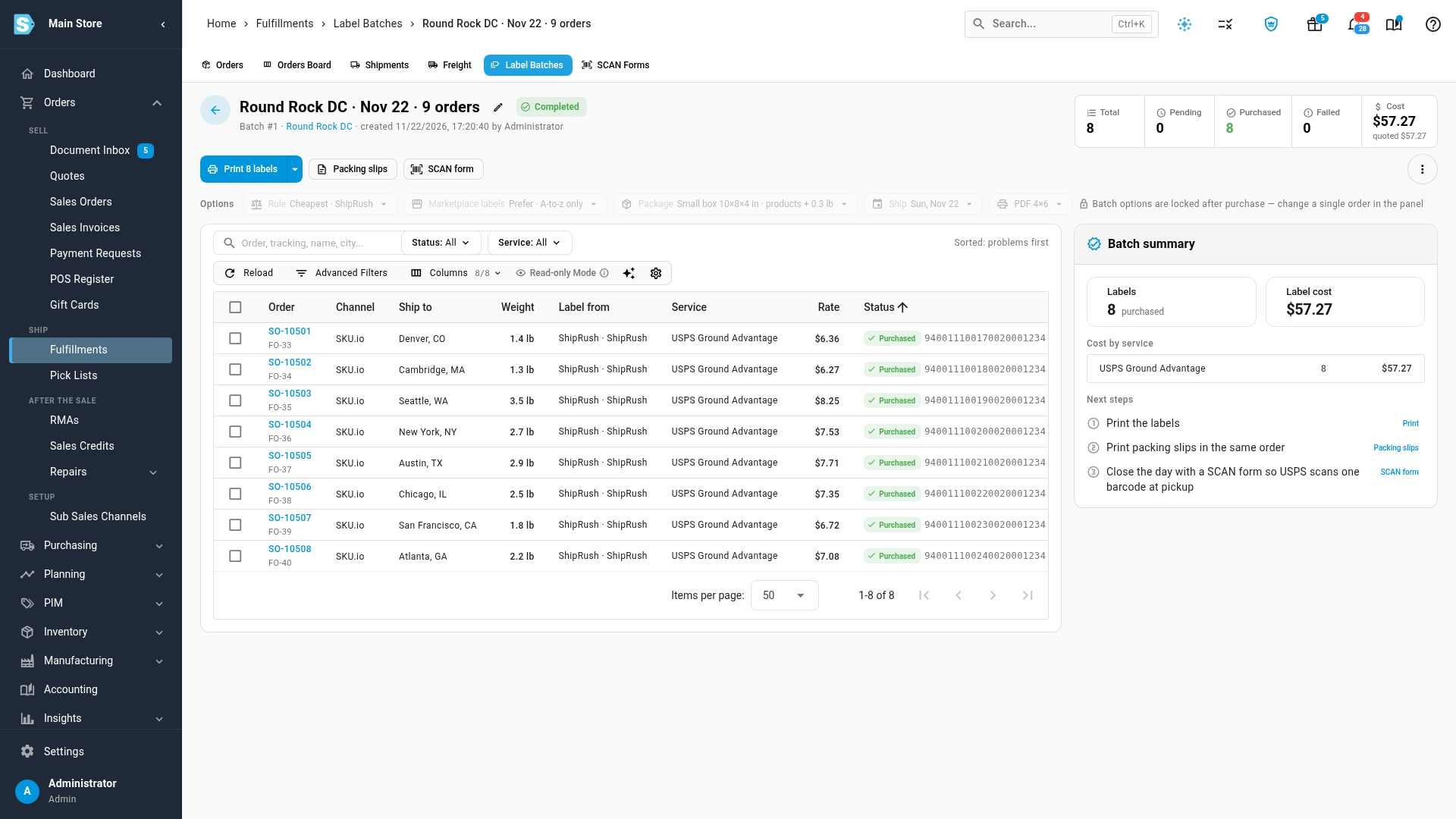
Each label becomes a ShipRush shipment. SKU.io records the shipment on the order with its tracking number and the ShipRush charge as the label cost, moves the stock out of the warehouse, and sends the tracking to the sales channel. The batch options, the fixes under Needs attention and printing work the same as for any label account. See Buy shipping labels in a batch.
Orders that were also in the ShipRush feed
If an order is also waiting in the ShipRush order feed, buying its label in SKU.io takes it out of the feed: its row on the ShipRush Orders tab shows Shipped, with the note Shipped by a SKU.io label, so nobody prints a second label in ShipRush. If ShipRush prints one anyway, that shipment is flagged Shipped twice: SKU.io label and ShipRush shipment. Void one of the two labels.
Create the SCAN form
ShipRush makes SCAN forms with its End of Day, one for each USPS carrier account.
- Go to Orders → Fulfillments, and click the SCAN Forms tab.
- Under Ready to manifest, find the ShipRush row for your USPS carrier account.
- Click Create, then Create again in the confirmation.
- Click Print on the new form, and give it to the driver at pickup.
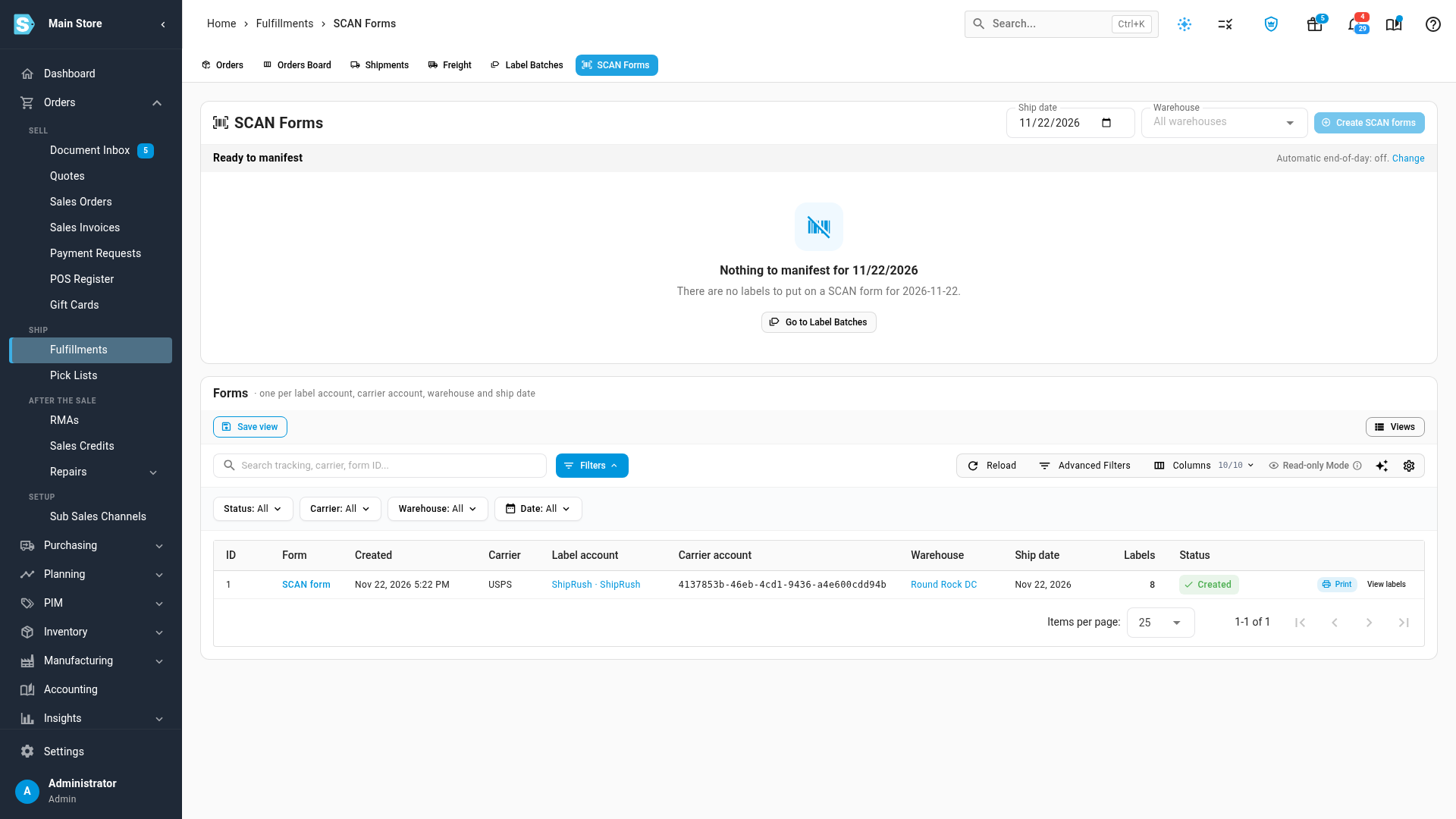
Things to know about ShipRush SCAN forms:
- The whole day closes. ShipRush closes the whole shipping day for each carrier account: its form covers every label made on that account since the last close, including labels made directly in ShipRush. The SCAN Forms page says so before you create it.
- USPS only. Labels on another carrier, such as UPS or FedEx, go with that carrier's own pickup or manifest, and their rows say so.
- Live accounts only. A ShipRush sandbox account can't make SCAN forms.
- Automatic SCAN forms work for ShipRush too. See Create USPS SCAN forms.
Void a label
- In the batch, click the order. The order panel opens.
- Click Void label, and confirm.
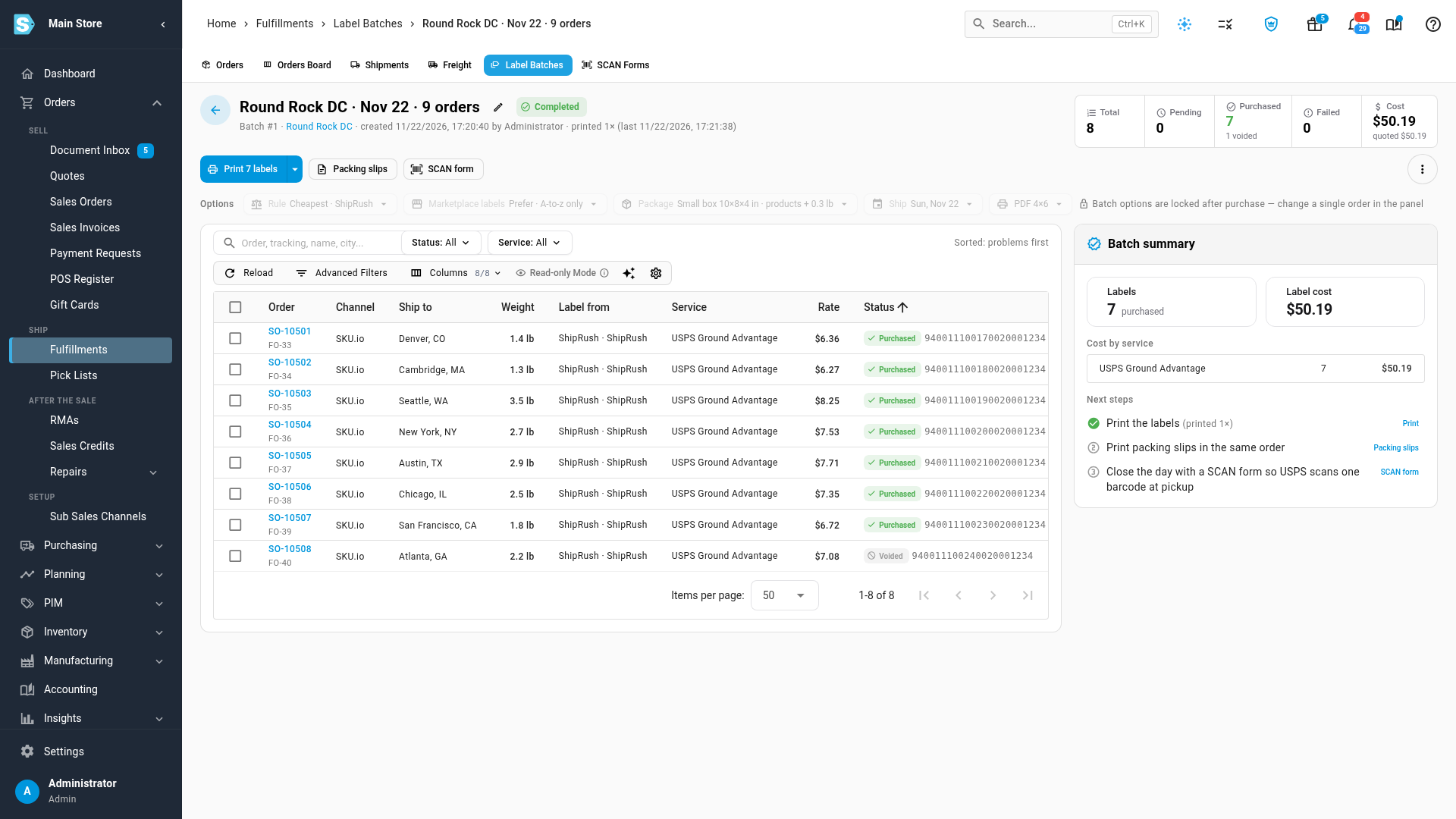
SKU.io cancels the ShipRush shipment, which asks the carrier for the postage refund. The order reopens so it can ship again, and if it came from the ShipRush order feed, it goes back in the feed, ready to ship. A label the carrier has already scanned can't be voided.
Next steps
Video transcript
To buy labels with ShipRush, open Orders, then choose Fulfillments. At the top of the page, click the Label Batches tab. ShipRush is connected, but it can't buy labels until it has a Shipping API token. On the warning, click Open settings, at the right. The ShipRush connection opens, with the cursor in the token field. Paste the Shipping API token you got from ShipRush, then click Save Changes. Now open Orders, then Fulfillments again, and click the Label Batches tab. The warning is gone, so ShipRush can buy labels. Click New batch to open the form. In Warehouse, type a few letters, and pick the warehouse that ships the orders. The green badge shows how many open orders match. Leave Get rates right after creating switched on, then click Create batch and get rates. SKU.io asks ShipRush for rates on each of your carrier accounts. Each order keeps the rate your batch rule picks, with ShipRush's total, markup included. An order to another country needs customs details, so it's grouped under Needs attention. For an international order, click Remove from batch, and confirm the removal. The order stays open, so you can buy its label from the order, with customs details. When the rates look right, click Buy labels at the top right of the batch. The confirmation shows the label count and the total cost, so check them, and click Buy labels again. ShipRush buys each label in the background, one order at a time, while the batch shows its progress. When it finishes, every order has its tracking number. Each label is a ShipRush shipment, with the ShipRush charge as its label cost. To print them all, click Print labels at the top of the batch. SKU.io merges every label into one file, and opens it in a new tab. At the end of the day, open the SCAN Forms tab. ShipRush makes one form for each USPS carrier account, with its end of day. The page warns that this closes the account's whole day, including labels made in ShipRush. Click Create on the USPS row, then click Create again to confirm the form. The form appears under Forms, with the status Created. Click Print, and hand the form to the driver at pickup. To cancel a label, go back to Label Batches, and open the batch you bought. Click the order, to open its panel on the right. Click Void label, and then confirm the void. SKU.io cancels the ShipRush shipment, which asks the carrier for the postage refund. The order reopens, so it can ship again.