Create USPS SCAN forms
A SCAN form (the end-of-day manifest USPS uses) puts all of the day's labels behind one barcode. The driver scans that one barcode at pickup instead of every package, and every package shows as accepted at once. SKU.io makes the forms from the labels you bought in label batches, either when you click Create or automatically at a set time each day.
Before you begin
- You bought labels in a label batch with a live EasyPost or Shippo account. Only those two label accounts make SCAN forms.
- The labels aren't test labels. Labels bought with a test account (an EasyPost test key, for example) never go on a SCAN form. The SCAN Forms page leaves them out and says how many it left out.
- Your role has the Fulfillment Orders Ship permission (
fulfillment_orders.ship) to create forms. Viewing them only needs View.
How labels are grouped
Each form covers one label account, one carrier account, one warehouse and one ship date. So if you ship from two warehouses, or through two carrier accounts, you get one form for each. A label goes on one form only, and a form can't be changed once it's created.
Steps
-
Go to Orders → Fulfillments, and click the SCAN Forms tab.
-
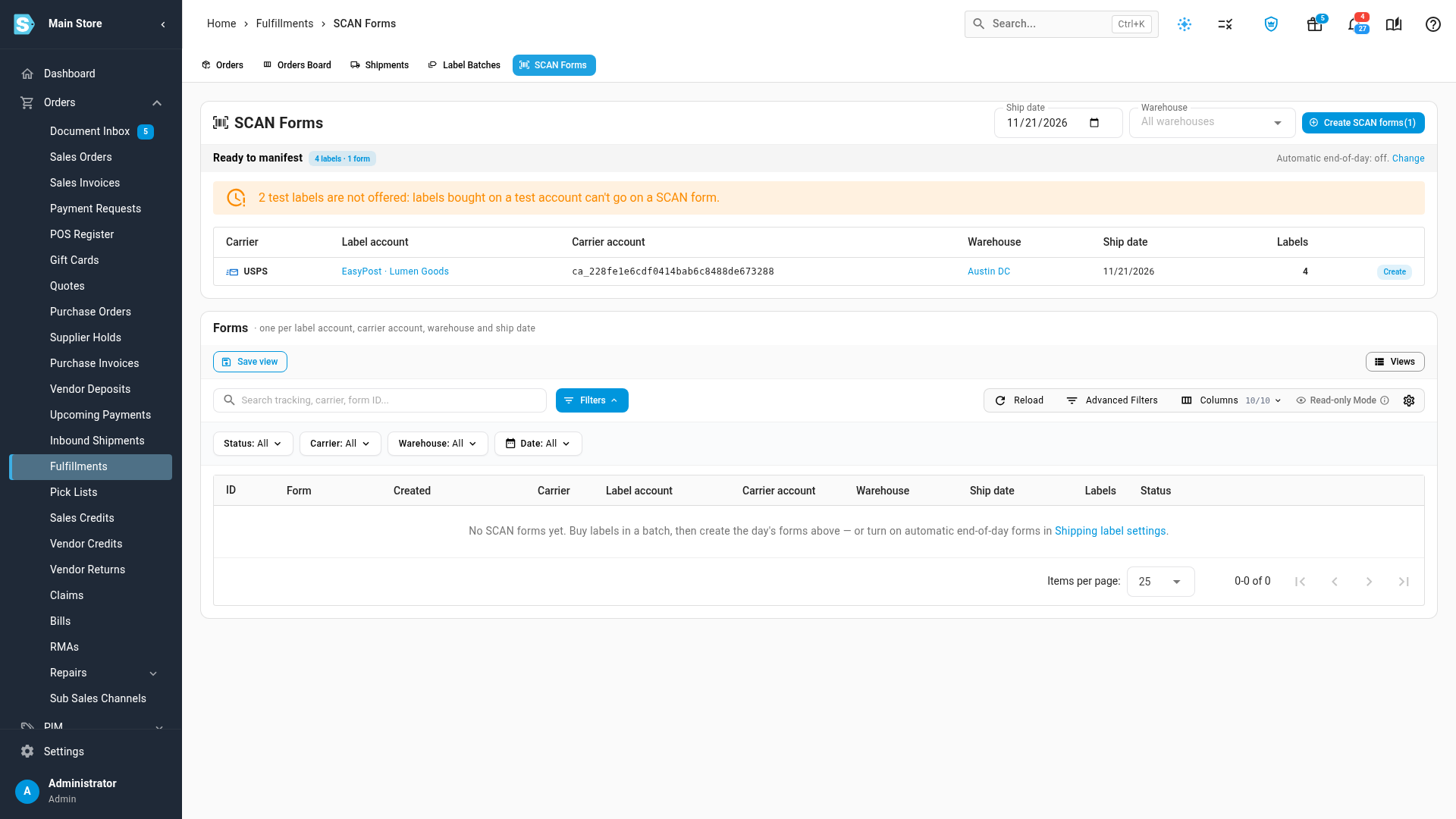
Check Ready to manifest. It lists the labels for the chosen Ship date that aren't on a form yet, one row per form, with the number of labels. To see another day or one warehouse, change Ship date or Warehouse at the top.
-
Click Create on the row. To create every row at once, click Create SCAN forms at the top instead.
-
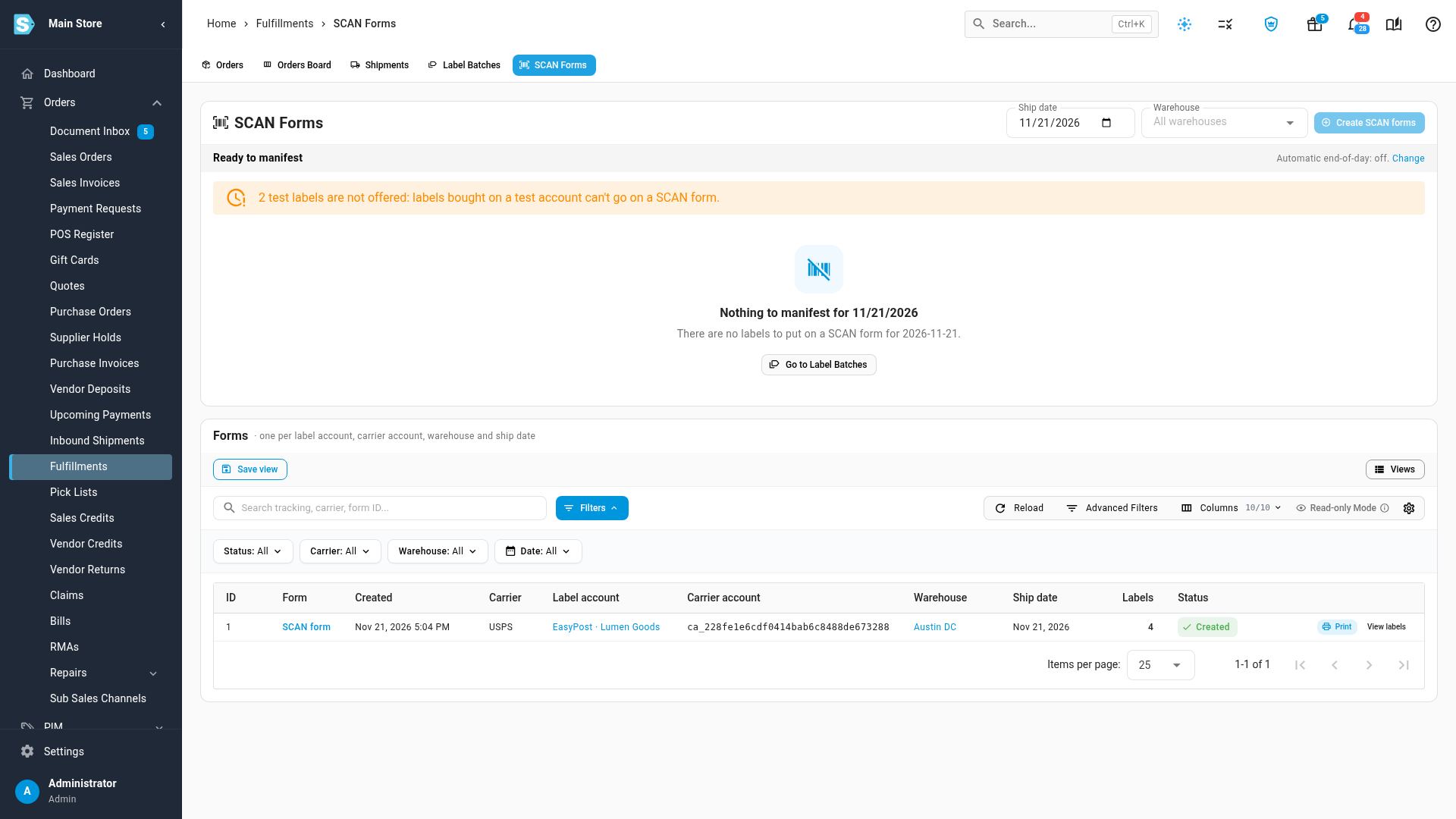
Click Create in the confirmation. SKU.io asks the carrier for the form, and it appears under Forms with the status Created.
-
Click Print and give the form to the driver at pickup.
-
To check which labels are on the form, click View labels. It lists each label's order, batch, service and tracking number.
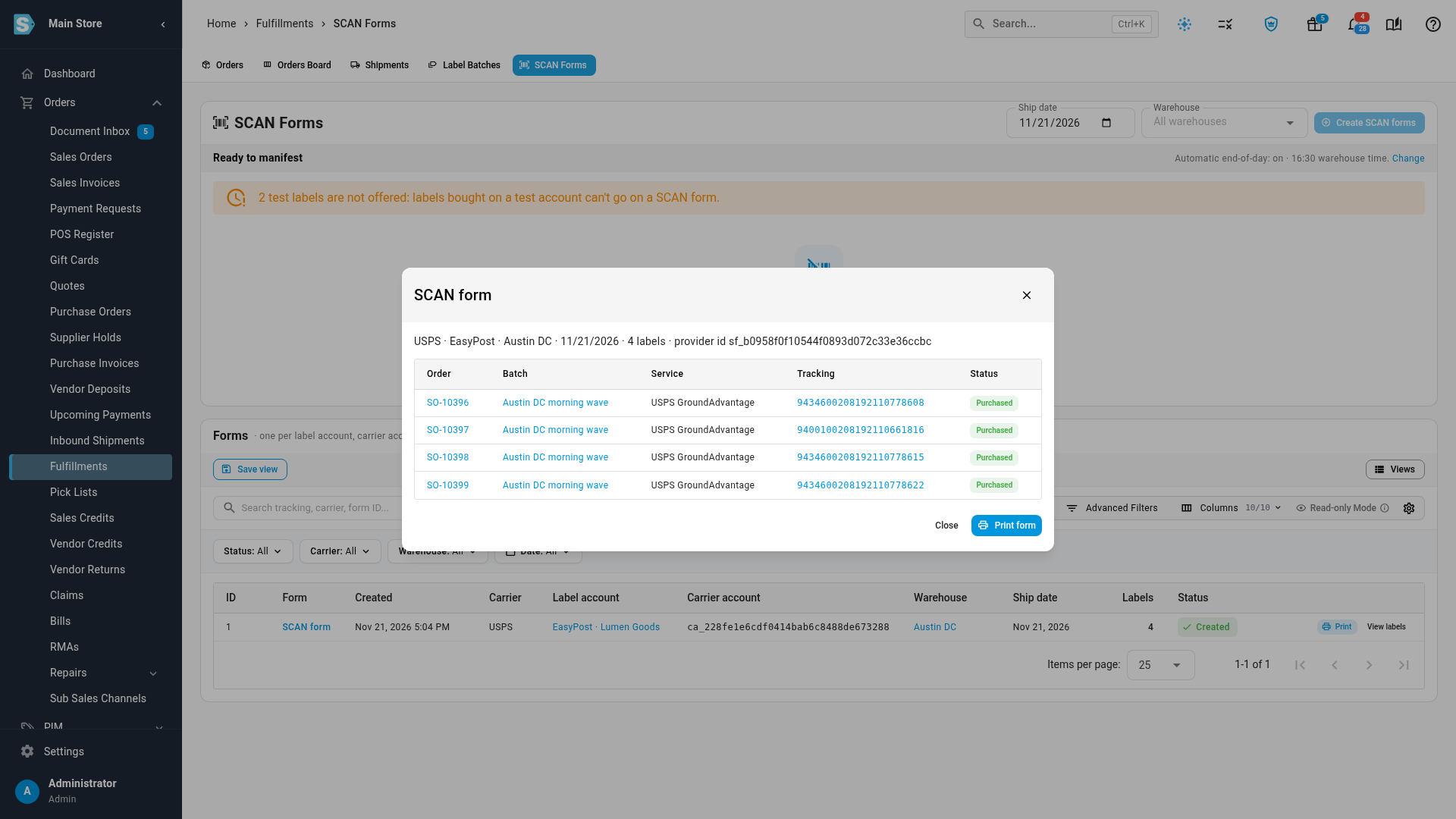
You can also start from a batch: on a batch you've bought, click SCAN form. The SCAN Forms page opens with only that batch's labels.
Create SCAN forms automatically
-
On the SCAN Forms page, click Change next to Automatic end-of-day. Settings → Fulfillment → Shipping Labels opens.
-
Under End-of-day SCAN forms, turn on Create SCAN forms automatically every day.
-
In Time (24-hour), enter the time, for example
16:30. It's the warehouse's local time. -
Click Save Changes.
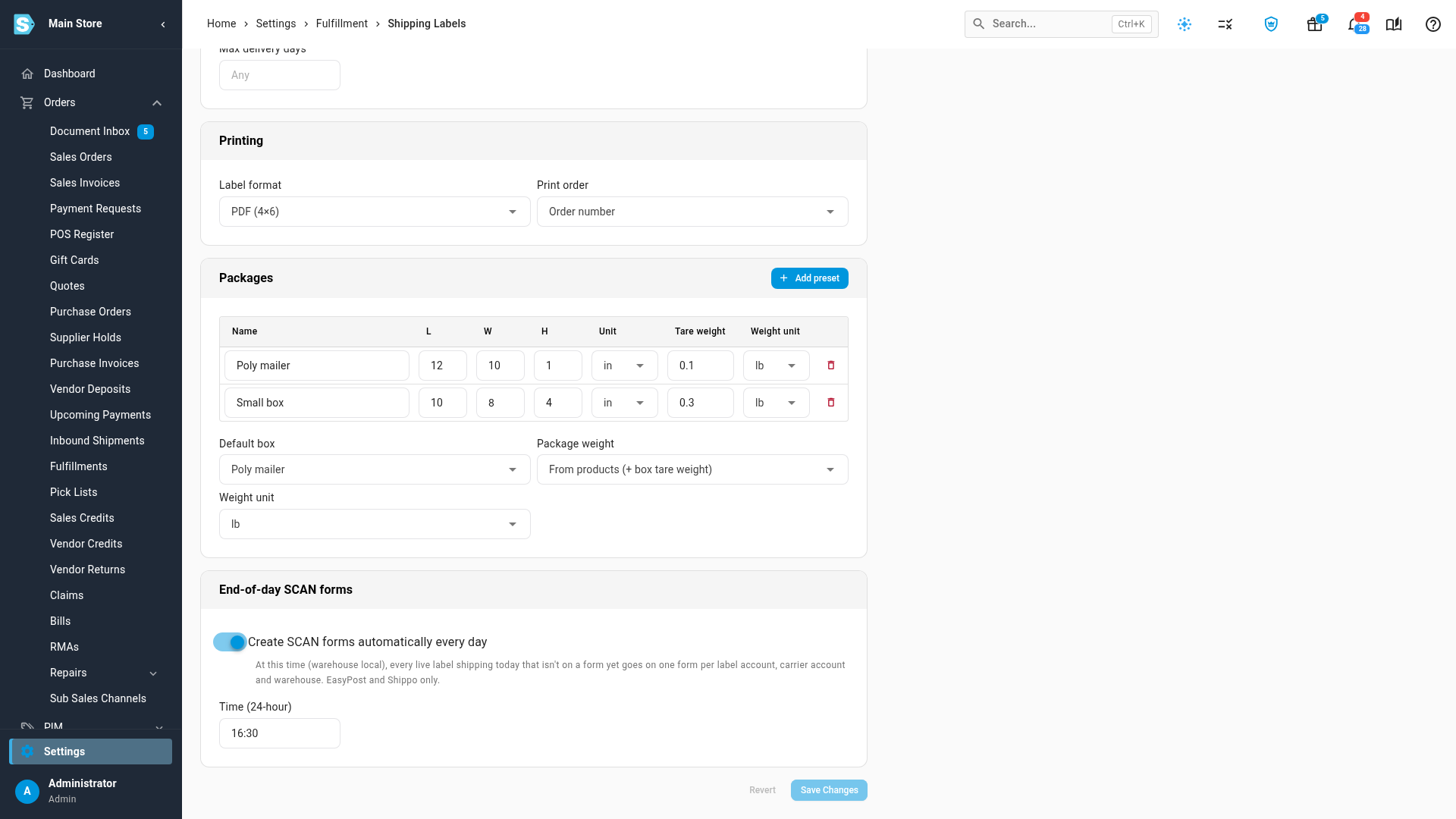
Every day at that time, each live label shipping that day that isn't on a form yet goes on one, grouped as above. Forms made this way are marked Auto in the Forms list. Pick a time after your last labels are bought and before the carrier's pickup. Labels you buy after the automatic run can still go on a form: create it by hand from the SCAN Forms page.
Next steps
Video transcript
A SCAN form lets the carrier scan one barcode at pickup, instead of every package. To create one, open Orders, then choose Fulfillments in the menu. At the top of the page, click the SCAN Forms tab.
Ready to manifest lists today's labels that aren't on a form yet. Each row becomes one form, covering a single label account, carrier account and warehouse for that day. To see a different day, change the ship date at the top of the page. Labels bought with a test account never go on a SCAN form, so the page leaves them out.
Click Create on the row you want to manifest. A form can't be changed once it's created, and each label goes on one form only. Click Create again to confirm the form. SKU.io then asks the carrier for the form, which takes a moment.
The new form appears under Forms, with the status Created. Click Print to get the form, and hand it to the driver at pickup. Click View labels to see every label on the form, with its order and tracking number. When you're done checking, close the list of labels.
To create forms automatically, click Change next to Automatic end-of-day. In settings, turn on Create SCAN forms automatically every day. Then set the time, in the warehouse's local time, and click Save Changes. Every day at that time, each live label that isn't on a form yet goes on a new form. Automatic forms work with EasyPost and Shippo label accounts.