Buy shipping labels in a batch
A label batch buys shipping labels for many orders in one go. You pick the orders that ship from one of your own warehouses, SKU.io gets a rate for each one from your label accounts, you fix the few it couldn't rate, and then you buy and print every label at once. Use it for the day's orders from your own warehouse, instead of buying labels one order at a time.
Before you begin
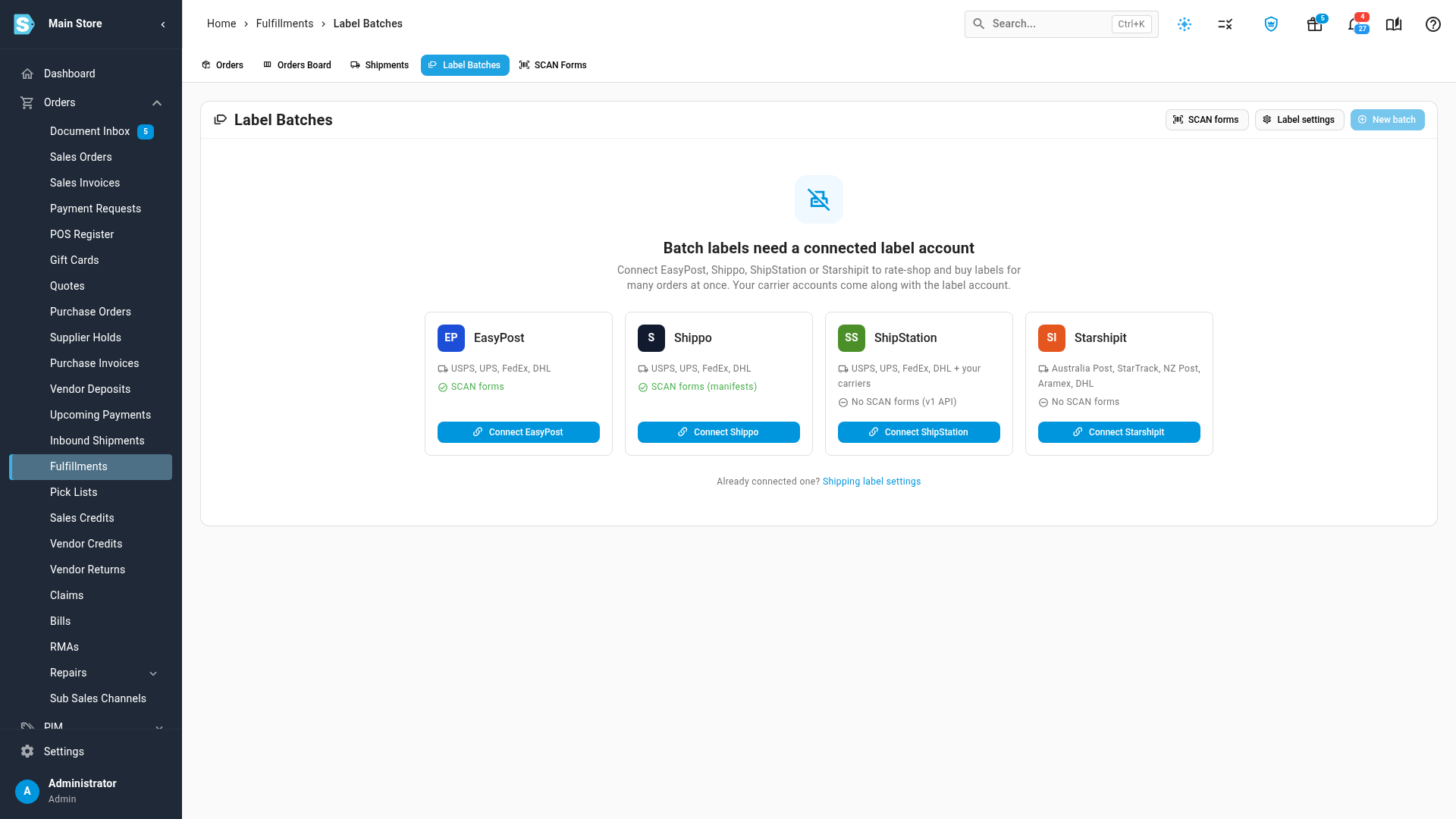
- A label account is connected. Batches buy labels through EasyPost, Shippo, ShipStation or Starshipit. Until one is connected, Label Batches shows a card for each of the four, with its carriers and a Connect button. Only EasyPost and Shippo labels can go on a USPS SCAN form; the cards for ShipStation and Starshipit say No SCAN forms.
- The orders are open fulfillment orders shipped from your own warehouse. Orders your 3PL ships, orders already in a batch, and orders that have shipped are skipped, and SKU.io tells you why for each one.
- Your products have weights. SKU.io adds up the product weights, plus the weight of the box, to rate each order. An order with an unweighed product gets no rate until you add the weight (you can do that from the batch). If you'd rather not use product weights, set the same fixed weight for every order.
- Your role has the Fulfillment Orders Ship permission (
fulfillment_orders.ship). It covers buying labels and creating SCAN forms. See Control who can act on fulfillment orders. - Batches are for domestic orders. An international order needs customs details, so you buy its label from the order instead.
Steps
-
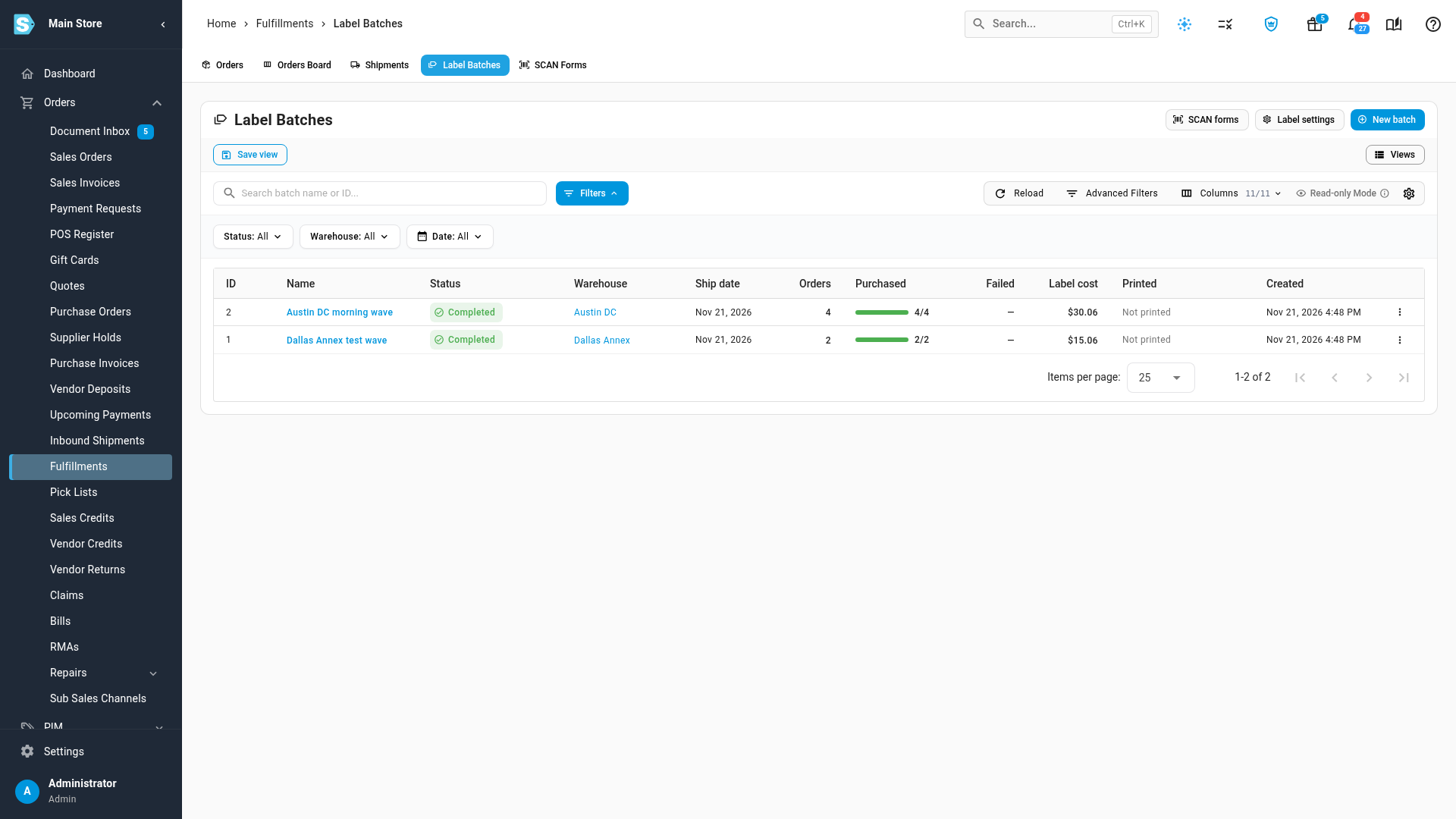
Go to Orders → Fulfillments, and click the Label Batches tab.
-
Click New batch.
-
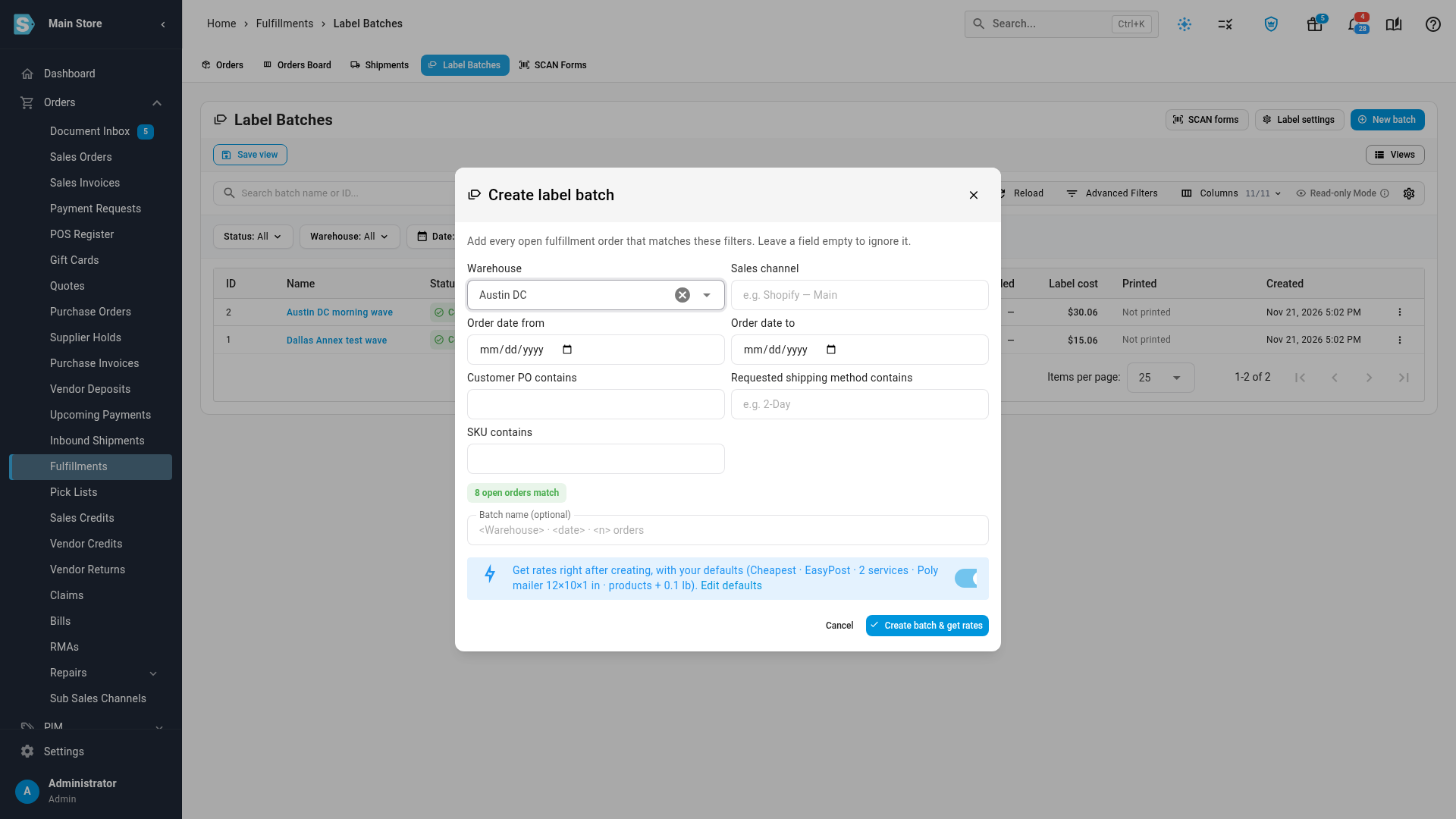
In Warehouse, choose the warehouse the orders ship from. To narrow the orders further, fill in Sales channel, Order date from and Order date to, Customer PO contains, Requested shipping method contains or SKU contains. Leave a field empty to ignore it. The green chip shows how many open orders match.
-
Leave Get rates right after creating switched on, and click Create batch & get rates. The batch opens and SKU.io gets a rate for every order in the background. You can follow it in the job tray.
-
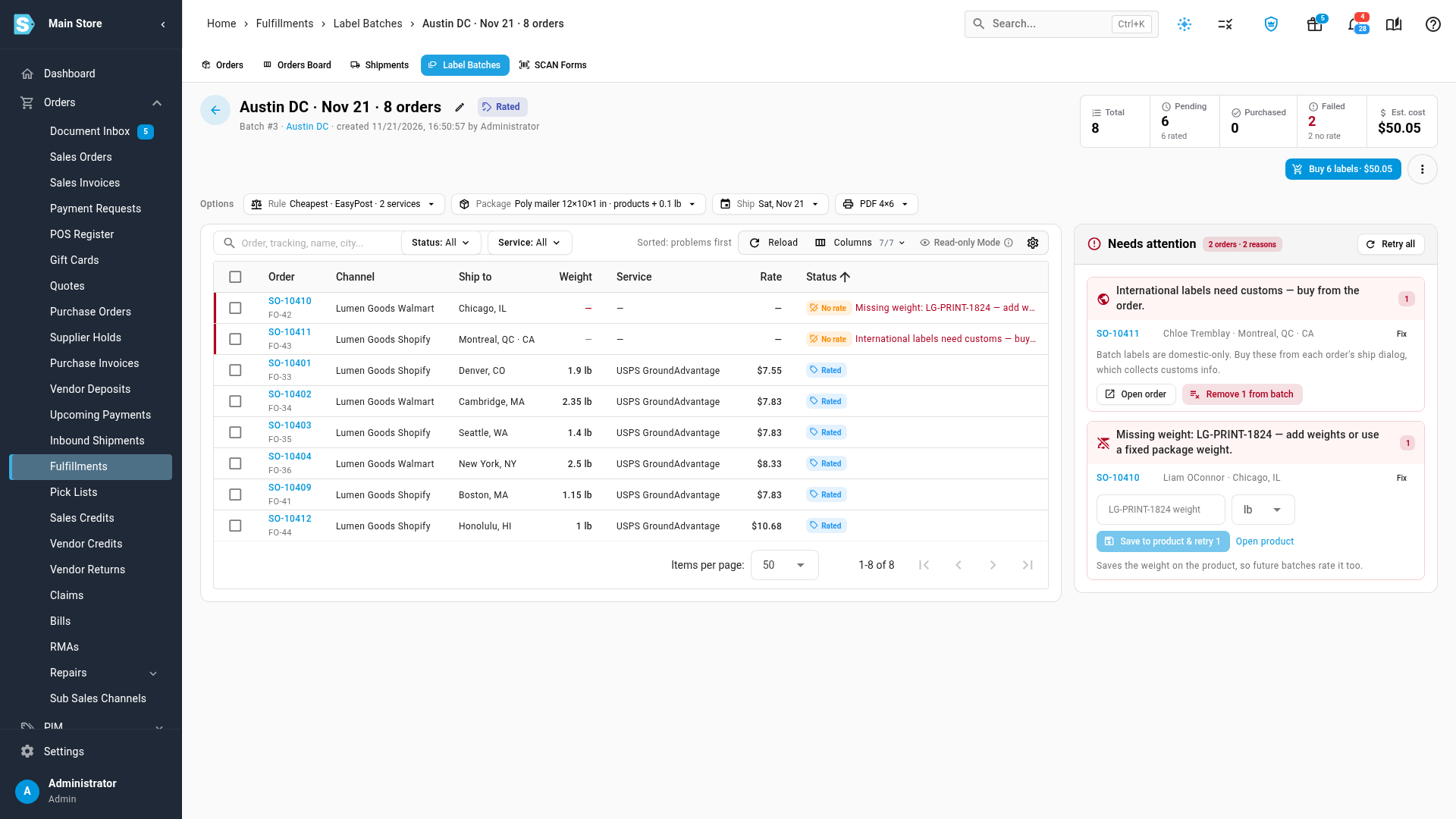
Review the rates. The counters at the top show how many orders are rated, how many failed, and the estimated cost. Orders that couldn't be rated are grouped under Needs attention, one group for each reason, with the fix for that reason.
-
Fix each group under Needs attention. For a missing product weight, enter the weight and click Save to product & retry. For an international order, click Remove 1 from batch and confirm. The order leaves the batch and stays open. The other fixes are listed in Fix the orders under Needs attention.
-
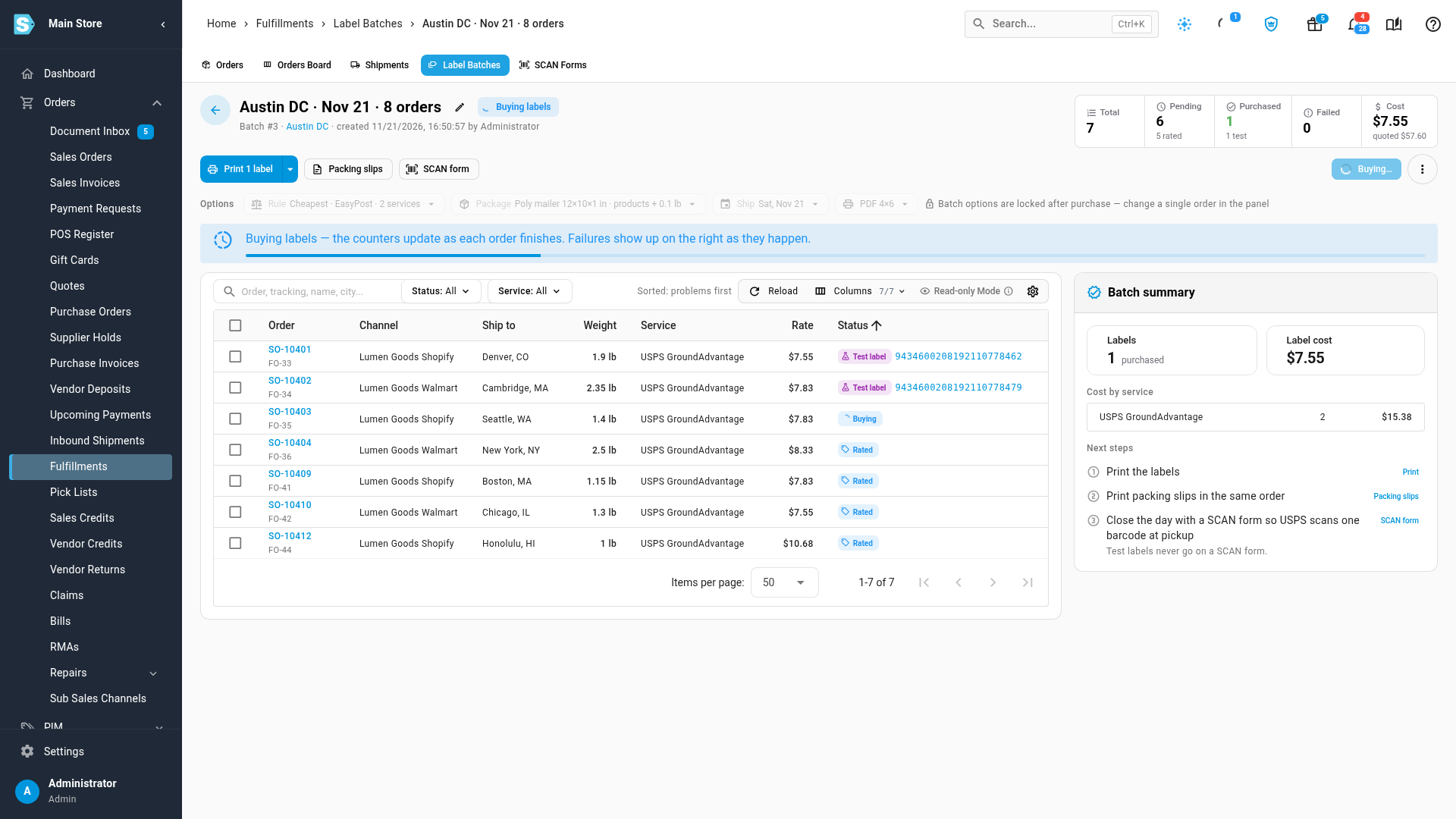
Click Buy labels. The confirmation shows how many labels you're buying and the total cost. Click Buy labels in the confirmation to start.
-
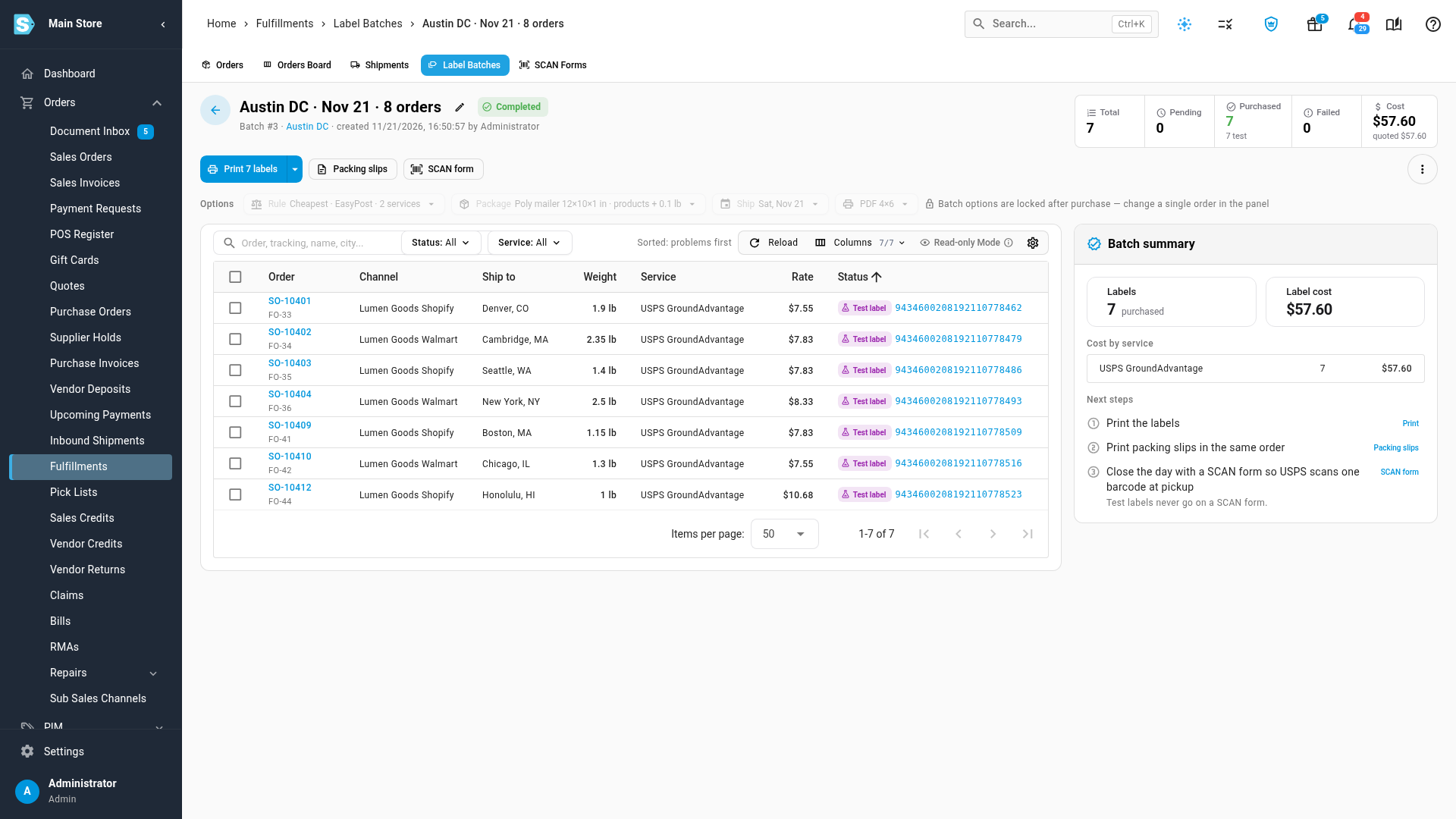
Wait for the batch to show Completed. Every order now has its tracking number, and Batch summary shows the label cost by service.
-
Click Print labels. SKU.io merges every label into one file and opens it in a new tab. The header shows how many times the batch was printed.
-
To print packing slips in the same order as the labels, click Packing slips.
When you're done for the day, create the USPS SCAN form for these labels, so the carrier scans one barcode at pickup.
What buying a label does
With a live label account, buying a label does three things for each order:
- records the shipment, with the tracking number and the label cost,
- moves the inventory out of the warehouse,
- sends the tracking number to the sales channel the order came from.
A label account connected with a test key (an EasyPost test key, for example) buys test labels. They're marked Test label, and you can print them, but SKU.io records no shipment, sends no tracking, and never puts them on a SCAN form. The order stays open. Use a test account to try batches out, then connect your live account to ship.
Choose the batch options
The Options bar above the orders holds the batch's settings. They start from your defaults, and you can change them for one batch before you buy:
| Option | What it sets |
|---|---|
| Rule | Cheapest buys the cheapest rate across your label accounts, limited to the services and the maximum delivery days you allow. Fixed service ships every order with one service on one label account. |
| Package | The box: a saved package preset or custom dimensions, and whether the weight comes From products (plus the box's tare weight) or is the Same for every order. |
| Ship | The ship date printed on the labels. It can't be in the past. |
| Format | PDF 4×6 or ZPL for a thermal printer. |
Change an option after rating and the batch tells you its rates are out of date. Get rates again before you buy. Once you buy, the batch options are locked.
To change one order without changing the batch, click the order. The order panel lets you set Package for this order and click Save & re-rate, or click Get rates under All rates for this order and choose Use this rate.
Fix the orders under Needs attention
Each group under Needs attention names the reason and offers one fix. Retry all gets rates again for every failed order.
| Reason | Fix |
|---|---|
| Missing product weight | Enter the weight and click Save to product & retry. The weight is saved on the product, so later batches rate it too. |
| Address problem | Click Edit address, correct the ship-to address on the sales order, then retry. |
| No rate meets the rule | No allowed service reaches the address within your maximum delivery days. Allow more days for these orders, or choose a service for each one in the order panel. |
| International | Batch labels are domestic only. Click Remove (for example Remove 1 from batch), then buy the label from the order, where you add customs details. |
| Provider error, or the provider didn't answer | Fix the cause in the message if there is one, then retry. A timeout usually works on the second try. |
| Label account unavailable | The label account was disconnected or removed. Reconnect it, or change the batch rule, then retry. |
| Order no longer eligible, or shipped elsewhere | The order was cancelled, changed or shipped another way. Remove it from the batch. |
| Ship date in the past | Set the batch ship date to today or later, then retry. |
| Rates out of date | The rate expired or the order changed after it was rated. Get rates again, then buy. |
| Shipment not recorded | The label was bought but the shipment wasn't recorded. Click Record (for example Record 2 shipments) to finish it without buying again. |
Removed orders go back to the Orders tab, ready to ship another way or to join another batch.
Void a label
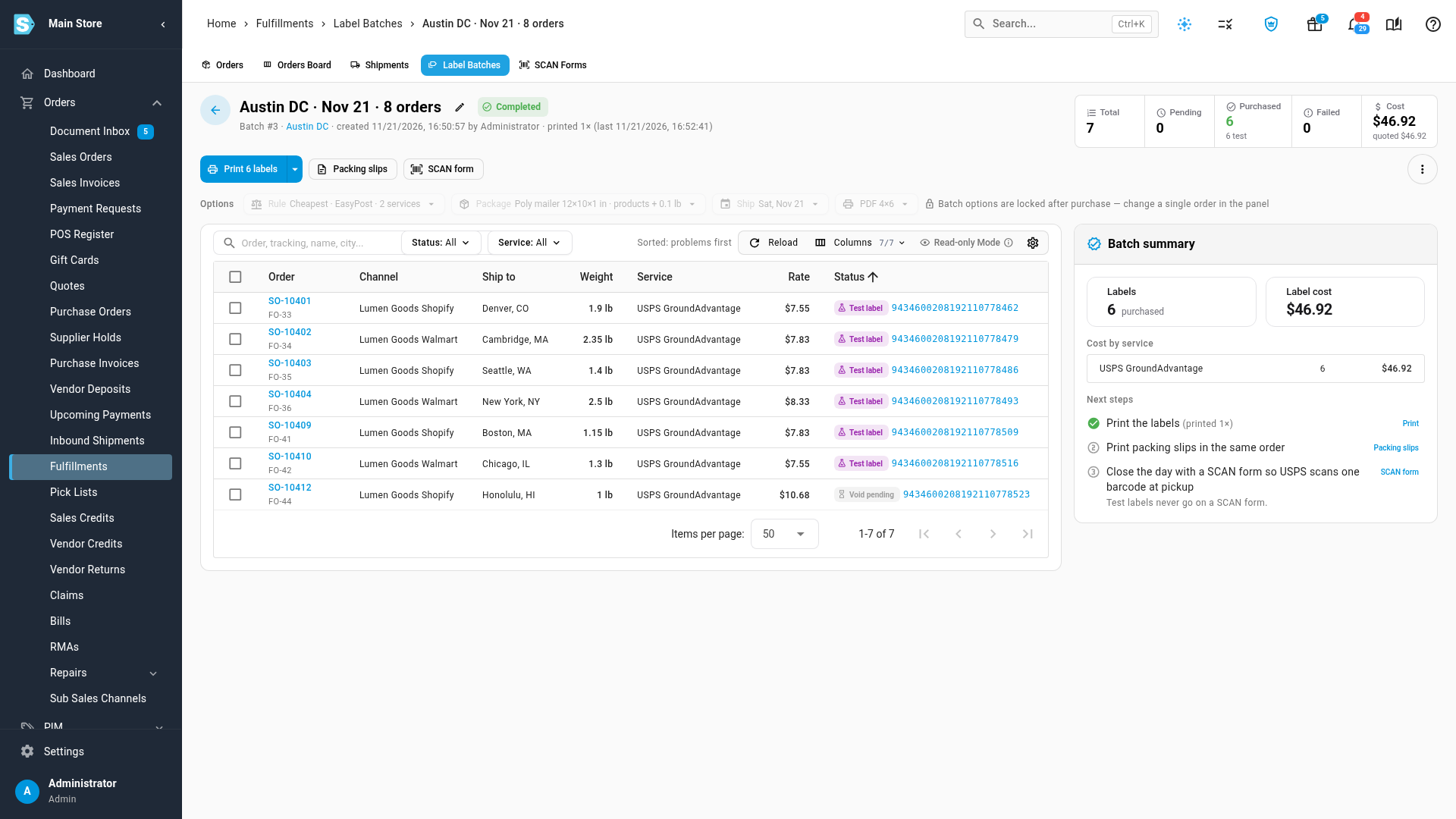
- Click the order in the batch. The order panel opens.
- Click Void label, and confirm.
The order reopens so it can ship again. The label shows Void pending until the carrier's refund goes through, then Voided. USPS refunds unused labels voided within 30 days, and the refund can take up to two weeks.
Create a batch from the Orders tab
You can also start from the orders you've already found. On Orders → Fulfillments → Orders, filter the list (for example by Customer PO), tick the orders, and click Create label batch in the bar above the list.
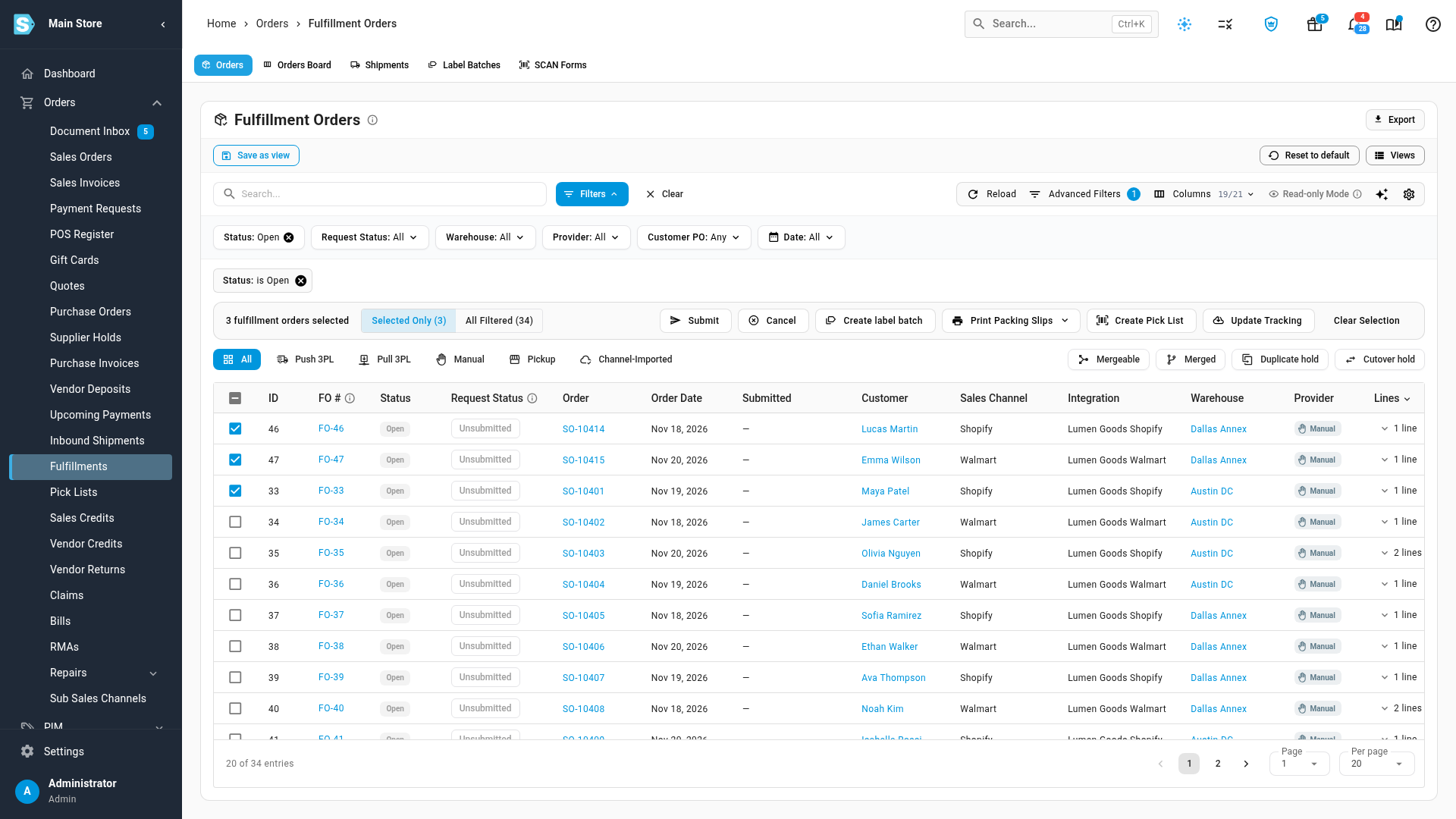
SKU.io makes one batch for each ship-from warehouse, and lists any order it skipped with the reason. A batch holds up to 500 orders.
Set your defaults
Every new batch starts from Settings → Fulfillment → Shipping Labels:
- Label accounts & service rule: Cheapest rate or Fixed service, the label accounts to rate-shop, the Allowed services, and Max delivery days.
- Printing: Label format (PDF 4×6 or ZPL) and Print order (order number, SKU, or the order they were added).
- Packages: your box presets with their dimensions and tare weight, the Default box, whether Package weight comes from the products or is fixed, and the Weight unit.
- End-of-day SCAN forms: create SCAN forms automatically every day at a set time. See Create USPS SCAN forms.
Click Save Changes. Batches you've already created keep their own options.
Next steps
Video transcript
To ship many orders at once, open Orders, then choose Fulfillments in the menu. At the top of the page, click the Label Batches tab. Each batch holds open orders from one of your own warehouses. This list shows every batch, with its progress and its label cost.
Click New batch, at the top right, to open the form. In Warehouse, type a few letters, and pick your shipping warehouse. To narrow the list further, use the sales channel, date, and customer PO filters. The green badge shows the number of matching orders. Leave Get rates right after creating switched on, then click Create batch and get rates.
SKU.io gets a rate for every order in the background. The counters show how many orders are rated, and the estimated cost. The options bar holds the batch's service rule, package, ship date, and label format. Change any of them, and the batch gets fresh rates. Orders that couldn't be rated are grouped under Needs attention, with a fix for each reason.
Here, a product has no weight, so its order has no rate. Enter the product's weight, then click Save to product and retry. The weight is saved on the product, so later batches can rate this product.
Batch labels are for domestic orders only. For an international order, click Remove from batch, and confirm. Removed orders stay open, so you can buy each label from its order, with customs details.
When the rates look right, click Buy labels at the top right. The confirmation shows the label count and the total cost. Click Buy labels again to start buying. This account uses a test key, so its labels print, but no shipment is recorded, and no tracking is sent.
When the job finishes, every order shows its tracking number. With a live account, buying records each shipment, and sends tracking to the sales channel. Labels from a test account are marked Test label.
To print them all, click Print labels at the top of the batch. SKU.io merges every label into one file, sorted by order number, and opens it in a new tab. The header then shows how many times the batch has been printed.
To cancel one label, click its order to open the order panel. Click Void label, and then confirm the void. The order reopens, so it can ship again. Its label shows Void pending, until the carrier's refund goes through.