Connect ShipRush
Connect ShipRush once, then tell SKU.io which warehouses print their labels in ShipRush. After that, fulfillment orders from those warehouses wait in SKU.io's order feed. ShipRush picks them up the next time it checks the feed, and each label you print comes back as a shipment with its tracking number.
You don't copy anything out of ShipRush. SKU.io creates the feed address and a username and password, and you paste those into ShipRush.
Before you begin
- You need permission to connect integrations.
- You need a ShipRush Web account with permission to add a webstore.
- Have a way to save a password. SKU.io shows the ShipRush password once.
- You can connect one ShipRush account.
Create the connection
-
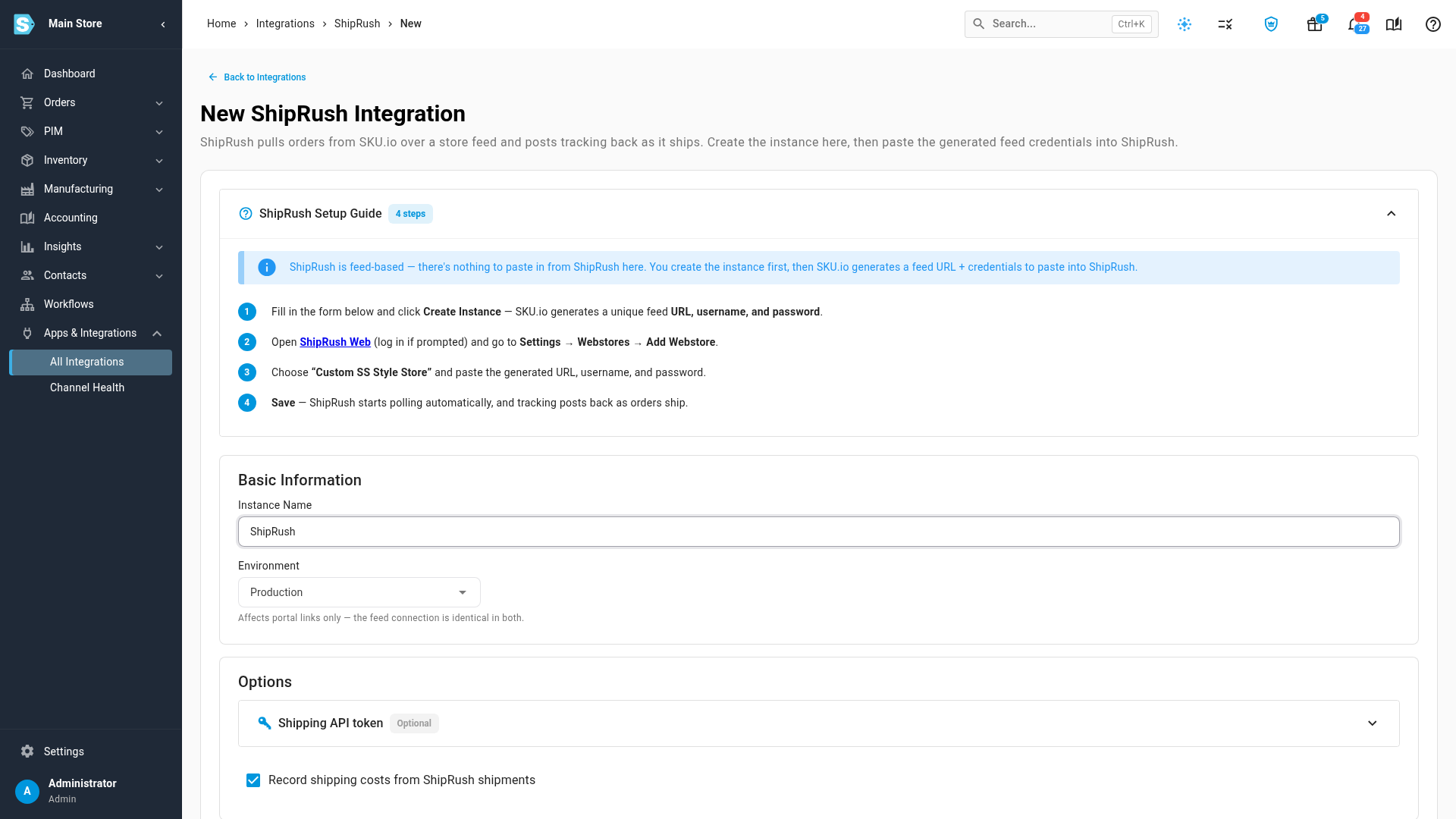
Go to Apps & Integrations → All Integrations. Under Shipping & Fulfillment, choose ShipRush, then click Connect ShipRush. The New ShipRush Integration page opens, with the ShipRush Setup Guide at the top.
-
Enter an Instance Name.
-
Leave Environment on Production. Choose Sandbox only for a ShipRush sandbox account you use for testing. Descartes suspends sandbox accounts that print real labels.
-
Under Options, you can add a Shipping API token. It's optional, and only adds a scheduled tracking refresh and a list of ShipRush's carrier services. Descartes approves these tokens, which takes 1–2 business days, so you can add one later under Settings → Connection.
-
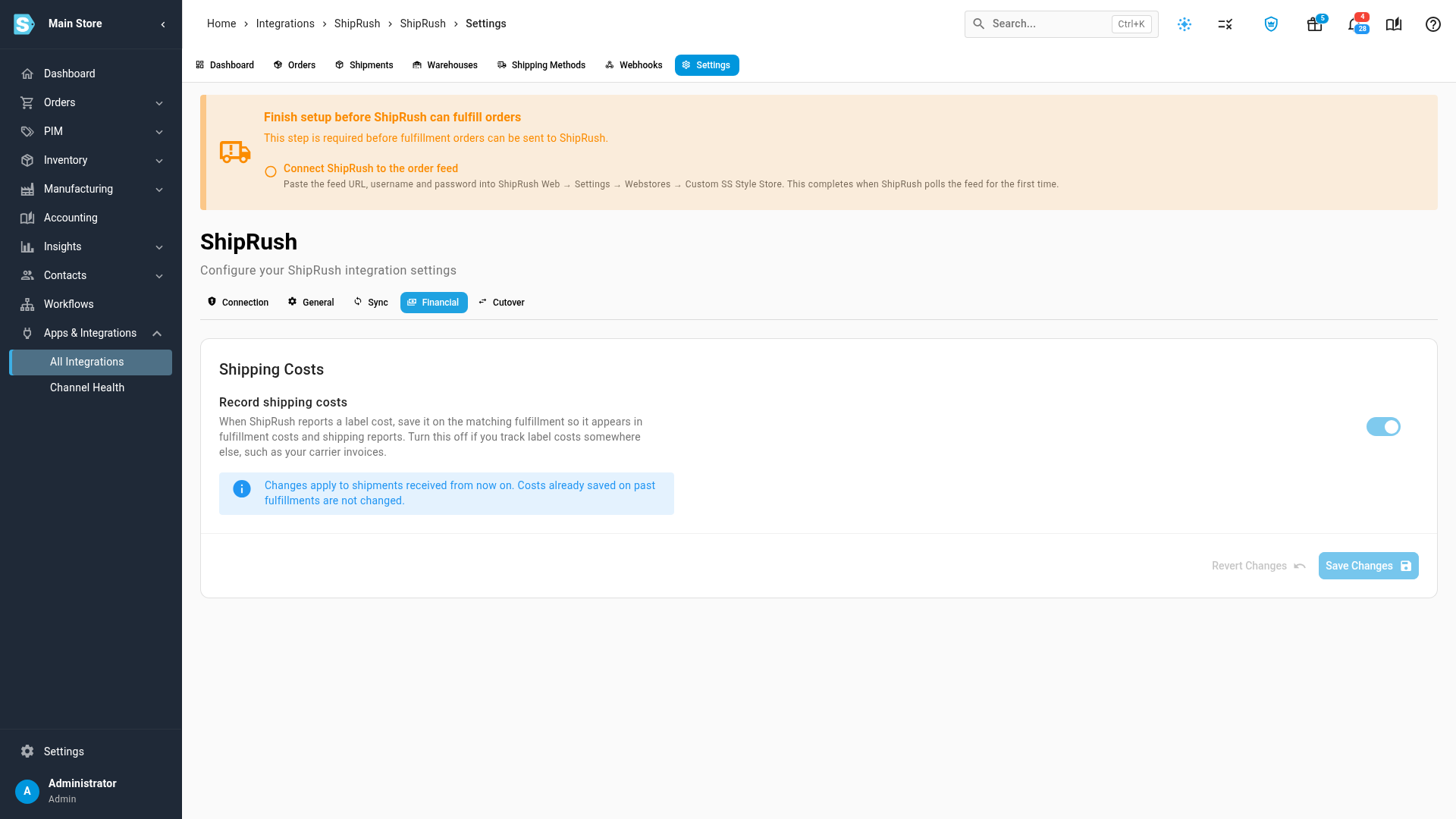
Leave Record shipping costs from ShipRush shipments ticked if you want each label's cost saved on its fulfillment.
-
Click Create Instance.
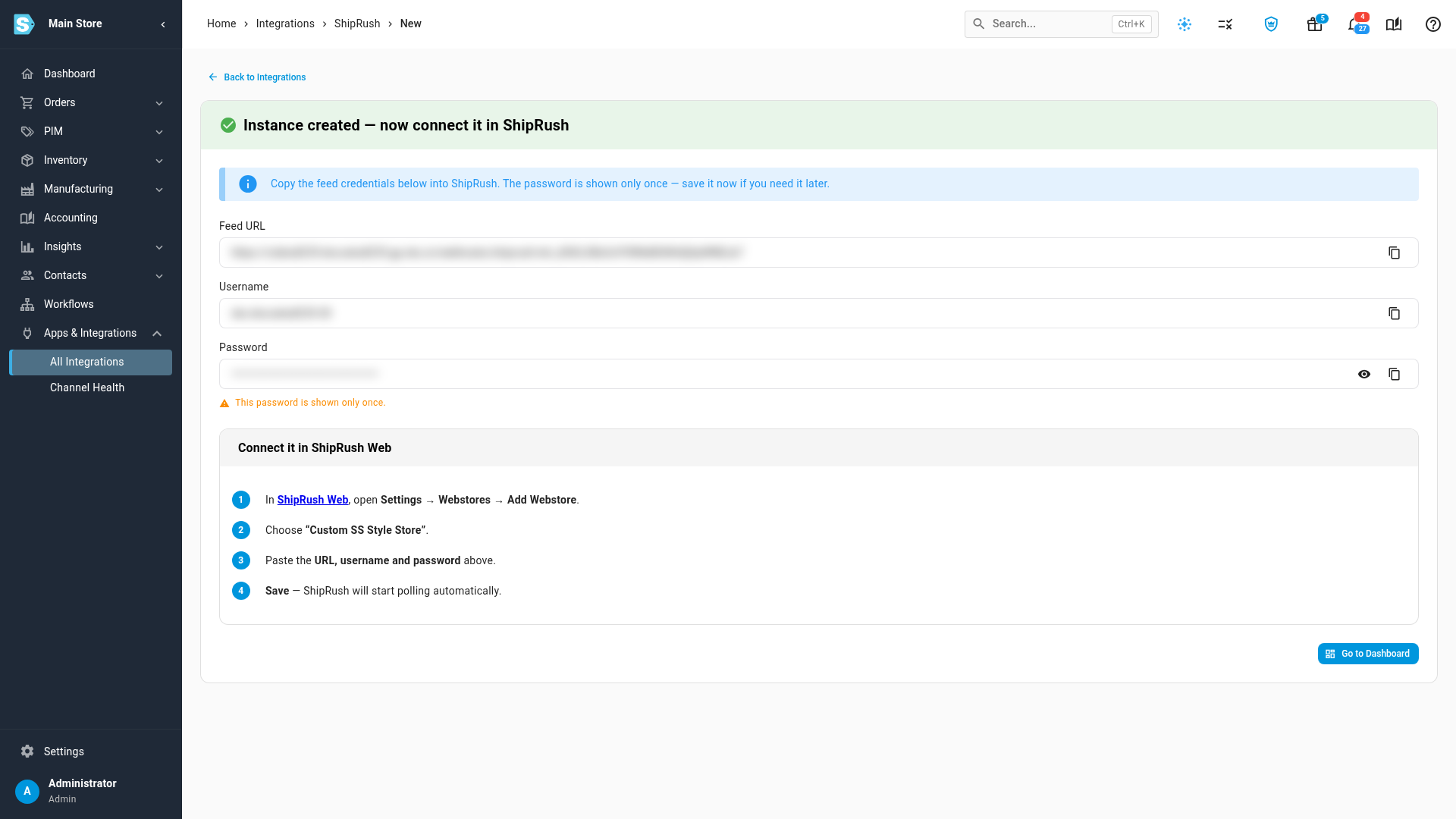
What you'll see: Instance created — now connect it in ShipRush, with a Feed URL, a Username and a Password, each with a copy button.
Add the feed in ShipRush
- Copy the Password and save it now. This password is shown only once.
- In ShipRush Web, open Settings → Webstores → Add Webstore.
- Choose Custom SS Style Store.
- Paste the Feed URL, Username and Password from SKU.io, and save.
- Back in SKU.io, click Go to Dashboard.
ShipRush starts checking the feed on its own schedule. SKU.io can't contact ShipRush, so the connection counts as working once ShipRush checks the feed for the first time. Until then, the dashboard's Last Poll card says Never.
Route your warehouses
The dashboard opens with Finish setup before ShipRush can fulfill orders, a banner listing the steps still to do.
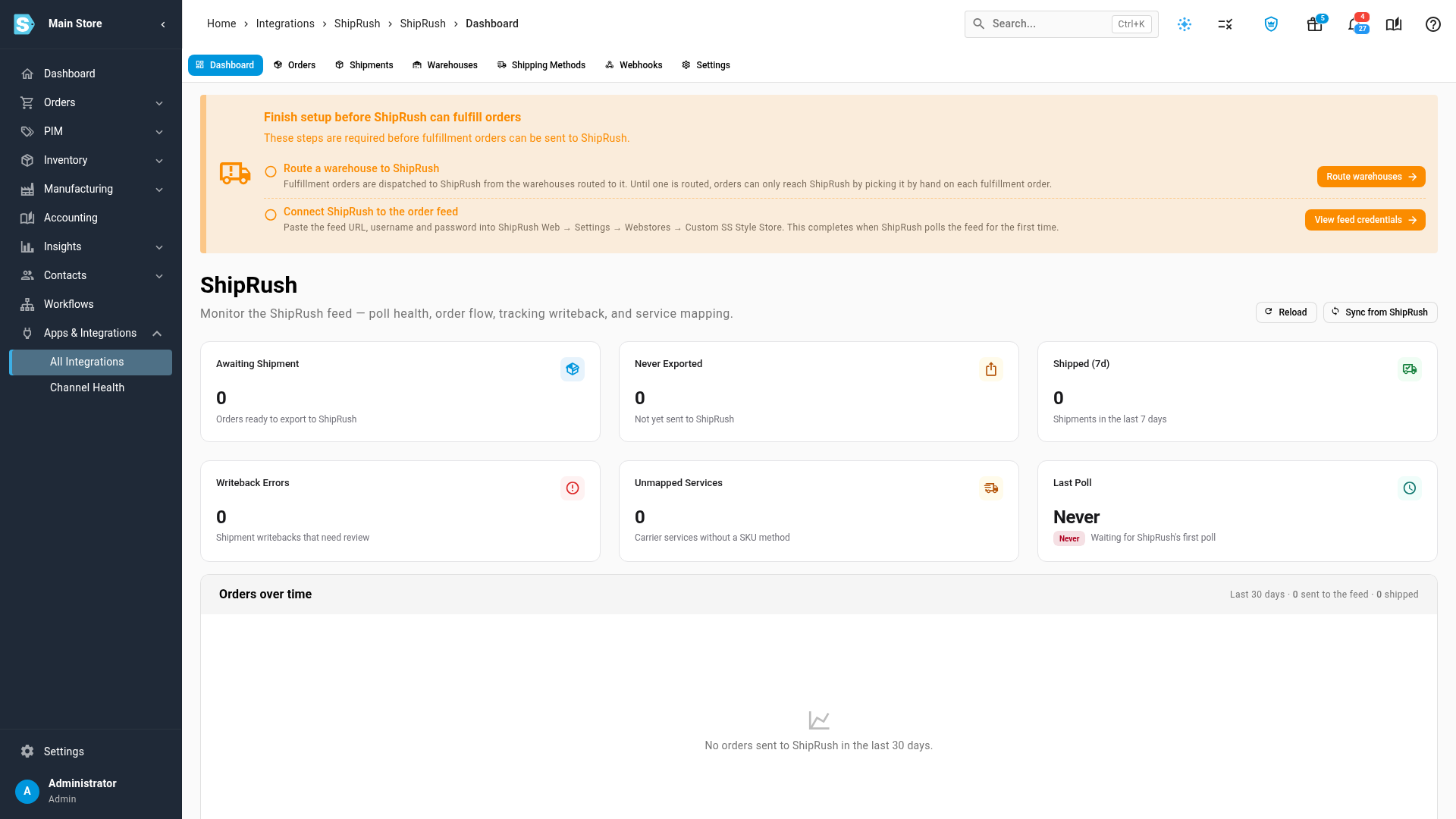
- Click Route warehouses, or open the Warehouses tab.
- Turn on Route to ShipRush for each warehouse that prints its labels in ShipRush.
What you'll see: the row shows This ShipRush instance, and Route a warehouse to ShipRush drops off the banner. From now on, fulfillment orders submitted from that warehouse go into the ShipRush feed. The warehouse and its stock don't change. Turning routing off sends the warehouse's orders back to manual fulfillment.
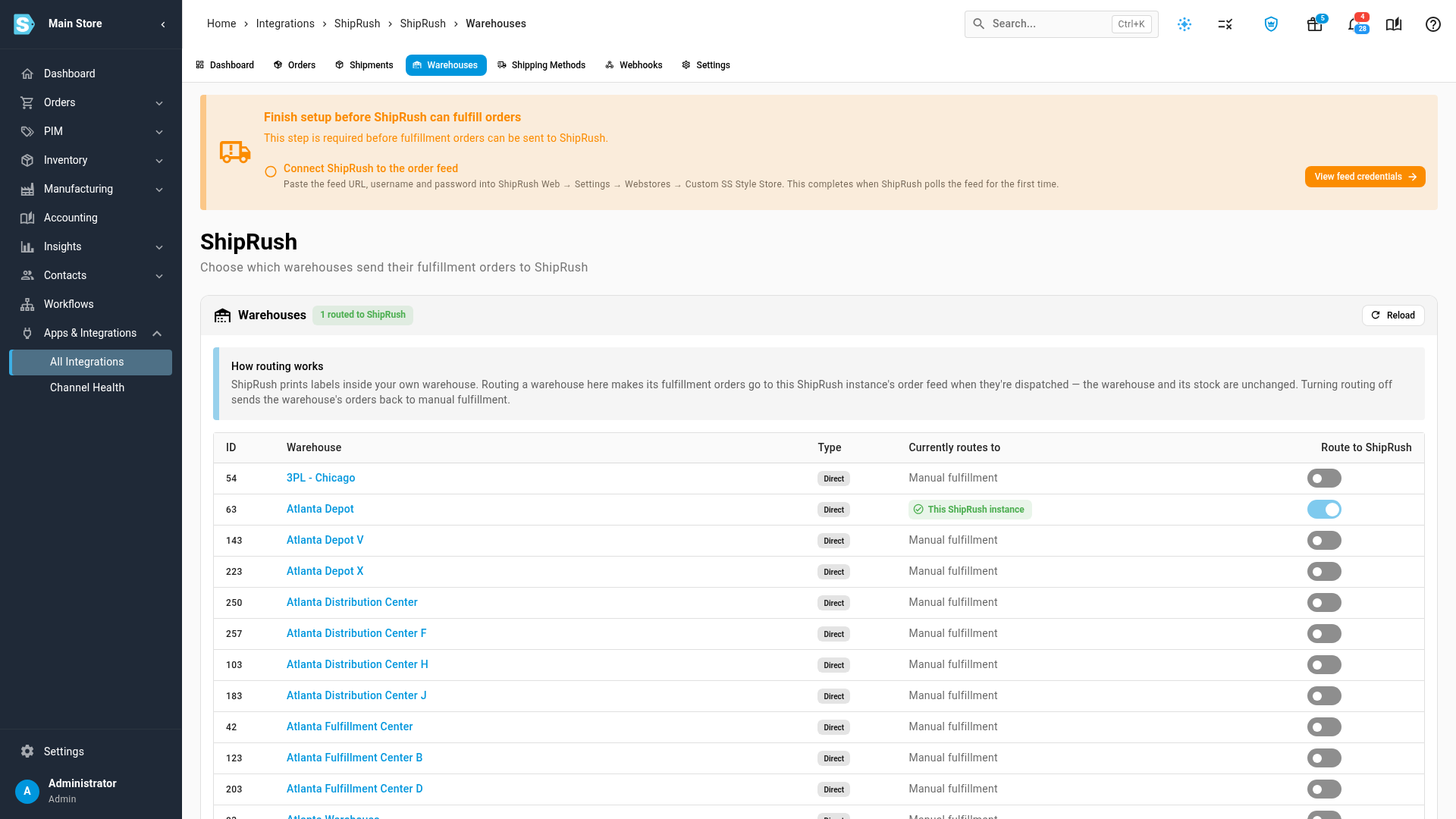
A warehouse that already ships through another provider shows that provider under Currently routes to. If its orders are mid-flight there, use the Cutover checklist under Settings first, so no order ships twice. See Switch a provider to SKU.io dispatch.
When ShipRush checks the feed for the first time, the last banner step, Connect ShipRush to the order feed, completes and the banner goes away.
Map carrier services
ShipRush sends each shipment's carrier and service as text, so the Shipping Methods tab fills up as labels come back. The dashboard's Unmapped Services card counts the ones without a SKU.io shipping method.
- Open the Shipping Methods tab.
- Pick a SKU.io shipping method for each ShipRush carrier and service. Add Mapping adds one before ShipRush has used it, and a mapping with carrier
*and service*catches every service you haven't mapped. - Click Save Mappings.
Mappings apply to shipments that arrive after you save. A shipment on an unmapped service is still recorded, without a shipping method.
Check the settings
| Tab | Setting | What it does |
|---|---|---|
| Connection | Status | Waiting for first poll from ShipRush until ShipRush first checks the feed, then Connected with the time of the last check. After 24 hours with no check, it shows as Stale. |
| Connection | Store Username, Regenerate credentials | The username ShipRush signs in with. If you lose the password, click Regenerate credentials and paste the new username and password into ShipRush. ShipRush can't check the feed until you do. |
| Connection | Shipping API token (optional) | Adds a scheduled tracking refresh and a list of ShipRush's carrier services. |
| Sync | Sync Start Date | The earliest order date ShipRush can pull. Older orders are left out. Leave it blank for a rolling 90 days. |
| Sync | Scheduled tracking refresh | Every 4 hours, re-checks tracking for shipments that haven't been delivered. Needs a Shipping API token. Tracking numbers always arrive when the label is printed. |
| Financial | Record shipping costs | Saves each label's cost on its fulfillment, so it appears in fulfillment costs and shipping reports. Changes apply to shipments received from then on. |
| General | Delete Integration | Removes the connection, its feed, shipments, mappings and webhook events. Routed warehouses go back to manual fulfillment. |
To find the feed URL again, open the Webhooks tab. It's on the Endpoint card, with the store username.
Next steps
- Dispatch to a fulfillment provider — submit a fulfillment order to ShipRush by hand.
- Track shipments — see what came back.
- ShipRush overview
Video transcript
ShipRush prints shipping labels in your warehouse, and sends each shipment back here. To connect it, start from the menu on the left. Open Apps and Integrations, then choose All Integrations to see every app. Scroll down the page to the Shipping and Fulfillment section, and choose ShipRush from the list of apps. Its details open on the right. Click Connect ShipRush to start a new connection. The New ShipRush Integration page opens. You don't copy anything out of ShipRush first, because it pulls orders from SKU.io. The setup guide lists the four steps. Type a name for the connection, and leave the environment set to Production for your live account. Under Options, a Shipping API token is optional. It only adds tracking refresh and carrier service sync. Leave Record shipping costs ticked, so label costs land on each fulfillment. Then click Create Instance, and give it a moment to set up the connection. SKU.io creates a feed URL, a username, and a password for this connection. In this video, they're blurred. Copy the password now, because it's shown only once. Then, in ShipRush Web, add a webstore under Settings and Webstores. Choose Custom SS Style Store, paste the three values, and save your changes. From then on, ShipRush checks the feed for new orders by itself. Here, click Go to Dashboard to see where setup stands. The dashboard opens with a setup banner. It lists what's left before orders can be fulfilled. Last Poll says Never until the feed is checked for the first time. Start with routing a warehouse. Click Route warehouses, at the end of that step, to open the list of warehouses. The Warehouses tab lists each of your shipping warehouses. Turn on Route to ShipRush for every warehouse that prints its labels in ShipRush. Saving takes a moment, and the row then shows This ShipRush instance. Its fulfillment orders now land in the feed when they're submitted. The warehouse and its stock don't change. And that step drops off the banner. Finally, open the Settings tab. Connection shows whether ShipRush has checked the feed yet, and your store username. If the password is lost, click Regenerate credentials, and paste the new ones into ShipRush. Sync sets the earliest order date the feed includes. The Financial tab controls whether label costs are saved on each fulfillment, for your shipping reports. Once ShipRush checks the feed, the banner clears, and orders start flowing.