Connect Loop Returns
Connect Loop Returns once, and every return your customers start in Loop arrives in SKU.io as an RMA, ready for your warehouse to receive. The same connection turns Loop warranty returns into repair cases. After connecting, you choose which Shopify store the Loop account belongs to, which warehouse receives each Loop destination, and when SKU.io processes or flags returns in Loop.
Before you begin
- You need a Loop Admin account that can create API keys.
- In SKU.io, you need the Manage repair settings permission (
repairs.manage_settings) to connect Loop, and the Update integrations permission (integrations.update) to change its settings. - Your Shopify store should already be connected, so Loop returns can match their orders. See Connect a Shopify store.
- An account in SKU.io connects one Loop store.
Connect Loop
-
Go to Apps & Integrations, click the search box, and type Loop.
-
Choose Loop Returns, under Returns & Warranty, then click Connect Loop Returns.
-
In Loop Admin, open Settings → Developers → API keys and create a key with the Returns, Developer tools and Destinations (Read) scopes.
-
Paste the key into API key.
-
Optional: paste Loop's webhook secret into Webhook secret. Loop shows it under Settings → Developers → Webhooks. If you don't have it yet, add it later from Manage connection on the Loop dashboard.
-
Click Connect Loop Returns.
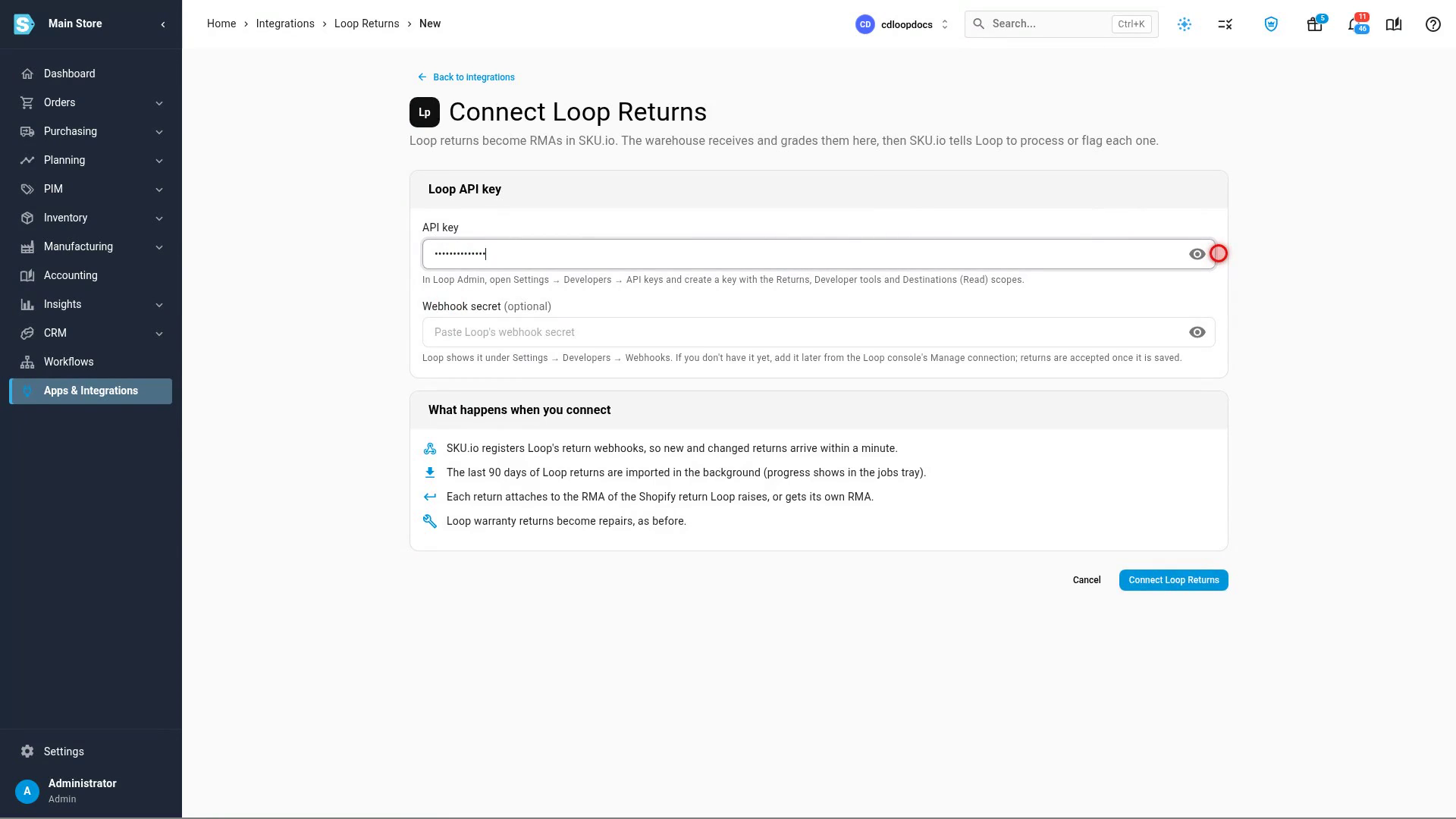
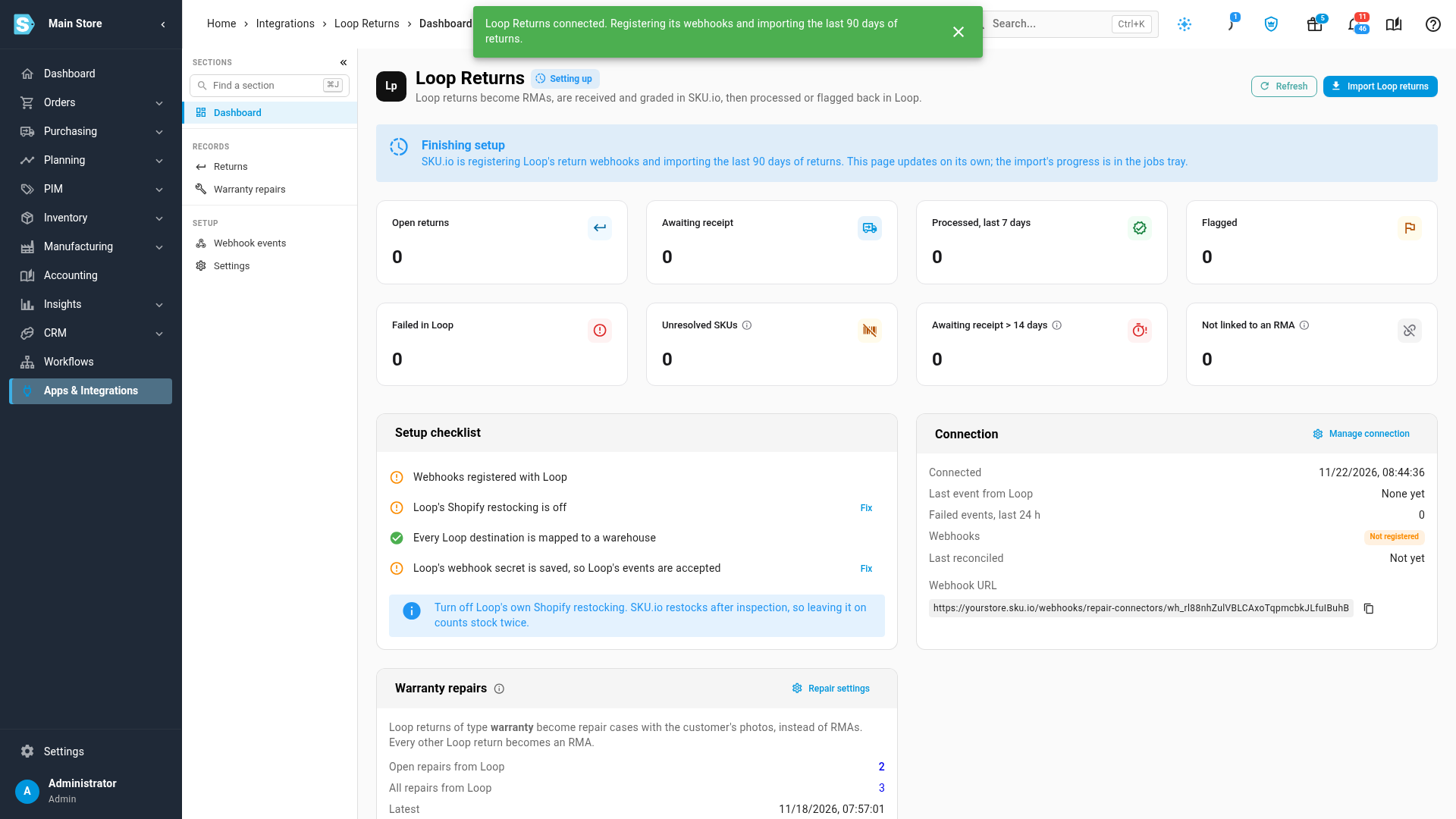
SKU.io registers Loop's return webhooks and imports the last 90 days of returns in the background; the import's progress shows in the jobs tray. The Loop dashboard opens with Finishing setup at the top, and fills in by itself when setup is done.
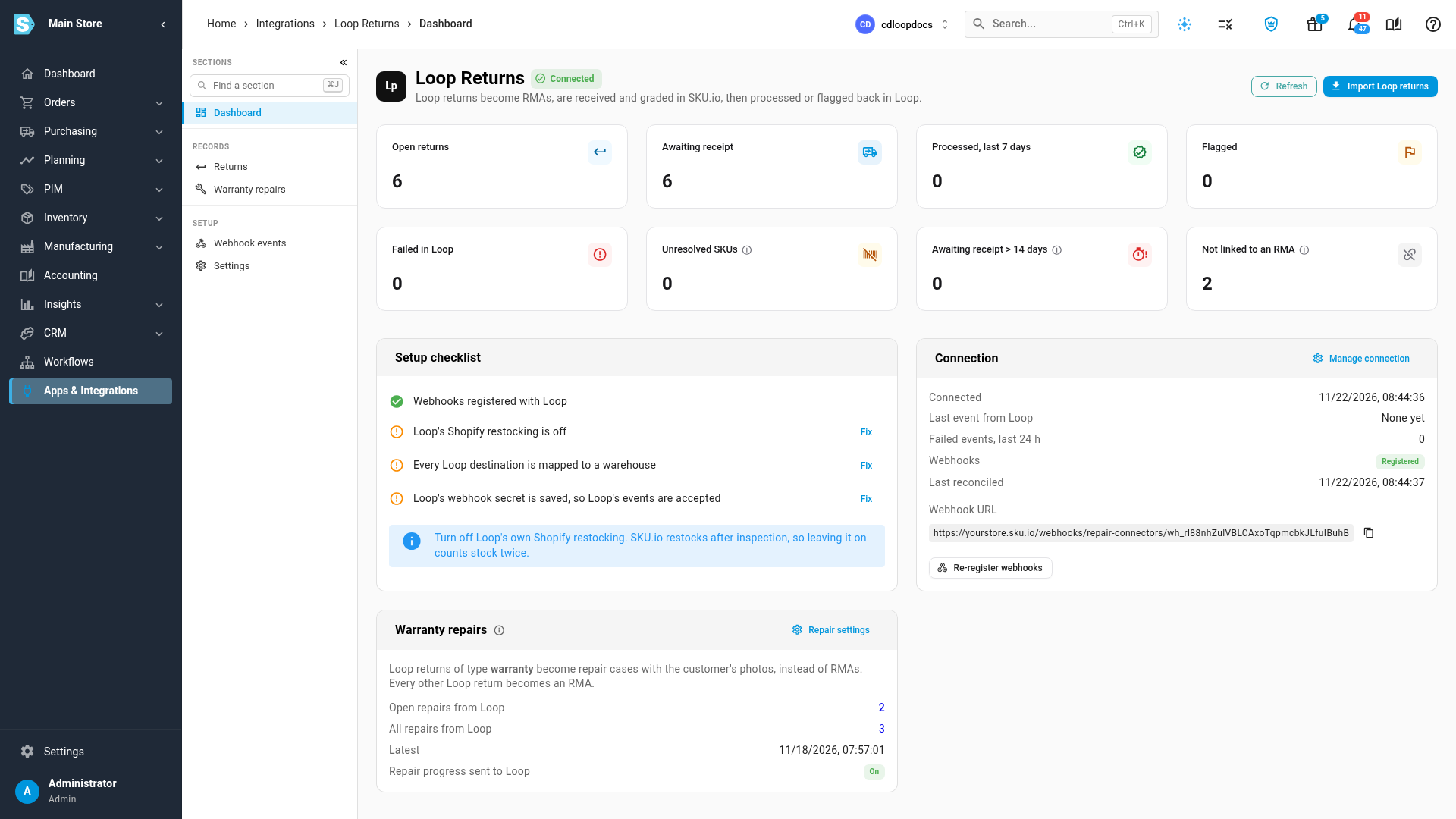
Read the dashboard
| Tile | What it counts |
|---|---|
| Open returns | Loop returns that are still open in Loop. |
| Awaiting receipt | Returns SKU.io hasn't processed or flagged in Loop yet. |
| Processed, last 7 days | Returns Loop closed after SKU.io processed them, in the last week. |
| Flagged | Returns held for review in Loop. |
| Failed in Loop | Returns Loop refused to process or flag. Open one to see Loop's reason. |
| Unresolved SKUs | Loop items whose SKU matches no product in SKU.io. Their RMA is created without them. |
| Awaiting receipt > 14 days | Open returns with nothing received for more than two weeks. |
| Not linked to an RMA | Returns still waiting for their order, or for the Shopify return Loop creates. |
Each tile opens the Returns list filtered to those returns.
- Setup checklist lists what's left: webhooks registered, Loop's restocking turned off, and every Loop destination mapped to a warehouse. Fix opens Settings for the restocking and destination items.
- Connection shows when you connected, the last event from Loop, failed events in the last 24 hours, whether the webhooks are Registered, and when SKU.io last checked Loop for missed returns. If Loop isn't sending events, click Register webhooks. To add or change the webhook secret, click Manage connection.
- Warranty repairs counts the repairs that came from Loop warranty returns, and shows whether repair progress is sent back to Loop. Repair settings opens the repair options for this connection.
Choose the store and warehouses
-
Click Settings in the left-hand rail.
-
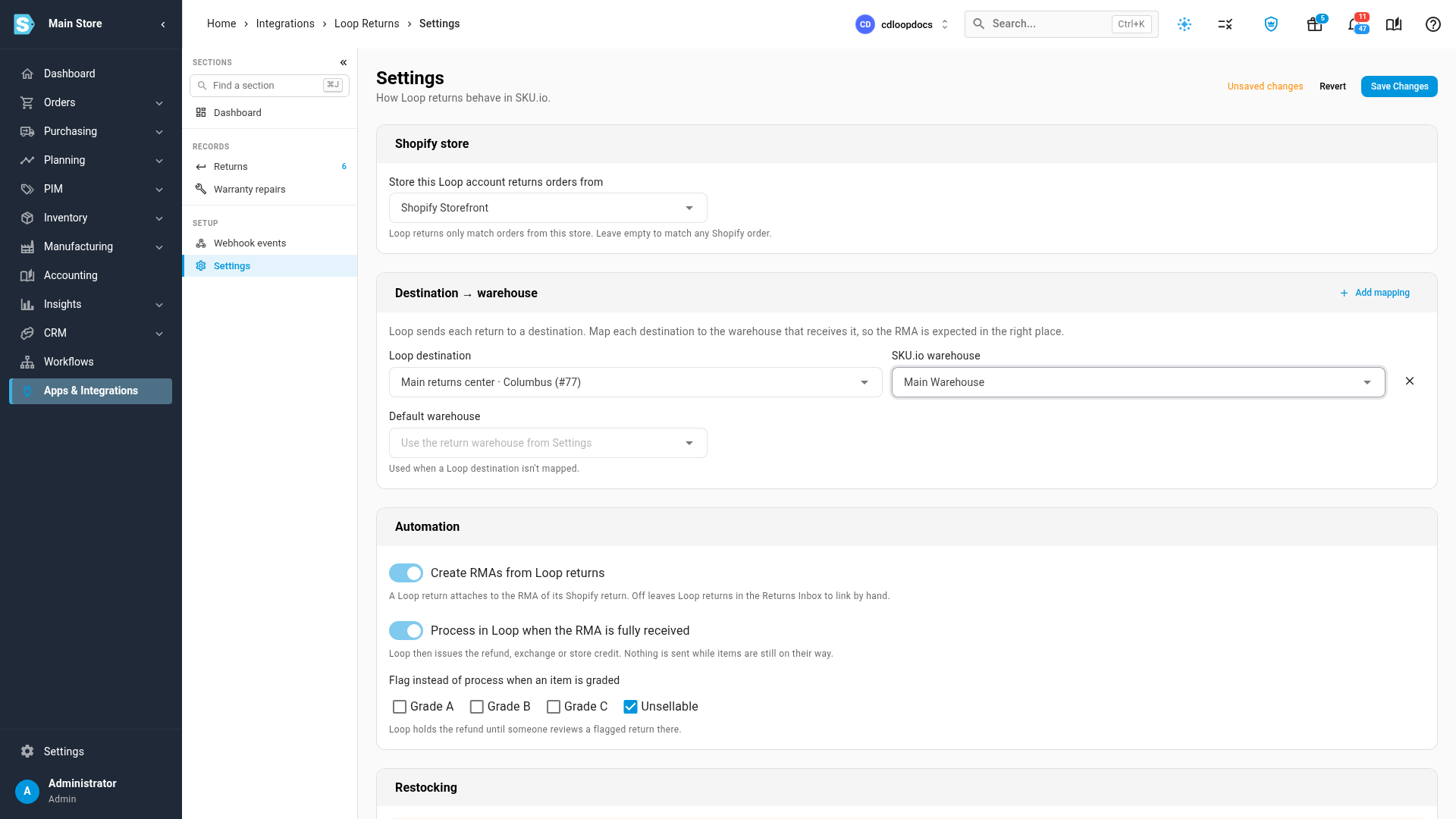
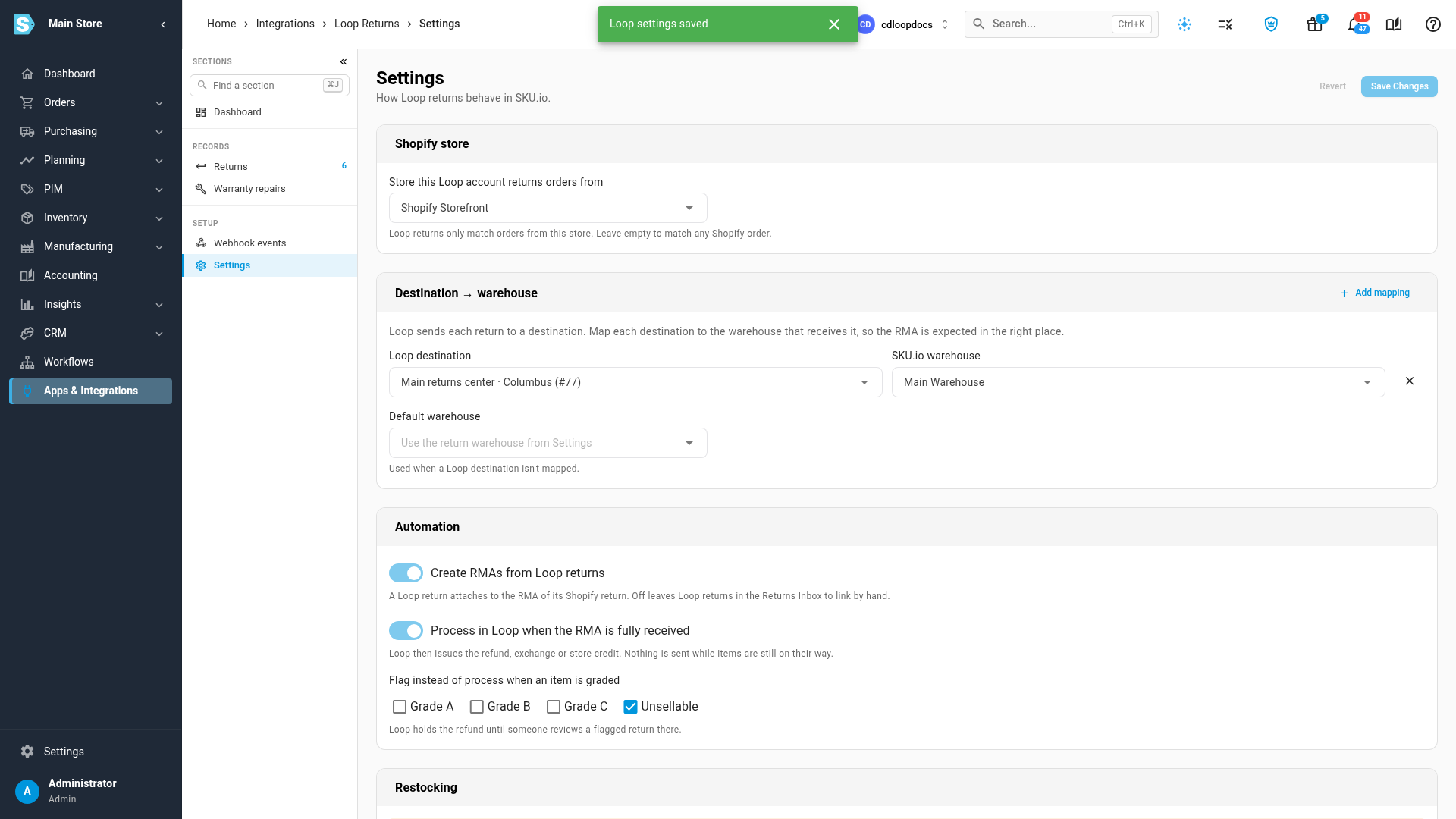
Under Shopify store, choose the store this Loop account returns orders from. Loop returns then only match orders from that store. Leave it empty to match any Shopify order.
-
Under Destination → warehouse, click Add mapping.
-
Pick a Loop destination, and the SKU.io warehouse that receives returns sent there. Loop's destination names appear when the API key has the Destinations (Read) scope; otherwise pick by destination number.
-
Repeat for each destination you use.
-
Choose a Default warehouse for any destination you haven't mapped. Left empty, SKU.io uses the return warehouse from your returns settings.
Set the automation
| Setting | What it does |
|---|---|
| Create RMAs from Loop returns | Attaches each Loop return to the RMA of its Shopify return, or creates one. Turn it off to leave Loop returns in the Returns Inbox and link them by hand. |
| Process in Loop when the RMA is fully received | Once every item is received, SKU.io asks Loop to process the return, and Loop issues the refund, exchange or store credit. Nothing is sent while items are still on their way. |
| Flag instead of process when an item is graded | Tick the grades (Grade A, Grade B, Grade C, Unsellable) that should flag the return in Loop instead, so someone reviews it there before Loop refunds. Unsellable is ticked by default. |
Turn off Loop's restocking
SKU.io restocks returned items after inspection, at the Receive Station. If Loop also restocks them in Shopify, the stock is counted twice.
-
In Loop Admin, turn off restocking under Return policies → Restocking.
-
In SKU.io, tick I've turned off restocking in Loop.
-
Click Save Changes.
If Loop sends a restock event later, the Loop dashboard shows Loop is still restocking returns in Shopify until you turn it off in Loop.
Disconnect Loop
At the bottom of Settings, under Danger Zone, Delete disconnects Loop. SKU.io deletes the Loop returns and webhook events it kept for the connection. Your RMAs, sales orders, receipts, stock and repairs stay, and new Loop warranty returns stop becoming repairs.
Next steps
- Receive and process a Loop return
- How Loop Returns exchanges from Shopify are handled
- Connect a returns or warranty app: how warranty claims from Loop and other apps become repairs.
Video transcript
To connect Loop Returns, open Apps and Integrations from the left-hand menu. Click the search box at the top of the list, and type Loop to narrow it down. Choose Loop Returns, in the Returns and Warranty group. Its page shows that it isn't connected yet. Click Connect Loop Returns, and the connect page opens with two fields and a summary. In Loop Admin, create an API key with the Returns, Developer tools and Destinations scopes. Click the API key field, and paste the key you just created. It stays hidden as you type. The webhook secret is optional, and you can add it later. When you connect, SKU.io registers Loop's return webhooks, and imports the last ninety days of returns. Loop warranty returns become repairs on the same connection. Click Connect Loop Returns, and SKU.io checks the key with Loop. The Loop dashboard opens while setup finishes, and updates by itself. The tiles count open returns, returns awaiting receipt, and returns processed or flagged in Loop. Not linked to an RMA counts returns still waiting for their order, or for their Shopify return. The setup checklist shows what's left to do, such as saving Loop's webhook secret. Until it's saved, incoming events are refused, and returns arrive only through the daily check. To add the secret, click Fix, or Manage connection. Connection shows the last event from Loop, and whether the webhooks are registered. One Loop connection handles both returns and warranty claims. Loop returns of type warranty become repair cases, with the customer's photos. Every other Loop return becomes an RMA. Repair settings opens the repair options for this connection. Next, open Settings in the left-hand rail, where the connection's options are kept. In the first card, pick the store whose orders this Loop account handles. Returns then only match orders from that store. Loop sends each return to one of your return destinations. Click Add mapping, and a new row appears under the description. Pick the Loop destination from the first list. Loop shares each destination's name and city. Then find the SKU.io warehouse that receives it, and choose it from the list. Add a row for each destination you use. The default warehouse takes any destination you haven't mapped. Three settings control the automation. Create RMAs from Loop returns links each Loop return with the RMA of its Shopify return. Process in Loop when the RMA is fully received lets Loop issue the refund, exchange or store credit. Tick the grades that should flag the return in Loop instead, so someone reviews it first. Last, turn off restocking in Loop Admin, under Return policies. SKU.io restocks after inspection, so leaving Loop's restocking on counts the stock twice. Then tick I've turned off restocking in Loop. Click Save Changes at the top of the page, and SKU.io confirms the settings are saved.