Receive and process a Loop return
When a customer starts a return in Loop, it arrives in SKU.io with its RMA. When the parcel reaches your warehouse, you scan it at the Receive Station, grade each item, and commit the receipt. Once the RMA is fully received, SKU.io tells Loop to process the return, so Loop issues the refund, exchange or store credit, or to flag it for review when an item fails inspection.
Before you begin
- Loop Returns must be connected. See Connect Loop Returns.
- You need the permission to receive returns (
returns.receive) to use the Receive Station, and the permission to edit returns (returns.update) to process or flag a return in Loop by hand.
Find a Loop return
-
Go to Apps & Integrations, search for Loop, and choose Loop Returns.
-
Click the Loop Returns connection card to open the Loop dashboard, then click Returns in the left-hand rail.
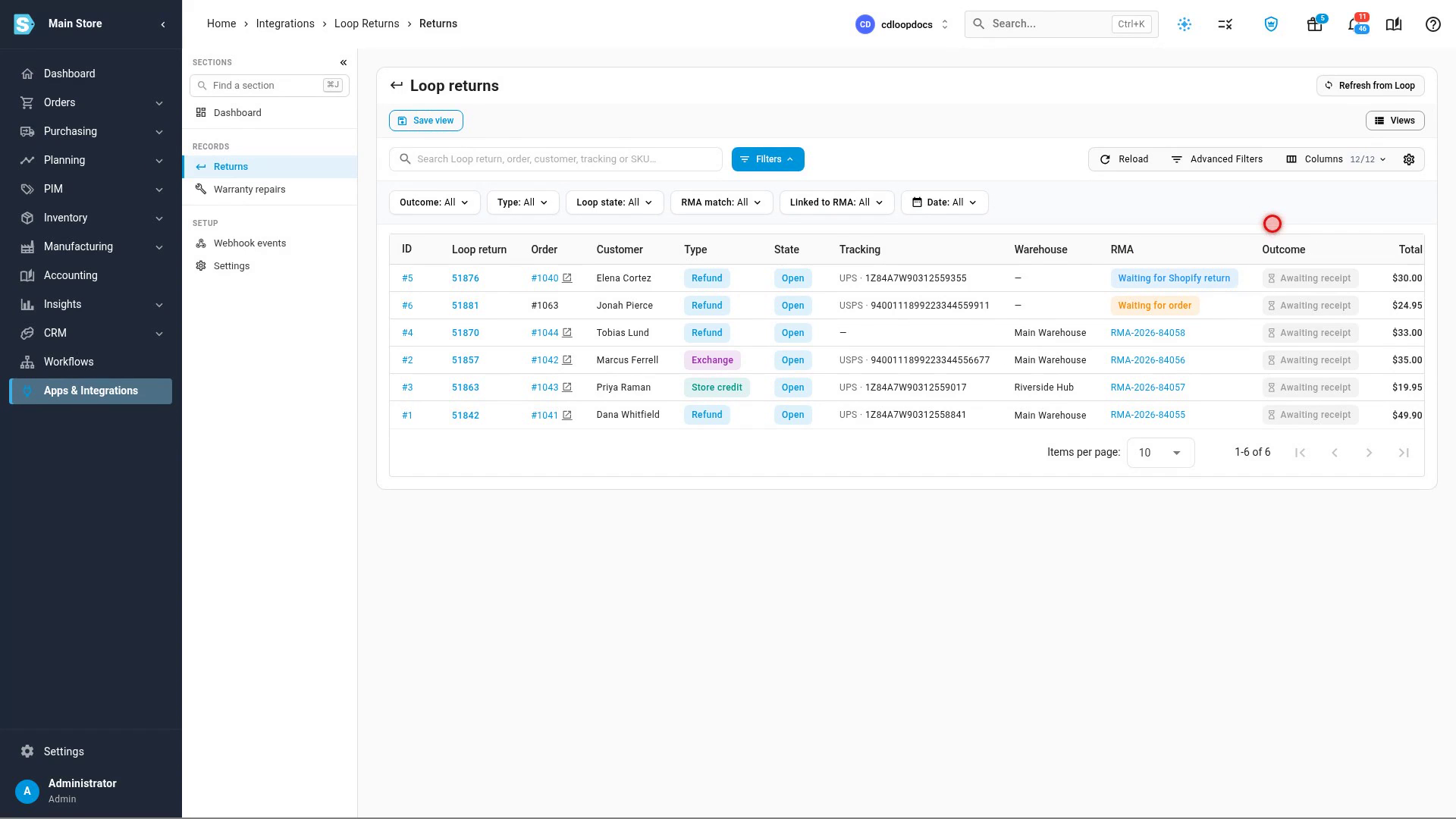
Each row shows the Loop return, the order, the customer, the return type, Loop's tracking number, the warehouse that receives it, the RMA it became, and the Outcome SKU.io has sent to Loop. The RMA column shows Waiting for Shopify return while SKU.io gives Loop's own Shopify return up to an hour to arrive, and Waiting for order while the order hasn't synced from Shopify yet. To pull in returns Loop changed since the last check, click Refresh from Loop.
-
Click a Loop return to open it.
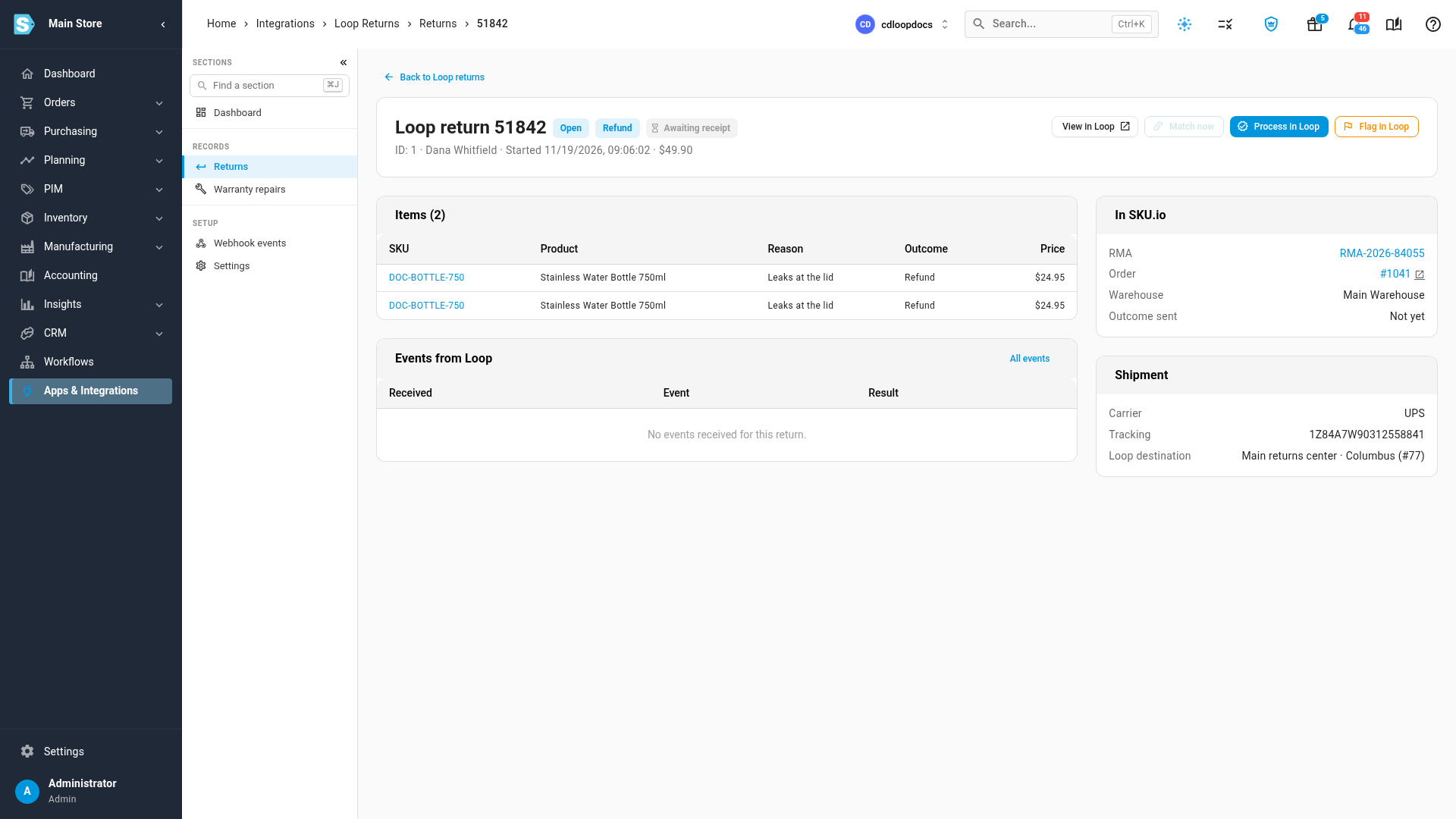
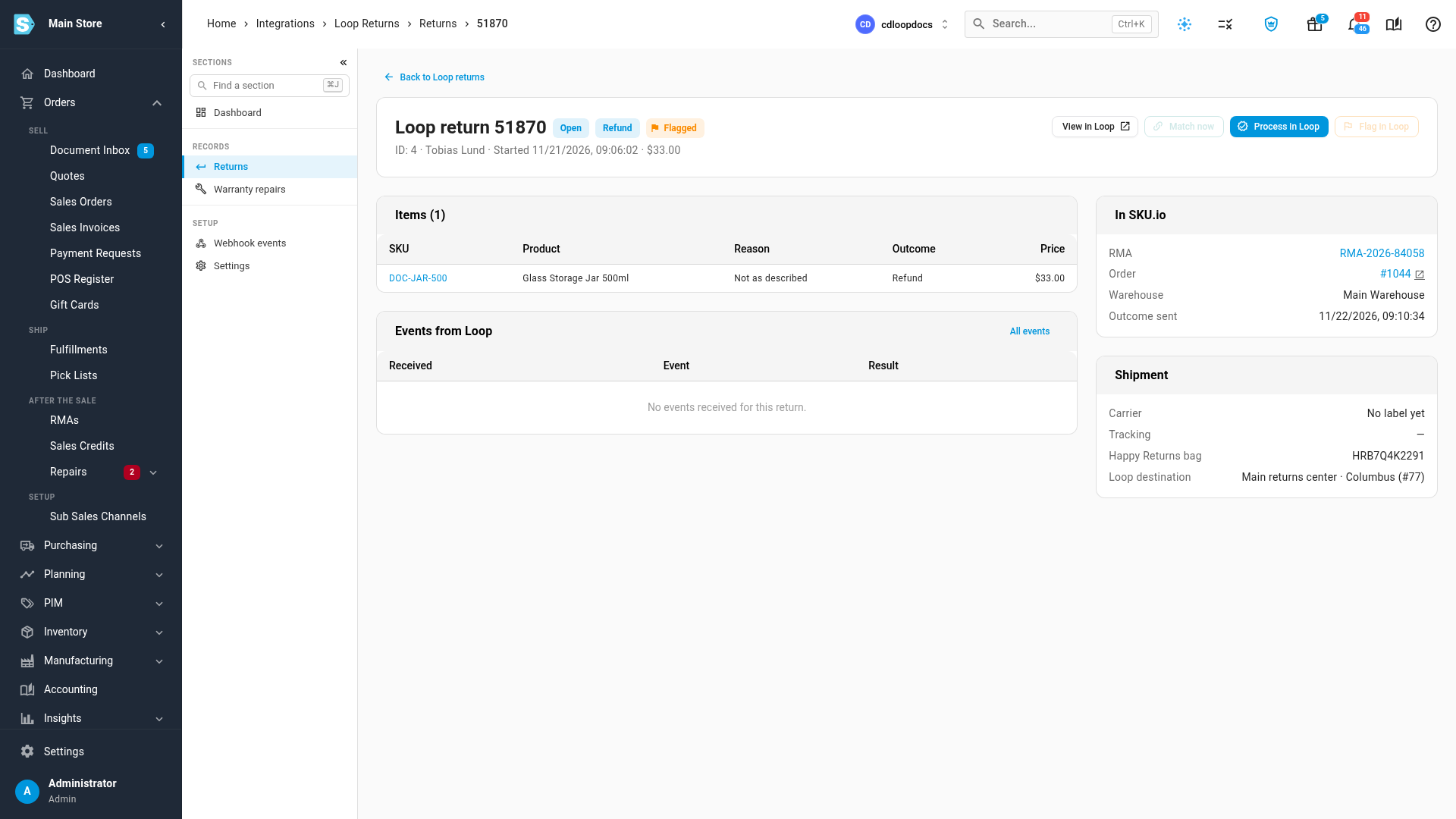
The page lists each item with the customer's reason and the outcome they chose. In SKU.io shows the RMA, the order and the warehouse; Shipment shows Loop's label and destination. If an item's SKU matches no product in SKU.io, a warning says so: add the product or fix its SKU, then click Match now.
-
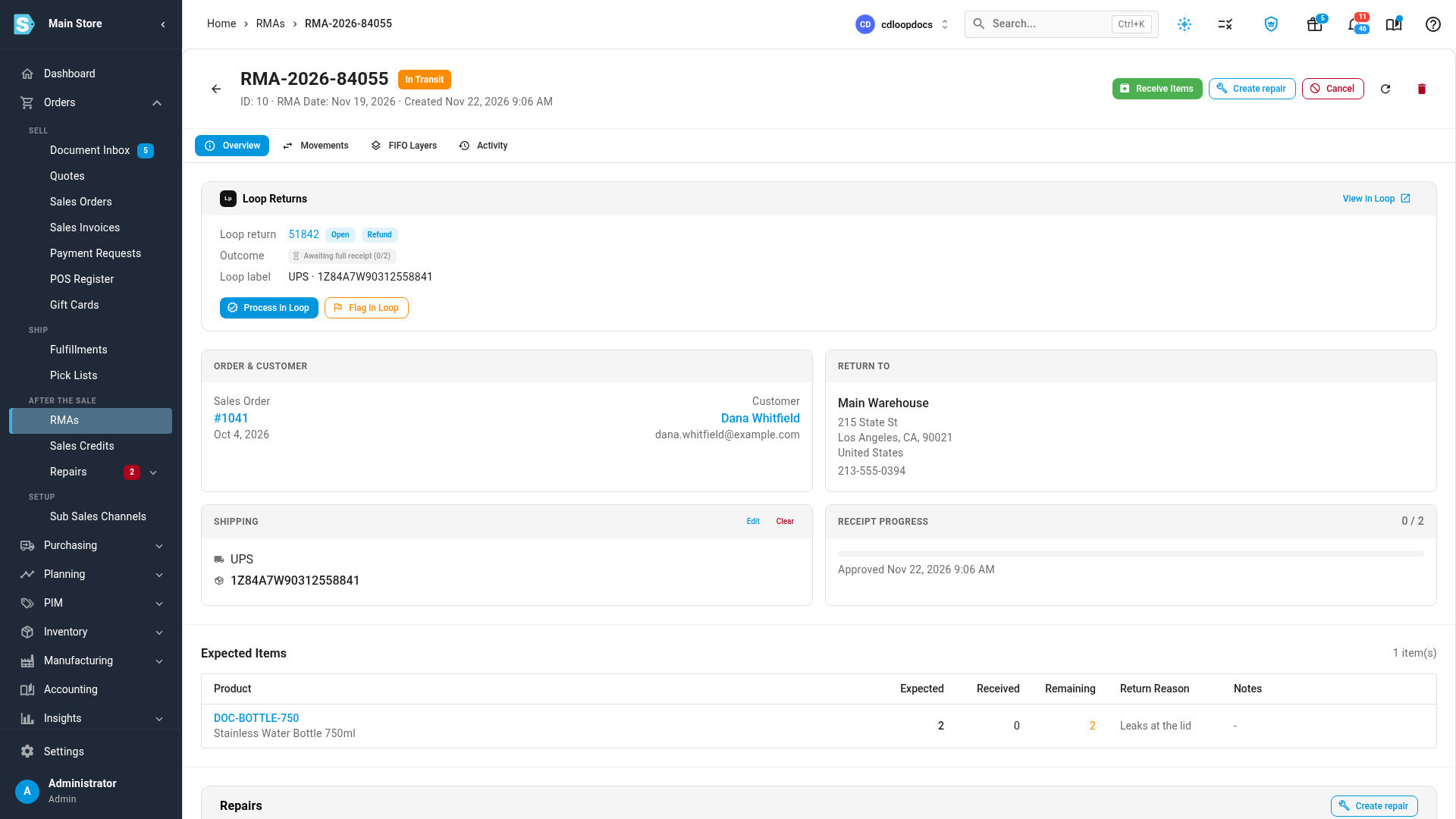
Click the RMA number to open the RMA. Its Loop Returns panel shows the Loop return and the outcome, for example Awaiting full receipt (0/2).
Receive and grade the parcel
-
Go to Orders → RMAs, and click Receive Station in the tab bar.
-
At the top right, check the Warehouse you're receiving into.
-
Scan the tracking number on Loop's label. You can also scan or type the RMA number or the order number. For a return dropped off at a Happy Returns location, scan the bag's barcode: SKU.io names the bag and the Loop return it belongs to.
-
SKU.io matches the RMA and stages its items. Set the Grade for each item, and check its Disposition.
-
Click Commit Receipt, check the warehouse named in the dialog, and click Confirm Receipt. A receipt against an RMA is recorded in the RMA's warehouse.
When every item on the RMA is received, SKU.io sends the outcome to Loop on its own (unless you turned off Process in Loop when the RMA is fully received):
| Received as | SKU.io tells Loop to | Outcome shows |
|---|---|---|
| Grades not on your flag list | Process the return | Processing in Loop, then Processed once Loop confirms |
| Any item with a grade on your flag list (by default Unsellable) | Flag the return for review, with a note naming the grade | Flagged |
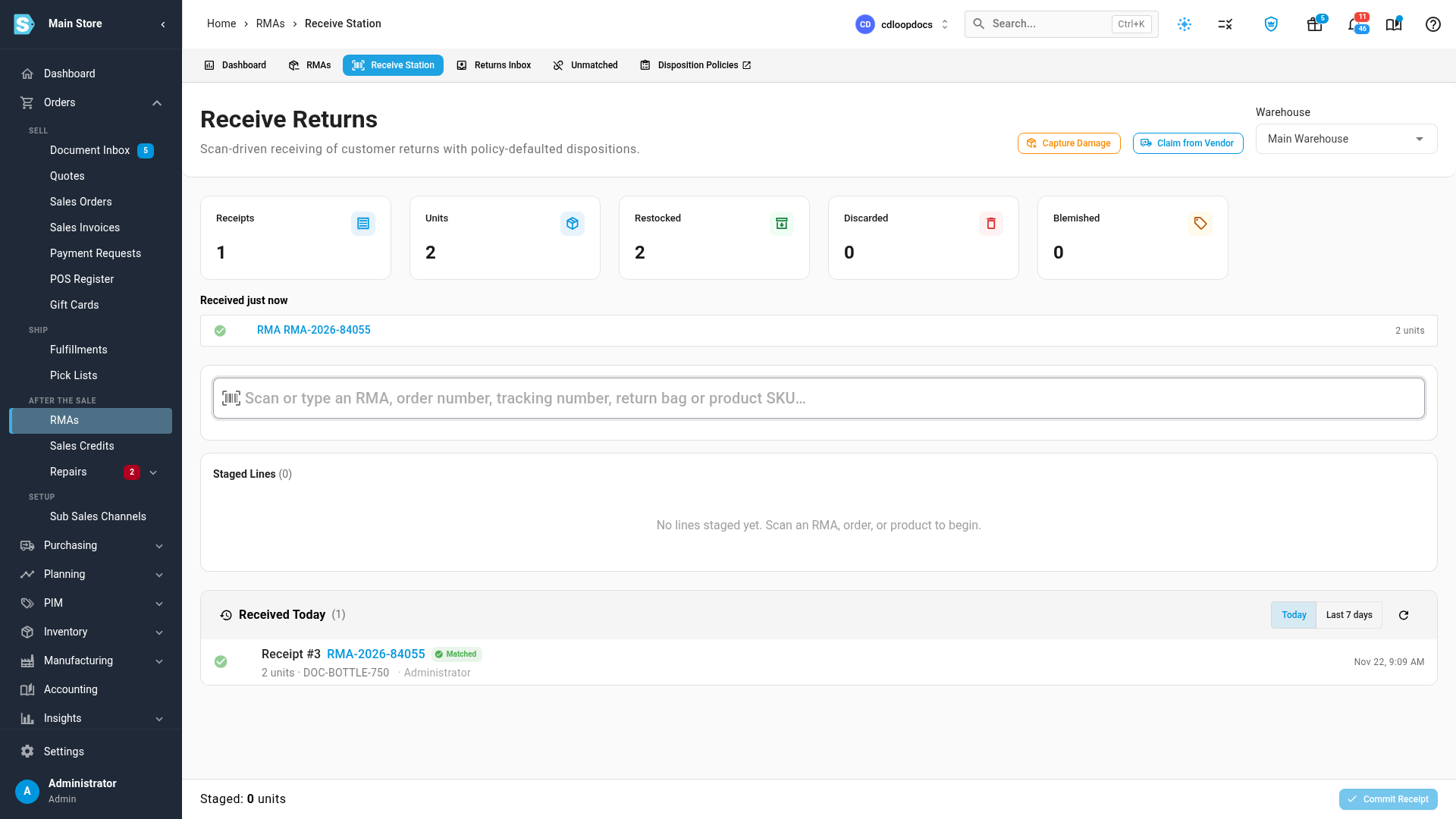
Click the RMA under Received just now to open it and see the outcome on its Loop Returns panel.
Process or flag a return by hand
You can send the outcome yourself, from the Loop return or from its RMA's Loop Returns panel, for example to refund before the parcel arrives.
- Process in Loop asks Loop to issue the refund, exchange or store credit. This can't be undone from SKU.io.
- Flag in Loop holds the return in Loop for review, with a Note for your Loop team.
A button is unavailable when Loop has already closed the return, is still processing it, or has cancelled it; hover over it to see why. If Loop refuses, the outcome shows Failed with Loop's reason.
If you change an item's disposition or grade after the outcome was sent, Loop isn't told again. The RMA's activity gets a note so your team can settle the difference in Loop.
Refunds stay in Loop
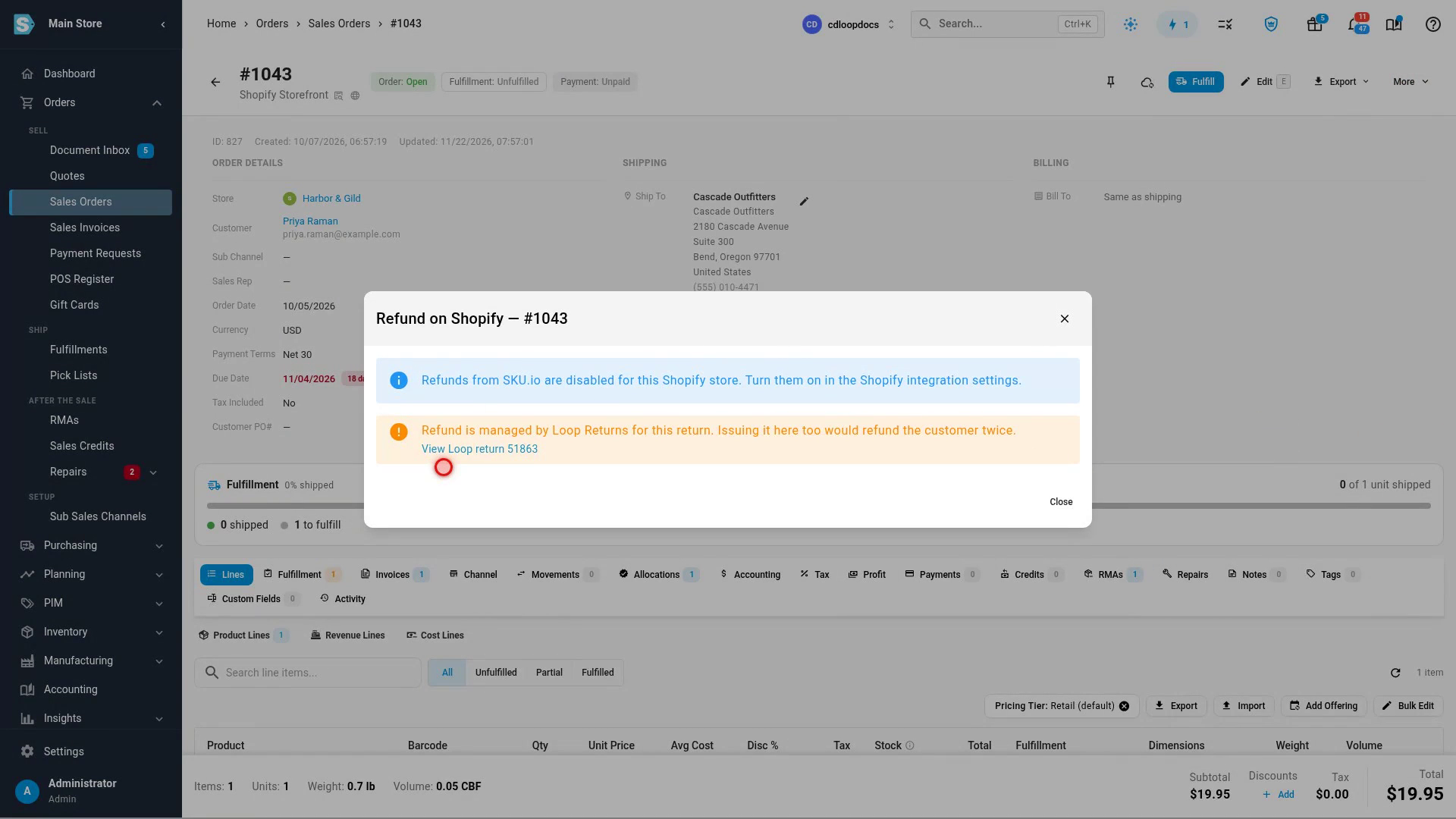
Loop refunds the customer when it processes the return, so SKU.io guards against a second refund. On a sales order with an open Loop return, More → Refund on Shopify shows Refund is managed by Loop Returns for this return, with a link to the Loop return. Where SKU.io can refund on Shopify, it asks you to tick I've checked Loop and still need to refund from SKU.io before it sends the refund.
Next steps
- Connect Loop Returns: change the warehouses, the automation and the flag grades.
- Process a customer return: the Receive Station in detail.
- How Loop Returns exchanges from Shopify are handled
Video transcript
Loop returns arrive in SKU.io as soon as customers start them in Loop. To see them, use the left-hand menu to open Apps and Integrations. Click the search box, and type Loop to narrow the list down. Choose Loop Returns from the results, and its connection card appears. Click the card, and the Loop dashboard opens with its counts. Then click Returns in the left-hand rail of the dashboard. Each row shows the order, the customer, the return type, and the RMA it became. Waiting for Shopify return means Loop's own Shopify return has up to an hour to arrive, so the parcel gets one RMA. Waiting for order means the order hasn't synced from Shopify yet. The outcome column shows what SKU.io has told Loop. Click a Loop return number, and its page opens with everything from Loop. The return lists each item, with the customer's reason. In SKU.io shows the RMA, the order, and the warehouse that receives it. The card on the right shows Loop's tracking number and its destination. Click the RMA number, and the RMA opens in the returns area. The RMA carries a Loop Returns panel. Outcome waits for the full receipt. Once every item is received, SKU.io tells Loop to process the return. When the parcel arrives at your warehouse, open the Orders menu, then RMAs. Click Receive Station, in the tab bar that runs above the RMA list. At the top right, check the warehouse you're receiving into. Then click the scan box, and scan the tracking number on Loop's label. SKU.io finds the RMA, names the customer, and stages its items below. Click the grade list for each item, and choose its grade. Then click Commit Receipt, in the bar at the bottom of the page. The dialog names the warehouse the RMA is received into. Click Confirm Receipt to record it. The RMA is now fully received, so Loop is asked to process the return. Loop then issues the refund, exchange or store credit. A Loop return dropped off at a Happy Returns location arrives in a bag. Scan the barcode printed on the bag into the same scan box. SKU.io finds the Loop return it belongs to, and says so under the box. This time, click the grade list for the item, and choose Unsellable at the bottom. An item graded Unsellable is flagged in Loop instead of processed, so your team reviews it before refunding. Commit the receipt and confirm it, the same way as before. The second receipt joins the list under Received just now. Click the RMA at the top of Received just now to open it. The Loop panel now shows the return flagged in Loop. Click the Loop return number in the panel, and the outcome shows on the Loop return too. You can also send the outcome yourself, from the Loop return or its RMA. Click Returns in the rail, and open another Loop return from the list of returns. Process in Loop asks Loop to issue the refund, exchange or store credit straight away. Flag in Loop holds it for review, with a note for your Loop team. Click Process in Loop, and a dialog explains what Loop will do. Confirm, and the outcome changes to Processing in Loop. Loop refunds the customer itself, so SKU.io guards the order's refund. Click the order number on the return to open its sales order. Click More at the top right, and choose Refund on Shopify. A warning says Loop manages this refund, with a link to the Loop return. Close the dialog, and let Loop settle the refund.