Connect eBay
You connect eBay by signing in to eBay and approving SKU.io's access. There are no keys to copy. Once it's connected, you choose what syncs each way and review the settings that shape how orders, stock, and prices behave.
Before you begin
- You need an eBay seller account and permission to connect integrations in SKU.io.
- Decide which SKU.io store this eBay account sells through. Orders imported from eBay are booked against it.
- Set your inventory start date first. The connection's start date can't be earlier.
Start the connection
-
Go to Apps & Integrations, open Sales Channels, and choose eBay.
-
Click Connect eBay. If an eBay account is already connected, click Add Instance instead.
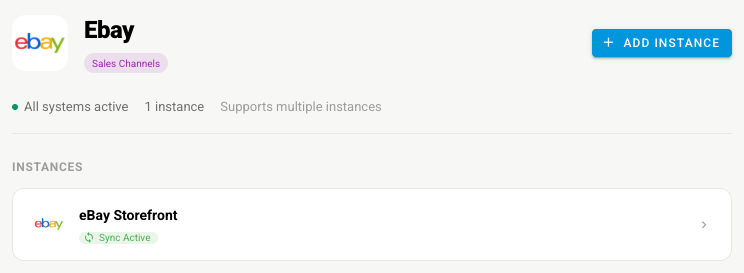
The New eBay Integration page opens with an eBay Setup Guide.

Fill in the details
-
Under Basic Information, type an Integration Name. It's how this account appears everywhere in SKU.io, so make it tell your accounts apart.
-
Pick the Store this account sells through.

-
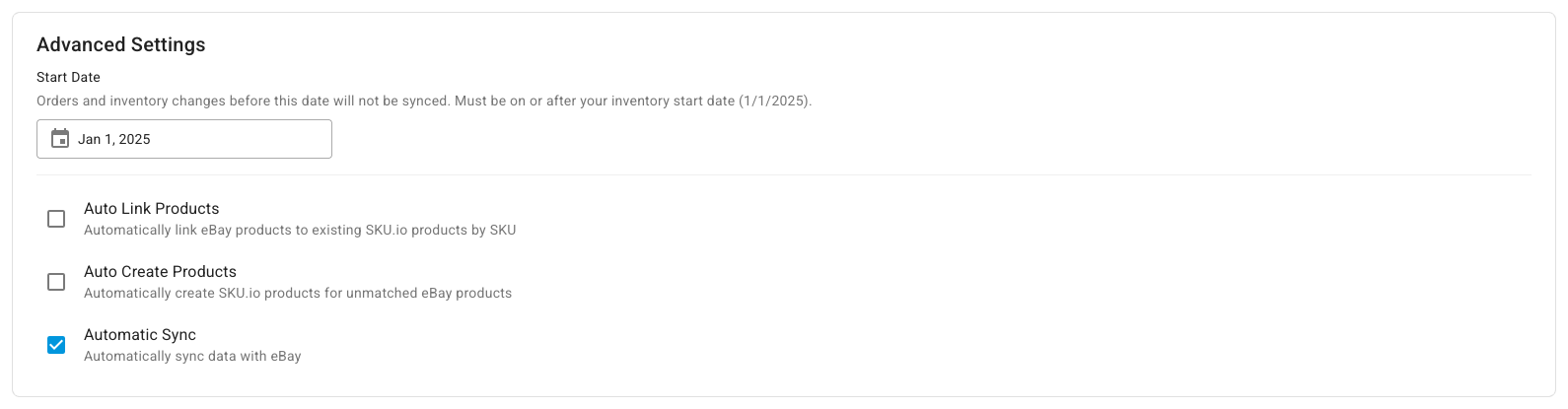
Under Advanced Settings, set the Start Date. Orders and inventory changes before this date aren't synced.
-
Choose whether to Auto Link Products (match eBay listings to your products by SKU) and Auto Create Products (create a product for a listing that has no match).
-
Leave Automatic Sync on to keep the account syncing on its own.
-
Under Accounting, optionally pick the Sales, COGS, Shipping Revenue, Shipping Refund, and Sales Returns & Allowances accounts for this channel. You can change them later under Channel Accounting.
Authorize with eBay
- Click Connect with eBay. eBay opens so you can sign in and approve access.
- Approve the request. eBay sends you back to SKU.io, and the connection starts syncing.
If eBay ever stops accepting the connection, open Settings → Authentication and click Authorize with eBay to approve it again.
Choose what syncs
-
Open the connection's Settings, then the Sync tab.
-
Under What syncs, turn each capability on or off. Import from eBay covers orders, creating SKU.io sales orders from them, and listings. Send to eBay covers tracking, stock, and prices.
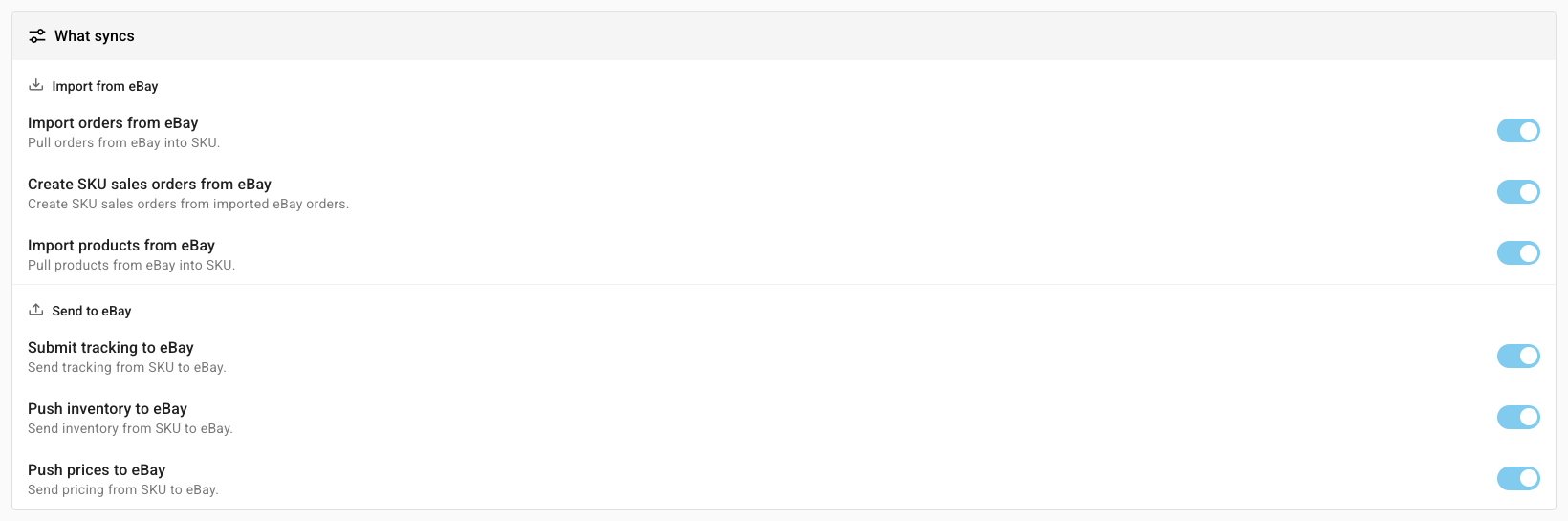
To pause one direction without stopping the rest, see Manage a connected app.
Review the other settings
| Settings tab | What to check |
|---|---|
| General | The name, the store, customer emails, and Auto Create Products |
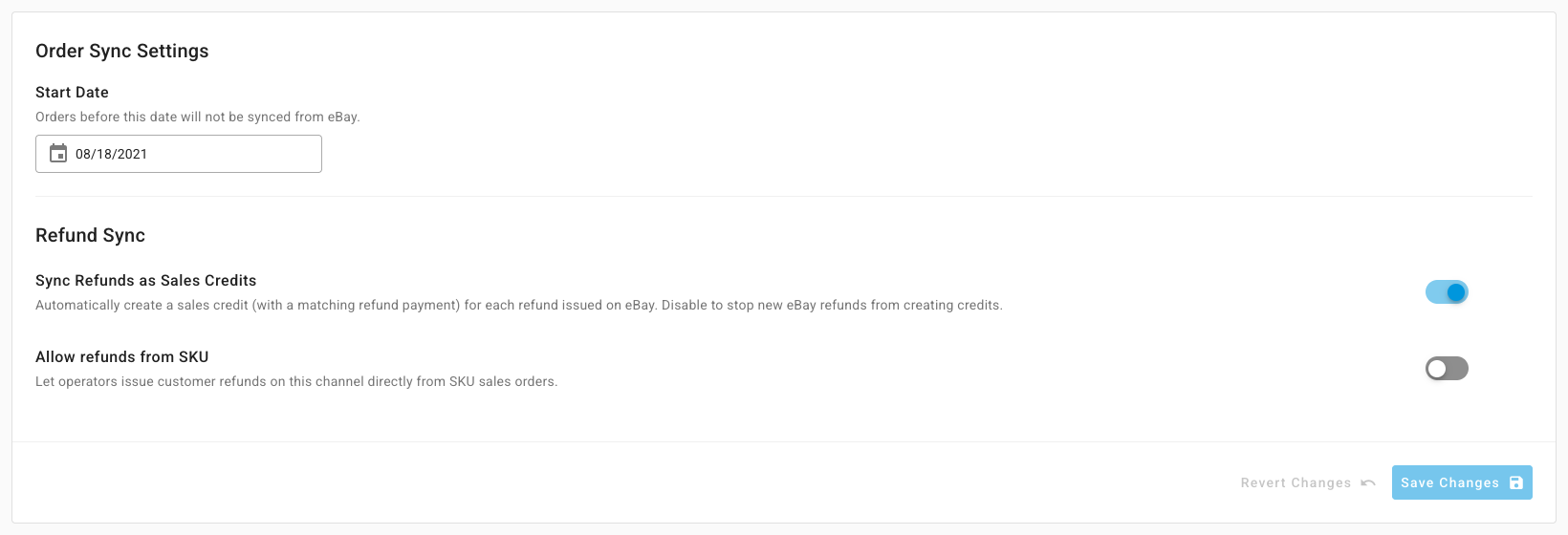
| Orders | The start date, Sync Refunds as Sales Credits, and Allow refunds from SKU |
| Inventory Sync | Master of Stock, the Stock Warehouses whose stock eBay sees, and min, max, and buffer rules |
| Pricing Sync | Master of Price, which price level to send, and guardrails. See Sync prices with your sales channels |
| Shipping | Which SKU.io shipping method each eBay shipping service becomes. Methods appear once orders import |
| Content Sync | Whether SKU.io watches your eBay listings for content changes. See Content Sync |
| Accounting | eBay's reported fees are used for profit estimates, so there's nothing to enter |
| Blemished Auto-List | List new blemished products as auctions until they sell, with a start-price markdown and relist reductions |
Next steps
- eBay overview — what moves each way and where to find it.
- Refund a customer on the sales channel — refund an eBay buyer from the sales order.
- Connect more than one store or account — add a second eBay account.