Run eBay auctions
SKU.io works with eBay auction listings as well as fixed-price ones. It imports the auctions you already run and links them to your products, it can relist an auction that ended unsold at a lower start price until the item sells, and it can list each new blemished product as an auction for you. Listings you publish from PIM → Publish are always fixed-price, so these two settings are how auctions run from SKU.io.
Before you begin
- Your eBay account is connected. See Connect eBay.
- To auto-list blemished stock, you need an eBay listing template set up as an auction. Its listing type must be Chinese, which is eBay's name for an auction listing. Templates live on the Templates tab of PIM → Publish.
- Blemished products are condition-graded copies of a product, with their own SKU and stock. See Create a blemished product.
Relist one product's auctions until it sells
- Open the product, and in its Sections list choose eBay Settings, under Catalog & Listings. The section only appears when an eBay account is connected.
- Expand the panel for your eBay account.
- Tick Relist Auction Until Sold.
- Enter % to reduce price by each relist, for example 10.
- Enter Minimum Price to Relist At, the lowest start price a relist may use.
- Click Save.
From then on, SKU.io relists the product's auction when all of these are true:
- An auction for the product recently ended unsold. The most recent one is the one relisted.
- No other auction for the product is running.
- The product has stock in any warehouse.
Each relist starts at the last auction's price, less the reduction you set, and never below the minimum price. If a relist fails, your admins are notified.
List new blemished products as auctions
-
Go to Apps & Integrations, open eBay, and pick your account from the selector at the top.
-
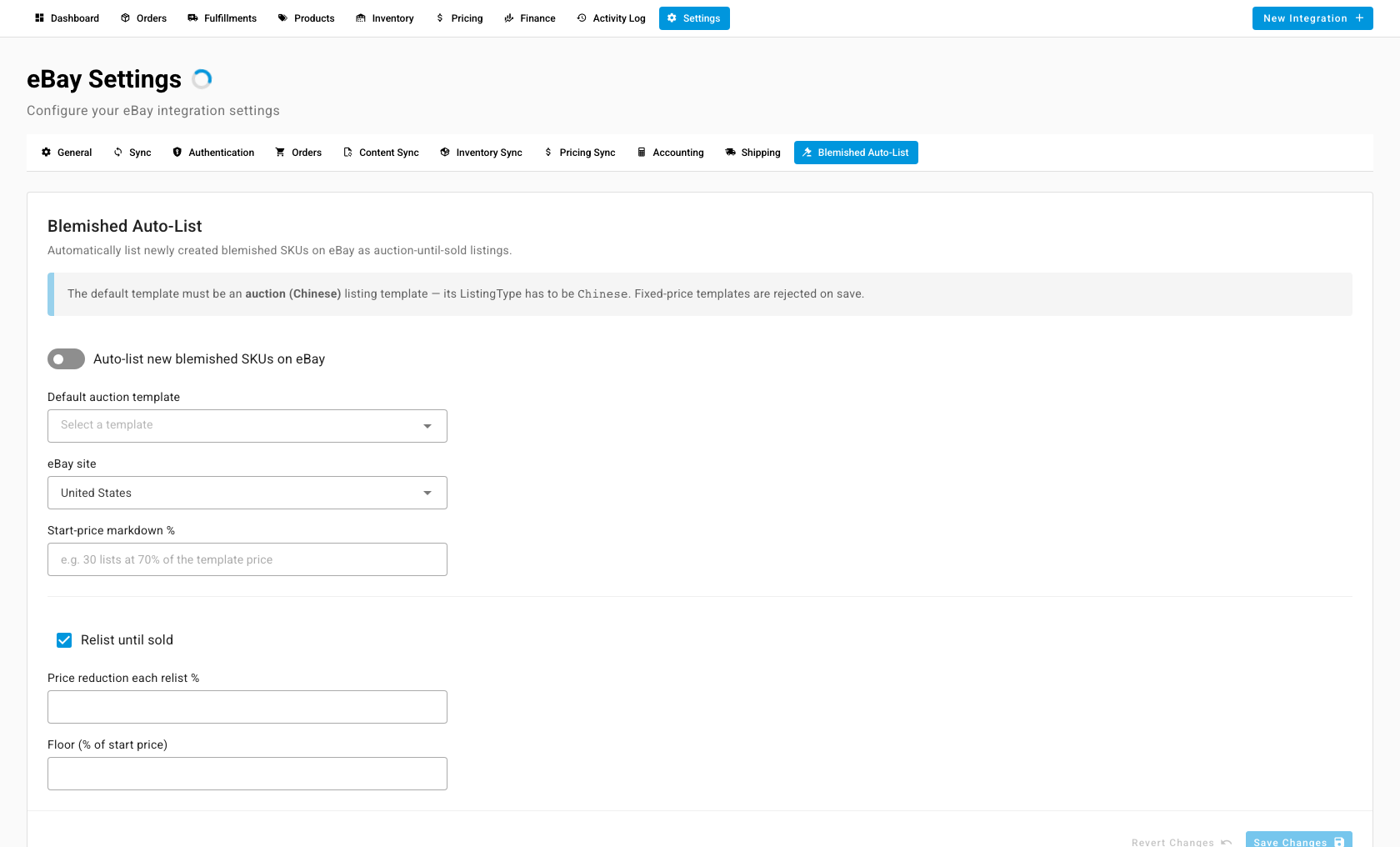
Open Settings, then the Blemished Auto-List tab.
-
Turn on Auto-list new blemished SKUs on eBay.
-
Choose the Default auction template. Only an auction template is accepted: a fixed-price template is refused when you save.
-
Pick the eBay site, for example United States or eBay Motors.
-
In Start-price markdown %, enter how far below the template's price the auction should start. 30 starts it at 70% of the template price.
-
To keep relisting it until it sells, leave Relist until sold ticked and enter:
- Price reduction each relist % — how much lower each relist starts.
- Floor (% of start price) — the lowest a relist may go, as a share of the first start price.
-
Click Save Changes.
When you create a blemished product that has stock and no auction already running, SKU.io lists it on eBay using the template. The blemished product's condition notes, with its reference, are added to the top of the eBay description and to the item's condition description, so buyers see the blemish. If Relist until sold is on, the product's own Relist Auction Until Sold setting is filled in for you from these values.
Find your auctions
On the eBay connection's Products tab, filter by Listing Type to see your auction listings and the SKU.io product each one is linked to.
Next steps
- eBay overview — what moves between SKU.io and eBay.
- Sync prices with your sales channels — pricing for your fixed-price eBay listings.