Monitor channel health
Amazon and Walmart grade every seller on how they ship and handle orders: tracking, late shipments, cancellations, defects. Miss a target and the marketplace can restrict your account. Channel Health brings those numbers into SKU.io every day, warns you before a metric breaches, and flags the individual shipments that are about to count against you while there's still time to fix them.
Before you begin
- Connect at least one Amazon or Walmart account under Apps & Integrations. SKU.io fetches each account's numbers once a day, so a new connection shows Waiting for the first report until its first daily sync.
- For Amazon, the account's authorization needs Amazon's Selling Partner Insights role. Without it, Amazon refuses the report and Channel Health shows a red banner with a Re-authorise button.
- To correct a carrier you need the Sales Orders › Fulfill permission. To change warning levels you need Alert Preferences › Update.
Metrics Channel Health tracks
Each marketplace publishes its own targets and its own window of days, and Channel Health shows them as they are. You can't change a marketplace's target, only how early you hear about it.
| Metric | What it counts | Marketplace target |
|---|---|---|
| Valid Tracking Rate | Shipments whose tracking number the marketplace can follow with the carrier you named | Amazon at least 95%, Walmart at least 99% |
| Late Shipment Rate | Shipments confirmed after their ship-by date | Amazon under 4% |
| On-Time Shipment Rate | Shipments confirmed by their ship-by date | Walmart at least 99% |
| On-Time Delivery Rate | Orders delivered by their promised date | At least 90% |
| Cancellation Rate | Orders you cancelled before shipping | Amazon under 2.5%, Walmart 2% or less |
| Order Defect Rate | Orders with a claim, chargeback, or negative feedback | Amazon under 1% |
| Refund Rate | Orders you refunded | Walmart 6% or less |
| Account Health Rating | Amazon's overall score for your account. While Amazon grades it Good or Great, Channel Health treats it as healthy. | At least 200 |
| Policy Violations | Open policy warnings on the account | None |
Read the Needs action tab
-
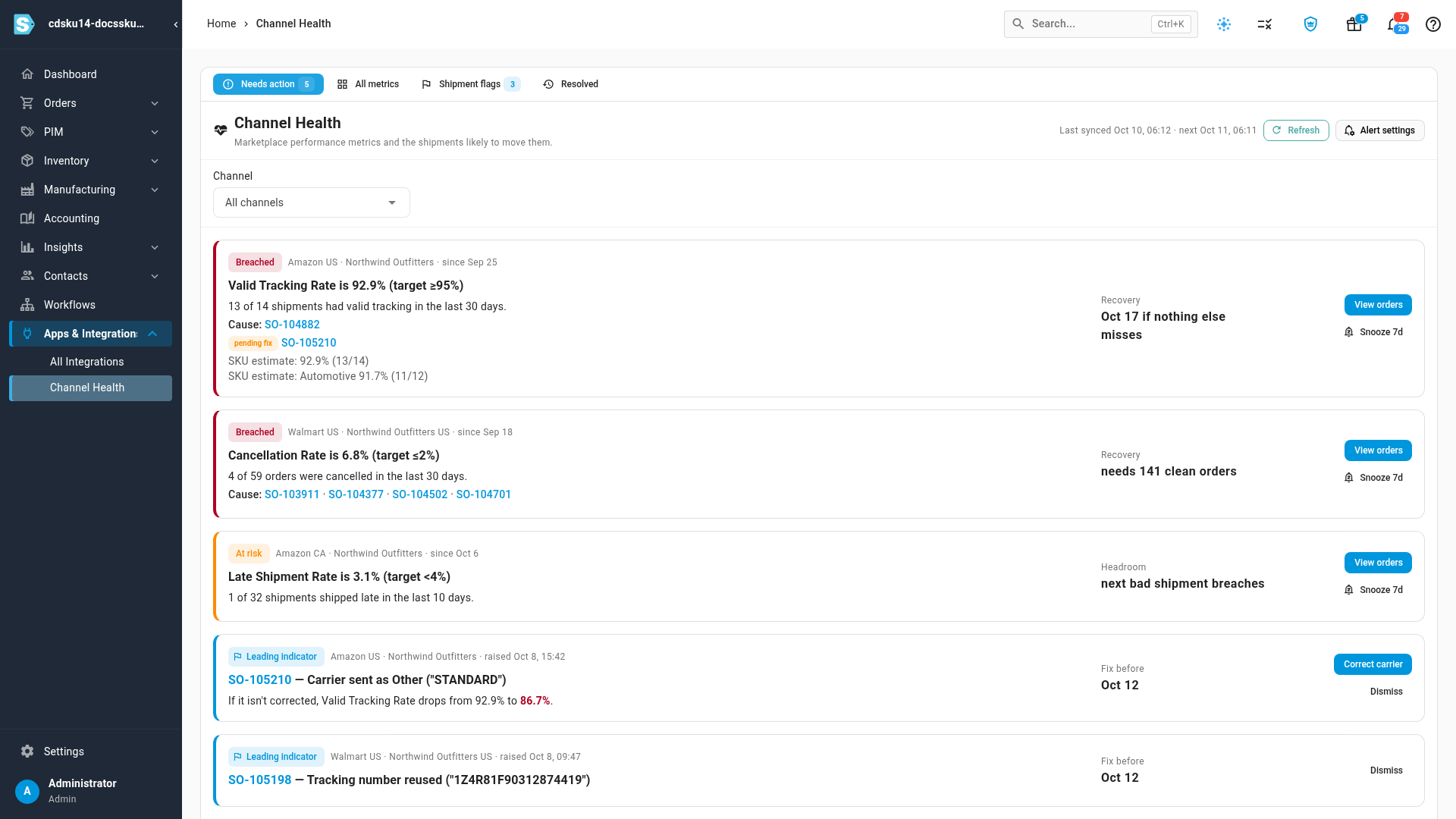
Go to Apps & Integrations → Channel Health. The page opens on Needs action.
-
Read the cards from the top. They're sorted worst first: Breached metrics, then At risk metrics, then shipment flags. Each metric card shows:
- the marketplace, the account, and the date it entered this state;
- the metric, its current value, and the marketplace's target;
- the count behind the number, such as 13 of 14 shipments had valid tracking in the last 30 days;
- Cause: the sales orders that pulled the metric down. Click one to open it. A pending fix tag marks an order you can still correct;
- Recovery or Headroom on the right (see the next section).
-
To silence a metric's alert for a week, click Snooze 7d.
Metrics that are fine fold into one line at the bottom, for example 14 healthy metrics — show all.
Understand headroom, recovery and estimates
| Term | Meaning |
|---|---|
| Breached | The metric is on the wrong side of the marketplace's target. |
| At risk | The metric has crossed the warning level you set, or the next bad shipment would breach the target. The second case needs at least 10 shipments or orders behind the metric. |
| Headroom | How many more bad shipments, cancellations or defects you can absorb before the target breaches. next bad shipment breaches means you have none to spare. |
| Recovery | When a breached metric heals. A date such as Oct 17 if nothing else misses is when the oldest bad shipment drops out of the marketplace's window. needs 141 clean orders is how many good orders it takes when the bad ones can't age out soon. |
| SKU estimate | SKU.io's own count, from the tracking it sent to the marketplace. Amazon reports Valid Tracking Rate for the whole account, but enforces it per product category; the estimate lines split it by category so you can see which one is short. An estimate raises an alert only when it breaches with at least 10 shipments behind it. |
Compare every metric
-
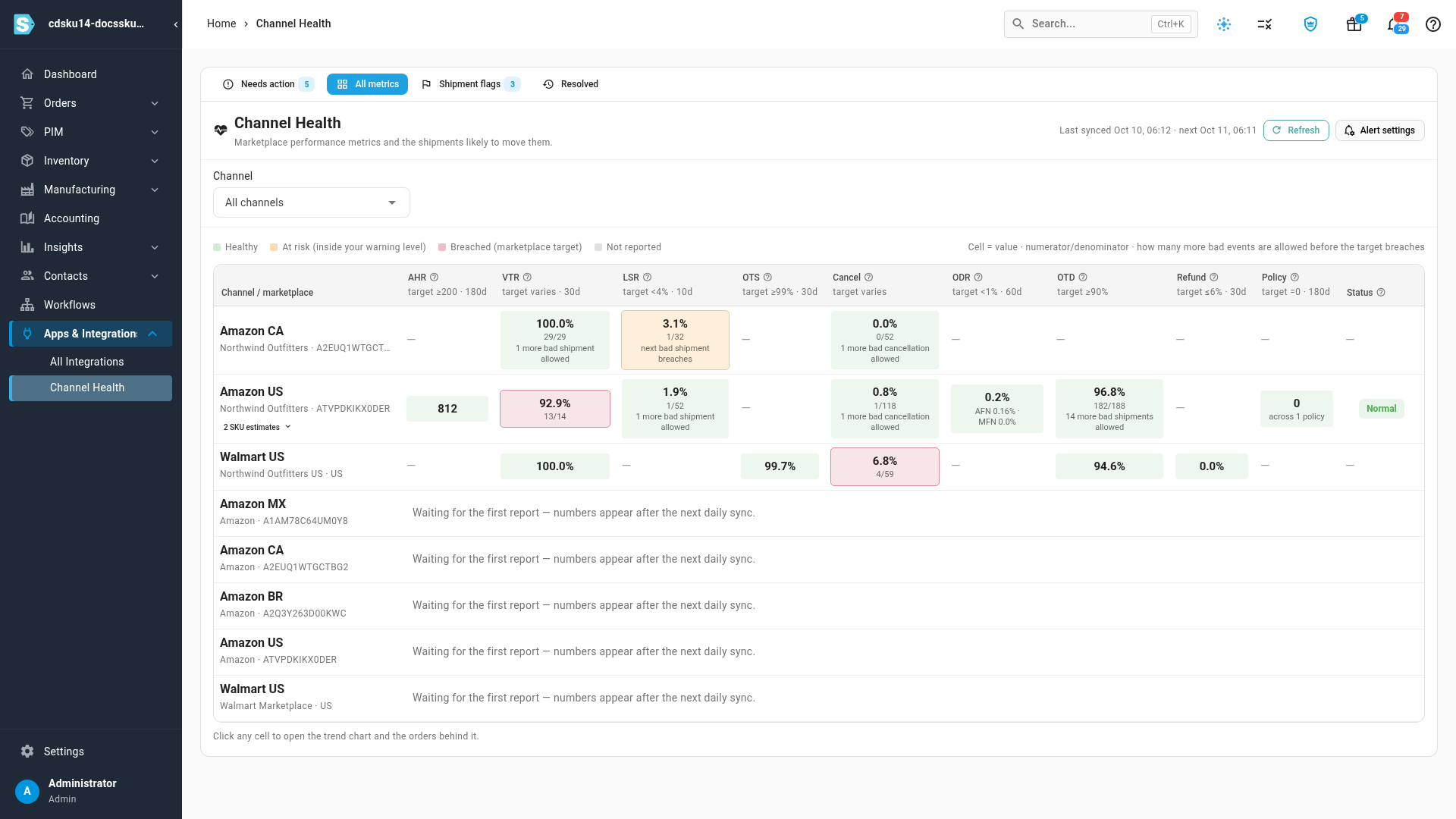
Click the All metrics tab. Each row is one account in one marketplace, and each column is one metric, with its target and window of days under the name.
-
Read a cell: the value, the count behind it, and the headroom left, such as 1 more bad shipment allowed. Green is healthy, orange is at risk, red is breached, and a dash means the marketplace doesn't report that metric there.
-
To see the category estimates for a row, click SKU estimates under the row name.
-
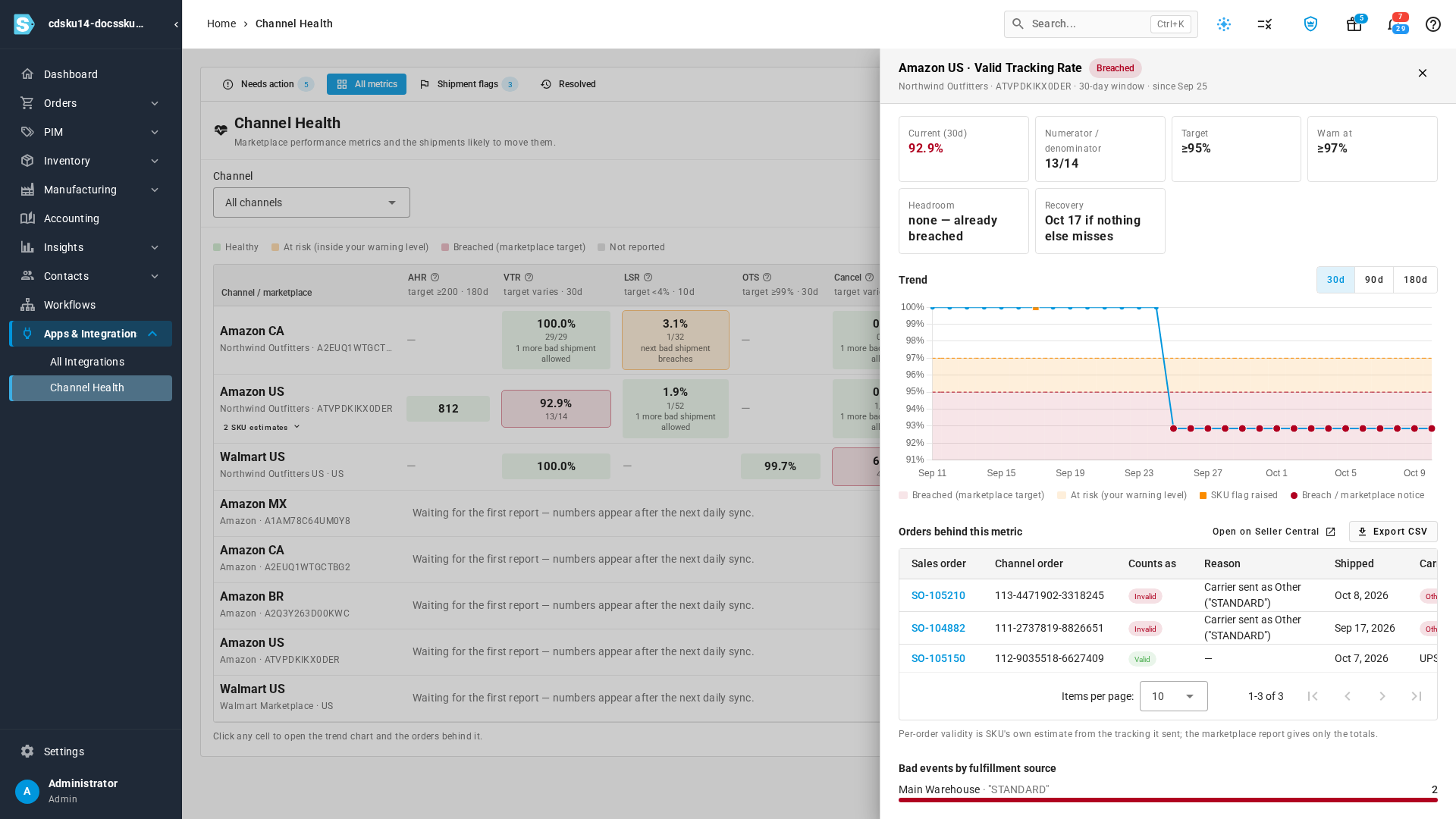
Click any cell to open the metric. The panel shows the current value, target, warning level, headroom and recovery, then a trend chart. The red band is below the marketplace's target, and the orange band is your warning zone. Orange squares mark the days SKU.io flagged a shipment for this metric.
-
Under Orders behind this metric, each sales order shows whether it counted as Valid or Invalid, and why. Click Export CSV to download the list, or Open on Seller Central to check it on Amazon.
The Resolved tab lists metrics that recovered, with the dates they opened and recovered, and how long they lasted.
Fix a shipment sent with the wrong carrier
SKU.io checks every shipment for Amazon and Walmart as its tracking is sent. When something is about to hurt a metric, a Leading indicator card appears on Needs action and a row appears on the Shipment flags tab.
| Flag | What happened |
|---|---|
| Carrier sent as Other | The carrier your warehouse or 3PL reported didn't match a carrier the marketplace knows, so it went out as Other and the tracking won't count as valid. |
| Tracking number reused | Another sales order already shipped with the same tracking number. |
| Missing tracking number | The shipment was confirmed without a tracking number. |
| Tracking doesn't match carrier | The tracking number doesn't look like one from the carrier that was sent. |
| Confirmed after ship-by date | The shipment was confirmed late. It can't be fixed, but it explains a late-shipment count. |
| Confirmed after delivery | The confirmation reached the marketplace after the parcel was delivered. |
Each flag shows how far the metric drops if you leave it, and Fix before gives the last day a correction still helps. Amazon accepts carrier corrections only before the parcel is delivered.
Every flag is also listed on the Shipment flags tab, where you can filter by channel, check and date, and switch between Open, Dismissed, Resolved and All.
To correct a carrier sent as Other:
-
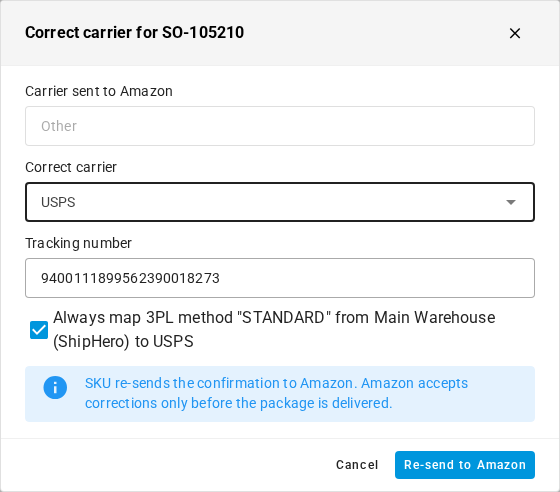
On the flag's card, click Correct carrier.
-
In Correct carrier, choose the carrier that shipped the parcel.
-
Check the Tracking number, and change it if it's wrong.
-
Leave Always map 3PL method … to the selected carrier ticked so later shipments with the same 3PL method go out with this carrier.
-
Click Re-send to Amazon. A message confirms the correction is queued; SKU.io re-sends the corrected tracking in the background, and the flag clears from the list when it's done.
If a flag doesn't need action, click Dismiss.
Set your warning levels
-
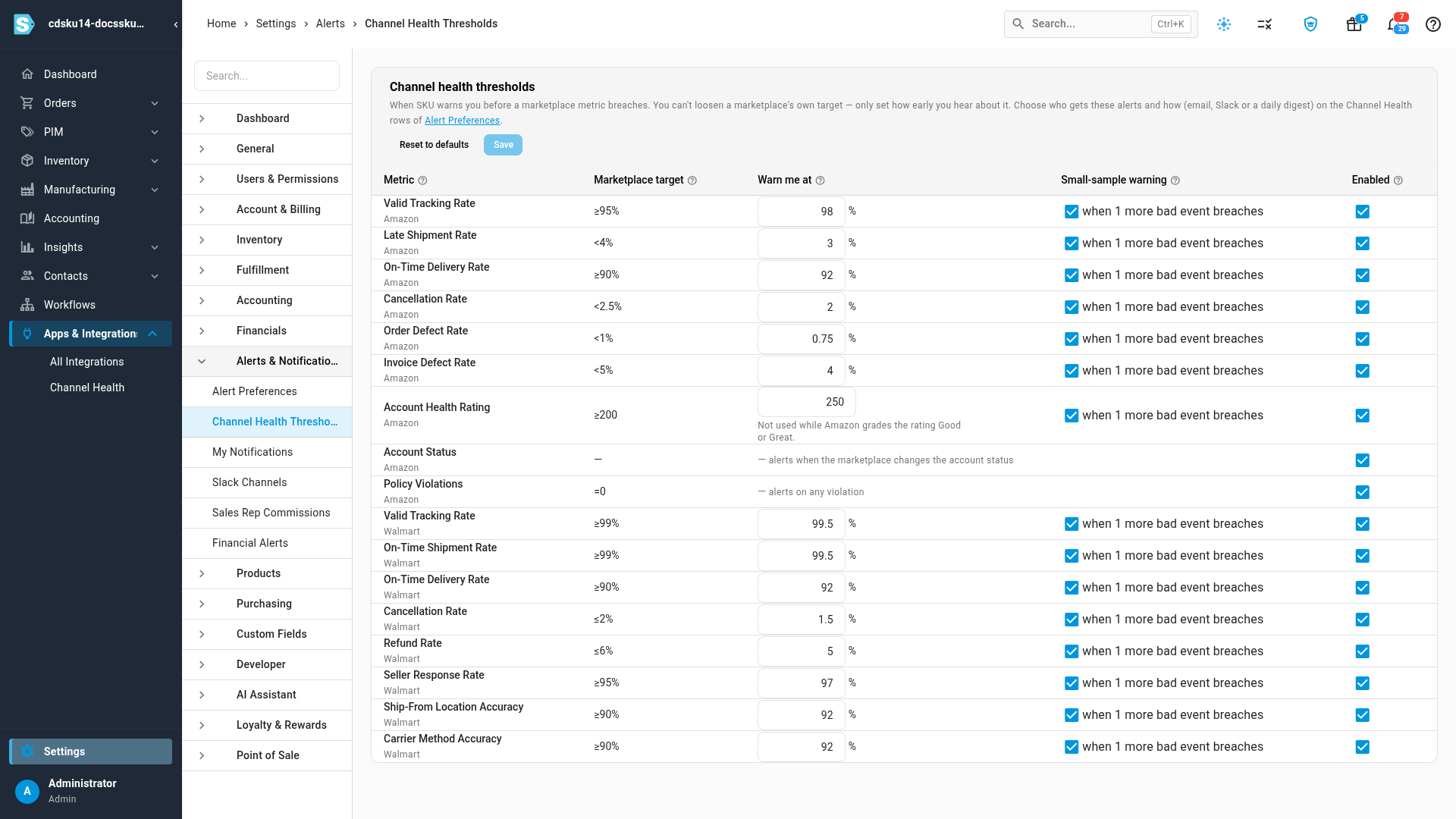
Go to Settings → Alerts & Notifications → Channel Health Thresholds.
-
In Warn me at, type the level at which you want to hear about a metric. It must be stricter than the Marketplace target; a looser level shows an error.
-
Leave Small-sample warning ticked to also get a warning when the next bad event would breach the target. It applies once at least 10 shipments or orders are behind the metric. With fewer, a single shipment moves the metric so far that the warning would fire all the time.
The Account Health Rating level isn't used while Amazon grades the rating Good or Great.
-
Clear Enabled to stop warnings for a metric you don't care about.
-
Click Save. Reset to defaults puts every level back to SKU.io's suggestions.
Choose how alerts reach you
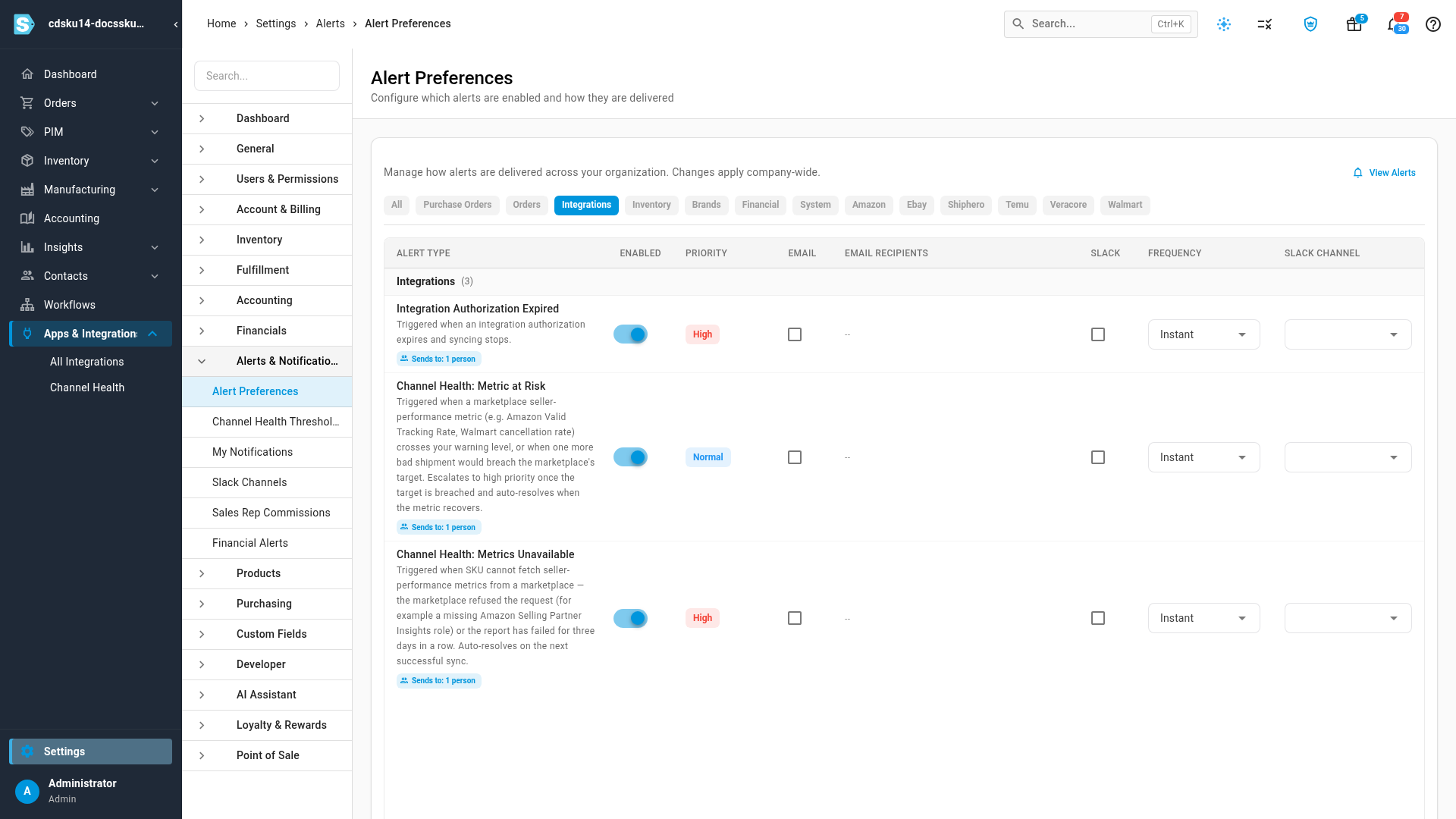
Channel Health raises three alerts: Channel Health: Metric at Risk, Channel Health: Shipment Flagged, and Channel Health: Metrics Unavailable.
-
On Channel Health Thresholds, click Alert Preferences in the description, or go to Settings → Alerts & Notifications → Alert Preferences.
-
Find the Channel Health rows. Shipment Flagged is in the Orders group, the other two in Integrations.
-
Channel Health alerts are on by default and appear in SKU.io, like every other alert. Email and Slack stay off until you turn them on. For each row you want delivered, tick Email and choose its recipients, or tick Slack and choose a channel.
-
Set the Frequency: Instant (the default), Daily Digest or Weekly Digest.
A metric alert updates itself: it escalates to high priority when the metric breaches, and resolves on its own when the metric recovers.
Amazon's Order Defect Rate is the one exception: it appears in Channel Health like every other metric, but its alert is Amazon Order Defect Rate Above Target, so you get one alert for it, not two.
Other places you'll see it
-
The Amazon Integration Dashboard has an Account Health card with each account's Account Health Rating and its worst metric. Click Open Channel Health to jump here.

Next steps
Video transcript
Marketplaces grade every seller on how they ship and handle orders. SKU.io pulls those scores in every morning, so you spot trouble before a marketplace acts. From Apps and Integrations in the sidebar, open Channel Health to see them all. The Needs action tab lists everything breached or at risk, worst first. Each card names the metric, its target, and the figures behind the value. Cause links the sales orders that pulled the number down. Recovery shows the date it heals, if nothing else goes wrong. At risk means a metric has crossed the warning level you set. Headroom counts how many more bad shipments you can absorb. Here, the very next late one breaches the target. SKU estimate lines are SKU.io's own figures, split by product category. Open All metrics to see every account and marketplace side by side. Each cell shows the value, the counts behind it, and the headroom left. Red means breached, and orange means at risk. Click any cell to open its trend chart and the orders behind the number. Anything inside the red band breaks the marketplace target. Orange is your own warning zone. Below the chart, each order shows whether it counted, and why. When you have seen enough, close the panel with the cross in its corner. Back on the Needs action tab, look below the metrics for the leading indicators. Each card here flags one shipment, while there's still time to act. This one reached Amazon with its carrier set to Other, so the tracking won't count as valid. The card shows how far the metric falls if nobody fixes the shipment. To fix it before delivery, click Correct carrier. Open the list, and pick the company that actually shipped this parcel. Leave the box below ticked, so later shipments with the same 3PL method map to that carrier automatically. When everything looks right, send the correction with the blue button at the bottom of the dialog. SKU.io re-sends the corrected tracking to the marketplace in the background, which takes a few seconds. A moment later, the flag clears from the list. To change when you hear about trouble, open Settings at the bottom of the sidebar, then Alerts and Notifications. Under it, choose Channel Health Thresholds to see every metric. The Warn me at column holds your own early warning for each row. You can tighten it, but never loosen the marketplace's target. Type a stricter level for the metric you care about, then click Save. A message confirms the change is saved. Delivery is set on Alert Preferences, linked at the top of this page. Out of the box, every Channel Health warning is on, and shows up inside SKU.io. To get a metric at risk by email or Slack, filter to Integrations and tick either box. With both in place, you hear about trouble before any marketplace penalty.