Send alerts to Slack
SKU.io can post alerts straight into a Slack channel, so a team that lives in Slack sees a stuck sync or an approval request without opening SKU.io. You connect each channel once with a Slack incoming webhook, then pick, alert by alert, which ones post there — as they happen, or as a daily or weekly digest.
Before you begin
- You need permission to manage Slack channels and alert preferences. Administrators have both.
- You need a webhook URL for the channel, which starts
https://hooks.slack.com/services/. Create one in Slack by adding the Incoming Webhooks app to your workspace and choosing the channel, or ask your Slack admin for one.
Connect a channel
-
Go to Settings → Alerts & Notifications → Slack Channels.

-
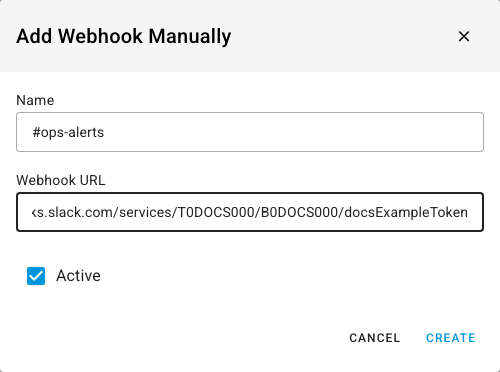
Click Manual. The Add Webhook Manually dialog opens.
The Add to Slack button beside it is greyed out: until SKU.io's Slack app is approved by Slack, channels are added by webhook.
-
In Name, enter a name you'll recognize when you pick the channel later, such as
#ops-alerts. -
Paste the webhook URL into Webhook URL.
-
Leave Active ticked.
-
Click Create.
The channel appears in the list with an Active chip.

Test the channel
Click the send (paper plane) button beside the channel. SKU.io posts a test message and shows Test message sent successfully. If you see an error instead, check that the webhook URL is complete and that the webhook hasn't been removed in Slack.
Choose which alerts post there
-
Go to Settings → Alerts & Notifications → Alert Preferences.
-
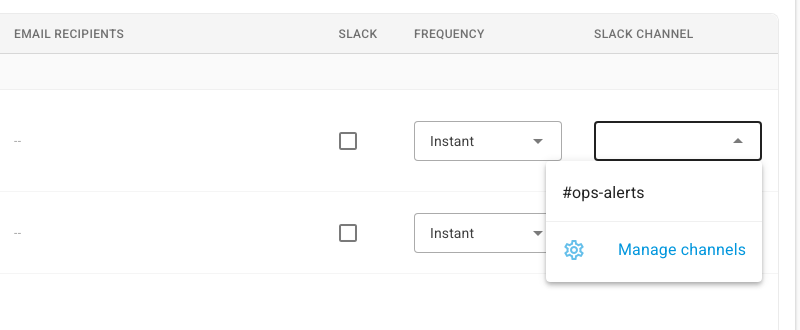
Find an alert you want in Slack and tick its Slack box.
-
Under Slack Channel, pick the channel you connected.
-
Pick a Frequency: Instant posts each alert as it happens, Daily Digest posts one summary a day, and Weekly Digest posts one a week, on Mondays.
-
Repeat for each alert, then click Save Changes.
Different alerts can post to different channels — for example, purchase order
approvals to #purchasing and integration problems to #ops-alerts.
Remove a channel
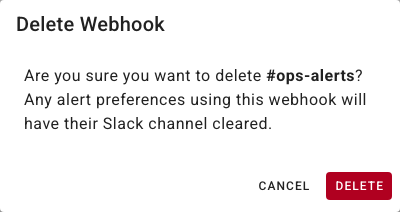
- On Slack Channels, click the red delete button beside the channel.
- Click Delete to confirm.
Any alert that posted to that channel has its Slack Channel cleared, so it stops posting to Slack until you pick another channel.
Next steps
- Choose which alerts your team gets
- Monitor daily financials and margin alerts — a daily summary that can also post to Slack.