Read and act on alerts
Every alert SKU.io sends you lands in your Alerts inbox. The bell at the top of the screen shows how many are unread, and the Alerts page lists all of them so you can work through them, jump to the record each one is about, and clear the ones you've dealt with.
Before you begin
- You see the alerts you're in the audience for. An administrator decides who receives each alert in Choose which alerts your team gets.
Check new alerts from the bell
The bell's badges count your unread alerts: red for High priority, blue for Normal.
- Click the bell at the top of the screen. The newest alerts open in a panel.
- To see only urgent ones, click High.
- Read an alert's Why: line to see what put you in its audience — for example You have the "brand_reports.manage" permission, or Sent directly to you.
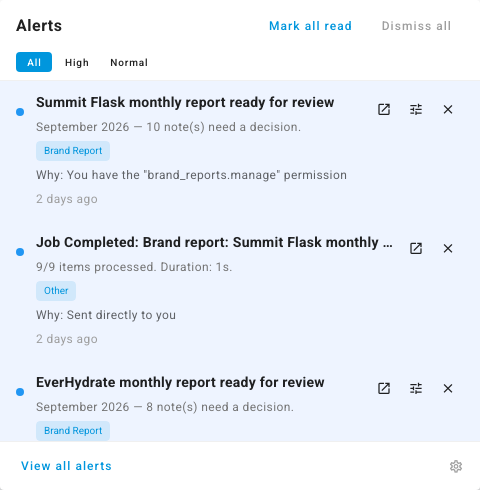
Each alert in the panel has up to three buttons on the right:
| Button | What it does |
|---|---|
| Open (box with an arrow) | Opens the record the alert is about, such as the purchase order or the brand report, and marks the alert read. |
| Settings (sliders) | Opens the settings for that kind of alert with its row highlighted: Alert Preferences if you can change company-wide alert settings, otherwise My Notifications. |
| × | Dismisses the alert. |
Click Mark all read to clear the unread badges, or Dismiss all to clear the panel. Click View all alerts to open the full inbox.
Work through the Alerts page
The Alerts page holds every alert you've received.
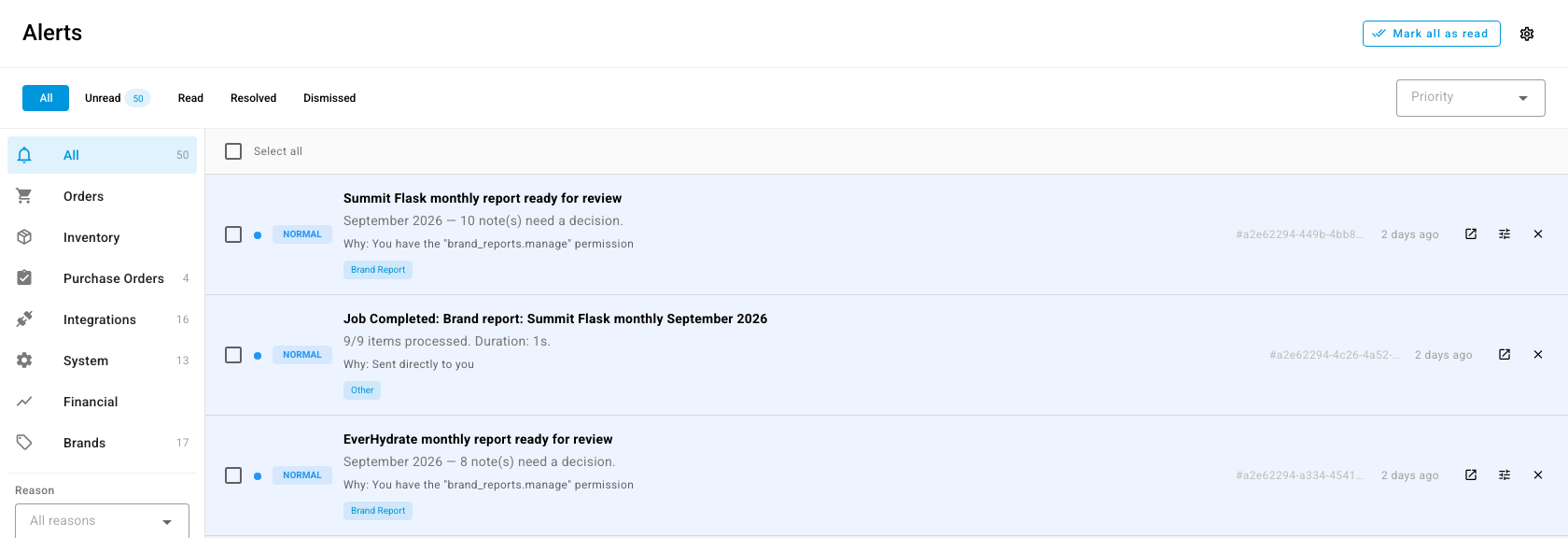
- Pick a status tab across the top:
- Unread — alerts you haven't opened yet. The count shows how many.
- Read — alerts you've opened.
- Resolved — alerts about a condition that has since cleared on its own, such as a sync that started working again. Each shows when it resolved and how long it had been active.
- Dismissed — alerts you cleared.
- All — every active alert, read or unread. Resolved and dismissed alerts have their own tabs.
- Narrow the list with a category on the left — Orders, Inventory, Purchase Orders, Integrations, System, Financial, or Brands — or with the Priority and Reason filters.
- Click an alert to expand its full message. Opening it marks it read.
An alert about an ongoing condition doesn't pile up while the condition lasts. It stays as one row with a repeat count, such as ×6, and shows when it first became active.

Handle several alerts at once
- Tick the alerts you want, or tick Select all.
- Choose Mark as read, Mark as unread, or Dismiss from the bar that appears above the list.
To bring a dismissed alert back, open the Dismissed tab, tick it, and click Restore.
Click Mark all as read at the top of the page to clear every unread alert in one go.
Next steps
- Set your own alert notifications — get alerts by email, or as a daily or weekly digest instead.
- Choose which alerts your team gets — for administrators.