Connect Starshipit
Connecting Starshipit takes three parts: create the connection with your keys, paste SKU.io's webhook address into Starshipit so tracking flows back, and tell SKU.io which warehouses ship through Starshipit.
Before you begin
- You need permission to connect integrations.
- In Starshipit, go to Settings → API and copy the API Key and Subscription Key.
- You can connect one Starshipit account.
Create the connection
-
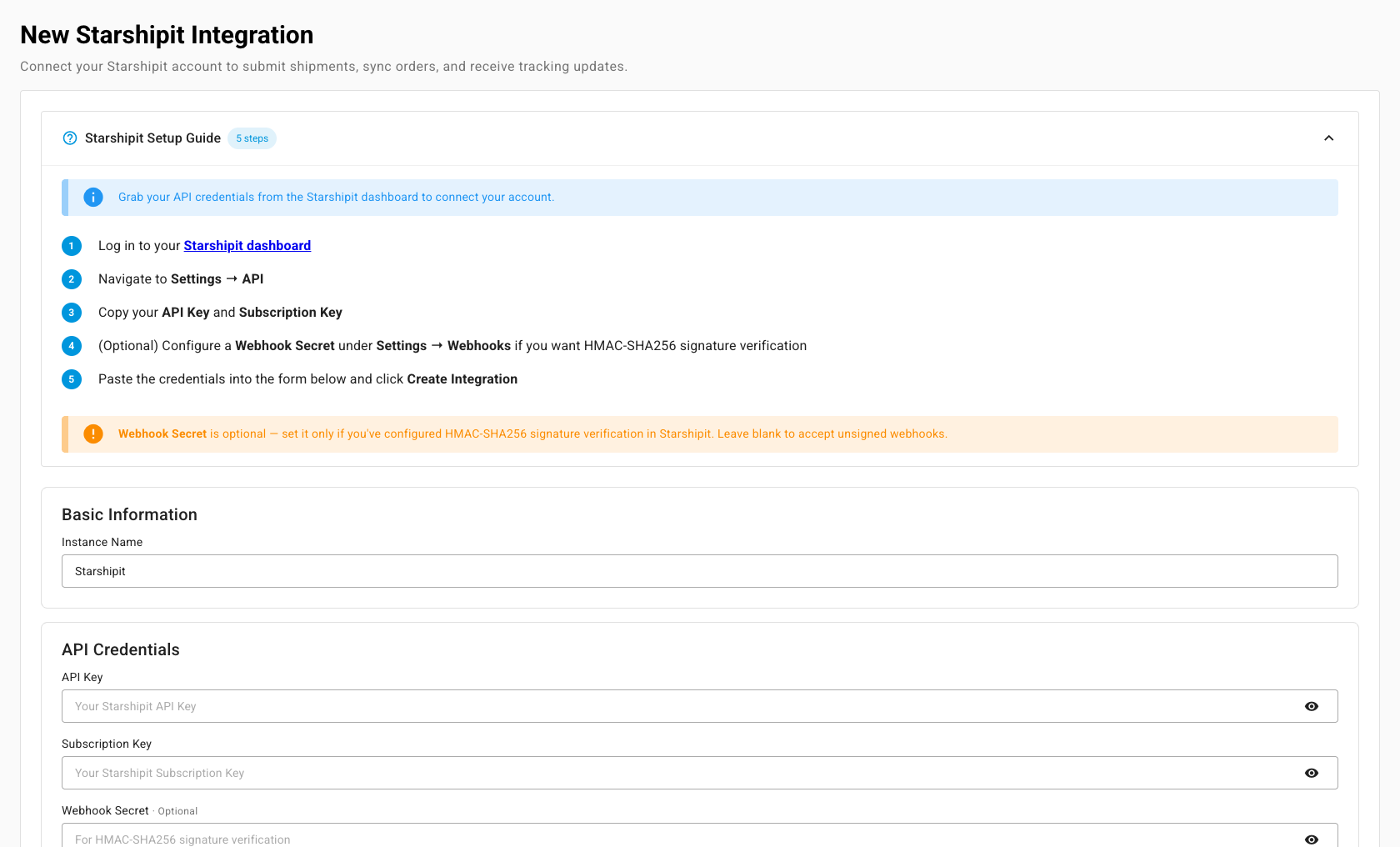
Go to Apps & Integrations, open Shipping & Fulfillment, and choose Starshipit. The New Starshipit Integration page opens.
-
Enter an Instance Name. It defaults to Starshipit.
-
Paste the API Key and Subscription Key.
-
Leave Webhook Secret blank, unless you've turned on signature checking for webhooks in Starshipit. Then enter the same secret here.
-
Leave Enable automatic order syncing on, and check the Order Start Date (30 days ago by default).
-
Click Create Integration.
What you'll see: the Dashboard opens and the first order sync starts. SKU.io doesn't test the keys when you create the connection, so open Settings and click Test Connection to confirm them.
Paste the webhook address into Starshipit
Starshipit tells SKU.io about labels, tracking, and cancellations through a webhook, and you set it up by hand.
- In SKU.io, open Settings. Under Webhook Settings, copy the Webhook URL.
- In Starshipit, go to Settings → Webhooks and paste it as your webhook endpoint.
Without the webhook, tracking still arrives, but only when SKU.io checks Starshipit every 30 minutes.
Choose which warehouses ship through Starshipit
- Open the Fulfillments tab.
- Turn on Enable Fulfillment for each warehouse Starshipit ships from.
- Turn on Automate Fulfillment too if SKU.io should submit that warehouse's orders to Starshipit automatically. Leave it off to submit each one yourself.
Map carriers and services
Open Shipping Methods. The list shows each carrier and service Starshipit has used on your orders. Pick the SKU.io shipping method each one means, or select several rows and use Apply to selected. The mapped method decides the carrier name SKU.io sends to your sales channel with the tracking number.
Set what syncs
Settings → Sync has a Sync Schedule (Active or Paused) and two switches under What syncs: Import tracking from Starshipit and Push orders to Starshipit. With pushing off, an order is refused with "Starshipit order push is turned off in Sync settings".