Create & work a pick list
A pick list walks you through your warehouse one bin at a time. It takes open fulfillment orders, works out which bin each item comes from, and puts the picks in walking order. You confirm the bin, the item, and the quantity for each pick. Picking several orders on one list makes a wave. When the list is complete, Fulfill picked items records the orders as fulfilled from the bins you picked.
Before you begin
- The warehouse has open fulfillment orders.
- Picks follow your bins when warehouse locations are on for the warehouse. Without bins, each pick says No bin — pick from stock.
- To use Fulfill picked items, you need the Fulfillment Orders → Ship permission. See Control who can act on fulfillment orders.
Create a pick list
-
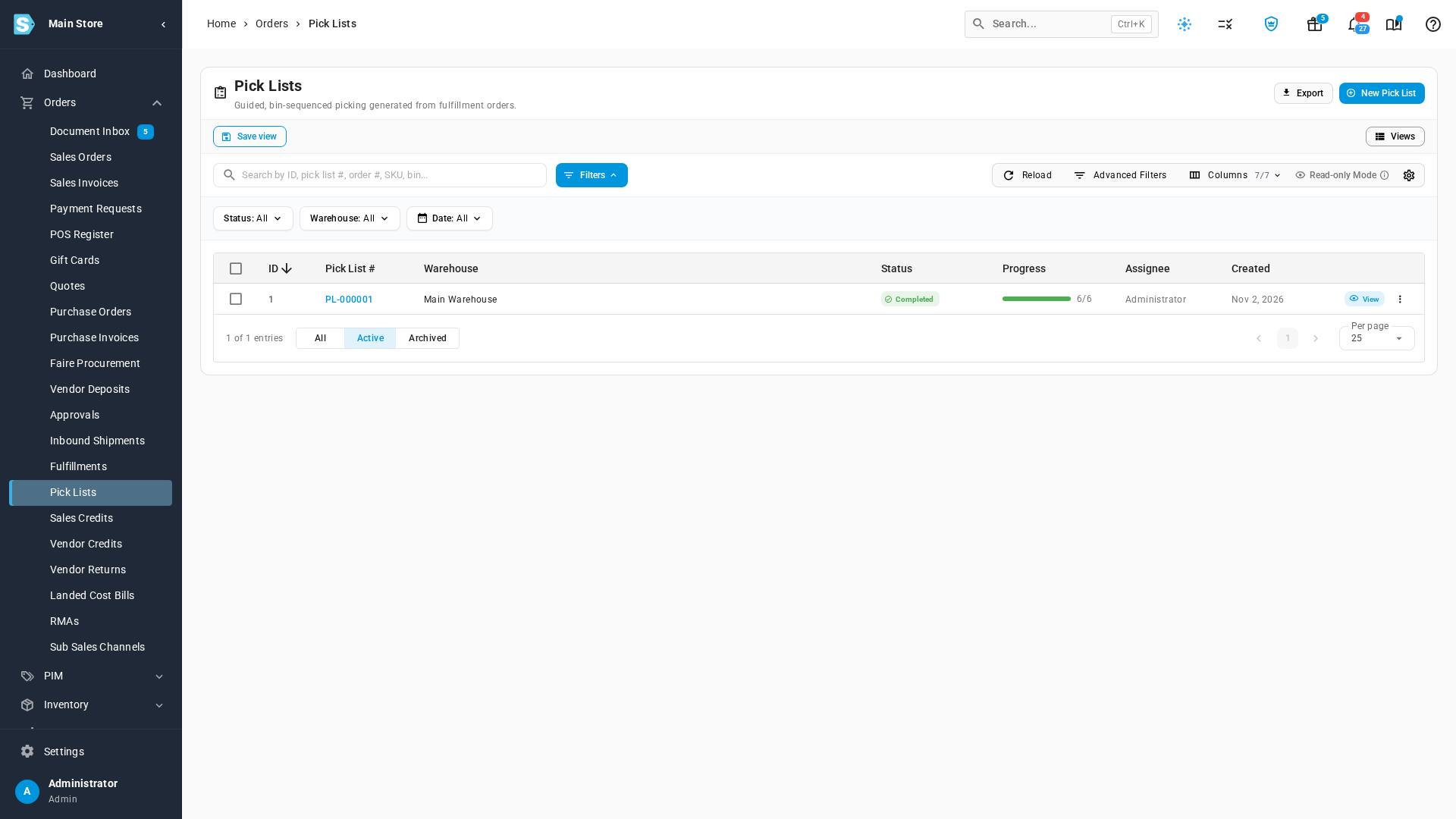
Go to Orders → Pick Lists. Every list is listed with its Status, Progress and Assignee.
-
Click New Pick List.
-
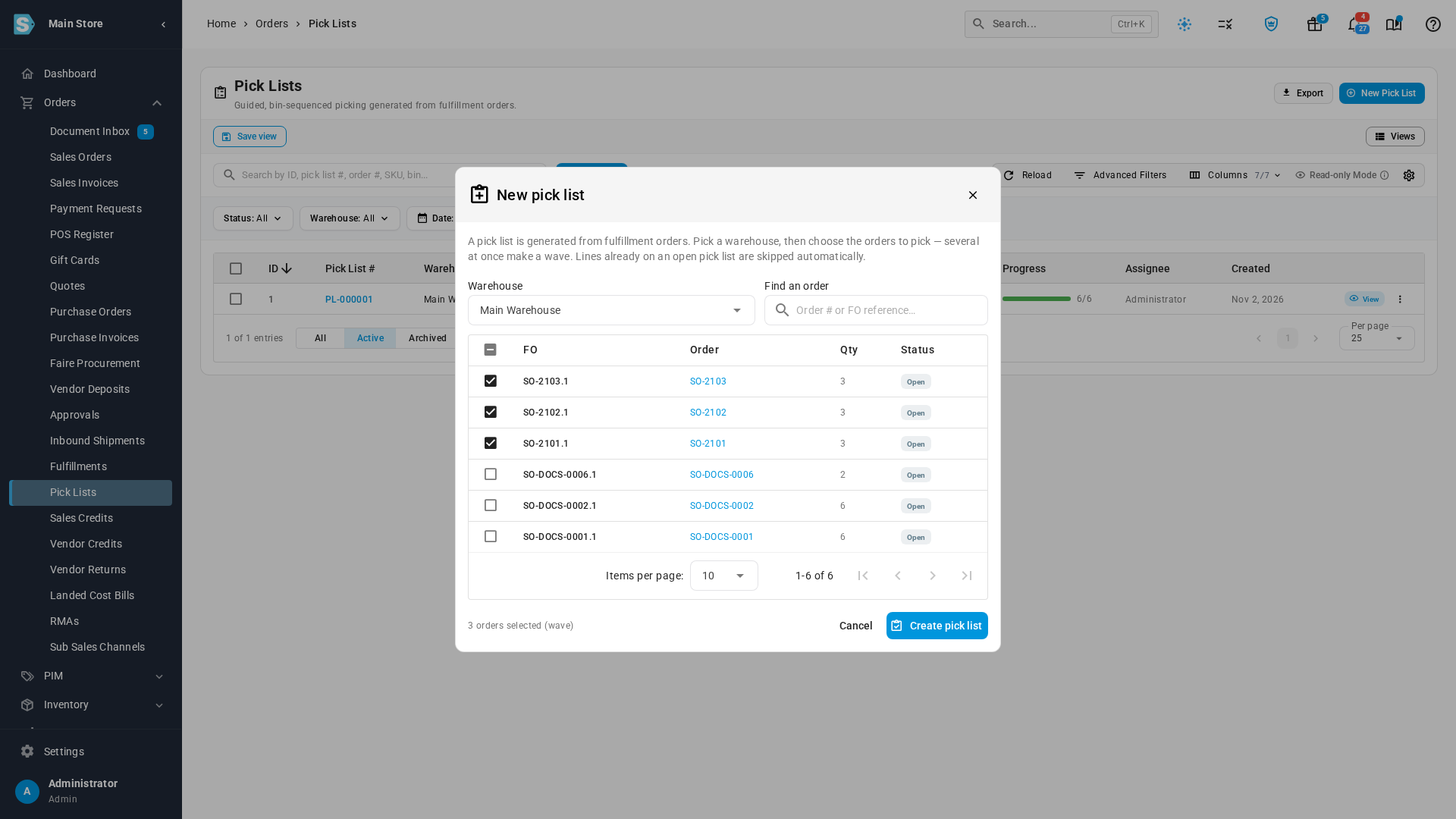
In Warehouse, type the name of the warehouse you're picking in and choose it. Only your own warehouses are listed, not 3PL, supplier or marketplace-run ones. Its open fulfillment orders appear, with the Qty on each. Use Find an order to search by order number.
-
Tick the orders you want to pick. The dialog shows how many are selected, and marks it a wave when you pick more than one.
-
Click Create pick list.
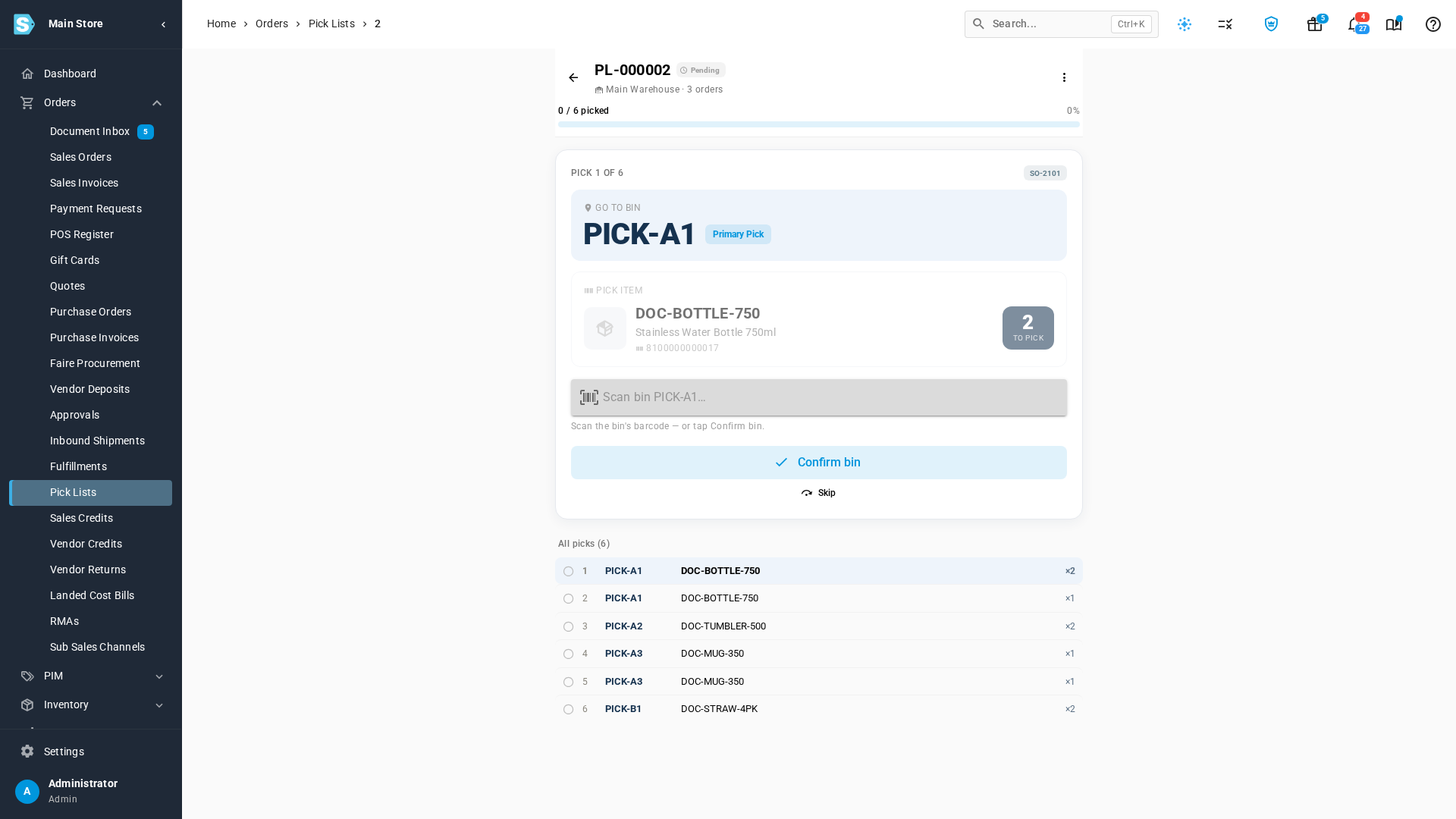
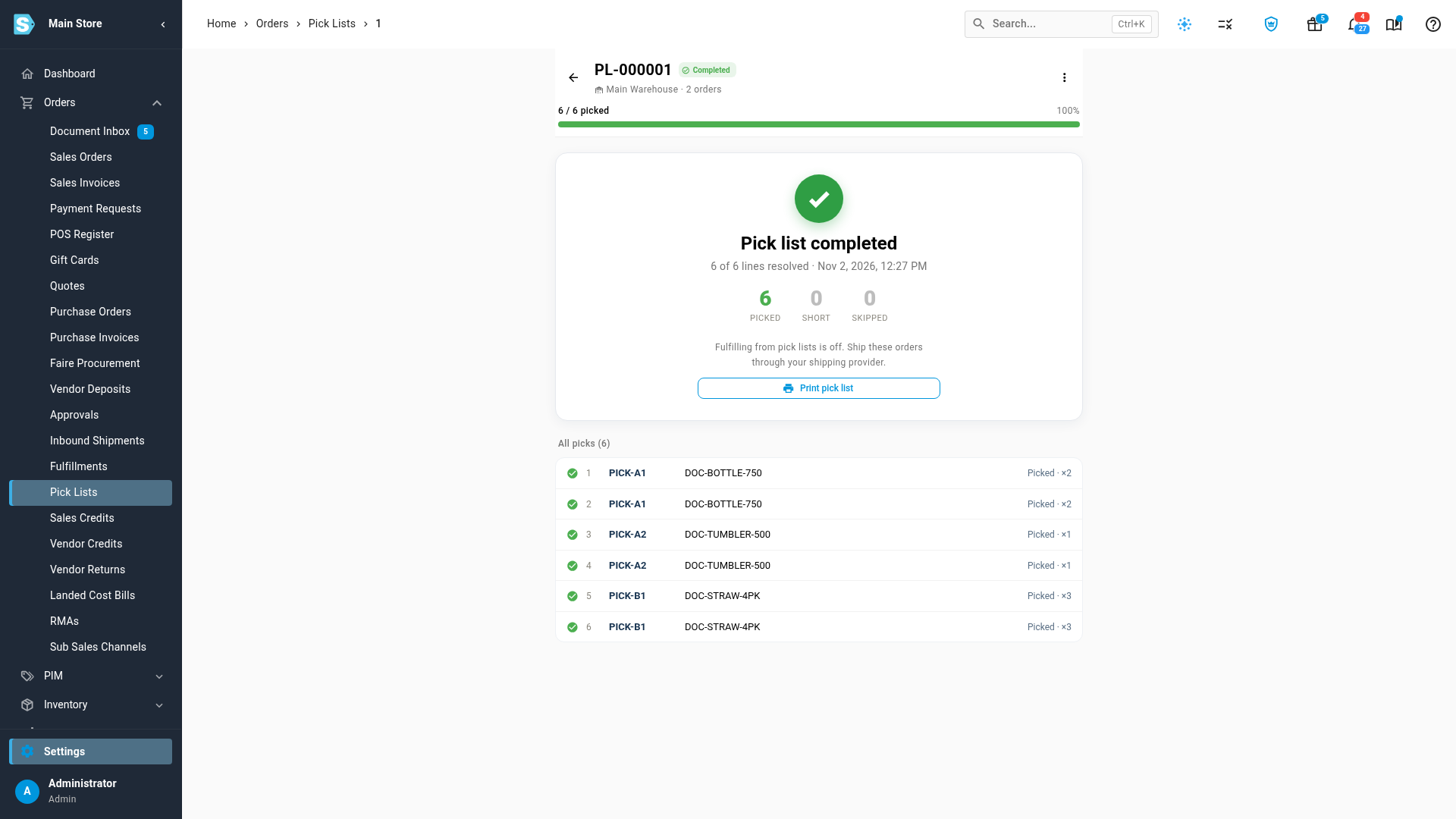
The new list opens on its first pick, numbered PL-######. The header shows the warehouse, how many orders the list covers, and your progress, such as 0 / 6 picked. All picks lists every bin, item and quantity in the order you'll walk them. An order line that's already on an open pick list is left off the new one, so the same item can't be picked twice. Closed and cancelled fulfillment orders are never picked.
You can also start a pick list from Orders → Fulfillments: tick fulfillment orders from one warehouse and click Create Pick List, or choose Create Pick List from a single row's menu. A sales order's warehouse card offers Create pick list for that order alone.
Work the picks
Each pick takes three confirmations. You can scan barcodes into the scan box, or click the buttons.
-
Go to bin: walk to the bin shown and scan its barcode, or click Confirm bin. Scanning the wrong bin shows Wrong bin and the bin you should be at.
-
Pick item: scan the item's barcode, or click Confirm item.
-
Quantity: check the quantity. If you found fewer, lower it with − first. The button then reads Short pick and the line is saved as a short pick.
-
Click Picked. The next pick comes up.
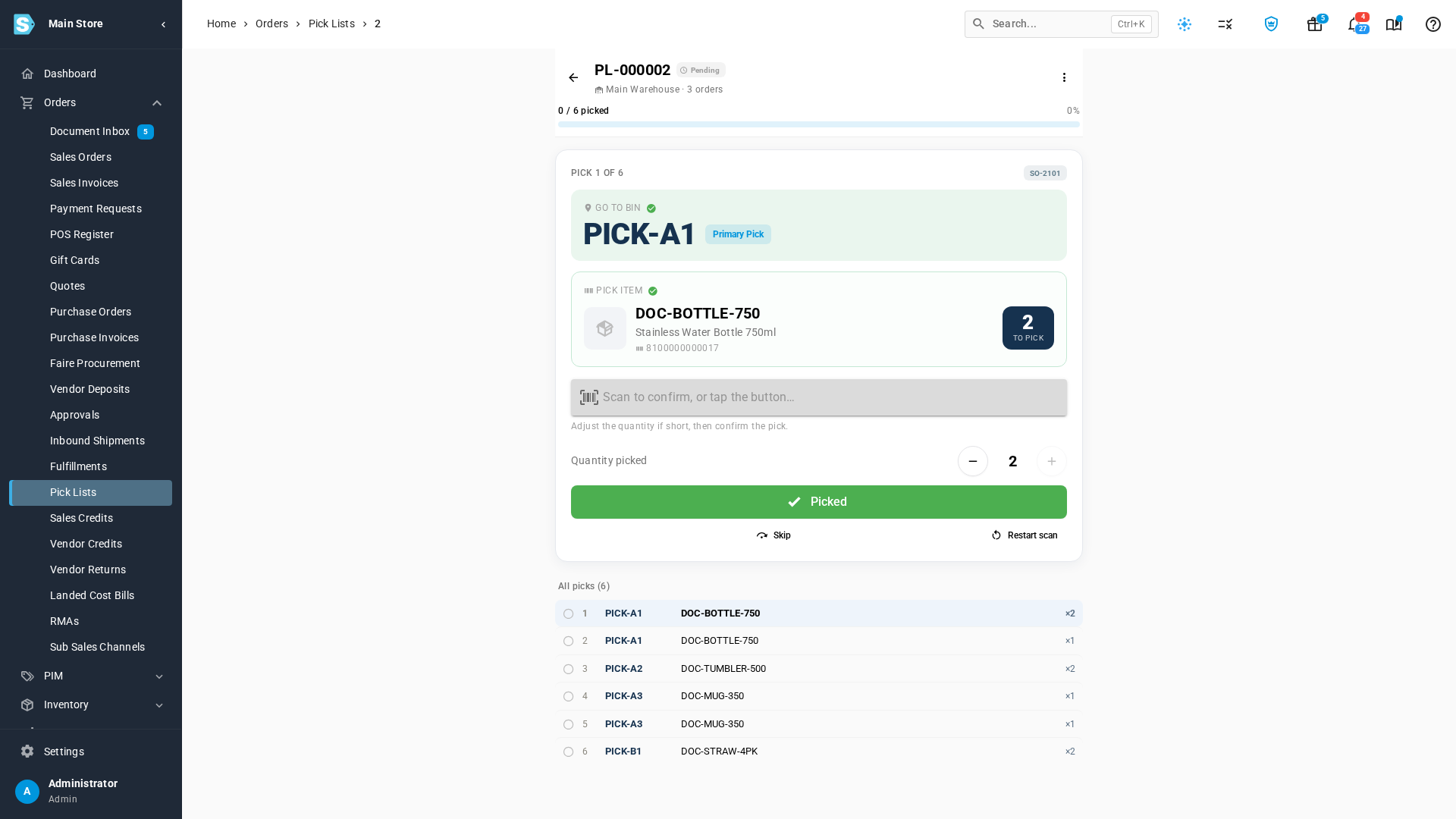
- Skip moves past a pick you can't do now. The skipped units stay open for a later pick list.
- Restart scan takes you back to the bin step of the current pick.
The first pick moves the list from Pending to In Progress.
Complete the list
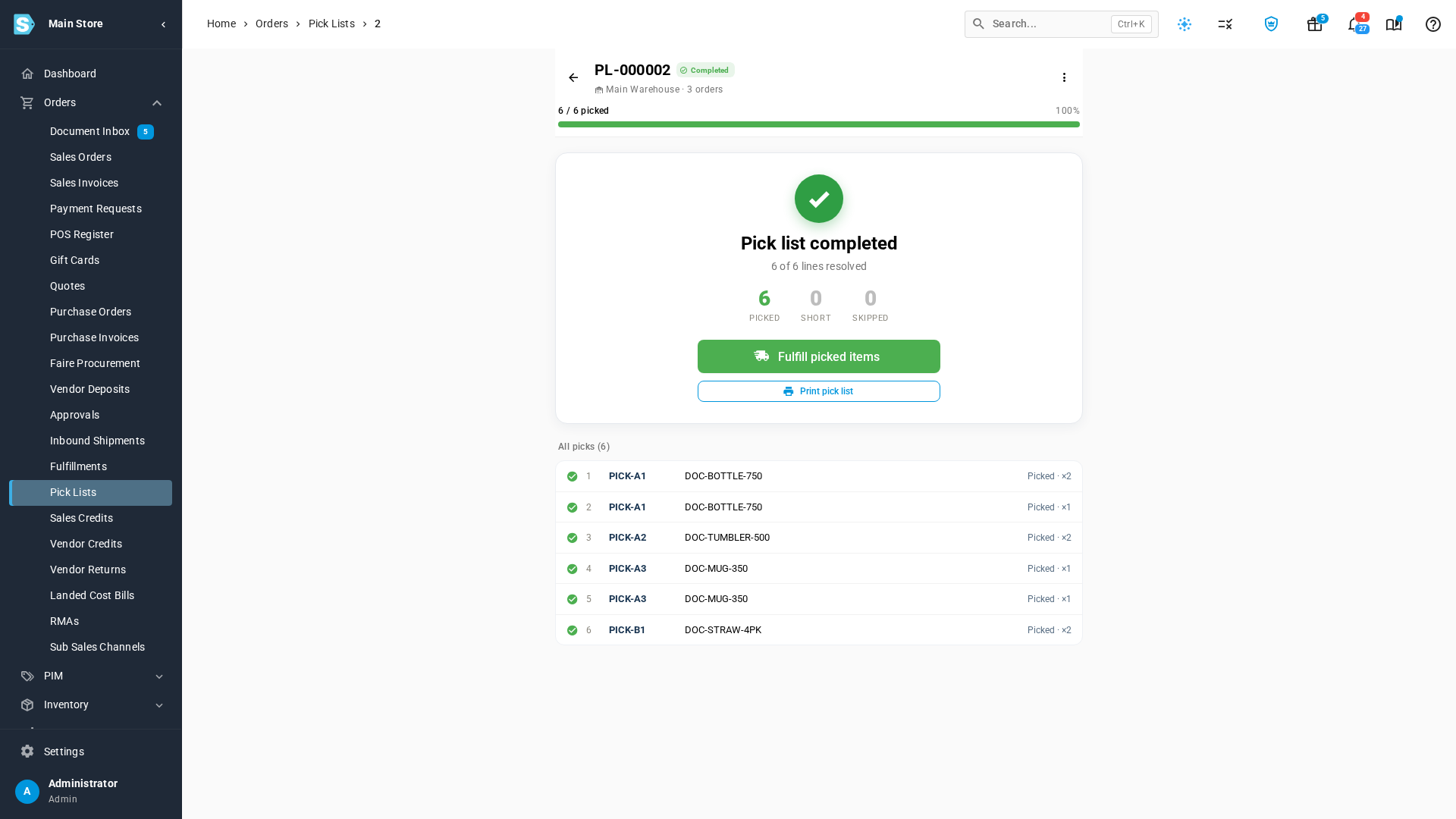
When every pick is picked, short-picked or skipped, the page shows All picks resolved with a count of each. Click Complete pick list. You can also complete or cancel a list from its ⋮ menu.
Fulfill the picked items
Completing a list doesn't fulfill the orders. To record them as fulfilled from the pick:
-
On the completed list, click Fulfill picked items. It's also in the list's ⋮ menu.
-
The dialog shows how many units and orders it fulfills. Click Fulfill.
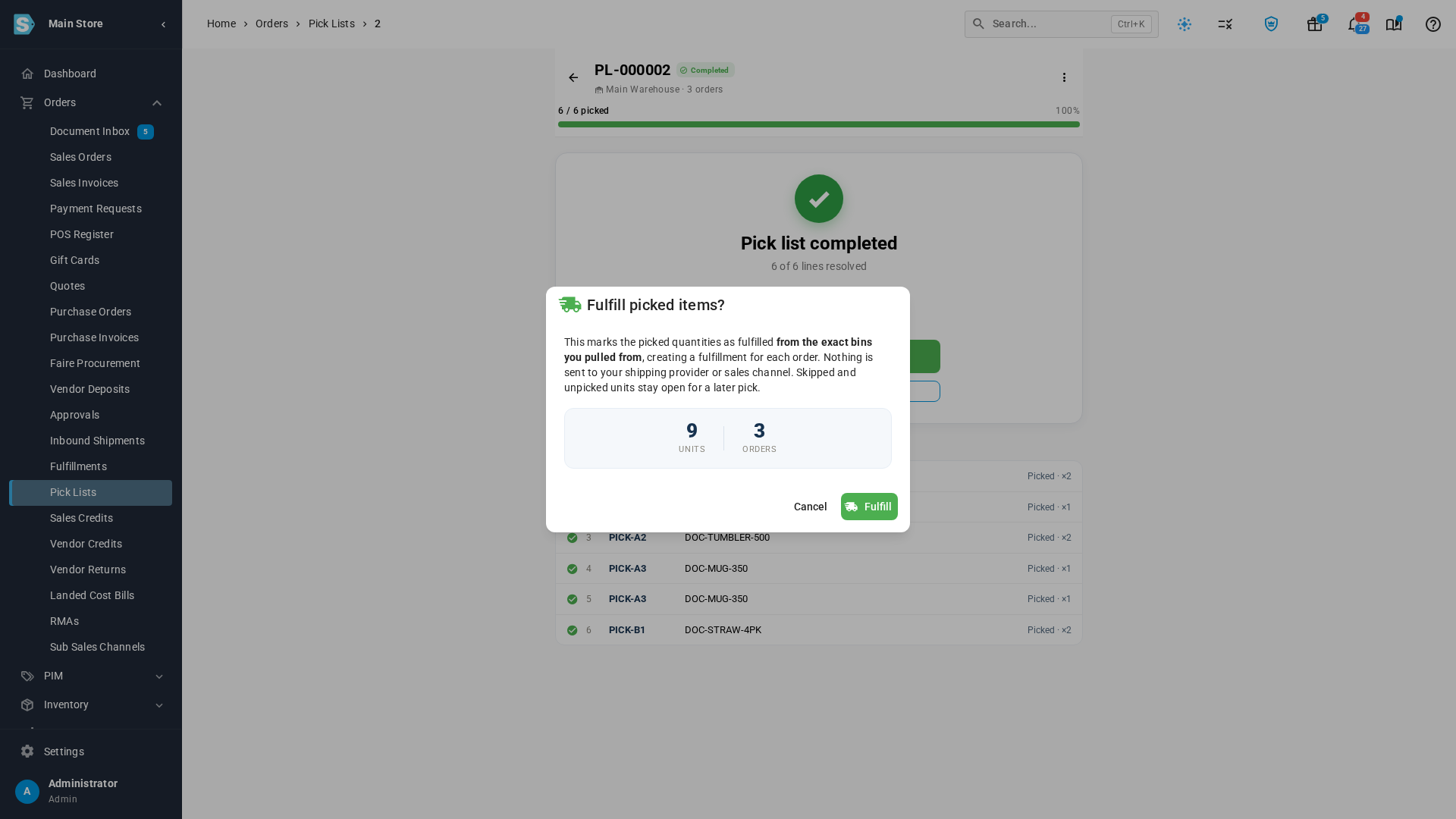
SKU.io creates one fulfillment for each order, taking the stock from the exact bins it was picked from. Skipped and unpicked units stay open on their orders. The list then reads Picked & fulfilled, with the time it was fulfilled. If an order can't be fulfilled, the list names it and says why; the other orders are still fulfilled.
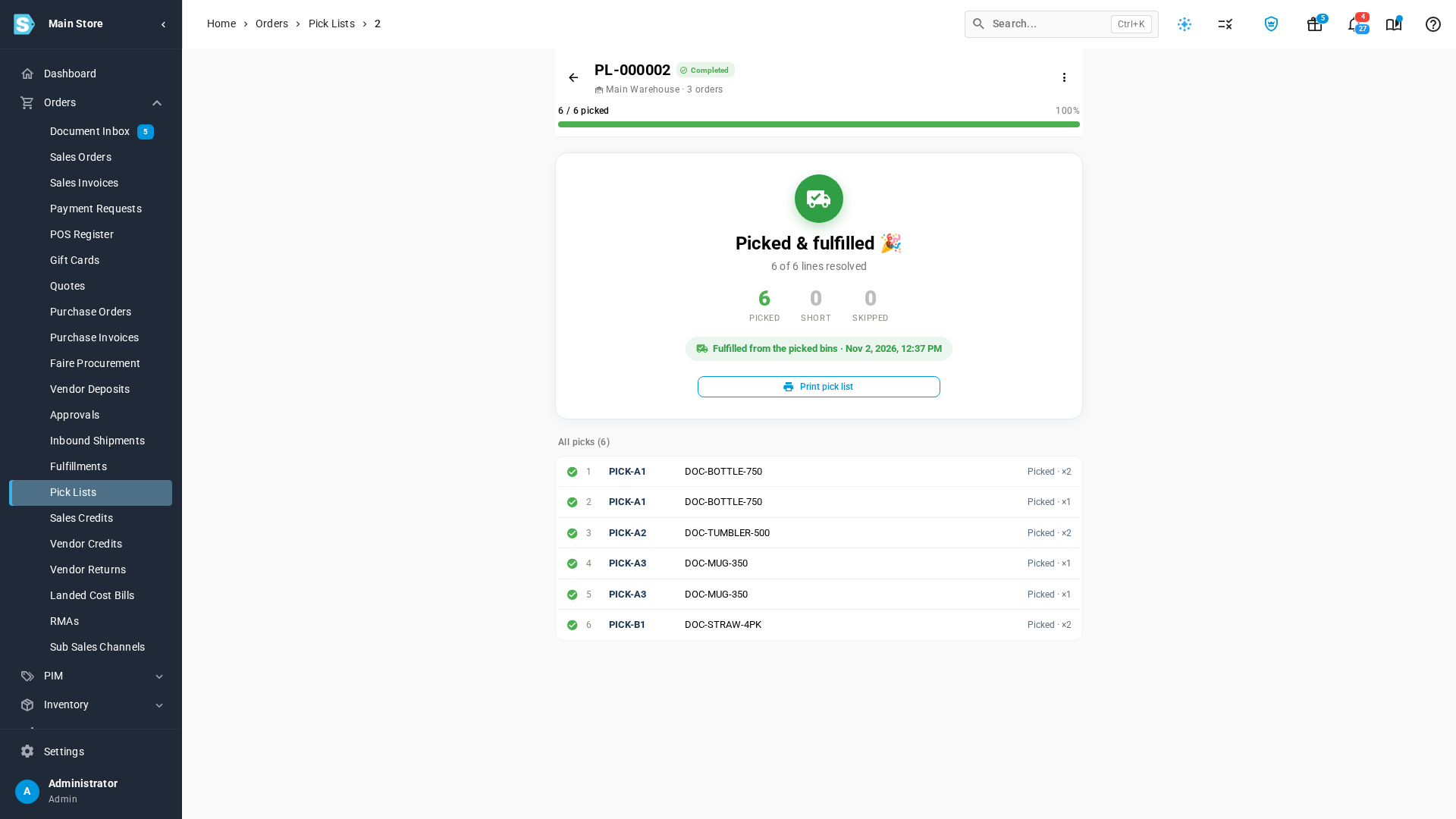
Fulfill picked items records the fulfillment in SKU.io only. It doesn't send the orders to your shipping provider, buy labels, or tell your sales channel that the orders shipped. If you ship through a shipping provider such as Starshipit, turn this action off and let the provider fulfill the orders.
A list can be fulfilled once. Without the Fulfillment Orders → Ship permission, Fulfill picked items is greyed out, and hovering over it says which permission you need.
Turn off fulfilling from pick lists
If you ship through a shipping provider, turn off Fulfill from pick lists so no one can fulfill orders outside it:
- Go to Settings → Fulfillment → Warehouse Locations.
- Switch off Fulfill from pick lists. It's on by default.
- Click Save Changes.
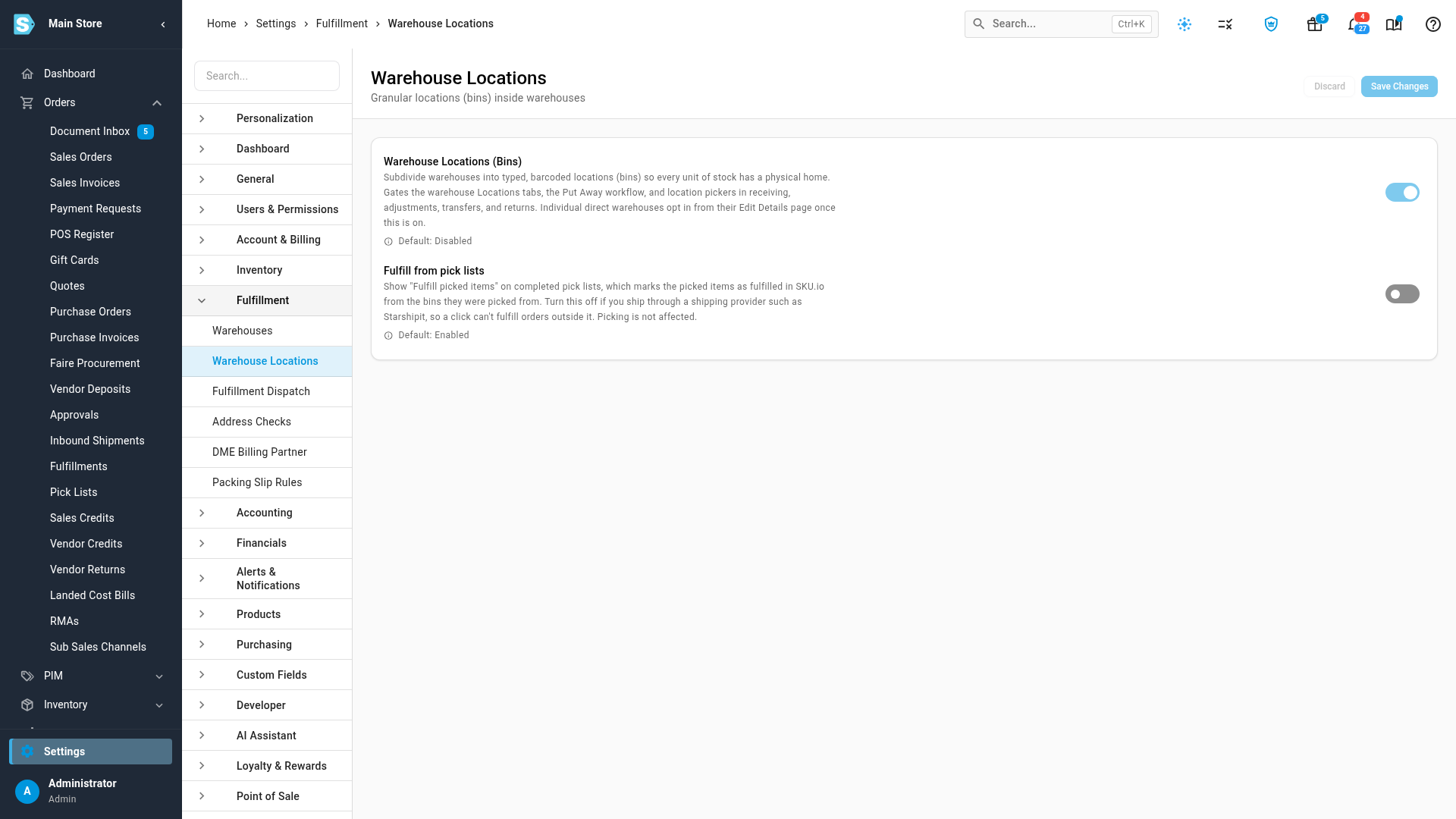
With it off, completed pick lists no longer show Fulfill picked items on a computer or on a phone. Instead they say "Fulfilling from pick lists is off. Ship these orders through your shipping provider.", and SKU.io refuses any request to fulfill from a pick list. Creating, working and completing pick lists don't change.
Next steps
- Fulfill a sales order: record a shipment from the order itself.
- Work the fulfillment board: see what's ready to pick.
- Top up pick faces from reserve bins: keep the bins you pick from stocked.
- Manage preferred bins: choose which bin each product is picked from first.
Video transcript
A pick list walks you through your warehouse one bin at a time, so you can pick several orders in one trip. To make one, open Orders in the sidebar, then click Pick Lists. Every list is here, with its status and progress. To start a new one, click New Pick List, and the New pick list dialog opens. Start by choosing the warehouse you're picking in: type its name in the Warehouse box, and pick it from the list. Its open fulfillment orders appear, each with its quantity to pick. Check the box for each order you want on this list, one at a time, until every order you're picking is selected. Choosing several at once makes a wave, so you pick them all in a single walk. Then click Create pick list, and the picks are put in walking order, bin by bin. The new pick list opens on its first pick. The header shows the warehouse, how many orders it covers, and your progress. All picks lists every bin, item and quantity, in walking order. Each pick takes three confirmations. First, find the bin shown, and scan its barcode, or click Confirm bin. Next, scan the item, or click Confirm item. Then check the quantity. If you found fewer, lower it here first, and the pick is saved as a short pick. Click Picked, and the pick is saved, your progress moves on, and the next pick comes up. Work through the rest of the picks the same way. If one can't be picked right now, Skip saves that item for a later pick list. This is the last pick, so walk it the same way: confirm the bin, confirm the item, and then click Picked. When every pick is done, the page shows a count of what was picked, short, or skipped. Click Complete pick list to close it out, and the list is marked Completed. Completing the list doesn't fulfill the orders. To record them as fulfilled, click Fulfill picked items. Each order's stock is taken from the exact bins on this pick list. Nothing is sent to your shipping provider or your sales channel. Click Fulfill to confirm, and a fulfillment is recorded for each order. The list now shows that the orders were fulfilled from the picked bins. If you ship through a shipping provider such as Starshipit, you can turn this action off, so no one fulfills an order outside the provider. Open Settings, at the bottom of the sidebar. Every part of your account's setup is listed here. Click Fulfillment, then choose Warehouse Locations, the settings for the bins inside your warehouses. Find Fulfill from pick lists. It's on by default. Click the switch to turn it off, so it's no longer highlighted. Then click Save Changes, and give it a moment while the change is saved for every warehouse at once. Now go back to Pick Lists in the sidebar, and open a completed pick list that is still waiting to be fulfilled. It no longer offers to fulfill the picked items. Instead, a note reminds you to ship those orders through your shipping provider. Picking and completing lists work just as before.