Buy a shipping label with Shippo
When you ship an order from your own warehouse, buy its label from the fulfillment order. SKU.io asks Shippo for live rates from every carrier on your account, you pick one, and buying it marks the fulfillment order shipped with the label's tracking and cost.
Before you begin
- Connect Shippo, and map your Shippo service levels to your shipping methods.
- The warehouse the order ships from has a Shippo ship-from address on the Shippo Warehouses tab.
- The order ships to a US address. International labels aren't supported yet.
- The fulfillment order is open and nothing has shipped on it yet.
Find Buy Label
Buy Label appears on a fulfillment order when either of these is true:
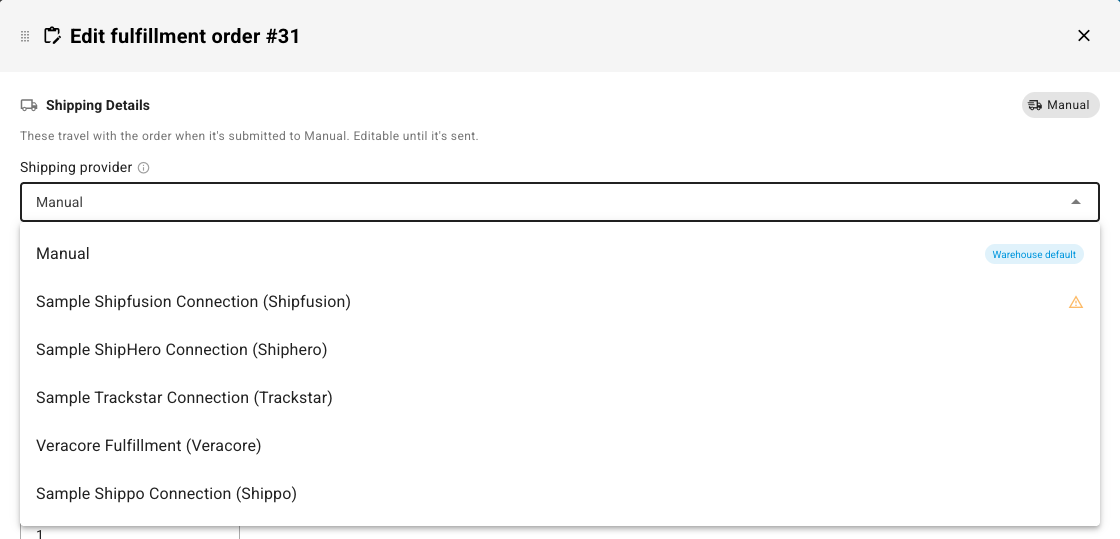
- Its Shipping provider is your Shippo connection. Pick it under Edit fulfillment order.
- It ships Manual from a warehouse that has a Shippo ship-from address.
-
Open the sales order and go to the Fulfillment tab.
-
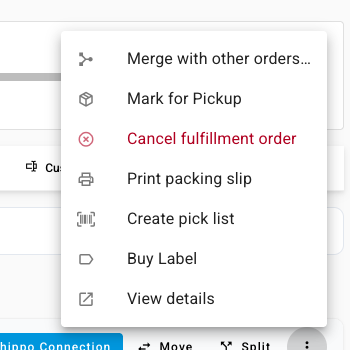
On the fulfillment order, click Buy Label. When another action is the main button, open the ⋮ menu and choose Buy Label.
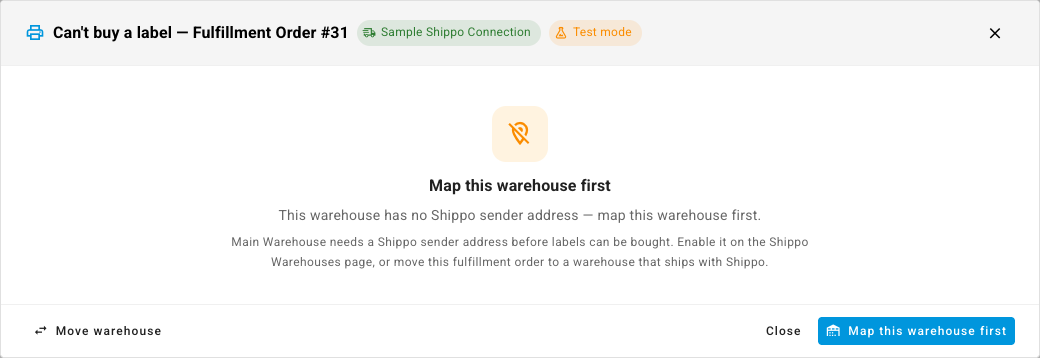
If the warehouse has no ship-from address yet, the dialog says Map this warehouse first. Click Map this warehouse first to open the Shippo Warehouses tab, or Move warehouse to ship from a warehouse that has one.
Buy the label
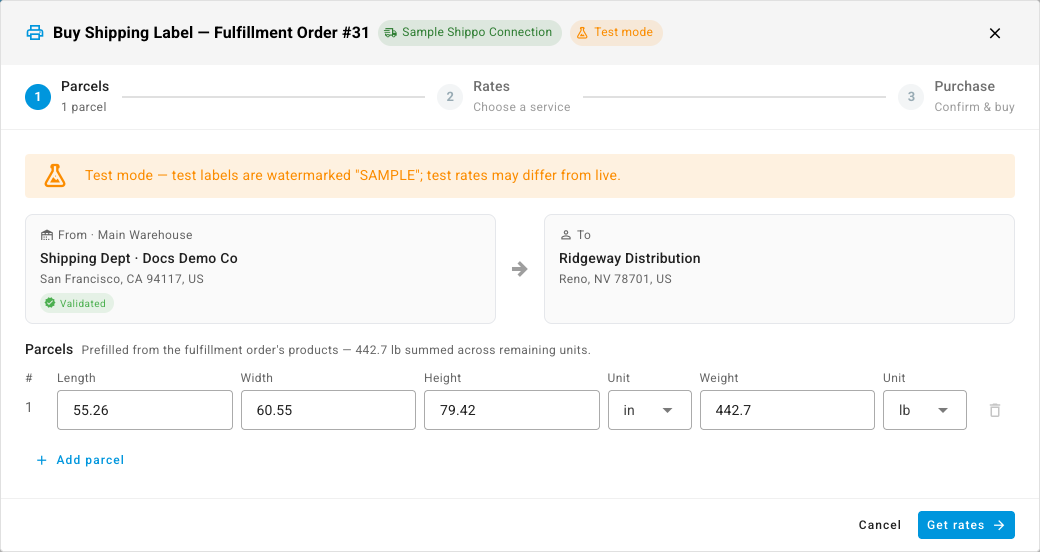
The Buy Shipping Label dialog has three steps: Parcels, Rates, and Purchase. In test mode a banner reminds you that test labels are watermarked "SAMPLE".
-
Under Parcels, check the size and weight. SKU.io fills them in from the products' weights and dimensions. Click Add parcel to ship in more than one box.
-
Click Get rates. The Rates step lists every rate Shippo returned, with CHEAPEST, FASTEST, and BEST VALUE badges. The cheapest rate you can buy is already selected.
-
To compare, sort by Cheapest or Fastest, or click a carrier chip to show only its rates. A Mapped chip shows the rate's service level is mapped to one of your shipping methods.
-
Pick a rate and click Continue.
-
Under Purchase, check the Label format and Ships as, the shipping method the label's service level is mapped to.
-
Click Buy.
What you'll see: Label purchased. The shipment is recorded on the fulfillment order with the label's cost, the tracking goes to your sales channel, and the label file is saved in SKU.io. Click Print Label(s) to print it. Printing again later never charges you again.
Rates are estimates. A carrier can adjust the charge after it scans the parcel. If Shippo takes longer than 30 seconds, the purchase finishes in the background and the label appears when it's ready.
With more than one parcel, USPS rates can't be bought: USPS has no multi-parcel labels.
If rates don't come back
Couldn't fetch rates or No rates returned shows why. Click Edit parcels to change the size or weight, or Check carrier accounts to see which carriers are active on your Shippo account. Click Re-quote to ask again.
Void a label
You can void a label the carrier hasn't scanned yet. Shippo refunds it.
- On the fulfillment order, or on the Shippo Labels tab, click Void label.
- Confirm with Request refund on the fulfillment order, or Void label on the Labels tab.
The label shows Refund pending until Shippo confirms, which can take up to 14 days. Until then the label stays usable, and Buy Label stays locked for that fulfillment order. Once Shippo confirms, the label shows Refunded, its cost comes off the shipment, and you can buy a replacement. If the carrier rejects the refund because the label was used, it shows Refund Rejected and stays billable.
A refunded label doesn't undo the shipment. If the order isn't going out, void the shipment as well. See Void, restore, or reset a shipment.
Labels bought in Shippo
Labels you buy in the Shippo dashboard come into SKU.io too. When SKU.io can match one to a fulfillment order it pushed, it records the shipment the same way. Labels it can't match show as Unlinked on the Labels tab and on the dashboard.