Control who can act on fulfillment orders
Each action on a fulfillment order has its own permission: viewing, editing, sending to the warehouse or 3PL, shipping, cancelling, and the override tools for stuck orders. You combine them in a role, so your warehouse team can record shipments without being able to change or cancel an order. This guide builds a Warehouse staff role that can view and ship fulfillment orders, and nothing else.
Before you begin
- You need permission to manage roles (an Admin, or a role that grants it).
- Know which jobs your team does. The Fulfillment Orders permissions table lists what each permission allows, with suggested combinations.
Create the role
-
Go to Settings → Users & Permissions, and choose the Roles tab.

-
Click Create Role.
-
Enter a Role Name that describes the job, for example
Warehouse staff, and an optional Description. -
In the permission list on the left, scroll to Fulfillment Orders and click it. Its six permissions appear on the right, in the order the work happens: View, Edit, Submit & sync, Ship, Cancel, and Administer. The hint under the group name suggests a starting point: warehouse staff usually need View and Ship, and office staff usually need View, Edit, and Submit & sync.
-
To check what a permission allows, hover the help icon beside it.

-
Tick Ship. A warning reads These permissions have no effect without View, because every fulfillment order action needs View as well.

-
Tick View. The warning clears, and the group's counter in the list reads 2/6.

-
Add any other permissions the job needs from the other groups. For example, add Sales Orders → List if the team needs to open the sales order behind a fulfillment order. Without it, the sales order number on a fulfillment order shows as plain text instead of a link.
-
Click Create Role. SKU.io shows Role created, and the role appears in the list.
Assign the role
Assign the role to each person on the team from the Users tab. See Create a role → Assign the role. Admins aren't affected by roles: an Admin can always take every action.
What your team sees
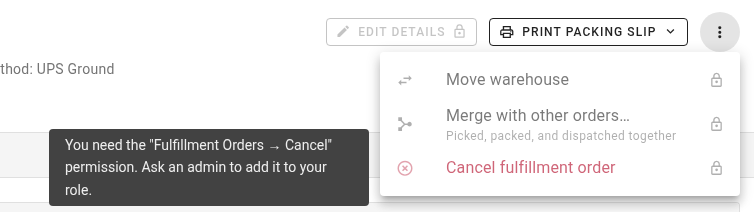
Someone with this role can open fulfillment orders, print packing slips, and record shipments. Actions their role doesn't include stay on screen but are locked, with a lock icon. Hovering a locked action shows which permission it needs, so they know what to ask an administrator for.
On a fulfillment order, Edit Details is locked without Edit. The Sales order number in the header shows as plain text, because the role doesn't include Sales Orders → List:

For the same reason, Manage on sales order isn't in the order's ⋮ menu. In that menu, Move warehouse and Merge with other orders need Edit, and Cancel fulfillment order needs Cancel:
In the Fulfillment Orders list, the bulk actions follow the same rules. With orders selected, Submit and Update Tracking need Submit & sync, and Cancel needs Cancel. Print Packing Slips stays available:

If someone takes an action their role no longer allows, for example in a tab they opened before you changed the role, SKU.io refuses it with a message naming the permission they need. Nothing changes on the order.
Next steps
- Roles and permissions reference: what each Fulfillment Orders permission allows, and suggested roles for warehouse, office, and operations leads.
- Create a role: build roles for other jobs, and assign them to users.
- Browse & work fulfillment orders: the fulfillment orders list and the fulfillment order page.
Video transcript
Each fulfillment order action has its own permission, and roles decide who holds each permission. To build one, open Settings at the bottom of the sidebar. Then scroll down, click Users and Permissions, and choose it again in the list that opens below. This page opens on the people in your account, with tabs above for roles and permissions. Choose the Roles tab, which lists every role you have, then click Create Role. Give it a name that describes the job, such as Warehouse staff. A short description helps other admins understand it later. Permissions are grouped by area. Scroll the list on the left down to Fulfillment Orders, and click its name. The hint underneath suggests a starting point for warehouse and office staff. This group holds six permissions. Hover the help icon beside any of them to read exactly what it allows. Ship covers recording shipments, buying labels, and marking orders picked up. Start by ticking Ship, the permission that lets them record shipments. A warning appears, because no fulfillment order action works without View. Tick View as well, and the message clears. When everything looks right, click Create Role in the top corner of the page to save your changes. Saving takes a moment. It then appears in the list, ready to assign to your warehouse team. Here is a fulfillment order, seen by someone with this role. Edit Details is greyed out, because the Edit permission isn't included. Open the menu, and every action they can't take carries a lock icon. Hover one, and a tooltip names the permission to request from an admin.