Connect Odoo 3PL
Connect your Odoo 3PL account with a key from the ShipPro customer portal. Then map the locations you rent to SKU.io warehouses, make sure your products exist at the 3PL, and choose how shipments pick a carrier.
Before you begin
- You need permission to connect integrations.
- In the ShipPro customer portal, go to My Account → 3PL API Keys and generate a key. It starts with
3pl_. - Keys only work in the environment they came from: a sandbox key against the sandbox address, a production key against production.
Create the connection
-
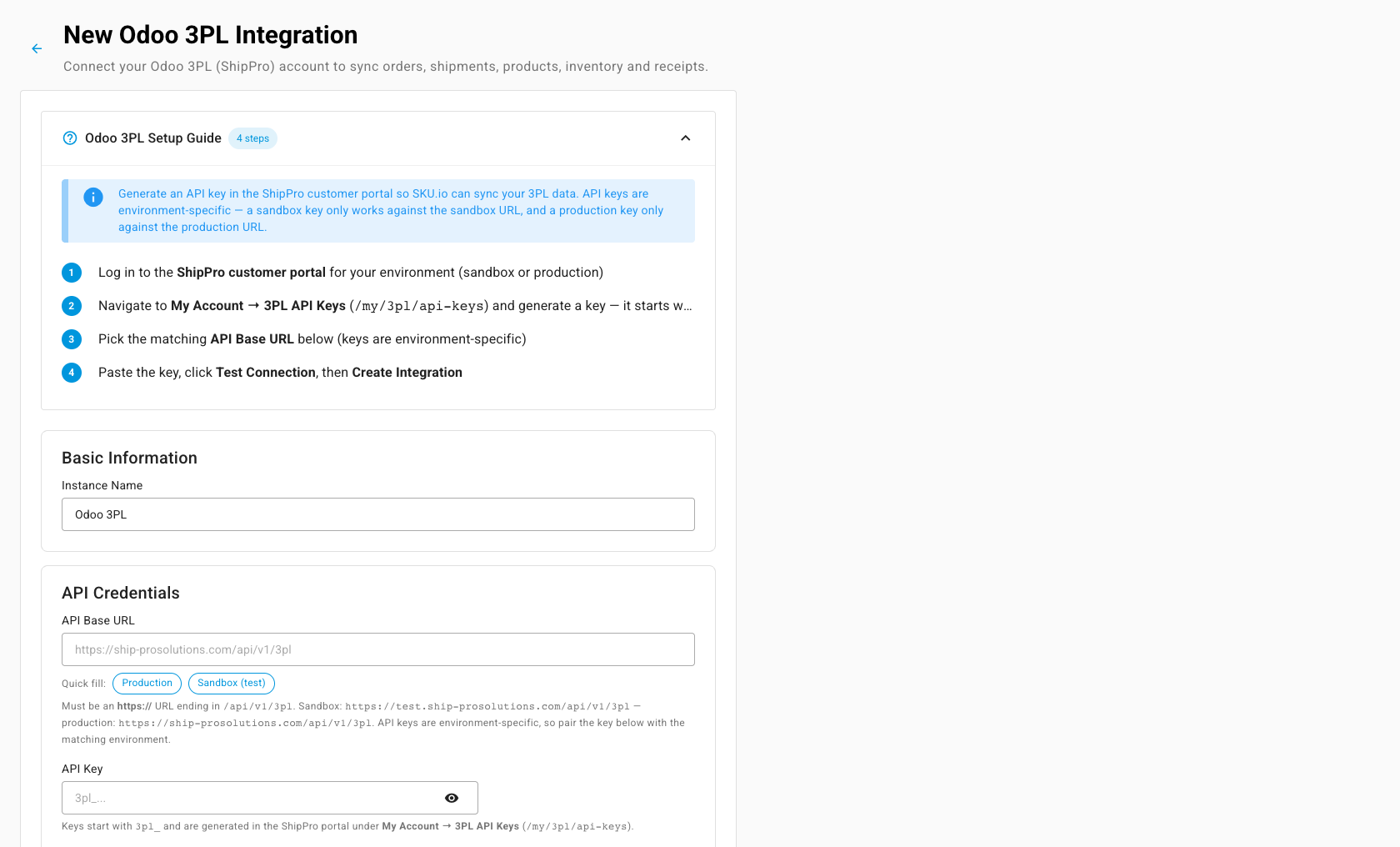
Go to Apps & Integrations, open Shipping & Fulfillment, and choose Odoo 3PL. The New Odoo 3PL Integration page opens.
-
Enter an Instance Name. It defaults to Odoo 3PL.
-
Set the API Base URL. Click Production or Sandbox (test) to fill it in. If your 3PL gave you a different address, paste it exactly as given; SKU.io tells you if it isn't in the expected form.
-
Paste the API Key.
-
Click Test Connection. It shows Connected as: with your customer name and number.
-
Click Create Integration.
What you'll see: the Dashboard opens, and the first syncs of your locations, products, and inventory run in the job tray.
Map locations to warehouses
- Open the Warehouses tab. It lists the locations you rent at the 3PL.
- Pick a SKU.io warehouse for each location you ship from.
- Click Save Mappings. It saves only the rows you changed.
What you'll see: fulfillment orders from a mapped warehouse now go to this 3PL. You can map a direct warehouse that ships manually, which becomes a 3PL warehouse tied to this connection, or one already linked to it. SKU.io refuses a warehouse that another 3PL or shipping provider already ships. A location whose rental has expired shows Rental expired and is skipped.
Match products
- Open the Products tab. SKU.io matches the 3PL's products to yours by SKU.
- Where it found several possible matches, or none, choose Map SKU product and pick the right one.
- To create one of your products at the 3PL, choose Push to Odoo 3PL.
To skip this step for new products, turn on Auto-create products under Settings → General. When an order holds a product the 3PL doesn't have yet, SKU.io pushes it first instead of refusing the order.
Route carriers
Open Shipping Methods. Each shipment picks a carrier through four layers, first match wins: Method override, Carrier family, Text rules, and Fallback. Text rules catch shipping labels like "Free Shipping": click to add a rule, choose contains, starts with, or is exactly, enter the text, and pick the carrier to send. Then choose what the Fallback sends and click Save fallback.
Check the settings
| Tab | Setting | What it does |
|---|---|---|
| General | Enable Automatic Sync | Pulls orders, shipments, products, inventory, and receipts on a schedule. Off means manual syncs only. |
| General | Sync Start Date | Where the From start date option in the sync dialogs starts |
| General | Auto-create products | Pushes missing products when an order needs them |
| Financial | Record shipping costs | Writes each shipment's fee, in CAD, to the fulfillment, with a financial line of the type you choose |
| Connection | Provider Timezone | The timezone the 3PL's dates are read in. It defaults to America/Toronto. |
When an order is refused
The 3PL refuses an order, and SKU.io shows why on the Orders tab, when:
- a product has no matching SKU at the 3PL. Sync the catalog or push the product, then resubmit.
- the warehouse isn't mapped to a current location. Map it, or renew the expired rental, then resubmit.