Route Odoo 3PL shipping methods
Orders often reach SKU.io with a shipping label like "Free Shipping" rather than a real carrier service. The Shipping Methods tab on an Odoo 3PL connection decides which of the 3PL's carriers each shipment is sent with. You can set it all up before your first order arrives.
Before you begin
- Connect Odoo 3PL.
- Sync the 3PL's carriers. If there are none yet, the page asks you to use Sync from Odoo 3PL first.
- You need permission to update integrations to change the routing. Without it, you can look, but changes aren't saved.
How a shipment picks its carrier
SKU.io checks four layers in order, and the first match wins:
- Method override: one of your shipping methods pinned to one 3PL carrier. Beats everything below.
- Carrier family: a default for every shipping method of one carrier, such as all your UPS methods.
- Text rules: your ordered rules over the order's shipping text.
- Fallback: the catch-all for anything still unmatched.
The first two layers apply when the fulfillment order has one of your shipping methods. Text rules and the fallback apply to any shipping text.
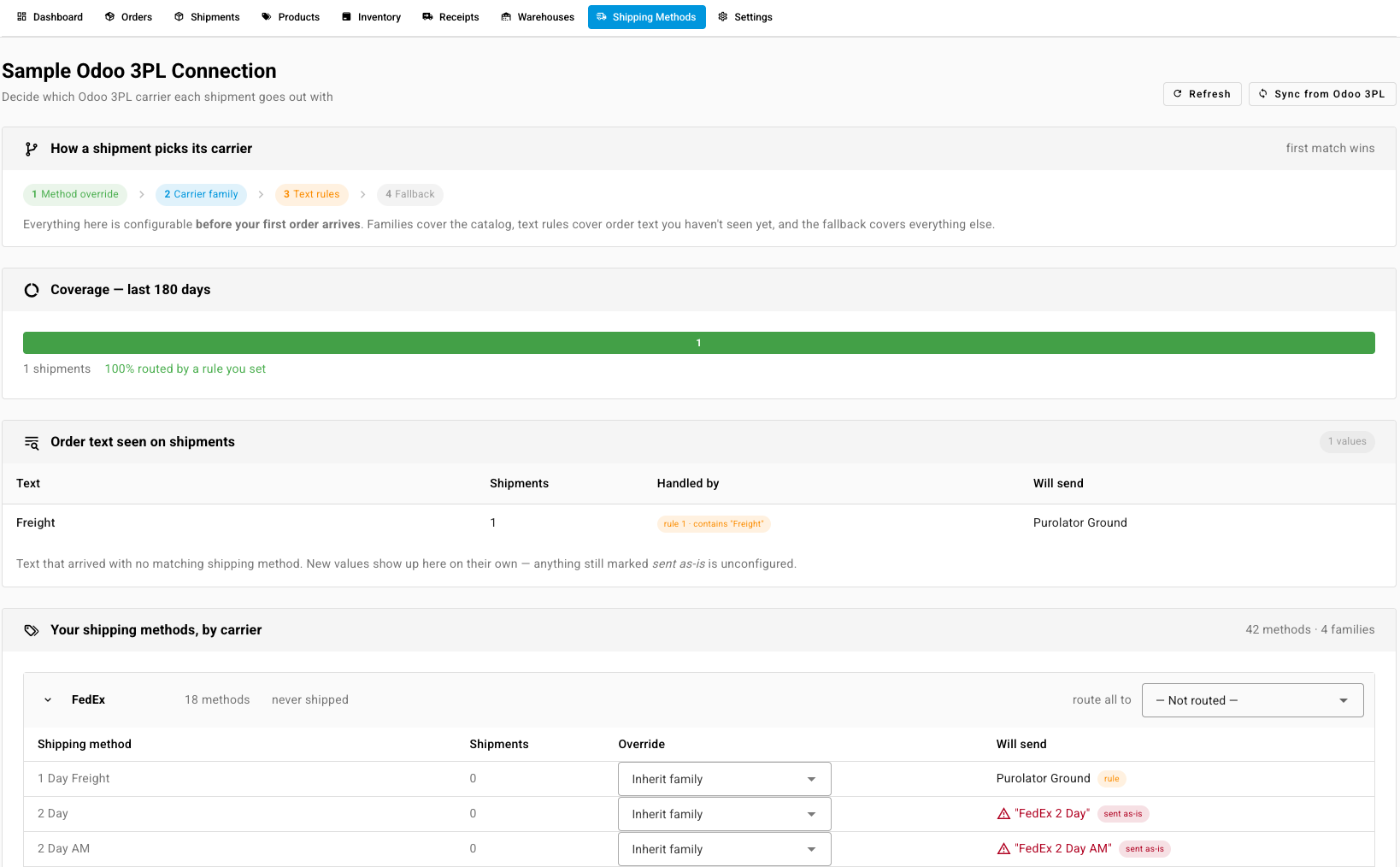
Steps
-
Open the Odoo 3PL connection and go to Shipping Methods.
-
Check Coverage and Order text seen on shipments. They show the shipping text on this connection's fulfillment orders over the last 180 days, which layer handles each value, and what it Will send. Anything marked sent as-is isn't routed yet. They count only fulfillment orders going to this 3PL, either set to it directly or from a warehouse that ships through it. Until the first one arrives, neither card shows.
-
Under Your shipping methods, by carrier, choose a 3PL carrier in route all to for each carrier family. Expand a family to set an Override on a single method. Methods you leave alone show Inherit family.
-
Under Text rules, click Add rule. Choose contains, starts with, or is exactly, enter the text (for example
Freight), and pick the carrier to send, or — Send no carrier —. Matching ignores case, spacing, and punctuation. Click Add rule.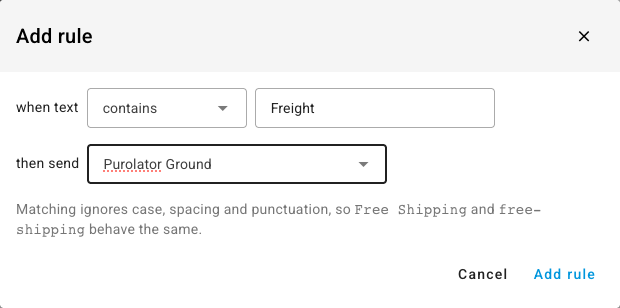
-
Under Fallback — anything still unmatched, choose what to Send: the text as-is (no routing), a carrier I choose, or no carrier at all. Click Save fallback.
Every change saves straight away. Text rules run top to bottom; use the arrows to reorder them. The bin removes a rule after you confirm with Delete. Text it matched then falls through to the next rule or the fallback.

What you'll see: Will send on each line of Order text seen on shipments updates to the carrier that text now goes out with, and Handled by names the rule.
