Connect Magento 2
You connect Magento 2 with an integration you create in your Magento admin. SKU.io gives you two web addresses to paste into that integration, and Magento gives you an access token to paste back. Nothing is saved in SKU.io until you click Connect with Magento 2.
Before you begin
- You need admin access to your Magento 2 store, and permission to connect integrations in SKU.io.
- Your storefront must be reachable over HTTPS.
- Decide which SKU.io store this storefront sells through.
Start the connection
-
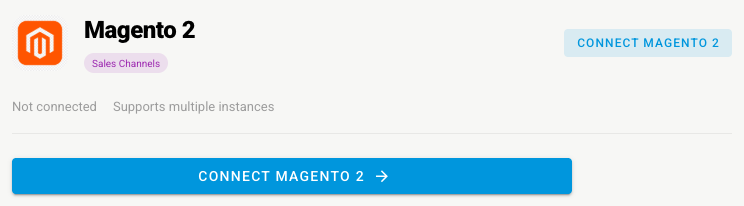
Go to Apps & Integrations, open Sales Channels, and choose Magento 2.
-
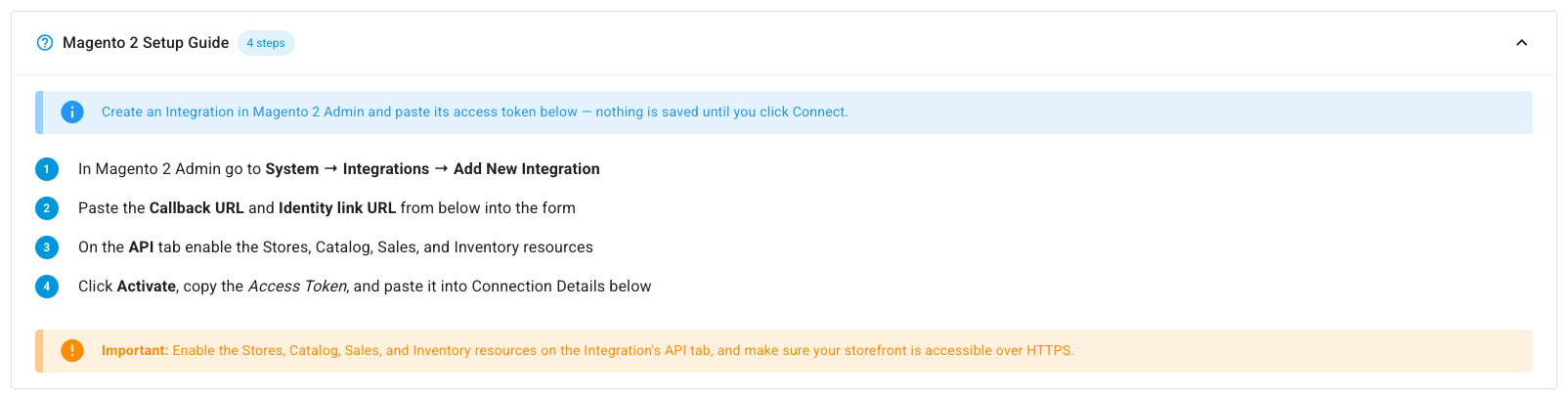
Click Connect Magento 2. The New Magento 2 Integration page opens with a Magento 2 Setup Guide.
Create the integration in Magento 2
- In your Magento admin, go to System → Integrations → Add New Integration.
- Copy the Callback URL and Identity link URL from the Magento 2 Admin Form Fields card in SKU.io, and paste them into Magento's form. Magento won't let you activate the integration without them.
- On the integration's API tab, enable the Stores, Catalog, Sales, and Inventory resources.
- Click Activate, and copy the Access Token Magento shows.
Enter the details in SKU.io
-
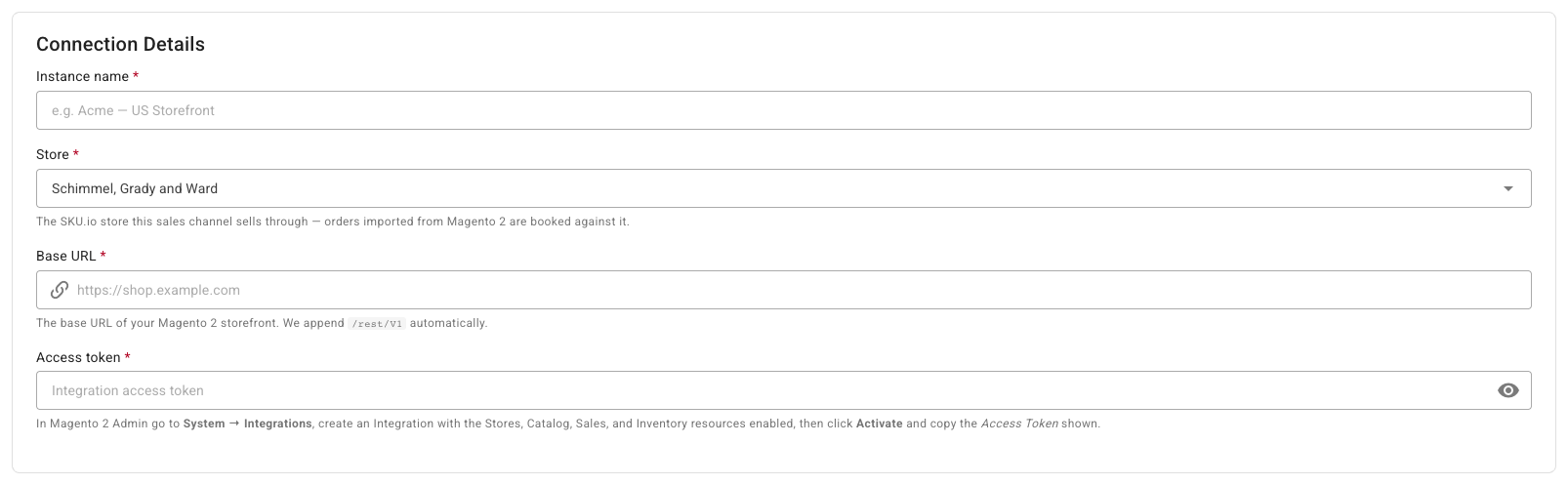
Under Connection Details, type an Instance name and pick the Store.
-
Type your storefront's Base URL. SKU.io adds the API path for you.
-
Paste the Access token.
-
Click Test connection. Under Discovery, SKU.io previews the store views and MSI sources it can see.
-
Click Connect with Magento 2.
Map sources to warehouses
- Open Settings → Locations to see the MSI sources SKU.io found.
- Open Settings → Warehouse Mappings and pick a SKU.io warehouse for each source you ship from.
- Open Settings → Inventory Sync and set Master of Stock, the Stock Warehouses, and any min, max, or buffer rules.
Review the other settings
| Settings tab | What to check |
|---|---|
| General | The name and the store |
| Sync | The What syncs switches for orders, products, tracking, stock, and prices. See Manage a connected app |
| Products | Catalog sync |
| Orders | The Order Start Date. How unpaid orders import is set under Unpaid Orders |
| Shipping | Which SKU.io shipping method each Magento shipping method becomes |
| Payment Methods | Which SKU.io payment type each Magento payment method records as |
| Pricing Sync | Master of Price, which price to send, and guardrails. See Sync prices with your sales channels |
| Accounting | This channel's accounts and whether its orders sync to your accounting software. See Use different accounts for each sales channel |
| Content Sync | Whether SKU.io watches your Magento products for content changes. See Content Sync |
Next steps
- Magento 2 overview — what moves each way.
- Handle unpaid channel orders — bank transfers, cash on delivery, and other unpaid orders.
Last verified:
Was this helpful?