Track Authorize.net transactions
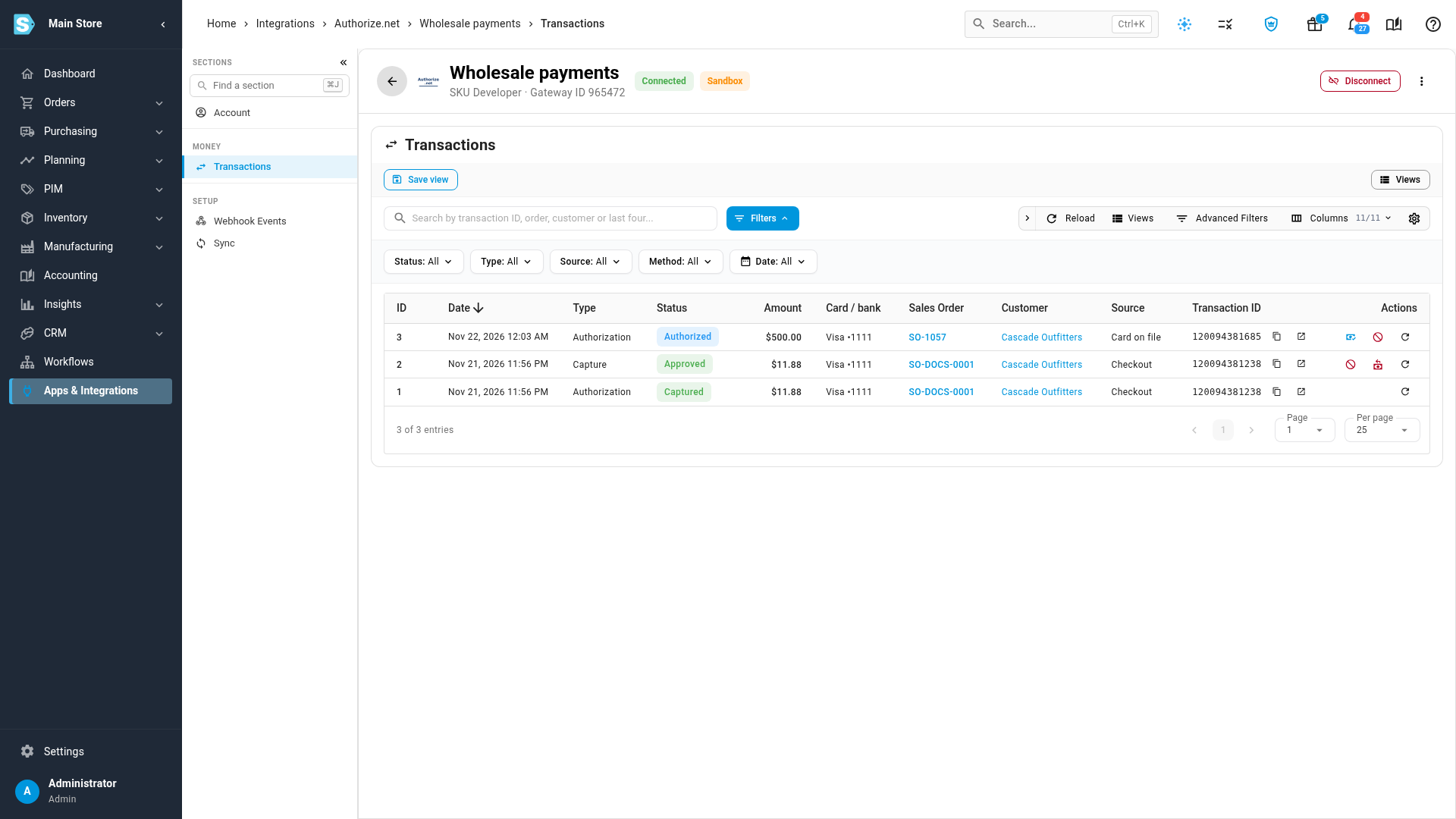
Every transaction SKU.io starts in Authorize.net, or learns about from it, is listed on the account's Transactions section, including declines. From there you can capture, void or refund one, check it again with Authorize.net, and jump to its sales order or customer. The Webhook Events and Sync sections show how SKU.io keeps in step with Authorize.net.
Before you begin
- Connect Authorize.net.
- To see the account, your role needs Integrations → List. Capturing, voiding and refunding need the same permissions as on a sales order.
Steps
-
Go to Apps & Integrations, open your Authorize.net account, and choose Transactions in its sections.
-
Filter the list by Status, Type, Source or Method to find a transaction.
-
Open a row's menu to act on it:
- Capture an authorization, or Void one before it settles.
- Refund (or void before it settles) a payment.
- Re-check with Authorize.net to read its status again.
- Open in Authorize.net, Copy transaction ID, View Sales Order or View Customer.
The columns
| Column | What it shows |
|---|---|
| Date | When the transaction happened |
| Type | Charge, Authorization, Capture, Refund or Void |
| Status | Where it stands, from the table below |
| Amount | The amount of the transaction |
| Card / bank | The card brand and last four digits, or the bank account for eCheck |
| Sales Order and Customer | Links to the order and customer it belongs to |
| Source | Where it started: Card on file, Pay link, Portal, Checkout, or Authorize.net Virtual Terminal for a transaction made in Authorize.net itself |
| Transaction ID | Authorize.net's ID for it |
| Status | What it means |
|---|---|
| Approved, Captured, Settled | The money was taken. Card payments settle overnight |
| Authorized | The amount is held on the card, waiting to be captured |
| Held for review | Authorize.net's fraud filters held it. Approve or decline it in the Authorize.net Merchant Interface |
| Pending | An eCheck payment that hasn't settled yet. It's recorded on the order when it settles |
| Declined, Error, Failed — no charge | Nothing was taken, and no payment was recorded |
| Returned | An eCheck payment the bank returned. Its payment is reversed |
| Voided, Expired | Cancelled before it settled, or an authorization that ran out |
| Refunded, Partially refunded | Money was sent back |
| Unknown | SKU.io didn't get an answer, for example after a timeout. The next check asks Authorize.net again, so a payment is never recorded twice |
How SKU.io keeps in step
- Every 15 minutes, SKU.io asks Authorize.net about transactions it isn't sure of yet and about eCheck payments that are still settling. The Sync section shows when it last ran and when it runs next. Click Reconcile now to run it straight away, and follow it in the job tray.
- Instantly, when you add your Signature Key: Authorize.net then sends an update the moment a payment, refund, void or fraud review changes, and SKU.io lists each one under Webhook Events with its status and attempts. Without a Signature Key, that section says instant updates are off, and the 15-minute check covers them.
To process a webhook event again, use Replay Webhook Event on its row. SKU.io reads the transaction from Authorize.net again before recording anything, so a replay never records a payment twice.
Next steps
Video transcript
Every Authorize.net transaction SKU.io starts, or hears about, is listed in one place. Open your Authorize.net account, and choose Transactions in its sections. Each row shows the type, its status, the amount, and the card. Source shows where it started, such as a saved card or the portal checkout. The sales order and customer link straight to their records. Filter by status, type, source or method to find the one you need. Each row's menu lets you capture, void or refund it, or check it again with Authorize.net. Webhook Events lists the instant updates Authorize.net sends. They're off until you add your Signature Key, so SKU.io checks Authorize.net every fifteen minutes instead. Sync shows when that check last ran and when it runs next. Click Reconcile now to run it straight away.