Authorize, capture and refund card payments
With Authorize.net, you don't have to collect a card payment the moment you take it. You can authorize the amount, which holds it on the customer's card, and capture it later: when you're ready, or automatically when the order is fully fulfilled. That way you never charge for goods you can't send. This page also covers giving money back: void a payment before it settles, or refund it after.
Before you begin
- Connect Authorize.net, and save the customer's card with Authorize.net.
- To authorize, capture and void, your role needs Sales Orders → Manage payments (
sales_orders.manage_payments). To refund, it needs Sales Orders → Refund (sales_orders.refund).
Authorize an amount
-
Open the sales order, and click its Payments tab.
-
Click Add Payment, and choose Charge Card on File.
-
Check the card and the Amount.
-
Under When to collect, choose Authorize only. The default follows the account's Payment settings.
-
Click Authorize.
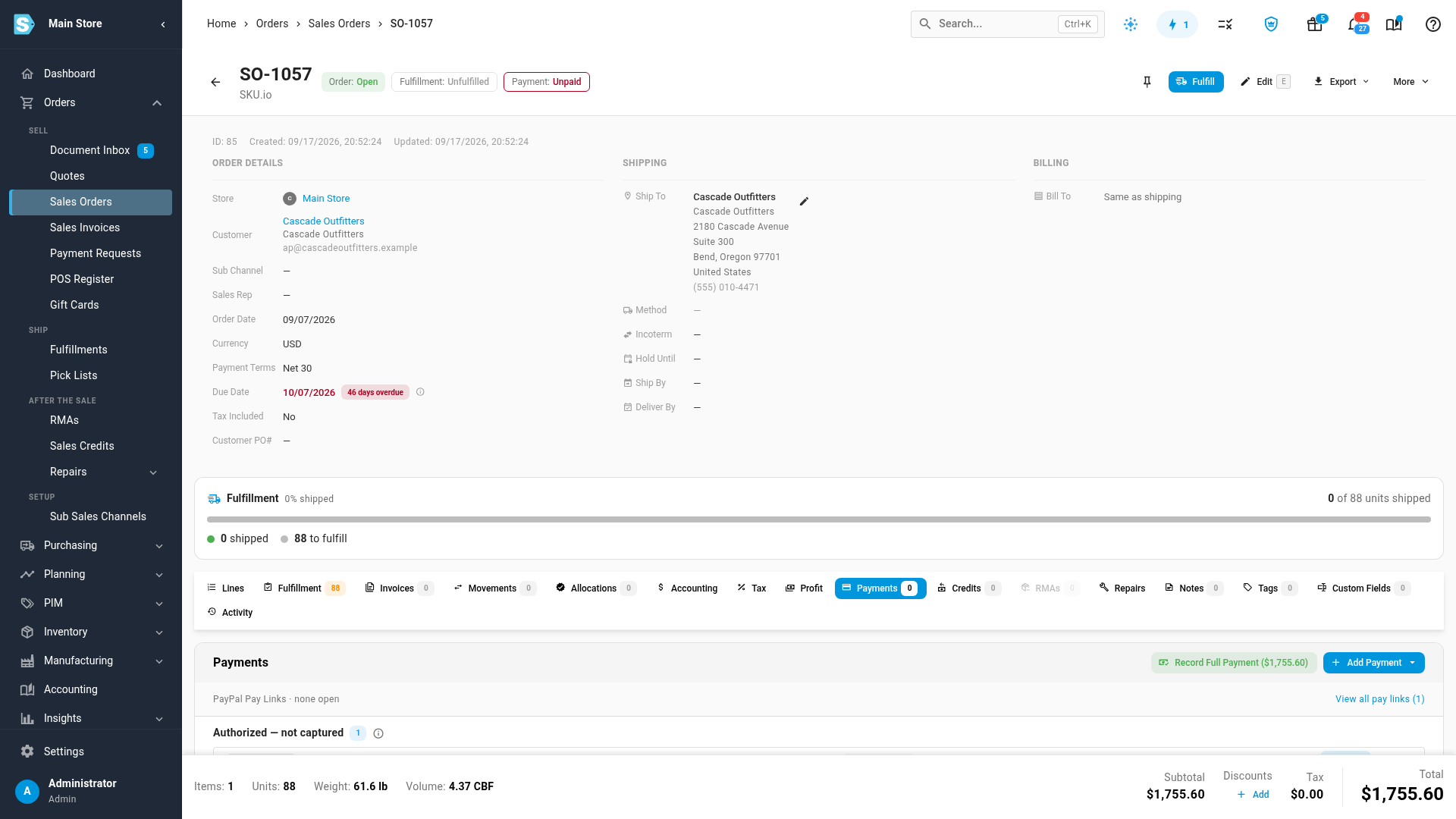
What you'll see: Authorized … on the card — capture it from the Payments card. The hold is listed under Authorized — not captured, with the card, the amount, when it was authorized, and how many days are left before it expires. The order isn't paid yet.
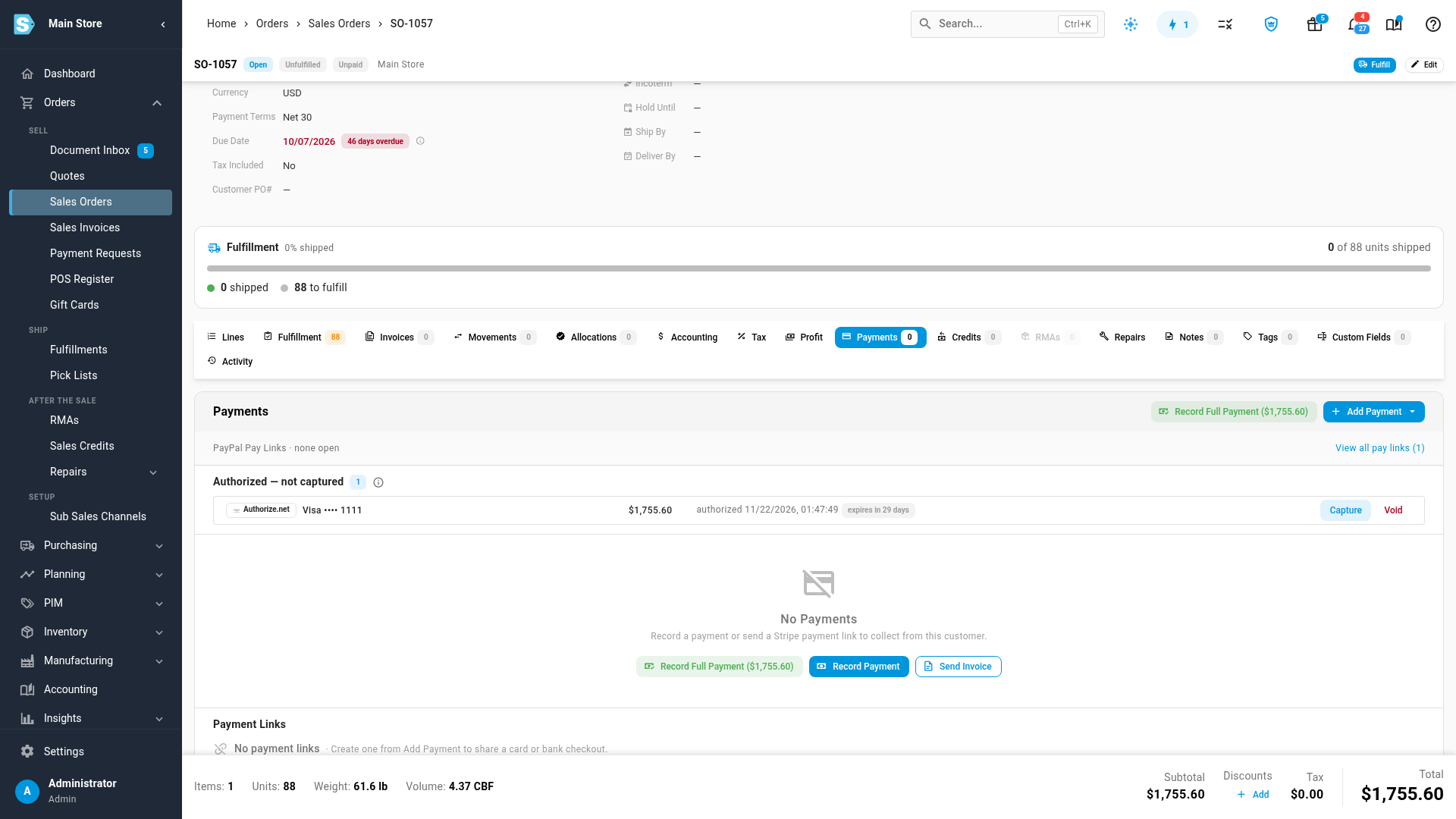
An authorization expires after 30 days. Its chip turns amber when 7 days or fewer are left, and red at 2 days or fewer. Capture or void it before then.
Capture it
If the account captures on fulfillment, SKU.io captures the authorization when the order's last item ships. To capture it yourself:
- Under Authorized — not captured, click Capture.
- Check the Amount to capture. You can capture up to the authorized amount. Authorize.net allows one capture per authorization, so capturing less releases the rest of the hold.
- Click Capture.
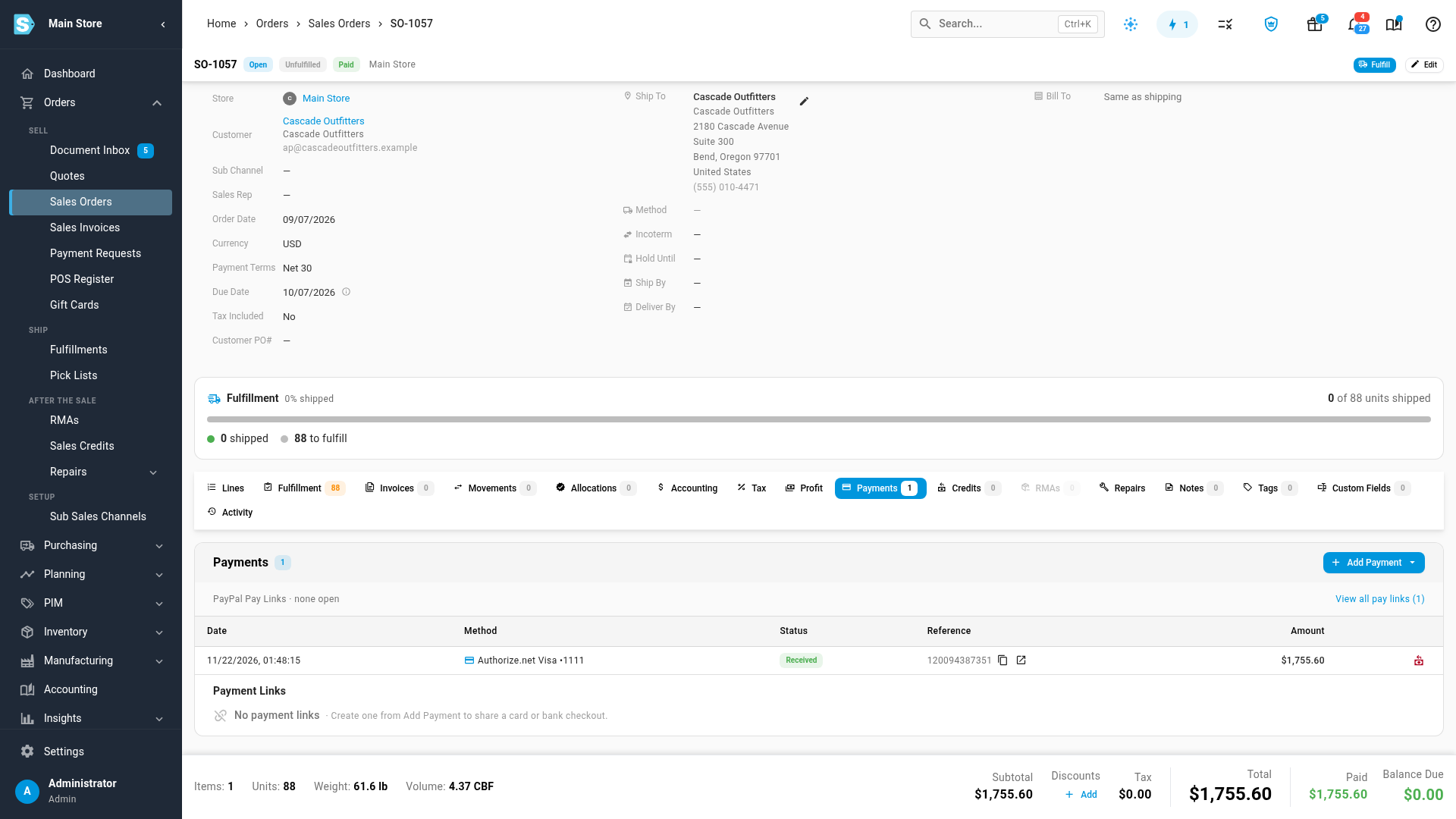
What you'll see: the hold leaves Authorized — not captured, and the payment is listed on the order with its Authorize.net transaction ID. The order's payment status updates.
Void an authorization
To release a hold without collecting anything, click Void under Authorized — not captured, then Void transaction. The customer isn't charged, and the hold on their card is released. Cancelling an order voids its open authorizations.
Refund or void a payment
Card payments settle with your bank overnight; eCheck payments take a few business days. Until a payment settles, it can only be voided in full. After it settles, you can refund all or part of it.
-
On the payment's row, click the refund icon, Refund via Authorize.net (or void it before it settles).
-
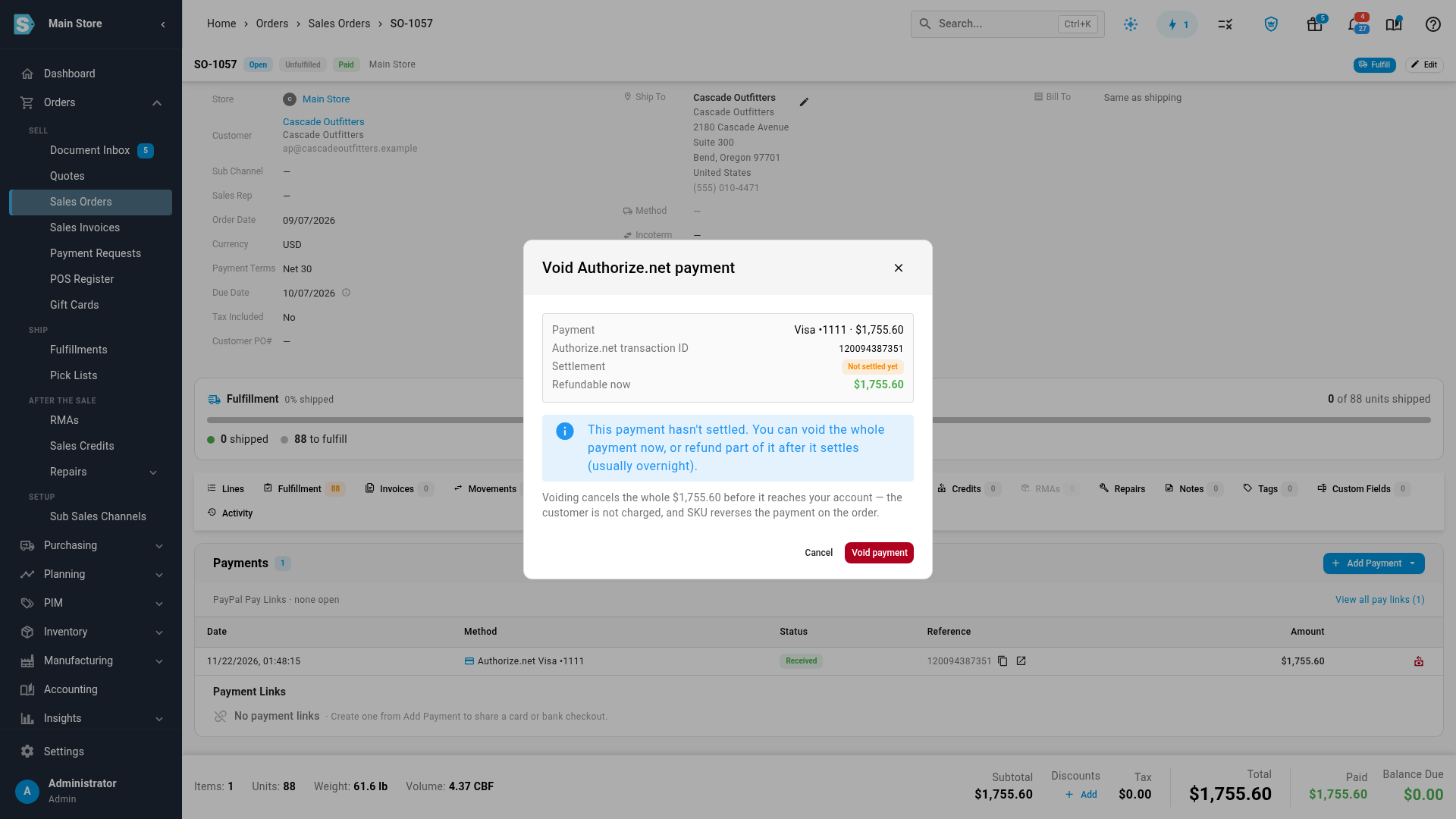
SKU.io asks Authorize.net whether the payment has settled, and shows the Settlement status and what's Refundable now.
-
If it says Not settled yet, click Void payment. The whole payment is cancelled before it reaches your account, the customer isn't charged, and the payment is reversed on the order.
-
If it says Settled, enter the Refund amount (it starts at the full amount not yet refunded) and an optional Reason (optional). Leave Also create a sales credit ticked to record the refund on the order with a closed sales credit, or untick it to create the credit yourself, for example from a return. Click Review refund, then Refund.
What you'll see: Payment voided. or Refund sent. A refund can't be undone. When an order's payments are fully refunded or voided, the order shows Refunded.
When a charge doesn't go through
- Declined: the dialog shows Authorize.net's reason, and no payment is recorded.
- Held for review: Authorize.net's fraud filters held the payment. Approve or decline it in the Authorize.net Merchant Interface. SKU.io picks up the result.
- Wrong currency: an Authorize.net account takes only its own currencies. An order in another currency can't be charged through it.
Every attempt, including declines, is listed on the account's Transactions section. See Track Authorize.net transactions.
Next steps
Video transcript
To hold money on a card without collecting it yet, authorize it. Open the order's Payments tab, click Add Payment, and choose Charge Card on File. The dialog opens with the customer's default card selected. First, check the card and the amount. Then, under When to collect, choose Authorize only. The card holds the amount, and nothing is collected until you capture it. Then click Authorize, at the bottom of the dialog, to place the hold. The hold appears under Authorized, not captured, with the days left before it expires. The order isn't paid yet. Authorizations expire after thirty days, so capture or void them before then. When you're ready to collect, click Capture. You can capture less than the hold, and the rest is released. Click Capture to confirm, and the capture goes through in a moment. The captured payment joins the order's payments, with its Authorize.net transaction ID. If the account captures automatically, this happens when the order is fully fulfilled. To give money back, click the refund icon on the payment's row. SKU.io first checks whether the payment has settled. Card payments settle overnight, so a payment taken today can only be voided in full. Click Void payment. The customer isn't charged, and the payment is reversed on the order. After a payment settles, the same button refunds all or part of it instead.