Choose what syncs with Storefront
A new Storefront connection imports orders and the store's catalog, and pushes stock and tracking, from the start. The scheduled product push is off until you turn it on. For what each switch stops, see How Storefront sync works. Review these settings once, right after you connect, and again whenever the store starts selling from a different warehouse.
Before you begin
- Your store is connected. See Connect a Storefront store.
- You need permission to change integration settings.
Open the settings
- Go to Apps & Integrations → All Integrations, choose Storefront in the Sales Channels list, and pick your store.
- Click the Settings tab.
Most tabs save with Save Changes; the Sync tab saves each switch as you flip it.
Turn imports and pushes on or off
-
Click the Sync tab.
-
To stop every scheduled sync for a while, set Sync Schedule to Paused. Auto Sync Enabled on the General tab is the same switch.
-
Under What syncs, switch each item on or off:
Group Switch When it's on Import from Storefront Import orders from Storefront Orders are read every five minutes. The same check passes cancellations and payments both ways and writes the SKU.io order number back to the store Import from Storefront Create SKU sales orders from Storefront Each imported order becomes a SKU.io sales order Import from Storefront Import products from Storefront The store's catalog is imported every hour Send to Storefront Submit tracking to Storefront Shipments are sent as soon as a fulfillment records tracking Send to Storefront Push inventory to Storefront Changed stock is pushed every 15 minutes Send to Storefront Push products to Storefront Products and prices can be pushed 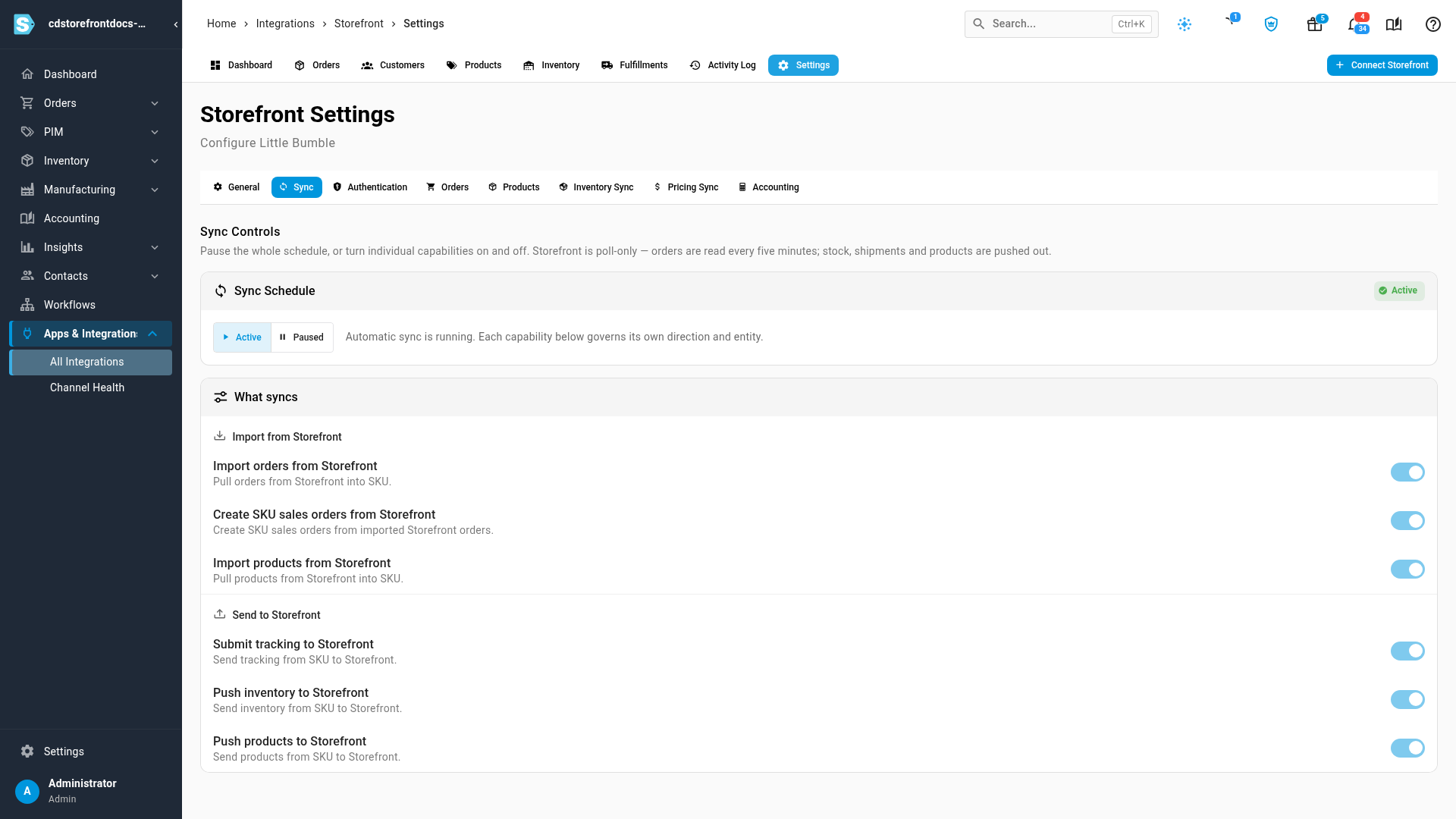
Turning a Send to Storefront switch off, or pausing the schedule, asks you to confirm first.
Choose where the store's stock comes from
-
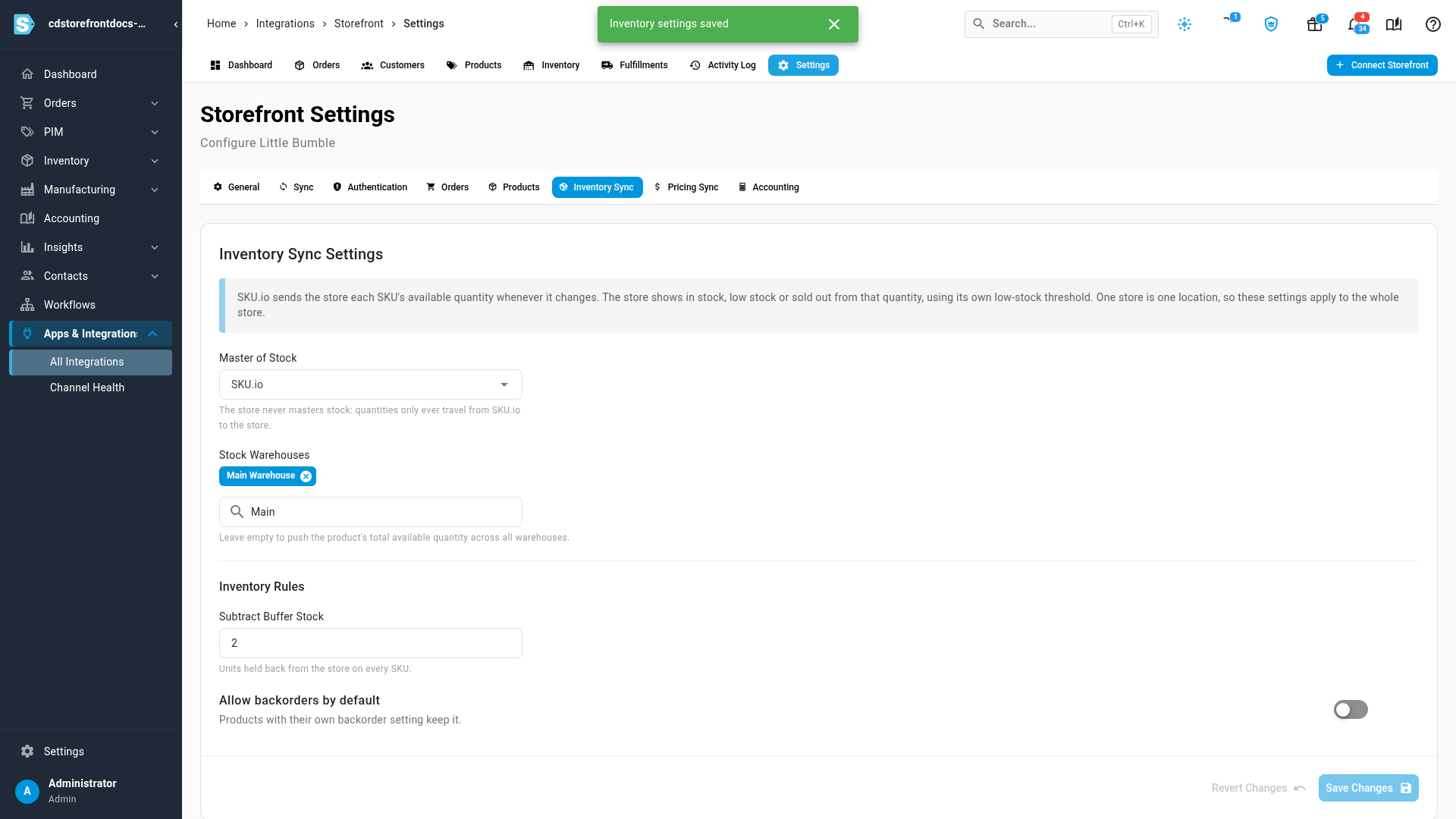
Click the Inventory Sync tab.
-
Leave Master of Stock on SKU.io. Choose Neither only if SKU.io should never change the store's stock.
-
Under Stock Warehouses, pick the warehouses this store sells from. SKU.io adds up the available stock in them. Leave it empty to use the total across all your warehouses.
-
Under Inventory Rules:
- Subtract Buffer Stock holds back that many units of every SKU, so the store sells out before you do.
- Allow backorders by default lets buyers order a SKU at zero stock. A product with its own backorder setting keeps it.
-
Click Save Changes.
The store works out whether to show a product as in stock, low in stock or sold out itself, from the quantity SKU.io sends.
Decide who owns prices
- Click the Pricing Sync tab.
- Choose the Master of Price: SKU.io sets the store's prices; Neither leaves them alone.
- If you chose SKU.io, pick the Selling Price Level and, optionally, a Compare-at Price Level.
- Click Save Changes.
How prices are chosen
- With SKU.io, each product is pushed with its price from the Selling Price Level, and with the Compare-at Price Level's price when that's higher. The store shows the compare-at price struck through.
- With Neither, only a product the store doesn't sell yet is sent with a price, from your selling level if you set one, otherwise from your default pricing level.
- Prices go out in the selling level's currency. A compare-at level in a different currency is left out.
Prices travel with the product push, so they only reach the store when product push is on or you push products by hand. See Push products to Storefront.
Turn on the product push
The hourly product push is off until you turn on Push products to the store on a schedule under Settings → Products. See Push products to Storefront.
Hold orders until products are mapped
On the same Products tab, turn on Restrict sales order creation until all products are mapped and click Save Changes. Orders with a product SKU.io can't match wait until you map it. See Orders held for mapping.
The other tabs
| Tab | What it holds |
|---|---|
| General | Integration Name, the SKU.io Store, Auto Create Products, Auto Sync Enabled, Enable Communication with Customer, and Delete Integration |
| Authentication | The store connection: Test connection and Reconnect. See Troubleshoot Storefront |
| Orders | The Start Date: orders placed before it are never imported |
| Accounting | A link to Channel Accounting, where every sales channel's accounts live |
Enable Communication with Customer (on by default) has the store send its own shipping email to the buyer once for each shipment SKU.io pushes. Turn it off if you send shipping emails another way.
Next steps
- Keep Storefront stock in sync: check what the store was told, and push changes now.
- Sync prices with your sales channels: how pricing levels feed every channel.
- Manage a connected app: the sync controls every connection shares.
Video transcript
Your store's Settings start on the Sync tab. Pause the Sync Schedule to stop everything for a while. Below it, each import and each push has its own switch. Orders come in every five minutes, and changed stock goes out every fifteen. On Inventory Sync, SKU.io is the master of stock. Pick the Stock Warehouses this store sells from. Leave the list empty to use the total from every warehouse. A buffer holds back a few units of every SKU, so the store sells out before you do. When you're done, click Save Changes, and a message confirms the settings were saved. On Pricing Sync, open the Master of Price list, and choose who owns the store's prices. With SKU.io, each product goes to the store with its price from the selling level. With Neither, SKU.io leaves the store's own prices alone. Prices travel with the product push. On the Products tab, turn on Push products to the store on a schedule when SKU.io owns the catalog. Leave it off when the store's own team looks after its products. You can also hold back orders until all their products are mapped.