Push products to Storefront
When SKU.io owns your catalog, it can send the store each product with its categories, name, description, images and price. Push by hand after you change products, or let SKU.io push every hour. Skip this page if the store's own team looks after its products.
Before you begin
- Your store is connected and its catalog imported. See Map Storefront products.
- Choose who owns prices under Settings → Pricing Sync. See Decide who owns prices.
- Push products to Storefront is on under Settings → Sync (it is by default). While it's off, every product push is refused.
- You need permission to sync integrations.
Push now
-
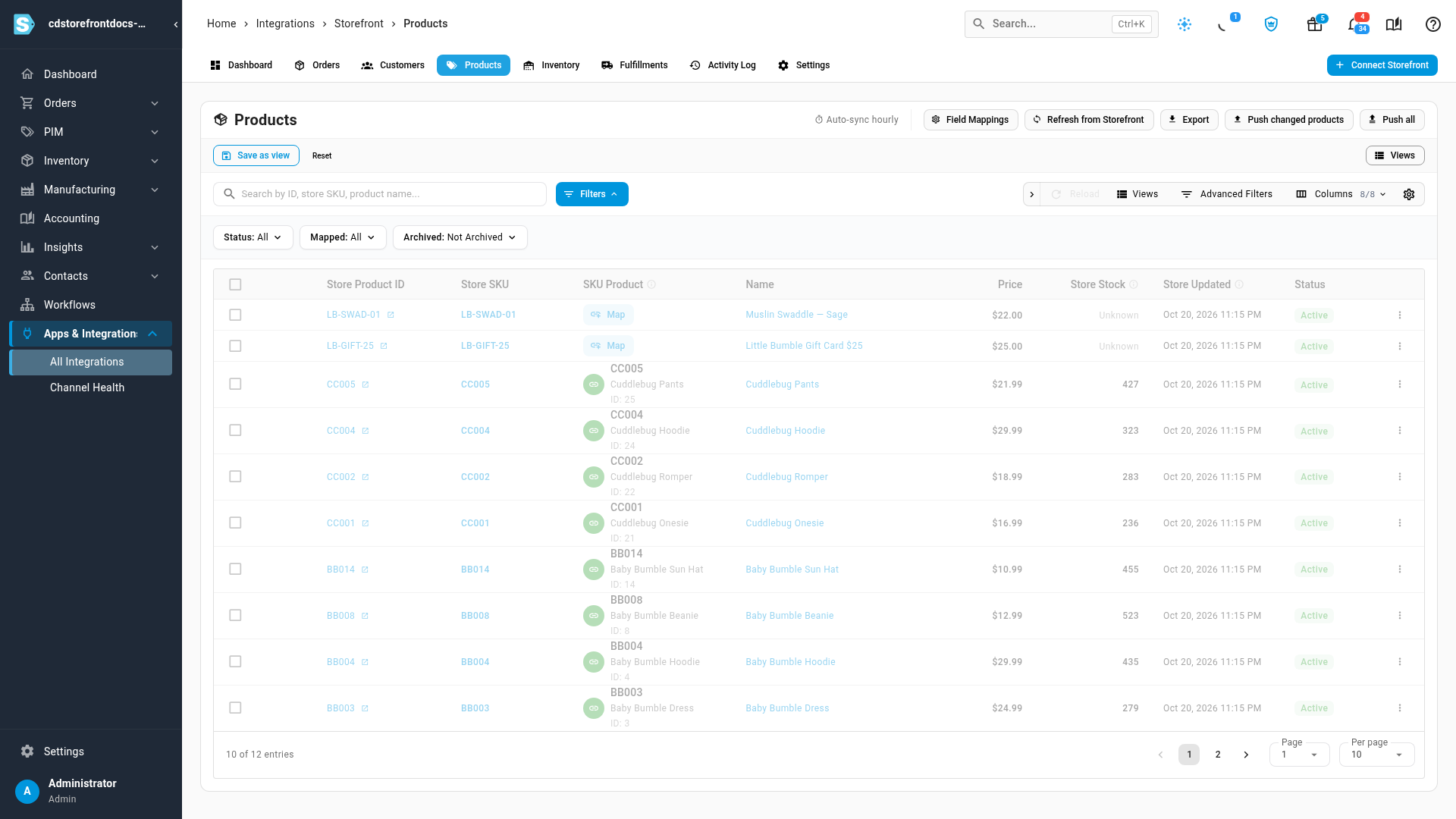
Open your store under Apps & Integrations → All Integrations → Storefront, then the Products tab.
-
Click Push changed products to send only what changed since the last push, or Push all to send everything again.
-
Follow the push in the job tray.
Push every hour
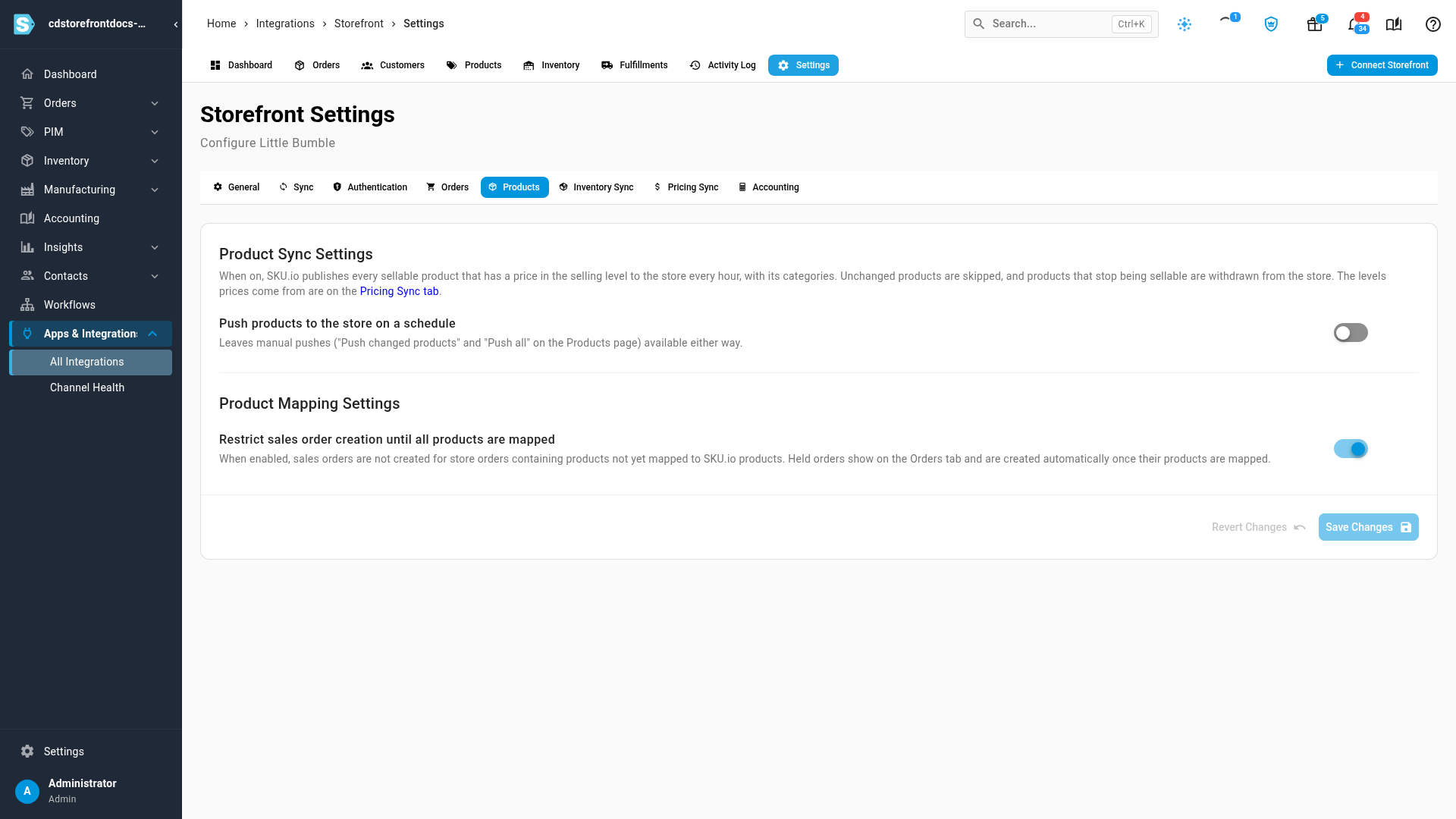
- Open Settings, then the Products tab.
- Turn on Push products to the store on a schedule.
- Click Save Changes.
The hourly push needs both switches: Push products to Storefront on the Sync tab allows any push, and Push products to the store on a schedule runs it every hour.
What gets pushed
- Every product that has a price in the selling level and is a standard, kit, bundle, blemished or manufactured product with a SKU, together with its categories.
- Unchanged products are skipped, so a push only sends what's new or different.
- Prices follow Master of Price: with SKU.io, the selling level's price (and the compare-at level's when higher); with Neither, the store keeps its own prices and only new products are sent with one.
The push leaves a product alone when you archived the store's copy in SKU.io, or mapped the store's copy to a different SKU.io product.
When a product is withdrawn
A product SKU.io pushed is made inactive in the store, not deleted, once it stops qualifying: you archive it, remove its price from the selling level, clear its SKU, or change it to a type that isn't pushed. It stays on past orders.
Next steps
- Keep Storefront stock in sync: pushed products get their stock too.
- Sync prices with your sales channels.
Video transcript
When SKU.io owns your catalog, it can send the store each product, with its categories, images and price. On the Products tab, click Push changed products to send only what changed since the last push. Push all sends everything again. Follow the push in the job tray. To push every hour, click Settings, at the top right of the store's pages. Then click the Products tab. Turn on Push products to the store on a schedule, then click Save Changes. The Sync tab's Push products switch must stay on as well, or every push is refused.