Keep Storefront stock in sync
Every 15 minutes, SKU.io sends your store the available stock for each SKU whose quantity changed. The Inventory tab shows what SKU.io would send now next to what it last sent, so you can see when the store is behind and push straight away.
Before you begin
- Your store is connected, and Master of Stock is SKU.io under Settings → Inventory Sync. See Choose what syncs with Storefront.
- Push inventory to Storefront is on under Settings → Sync. While it's off, the pushes below are refused.
- The store's catalog has been imported. With product push off, SKU.io sends stock only for SKUs the store already sells, and it learns what those are from the import.
Read the Inventory tab
-
Open your store under Apps & Integrations → All Integrations → Storefront, then the Inventory tab. Next push in counts down to the next scheduled push.
-
Click a summary card to filter the list to it.
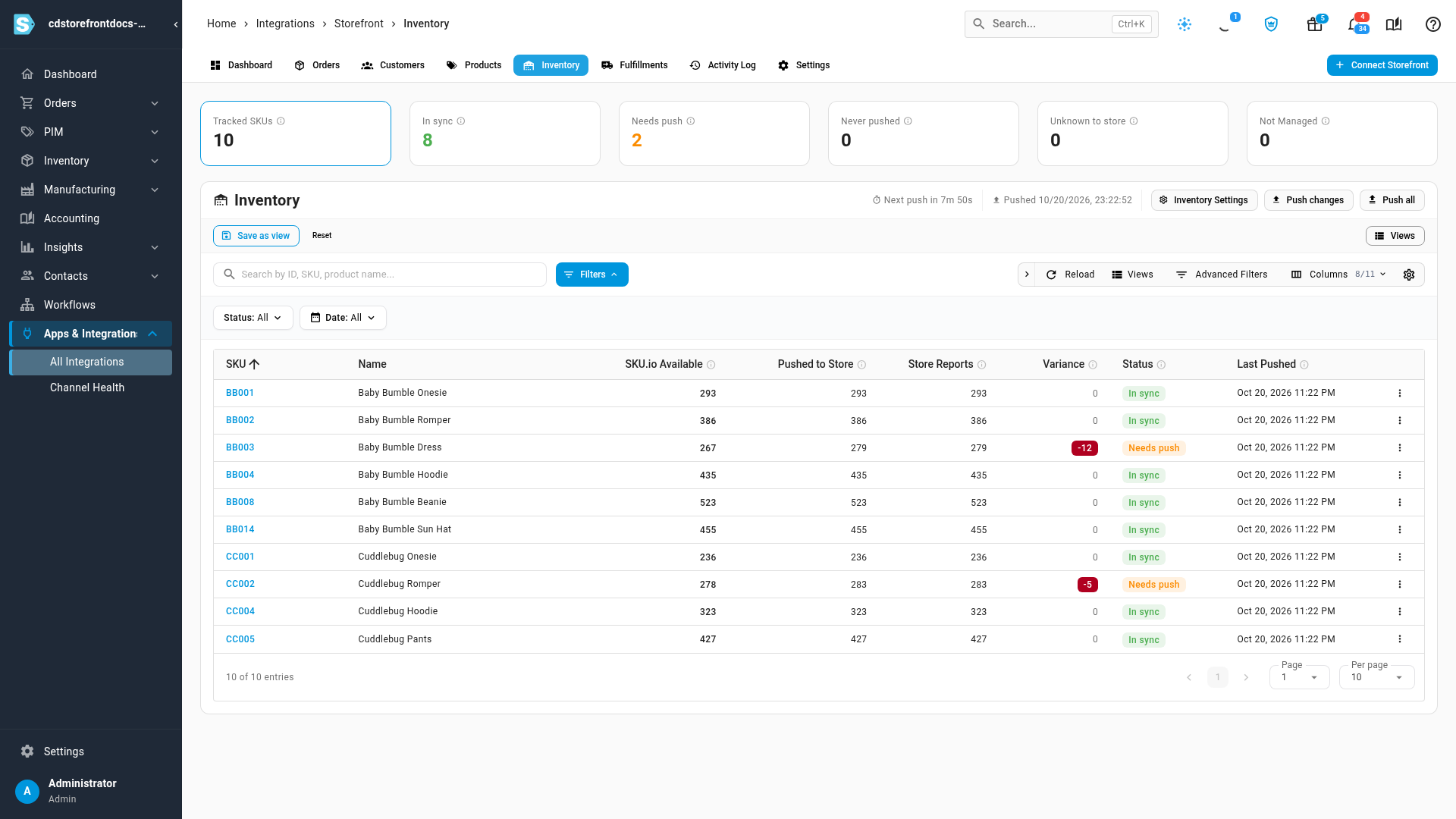
| Column | What it shows |
|---|---|
| SKU.io Available | What SKU.io would send now: available stock in the store's warehouses, minus the buffer, never below zero |
| Pushed to Store | The quantity SKU.io last sent |
| Store Reports | What the store says it holds, as the last catalog import saw it. Unknown means the store has no stock record for the SKU, which isn't the same as zero |
| Variance | SKU.io Available minus Pushed to Store |
| Last Pushed | When SKU.io last sent this SKU's quantity |
| Status | Meaning |
|---|---|
| In sync | The store was last told exactly what SKU.io would send now |
| Needs push | SKU.io's quantity, or the backorder setting, has changed since the store was last told. The next push sends these rows |
| Never pushed | No quantity has reached the store for this SKU yet |
| Unknown to store | The store rejected the SKU as unknown: it isn't in the store's catalog |
| Not Managed | SKU.io doesn't push this row. Either Master of Stock isn't SKU.io, or the product is archived, isn't a type you sell, or has no SKU |
Push changes now
-
Click Push changes. SKU.io sends only the SKUs whose quantity or backorder setting changed.
-
Follow the push in the job tray. When it finishes, the rows turn In sync.
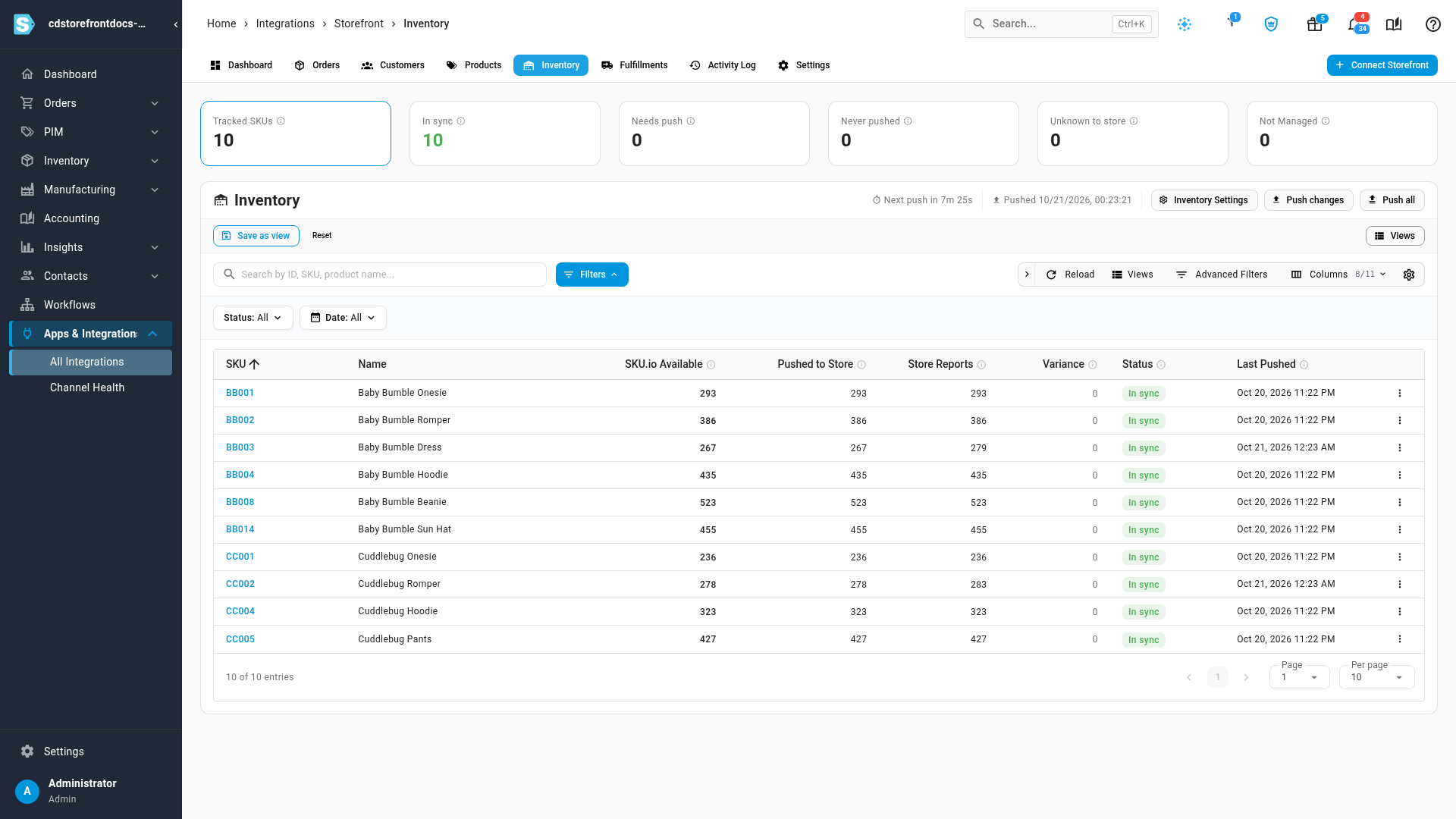
Click Push all instead when the store's stock changed in a way SKU.io couldn't see, for example after the store was restored from a backup. It resends every SKU, even the ones already in sync.
With Master of Stock set to Neither, both buttons are unavailable, a banner explains why, and every row reads Not Managed.
Which products get stock
SKU.io matches by SKU. It only sends stock for products that aren't archived, have a SKU, and are standard, kit, bundle, blemished or manufactured products.
| Push products to the store on a schedule | Which of those get stock |
|---|---|
| Off | Only SKUs the store already lists in its imported catalog |
| On | All of them. The store only knows a SKU once the product push has created it, which needs a price in the selling level |
A SKU the store doesn't know shows Unknown to store, and SKU.io doesn't create it from the stock push. With product push on, give the product a price in the selling level so the push creates it; otherwise add the product in the store. See Map Storefront products.
Next steps
- Choose what syncs with Storefront: warehouses, buffer and backorders.
- How channel stock is calculated.
- Troubleshoot Storefront: when nothing is pushed.
Video transcript
Every 15 minutes, SKU.io sends your store the stock for each SKU that changed. The Inventory tab shows where each SKU stands. SKU.io Available is what SKU.io would send now. Pushed to Store is what the store was last told. The difference is the variance. Two SKUs lost stock since the last push, so they read Needs push. Click the Needs push card to list only those. To send them now, click Push changes. It sends only the SKUs whose stock or backorder setting changed. When the push finishes, the rows read In sync. Push all resends every SKU, even the ones already in sync.