Fetch orders and send tracking to Storefront
Store orders arrive on their own every five minutes, and tracking goes back the moment you ship. Use these steps when you need an order right now, when orders are held for mapping, or when a shipment didn't reach the store. For what an imported order becomes, see How Storefront orders import.
Before you begin
- Your store is connected. See Connect a Storefront store.
- You need permission to sync integrations, and to fulfill sales orders to resend a shipment.
Check the orders
-
Open your store under Apps & Integrations → All Integrations → Storefront, then the Orders tab. Next Storefront refresh in counts down to the next check.
-
Look at the SKU SO # column. It links to the sales order, or shows why there isn't one.
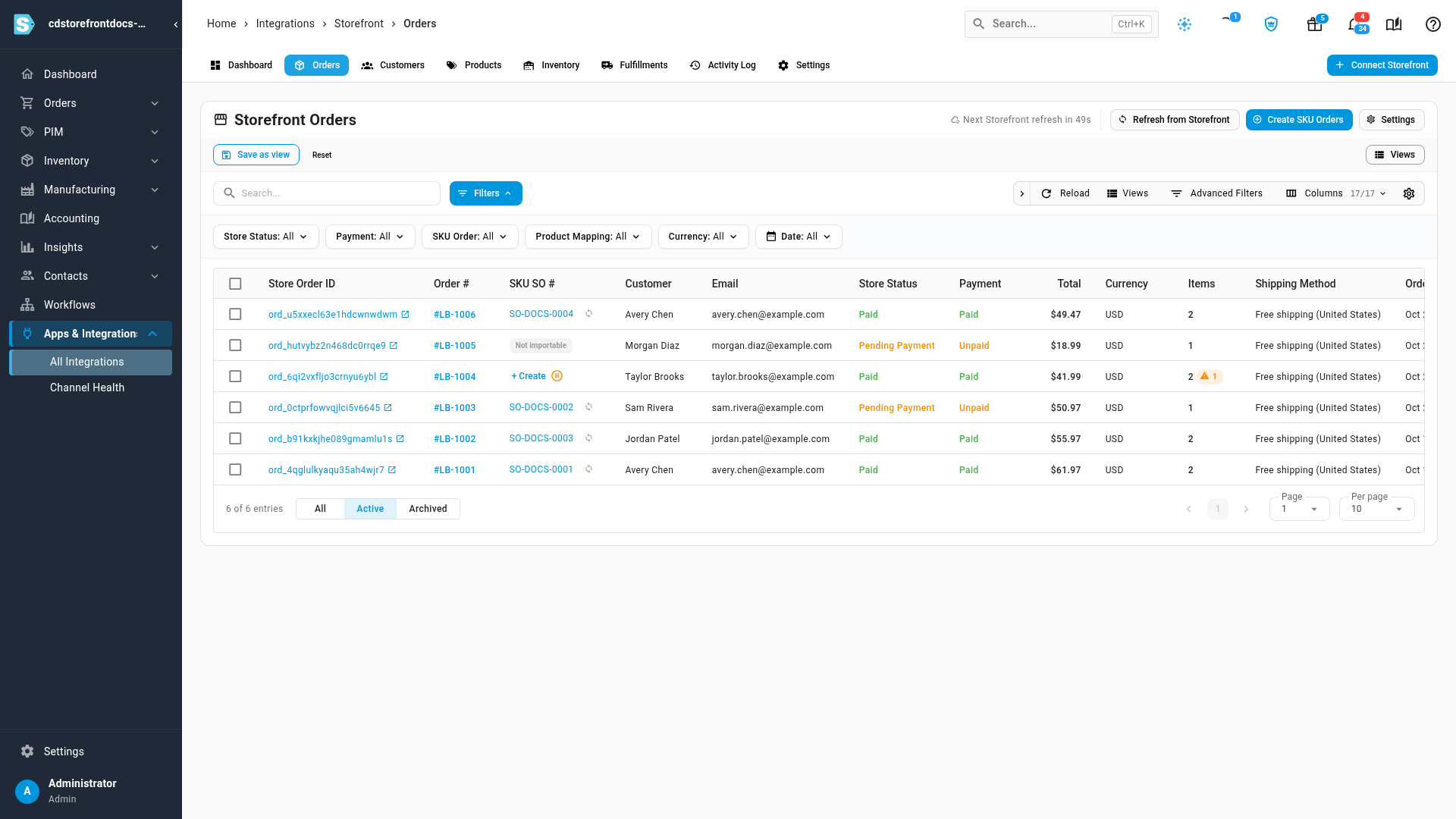
If Import orders from Storefront is off under Settings → Sync, a notice above the list says order imports are turned off.
Fetch orders now
- Click Refresh from Storefront.
- Choose Fetch New Orders for anything new or changed since the last check, From Start Date to read everything since the start date again, or Custom Date Range.
- Click Fetch Orders, and follow it in the job tray.
Fetching an order you already have updates it. You never get a duplicate.
Orders held for mapping
If you turned on Restrict sales order creation until all products are mapped, an order with a product SKU.io can't match is held back. A pause icon in SKU SO # shows which products it's waiting for, and the SKU Order filter's Held for Mapping option lists them all.
- Map the products on the Products tab. See Map Storefront products.
- The held orders become sales orders on their own, as long as Import orders from Storefront and Create SKU sales orders from Storefront are on.
To create one anyway, click + Create in its row. The new sales order gets a description-only line for each unmapped product.
Create sales orders by hand
- Select the orders, or select none to cover every imported order without a sales order.
- Click Create SKU Orders. Held orders are created too.
Use it while Create SKU sales orders from Storefront is off, or to push held orders through. If creating one fails, an error icon sits next to its + Create, the SKU Order filter's Creation Failed option lists them, and the order's page shows SKU order creation failed with the reason.
Send tracking to the store
You ship a Storefront order like any other sales order. As soon as its fulfillment records a tracking number, SKU.io sends the shipment to the store: carrier, service, tracking number and the items in it.
-
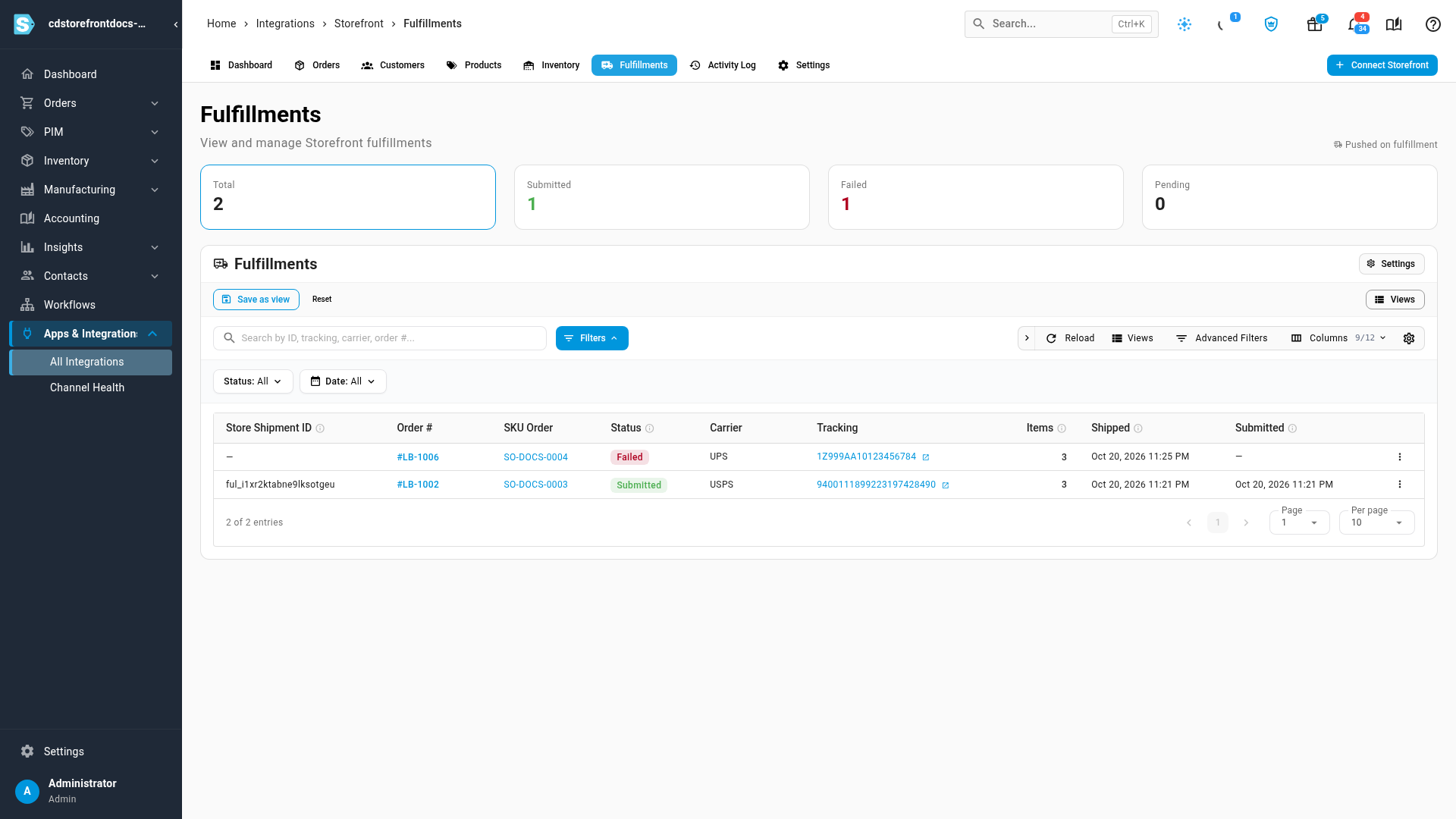
Open the Fulfillments tab to see every shipment. Submitted means the store has it; Pending means SKU.io hasn't sent it yet.
-
If Enable Communication with Customer is on (Settings → General), the store emails the buyer once for each shipment.
-
A shipment the store refused shows Failed. Hover the chip for the reason, fix the cause, then open the row's menu and click Push to store to send it again.
Cancel an order on the store now
A sales order you cancel in SKU.io cancels the store order on the next check. To send it straight away, open the order on the Orders tab and click More → Cancel on Store.
Archive, delete and redo
Deleting a sales order doesn't stop the store sending its order again. Archive the store order too, or it can come back on the next check.
| Where | Action | What it does |
|---|---|---|
| Row menu, or the bar for selected orders | Archive / Unarchive | Hides the order from the list, or brings it back |
| Row menu | Sync from Storefront | Reads the order from the store again and updates its sales order |
| Bar for selected orders | Update SKU Orders | The same, for every selected order |
| Row menu, or the bar | Delete SKU Order / Delete SKU Orders | Deletes only the sales orders, after you type YES. Tick the option to also archive the store orders. A sales order SKU.io can't delete, such as one with returns, is skipped |
| Row menu, or the bar | Delete | Deletes the imported order and its sales order |
Next steps
- How Storefront orders import.
- Troubleshoot Storefront: orders that never arrive.
Video transcript
Every five minutes, SKU.io reads your store's new and changed orders. Each paid order becomes a SKU.io sales order. Its number is written back to the store as the order's reference. An order paid by invoice comes across too, and its payment follows later. An abandoned card checkout never becomes a sales order. When you hold orders for mapping, an order with a product SKU.io can't match yet is held back. Map the product, and the order is created on its own. Or click Create to create it anyway. To fetch orders right away, click Refresh from Storefront. Fetch New Orders reads anything new or changed since the last check. From Start Date and Custom Date Range read every order in their window again. Click Fetch Orders to start, and follow it in the job tray; here, Cancel closes the dialog. When a fulfillment records tracking, SKU.io sends the shipment to the store. The store emails the buyer once for each shipment. Submitted means the store has it. Failed means the store refused it, and the chip shows why.