Map Storefront products
SKU.io imports the store's catalog when you connect and every hour after, and maps each product to the SKU.io product with the same SKU. A mapped product's orders become proper sales order lines. Map the products the import couldn't match. To send products the other way, see Push products to Storefront.
Before you begin
- Your store is connected. See Connect a Storefront store.
- You need permission to change integrations.
Find the unmapped products
-
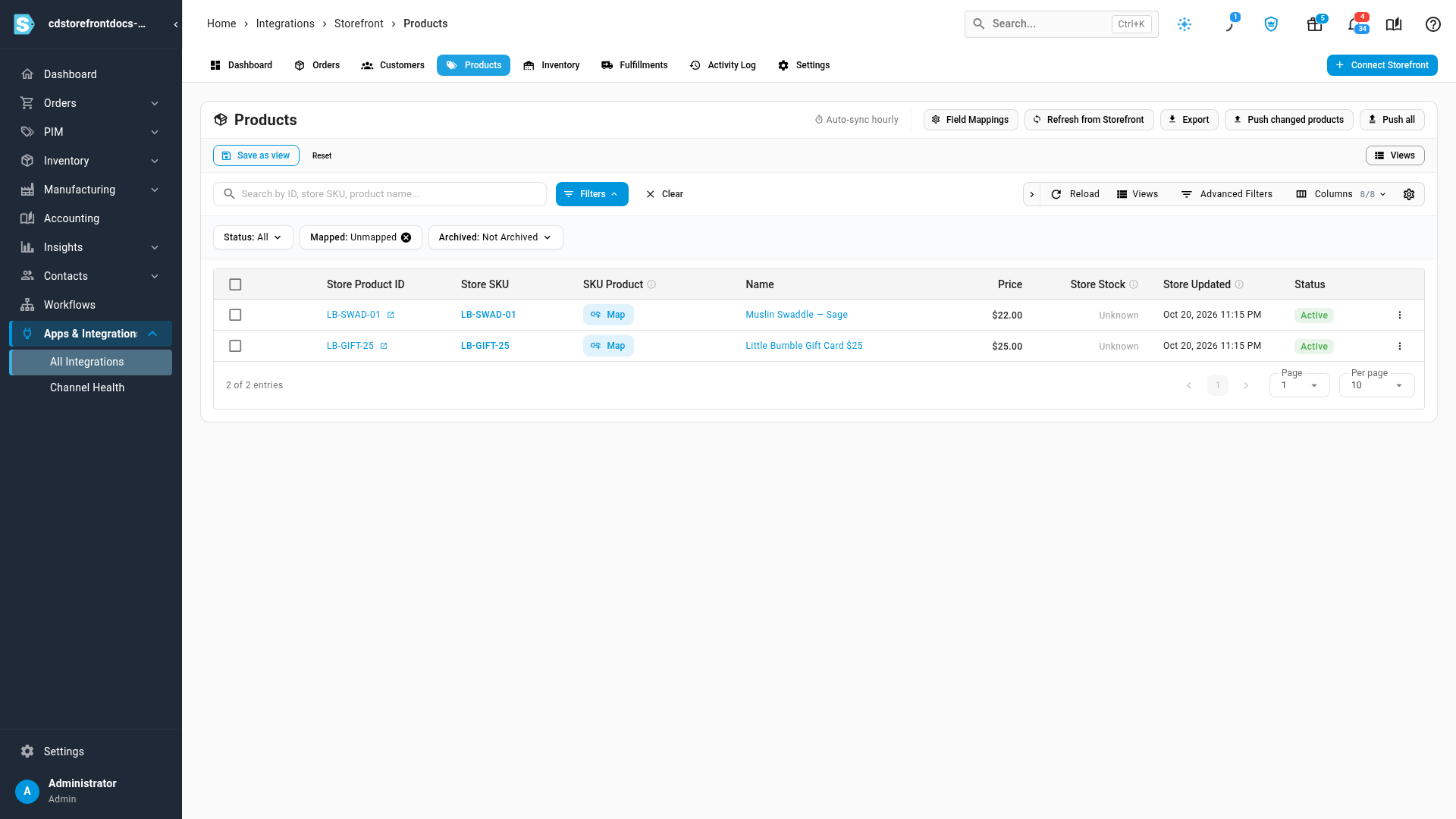
Open your store under Apps & Integrations → All Integrations → Storefront, then the Products tab.
-
Set the Mapped filter to Unmapped. Each row's SKU Product cell shows a Map button.
Map a product
- In the product's row, click Map. The Map to SKU Product or Offering dialog opens. (An offering is a subscription product; Storefront maps to catalog products only.)
- If SKU.io found a product with the same SKU or barcode, click Confirm Mapping on it. Otherwise, search by SKU, name or barcode.
- Select the product, then click Map Product. The row shows the SKU.io product.
To change or remove a mapping later, click the product's SKU Product cell and remap or unmap it.
Mapping releases any orders held for that product, as long as Import orders from Storefront and Create SKU sales orders from Storefront are on. See Storefront orders and fulfillment.
Create the SKU.io product
When SKU.io has no product to map to, create one from the store's:
- Click Map in the product's row.
- Click Create New SKU Product. The Field Mapping list shows which store fields fill which SKU.io fields: by default the store's SKU, name and price.
- Click Create & Map Product. SKU.io creates the product and maps it.
To create several at once, select their rows and click Create SKU Products. If a product with the same SKU already exists, it's mapped instead of duplicated. To change the default field mapping, click Field Mappings above the list. To create SKU.io products automatically for every unmatched store product, turn on Auto Create Products under Settings → General.
Map many at once
Select the products. A bar appears with:
| Button | What it does |
|---|---|
| Map by SKU | Maps every selected product to the SKU.io product with the same SKU. Nothing is created |
| Manage Mappings | Opens a list where you pick a SKU.io product for each row. Suggest by SKU fills in what it can; Apply saves them |
| Create SKU Products | Creates and maps a SKU.io product for each selected row |
| Archive / Unarchive | Hides products from the list and from the product push, or brings them back |
| Delete | Removes the imported record and its mapping from SKU.io. The store isn't changed |
Choose Selected Only or All Filtered to set which products the bar acts on.
Refresh the catalog now
- Click Refresh from Storefront.
- Choose Fetch Since Latest Sync for recent changes, Refetch Entire Catalog to read everything again, or Custom Date Range.
- Click Fetch Products, and follow the import in the job tray.
Refetch Entire Catalog also notices products the store no longer has. Their page shows Removed from Storefront, and SKU.io stops pushing their stock.
Read the Products list
| Column | What it shows |
|---|---|
| SKU Product | The SKU.io product this store product is mapped to, or Map |
| Price | The store's price, with any compare-at price struck through |
| Store Stock | What the store says it holds. Unknown means the store has no stock record for the SKU, which isn't the same as zero |
| Store Updated | When the store last changed the product |
| Status | Whether the product is active in the store |
Filter by Status, Mapped and Archived; archived products are hidden by default.
Export the list
- Click Export. Without a selection, the CSV file downloads straight away.
- With rows selected, choose All Filtered or Selected Records, then click Export.
Next steps
- Push products to Storefront.
- Keep Storefront stock in sync: which products get their stock pushed.
- Map channel fields to products: how field mappings work across channels.
Video transcript
SKU.io imports your store's catalog every hour, and maps each product to the SKU.io product with the same SKU. To see what it couldn't match, set the Mapped filter to Unmapped. Each of these rows shows a Map button. The swaddle isn't in SKU.io yet, so click Map, and create it from the store's product. The store's SKU, name and price fill in the new product's fields. When they look right, click Create and Map Product. SKU.io creates the product and maps it, and any order waiting for it goes ahead. To map several products at once, select them, and use the bar that appears. Map by SKU links each one to the SKU.io product with the same SKU. Manage Mappings lets you pick a product for each row. Create SKU Products makes new ones from the store's.