Troubleshoot Storefront
Most Storefront problems show up on the store's Dashboard first: a Can't reach the store warning, a Last … sync failed banner, or a count that doesn't move. Find the symptom below. For what the dashboard shows, see How Storefront sync works.
Before you begin
- Test connection needs permission to sync integrations, and Reconnect needs permission to change them.
- Push to store on a shipment needs permission to fulfill sales orders.
- For a revoked connection, you need the store owner's sign-in.
- To pause, revoke or delete a connection on purpose, see Disconnect or delete a Storefront store.
SKU.io can't reach the store
The Dashboard shows Can't reach the store, and the store's status reads Connection error.
-
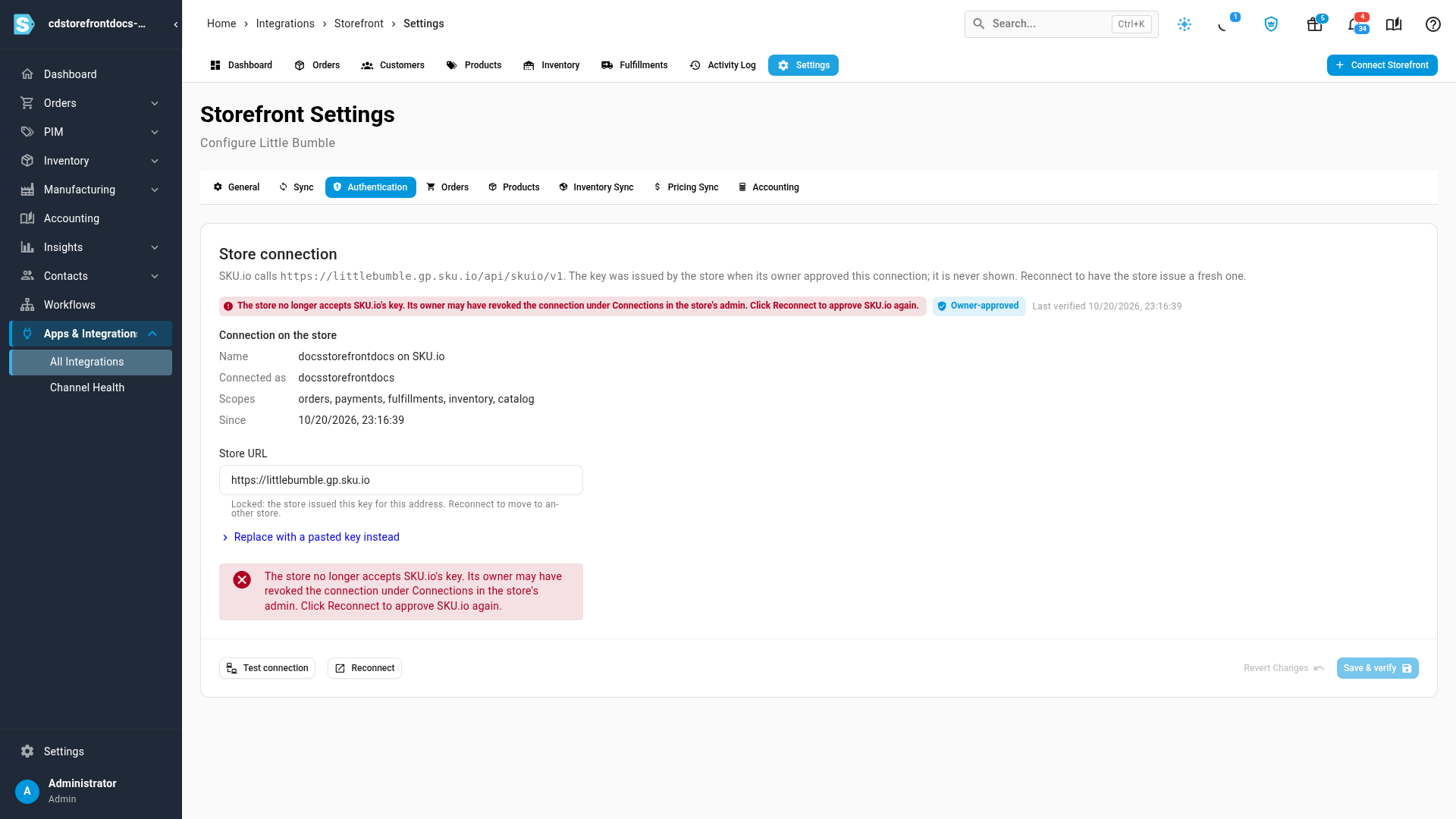
Click Open Settings on the warning, or open Settings → Authentication.
-
Click Test connection.
- Connected to … means SKU.io reached the store and its key still works. The warning clears.
- The store no longer accepts SKU.io's key means the store turned SKU.io away, usually because its owner revoked the connection. Reconnect the store.
- Could not reach the store means the store didn't answer. Open its address in your browser to check it's up, then test again.
Reconnect the store
Reconnect when the store owner revoked SKU.io, or when the key stopped working.
- Open Settings → Authentication and click Reconnect.
- Sign in to the store as its owner, and click Approve.
- The store sends you back with a fresh key, and a message confirms it. Your orders, mappings and settings stay as they were.
An owner-approved connection is locked to its store's address. To connect SKU.io to a different store, connect it as a new integration.
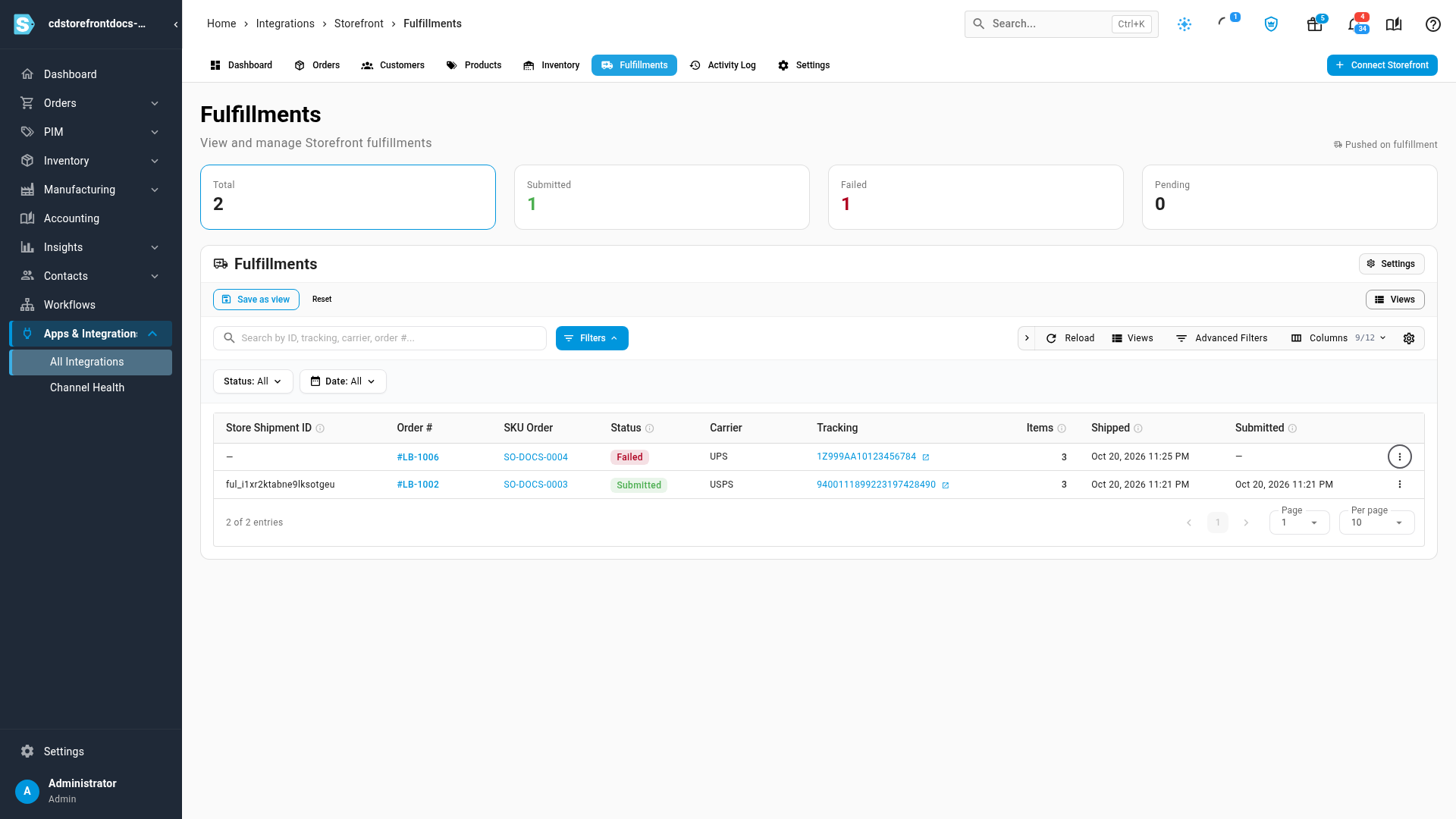
A shipment shows Failed
The store refused the shipment. On the Fulfillments tab, hover the Failed chip to read why. A common reason is A cancelled order cannot be fulfilled: the order was canceled in the store before the shipment reached it.
-
Fix the cause, for example ship a replacement order instead.
-
To resend, open the row's menu and click Push to store, then Push. If it's refused at once, check that Submit tracking to Storefront is on under Settings → Sync.
Orders are missing
| Cause | What to do |
|---|---|
| The order was placed before the Start Date | Move the Start Date earlier under Settings → Orders, then Refresh from Storefront → From Start Date |
| It's an abandoned card checkout, or canceled or refunded | Nothing. These show Not importable and never become sales orders |
| It's held for mapping | Map its products. See Orders held for mapping |
| It's imported but has no sales order | Check Create SKU sales orders from Storefront under Settings → Sync, and the SKU Order filter's Creation Failed option |
| Imports are off | Turn Import orders from Storefront back on under Settings → Sync, or check Sync Schedule isn't Paused |
| The last check failed | The Orders tab shows Last sync failed with the reason. Fix it, then Refresh from Storefront |
No stock reaches the store
| You see | What to do |
|---|---|
| The store's catalog has not been imported yet, so there is no list of what it sells to push stock for | On the Products tab, click Refresh from Storefront, then push again |
| Every row is Not Managed, and the push buttons are unavailable | Set Master of Stock to SKU.io under Settings → Inventory Sync |
| A row is Unknown to store | The store doesn't sell that SKU. With product push on, give the product a price in the selling level; otherwise add it in the store. See Which products get stock |
| Outbound inventory sync is turned off for this connection | Turn Push inventory to Storefront on under Settings → Sync |
See what happened to an order
The Activity Log tab lists what SKU.io did with this store's orders and products: imports, holds for mapping, sales orders created, updated or deleted, cancellations both ways, payments, and shipments pushed. Filter it by Event or Source to follow one order's story. Each order's page has its own Activity Log section too.
Next steps
- Check a connection's sync health.
- Fetch orders and send tracking to Storefront.
- Disconnect or delete a Storefront store.
Video transcript
This is the Authentication tab of your store's settings, where the store connection lives. When SKU.io can't reach the store, click Test connection. Here the store turns SKU.io away, because its owner revoked the key, and the status changes to an error. To fix it, click Reconnect. The store's admin opens in the same tab, and asks you to sign in with the store owner's email and password. Then click Approve on the store's request, just like the first time. You land back in SKU.io, and a message confirms the store issued a fresh key. Your orders, mappings and settings stay as they were. A shipment the store refuses shows Failed on the Fulfillments tab. Hover the chip to read the store's reason. This order was cancelled in the store before the shipment arrived. Once the cause is fixed, use Push to store in the row's menu to send it again.