Connect ShipStation
Connect ShipStation once, then tell SKU.io which of your warehouses ship through it. After that, fulfillment orders from those warehouses go to ShipStation, and the label you buy there comes back as a shipment with its tracking number.
Before you begin
- You need permission to connect integrations.
- In ShipStation, go to Account → Account Settings → API Settings and click Generate New API Keys. Copy the API Key and API Secret.
- You can connect one ShipStation account.
Create the connection
-
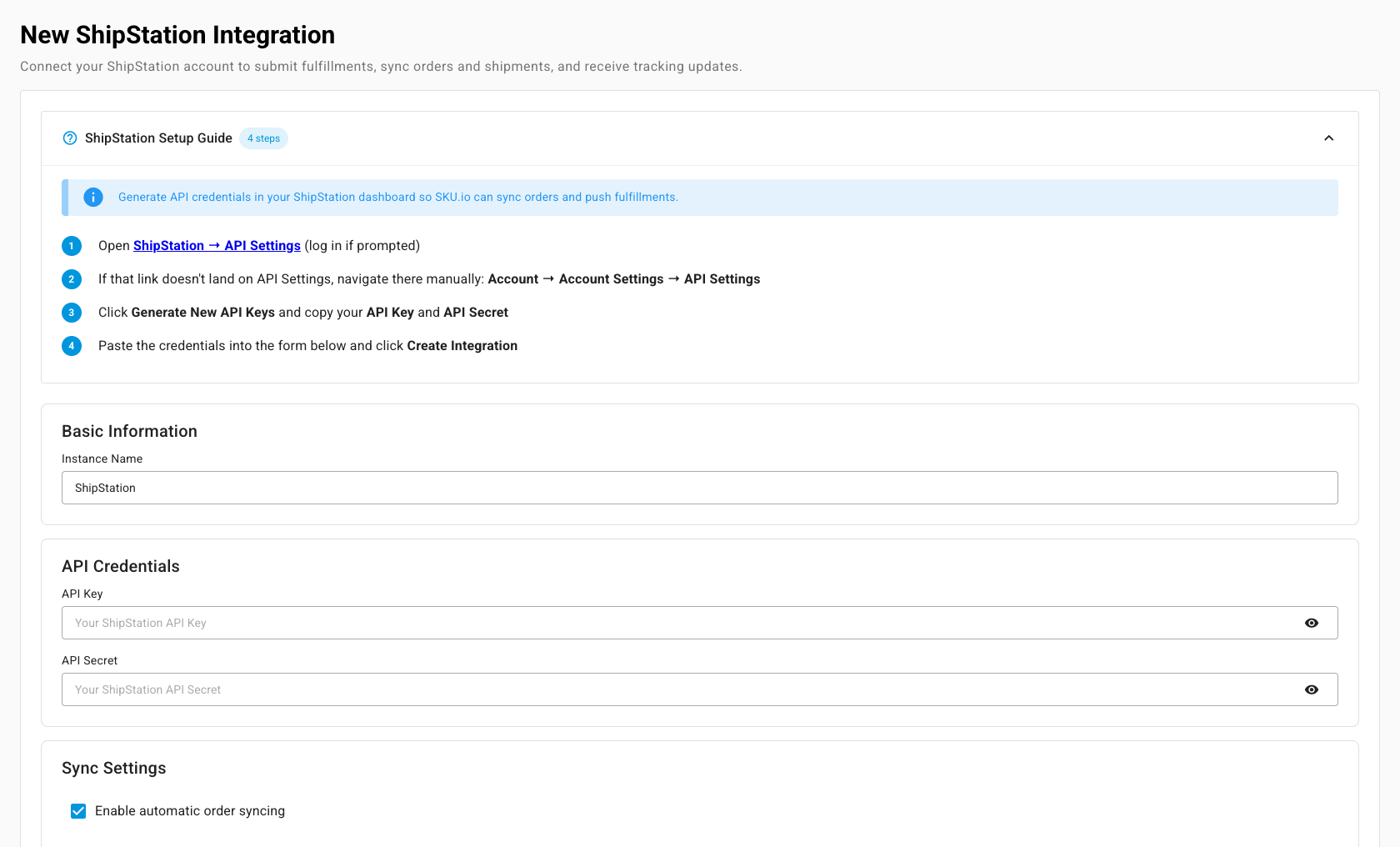
Go to Apps & Integrations, open Shipping & Fulfillment, and choose ShipStation. The New ShipStation Integration page opens.
-
Enter an Instance Name. It defaults to ShipStation.
-
Paste the API Key and API Secret.
-
Leave Enable automatic order syncing on, so SKU.io downloads orders and tracking from ShipStation on a schedule. Turn it off only if you want to send orders out and nothing back.
-
Check the Order Start Date. SKU.io only downloads ShipStation orders created on or after this date. It defaults to 30 days ago.
-
Click Create Integration.
What you'll see: SKU.io checks the key with ShipStation first. If ShipStation rejects it, the page says so and asks you to check both values under Settings → Account → API Settings. When it's accepted, the Dashboard opens, and SKU.io subscribes to ShipStation's notifications and downloads your ShipStation warehouses, services, orders, and shipments in the background.
Map warehouses and shipping methods
- Open the Warehouses tab. Pick the SKU.io warehouse for each ShipStation warehouse. A ShipStation warehouse that isn't mapped leaves its fulfillments out of sync.
- Open the Shipping Methods tab. Pick the SKU.io shipping method for each ShipStation service. A fulfillment whose method has no mapped service uses ShipStation's default service. Mapping changes apply to new fulfillments only.
You can also export the shipping-method mapping, edit it in a spreadsheet, and import it back.
Choose which warehouses ship through ShipStation
- Open Settings, then the Warehouses tab.
- Tick Enable Fulfillment for every warehouse whose orders ShipStation should ship.
- Tick Automate Fulfillment too if you want eligible orders submitted automatically by the hourly job. Leave it off to submit each fulfillment order yourself.
- Click Save Changes.
A warehouse that another integration already automates is locked here. Turning Enable Fulfillment off also turns Automate Fulfillment off.
Set what syncs
On Settings → Sync you can pause the whole schedule, or turn each direction on or off:
| Switch | What it controls |
|---|---|
| Import tracking from ShipStation | Pulling shipments and tracking back into SKU.io |
| Push orders to ShipStation | Sending orders to ShipStation. With it off, a submitted order is refused with "ShipStation order push is turned off in Sync settings". |
A manual Sync Now still works while the schedule is paused.
Other settings
- General → Order Field Mappings — pass a product field (MPN, the default supplier SKU, or a product attribute) onto ShipStation order lines, map gift-card notes and Saturday delivery to sales-order custom fields, and send sales-order tags as internal notes.
- Financial → Shipping Cost Financial Line Type — the cost line SKU.io records for each shipment's shipping cost. Changing it updates all past fulfillments, so SKU.io shows a preview first.
- Connection — test the connection, or paste a new API Key and API Secret.
Next steps
- Dispatch to a fulfillment provider — submit a fulfillment order to ShipStation by hand.
- Track shipments — see what came back.
- ShipStation overview