Pre-sell sets from their pieces
A set, such as earrings sold with a matching necklace, is a product made of other products: its pieces. You buy the pieces, not the set, so a set has no purchase order line of its own, and Purple Dot sees nothing coming in for it. Without help, you size each set's Waitlist by hand in Purple Dot, and the same incoming hoop can be pre-sold twice: once on its own and once inside a set.
Turn on Size sets from their pieces and SKU.io works it out for you:
- It counts how many sets your incoming pieces complete, and when, and sends that to Purple Dot as the set's planned inventory.
- It takes those units off the pieces' own Waitlists, so one incoming unit is never sold twice.
- It keeps both up to date when a purchase order changes, slips or arrives, and tells you when more sets are pre-sold than the pieces can complete.
Before you begin
- Purple Dot connected and live. See Connect Purple Dot pre-orders.
- Each set created as a bundle product with its pieces, and listed on the Shopify store that runs Purple Dot. See Build bundles and kits.
- The pieces on open purchase orders (or warehouse transfers) into a supply warehouse.
Turn on Size sets from their pieces
-
Go to Apps & Integrations. Search for Purple Dot, choose it under Pre-orders, and click your connection.
-
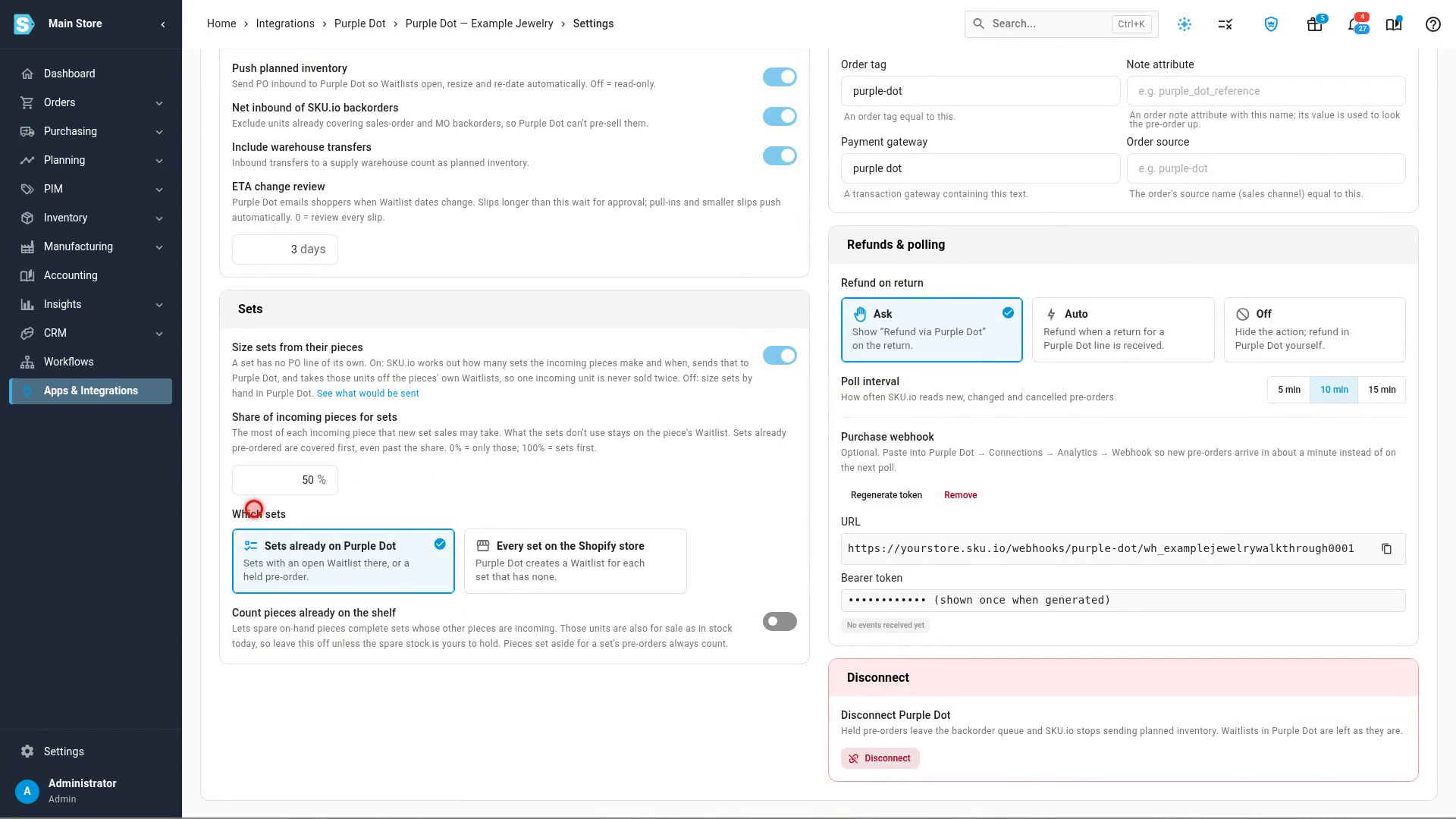
Open the Settings tab and scroll down to Sets.
-
Turn on Size sets from their pieces.
-
Set Share of incoming pieces for sets: the most of each incoming piece that new set sales may take. What the sets don't use stays on the piece's own Waitlist. Sets already pre-ordered are covered first, even past the share. 0% sizes only sets already pre-ordered; 100% serves sets first.
-
Under Which sets, choose Sets already on Purple Dot (sets with an open Waitlist or a held pre-order) or Every set on the Shopify store (Purple Dot creates a Waitlist for each set that has none).
-
Leave Count pieces already on the shelf off unless your spare on-hand pieces are yours to hold for sets. Pieces set aside for a set's pre-orders always count.
-
Click Save at the top of the page.
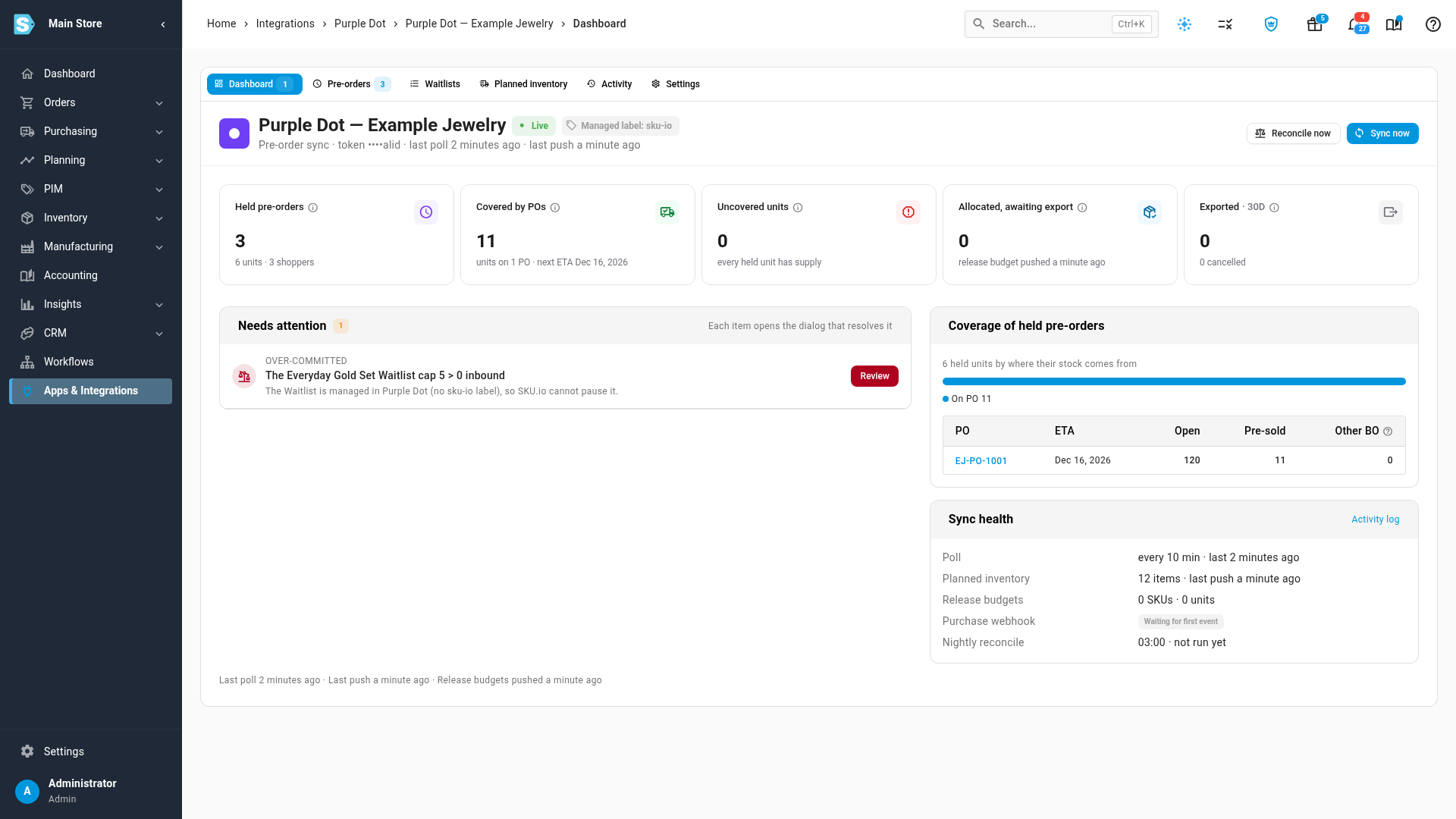
What you'll see: SKU.io sends each set's planned inventory to Purple Dot and keeps it up to date as your purchase orders change. If the dashboard's Needs attention showed a set's Waitlist as Over-committed (shoppers had pre-ordered sets, and Purple Dot saw nothing coming in for them), it clears.
Check the Sets tab
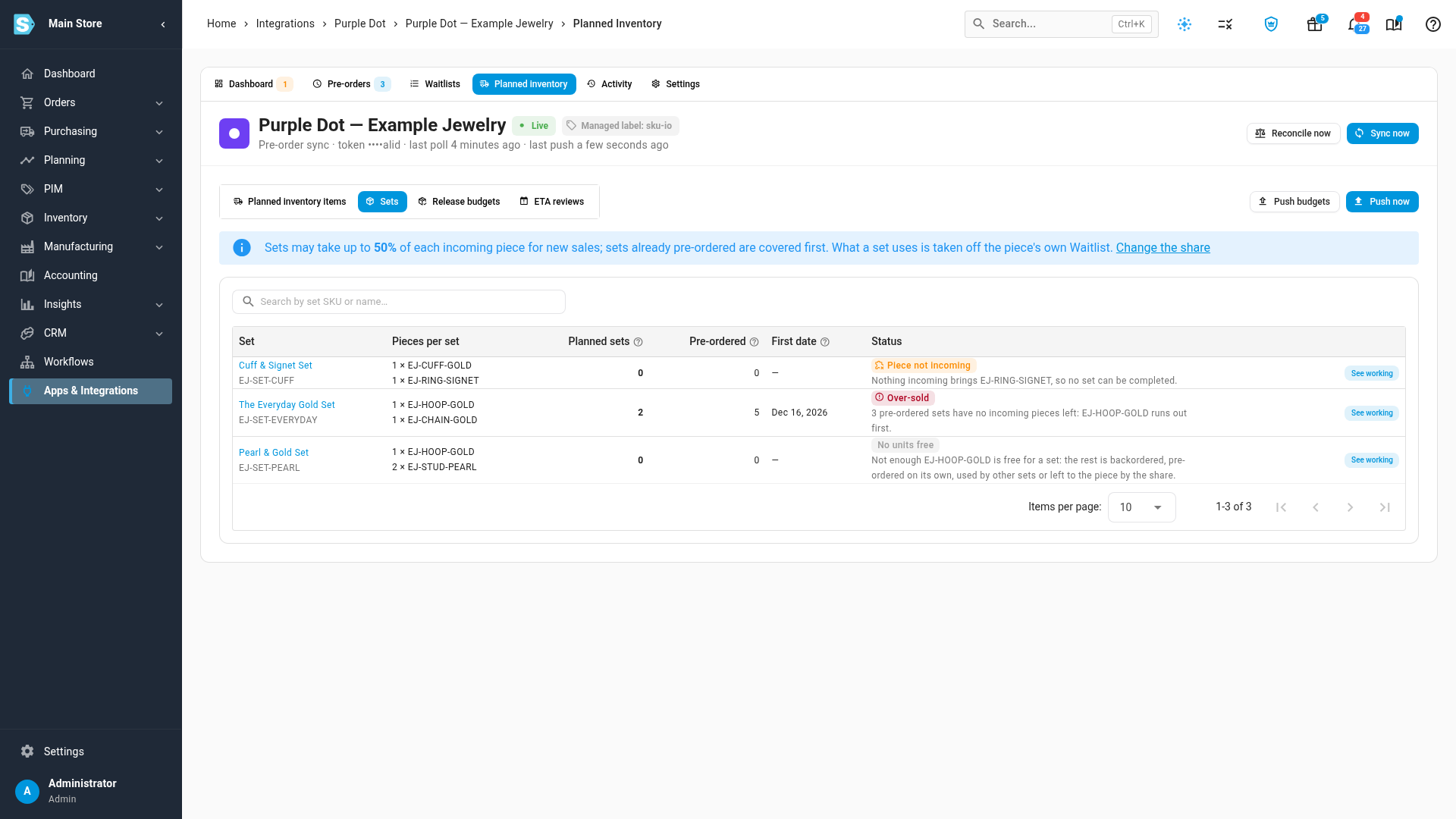
Open Planned inventory, then the Sets tab. Each row is a set. While Size sets from their pieces is off, the tab is a preview (nothing here is sent), so you can check it before you turn the setting on.
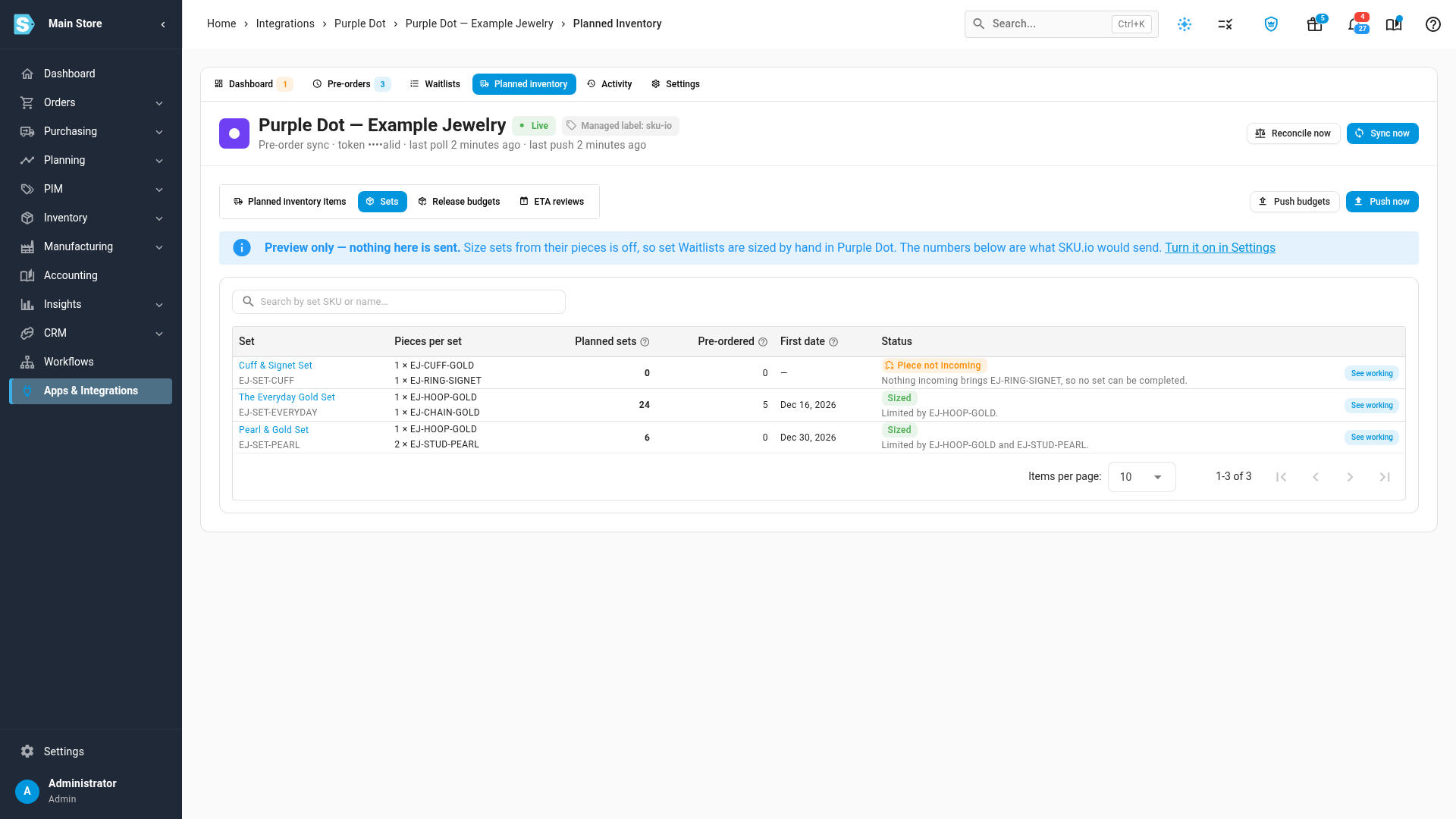
| Column | What it shows |
|---|---|
| Set | The set, with its SKU. |
| Pieces per set | How many of each piece make one set. |
| Planned sets | How many sets your incoming pieces complete. |
| Pre-ordered | Sets shoppers have already pre-ordered in Purple Dot. |
| First date | When the first of those sets is complete. |
| Status | Sized, with the piece that runs out first. Piece not incoming: one of its pieces is on no purchase order, so no set can be completed. Over-sold: more sets are pre-ordered than the pieces complete. No units free: every incoming unit of a piece is already taken. |
See how a set was worked out
On the Sets tab, click See working on a set.
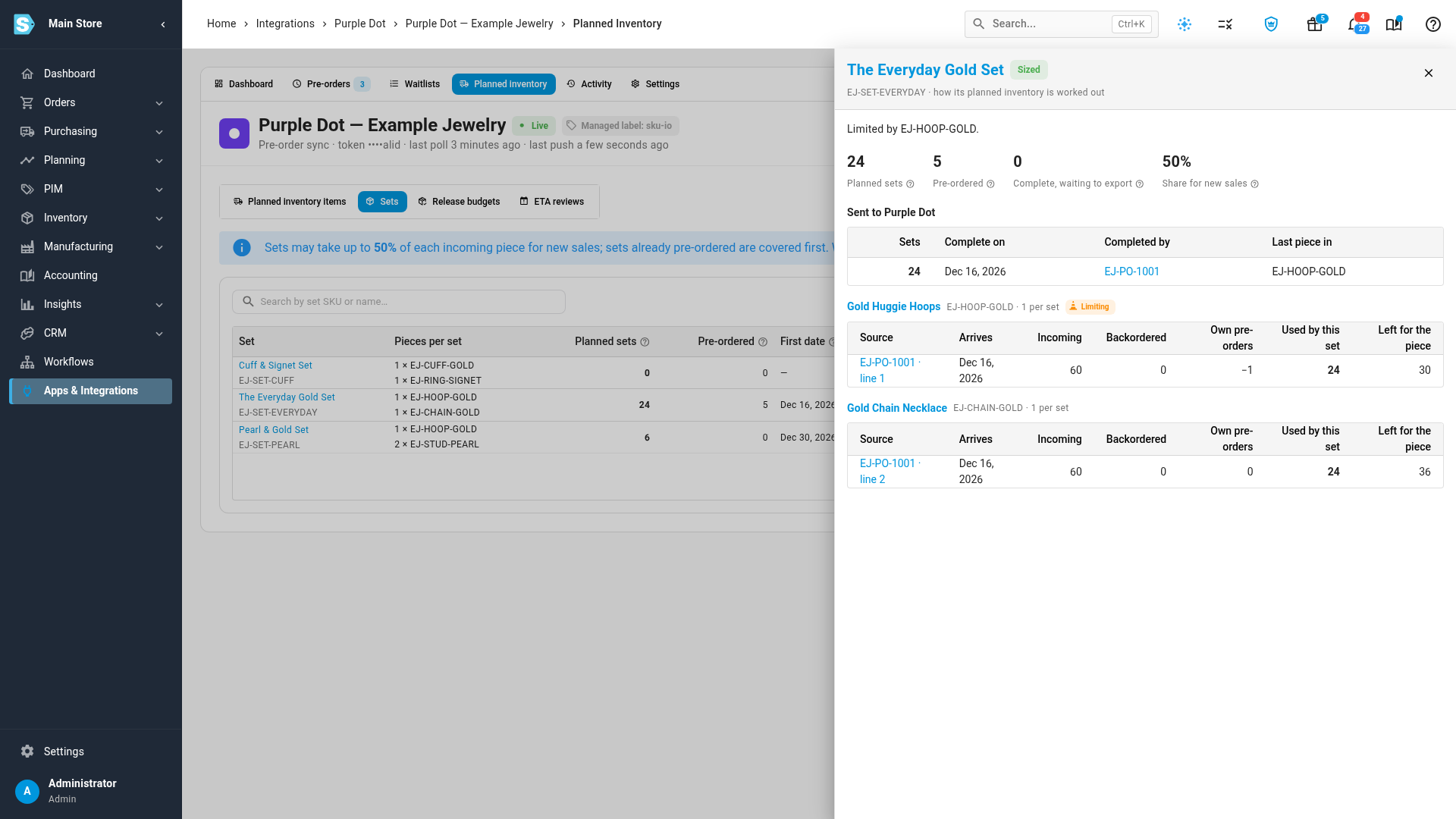
- Sent to Purple Dot lists each arrival of sets: how many, the date they are complete, the purchase order that completes them and the last piece in.
- Below it, each piece has a row per source:
| Column | What it shows |
|---|---|
| Incoming | Units still to be received from that purchase order or transfer. |
| Backordered | Units your own sales-order and manufacturing backorders (or another Purple Dot connection's pre-orders) already wait on. Never offered to sets. |
| Own pre-orders | Units the piece's own held pre-orders take. |
| Used by this set | Units this set takes: the pieces its held pre-orders need, plus those of the new sets it can sell. |
| Left for the piece | What the piece's own Waitlist still offers from that source, after every set that uses it. |
Limiting marks the piece that runs out first: it decides how many sets there are.
On Planned inventory items, each piece shows the units it keeps for sets, and each set has a row of its own, labelled Set · see working. A set's arrivals are numbered within the set: hold the pointer over its source to see Set arrival #1, #2 and so on.
When a purchase order is cut
If a supplier cuts a piece so that more sets are pre-ordered than the pieces can complete, the set shows Over-sold on the Sets tab, with how many pre-ordered sets have no incoming pieces left and which piece runs out first. Restore the quantity on the purchase order, or contact the shoppers whose sets can't ship.
Approve a slipped date for a set
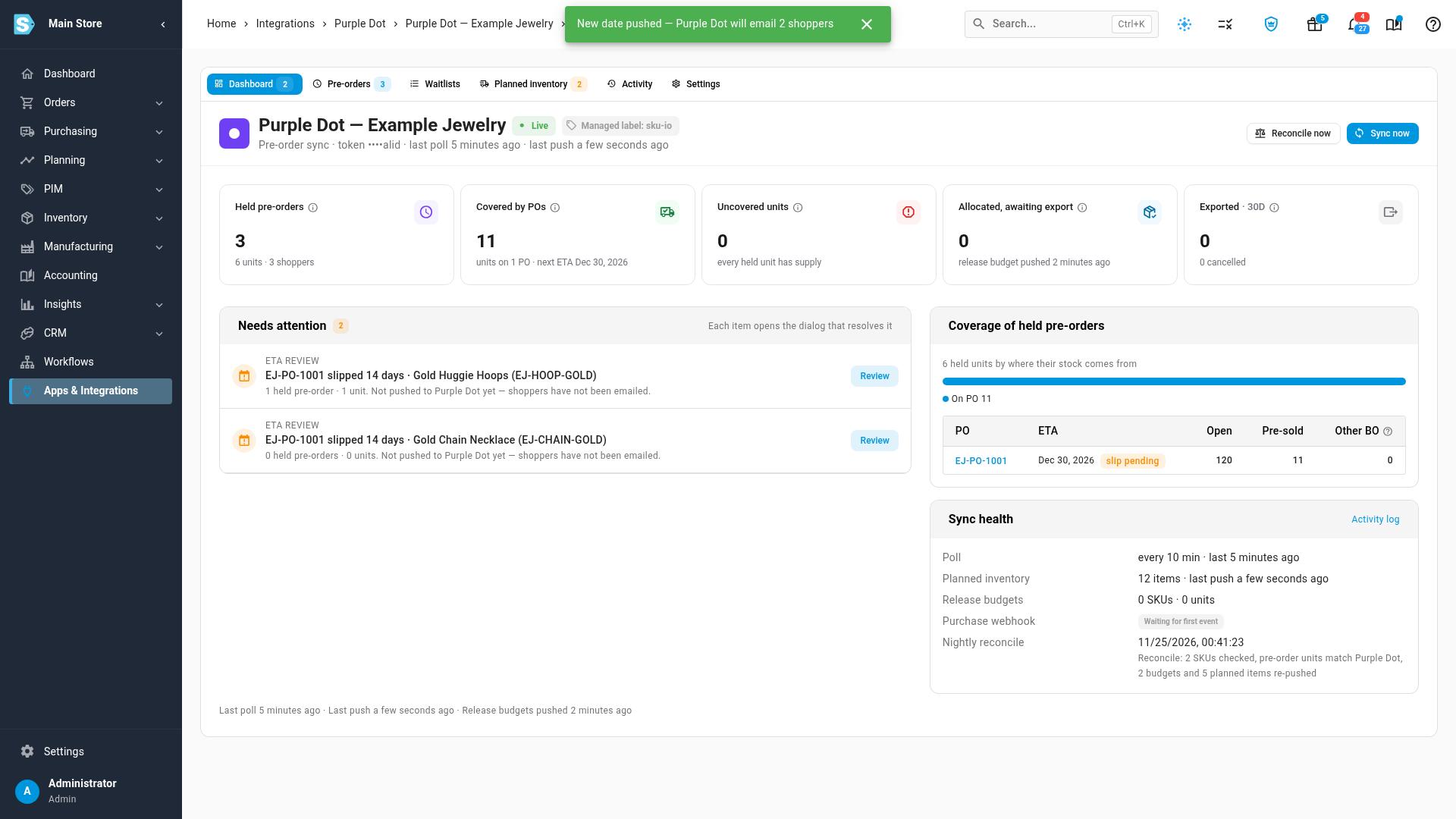
When a purchase order's date slips, every set it completes slips too. Purple Dot emails shoppers when a date changes, so slips longer than your ETA change review setting wait for your review, set by set.
- On the Dashboard, under Needs attention, click Review on the set.
- The dialog shows the old and new dates and how many pre-orders the change affects.
- Click Approve & push to send the new date to Purple Dot, or Keep old date.
When the pieces arrive
Receive the pieces on the purchase order as usual. On Planned inventory items, Arrived shows the units in for each piece and, for a set, the sets those pieces complete. Only what is still to come stays on sale, so nothing extra goes on sale.
When the rest arrives, the stock is set aside for the pre-orders, and SKU.io tells Purple Dot how many units of each product, sets included, it may export. You see these on Planned inventory → Release budgets.
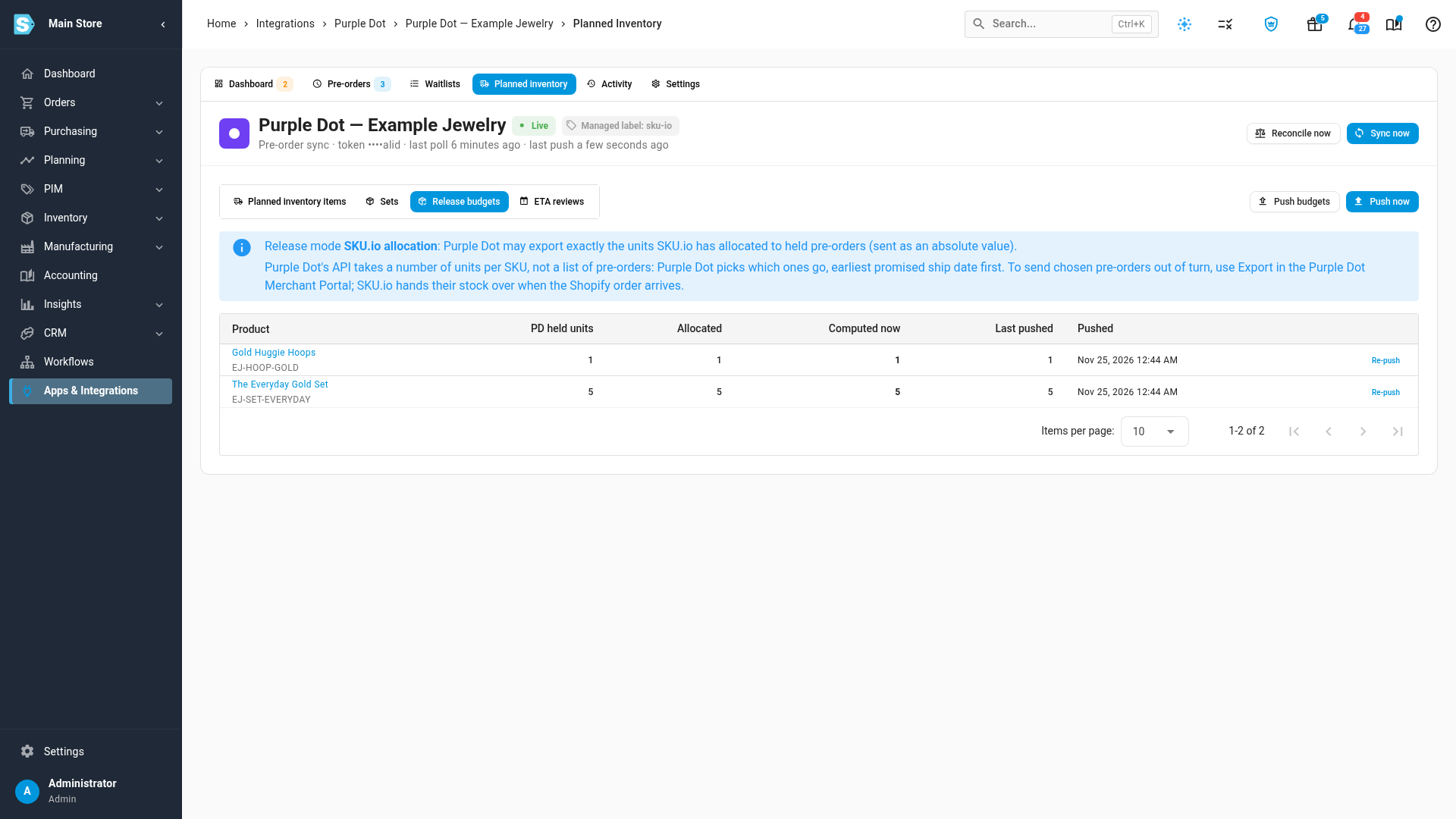
Purple Dot's API takes a number of units per product, not a list of pre-orders, so SKU.io can't export particular pre-orders by hand. Purple Dot picks which ones go, earliest promised ship date first. To send a chosen pre-order out of turn, use Export in the Purple Dot Merchant Portal; SKU.io hands its stock over when the Shopify order arrives.
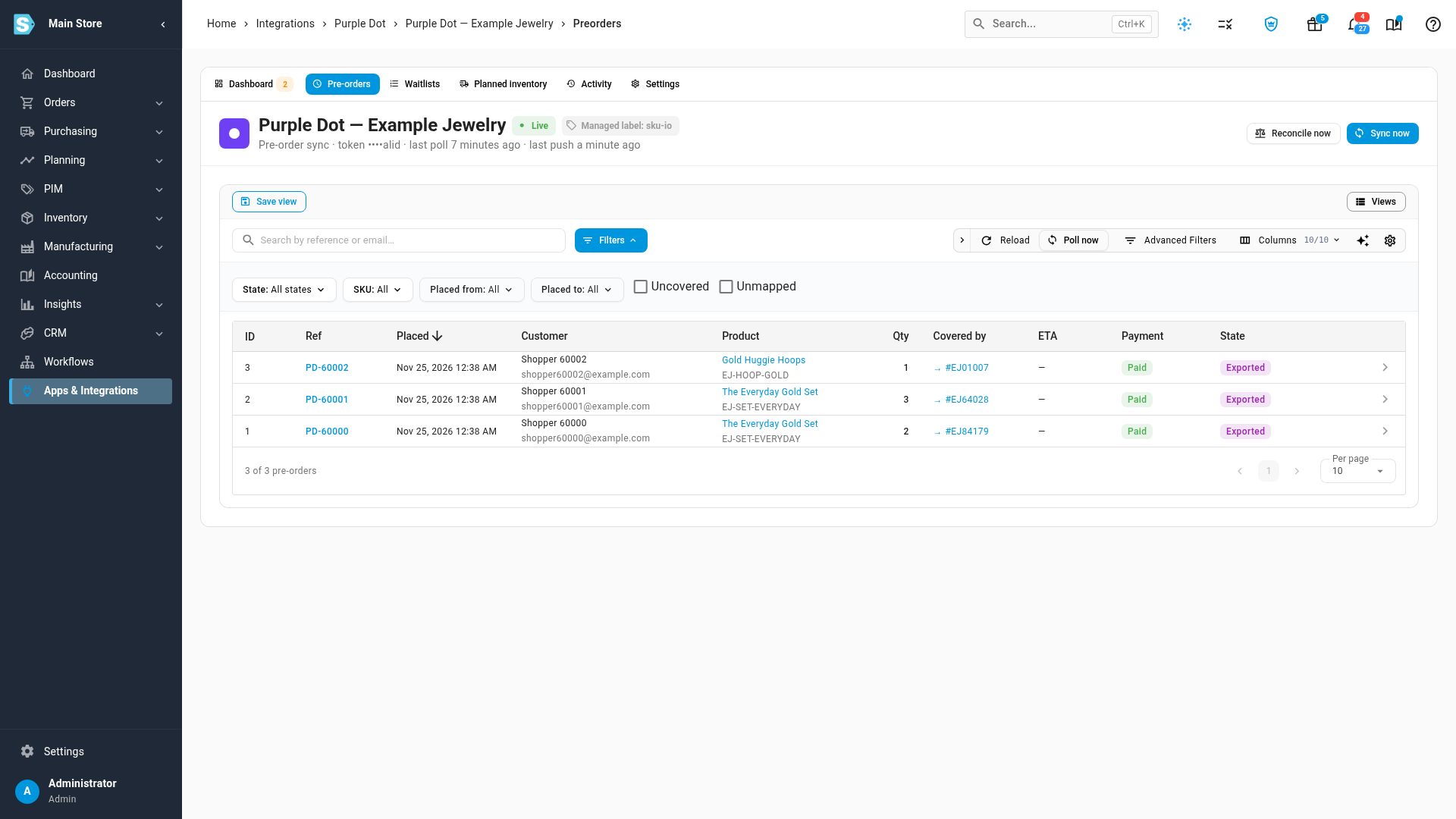
Purple Dot then exports the pre-orders to Shopify. On the Pre-orders tab each one reads Exported, next to the order that took over its stock. Ship it from SKU.io like any other order.
Next steps
Video transcript
A set, such as earrings sold with a matching necklace, has no purchase order line of its own. So its pre-orders are usually sized by hand. SKU.io can size them for you, from the pieces you have on order. To set it up, open Apps and Integrations in the menu on the left. Search for Purple Dot. Then choose it, under Pre-orders, in the list of results. Purple Dot opens, with your connections listed on the right. Click yours to open its dashboard. Under Needs attention, this set's Waitlist is over-committed. Shoppers have pre-ordered five, but Purple Dot sees no incoming stock. A set has no supply of its own, so nothing covers those pre-orders. Next, open Planned inventory. Then choose Sets, just below. The setting is still off, so this is a preview, and nothing here is sent. Each row is a set, listed with its pieces. Planned sets is how many sets your incoming stock completes. First date is the date of the earliest arrival. The status names the piece that runs out first. A set whose piece is on no purchase order shows Piece not incoming. To start, open the Settings tab. Then scroll down to the Sets card. Turn on Size sets from their pieces. The share is the most of each incoming piece that new set sales may take. What sets don't use stays on the piece's own Waitlist, and sets already pre-ordered come first. Which sets chooses between the sets already on Purple Dot, and every set on your store. When you have finished, scroll back to the top of the page. Then click Save, to apply the change. Back on the dashboard, Needs attention is clear. Purple Dot now sees incoming stock for every sized set. Return to Planned inventory. Then choose Sets once more, to see the sets as they are now sent. Each set now reads Sized, and stays up to date as your purchase orders change. To see the details behind a set, click its See working button. Sent to Purple Dot lists each arrival of sets, with the purchase order that completes each arrival. Below, each piece shows its incoming stock, its backorders, and its own pre-orders. Used by this set is what this set takes. Left for the piece stays on the piece's own Waitlist, so no incoming unit is sold twice. Limiting marks the piece that runs out first. When you have seen enough, close the panel. Then open Planned inventory items. Search by SKU to find the pieces and the set. Each piece shows the units it keeps for sets, and each set has a row of its own. A set's arrivals are numbered within the set, so this row is the set's first arrival. Suppose your supplier cuts the hoops on that purchase order to three units. More sets are pre-ordered than the pieces can complete, so the set shows Over-sold. Its status names the piece that runs out first. Restore the quantity, or contact the shoppers whose sets can't ship. When a purchase order slips, the sets it completes slip by the same amount. Purple Dot emails shoppers about each new date, so SKU.io holds each change for your approval. On the dashboard, click Review on the set. The dialog shows the old and new dates, and how many pre-orders the change affects. Click Approve and push to send the new date to Purple Dot. When part of the order arrives, receive it on the purchase order as usual. In Planned inventory, Arrived shows the units in for each piece. For the set, Arrived counts the complete sets. Only what is still to come stays on sale, so nothing extra is sold. When the rest arrives, the stock is set aside for the pre-orders. SKU.io then tells Purple Dot how many units of each it may export, in Release budgets. Here, five sets and one pair of hoops. You can't pick which pre-orders go from SKU.io: Purple Dot's API takes a number of units, not a list. Purple Dot exports the earliest promised pre-orders first. To send a chosen pre-order out of turn, export it in Purple Dot itself. Purple Dot then exports those pre-orders as orders in your store. On the Pre-orders tab, each set pre-order now reads Exported. Next to it is the order that took over its stock. You ship that order from SKU.io, like every other order.