Connect Purple Dot pre-orders
Purple Dot sells pre-orders on your Shopify store. It takes the shopper's payment and holds each pre-order outside Shopify until stock arrives, then sends ("exports") it to Shopify as a normal order. Connect it to SKU.io and the two systems stay in step:
- Your open purchase orders tell Purple Dot how much stock is coming and when, so its pre-order offers (Purple Dot calls them Waitlists) open, resize and re-date themselves.
- Every held pre-order joins your backorder queue and reserves stock on a purchase order, so wholesale orders, other channels and back-in-stock dates never promise the same incoming units twice.
- When stock arrives, SKU.io decides which pre-orders Purple Dot may export, and the exported Shopify order takes over the stock already set aside for it.
- Ship-date slips wait for your approval before Purple Dot emails shoppers, and refunds for returned pre-orders go back through Purple Dot, which took the payment.
Setup takes about ten minutes, and nothing is sent to Purple Dot until you press Go live.
Before you begin
- A Shopify store connected to SKU.io, with its Shopify locations mapped to your warehouses. See Connect a Shopify store.
- A Purple Dot Private API token. In the Purple Dot Merchant Portal, go to Settings → Integration and create one.
- Permission to connect integrations in SKU.io.
- Your pre-order products listed on that Shopify store, and their incoming stock on purchase orders in SKU.io.
Connect Purple Dot
-
Go to Apps & Integrations → All Integrations. Search for Purple Dot, choose it under Pre-orders, and click Connect Purple Dot.
-
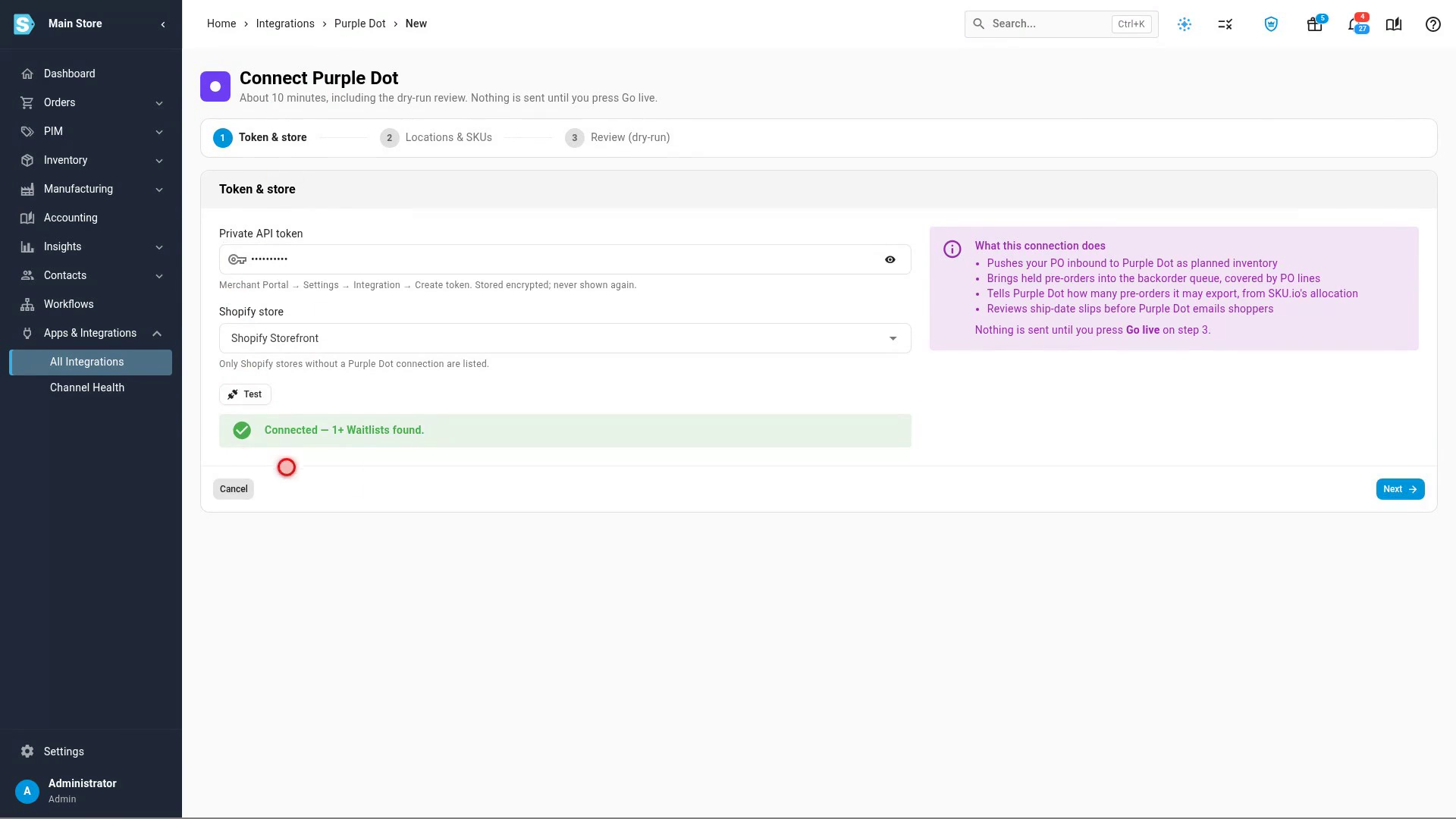
Paste your token into Private API token.
-
Under Shopify store, pick the store that runs Purple Dot. Only stores without a Purple Dot connection are listed.
-
Click Test. Connected means Purple Dot accepted the token. If it says Purple Dot rejected the token, create a new one in the Merchant Portal and paste that instead.
-
Click Next.
-
Under Supply warehouses, check the warehouses whose incoming stock can fill pre-orders. Purchase orders and transfers into these warehouses count as pre-order supply. The warehouses mapped to the store's Shopify locations are ticked for you.
-
Keep SKU as the SKU match key unless your SKUs differ between Shopify and SKU.io. Then pick Barcode (when the UPCs match) or Shopify variant GID (the most exact, and it survives SKU renames).
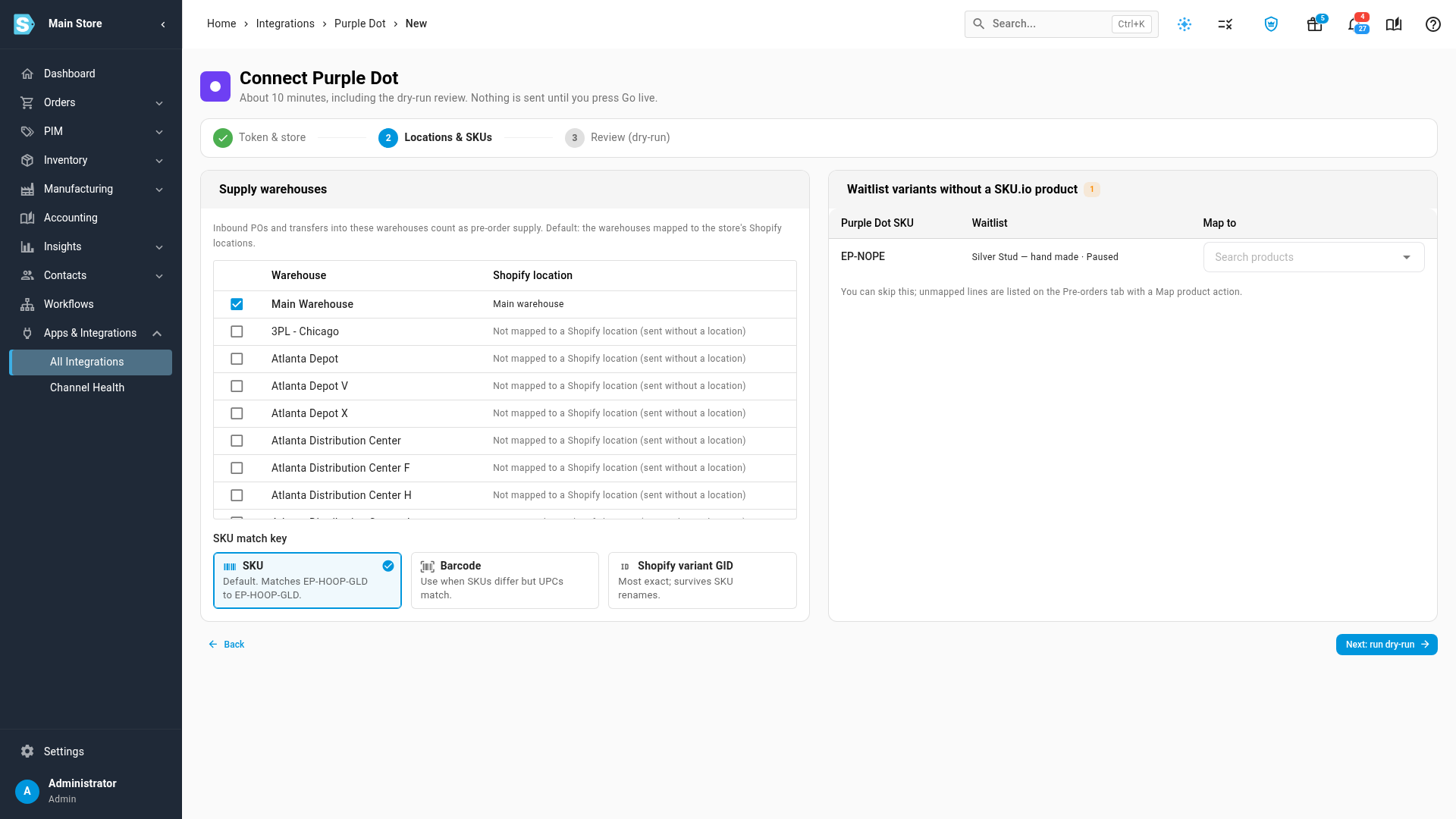
Waitlist variants without a SKU.io product lists Purple Dot products SKU.io can't match. You can pick the product here, or skip it and map it later from the Pre-orders tab.
-
Click Next: run dry-run. SKU.io builds a preview in the background, which you can follow in the job tray. Nothing is sent to Purple Dot.
-
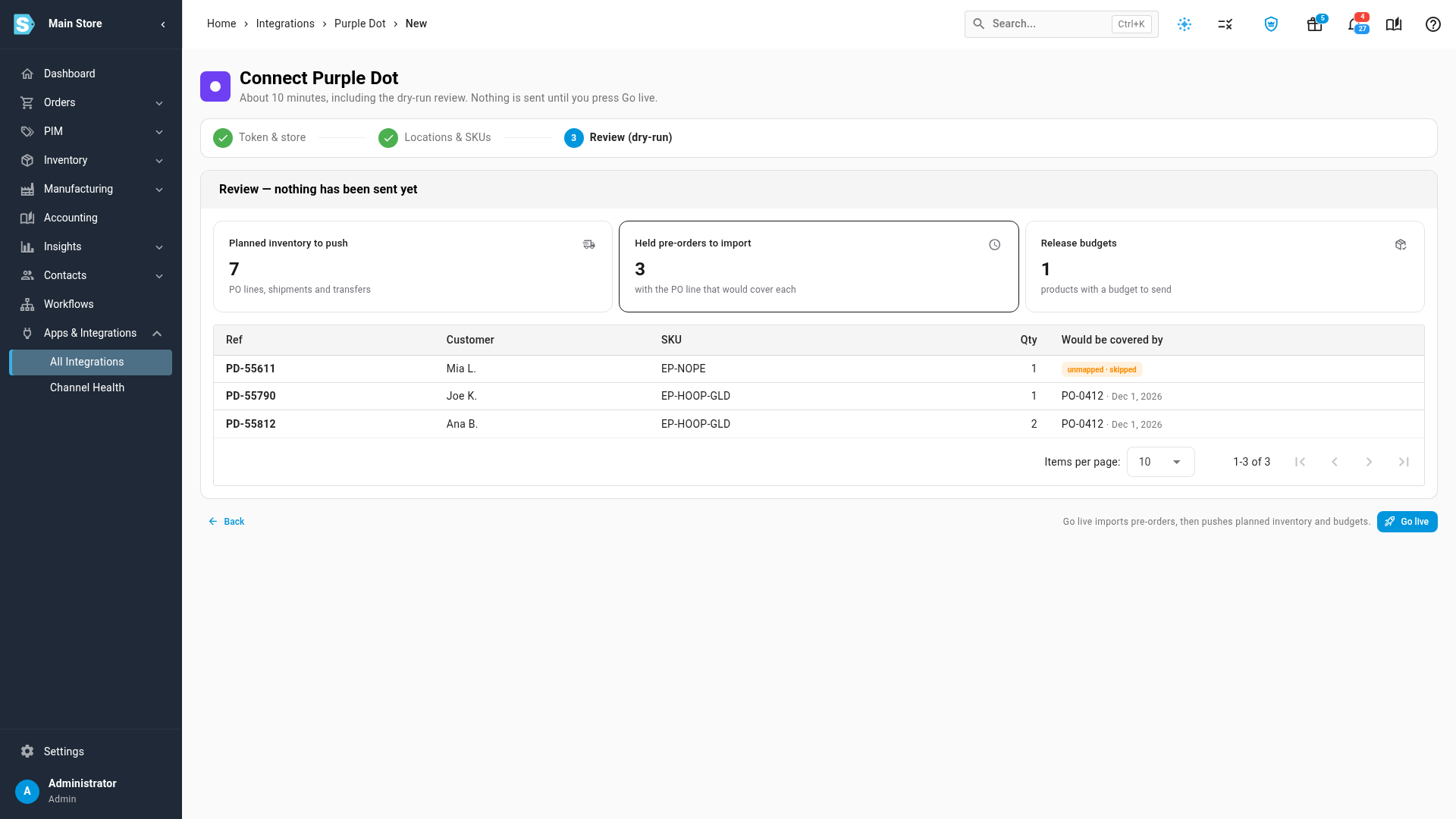
Review the three cards:
- Planned inventory to push: the incoming stock Purple Dot will see, per purchase order line, with its quantity, ETA and location. Units already covering your own sales-order backorders are taken off, so Purple Dot can't pre-sell them.
- Held pre-orders to import: each shopper's pre-order and the purchase order that would cover it, or unmapped · skipped when no SKU.io product matches.
- Release budgets: how many pre-orders Purple Dot may export now, per product.
-
Click Go live. SKU.io imports the held pre-orders, then sends planned inventory and release budgets to Purple Dot.
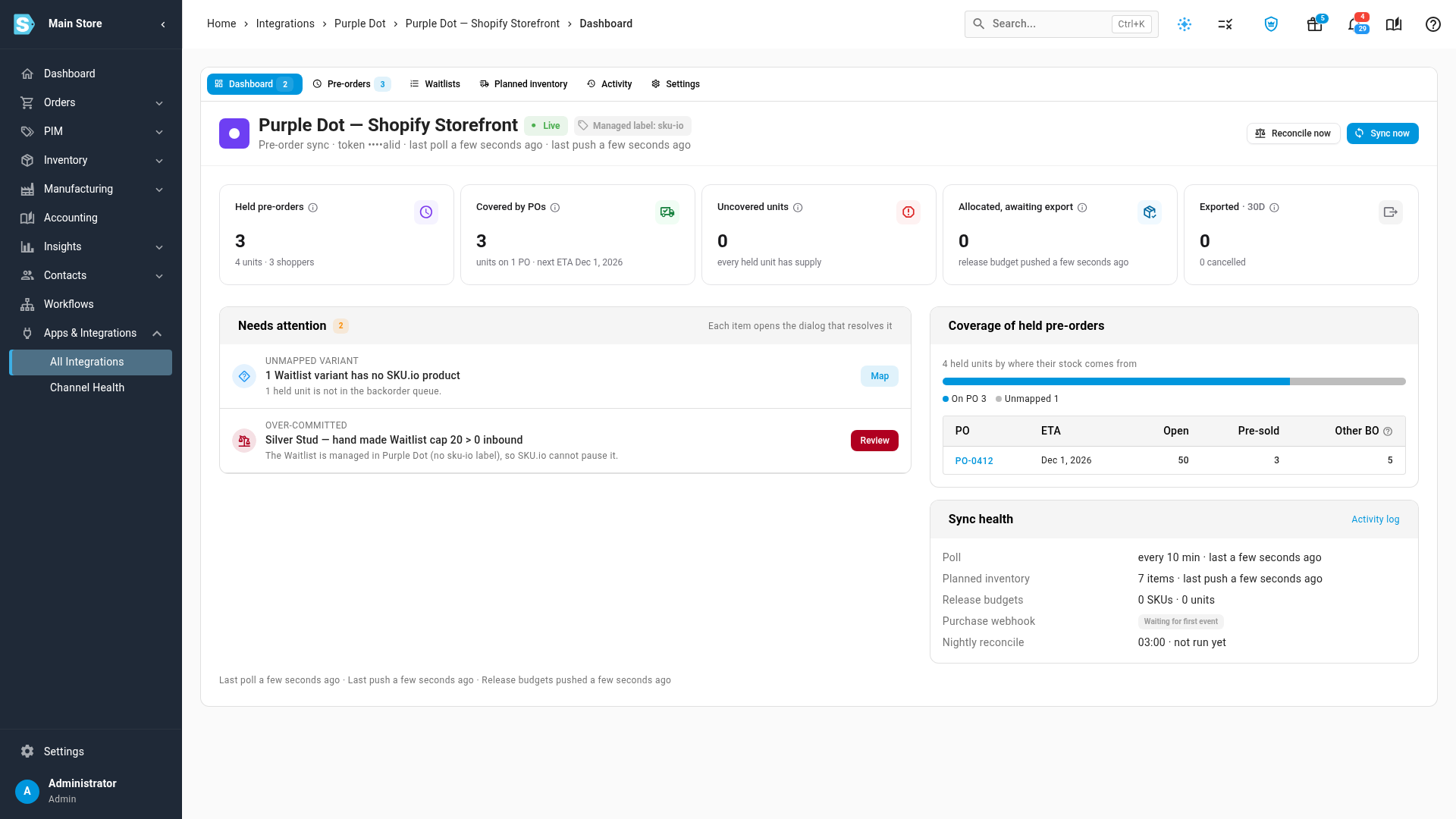
What you'll see: the Purple Dot Dashboard opens with the connection marked Live.
| Card | What it counts |
|---|---|
| Held pre-orders | Pre-orders Purple Dot is still holding, with their units and shoppers. |
| Covered by POs | Held units with a purchase order line set aside for them, and the next ETA. |
| Uncovered units | Held units with no incoming stock. A shopper is waiting on stock you haven't ordered. |
| Allocated, awaiting export | Units that have arrived and are reserved, waiting for Purple Dot to export them. |
| Exported | Pre-orders Purple Dot sent to Shopify in the last 30 days, and how many shoppers cancelled. |
Needs attention lists anything to act on: a ship-date slip waiting for review, a Purple Dot product with no SKU.io match (Map), a Waitlist that offers more than is coming (Review), an exported order SKU.io couldn't match, a refund Purple Dot didn't confirm, or an error from Purple Dot. Each item opens the dialog that resolves it. Sync now reads new and cancelled pre-orders straight away instead of waiting for the next poll.
See pre-orders in the backorder queue
Held pre-orders are backorders like any other, so nothing else is promised their incoming stock.
-
Go to Inventory → Backorder Queue.
-
Under Demand type, choose Purple Dot.
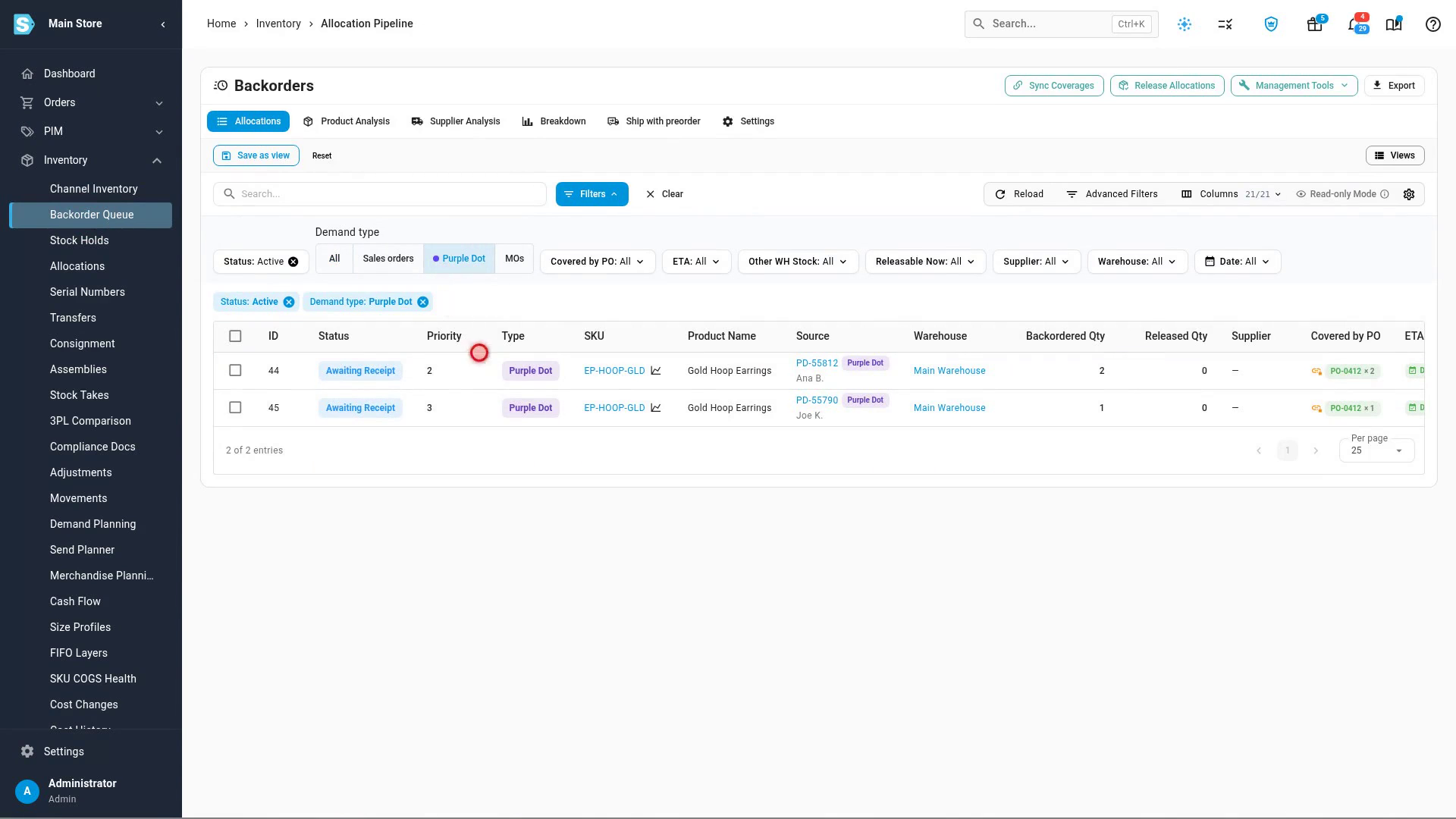
Each row shows the pre-order reference and the shopper, with a purple Purple Dot chip, and Covered by PO names the purchase order holding stock for it. Pre-orders never appear in fulfillment, picking or the sales orders list: Purple Dot still holds them.
-
Click a pre-order reference. It opens on the Purple Dot Pre-orders tab, with the shopper, the payment status, the Waitlist it was sold from, and its Demand rows in SKU.io: Awaiting receipt on the purchase order line that covers it.
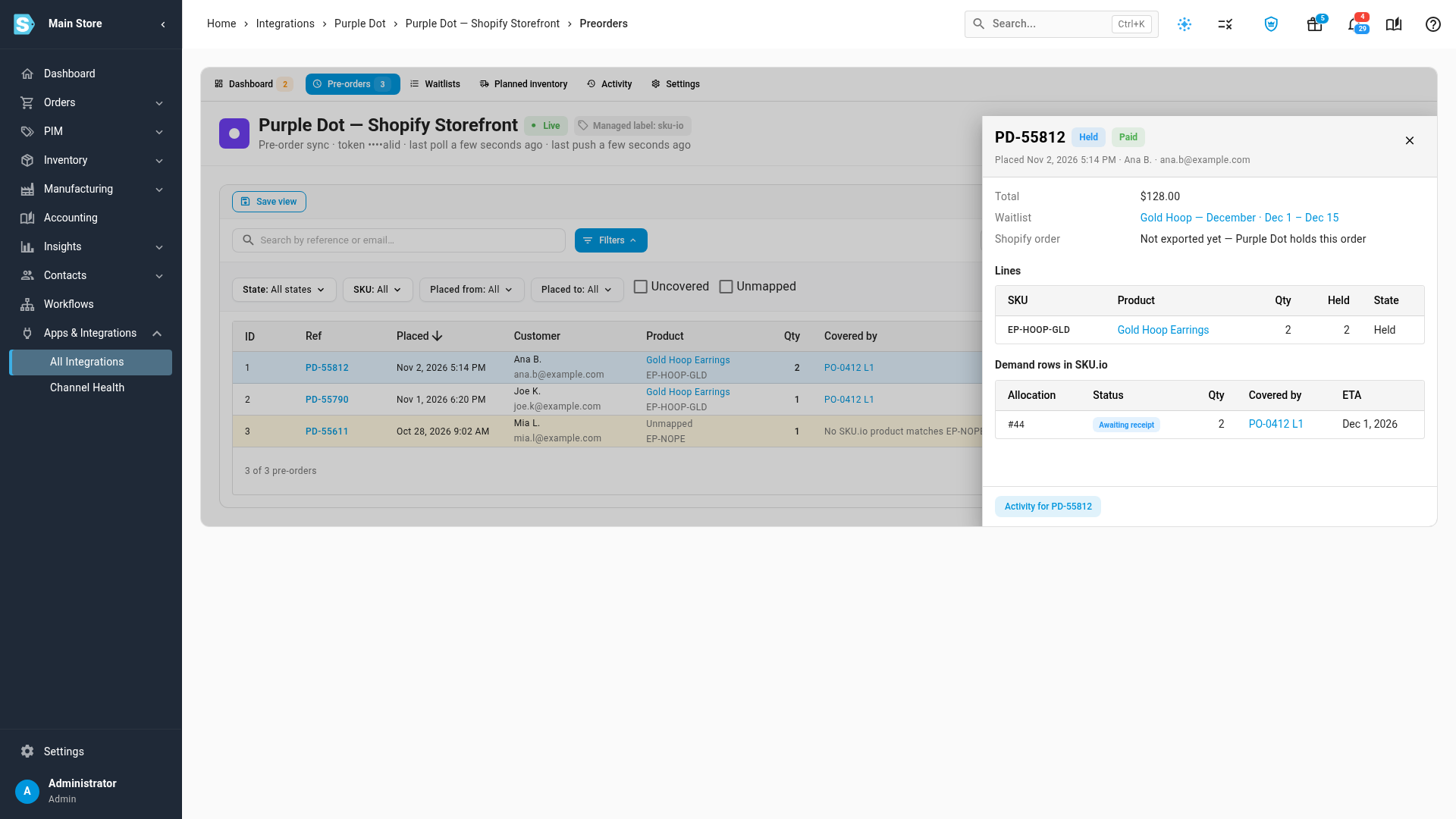
The Pre-orders tab lists every pre-order, with filters for state, SKU, placed date, Uncovered and Unmapped. An unmapped pre-order has a Map product action.
Approve a slipped ship date
Purple Dot emails every affected shopper when a Waitlist's ship date changes, so SKU.io holds a slip for your approval. Pull-ins, and slips shorter than your review threshold (3 days by default), are sent straight away.
-
Change the date on the purchase order as usual. For example, open the purchase order, click Edit, change the Available date under Logistics, and save.
-
Within a few minutes, the slip appears under Needs attention on the Purple Dot dashboard, and on the Planned inventory tab as Held for ETA review. Purple Dot keeps the old date.
-
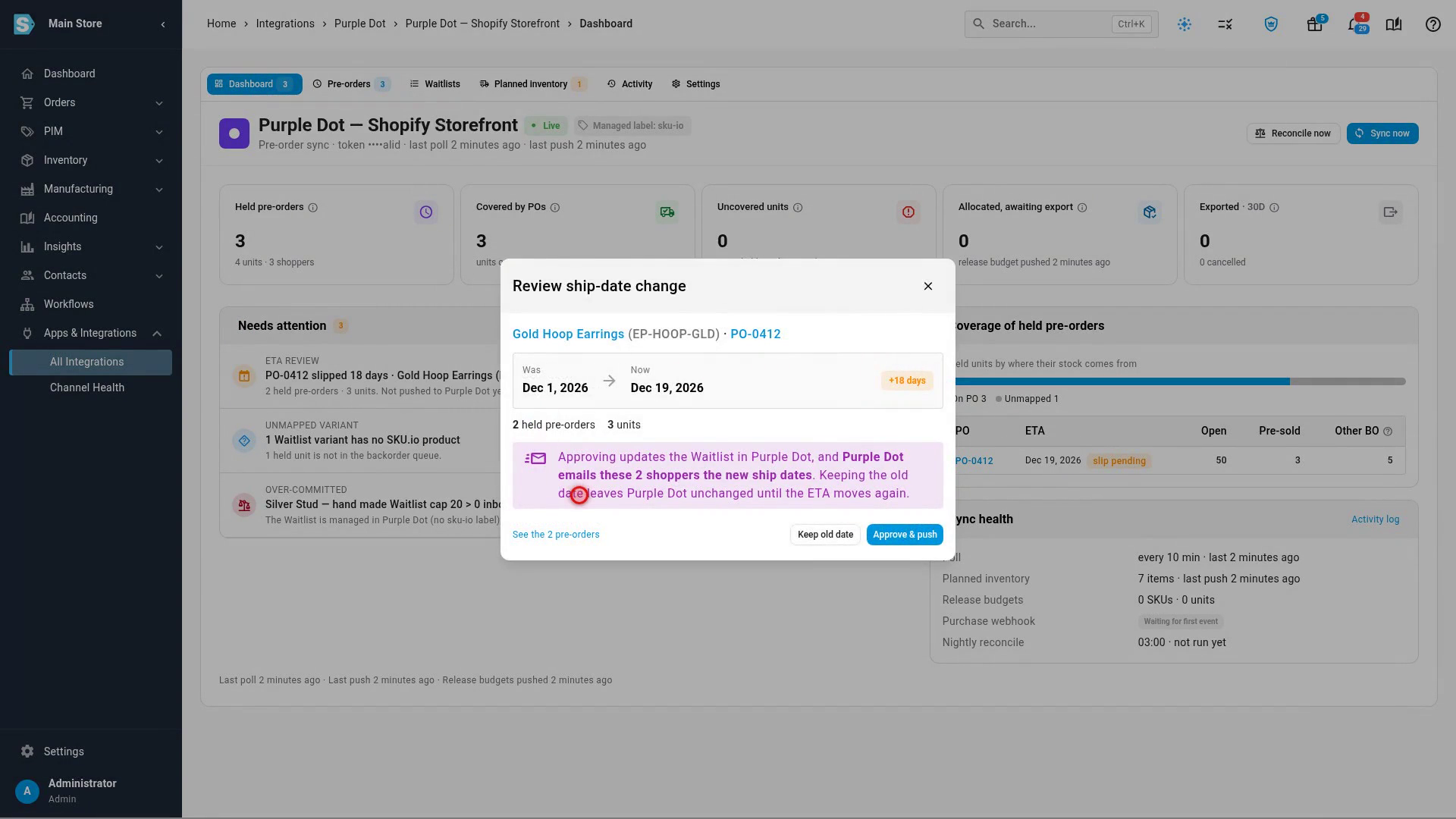
Click Review. The dialog shows the old and new dates, how many days the order slipped, and how many held pre-orders and shoppers it affects.
-
Click Approve & push to send the new date, and Purple Dot emails those shoppers. Or click Keep old date: Purple Dot keeps the current date until the ETA changes again.
If the date changes again before you decide, the newer change replaces the pending review, so you're never asked about the same purchase order twice.
Receive stock to release pre-orders
-
Receive the purchase order as usual: open it, click Receive, enter the quantity that arrived and click Receive Items.
-
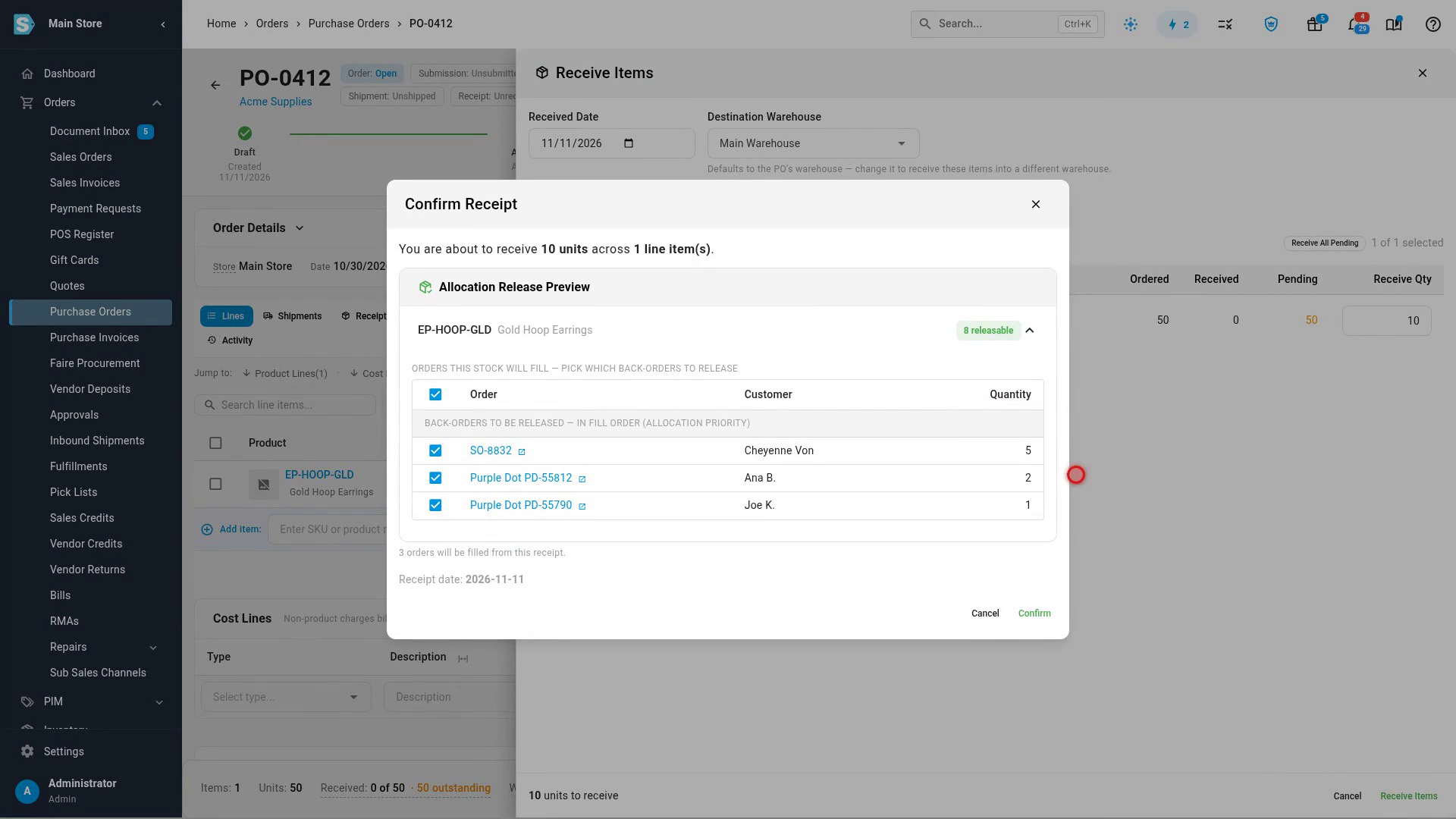
Expand the Allocation Release Preview. It lists who gets the stock, in queue order. By default pre-orders take their place by the date they were placed, so an older sales-order backorder is filled first.
-
Click Confirm.
What you'll see: the received units are allocated to those pre-orders, and Allocated, awaiting export on the dashboard counts them. SKU.io then tells Purple Dot how many pre-orders of that product it may export: the release budget. The Activity tab logs it, for example "Release budget for EP-HOOP-GLD set to 3 units (was 0)".
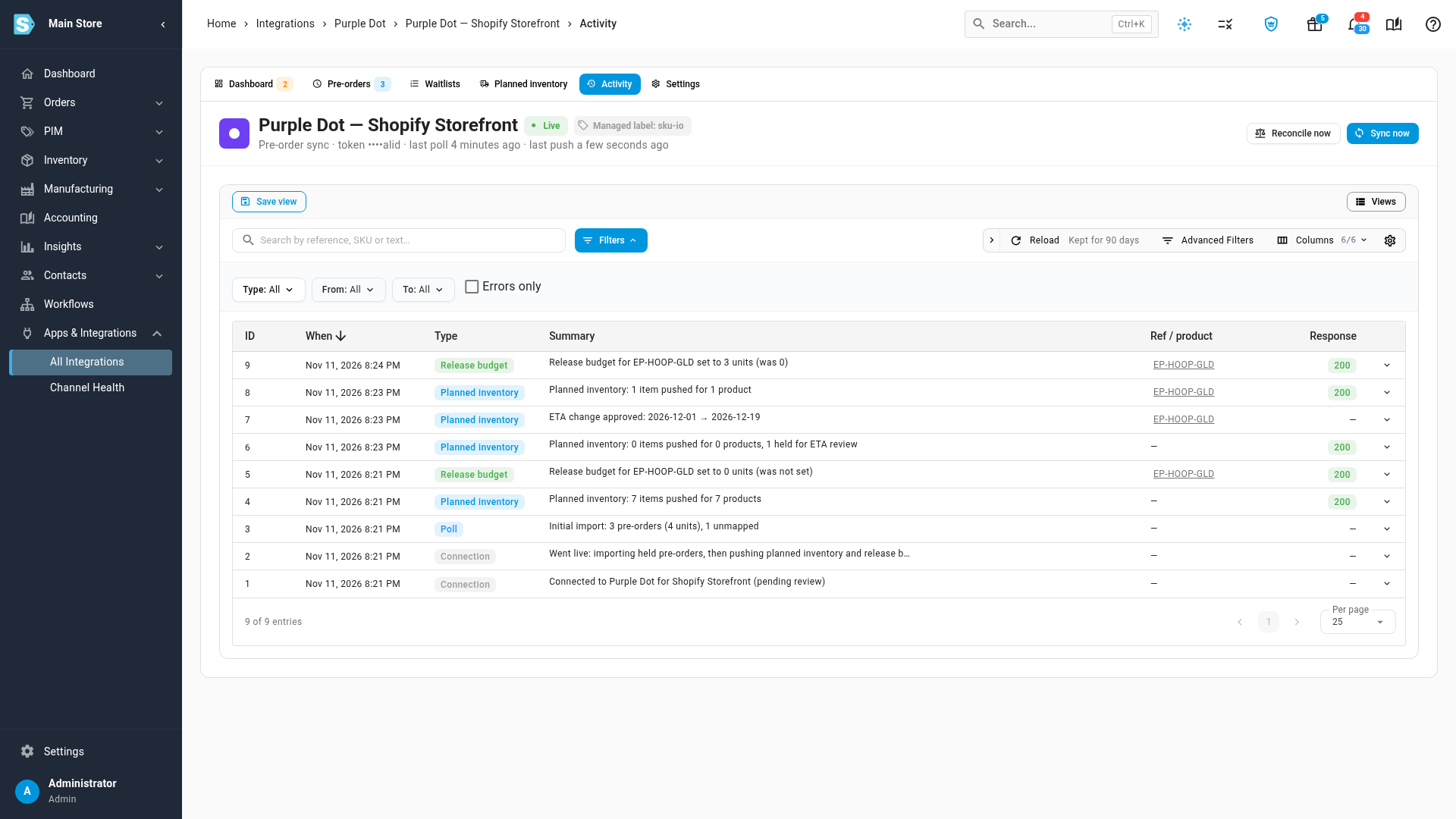
Purple Dot exports exactly the pre-orders SKU.io allocated stock to. Allocated pre-order stock is held back from your sales channels, so Shopify can't sell it to someone else first.
When Purple Dot exports a pre-order
When Purple Dot exports a pre-order, the order arrives through your Shopify order import like any other. SKU.io recognizes it, and the new order takes over the stock, purchase order coverage and queue position already set aside for the pre-order, so nothing is allocated twice.
- On the Pre-orders tab the pre-order reads Exported, and it links to its Shopify order ("stock handed off").
- The sales order carries a Purple Dot pre-order chip that links back to the pre-order, the Purple Dot sub channel and the
purple-dottag. Its payment shows Purple Dot's payment status, so it's never held for a Shopify payment that won't come.
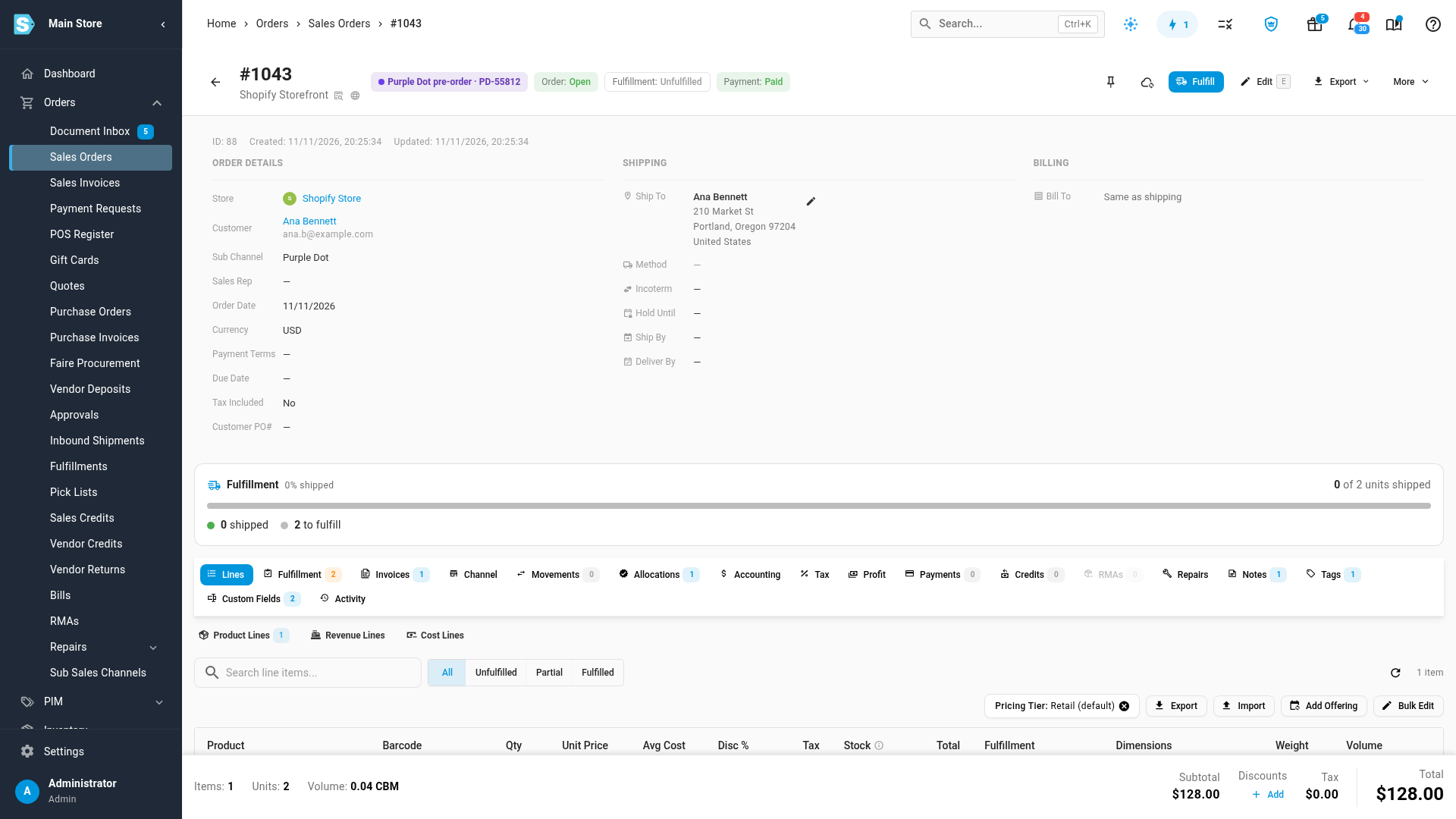
SKU.io recognizes an exported order by the settings under Exported orders (by default the purple-dot order tag or the purple dot payment gateway). If an exported order can't be matched, it imports normally, and Needs attention shows it with Match, so you can pick its pre-order by hand.
Refund a returned pre-order through Purple Dot
The shopper paid Purple Dot, not Shopify, so a refund has to go back through Purple Dot. The order's More menu marks Refund on Shopify as "Paid through Purple Dot — refund there instead".
- Receive the return as usual.
- On the sales order's RMAs tab (or on the RMA itself), click Refund via Purple Dot. The dialog is prefilled from what came back. Refund via Purple Dot stays disabled until the return is received.
- Check the lines and quantities, choose whether to Also refund shipping, and click Refund.
What you'll see: "Refund … issued via Purple Dot", and a note is added to the order.
If Purple Dot doesn't confirm the refund
If Purple Dot times out or answers with an error, the refund may still have gone through. SKU.io marks it unconfirmed: its units stay held so they can't be refunded twice, and SKU.io never retries it on its own under a new request.
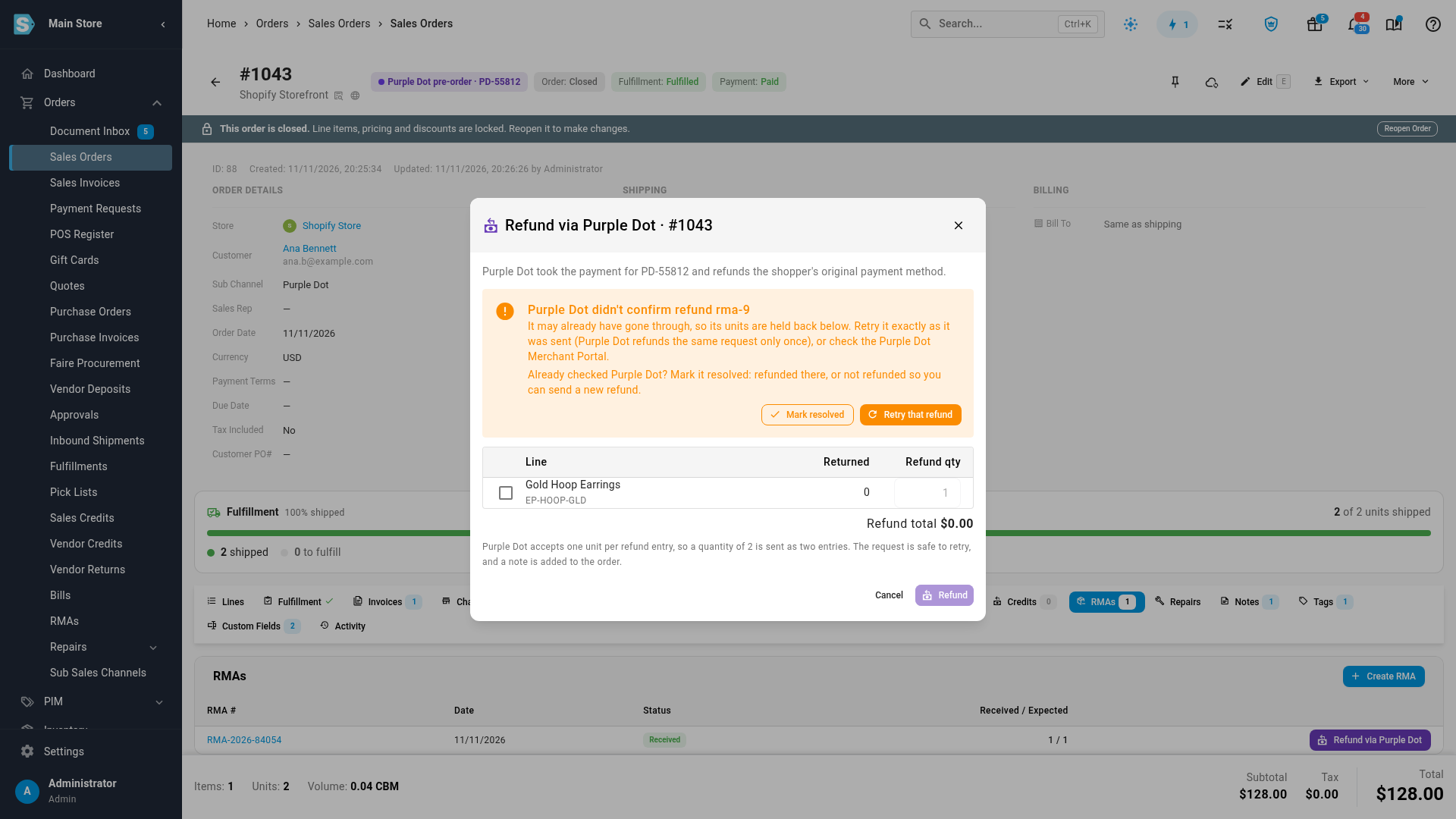
- Retry that refund resends exactly the same request. Purple Dot refunds the same request only once.
- Or check the order in the Purple Dot Merchant Portal, click Mark resolved, and choose:
- Refunded in Purple Dot: Purple Dot shows the refund. SKU.io records it as refunded, exactly as it was sent.
- Not refunded: Purple Dot has no such refund. SKU.io releases its units so you can send a new refund.
Failed and unconfirmed refunds also appear under Needs attention on the dashboard.
Change the settings
Everything you chose during setup, and a few more choices, are on the connection's Settings tab. Click Save to apply your changes.
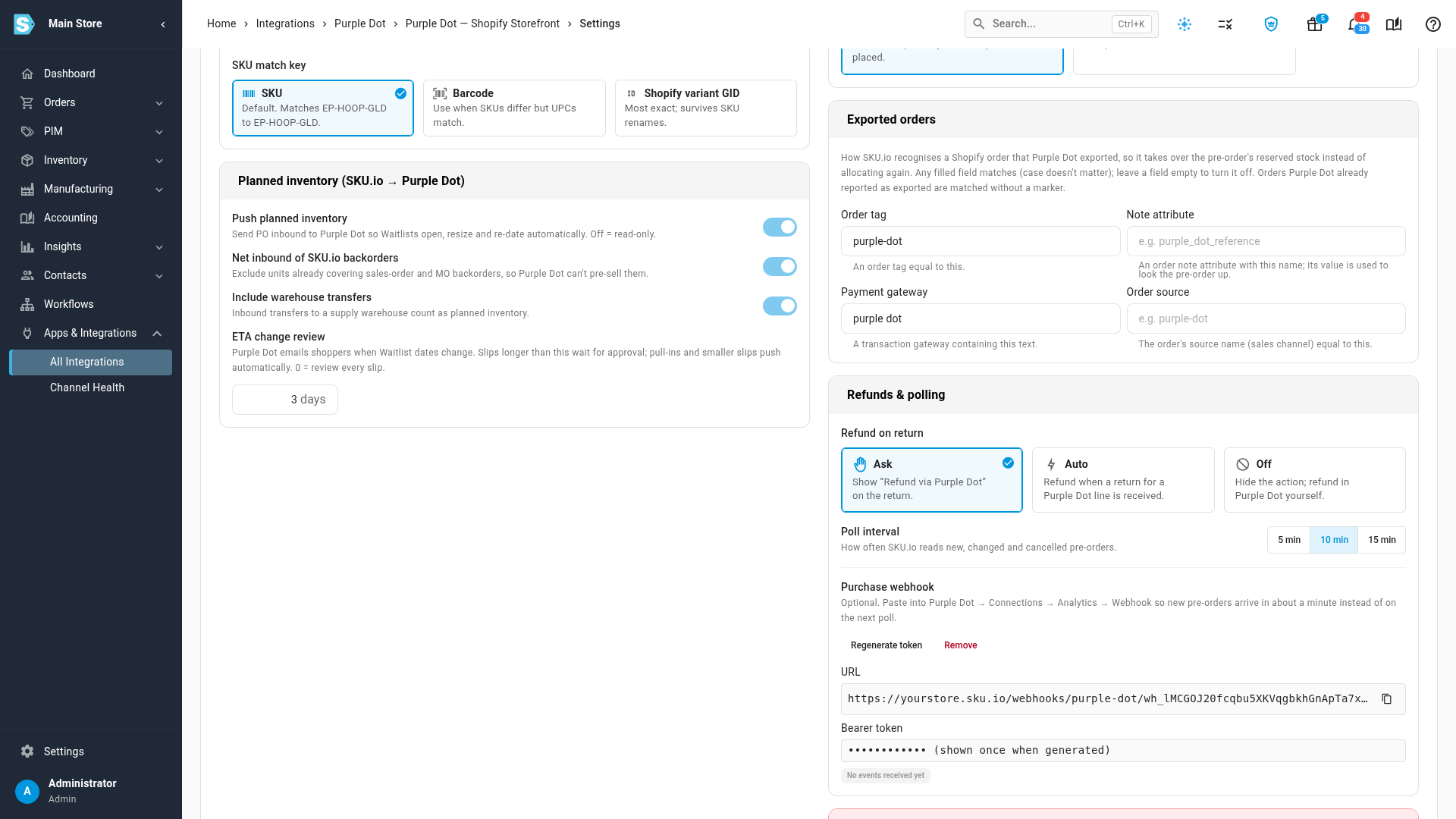
| Setting | What it does |
|---|---|
| Purple Dot token | Shown masked. Replace token when you create a new one in the Merchant Portal. |
| Supply warehouses | Warehouses whose incoming purchase orders and transfers count as pre-order supply. |
| SKU match key | SKU, Barcode or Shopify variant GID: how SKU.io matches Purple Dot's products to yours. |
| Push planned inventory | On: your incoming stock is sent to Purple Dot so Waitlists open, resize and re-date. Off: SKU.io only reads pre-orders. |
| Net inbound of SKU.io backorders | Leaves out units already covering your own sales-order and manufacturing backorders, so Purple Dot can't pre-sell them. |
| Include warehouse transfers | Transfers into a supply warehouse count as incoming stock. |
| ETA change review | Slips longer than this many days wait for your approval. 0 reviews every slip. |
| Release mode | SKU.io allocation: Purple Dot exports exactly the units SKU.io allocated to pre-orders, in queue order. Shelf stock: Purple Dot is sent the on-hand stock in your supply warehouses and exports first come, first served. |
| Pre-order priority | By placed date: pre-orders take their place in the shared backorder queue by when they were placed. Ahead of other backorders: pre-orders go first on their purchase order. |
| Exported orders | The order tag, note attribute, payment gateway or order source that marks an order Purple Dot exported. |
| Refund on return | Ask shows Refund via Purple Dot on the return. Auto refunds when a return for a Purple Dot order is received. Off hides the action. |
| Poll interval | How often SKU.io reads new, changed and cancelled pre-orders: 5, 10 or 15 minutes. |
| Purchase webhook | Optional. Paste its URL and token into Purple Dot under Connections → Analytics → Webhook, and new pre-orders arrive in about a minute instead of on the next poll. |
| Disconnect | Held pre-orders leave the backorder queue, freeing their purchase order stock, and SKU.io stops sending planned inventory. Waitlists in Purple Dot are left as they are. |
Next steps
Video transcript
To connect Purple Dot, open Apps and Integrations in the menu on the left, then All Integrations. Click the search box at the top of the list, type Purple Dot, and choose it under Pre-orders. Purple Dot sells pre-orders and holds each one until stock arrives. Once it's connected, your incoming purchase orders are reserved for those shoppers. Click Connect Purple Dot, and the setup begins. Setup has three steps, and nothing is sent to Purple Dot until you press Go live. First, paste your Private API token. You create it in the Purple Dot Merchant Portal, under Settings, then Integration. Pick the Shopify store that runs Purple Dot. Then click Test, and SKU.io checks the token with Purple Dot. Connected means Purple Dot accepted the token, so click Next to go on to step two. Step two picks the supply warehouses. Purchase orders and transfers into these warehouses count as pre-order supply. The warehouses mapped to your Shopify locations come already ticked. On the right are Purple Dot products with no matching product in SKU.io. You can map them later. Keep SKU as the match key, unless your SKUs differ between the two systems. Then click Next, run dry-run, at the bottom right. SKU.io now runs a dry run in the background, and you can follow it in the job tray. Nothing has been sent yet. Planned inventory lists the incoming stock that will be sent. Here, 50 hoops are on order, but 5 already cover a sales order backorder, so 45 are offered. Held pre-orders shows each shopper's pre-order and the purchase order that would cover each one. When the preview looks right, click Go live, at the bottom right of the page. SKU.io now imports the held pre-orders from Purple Dot. Meanwhile, the Purple Dot dashboard opens, and shows the import in progress until the counts fill in. Held pre-orders counts what shoppers are waiting for, and Covered by POs shows how much has supply. Needs attention lists anything you should fix, such as a Purple Dot product with no SKU.io match. Held pre-orders also join your backorder queue, so no one else is promised the same incoming units. Open Inventory in the menu on the left, then choose Backorder Queue. Under Demand type, choose Purple Dot to see only the pre-orders. Each row carries a purple, Purple Dot chip, and is covered by its purchase order. Click a pre-order reference to open the pre-order. The pre-order opens on the Purple Dot Pre-orders tab. It shows the shopper, the payment status, and the Waitlist behind the sale. Under Demand rows, it is Awaiting receipt on the purchase order line that covers the pre-order. Click that purchase order to open the order. Suppose your supplier slips by eighteen days. Click Edit at the top of the order, scroll down to the Available date under Logistics, and enter the new date. Then save the order. Purple Dot emails shoppers whenever a ship date changes, so SKU.io holds a slip like this for your review. Within a few minutes, the slipped date is held for review on the Purple Dot dashboard. To get there, open Apps and Integrations, then All Integrations, search for Purple Dot, and choose it under Pre-orders. Its connections are listed on the right. Click yours to open its dashboard. Under Needs attention, the purchase order has slipped eighteen days, and nothing has been sent to Purple Dot yet. Click Review on the right of that item. The dialog shows the old and new dates, how many pre-orders the slip affects, and that Purple Dot will email those shoppers. Click Approve and push to send the new date to Purple Dot. When stock arrives, receive it on the purchase order as usual. In the coverage table, click the purchase order to open it. When the order opens, click Receive at the top of the page. In the panel that slides in, enter the quantity that arrived, ten in this case. Then click Receive Items at the bottom of the panel. Before anything is saved, the release preview lists who gets the stock, in queue order. The older sales order comes first, then the two pre-orders. Everything looks right, so click Confirm. The received stock is now allocated to those shoppers. Back on the Purple Dot dashboard, Allocated, awaiting export counts the pre-order units waiting for Purple Dot. SKU.io tells Purple Dot how many pre-orders of each product it may now export. This number is the release budget. Open the Activity tab, which logs every push to Purple Dot. Near the top is the new release budget for the hoops, three units. Purple Dot then exports those pre-orders to Shopify, as normal orders. Open the Pre-orders tab, next to Dashboard at the top of the page. This pre-order now reads Exported, which means Purple Dot has sent it to Shopify. Click its reference to open the pre-order. Its Shopify order has taken over the stock already set aside for it, so nothing is allocated twice. Click the order number to open the sales order in SKU.io. It carries a Purple Dot pre-order chip, and its payment shows Paid, because the shopper paid Purple Dot. If the shopper sends it back, refund them with Purple Dot, which took their payment. On the order, open the RMAs tab, and click Refund via Purple Dot on the return. The dialog is prefilled from what came back. Check the lines, and click Refund. This time, Purple Dot didn't confirm the refund. It may still have gone through, so its units stay held, and nothing is retried on its own. Check the order in the Purple Dot Merchant Portal first. Then click Mark resolved, here at the top of the dialog. Purple Dot shows the refund, so choose the first option. That records the refund exactly as it was sent. Then click Mark resolved to save it, and the dialog closes. Finally, the connection's Settings tab holds everything you chose during setup, and a few more choices. You can change the supply warehouses and the SKU match key. Release mode decides whether Purple Dot follows SKU.io's allocation, or simply your shelf stock. Pre-order priority places pre-orders in the backorder queue, by date or ahead of other backorders. Further down, ETA change review sets how many days a slip can be before it waits for your approval. And Refund on return can ask you, refund automatically, or stay off.