Ship in-stock items with a preorder
When a customer orders an in-stock item and a preorder item together, the order can't ship until the preorder item arrives. Normally the in-stock item still takes a unit off your shelf for that whole wait. A newer order that could ship today is then backordered for the same item, and your sales channels may show it as out of stock or on preorder while a unit sits on the shelf.
Ship with preorder fixes this. When an incoming purchase order for the in-stock item arrives in time for the preorder item, SKU.io reserves the in-stock item from that purchase order instead of the shelf. The order still ships at about the same time, because it was always going to wait for the preorder item. The shelf unit goes to the next order waiting for it, or stays free to sell.
The feature is off until you switch it on. You preview what it would change first, and nothing moves until you apply that preview.
Before you begin
- You need permission to edit settings and to manage allocations.
- The preorder items your customers are waiting on must be covered by an open purchase order with an Available ETA. A line waiting on a purchase order with no date never triggers a move.
- The in-stock items need an open purchase order too, arriving at the same warehouse. A purchase order only counts when it's due by the preorder ETA, plus the window you set.
Steps
-
Go to Inventory → Backorder Queue. The page is titled Backorders.
-
Click the Settings tab, then scroll down to the Ship with preorder section.
-
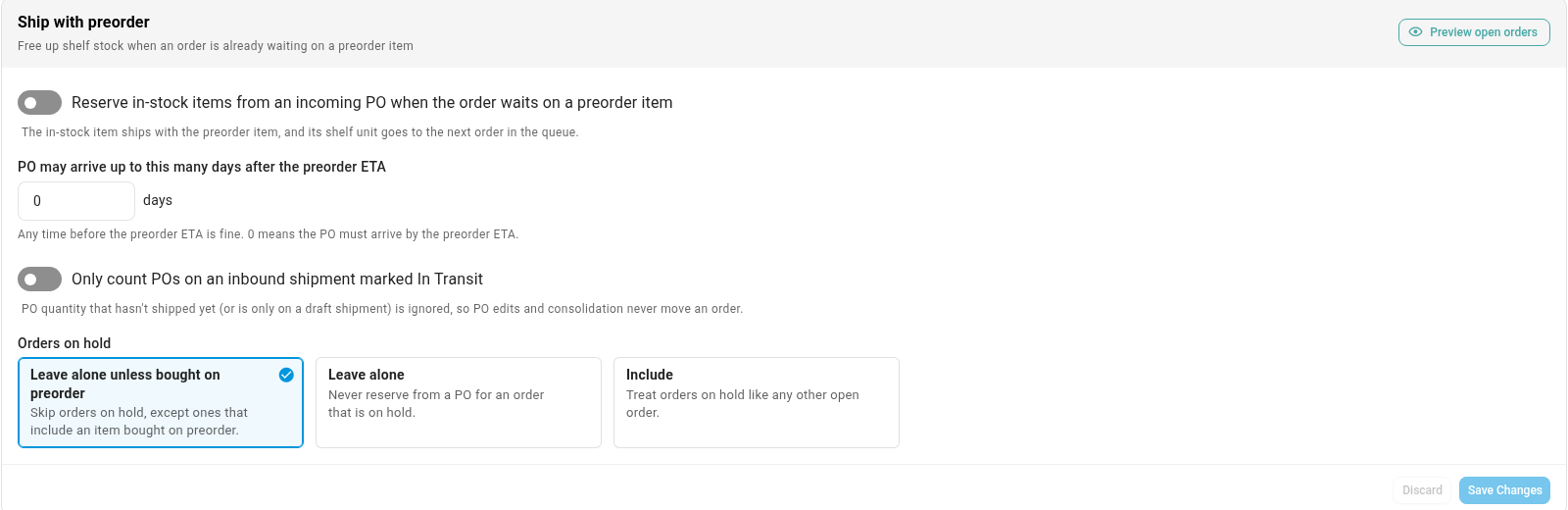
Leave the first switch off for now, and choose the other settings. See The settings.
-
Click Preview open orders. This is a dry run, so nothing moves. The preview checks every open order in the background, and you can follow it in the job tray.
-
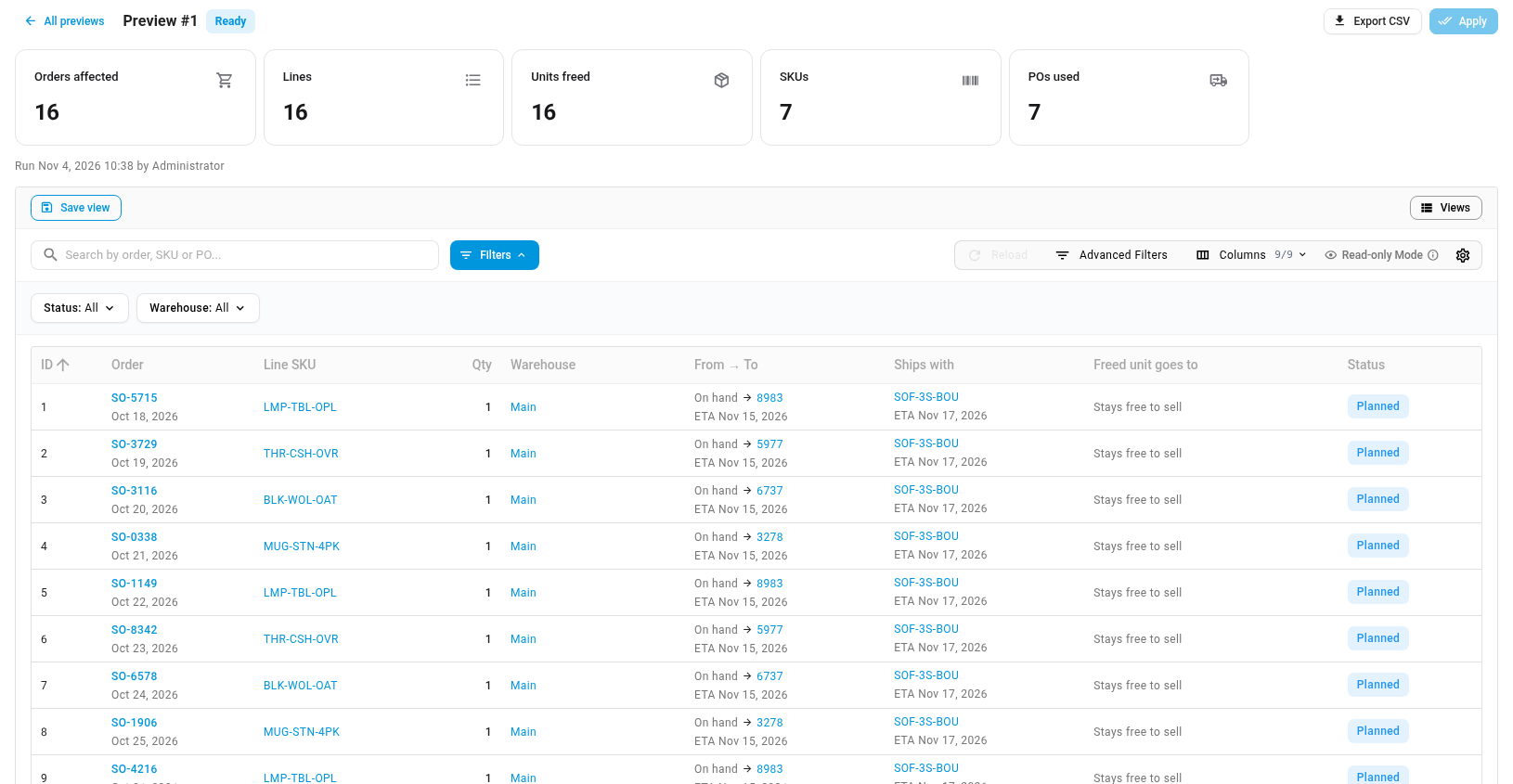
When the preview is ready, it opens under Ship with preorder → Previews. Check each row. See Read a preview. To share the list, click Export CSV.
-
Apply stays unavailable until the feature is on. Its tooltip reads "Switch the feature on to apply." To switch it on, click the Settings tab.
-
Turn on Reserve in-stock items from an incoming PO when the order waits on a preorder item, then click Save Changes.
-
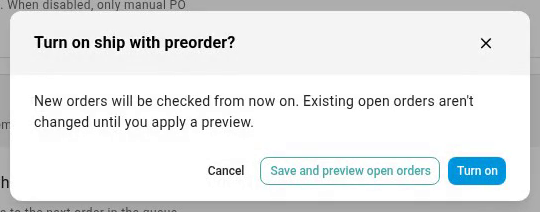
The Turn on ship with preorder? dialog explains that new orders are checked from now on, and existing open orders change only when you apply a preview. Click Turn on.
-
Click the Ship with preorder tab, then Previews, and click your preview to open it.
-
Click Apply. The confirmation asks you to move that many lines on that many orders. Each line is checked again first, and anything that no longer qualifies is skipped. Nothing moves that isn't in the preview.
-
Click Apply to confirm. When the job finishes, the preview is marked Applied, and an Applied card shows how many lines moved.
-
Click Active to see every line that now ships with a preorder item.
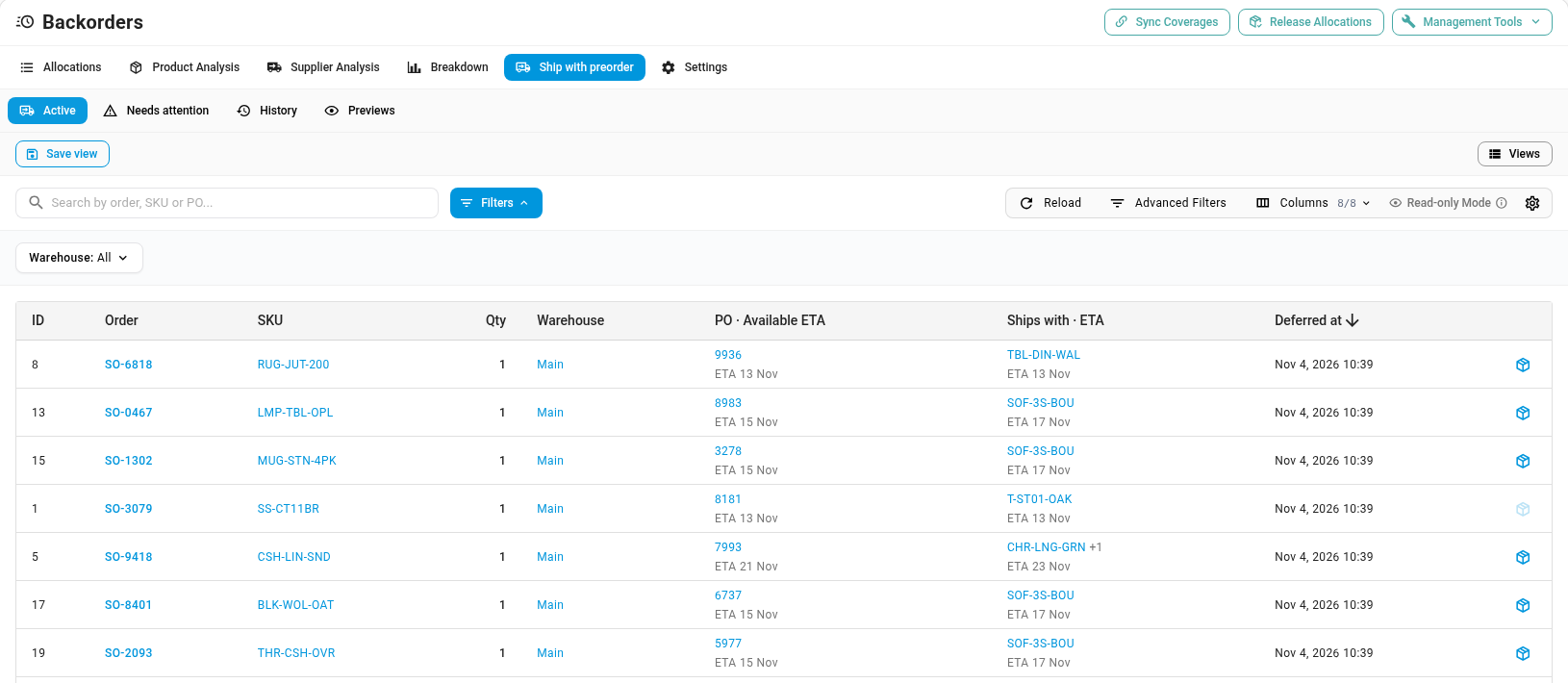
From now on, SKU.io checks new orders as they're approved or imported, and re-checks existing ones when dates or stock change. You don't need to preview again unless you change the settings and want to see the effect on older orders first.
The Turn on ship with preorder? dialog has a Save and preview open orders button. It switches the feature on and starts a new preview straight away.
The settings
| Setting | What it does |
|---|---|
| Reserve in-stock items from an incoming PO when the order waits on a preorder item | The master switch. Off by default. Turning it on checks new orders from then on. Open orders only change when you apply a preview. |
| PO may arrive up to this many days after the preorder ETA | The window, from 0 to 90 days. A purchase order arriving any time before the preorder ETA always qualifies. With 0, it must arrive by the preorder ETA. A higher number lets the in-stock item's purchase order arrive a few days later than the preorder item. Anything outside 0 to 90 shows "Window must be between 0 and 90 days." and isn't saved. |
| Only count POs on an inbound shipment marked In Transit | When on, only stock already on an inbound shipment marked In Transit (or partly received) counts. Purchase order quantity that hasn't shipped, or sits on a draft shipment, is ignored. Edits to a purchase order before it ships then never move an order. |
| Orders on hold | What to do with orders that are on hold. See below. |
Orders on hold has three choices:
| Choice | Effect |
|---|---|
| Leave alone unless bought on preorder (default) | Orders on hold are skipped, unless they include an item bought on preorder. |
| Leave alone | Never reserves from a purchase order for an order that's on hold. |
| Include | Treats orders on hold like any other open order. |
An item counts as bought on preorder when there was no free stock for it at the time the order came in.
The settings section saves with its own Save Changes button, and Discard throws away unsaved edits. Changing the window, the In Transit switch or the held-orders choice while the feature is on re-checks every order that's waiting on a preorder item. Lines that no longer qualify stop shipping with the preorder, and new ones that now qualify are moved.
How SKU.io picks a line
A line moves only when all of these are true:
- Another line on the same order is waiting on a purchase order. That's the preorder item. When several items are waiting, SKU.io uses the latest of their ETAs.
- The line has stock on the shelf at the same warehouse as the preorder item. Lines at a different warehouse can't ship together, so they're left alone.
- An open purchase order for the line's product arrives at that warehouse by the preorder ETA plus the window, and still has units no other order is waiting on.
- The line isn't already locked into a shipment, for example by a printed label or a fulfillment sent to the warehouse. Drop-ship and Amazon-fulfilled lines are never moved.
If a purchase order has spare units for only part of a line, that part moves and the rest stays on the shelf. Older orders get first claim on a purchase order's spare units, and SKU.io picks the purchase order that arrives closest to the preorder ETA. That leaves earlier purchase orders free for customers who could get their order sooner.
When the purchase order is received, its units go to the lines reserved from it first, ahead of other backorders, so the order gets the stock it was promised.
Read a preview
The cards at the top count the Orders affected, Lines, Units freed, SKUs and POs used. Each row in the table is one line that would move:
| Column | What it shows |
|---|---|
| Order | The sales order and its order date. |
| Line SKU | The in-stock item that would move off the shelf. |
| Qty | How many units move. |
| Warehouse | Where the shelf stock is. |
| From → To | On hand → the purchase order the units would be reserved from, with its Available ETA. |
| Ships with | The preorder item the order is waiting on, and its ETA. |
| Freed unit goes to | The order most likely to get the shelf unit instead. Stays free to sell means no waiting order needs it, so it's available to your sales channels. |
| Status | Planned in a new preview. After you apply it, each row is Applied or Skipped. |
A preview older than 24 hours can't be applied, because too much may have changed. Click Preview open orders again to get a fresh one. The Previews list keeps every past preview, with who ran it and when it was applied.
On the sales order
A line that ships with a preorder item shows a blue Ships with preorder chip under its SKU. Click the chip to see:
- which purchase order the line is reserved from, with its Available ETA and how many units are reserved;
- the preorder item it ships with, and that item's ETA;
- Use shelf stock instead.
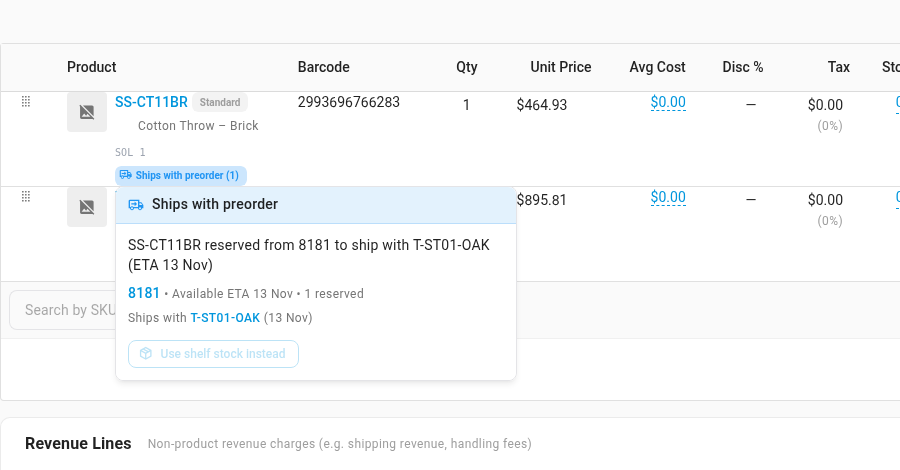
Use shelf stock instead puts the line back on shelf stock, and SKU.io won't move that line again. It's available only when there's free stock on the shelf. Otherwise it's greyed out, with the tooltip "No free stock on the shelf". On the Active view, the same action is the button at the end of each row.
When a purchase order no longer arrives in time
SKU.io re-checks a line whenever a date or status changes on its purchase order or inbound shipment, the purchase order is reduced or cancelled, or the preorder item arrives or is cancelled. It also runs a check every night.
- If another purchase order still fits, the line moves to it.
- If not, and there's free stock on the shelf, the line goes back to shelf stock.
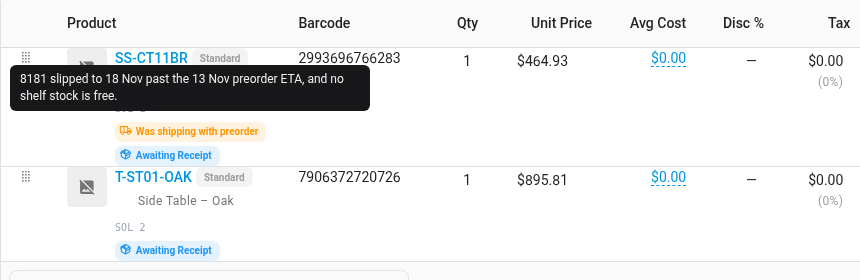
- If there's no free shelf stock, the line keeps waiting on its purchase order as a normal backorder. It shows an orange Was shipping with preorder chip, and it's listed under Ship with preorder → Needs attention with the reason, such as PO slipped past the preorder ETA or PO no longer in transit.
On the order, hover the orange chip to see why, for example "8181 slipped to 18 Nov past the 13 Nov preorder ETA, and no shelf stock is free."
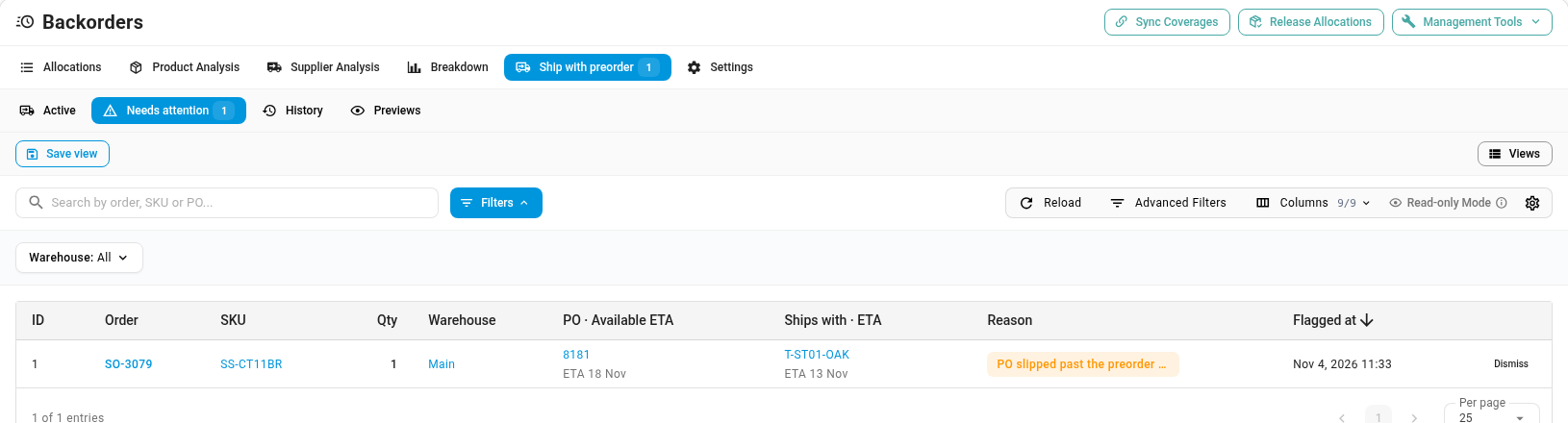
Check Needs attention after purchase orders slip. Its tab, and the Ship with preorder tab, show a count of the rows waiting. Click Dismiss on a row once you've dealt with it.
History lists every change, such as Reserved from PO, Moved to another PO, Returned to shelf stock, Released on receipt and Switched to shelf stock. Filter it by action, warehouse, and date.
On the purchase order and on your sales channels
On the purchase order, click the chip in a line's Allocations column. Allocation Coverage lists each sales order reserved from that line, marked ships with preorder. Those units count against the purchase order like any other backorder, so they aren't promised twice.
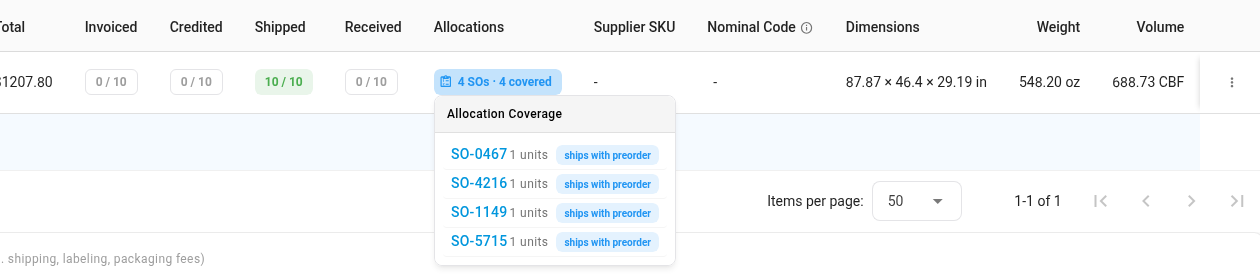
A unit reserved this way no longer counts against the stock you sell. The freed shelf unit goes to the next order waiting for it. If no order is waiting, it's added back to the quantity your sales channels see, such as Shopify, so you can sell it again. See How the stock each channel sees is calculated.
Turn it off
To stop, turn off the first switch in the Ship with preorder settings and click Save Changes. The Turn off ship with preorder? dialog shows how many lines are reserved this way, for example "15 lines are currently reserved from a PO to ship with a preorder item." Click Turn off. Each line goes back to shelf stock where there's some. The rest stay as normal backorders on their purchase order and show under Needs attention.
Next steps
- How allocations and backorders work: the model behind backorders and purchase order coverage.
- Work the backorder queue / allocation pipeline: release stock and manage coverage by hand.
- How the stock each channel sees is calculated: where the freed shelf stock shows up.
Video transcript
When an order waits on a preorder item, its in-stock items usually sit on the shelf for the whole wait. Ship with preorder reserves those items from an incoming purchase order instead. The shelf stock then goes to orders that can ship today. To set it up, open Inventory in the sidebar, then click Backorder Queue in the list. Then click the Settings tab, at the end of the row of tabs. Scroll down to the Ship with preorder section. The first switch is the master switch for the feature. Leave it off until you've seen a preview. The window sets how many days after the preorder ETA the purchase order may arrive. Zero means it must arrive by the preorder ETA. Turn on the In Transit switch to count only stock that's already on its way. Orders on hold chooses whether held orders are left alone. Click Preview open orders, at the top right of the section. This is a dry run, so nothing moves yet. The preview checks every open order in the background. When it's ready, the preview opens under Ship with preorder, Previews. The cards count the orders, lines and shelf units it would free. Each row is one line that would move. This order holds a throw on the shelf while it waits for a preorder table. From and To shows the throw moving from on hand to an incoming purchase order. Ships with names the preorder item that's holding up the order. Freed unit goes to names the order that gets the shelf unit. Apply stays off until the feature is switched on, as its tooltip explains. To switch it on, go back to the Settings tab at the end of the row. Scroll back down to Ship with preorder, and turn on the first switch. Then click Save Changes at the bottom of the section. A confirmation explains that existing orders only change when you apply a preview. When you're ready, click Turn on to save the new setting. Now scroll back up, and click the Ship with preorder tab. Then click Previews, in the row just below. Every preview you've run appears in this list. Click your preview's name to open it again, with all of its rows. Then click Apply, at the top right of the preview. The confirmation says each line is checked again first. Anything that no longer qualifies is skipped. Click Apply in the dialog to confirm, and the lines move. The preview is now marked Applied, with a count of the lines that moved. Click Active to see every line that now ships with a preorder item. Each row shows the purchase order and its ETA, next to the preorder item. Needs attention lists lines whose purchase order no longer arrives in time. History records every change. To see a line on its order, click the order number. The in-stock line now shows a Ships with preorder chip, under its SKU. Click the chip to open its popover. It explains which purchase order the line is reserved from, and why. Use shelf stock instead moves the line back onto the shelf. That button only works when there's free stock to use.