PayPal reference
Look up what a PayPal status, column, placeholder or permission means. For how the pieces fit together, see How PayPal works.
Account statuses
A PayPal account shows its status on its card on the PayPal page (Apps & Integrations → All Integrations → PayPal) and in the chips beside its name when you open it.

| Status | Where you see it | Meaning |
|---|---|---|
| Not connected | Card and header | The account was added but never connected. Open it and enter your PayPal app's API keys. |
| Connected | Card and header | SKU.io can reach your PayPal account. On the card, it also means the account is ready to take payments. |
| Action needed | Card, and the readiness chip in the header | The account is connected but can't take payments. With API keys, this means PayPal stopped accepting the keys: update them. |
| Ready | Header | The account can take payments. An account connected with API keys is Ready as soon as PayPal accepts its keys. |
| Disconnected | Card and header | You disconnected the account, on the date shown under its name. Its pay links and payment history are kept. |
| Production / Sandbox | Card and header | Whether the account takes real payments (Production) or test payments (Sandbox). |
Only a Connected, Ready account is offered when you create a pay link on a sales order. When none is, the order's PayPal Pay Link option is greyed out: it reads No connected PayPal account, or PayPal account needs attention when an account exists but can't take payments.
To change an account's connection, see Check, update or disconnect a PayPal account.
Account tab
The PayPal Account card on the Account tab lists the connection's details. A row appears only when it applies to the account.
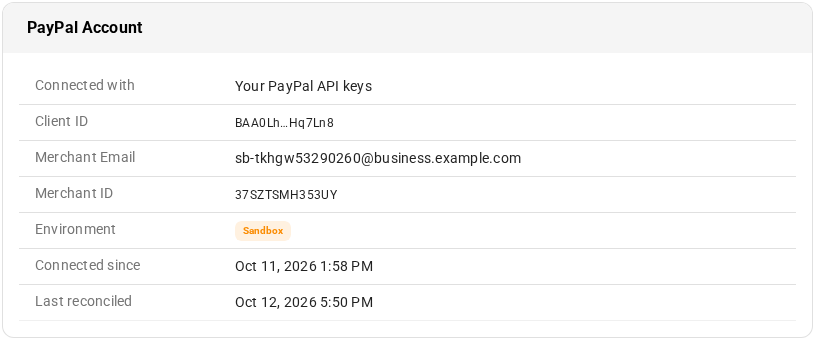
| Field | Meaning |
|---|---|
| Connected with | How the account is connected. Your PayPal API keys for every account today; Connect with PayPal is coming soon. |
| Client ID | The first and last six characters of your PayPal app's Client ID, so you can tell which app the account uses. The Secret is never shown. Accounts connected with API keys only. |
| Merchant Email | The PayPal account's email address. With API keys, the row appears once SKU.io learns it. |
| Merchant ID | PayPal's ID for your business account. With API keys, it reads Shown after the first payment until SKU.io learns it from a payment. |
| Environment | Production or Sandbox. |
| Connected since | When the account was connected. |
| Last reconciled | When SKU.io last imported the account's transactions. Appears after the first import. |
| Disconnected | When the account was disconnected. Disconnected accounts only. |
When the account isn't connected, the card shows Not connected to PayPal instead, or Disconnected with the date for an account you disconnected.
Pay Links tab
The Pay Links tab lists every pay link created on the PayPal account, from every sales order, newest first, 15 to a page.
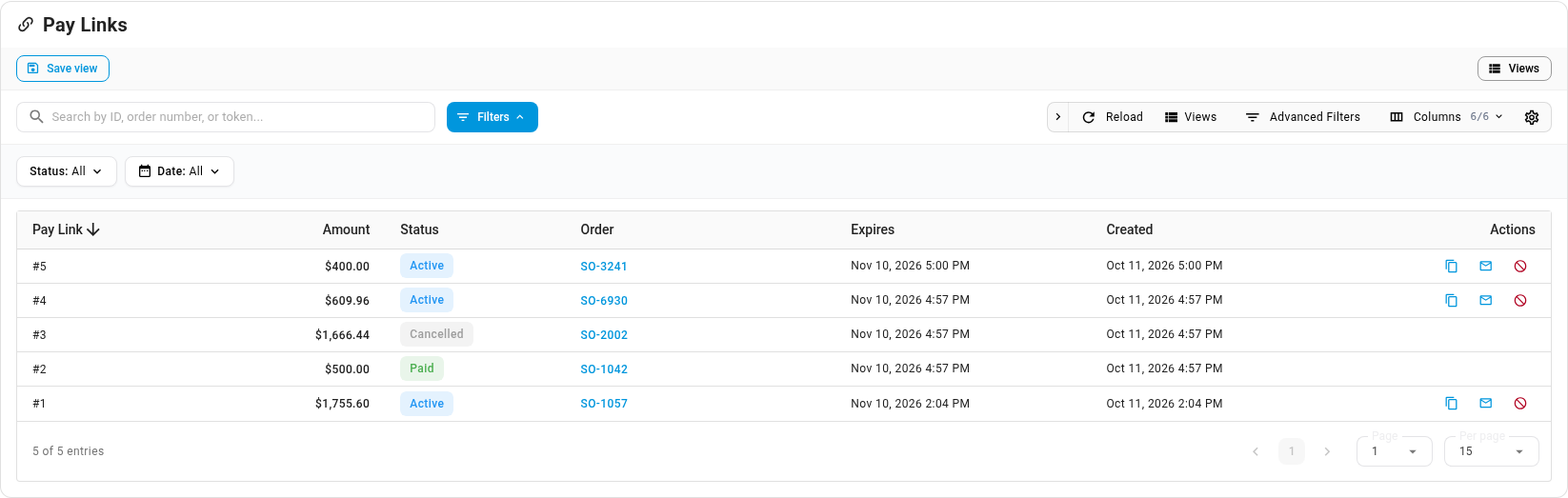
| Column | Meaning |
|---|---|
| ID | The link's number, for example #5. |
| Amount | What the link charges, in the order's currency. Less than the order total for a deposit. |
| Status | The link's status (see Pay link statuses). Hover over it for an explanation. |
| Order | The sales order the link collects for. Click it to open the order. Reads No order when the order was deleted. |
| Expires | When the link stops working. |
| Created | When the link was created. |
| Actions | Copy pay link, Email pay link and Cancel pay link. Offered only for Active links. |
- Search: type a link number, an order number or part of a link's address in Search by ID, order number, or token....
- Filters: Status and Date above the table. Advanced Filters adds conditions on the ID, amount, order number, expiry and creation date. Columns and Save view work as on other tables; see Saving and pinning table views.
- Right-click a row for View followed by the order number, plus Copy pay link, Email pay link and Cancel pay link on an Active link.
- No pay links created yet means nobody has created a link on this account. Create one from a sales order's Payments tab.
To create, email or cancel a link, see Collect payment with a PayPal pay link.
Pay link statuses
A pay link shows the same status, in the same color, on the order's Payments tab and on the Pay Links tab.
| Status | Meaning |
|---|---|
| Active | The customer can pay this link. |
| Pending | Payment processing: the customer paid, but PayPal hasn't released the money yet (an eCheck, a currency hold or a review). SKU.io records the payment when PayPal releases it. |
| Paid | The customer paid this link and the payment is recorded on the order. |
| Expired | The link passed its expiry date and can no longer be paid. |
| Cancelled | The link was cancelled and can no longer be paid. |
An Active link becomes Cancelled when any of these happens:
- Someone clicks Cancel pay link.
- Someone creates a new link on the same order. An order has at most one Active link.
- The sales order is cancelled, reverted to draft or deleted.
- The PayPal account is disconnected.
- The customer tries to pay after the order's amount due fell below the link's amount. Before that, the order's Payments tab shows the link as Amount changed — create a new link, or Nothing owed — cancel this link when the order is fully paid.
Creating a link, and each of these cancellations except deleting the order, adds an entry to the order's Activity tab: Pay Link Created with the amount and expiry, or Pay Link Cancelled with the reason.
A Pending link can't be cancelled, and you can't create a new link on the order until its payment clears. A Pending link can also show a warning in red when SKU.io can no longer follow the payment: Account disconnected — check PayPal, API keys need updating — check PayPal, or Still clearing after 30 days — check PayPal. Check the payment in your PayPal account.
If you delete a PayPal account, its pay links are removed. A customer who opens one is told the link can't be found.
Pay link messages and limits
What the order's pay link controls say when something stops you, and the limits every link has. To create and send a link, see Collect payment with a PayPal pay link.
Why PayPal Pay Link is greyed out
In the order's Add Payment menu, the text under PayPal Pay Link says why you can't use it:
| It says | Why | What to do |
|---|---|---|
| No connected PayPal account | No PayPal account is connected. | Connect one; see Connect PayPal with your API keys. |
| PayPal account needs attention | An account exists but can't take payments right now, for example because PayPal stopped accepting its API keys. | Open the account under Apps & Integrations → All Integrations → PayPal and fix it; see Check, update or disconnect a PayPal account. |
| Nothing due | The order is fully paid. | Nothing to collect. |
For the first two, hover over the greyed-out option for the full reason. Add Payment itself shows only to users with the Sales Orders → Payments permission.
Pay link messages
The Create PayPal Pay Link and Email Pay Link dialogs show these messages:
| Message | What to do |
|---|---|
| Enter an amount of at least 0.01 / Cannot exceed amount due of the amount | Enter an amount between 0.01 and the order's amount due. |
| Enter 1 to 365 days | Set Expires in (days) to a whole number from 1 to 365. |
| Select a PayPal account | You have more than one connected account. Choose one in PayPal Account. |
| PayPal doesn't accept payments in the currency*, this order's currency. Collect this payment another way.* | See Pay link limits. |
| PayPal takes the currency in whole amounts only. Enter the amount without decimals. | Remove the decimals from Amount. |
| This order is cancelled, so it can't take a PayPal payment. | Nothing to collect on a cancelled order. |
| A PayPal payment on this order is still clearing… | Wait until PayPal releases it; see Payments that take time to clear. |
| PayPal no longer accepts the API keys for this PayPal account, so it can't take payments. | Update the account's keys; see When the saved keys stop working. |
| This order has no customer email. Enter the address to send the pay link to. / Enter a valid email address. | Type a valid address in Send to. |
| Add at most 10 CC addresses. | Remove some addresses from CC (optional). |
| This pay link is no longer active. Create a new one to email it. | The link was paid, cancelled or expired. Create a new link. |
| The order's amount due has changed since this link was made. Cancel it and create a new one. | See When the order changes. |
| Send Email is greyed out, and the preview shows the reason | The email can't be built, most often because the PayPal Payment Request template is turned off. Turn it on in Settings → Email Templates. |
Pay link limits
- Currency. A link is always in the order's currency. You can't choose a different one. If PayPal doesn't take payments in the order's currency, creating the link fails with a message naming the currency; collect that payment another way. For Japanese yen, Hungarian forint and New Taiwan dollars, PayPal takes whole amounts only, so enter the amount without decimals. See Work in multiple currencies.
- Expiry. A link expires after the number of days you set when you created it: 30 by default, up to 365. An expired link can't be paid or emailed, and it leaves the order's PayPal Pay Links list. A customer who opens it sees that the link has expired and is asked to contact you. To collect, create a new link.
- One active link per order. Creating a new link cancels the order's Active one.
When the order changes
A link keeps the amount you created it for. What happens when the order changes:
| You… | What happens to the link |
|---|---|
| Lower the order total, or record another payment, so the amount due falls below the link's amount | The link shows Amount changed — create a new link, or Nothing owed — cancel this link when nothing is due, and its Copy and Email buttons disappear. The customer can't pay it. Cancel it, then create a new link if something is still due. |
| Raise the order total | The link still charges its original amount. Cancel it and create a new one for the new amount due. |
| Cancel the order | Every Active link on the order is cancelled, so the customer can no longer pay. You can't create a link on a cancelled order. |
| Delete the order, or revert it to draft | If the order has a PayPal payment, recorded or still clearing, SKU.io refuses, because that payment is what you'd refund from. Cancel or archive the order instead. See Close, cancel, archive, and delete orders for the messages you see. An order with only unpaid links can be deleted, and its links are cancelled. |
For editing an order, see View and edit a sales order.
PayPal payments on the order
A payment the customer makes through a pay link appears on the sales order's Payments tab with the method PayPal. Only a completed payment appears there; a payment still clearing shows as a Pending link instead.

| Status | Meaning |
|---|---|
| Paid | The payment was received and nothing has been refunded. |
| Partially Refunded | Part of the payment was refunded through PayPal. |
| Refunded | The whole payment was refunded through PayPal. |
- PayPal fee under the amount is what PayPal charged for the payment. SKU.io stores it on the payment, but doesn't post it to QuickBooks or Xero. Record PayPal fees in your accounting software yourself.
- Refunded under the fee is how much of the payment has been refunded so far. It appears once part of the payment is refunded.
- A PayPal payment has no delete button. SKU.io needs it to refund and reconcile the payment.
- A chip beside the status flags a dispute or a reversal: Disputed, Dispute won, Dispute lost, Dispute resolved or Reversed. Hover over it for PayPal's status. These chips never change the order's balance; SKU.io also adds a note to the order's activity log. See Refund a PayPal payment.
Transactions tab
The Transactions tab lists the PayPal account's own activity, imported from PayPal every night or when you click Import now. A strip over the table totals the listed transactions under Gross, Fees, Net, Transfers to bank and, when it isn't zero, Other activity. Gross, Fees and Net count only payments, refunds and disputes: rows whose match is Not applicable are left out. Transfers to bank totals money moved to or from your bank, and Other activity totals the remaining Not applicable rows, such as balance top-ups, holds, currency conversions and standalone fees, after any PayPal fee. It also counts the transactions to check, such as 19 unmatched; click a count to filter the table to those rows.

| Column | Meaning |
|---|---|
| Date | When the transaction happened. Sortable. |
| Transaction ID | PayPal's ID for the transaction. |
| Type | The kind of transaction (see Transaction types). Hover over it for PayPal's event code. |
| Payer | The payer's name and email address, when PayPal gives them. |
| Linked To | The sales order the transaction belongs to, when SKU.io knows it. Click it to open the order. |
| Gross | The full amount. Money leaving your account, such as a refund, is negative and shown in red. Sortable. |
| Fee | What PayPal charged, shown negative in red. A dash means no fee. Sortable. |
| Net | Gross plus Fee: what reached or left your PayPal balance. Sortable. |
| Match | How the transaction relates to SKU.io (see Match statuses). |
Each amount is in the transaction's own currency. Click a row to open its details, which add PayPal's Reference and the Invoice ID.
To import and review transactions, see Review PayPal transactions.
Match statuses
| Status | Meaning |
|---|---|
| Matched | A payment or refund SKU.io already recorded on an order. Nothing to do. |
| Recovered | A pay-link payment that hadn't reached its order. The import recorded it on the order. |
| Unmatched | No pay link or recorded payment in SKU.io refers to this transaction, for example a payment taken outside SKU.io. If it belongs to an order, record the payment on that order, then click Mark as reviewed. |
| Reviewed | An Unmatched transaction someone marked as reviewed. It no longer counts as unmatched. Right-click it and choose Move Back to Unmatched to undo. |
| Pending | A payment PayPal hasn't released yet, such as an eCheck. |
| Denied | A payment PayPal declined or voided. |
| Disputed | A chargeback or a payment PayPal reversed: PayPal has already taken the money back. Respond to it in your PayPal account. |
| Not applicable | Activity that never belongs to an order, such as fees, holds, transfers to your bank, currency conversions and balance adjustments. |
Disputed here means PayPal took the money back. On an order's payment, the Disputed chip means a dispute is open and no money has moved yet. Pending here is PayPal's hold on a transaction; on a pay link, Pending means the link's payment is still clearing.
Transaction types
Use the Type filter to list one kind of transaction. The Type column names the specific transaction, such as Payment, Refund, Fee reversal or Dispute hold.
| Type | Covers |
|---|---|
| Payment | Money a customer paid you. |
| Refund | Money you sent back to a customer. |
| Chargeback | Chargebacks and payments PayPal reversed. |
| Transfer | Money moved between your PayPal balance and your bank. |
| Fee | PayPal fees, and fees PayPal reversed or refunded. |
| Hold | Money PayPal held and later released, including dispute holds. |
| Currency conversion | Money PayPal converted between currencies. |
| Other | Any other PayPal activity. |
PayPal events SKU.io acts on
PayPal tells SKU.io about activity on your account straight away. Each message appears on the account's Webhook Events tab, where the Event Type column and filter show PayPal's own name for the event.
| Event Type | What SKU.io does |
|---|---|
PAYMENT.CAPTURE.COMPLETED | Records the payment on the order and marks its pay link Paid. |
PAYMENT.CAPTURE.PENDING | Marks the pay link Pending. Nothing is recorded on the order until PayPal releases the money. |
PAYMENT.CAPTURE.DENIED | Turns a Pending link back to Active so the customer can try again. |
PAYMENT.CAPTURE.REFUNDED | Records the refund on the order, including a refund you made on paypal.com. A refund is never recorded twice. |
PAYMENT.CAPTURE.REVERSED | Adds the Reversed chip to the payment and a note to the order's activity log. The balance doesn't change. |
CUSTOMER.DISPUTE.CREATED | Adds the Disputed chip to the payment and a note to the order's activity log. The balance doesn't change. |
CUSTOMER.DISPUTE.RESOLVED | Updates the chip to the outcome, such as Dispute won or Dispute lost, and adds a note to the order's activity log. The balance doesn't change. If money went back to the customer, record a refund by hand; don't use Refund via PayPal, because the money has already gone back. |
CHECKOUT.ORDER.APPROVED | Nothing. It's kept on the tab for reference, because the pay page records the payment itself. |
When Connect with PayPal arrives (coming soon), SKU.io will also act on PayPal's events for connecting and disconnecting an account that way.
Each event has a Status on the Webhook Events tab:
| Status | Meaning |
|---|---|
| Received | Saved, and waiting to be processed. |
| Processed | SKU.io acted on the event. |
| Failed | Processing went wrong. SKU.io tries each event up to 5 times; the Error column says why it failed. |
| Skipped | An event type SKU.io doesn't act on. |
You can replay a Received, Failed or Skipped event with Replay event. Replaying never records a payment or refund twice. SKU.io refuses any message PayPal can't confirm it sent, so a forged event never reaches the tab. To use the tab, see Find a PayPal payment that didn't reach the order.
Email template and placeholders
SKU.io emails pay links with the PayPal Payment Request template in Settings → Email Templates. Its default subject is Payment request for order followed by the order number, and its body gives the link's amount, the Pay with PayPal button and the expiry date.
You can use these placeholders in the PayPal Payment Request template and in any other sales order email template. Find them under Available Variables in the template editor.
| Variable | Placeholder | Fills in |
|---|---|---|
| Amount Due | {{amount_due}} | The order's whole remaining balance, for example USD 1,995.00. |
| PayPal Pay Link Amount | {{paypal_pay_link_amount}} | What the order's Active pay link charges, for example USD 500.00. Less than Amount Due for a deposit link. |
| PayPal Pay Link | {{paypal_pay_link}} | The address of the order's Active pay link. |
| PayPal Pay Link Expiry | {{paypal_pay_link_expires_at}} | When that link expires, for example Nov 10, 2026. |
The three pay-link placeholders are blank when the order has no Active link, so sending them from another template before you create a link leaves gaps in the email.
One template for every store
SKU.io creates one PayPal Payment Request template, on your first store. Orders from every other store use it too, unless that store has a template of its own. Whichever template is used, the email is sent from the order's store.
- If a store's own copy is archived, its orders use your default store's template instead.
- If a store's own copy is turned off, emailing a pay link for that store's orders fails with The PayPal Payment Request email template is missing or turned off. Turn it on in Settings → Email Templates. Turn the template on, or archive that store's copy to fall back to the default.
To edit the template, see Customize email templates.
Permissions
Each PayPal action needs a permission from the user's role. When a user doesn't have it, the button is greyed out; hover over it to see which permission is missing.
| To | Permission |
|---|---|
| Open PayPal accounts and see their Pay Links, Transactions and Webhook Events tabs | Integrations → List |
| Add, connect, rename or disconnect an account; Re-check; Update API keys; Mark as reviewed a transaction; Replay event | Integrations → Manage |
| Import now on the Transactions tab | Integrations → Sync |
| Delete account, for an account that never took a payment | Integrations → Delete |
| Create, email or cancel a pay link | Sales Orders → Payments |
| Refund via PayPal | Sales Orders → Refund, the same permission as every other refund |
| Copy a pay link | No extra permission. Anyone who can see an Active link can copy it. |
In the role editor this permission is Sales Orders → Payments; tooltips and the sales order permissions reference call it Manage payments. For how roles work, see Roles and permissions reference.
Who can see PayPal data
- The PayPal pages, including payer names and email addresses on the Transactions tab and full event details on the Webhook Events tab, need Integrations → List. Leave it out of a role to hide PayPal data from those users.
- The PayPal Pay Links strip on a sales order's Payments tab shows to anyone who can open the order's payments.
API tokens
PayPal isn't available through API tokens. Accounts, pay links, transactions and refunds work only for people signed in to SKU.io, so an integration or automation using a personal access token can't create, email or cancel a pay link.