Connect PayPal with your API keys
To take PayPal payments on sales orders, you connect your PayPal Business account to SKU.io. Today you do that with the API keys of an app you create on developer.paypal.com: a Client ID and a Secret. It takes about five minutes, and the account can take payments as soon as PayPal accepts the keys.
Connect with PayPal, where you sign in to PayPal instead of pasting keys, isn't available yet. Connect with API keys now. You can switch the account over later without losing its pay links or payment history.
Before you begin
- You need a PayPal Business account, and you need to be able to sign in to developer.paypal.com with it to create an app.
- To add and connect PayPal accounts, your SKU.io role needs Integrations → Manage. Without it, the buttons on the PayPal pages are greyed out and their tooltip tells you which permission to ask for. See Roles and permissions reference.
- Anyone who sends pay links needs Sales Orders → Manage payments (shown as Payments in the role editor). Anyone who refunds through PayPal needs Sales Orders → Refund.
- Decide whether you're connecting Live keys, which take real payments, or Sandbox keys, which take test payments only. See How PayPal works.
- Use one SKU.io PayPal account for Sandbox and a separate one for Live. Switching an account between them later stops you refunding its earlier payments from SKU.io.
- Recommended: turn on Transaction search for the app, so SKU.io can reconcile your PayPal activity every night. You can also do this later.
Add a PayPal account
Each PayPal account you add gets its own card. Add one for each PayPal Business account you take payments with, for example one per store.
-
Go to Apps & Integrations → All Integrations, and choose PayPal under Payment Processors.
-
Click Add Instance. This opens the PayPal page, which lists the accounts you've already added as cards. Nothing is added yet.


-
Click Add PayPal Account. On a phone, tap the + button instead.
-
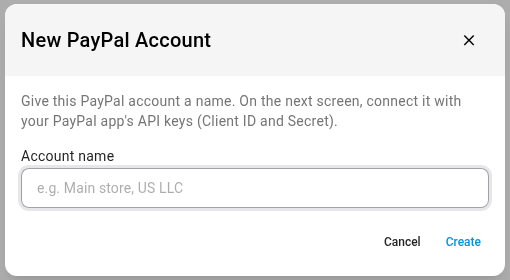
In New PayPal Account, type an Account name your team recognizes, such as the store it's for. The name is required.
-
Click Create.
You see PayPal account created. Connect it on the Account tab to start taking payments. The account opens on its Account tab, marked Not connected. A banner at the top, Connect with your PayPal API keys, reminds you that one-click Connect with PayPal is coming soon.

You can rename the account later from the ⋮ menu at the top right of the account. See Check, update or disconnect a PayPal account.
Create an app and copy its keys
PayPal gives you API keys through an app on its developer site. The Where do I find my API keys? panel on the Account tab lists the same steps.
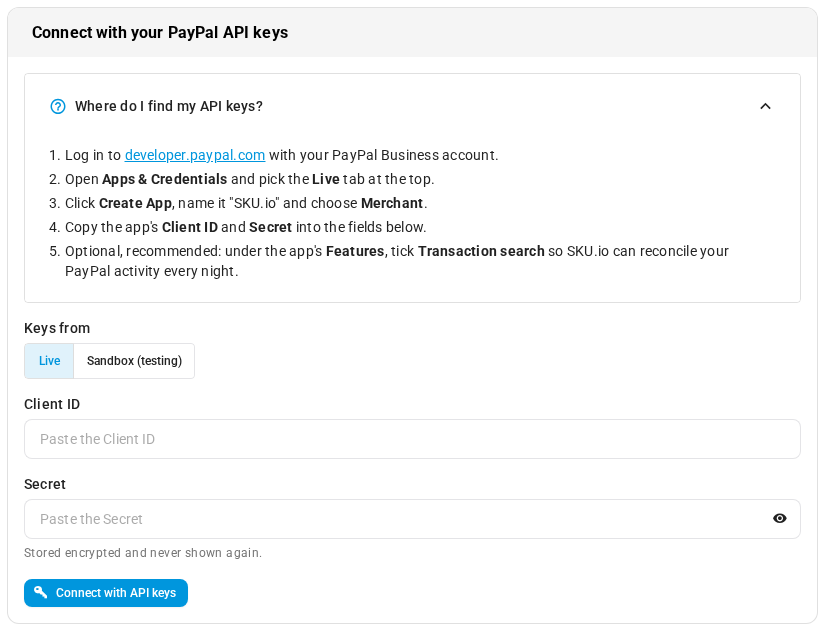
- On the account's Account tab, under Keys from, choose Live for real payments or Sandbox (testing) for testing. The developer.paypal.com link in the panel follows this choice.
- Sign in to developer.paypal.com with your PayPal Business account.
- Open Apps & Credentials, and pick the tab that matches Keys from: Live or Sandbox.
- Click Create App.
- Name the app "SKU.io", and choose Merchant.
- Copy the app's Client ID and Secret.
- Optional, recommended: under the app's Features, tick Transaction search. Without it, pay links, refunds and instant updates still work, but SKU.io can't import your PayPal activity each night. See Turn on Transaction search.
Paste the keys into SKU.io
- Check that Keys from matches the tab you copied the keys from: Live or Sandbox (testing).
- Paste the Client ID.
- Paste the Secret. It stays hidden as you paste, and SKU.io never shows it again after you save.
- Click Connect with API keys.
SKU.io checks the keys with PayPal before it saves anything, and trims any spaces you copied with them. When PayPal accepts them you see PayPal account connected., and the account header shows Connected, its environment, and Ready. The account can send pay links and take payments straight away.

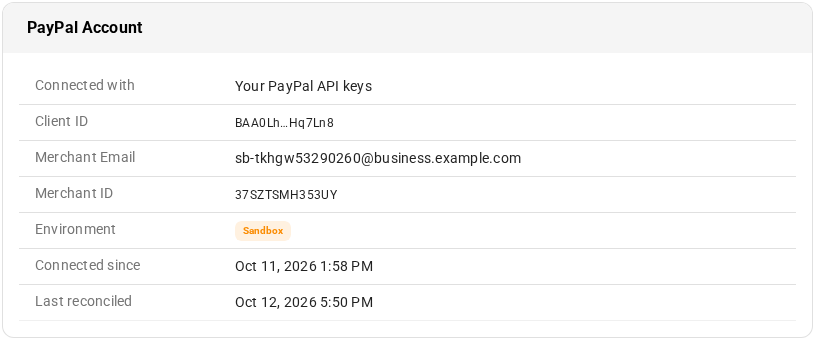
The PayPal Account card shows:
- Connected with: Your PayPal API keys.
- Client ID: a shortened form of the Client ID. The Secret is never shown again. (The Update API keys dialog fills in the full Client ID, so you don't have to paste it again.)
- Merchant Email and Merchant ID: your PayPal account's email and ID. PayPal sends them with your first payment. Until then, Merchant Email isn't listed and Merchant ID reads Shown after the first payment.
- Environment: Production for Live keys, or Sandbox.
- Connected since: when the keys were saved. Last reconciled appears once the nightly import has run.
Check the Connection Status
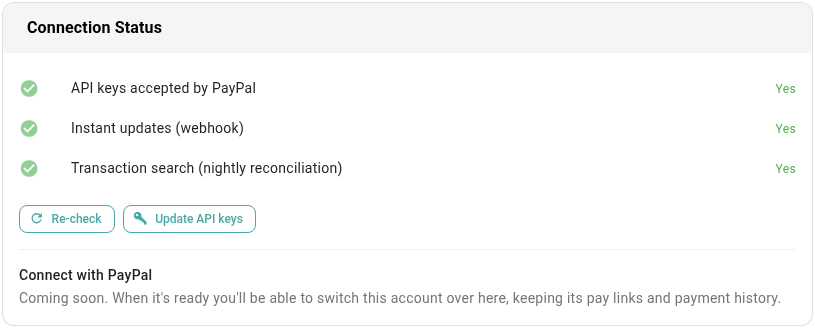
The Connection Status card, on the right of the Account tab, shows three checks, each with Yes or No.
| Check | What it means when it says Yes |
|---|---|
| API keys accepted by PayPal | The account is connected, and PayPal accepts its saved Client ID and Secret. If PayPal later stops accepting the keys, this row turns to No and a red message appears above the rows; see When the saved keys stop working |
| Instant updates (webhook) | SKU.io added a webhook to your PayPal app, so PayPal can tell SKU.io about a payment, refund or dispute as soon as it happens. It doesn't confirm that PayPal has delivered an update yet |
| Transaction search (nightly reconciliation) | Your app has Transaction search turned on, so SKU.io imports your PayPal activity every night |
When a check says No, a message above the list explains what to fix. Fix it, then click Re-check. SKU.io checks the keys, the webhook and Transaction search again, and shows PayPal account checked.
For how the three routes fit together, see How PayPal payments reach SKU.io.
When PayPal won't add the webhook
You don't create the webhook yourself: SKU.io adds it to your PayPal app when you connect. If PayPal refuses it, the account still connects, and a warning titled PayPal isn't sending instant updates yet gives the reason:
| Reason in the warning | What to do |
|---|---|
| Your PayPal app already has the maximum of 10 webhooks. Delete one you no longer use on developer.paypal.com, then click Re-check. | Delete a webhook you don't use from the app on developer.paypal.com, then click Re-check |
| Another webhook on your PayPal app already uses this address. | Delete the other webhook that points at the same address from your app, then click Re-check |
| PayPal wouldn't add the webhook (…) | The brackets hold PayPal's own reason. Fix what it describes on developer.paypal.com, then click Re-check |
Until the webhook works, pay-link payments, including eCheck payments that clear later, are still recorded by SKU.io's check every 15 minutes. Refunds made on paypal.com, disputes and reversals arrive only with the nightly import, which needs Transaction search.
If you save the same keys again, SKU.io reuses its webhook. If you switch to keys from a different app, it adds a new webhook to that app. When you disconnect the account, SKU.io removes its webhook from your app.
Turn on Transaction search
When Transaction search (nightly reconciliation) says No, the card shows: "Turn on Transaction search under your PayPal app's Features on developer.paypal.com, then click Re-check, so SKU.io can reconcile fees, refunds and chargebacks every night."
- On developer.paypal.com, open the app whose keys you pasted.
- Under Features, tick Transaction search, and save the app.
- In SKU.io, click Re-check on the account's Account tab.
The check turns to Yes, and the account's Transactions tab can import activity. See Review PayPal transactions.
If SKU.io doesn't accept the keys
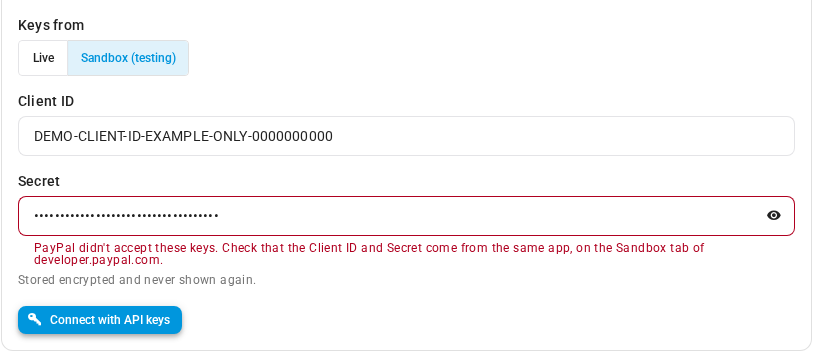
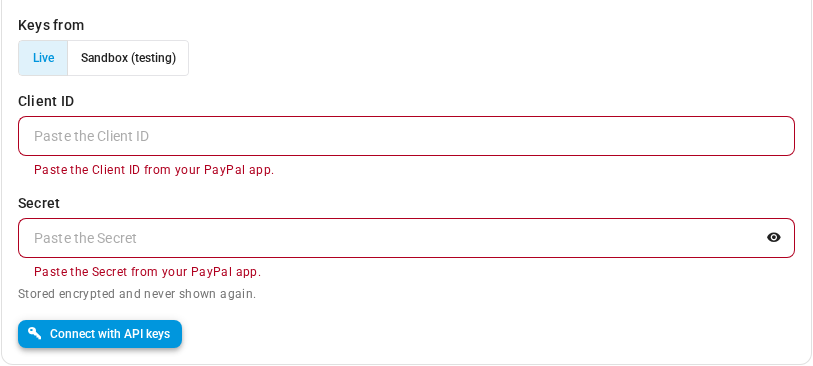
When the keys can't be saved, a message appears under the Client ID or Secret field. Nothing is saved, and the account stays Not connected.
| Message | What to do |
|---|---|
| Paste the Client ID from your PayPal app. / Paste the Secret from your PayPal app. | The field is empty. Paste the value |
| That doesn't look like a full PayPal Client ID. / That doesn't look like a full PayPal Secret. | Only part of the value was copied. Copy it again in full |
| PayPal didn't accept these keys. Check that the Client ID and Secret come from the same app, on the Live tab of developer.paypal.com. | The keys are wrong, come from two different apps, or don't match Keys from. The message names the Live or Sandbox tab, matching your choice. Copy both keys from one app, on that tab |
| Couldn't reach PayPal to check these keys. Try again in a minute. | PayPal didn't answer. Wait a minute, then click Connect with API keys again |
| PayPal couldn't check these keys right now. Try again in a minute. If it keeps happening, check PayPal's status page (paypal-status.com). | PayPal answered with an error. Wait a minute, then try again. If it keeps failing, check paypal-status.com for a PayPal outage |
You can try up to 20 times a minute. After that, wait a minute before you try again.
Reconnect a disconnected account
A disconnected account keeps its pay links and payment history, and you reconnect it from its Account tab with the same form. See Reconnect a disconnected account. To replace the keys of a connected account, see Update the API keys.
Switch to Connect with PayPal later
On a connected account, the bottom of the Connection Status card shows Connect with PayPal and Coming soon. When it's ready, you'll be able to switch the account over from there, signed in to the same PayPal account, without losing its pay links or payment history.
Next steps
- Map the PayPal Payment type in QuickBooks or Xero before your first payment arrives.
- Collect payment with a PayPal pay link: send your first pay link from a sales order.
- Check, update or disconnect a PayPal account: rename the account, update its keys, or disconnect it.
- How PayPal works: Sandbox and Live, several accounts, fees and accounting.
- PayPal reference: every status, column and permission.
Video transcript
To send PayPal pay links from sales orders, start by connecting an account. In Apps and Integrations, it's listed under Payment Processors. It supports multiple instances, one per Business account. To add another, click Add Instance at the top of the panel. The PayPal page opens, with a card for every account already added. Each card shows whether it's connected yet. To add one, click Add PayPal Account. In the name field, type something your team will recognize, such as the store. Then click Create, and SKU.io opens the new account. The new account opens on its Account tab, showing Not connected to PayPal. One-click Connect with PayPal is coming soon, so for now you connect with your PayPal API keys. The panel Where do I find my API keys lists the steps. On developer.paypal.com, click Create App and choose Merchant. Copy its Client ID and Secret into the fields below. Then, under the app's Features, tick Transaction search, so SKU.io can reconcile every night. Under Keys from, choose Live for real payments, or Sandbox for testing. The steps above now name the Sandbox tab. Then paste the Client ID, followed by the Secret, both copied from your app. For this video, we're typing made-up example keys. The Secret stays hidden as you paste it, and it's stored encrypted and never shown again. Click Connect with API keys. SKU.io checks them with PayPal before it saves anything, which takes a moment. These keys are made up, so the message reads: PayPal didn't accept these keys. Nothing is saved. The account stays Not connected. With your own keys, check that both come from the same app. And make sure Keys from matches your Live or Sandbox keys. Now go back to the PayPal page, and open an account that's already connected with working Sandbox keys. Its header shows Connected, the environment, and Ready, so it can take payments. SKU.io shows only a shortened Client ID. The Merchant ID and email come from its first payment. And Last reconciled shows when PayPal activity was last imported. On the right, the Connection Status card shows three checks. API keys accepted by PayPal. Instant updates, using a webhook that SKU.io adds to your PayPal app. And Transaction search, for the nightly reconciliation. If any check says No, for example when the saved keys stop working, a message above the list explains the fix. Fix it on developer.paypal.com, then come back here and click Re-check. SKU.io runs the checks again, and you see PayPal account checked. Connect with PayPal is coming soon. When it's ready, you can switch this account over from this card. The account keeps its pay links and payment history. Now you're ready to bill your first sales order with PayPal.