Refund a PayPal payment
When a customer paid a sales order through a PayPal pay link, you can give some or all of that money back without leaving SKU.io. SKU.io asks PayPal to send the refund back the way the customer paid, then records it on the order for you.
Before you begin
- You need the Sales Orders → Refund permission. See the sales order permissions reference.
- The payment must be one that SKU.io recorded from PayPal: a payment taken through a pay link. It shows PayPal fee under its amount, and its Reference starts with
paypal:. A payment you recorded by hand has no Refund via PayPal icon, even if its type is a PayPal one and the Method column reads PayPal. Refund those in PayPal, then record the refund. - The PayPal account that took the payment must still be connected and working. See Check, update or disconnect a PayPal account.
- If the customer won a dispute or PayPal reversed the payment, don't refund: the money has already gone back. Record the refund by hand instead.
Refund the payment
-
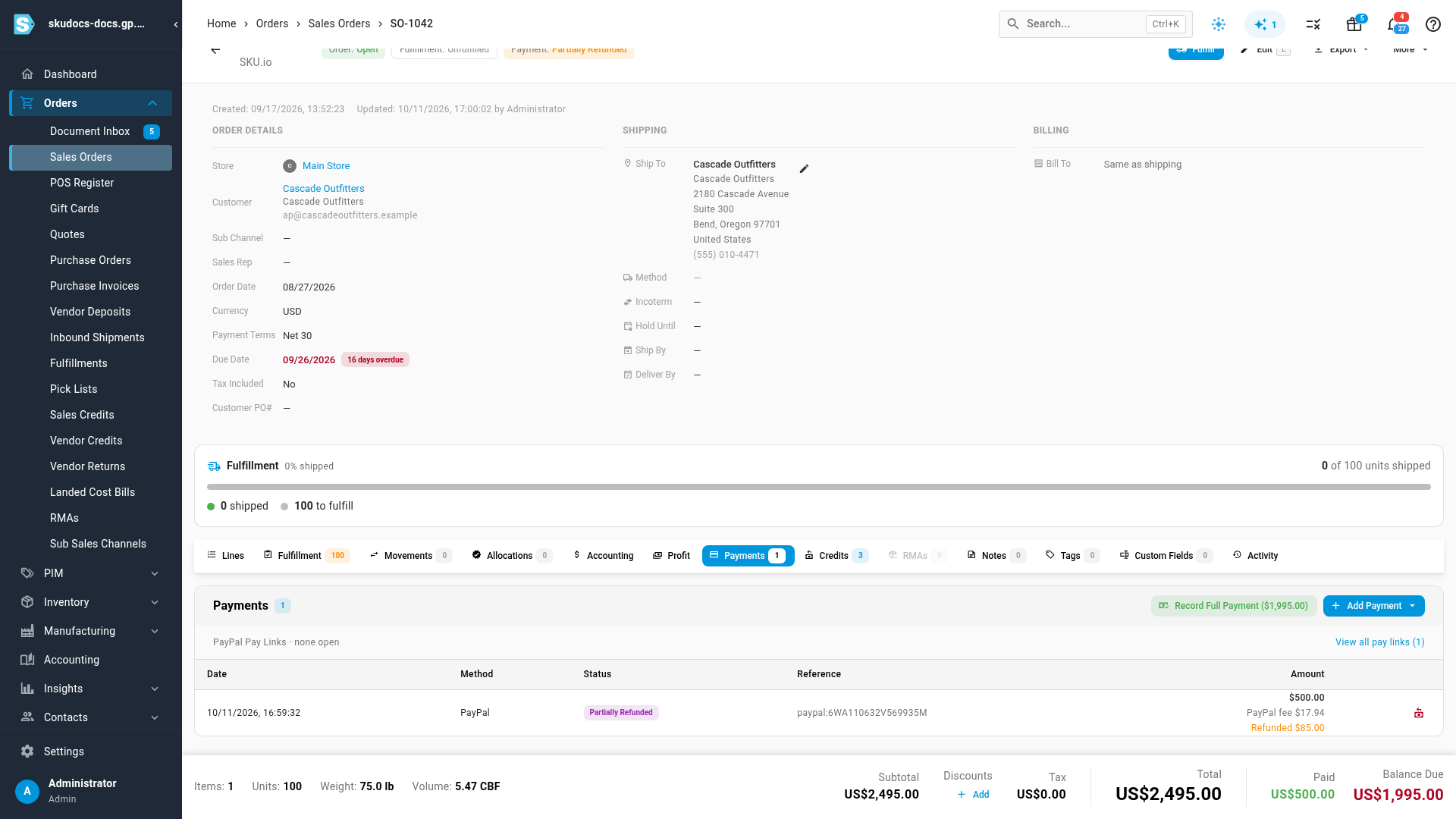
Open the sales order and click the Payments tab.
Each PayPal payment shows its amount, the PayPal fee, and a status. A payment you've already refunded part of reads Partially Refunded, shows Refunded and the amount refunded so far under its amount, and you can refund it again until nothing is left.
-
Click the Refund via PayPal icon at the end of the payment's row.
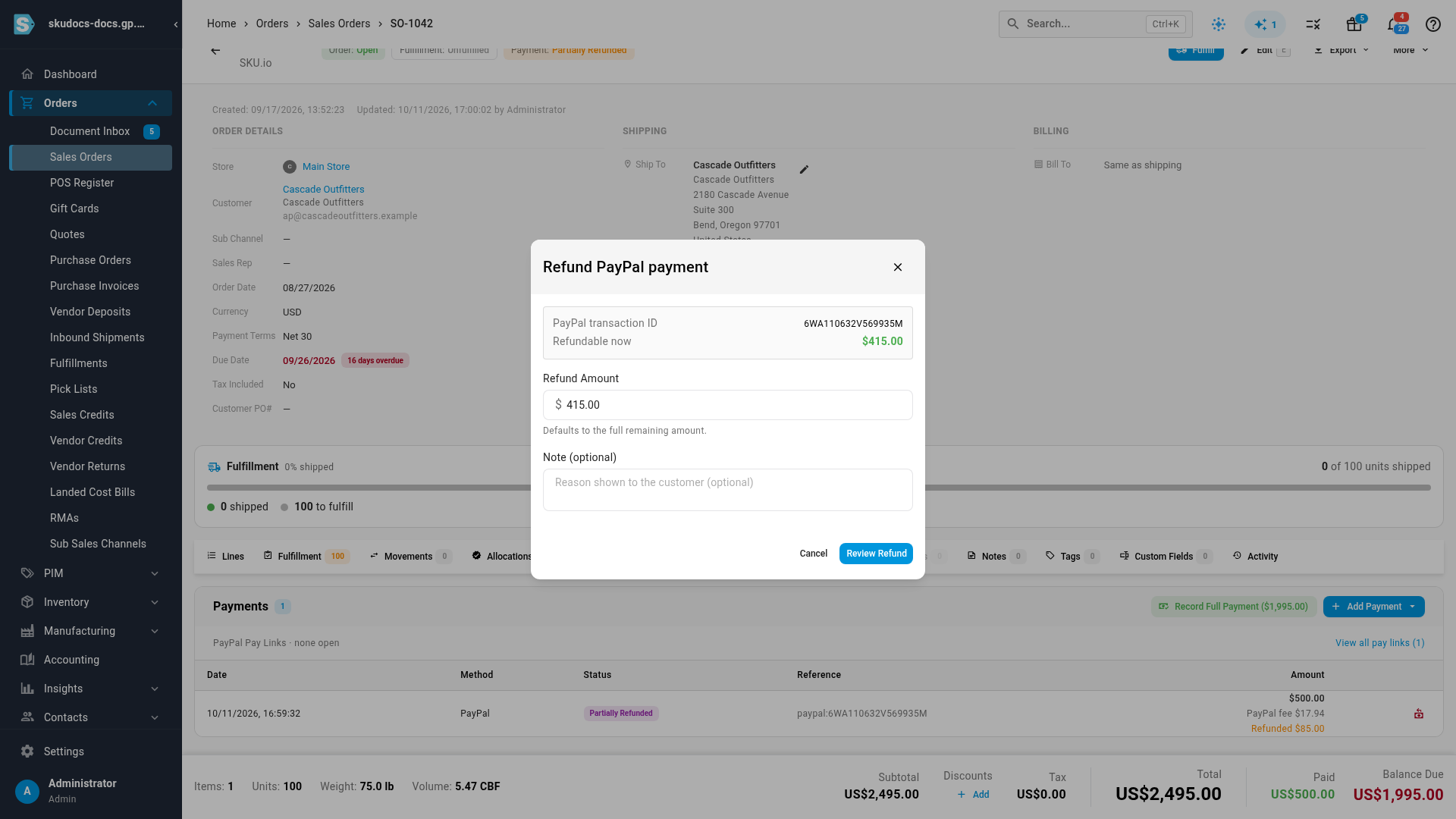
The Refund PayPal payment dialog opens. It shows the payment's PayPal transaction ID and how much is Refundable now: the payment less anything already refunded.
-
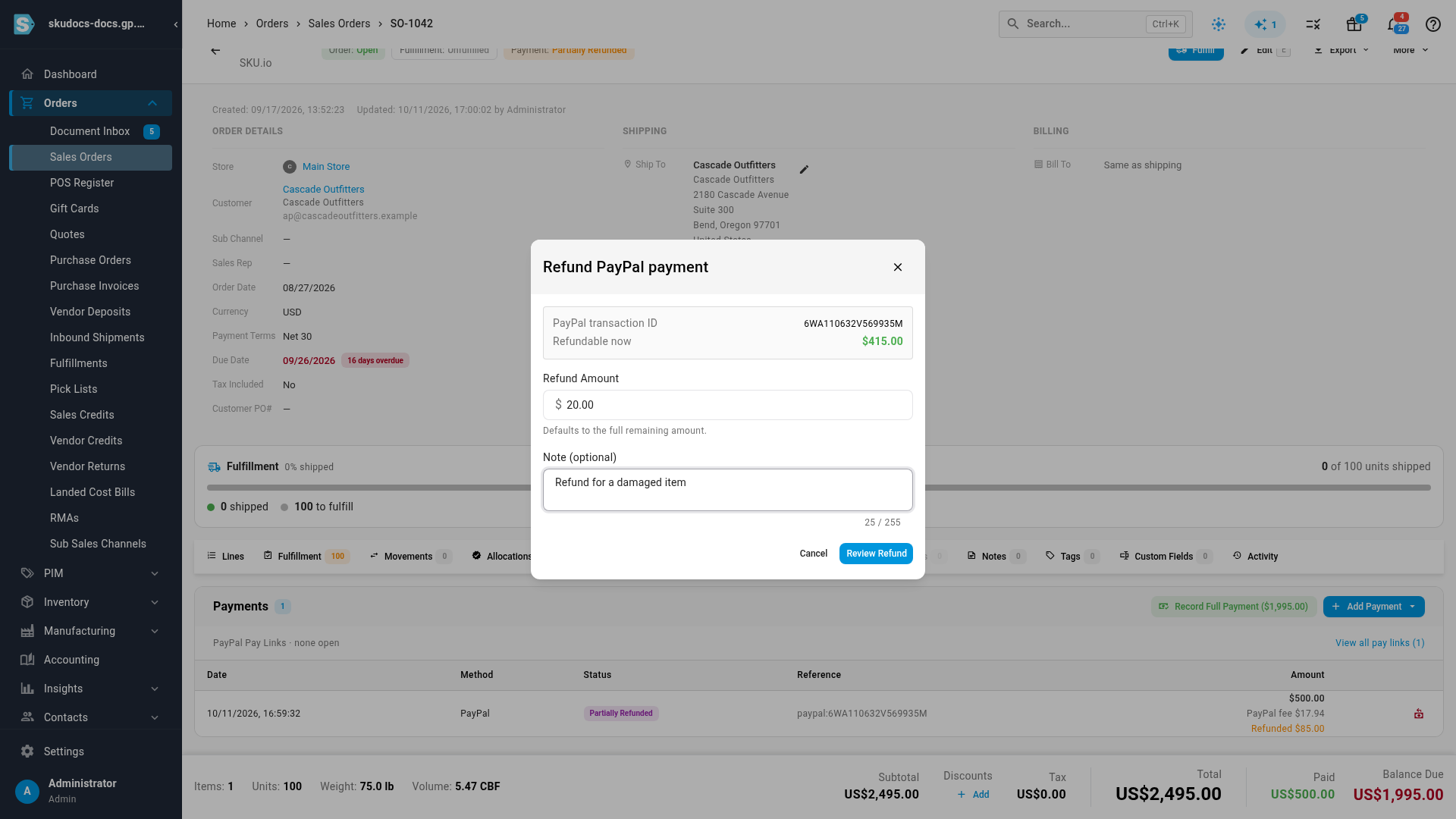
Check Refund Amount. It starts at the full remaining amount. For a partial refund, type a smaller amount.
-
Optionally, type a Note. PayPal shows it to your customer as the reason for the refund, so write it for them.
-
Click Review Refund.
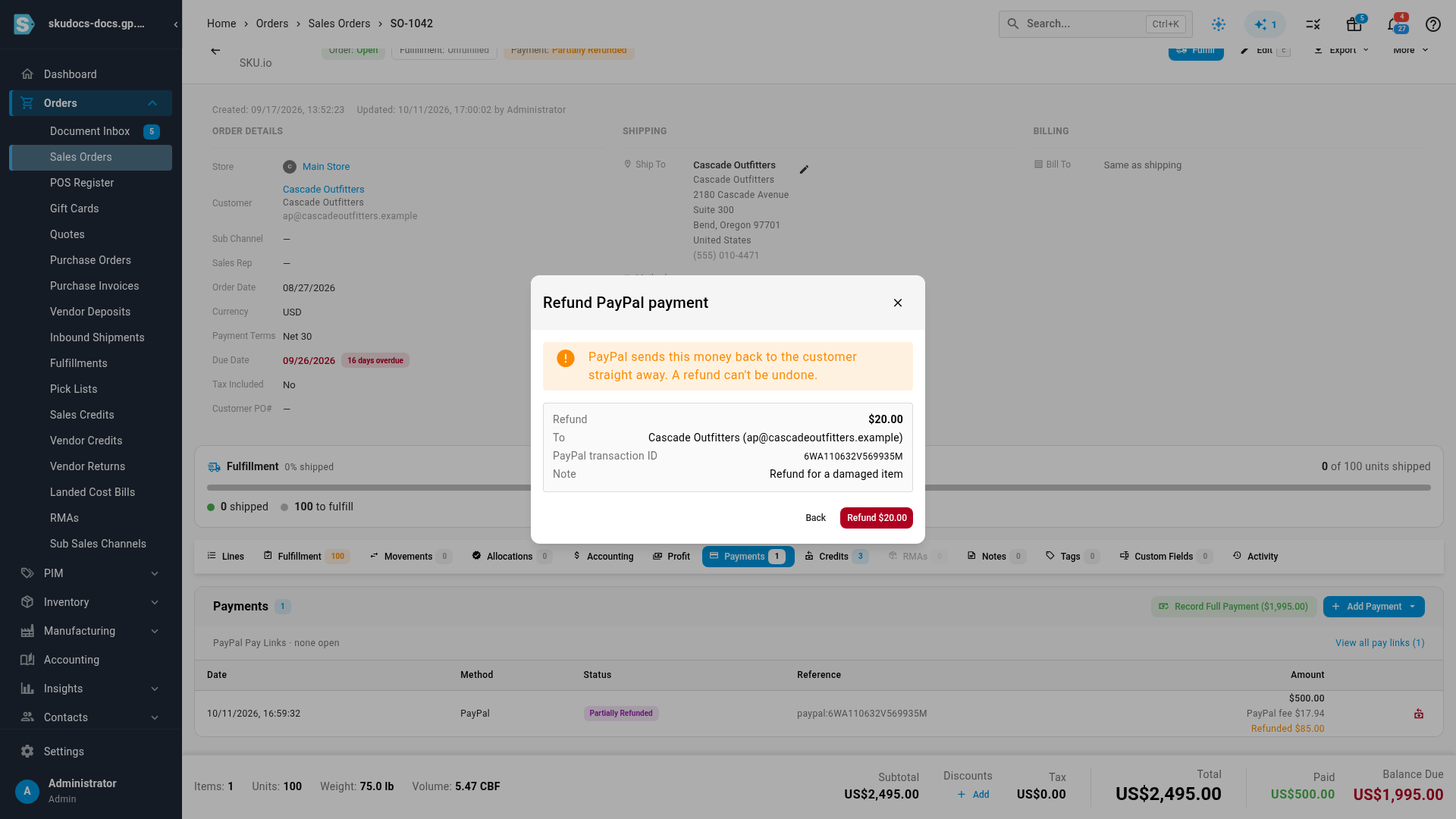
Nothing is sent yet. The dialog shows what's about to happen: the refund amount, who it goes To (the customer's name and email), the PayPal transaction ID, and your note. To change anything, click Back.
 Refund via PayPal sends real money
The refund leaves your PayPal account the moment you click the Refund button on this step, and you can't undo it from SKU.io. Check the amount and the customer first.
-
Click Refund followed by the amount, for example Refund $40.00.
When PayPal completes the refund, you see Refund completed. The order updates straight away, with no need to reload: the payment's status changes to Partially Refunded or Refunded, the row shows the total refunded so far, the order's payment status changes, and each refund is listed as a closed credit on the order's Credits tab.
If PayPal accepts the refund but is still processing it, you see "Refund started — PayPal is still processing it. It will be recorded on the order when PayPal completes it." You don't need to do anything else. SKU.io records the refund when PayPal finishes, either from PayPal's instant update or from the nightly import. See How PayPal payments reach SKU.io.
If the refund doesn't go through
| What you see | What it means and what to do |
|---|---|
| Enter a positive amount | Refund Amount is empty or zero. Type an amount greater than zero. |
| Cannot exceed refundable amount of … | The amount is more than Refundable now. Lower it. |
| The Refund via PayPal icon is greyed out | SKU.io can't reach the PayPal account that took this payment. Hover over the icon to see why: the account is disconnected, PayPal no longer accepts its API keys, or the account can't refund from SKU.io right now. Fix the account under Apps & Integrations → All Integrations → PayPal, or refund the payment in PayPal directly. |
| No Refund via PayPal icon on the row | The payment has been refunded in full, it wasn't recorded from PayPal, or your role doesn't have the Sales Orders → Refund permission. |
| A message from PayPal, or PayPal declined the refund. | PayPal refused the refund. When PayPal gives a reason, you see it here. Fix the problem in your PayPal account, then try again. Nothing was recorded on the order. |
| A message saying PayPal takes the currency in whole amounts only | Some currencies, such as the Japanese yen, have no decimals. Enter the refund without them. |
When the icon is greyed out, the tooltip tells you what to fix:

What a PayPal refund records
A refund through PayPal doesn't delete or change the original payment. Instead, SKU.io records it alongside:
-
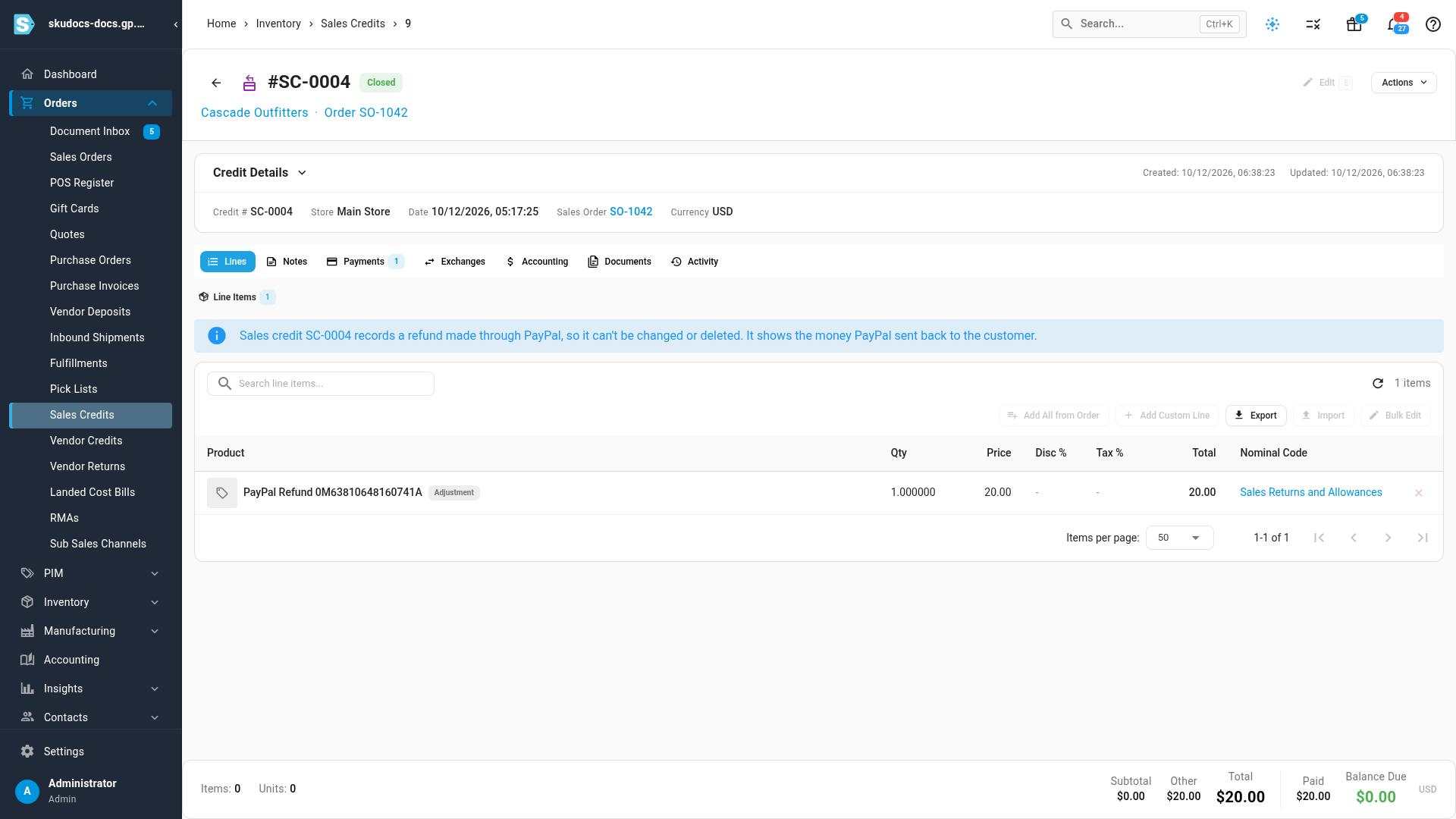
A closed sales credit. The order's Credits tab gets a sales credit for the refunded amount, with one line named PayPal Refund followed by PayPal's refund ID. The credit is already paid and closed, because the money went back through PayPal. It's never offered to the customer as open store credit, so the customer can't be refunded twice.
The line is assigned to the account mapped as Sales Returns and Allowances in your accounting settings, the same account a refund you record by hand uses. The credit's totals show the line under Other, so they add up to its Total.
The credit is read-only, because it's the record of money PayPal sent back. On the credit, Edit, Delete, adding or importing lines, and adding, editing or deleting its refunds are greyed out, and a note at the top of its lines says why. The delete icon for it on the order's Credits tab is greyed out too. Hover over any of them to see the reason.
-
The payment's status. The PayPal payment row reads Partially Refunded, or Refunded once you've refunded all of it.
-
The order's payment status. The order becomes Partially Refunded. When the refunds add up to everything paid on the order, it becomes Refunded, and the order closes, as it does after any full refund. If the order is still paid in full after the refund, for example because you lowered the order total by the same amount, it stays Paid. See Payment status.
The order's Paid and Balance Due totals don't change, because the payment itself still stands and the refund sits on the credit. The refund recorded on that credit can't be changed or deleted.
The PayPal fee shown on the payment doesn't change either. SKU.io stores PayPal fees on the payment for your reference only. It doesn't post them to QuickBooks or Xero, so record any fee PayPal keeps or returns in your accounting software yourself.
Refunds you make in PayPal
You can also refund a payment directly in your PayPal account. SKU.io picks the refund up and records it exactly as if you'd used Refund via PayPal: the same closed sales credit and the same statuses.
- With PayPal's instant updates (the webhook) working, the refund appears within seconds.
- If an update is missed, the nightly import records it, provided Transaction search is turned on for your PayPal app.
- A refund is never recorded twice, however many of these routes report it.
- A refund of a payment that SKU.io never recorded, such as a sale made outside SKU.io, appears only on the PayPal account's Transactions tab as Unmatched. It isn't added to any order. See Review PayPal transactions.
Disputes, chargebacks, and reversals
When a customer disputes a payment with PayPal, or PayPal takes money back, SKU.io flags the payment but leaves the order alone:
- A chip appears next to the payment's status on the Payments tab: Disputed while the dispute is open, then Dispute won, Dispute lost, or Dispute resolved when it closes. A payment PayPal took back reads Reversed.
- Hover over the chip for details. A dispute chip shows PayPal's dispute status and Respond in your PayPal account. The Reversed chip says "PayPal reversed this payment. Check the PayPal account's Transactions tab."
- SKU.io adds an entry to the order's Activity tab when a dispute opens or closes, or a payment is reversed.
- The order's balance and payment status don't change. The payment still counts as paid.
You handle the dispute itself in your PayPal account. SKU.io sends no email or alert about it, so check your PayPal account or the Payments tab. If a reversal update is missed, the nightly import still flags the payment.
When you lose a dispute or PayPal reverses a payment, the money has already gone back to the customer. Clicking Refund via PayPal would send it a second time. To show on the order that the money went back, record a refund by hand instead.
Other ways to give money back
- If the order came from a sales channel such as Shopify or eBay and the customer paid there, refund them on that channel instead. See Refund a customer on the sales channel.
- If the customer is sending items back, start with a return so the stock and the credit stay connected. See Returns, credits, and refunds.
Next steps
- Collect payment with a PayPal pay link
- Record payments and apply store credit
- Review PayPal transactions
- PayPal reference: every payment status and dispute chip
Video transcript
Every refund starts on the sales order's Payments tab. The PayPal row shows the amount, the fee, and the total given back so far. Its status reads Partially Refunded. Click the refund icon at the end of the row. The dialog shows the transaction ID and how much you can still send back. Refund Amount starts at the full remaining balance. To return only part of it, clear the field and type a smaller figure. Then add a note if you like. Your customer sees it as the reason. Click Review Refund. Nothing is sent yet. Check the amount, the customer it goes to, and your note. When it all looks right, click the red Refund button. PayPal sends the money back to your customer. The order updates on its own, and the row now shows the new refunded total. The Credits tab now lists the refund as a closed sales credit for the same amount. Click it to open its own page, where a note explains why it's locked. It's the record of money PayPal already sent back.