Find a PayPal payment that didn't reach the order
When a customer pays a PayPal pay link, SKU.io records the payment on the sales order for you, usually within seconds. If a customer says they paid and the order still shows the money owing, work through the checks below in order. Most payments turn up in the first or second section below.
For how payments travel from PayPal to the order, and what each route catches, see How PayPal payments reach SKU.io.
Before you begin
-
Ask the customer for the Transaction ID on their PayPal receipt, and the date and amount they paid. The Transaction ID is the quickest way to find the payment.
-
You need these permissions. Without one, the button it controls is greyed out, and pointing at it names the missing permission:
- Integrations → List to open the PayPal account and read its tabs.
- Integrations → Sync to click Import now.
- Integrations → Manage to replay an update or mark a transaction as reviewed.
- Sales Orders → Payments (called Manage payments in tooltips) to record a payment by hand.
See the permissions table in the PayPal reference.
Check the pay link on the order
-
Open the sales order and click the Payments tab.
-
Look at the PayPal Pay Links list at the top of the Payments tab. It shows each open link, its amount and its status.

-
Read the link's status:
Status What it means What to do Active SKU.io hasn't heard about a payment for this link If the customer paid in the last 25 minutes, wait. Every 15 minutes, SKU.io asks PayPal about each active link where the customer started paying, so a payment it missed shows up on the next check. If it's been longer, go on to the next section Pending Payment processing: the customer paid, but PayPal hasn't released the money yet. This happens with an eCheck, a payment PayPal is reviewing, or a payment held in a currency your PayPal account doesn't hold yet Nothing, in most cases. SKU.io records the payment when PayPal releases it. If PayPal is holding a currency, accept it in your PayPal account to release the money Paid The payment is recorded on the order Check the payments list below the link. The payment's Method is PayPal and its Reference starts with paypal:followed by the PayPal transaction IDA paid link leaves the open list. The order then shows PayPal Pay Links · none open, and View all pay links opens every link for the order, including paid ones.

-
If a Pending link also shows a red note, SKU.io can't check that payment with PayPal any more:
Note What to do Account disconnected — check PayPal The PayPal account was disconnected. Check the payment in your PayPal account, then reconnect. See Check, update or disconnect a PayPal account API keys need updating — check PayPal PayPal stopped accepting the account's API keys. Update the keys, then check the payment in PayPal Still clearing after 30 days — check PayPal SKU.io stops checking a payment after 30 days. Look it up in PayPal, and record it on the order yourself once it clears
If the link is Active and more than 25 minutes have passed, the customer may have paid some other way, or paid for a different order. Check the PayPal account's connection next, then your PayPal activity.
If the PayPal account isn't connected
Open the PayPal account (Apps & Integrations → All Integrations → PayPal, then the account) and look at the chips beside its name. If they don't say Connected and Ready, for example because someone disconnected the account or PayPal stopped accepting its API keys, SKU.io can't hear about new payments, and the 15-minute check and the nightly import can't reach PayPal. Nothing is recorded until you fix the connection. See Check, update or disconnect a PayPal account. Once the account shows Ready again, click Import now on the Transactions tab to pick up what you missed.
Look for the payment in your PayPal activity
-
Go to Apps & Integrations → All Integrations, choose PayPal under Payment Processors, and click the PayPal account the customer paid.
-
Click the Transactions tab. Last imported shows when SKU.io last fetched your PayPal activity. It fetches it every night.
-
Click Import now to fetch the latest activity. The import runs in the background, and you can follow it in the job tray. When it finishes, the job says what it found, for example Imported 12 transactions · 1 payment recovered · 2 unmatched. A recovered payment has already been added to its order. See Follow background jobs.
-
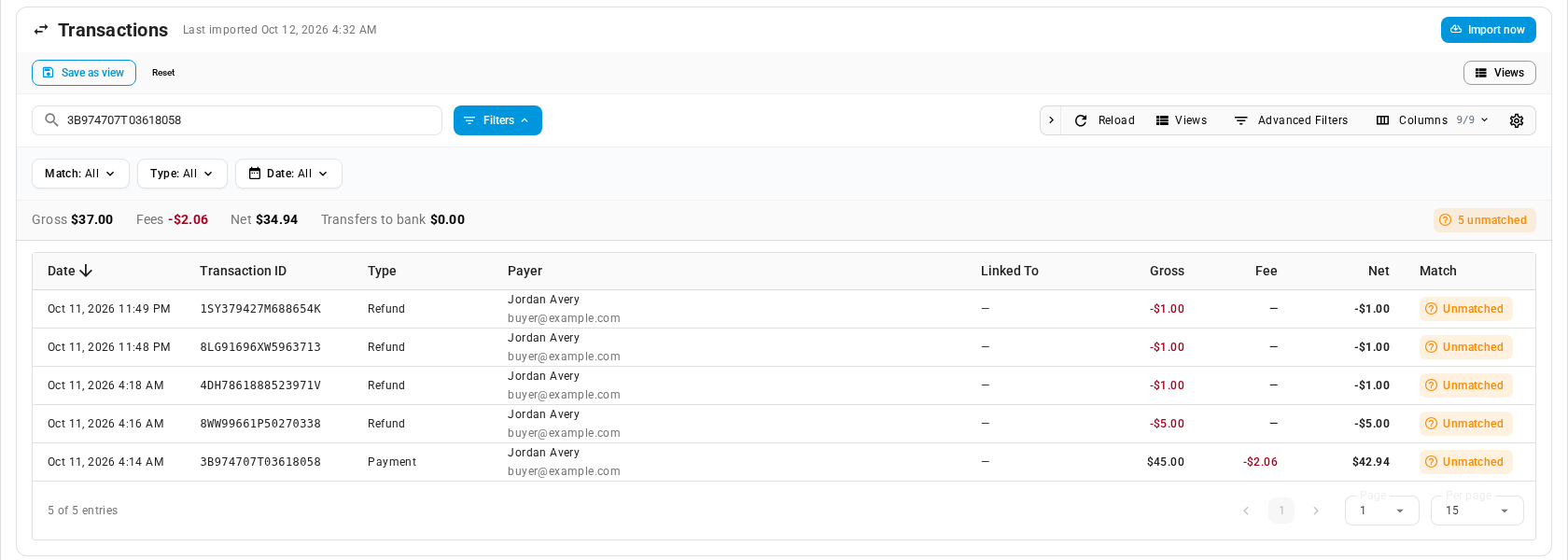
In Search by transaction ID, payer, or invoice..., type the customer's Transaction ID, or the sales order number. A payment made through a pay link carries the order number in its invoice. Searching a payment's Transaction ID also finds any refunds of it.
-
Read the Match column:
Match What it means What to do Matched The payment is already on its order Click the order number in Linked To to open it Recovered SKU.io had missed this payment. The import found it and recorded it on the order just now Nothing. Open the order from Linked To to see it Pending PayPal hasn't released the money yet Wait. It's recorded when it clears, as for a Pending link Unmatched The money reached PayPal, but not through a SKU.io pay link. For example, the customer sent money to your PayPal email, or paid an invoice from PayPal itself Record it on the right order yourself (see below), then right-click the row and choose Mark as Reviewed
If the payment isn't on the tab at all, PayPal may not have listed it yet. PayPal can take up to about three hours to add a new payment to your activity, so try Import now again later. If the tab says Transaction search is off, follow its message first. For more on this tab, see Review PayPal transactions.
Record an unmatched payment by hand
- Open the sales order the customer meant to pay, and click the Payments tab.
- Click Add Payment, then choose Record Payment.
- Fill in Amount and Payment Date. For Payment Type, choose PayPal Payment, so the payment maps to the same account in QuickBooks or Xero as your other PayPal payments. Put the PayPal Transaction ID in Reference (Optional) so you can find the payment again.
- Click Add Payment.
See Record payments and store credit for the full steps. A payment you record by hand isn't linked to PayPal, so you can't refund it with Refund via PayPal. Refund it in your PayPal account and record the refund on the order.
Check the updates PayPal sent
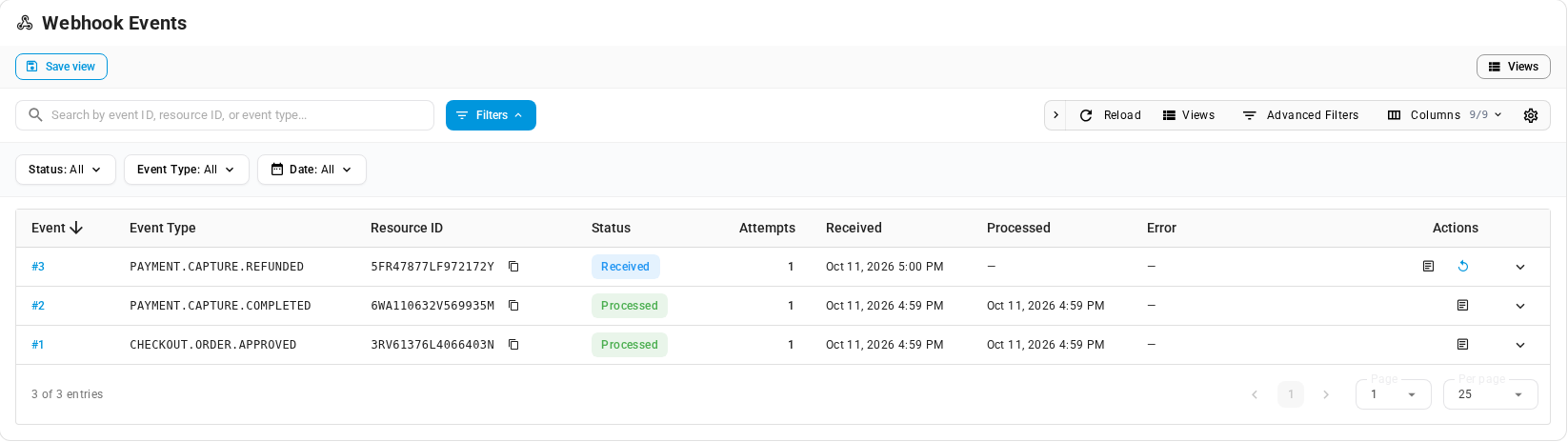
PayPal also sends SKU.io an update the moment something happens, such as a completed payment, a refund, or a dispute. The Webhook Events tab lists every update PayPal sent for this account.
-
On the PayPal account, click the Webhook Events tab.
-
Search for the customer's Transaction ID. For a payment or refund, it's the update's Resource ID.
If the tab says No webhook events received yet, PayPal hasn't sent SKU.io any updates for this account. Check that Instant updates (webhook) says Yes on the account's Connection Status card; see Check, update or disconnect a PayPal account. Payments still arrive through the 15-minute check and the nightly import.
-
Read the Status:
Status What it means Processed SKU.io acted on the update Received SKU.io has the update but hasn't finished acting on it. This normally lasts a few seconds Failed SKU.io couldn't act on the update. The Error column says why Skipped SKU.io doesn't act on this kind of update Attempts counts how many times SKU.io has tried the update. A number greater than 1 is shown in orange. To see an update's full details, click the View details icon in the Actions column. It shows the Error (if any), the Event ID, the Resource Type, when PayPal created the update (PayPal Created) and the update's raw content.

-
If an update is Failed, read the Error and fix what it points to first, for example a disconnected account. If an update is still Received after a few minutes, or Skipped, you can run it again.
-
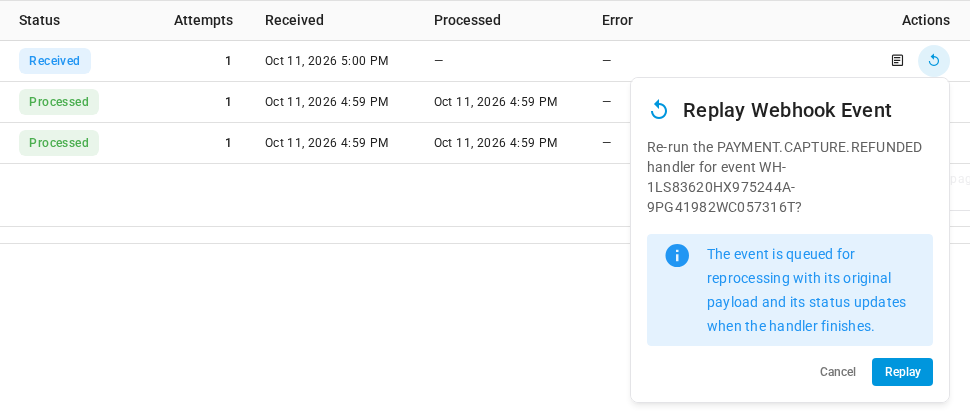
To run an update again, click the Replay event icon in its Actions column. You can also right-click the row and choose Replay Event.
-
Click Replay. SKU.io shows Webhook replay queued. and processes the update again in the background.
-
Click Reload. The Status changes to Processed once SKU.io has acted on it, and Attempts goes up by one.

Replaying is safe. SKU.io never records the same payment or refund twice, so replaying an update for a payment that's already on the order changes nothing. Replay event appears only on Failed, Skipped and Received updates.
The tab lists only updates that reached SKU.io for this account. A payment with no update here can still reach the order through the 15-minute check or the import.
If the order was cancelled or deleted
Cancelling or deleting a sales order cancels its open pay links, and a cancelled link can't be paid. So a customer can't pay through a pay link for an order that's gone. If money for that order did reach PayPal some other way, it shows as Unmatched on the Transactions tab. Record it on another order, or refund it in your PayPal account.
You can't delete an order that has a PayPal payment, or one still clearing, because SKU.io needs the order to refund that payment. Cancel or archive the order instead. See Close, cancel, archive, and delete orders.
Next steps
- How PayPal payments reach SKU.io: the instant updates, the 15-minute check and the nightly import.
- Review PayPal transactions: matching, unmatched payments and disputes.
- Collect payment with a PayPal pay link: send a new link if the customer hasn't paid.
- PayPal reference: every status, column and update type.
Video transcript
When a customer says they paid with PayPal, start on the order's Payments tab. This pay link is still active, so no money has arrived through it yet. Unpaid ones are checked again four times an hour. So money sent in the last 25 minutes may not show yet. If more time has passed, look at the account's activity. Go to Apps and Integrations, then All Integrations. Search the list, and choose the entry under Payment Processors. Click the account the customer paid. It opens on the Account tab. On the Transactions tab, Import now fetches the newest activity. A row marked Matched is already recorded. Its Linked To column shows the sales order number. To find the customer's money, search for the transaction ID on their receipt. The payment appears, along with its refunds. Now read its Match column. Here, the row says it's unmatched. So the money didn't come through a pay link. Record it on the order yourself, then mark the row as reviewed. Next, open the Webhook Events tab. It lists every update PayPal sent for this account. A Processed update means the work is done. A failed one shows its reason in the Error column. This refund update is still Received. It never finished processing. To run an update again, click Replay event in its Actions column. Then confirm it in the popup that opens. Replaying is safe. A payment or refund is never recorded twice, however often you replay. Then click Reload to refresh the list. The update now shows as processed. Its attempts count went up to two, shown in orange.