Work in multiple currencies
You can buy and sell in any currency while keeping your books in one. Your default currency is the one your reports, inventory value, and costs are kept in. Every other currency you add has a conversion to default: how many units of your default currency one unit of it is worth. SKU.io updates those rates every day from Open Exchange Rates, or you can type your own, and each purchase order, sales order, and supplier bill keeps the rate it was converted at.
Before you begin
- You need permission to manage currencies. Administrators have it.
- Pick your default currency before you start trading. Changing it later recalculates the cost of everything you hold, which is a large job.
See your currencies
Go to Settings → General → Currencies.
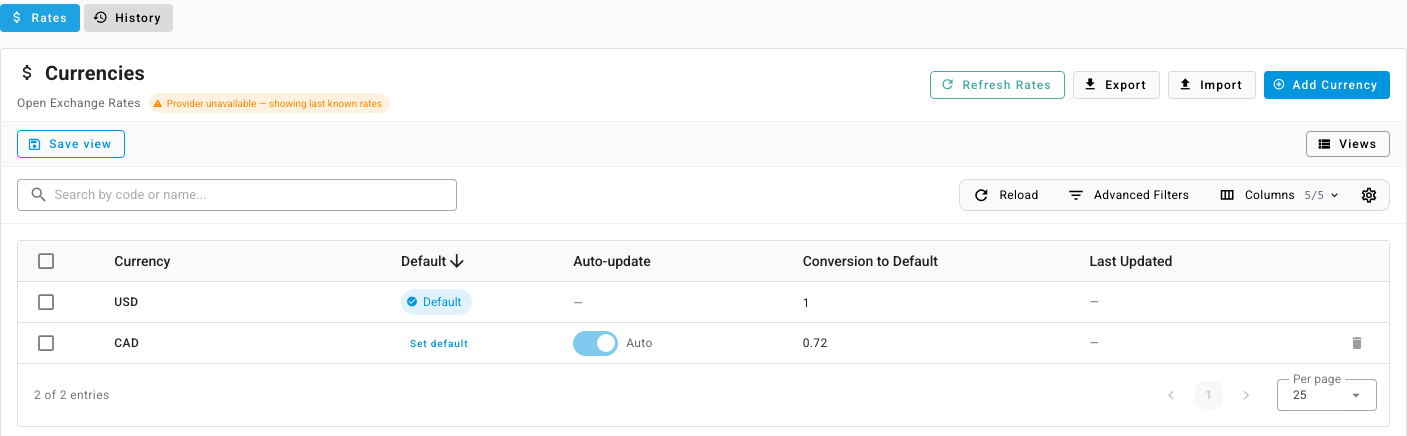
| Column | What it shows |
|---|---|
| Currency | The currency code. |
| Default | Default marks your default currency. |
| Auto-update | Auto when the rate updates daily, Custom when you set it. |
| Conversion to Default | How many units of your default currency one unit of this currency is worth. With US dollars as your default, a Canadian dollar rate of 0.72 means 1 CAD = 0.72 USD. Your default currency is always 1. |
| Last Updated | When the rate last changed. |
Under the title you'll see when rates last updated, such as Rates updated 2 hours ago · Open Exchange Rates. Two chips can appear beside it:
- Automatic updates not configured — daily rates aren't available on your account. Set rates yourself with Custom.
- Provider unavailable — showing last known rates — the rate service couldn't be reached. Your currencies keep their last rates until it's back.
Add a currency
- Click Add Currency.
- Under Select Currency, choose the currency.
- Under Conversion to Default, enter how many units of your default currency one unit of the new currency is worth.
- Click Add.
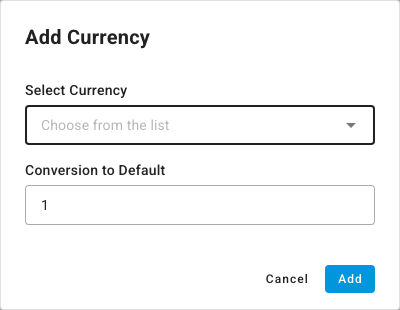
A new currency is set to Auto. When today's market rate is available, it replaces the rate you typed straight away. To keep your own rate, switch the currency to Custom as described below.
Let rates update daily
With Auto-update switched on, SKU.io fetches every currency's rate once a day, early in the morning UTC, after the major central banks publish. Rates are converted to your own default currency, whatever it is.
To fetch rates now instead of waiting for the next update, click Refresh Rates. The refresh runs as a background job, and the list updates when it finishes. The button is unavailable until you have at least one currency besides your default.
Set your own rate
Use a custom rate when you've agreed a fixed rate with a supplier, or when your accountant sets the rates.
- Switch the currency's Auto-update off. It changes to Custom, and Conversion to Default becomes a box you can type in.
- Type the rate.
- Press Enter, or click away from the box, to save it.
Daily updates skip custom currencies. Switch Auto-update back on to return to the market rate.
See past rates
Open the History tab. It lists the rate for each currency on each day, for the last 90 days unless you choose other dates, with its Source: the daily feed, or a rate someone typed. Filter it by Currency or Date.
SKU.io keeps this history so that a document dated in the past is converted at the rate in force on its date, not today's. A supplier bill dated March 3 uses the March 3 rate, even if you enter it in April.
Use a currency on an order
Purchase orders take their currency from the supplier. Give a supplier a pricing tier in its currency, and every new purchase order for that supplier starts in that currency. You can change it in the Currency box before you click Create Draft.
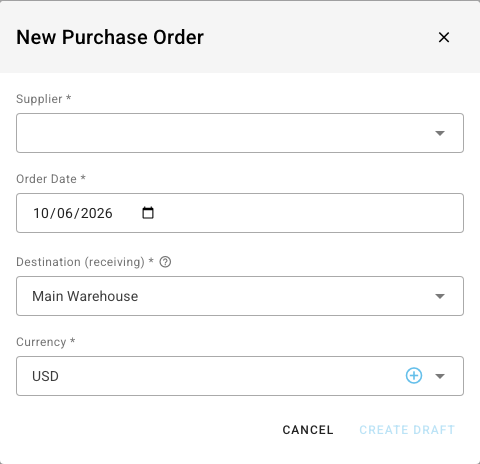
The order shows its currency under Order Details.

Sales orders work the same way: an order is in the currency its sales channel or customer uses, and you can pick a currency, or add one, when you create a sales order by hand.
Rates stay fixed on each order
When an order is created in another currency, or its currency is changed, SKU.io stores that day's rate on it. Later rate updates don't change orders you've already placed, so a purchase order's cost in your default currency stays the same after the daily rate moves. On a purchase order in another currency, the rate it was converted at is shown under its currency.
Change your default currency
To make another currency your default, click Set default on its row. SKU.io recalculates every other currency's rate against the new default, and the cost of the stock you hold in it. Do this before you start trading if you can.