Collect payment with a PayPal pay link
A pay link is a link to a secure pay page where your customer pays a sales order through PayPal. They can pay with their PayPal account or, where PayPal offers it, a card. You create it from the order, for the full amount due or a deposit, and email it or copy it into a message. When the customer pays, SKU.io records the payment on the order for you.
Before you begin
- A connected PayPal account. Connect one under Apps & Integrations → All Integrations → PayPal first; see Connect PayPal with your API keys. Its status must be Ready.
- The Payments permission (Sales Orders → Payments in the role editor, called Manage payments in tooltips). You need it to create, email or cancel a link. Anyone who can see an order's Payments tab can copy an active link.
- Something to collect. The order needs an amount due, and its currency must be one PayPal accepts.
- To email the link: the PayPal Payment Request email template must be turned on in Settings → Email Templates. It's on by default.
Create and send a pay link
-
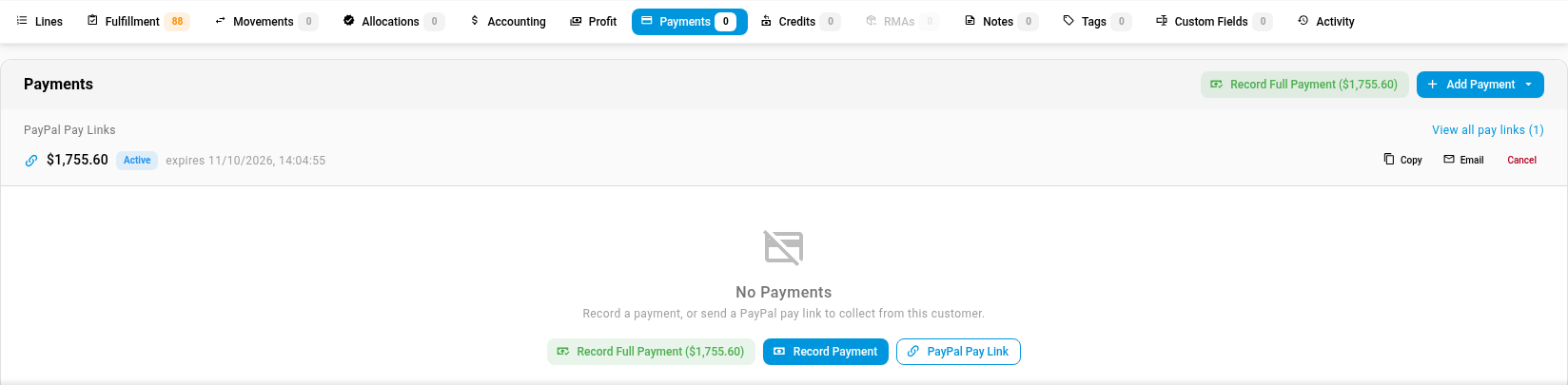
Open the sales order and select the Payments tab.
-
Click Add Payment, then choose PayPal Pay Link (Send a link for the amount due).
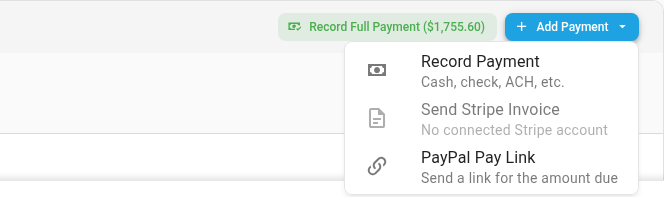
If the order has no payments yet, you can also click PayPal Pay Link in the empty Payments list. If the option is greyed out, the text under it says why: No connected PayPal account, PayPal account needs attention, or Nothing due when the order is fully paid. See Why PayPal Pay Link is greyed out.
-
In Create PayPal Pay Link, check the Amount. It starts at the order's full amount due, shown under the field. To ask for a deposit, enter a smaller amount. The amount can't be more than the amount due.
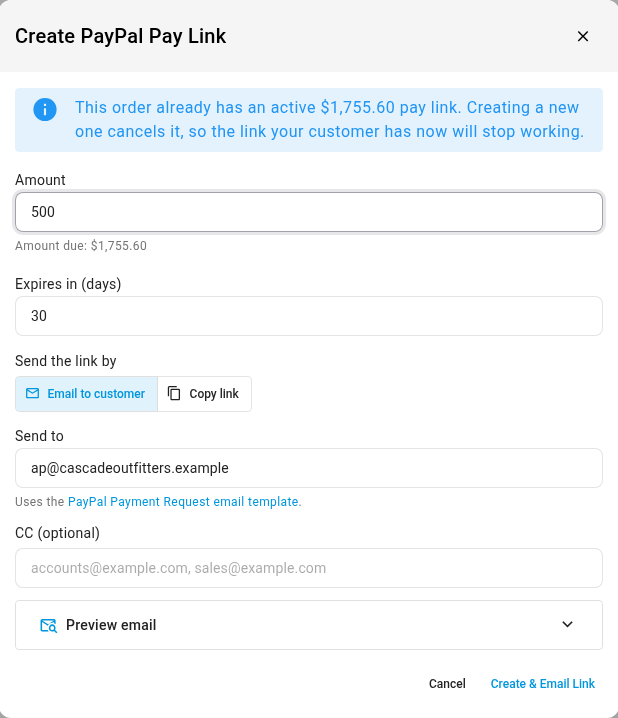
If the order already has an active link, a note says the new link cancels it. An order has one active link at a time, so the link your customer already has stops working. To send the same link again instead, use Copy or Email on it; see Resend, copy or cancel a link.
-
Leave Expires in (days) at 30, or enter any number of days from 1 to 365. After that date the customer can't pay the link.
-
If you have more than one connected PayPal account, choose the PayPal Account that takes the payment.
-
Under Send the link by, choose how the customer gets the link:
- Email to customer sends the link in an email.
- Copy link creates the link and copies it to your clipboard, ready to paste into a message, chat or invoice.
-
If you chose Email to customer, check Send to. It's filled in with the order's customer email. If the order has no customer email, type the address here.
-
Optionally, add other recipients, separated by commas, in CC (optional).
-
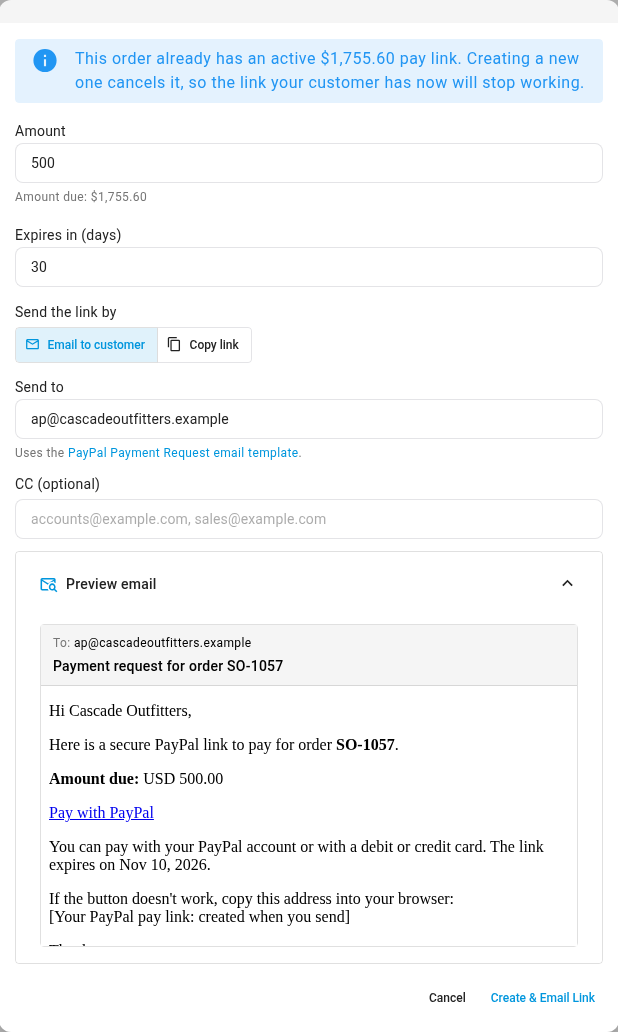
If you're emailing the link, click Preview email to read the email before it goes. It shows the recipients, the subject and the message, with this link's amount and expiry date. The link's address fills in when you send.
-
Click Create & Email Link, or Create & Copy Link if you chose Copy link.
SKU.io creates the link and confirms what happened: Pay link created and emailed to the address, or Pay link created and copied to your clipboard. Paste it to your customer. The Shareable link field shows the link's address. Its copy button copies it again. If your browser blocks the clipboard, the dialog says Pay link created. Copy the link below and share it with your customer. instead.
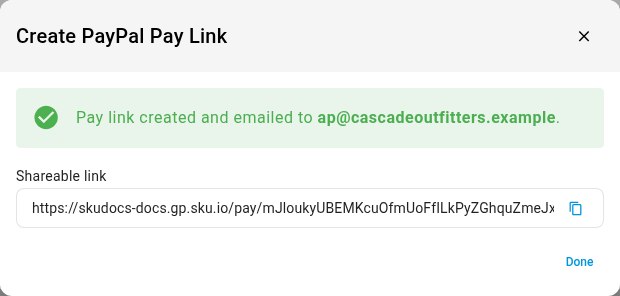
- Click Done.
The link now appears under PayPal Pay Links on the order's Payments tab, with its amount, its status Active and the date it expires. The order's Activity tab gets a Pay Link Created entry with the link's number, amount and expiry, and an emailed link also gets an Emailed entry showing who it was sent to and the subject.
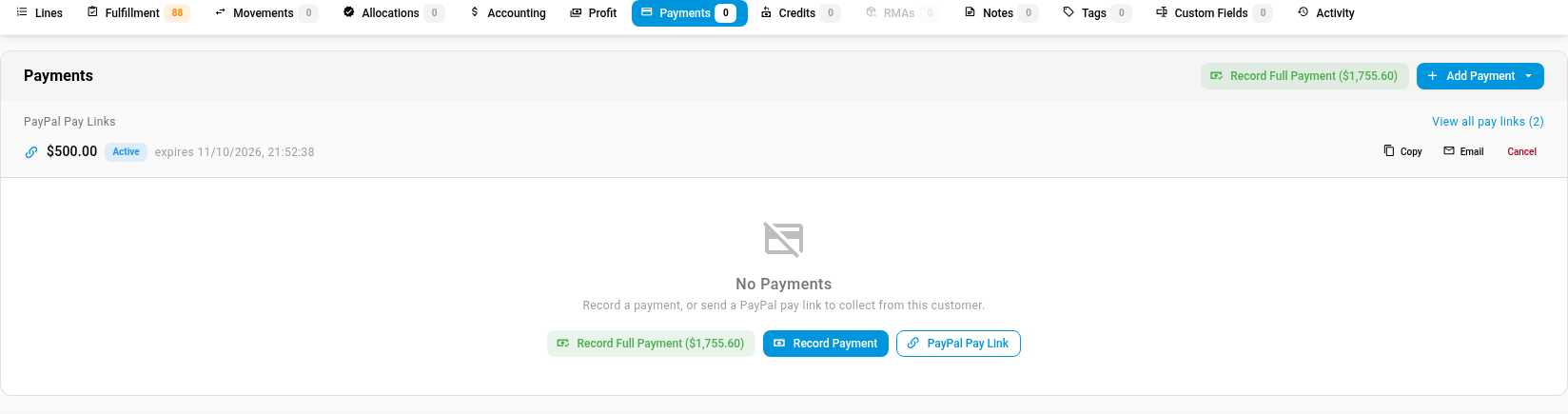
The link opens a pay page on your SKU.io address, in the order's currency. To see what your customer sees there, read What your customer sees on the PayPal pay page.
The link is still created. The dialog says Pay link created, but it couldn't be emailed: followed by the reason, and shows the link so you can share it yourself. The most common reason is The PayPal Payment Request email template is missing or turned off. Turn it on in Settings → Email Templates.
If the link can't be created at all, the dialog shows the reason under the field it concerns. When several fields need fixing, every message shows at once, and each one clears as soon as you change its field. Every message, and what to do about it, is in Pay link messages. Links are always in the order's currency and expire after the days you set; see Pay link limits.
Ask for a deposit
A deposit is a pay link for less than the amount due. Set it in step 3 of Create and send a pay link.
- The email's Amount due line shows the link's amount, not the order's whole balance, so the customer sees what they'll pay. The default template fills that line with the PayPal Pay Link Amount placeholder. If you edit the template, keep that placeholder there, not Amount Due, which is the order's whole balance.
- On the pay page, a deposit link says Part payment towards your order total of followed by the order total. A link for everything the order still owes doesn't, even after an earlier deposit.
- In PayPal, the customer and you see the item as Partial payment for the order. Any link for less than the order total reads that way, including a final link for the rest of the balance.
- When the customer pays the deposit, the order's amount due drops by that amount. Send a new link for the rest when you're ready.
Resend, copy or cancel a link
PayPal Pay Links on the order's Payments tab lists the order's open links. Each Active link has three buttons:
| Button | What it does |
|---|---|
| Copy | Copies the link to your clipboard. |
| Opens Email Pay Link. Check Send to, add any CC (optional) addresses, read the Preview, then click Send Email. The message confirms Pay link emailed to the address. | |
| Cancel | Stops the link working. In Cancel pay link?, click Cancel link, or Keep link to leave it. The order's Activity tab gets a Pay Link Cancelled entry. |
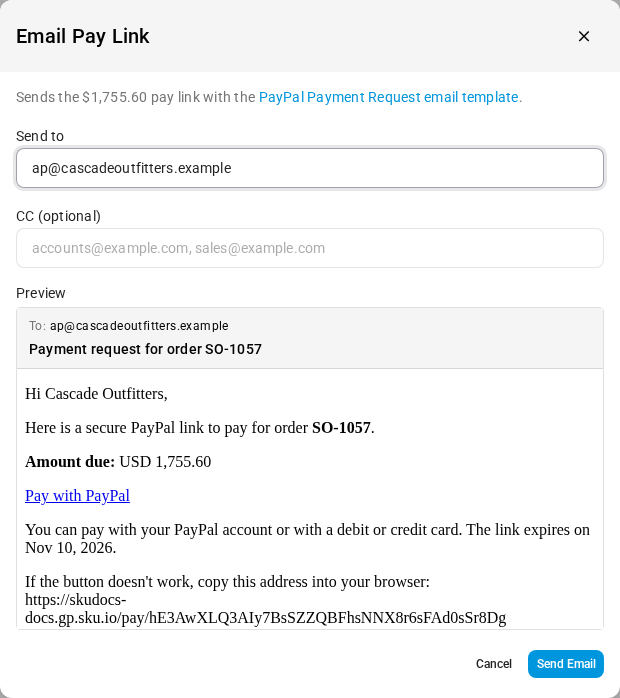
You need the Payments permission to email or cancel a link. A customer who opens a cancelled link sees that it's no longer active and is asked to contact you for a new one.
Only Active links have buttons. Paid, expired and cancelled links leave this list; find them on the PayPal account's Pay Links tab (see See every pay link for a PayPal account).
When your customer pays
When the customer completes payment on the pay page, SKU.io records it on the order, usually within seconds. If PayPal's instant update doesn't arrive, SKU.io's regular check picks the payment up within about 25 minutes. See How PayPal payments reach SKU.io.
On the order's Payments tab:
-
The payment appears with the method PayPal, the status Paid, and the date PayPal took it. PayPal fee under the amount is what PayPal charged. SKU.io keeps the fee on the payment but doesn't post it to QuickBooks or Xero, so record PayPal fees in your accounting software yourself.
-
The link's status becomes Paid and it leaves PayPal Pay Links.
-
The order's amount due goes down, and its payment status changes to Partially Paid or Paid.
-
If you later refund some or all of it, Refunded under the amount shows the total refunded so far.
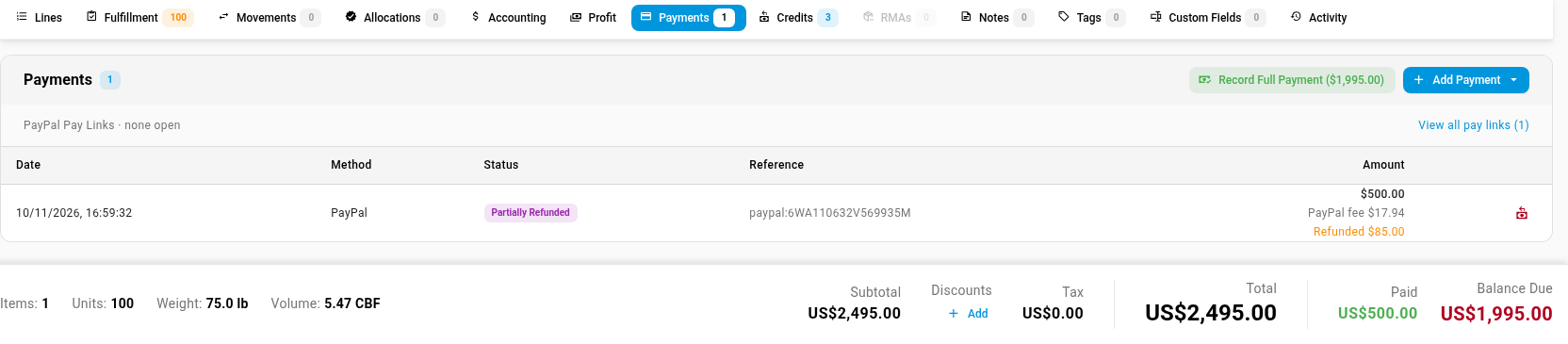
The payment in this example was later partly refunded, so its status reads Partially Refunded and Refunded $85.00 shows under the fee. Refunds are covered in Refund a PayPal payment.
The payment is recorded once, with the payment type PayPal Payment. A PayPal payment can't be edited or deleted from the order. To give money back, use Refund via PayPal; see Refund a PayPal payment. A payment you record by hand with a PayPal payment type is an ordinary manual payment, so SKU.io can't refund it through PayPal.
Payments that take time to clear
Some payments don't complete straight away, such as an eCheck, a payment in a currency your PayPal account doesn't hold yet, or one PayPal is reviewing. While PayPal holds the money:
- The link shows Pending on the order. Hover over it for the explanation.
- Nothing is recorded on the order yet, and the link has no Copy, Email or Cancel buttons.
- You can't create another link on the order. The dialog says A PayPal payment of the amount on this order is still clearing, and Create & Email Link stays greyed out, so the customer can't pay twice.
When PayPal releases the money, SKU.io records the payment and the link becomes Paid. If PayPal declines it, the link becomes Active again and the customer can pay another way. A currency hold may need you to accept the payment in your PayPal account first.
If the Pending link also shows a red warning, such as Account disconnected — check PayPal, SKU.io can no longer follow the payment. Check it in your PayPal account.
If the order changes after you send a link
A link keeps the amount you created it for. If the amount due falls below it, the link shows Amount changed — create a new link (or Nothing owed — cancel this link) and can't be paid; cancel it and create a new one if something is still due. Cancelling the order cancels its Active link. An order with a PayPal payment, recorded or still clearing, can't be deleted or reverted to draft. The full list is in When the order changes.
Pay link emails
Emails use the PayPal Payment Request template in Settings → Email Templates. To change the wording, edit the template before you send; see Customize email templates. One template serves every store unless a store has its own, and the email is sent from the order's store. The template's placeholders are listed in the PayPal reference.
- SKU.io never emails a pay link by itself. An email goes only when you click Create & Email Link or Send Email.
- Any CC addresses saved on the template are added to every email, along with the ones you enter.
- Each email sent is listed in Settings → General → Outgoing Email Log, with its recipients. See Send email from your own domain.
The Payment Request (Order) template, sent from Receivables, is a separate reminder email about an overdue balance. Pay-link emails don't appear under Receivables → Communications. To include the order's active pay link in a reminder, add the PayPal Pay Link placeholder to that template; it's blank when the order has no active link. See Chase a customer's overdue balance.
See every pay link for a PayPal account
The order's PayPal Pay Links list shows only open links. To see all of them, including paid, expired and cancelled ones, click View all pay links on the order. The link shows the number of links in brackets, for example View all pay links (2). It opens the PayPal account's Pay Links tab, searched to that order. The link shows only if you can view integrations. You can also go to Apps & Integrations → All Integrations, choose PayPal under Payment Processors, open the account and select Pay Links. Clear the search to see every link the account has sent.
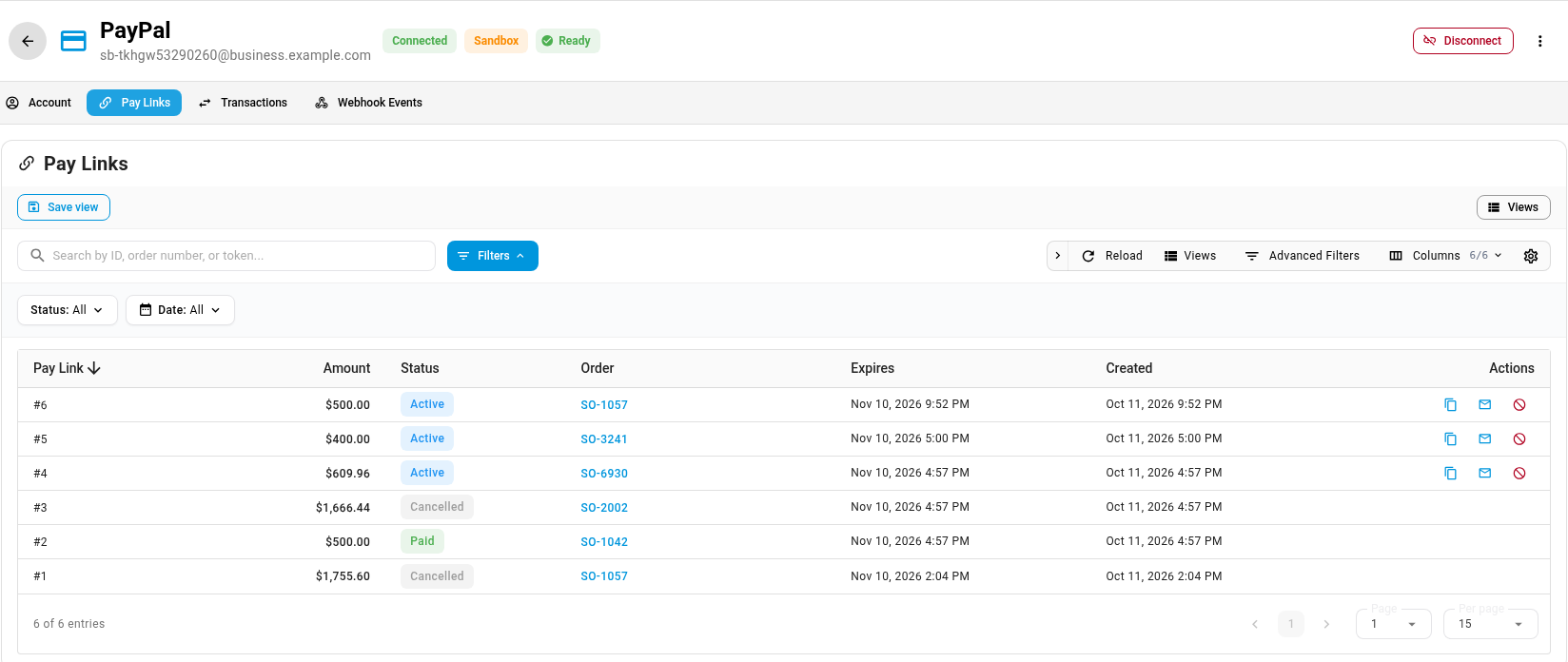
On the tab you can:
- Find a link. Type a link number, an order number or part of the link's address in Search by ID, order number, or token..., or filter by Status: All, Active, Pending, Paid, Expired or Cancelled.
- Act on an Active link. Use the copy, email and cancel icons in Actions, or right-click the row for Copy pay link, Email pay link and Cancel pay link.
- Open the order. Click the order number, or right-click the row and choose View followed by the order number.
The tab's columns and statuses are described in the PayPal reference.
Next steps
- Refund a PayPal payment
- What your customer sees on the PayPal pay page
- Find a PayPal payment that didn't reach the order
- Record payments and apply store credit
- How sales order status works
- PayPal reference
Video transcript
Open the order's Payments tab to send your customer a pay link. Anything already sent is listed under PayPal Pay Links. Here, the customer owes one thousand, seven hundred and fifty-five dollars.
Click Add Payment, and then choose the pay link option at the very bottom of the menu. This order already has an active link. A new one replaces it, so the dialog warns you first.
The dialog fills in the full balance due. For a deposit, enter a smaller amount, such as five hundred dollars. The link expires after thirty days, unless you set another number of days.
Under Send the link by, choose either Email to customer, or Copy link. The first option mails the PayPal Payment Request message to the address below. You can also add CC addresses.
Expand Preview email to read the message before it goes. It shows the subject and the text, with the link's own amount of five hundred dollars.
When the email looks right, click Create and Email Link at the bottom of the dialog. SKU.io creates it and sends it to your customer. The shareable address shows as well, ready to copy. Then click Done to close the dialog.
Back on the Payments tab, the new link appears under PayPal Pay Links, with its expiry date. Use Copy or Email to send it again, or Cancel to stop it working.
Here's an order whose customer paid a five hundred dollar deposit link. The payment appears with the method PayPal, and the balance due goes down. Under the amount, you see the processing fee, and anything refunded since.
Click View all pay links to see the account's Pay Links tab, filtered to this order. Clear the search box to see everything ever sent. The Status column tells you where each one stands. Links stay here after they leave the order, so this tab is your full history.