Review PayPal transactions
The Transactions tab of a PayPal account lists your PayPal activity, imported from PayPal and matched to your sales orders. Use it to confirm that every pay-link payment reached its order, and to look at the payments and disputes SKU.io couldn't place on an order.
Before you begin
- Connect the PayPal account. See Connect PayPal with your API keys.
- Turn on Transaction search in your PayPal app. On the account's Account tab, the Transaction search (nightly reconciliation) row of the Connection Status card should say Yes.
- You need these permissions. Without one, the button it controls is greyed out, and pointing at it tells you which permission is missing:
- Integrations → List to open the tab.
- Integrations → Sync to click Import now.
- Integrations → Manage to mark a transaction as reviewed.
Open the Transactions tab
- In the sidebar, go to Apps & Integrations → All Integrations.
- In Search integrations..., type
PayPal, and choose PayPal under Payment Processors. - Under Instances, select your PayPal account. The account opens on its Account tab.
- Click the Transactions tab.
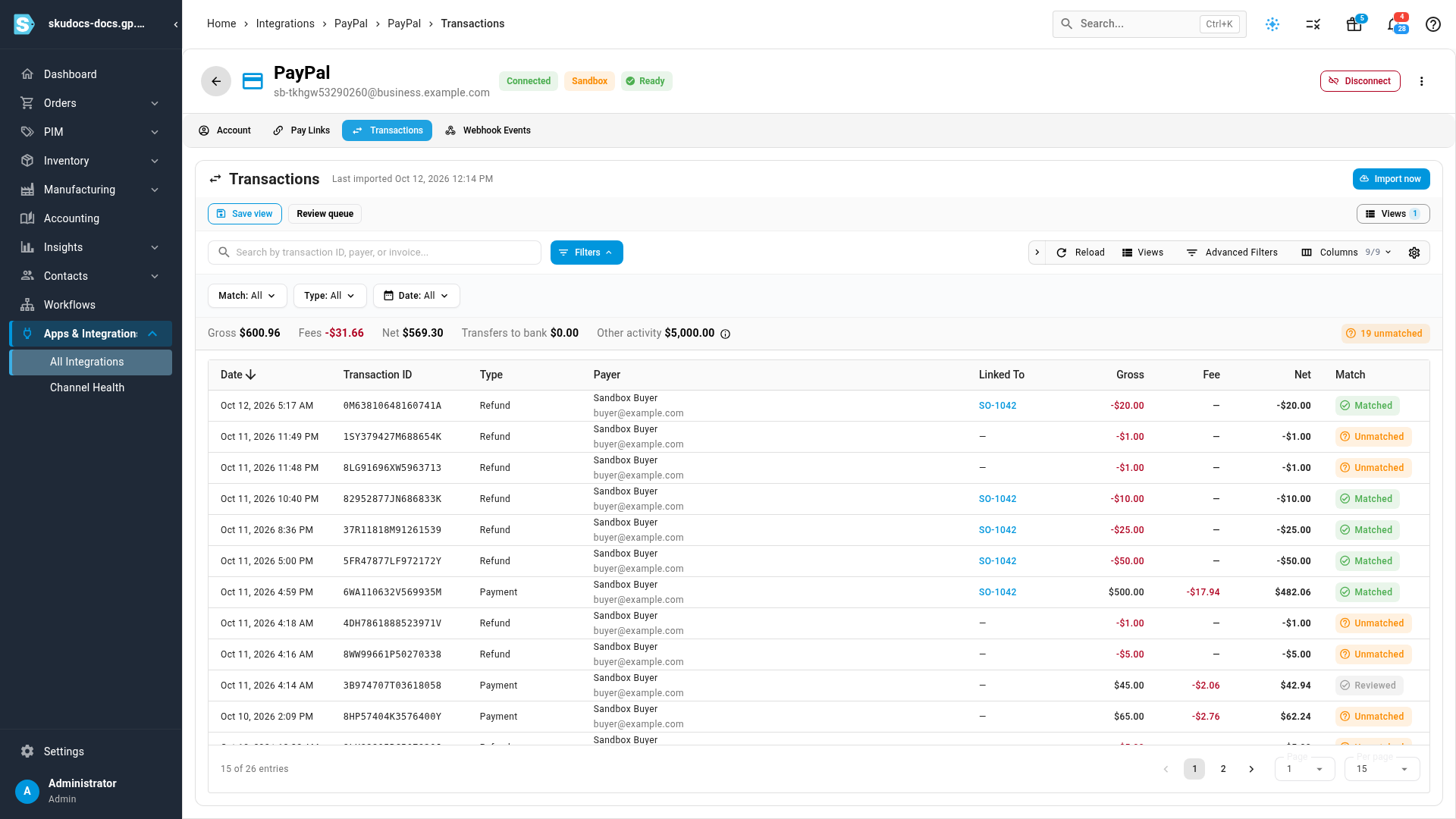
On a phone, each transaction shows as a card, and Import now is a cloud icon next to the search box.
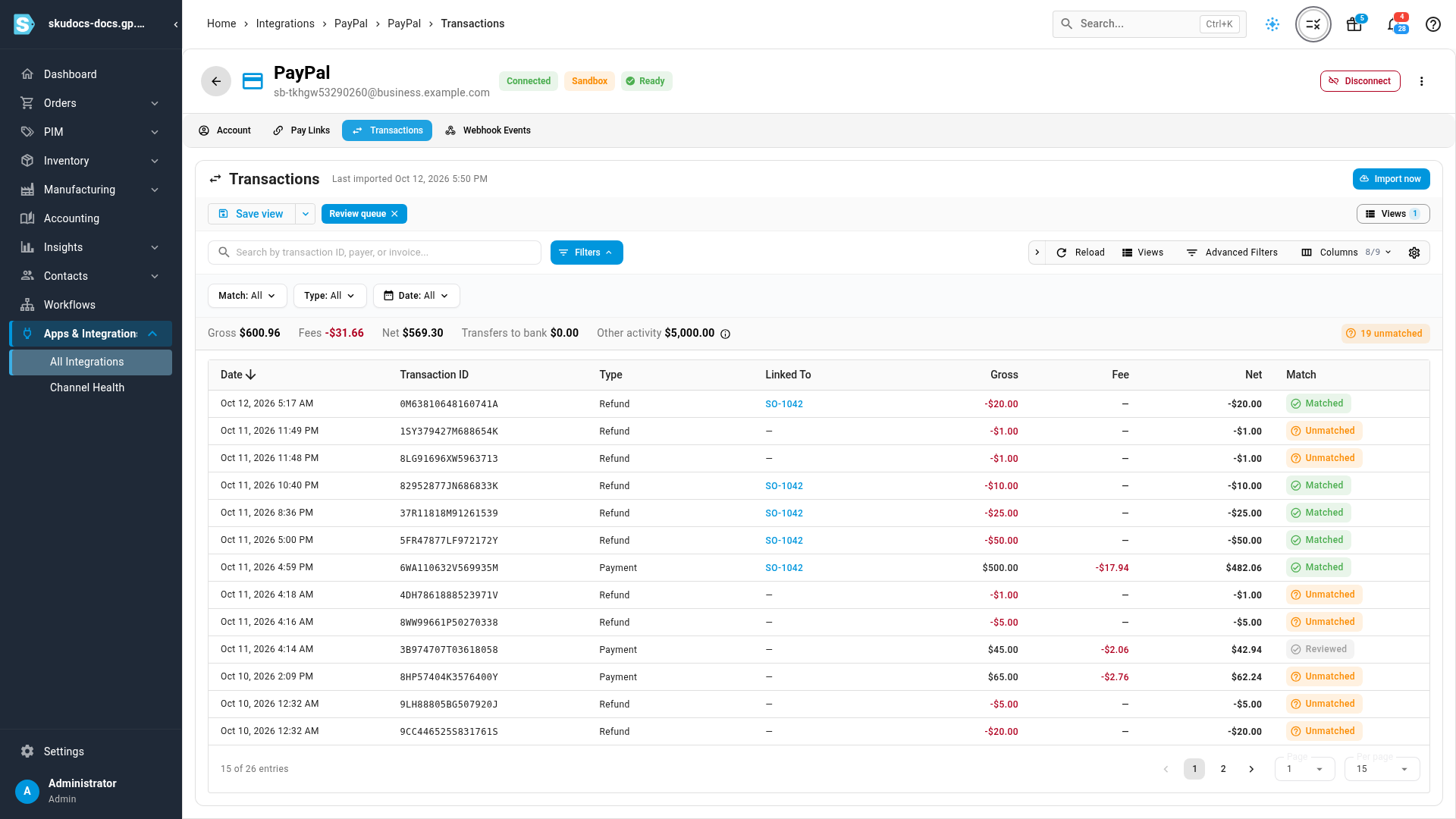
The header shows when the last import finished, for example Last imported Oct 11, 2026 5:00 PM, or Not imported yet.
Read the list
Each row is one transaction from your PayPal account, newest first: its date, PayPal's transaction ID, its Type (such as Payment or Refund; point at it to see PayPal's event code), the payer, and the Gross, Fee and Net amounts. Two columns matter most here:
- Linked To names the sales order the transaction belongs to. Click it to open the order.
- Match says how the transaction relates to your orders. See What each Match status means.
Every column is described in the PayPal reference.
The strip above the table adds up the rows that your current search and filters list:
- Gross, Fees and Net total the activity that belongs to orders: payments, refunds and disputes. Rows whose match is Not applicable are left out, so a balance top-up never counts as a sale. To total sales alone, set the Type filter to Payment.
- Transfers to bank totals the money moved between PayPal and your bank.
- Other activity totals the rest of the Not applicable rows, such as balance top-ups, holds, currency conversions and standalone fees, after any PayPal fee. It shows only when it isn't zero. Click the information icon beside it for what it includes.
- On the right, a chip counts each status that may need a look: unmatched, disputed, recovered and pending. A chip shows only when its count is above zero. Click a chip to list just those transactions.
What each Match status means
Every import compares each transaction with the pay links and payments SKU.io already has. Only payments made through an SKU.io pay link, and refunds of those payments, can match an order. The import never creates an order.
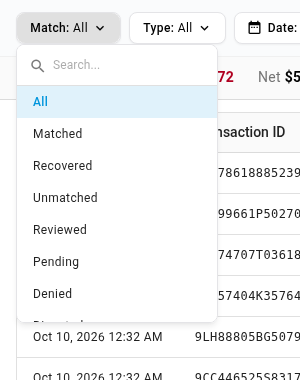
| Match | What it means | What to do |
|---|---|---|
| Matched | A pay-link payment SKU.io already recorded on its order, or a refund of one | Nothing |
| Recovered | A pay-link payment that never reached SKU.io, for example because PayPal's update was lost. The import recorded the missing payment on the order | Nothing. The order now shows the payment |
| Unmatched | A completed payment that no SKU.io pay link or recorded payment references, such as an invoice you sent from paypal.com. Refunds of those payments are Unmatched too | Review it |
| Reviewed | An Unmatched transaction someone marked as reviewed | Nothing. Move it back to unmatched if you need to |
| Pending | PayPal is still holding the payment, for example while an eCheck clears. A later import updates it | Wait |
| Denied | PayPal didn't complete the payment | Nothing in SKU.io |
| Disputed | PayPal took money back for a dispute or chargeback. Not the same as the Disputed chip on an order's payment, which means a dispute is open and no money has moved yet | Settle it in PayPal and on the order |
| Not applicable | Activity that never belongs to an order: transfers to or from your bank, fees, holds and currency conversions | Nothing |
When the import finds a refund made on paypal.com for a pay-link payment, it records the refund on the order too, so the order shows it as if you had refunded from SKU.io. It never records more refunds than the amount of the payment.
If your PayPal app is also used by another shop or tool, its payments are imported too. They show Unmatched, because no SKU.io pay link references them.
Review unmatched and disputed transactions
An Unmatched payment didn't come through a pay link, so SKU.io doesn't put it on an order for you. Recording a payment by hand doesn't change the transaction's status either, so mark it reviewed when you're done.
-
Click the unmatched chip in the totals strip, or open the Match filter and choose Unmatched.
-
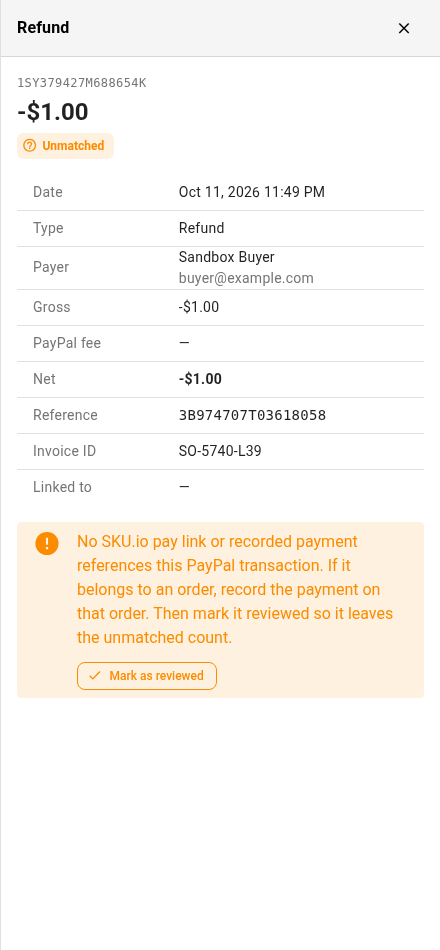
Click a row to open its details.
-
If the payment belongs to a sales order, record it on that order. See Record payments and store credit. The Invoice ID row often names the order or invoice the payer was paying.
-
Click Mark as reviewed.
The row shows Reviewed, and the unmatched count goes down by one. The status stays Reviewed when later imports read the transaction again.
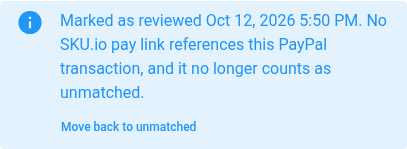
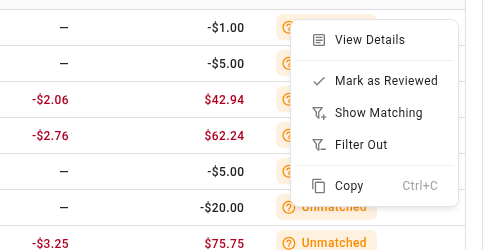
You can also right-click an Unmatched row and choose Mark as Reviewed. To undo it, open the transaction and click Move back to unmatched, or right-click the row and choose Move Back to Unmatched.
Disputed transactions
A Disputed transaction is money PayPal took back for a dispute or chargeback. Its details say: PayPal reversed this amount for a dispute or chargeback. The original payment is kept in SKU.io; account for the reversal on the order.
- Respond to the dispute in your PayPal account.
- Open the order and check its Activity tab, which has a note about the dispute.
- When you know the outcome, settle the order's balance yourself. For example, if the money went back to the customer, record a refund by hand. Don't use Refund via PayPal, because the money has already gone back. SKU.io doesn't change the order's balance for a dispute.
You can't mark a Disputed transaction as reviewed, so it stays in the disputed count.
Read a transaction's details
Click any row, or right-click it and choose View Details. The panel shows:
| Row | What it shows |
|---|---|
| Date | When the transaction happened |
| Type | The kind of transaction. Point at it to see PayPal's event code |
| Payer | The payer's name and email address |
| Gross, PayPal fee, Net | The amount, PayPal's fee, and what's left after the fee |
| Reference | The PayPal transaction this one relates to, such as the payment a refund came from. Shown only when PayPal supplies one |
| Invoice ID | The invoice or order number sent to PayPal with the payment. Shown only when PayPal supplies one |
| Linked to | The sales order, as a link. A dash means there's no order |
Below the rows, a note explains an Unmatched, Reviewed, Recovered or Disputed transaction. For a recovered payment it says: PayPal never notified SKU.io about this payment. The import recorded the missing payment on the order.
When a transaction is linked to an order, the right-click menu also has View and the order number, which opens the order in a new tab.
Import the latest activity
SKU.io imports the activity of every PayPal account with Transaction search turned on once a night, at about 02:00 UTC. To bring it in sooner:
- Click Import now. A message says PayPal transaction import started.
- To follow it, open the job tray with the Background jobs button at the top of the page. The job is called PayPal Transaction Import: followed by the name of the PayPal account. See Follow background jobs.
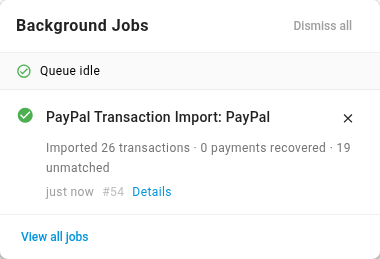
While it runs, the job shows Connecting to PayPal..., then each stretch of dates it reads, for example Window 1 of 2 · Sep 1 – Oct 2. When it finishes, the job says what the import did, for example Imported 12 transactions · 1 payment recovered · 2 unmatched. Open the job for the same counts as Transactions imported, Payments recovered, Unmatched and Disputed. The table refreshes, Last imported shows the new time, and the Last reconciled row on the Account tab updates.
What an import reads:
- The first import reads the last 90 days. If the account has never been imported, the empty tab says No transactions imported yet and offers Import last 90 days. If an earlier import found nothing, the button says Import since and the date the next import reads from.
- Each later import starts where the last one ended. It also reads the previous 7 days again, and further back to the oldest transaction that's still Pending, up to 30 days. That way a payment that clears late, or changes after the first read, is updated.
- PayPal shares activity up to about three hours late, so activity from the last three hours arrives with the next import.
- Reading a transaction again never duplicates it. It updates the row that's already there.
One import runs per account at a time. The nightly import runs as the workspace owner, so its job appears in the owner's job tray. If you cancel an import from the job tray, it says Cancelled after and the number of transactions, and keeps what it imported. The next import carries on from there.
When an import can't run
| What you see | What it means | What to do |
|---|---|---|
| A PayPal transaction import is already running for this account. | An import for this account is already running, maybe the nightly one | Wait for it to finish in the job tray |
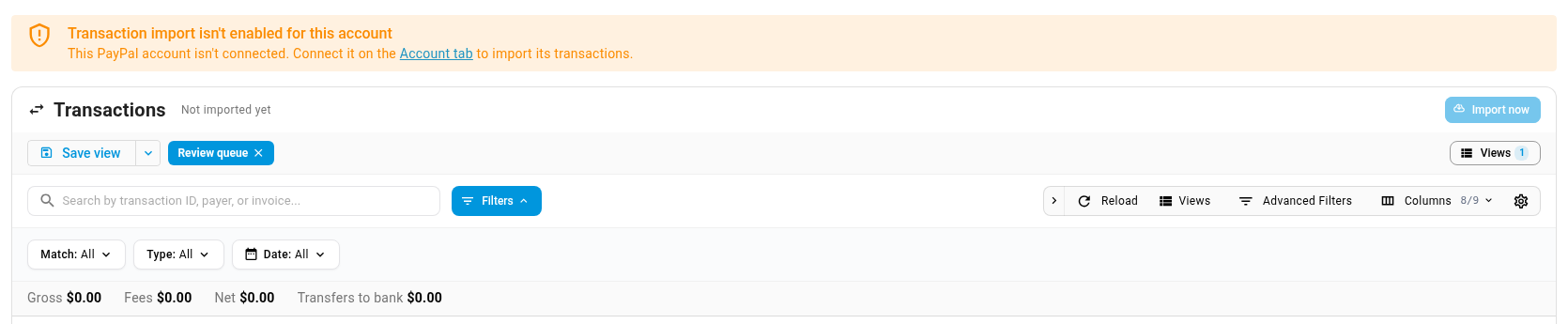
| Transaction import isn't enabled for this account, with Import now greyed out | Your PayPal app doesn't have Transaction search turned on | Turn on Transaction search under your PayPal app's Features on developer.paypal.com, then click Re-check on the Account tab. Pay links, refunds and webhooks keep working in the meantime |
| This PayPal account isn't connected. Connect it on the Account tab to import its transactions. | The account isn't connected, or was disconnected | Connect it on the Account tab |
| Last import failed and the date, with Retry import | PayPal didn't return the transactions. Everything imported before the failure is kept | Click Retry import in a few minutes. If it keeps failing, click Re-check on the Account tab to confirm the connection |
| Import now is greyed out, and pointing at it names a permission | Your role doesn't include Integrations → Sync | Ask an administrator to add it to your role |
The nightly import also skips an account that's disconnected, or whose API keys PayPal no longer accepts. To fix the keys, see Check, update or disconnect a PayPal account.
Search, filter and save views
- Search looks in Transaction ID, Reference ID, Payer Email, Payer Name and Invoice ID.
- Match, Type and Date above the table filter the list. Advanced Filters adds conditions on the transaction ID, PayPal's event code, the payer, the amounts and the date.
- Right-click a value and choose Show Matching or Filter Out to filter on it, or Copy to copy it.
- If nothing matches, the table says No transactions found and Try adjusting your search or filters.
- Columns shows or hides columns, and Save view keeps your filters, sort and columns for next time. See Choose and freeze table columns and Saving and pinning table views.
The totals strip and its chips always follow your current search and filters.
There's no file import or export
The Transactions tab has no export button and no file upload. Your transactions come in only from PayPal, through the nightly import and Import now. Copy in the right-click menu copies a single value, and a saved view stores a layout, not a file. For a file of your PayPal activity, download a report from your PayPal account.
Next steps
- How PayPal payments reach SKU.io: the pay page, instant updates, the 15-minute check and the nightly import
- Find a PayPal payment that didn't reach the order
- Refund a PayPal payment
- PayPal reference: every Match status, transaction type and permission in one place
Video transcript
To review your PayPal activity, start in Apps and Integrations. Type its name in the search box, and choose it under Payment Processors, in the list on the left. The panel on the right lists your accounts, so select the one you want to review. It opens on its Account tab, with the connection details. Next, click the Transactions tab, which lists everything imported so far.
Each row is one piece of PayPal activity, newest first. The strip above the table totals Gross, Fees and Net for payments, refunds and disputes. Transfers to bank is money moved to or from your bank. Other activity, such as a balance top-up, has its own total, so neither counts as a sale.
The Match column shows how each transaction relates to your orders. Matched rows came through a pay link, and Linked To names their order. Click the filter above the table to see every status. Recovered means the import found a missed pay-link payment, and added it to the order. Unmatched rows have no SKU.io pay link or recorded payment behind them. Choose it to list only the ones that need a look.
Click a row to open its details. If the payment belongs to an order, record it on that order first. Then click Mark as reviewed, so it stops counting as unmatched. The note at the bottom now shows the date. Close the panel, and look at the count beside the totals. It dropped by one, because this payment is now reviewed.
Next, open the Match filter again, and choose Matched to list the pay-link activity. Click the payment row to open its details. They show the gross amount, PayPal's fee, and the net amount. Linked to names the order the payment reached. Close the panel to go back to the list.
SKU.io imports your PayPal activity every night. To fetch it sooner, first set the Match filter back to All, so the table lists everything. Then click Import now, at the top right of the tab. It runs in the background, so open the job tray to follow its progress. When it finishes, the job shows how many transactions came in, and how many are unmatched. The table refreshes, and Last imported shows the new time.
Saved views remember your filters and layout. Here, the Review queue view opens by default, and hides the Payer column. That's how you review PayPal transactions.