Check, update or disconnect a PayPal account
Once a PayPal account is connected, you look after it from its Account tab. This page shows you how to check that it can still take payments, re-check it after you change something in PayPal, paste new API keys, and rename, disconnect or delete it.
Before you begin
- To re-check, update keys, rename or disconnect an account, your role needs Integrations → Manage. To delete one, it needs Integrations → Delete. Without them, the buttons are greyed out, and their tooltip names the permission to ask for. See Roles and permissions reference.
- If you haven't connected an account yet, start with Connect PayPal with your API keys.
Find your PayPal accounts
-
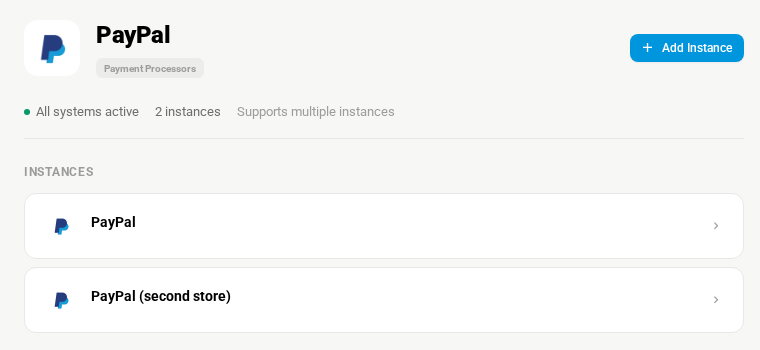
Go to Apps & Integrations → All Integrations, and choose PayPal under Payment Processors. Every PayPal account you've added is listed under Instances.
-
Click an account to open it. It opens on the Account tab.
The accounts also appear as cards on the PayPal page. To get there, click the back arrow next to an account's name, or Add Instance on the PayPal panel (it opens the page; nothing is added). Each card shows the account's status: Connected, Action needed, Not connected or Disconnected. What each one means is in the PayPal reference. If you haven't added an account yet, the page says No PayPal accounts connected and offers Add PayPal Account.
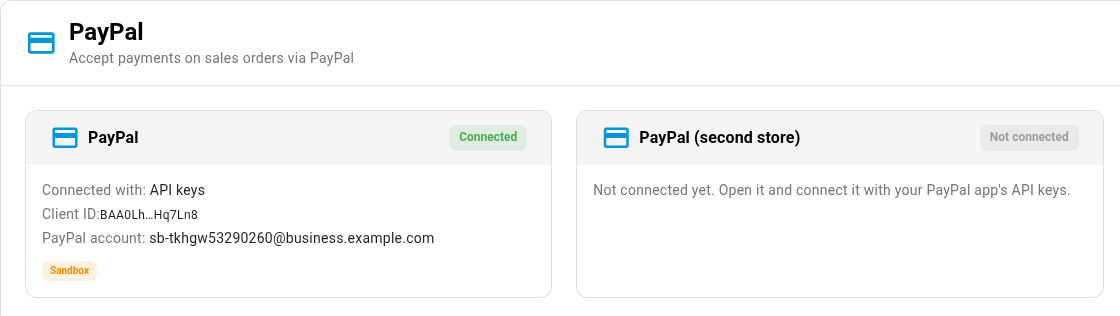
An account that needs attention says so on its card:
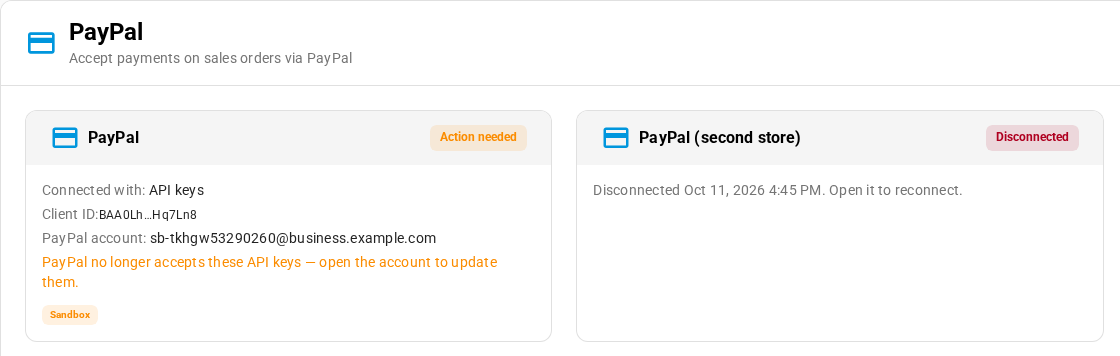
A card for an API-keys account shows Connected with: API keys, the start and end of its Client ID, and, once it has taken a payment, the PayPal account email. The Sandbox or Production chip shows which PayPal environment its keys belong to.
Check an account's connection
-
Open the account. The chips beside its name show:
- Connected, Not connected or Disconnected.
- Sandbox (test payments only) or Production (real payments).
- Ready when the account can take payments right now, or Action needed when it can't.

-
Read the Connection Status card. Each row says Yes or No:
Row Yes means If it says No API keys accepted by PayPal The account is connected, and PayPal accepts its Client ID and Secret. PayPal has stopped accepting the keys, or the account is disconnected. When PayPal refuses the keys, the red PayPal no longer accepts these API keys — update them message also appears at the top of the card. See When the saved keys stop working. Instant updates (webhook) SKU.io added its webhook to your PayPal app, so PayPal can tell SKU.io about payments, refunds and disputes as they happen. It doesn't confirm that PayPal has delivered an update yet. A yellow PayPal isn't sending instant updates yet message appears above the rows. Click Re-check to add the webhook again. Until it's back, pay-link payments, including ones that clear later, are still recorded by SKU.io's 15-minute check, but refunds made in PayPal, disputes and reversals arrive only with the nightly import. Transaction search (nightly reconciliation) SKU.io can import the account's PayPal activity every night. A blue note above the rows tells you to turn it on. On developer.paypal.com, open your app, turn on Transaction search under Features, then click Re-check. 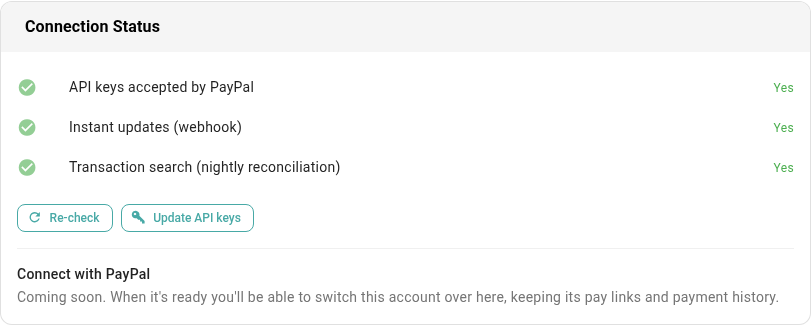
The PayPal Account card on the left lists the details SKU.io holds: Connected with, the masked Client ID, Merchant Email and Merchant ID (shown after the first payment), Environment, Connected since and Last reconciled, the last time the nightly import ran. For how the webhook, the 15-minute check and the nightly import work together, see How PayPal payments reach SKU.io.
Re-check an account
Re-check after you change anything in PayPal: you turned on Transaction search, fixed the webhook, or want to confirm the keys still work.
- Open the account.
- On the Connection Status card, click Re-check.
SKU.io tests the keys with PayPal, reads which features the app has, and adds the webhook back if it's missing. When it finishes, you see PayPal account checked. and the rows update.
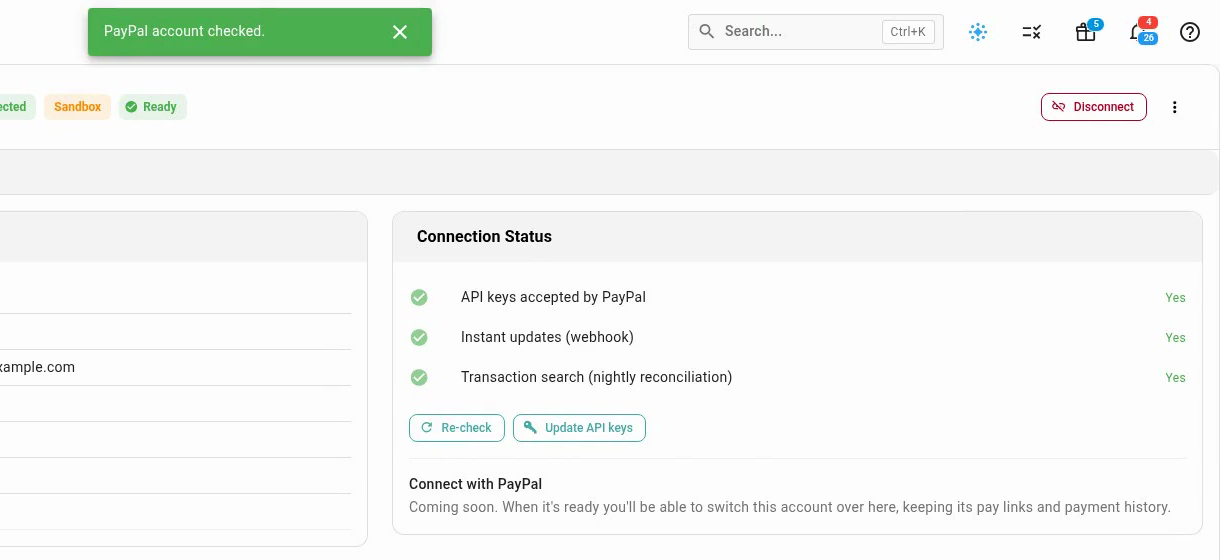
If PayPal refuses the keys, the account switches to Action needed and you see PayPal no longer accepts these API keys — update them. Follow Update the API keys.
Update the API keys
Update the keys when you rotate the Secret of your PayPal app, or when you move the account to a different app on the same PayPal Business account. To take payments with a different PayPal Business account, add a new PayPal account instead.
-
On developer.paypal.com, open your app.
-
Copy its Client ID and current Secret.
-
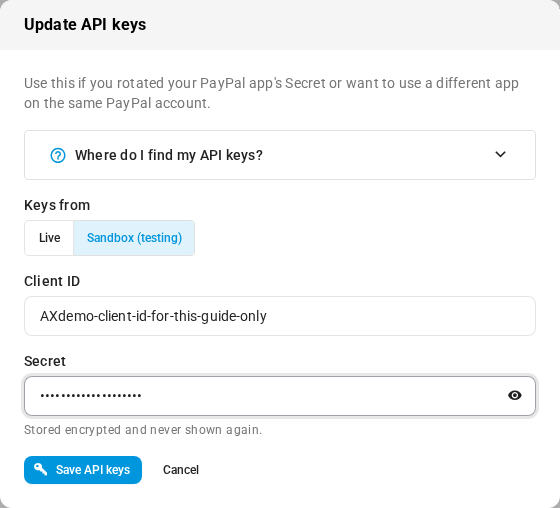
In SKU.io, open the PayPal account and click Update API keys on the Connection Status card.
-
Check Keys from: Live for real payments, Sandbox (testing) for test payments. It matches the account's current environment.
Don't switch an account between Sandbox and LiveIf you change Keys from to the other environment, payments taken under the old keys can't be refunded from SKU.io any more. To start taking real payments after testing, add a separate PayPal account with your Live keys instead.
-
The Client ID is already filled in. Replace it only if you moved to a different app.
-
Paste the Secret. You always paste it again, because SKU.io stores it encrypted and never shows it.
-
Click Save API keys.
SKU.io checks the new keys with PayPal before it saves them. Your pay links, payments and Connected since date stay as they were.
When the saved keys stop working
PayPal stops accepting an account's keys when someone rotates the Secret or deletes the app on developer.paypal.com. SKU.io finds out the next time it talks to PayPal for that account, for example when you click Re-check, a customer opens a pay link, or the nightly import runs. From then on:
- The account's card and header show Action needed, and the card says PayPal no longer accepts these API keys — open the account to update them.
- The Connection Status card shows a red PayPal no longer accepts these API keys — update them message, with the date PayPal started refusing them, and Update API keys is highlighted. The API keys accepted by PayPal row below it says No.
- Customers who open one of the account's pay links see that the seller's PayPal account needs attention, and they can't pay until you fix it.
- Refund via PayPal on an order is unavailable, and its tooltip tells you to update the keys or refund in PayPal directly.
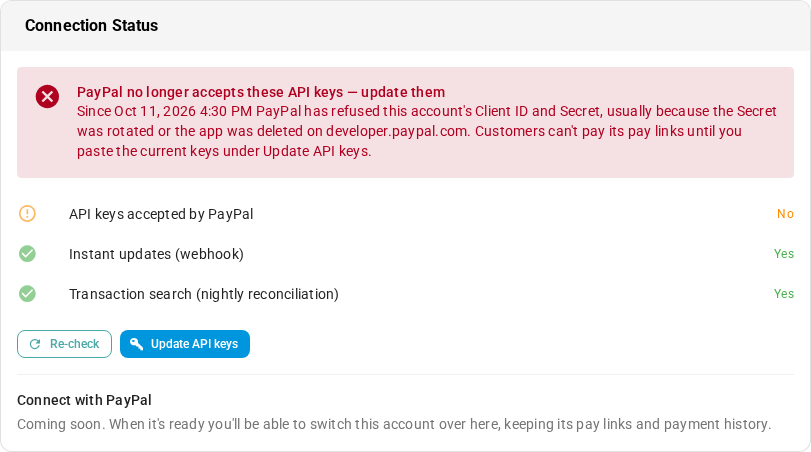
Follow Update the API keys. Once PayPal accepts the new keys, the warning clears and the account is Ready again. Pay links you already sent keep working.
Disconnect an account
Disconnect an account when you stop taking payments with it. You can reconnect it later.
-
Open the account.
-
Click Disconnect at the top right. On a phone, it's in the ⋯ menu.
-
Read the dialog, then click Disconnect to confirm.
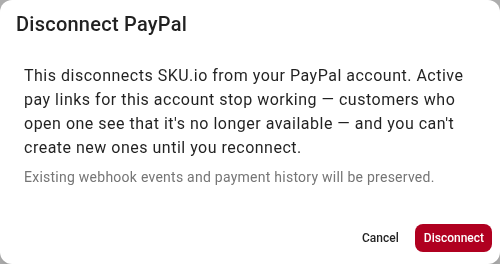
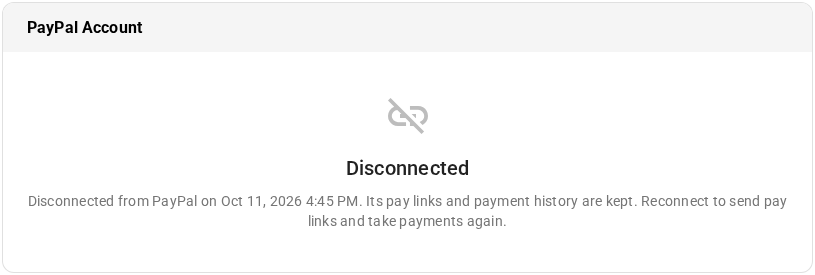
You see PayPal account disconnected. Here's what changes:
- Active pay links are cancelled. A customer who opens one is told the link is no longer active and to contact you for a new one. Each order's Activity tab records that its pay link was cancelled because the PayPal account was disconnected. You can't create new pay links for the account until you reconnect it.
- Payment history is kept. The account's pay links, transactions, webhook events and the payments on your orders all stay.
- A payment that's still clearing stays pending. If a customer paid by eCheck and PayPal hasn't released it yet, the pay link stays Pending and shows Account disconnected — check PayPal, on the order and on the Pay Links tab. SKU.io can't ask PayPal about it while the account is disconnected. Reconnect the account so SKU.io picks the payment up when it clears, or follow it in PayPal yourself.
- Refunds move to PayPal. Refund via PayPal is unavailable for the account's payments, and its tooltip says so. Refund them in PayPal directly.
- SKU.io stops listening to PayPal. It removes its webhook from your app, forgets the Secret, and stops importing the account's transactions.
The account stays on your list as Disconnected, with the date. Its Account tab says Disconnected and shows the API keys form, so you can reconnect.
Reconnect a disconnected account
- Open the account. Its Account tab shows the API keys form, with the Client ID you used before already filled in.
- Check that Keys from matches the environment of your keys: Live or Sandbox (testing).
- Paste the Secret.
- Click Connect with API keys.
The account is connected again and keeps all its history. Create new pay links for anything still unpaid, because the old active links stay cancelled.
Rename an account
Staff pick the account by its name when they send a pay link. Customers never see it.
-
Open the account and click the ⋮ menu (Account actions) at the top right of the account.
-
Choose Rename.
-
Type the new Account name and click Save.
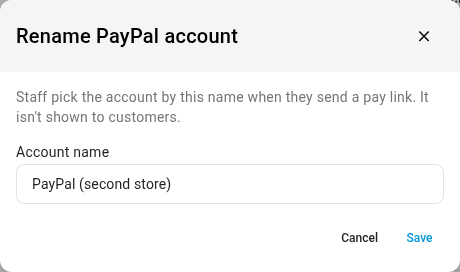
You see PayPal account renamed. The new name shows straight away in the account's header and in the breadcrumb at the top of the page.
Delete an account
You can delete an account only if it has never taken a payment, for example one you added by mistake or only used to test.
-
Open the account and click the ⋮ menu (Account actions) at the top right of the account.
-
Choose Delete account.
-
Read the confirmation and click Delete. To back out, click Keep account.
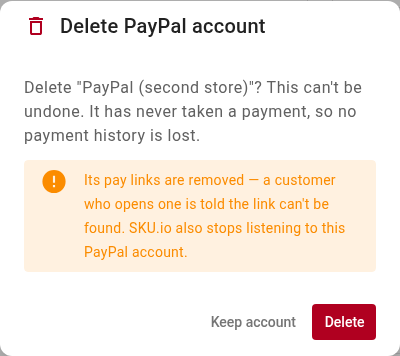
You see PayPal account deleted. and you're back on the PayPal page. SKU.io removes the account with its pay links, imported transactions and webhook events. A customer who opens one of its links is told the link can't be found. SKU.io also removes its webhook from your PayPal app.
When Delete account is greyed out
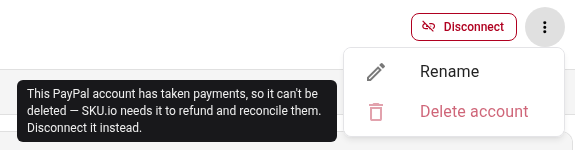
An account that has taken a payment can't be deleted, because SKU.io still needs it to refund and reconcile those payments. Delete account is greyed out, and pointing at it explains why. Disconnect the account instead. Once disconnected, it stays on your list. Delete account is also greyed out when your role doesn't have Integrations → Delete; the tooltip then names that permission.
Connect with PayPal accounts (coming soon)
Connect with PayPal, where you sign in to PayPal instead of pasting API keys, is coming soon. You'll be able to switch an API-keys account over without losing its pay links or history.
An API-keys account can't be disconnected from inside PayPal. Deleting the app or rotating its Secret on developer.paypal.com makes its keys stop working instead. See When the saved keys stop working.
Next steps
- Review PayPal transactions to see what the nightly import found.
- Find a PayPal payment that didn't reach the order if a customer paid but the order still shows money owed.
- PayPal reference for every status, column and permission on the PayPal pages.
Video transcript
To check an account, open Apps and Integrations, then All Integrations. Search the list, and choose the entry under Payment Processors. Every PayPal account appears under Instances. Click the account you want to check, and its page opens. The chips beside its name show its connection and its environment. Ready means the account can take payments right now. The Connection Status card checks three things. PayPal still accepts your API keys. Instant updates arrive by webhook. And Transaction search lets the nightly import run. Here, every row reads Yes. A row that says No needs your attention. Click Re-check whenever you want the keys tested again. It also adds the webhook back if it's missing. A message confirms the check. When you rotate your app's credentials, click Update API keys. Paste in the Client ID and the new Secret. Then click Save API keys. These are example values, so we'll cancel instead. To retire an account, click Disconnect. Its active pay links stop working, and you can't create new ones until you reconnect. Its payment history is kept. We'll cancel here, and keep this account connected for now. Click the three-dot menu at the top right. After its first payment, deletion is blocked. Point at Delete account to see why. SKU.io still needs it to refund and reconcile those payments. Click the back arrow next to the account's name. Every account appears here as a card. Each one shows its status. Now open one that has never taken a payment, so you can rename or delete that account. To rename an account, click the three-dot menu, and choose Rename. Type the new name in the box, and then click Save. Staff pick from these names when they send a pay link. The new name shows straight away, in the header and the breadcrumb. With no payments behind it, this one can be deleted. Click the three-dot menu again, and choose Delete account. The confirmation warns that its pay links are removed, and that this can't be undone. We'll click Keep account, so nothing is deleted.