Set up Gorgias order support
Connect Gorgias so your support team sees each customer's SKU.io orders on the ticket and can cancel, hold or change them without asking the warehouse. You set up the connection once; SKU.io then creates everything it needs inside Gorgias and logs every request it answers.
Before you begin
- You need a Gorgias admin account, because the connection creates integrations, macros and views in Gorgias.
- In SKU.io, you need the Gorgias Manage connection & cancellation rules permission (
gorgias.manage) to connect Gorgias and change its rules. Anyone who can view integrations can open its pages. - Customers are matched by email. An order shows on a ticket when its customer email, shipping or billing email, or its customer's email matches the ticket's customer.
Set up order support
-
Go to Apps & Integrations, search for Gorgias, and choose it under Customer support.
-
Click Connect Gorgias, then click Connect with Gorgias (OAuth) and approve SKU.io in Gorgias. If you'd rather use an API key, fill in Gorgias domain, API user email and API key instead, and click Test & save. Where do I find these? shows where each value lives in Gorgias, under Settings → REST API.
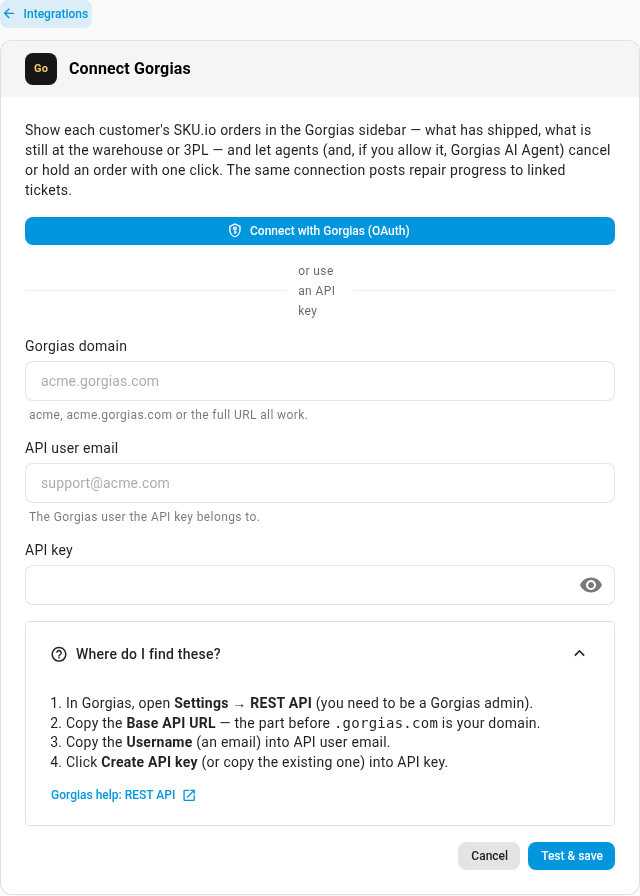
Installing SKU.io from the Gorgias App Store does the same sign-in, and turns order support on with safe defaults.
-
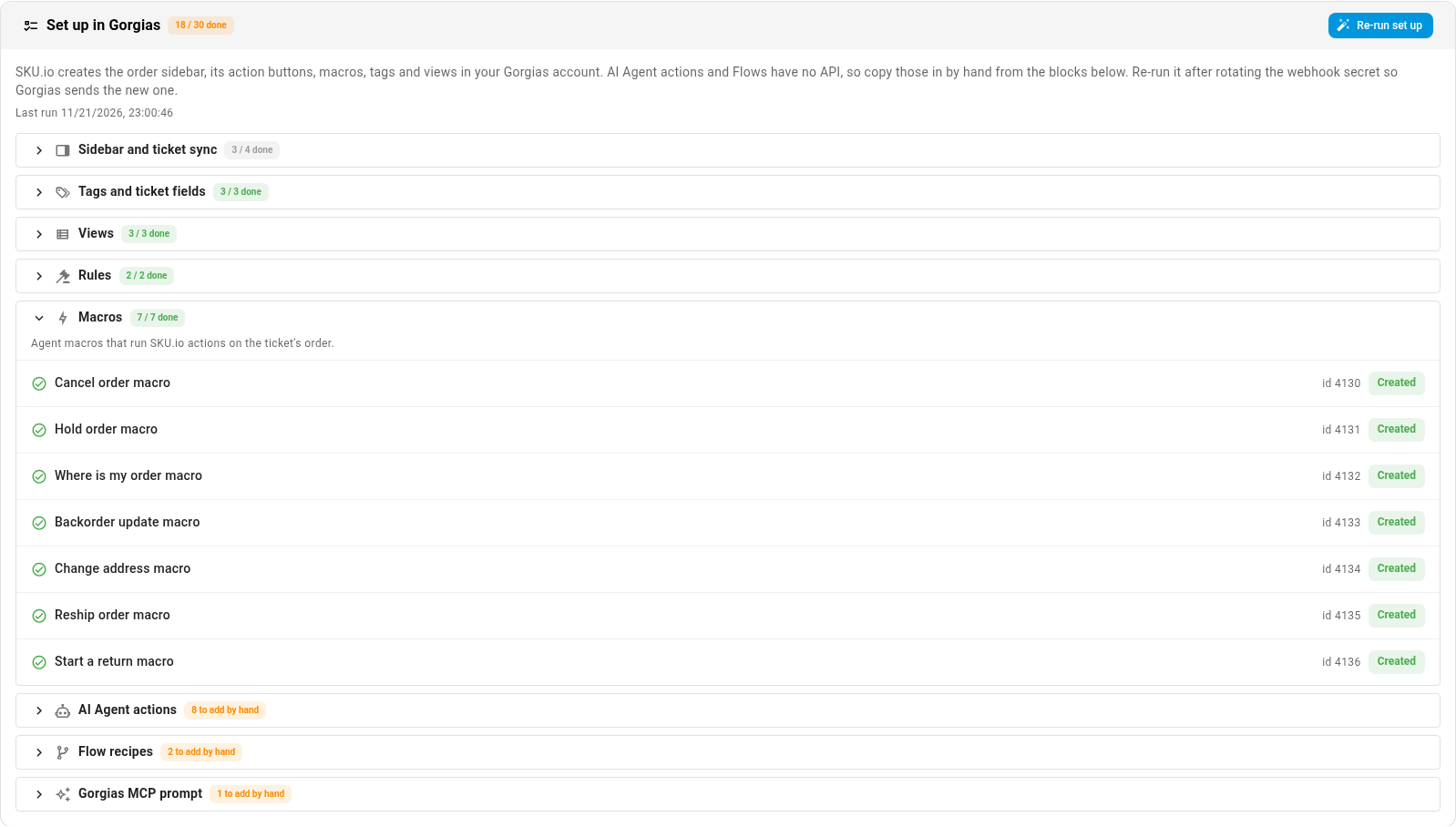
On the connection's Order support tab, click Set up in Gorgias. SKU.io creates the order sidebar on every ticket, its action buttons, a ticket sync, tags, ticket fields, three views, two rules (switched off) and seven macros in your Gorgias account. Each item shows Created, Updated or the reason it failed. Once something has been set up, the button reads Re-run set up.
-
Add the items marked to add by hand. Gorgias has no way for an app to create AI Agent actions or Flow recipes, so each one shows the exact name, description, inputs, URL, header and body to paste into Gorgias, with a copy button. Gorgias MCP prompt is a ready-made prompt for Claude or ChatGPT with the Gorgias MCP server connected, which creates the AI Agent actions for you, switched off for review.
-
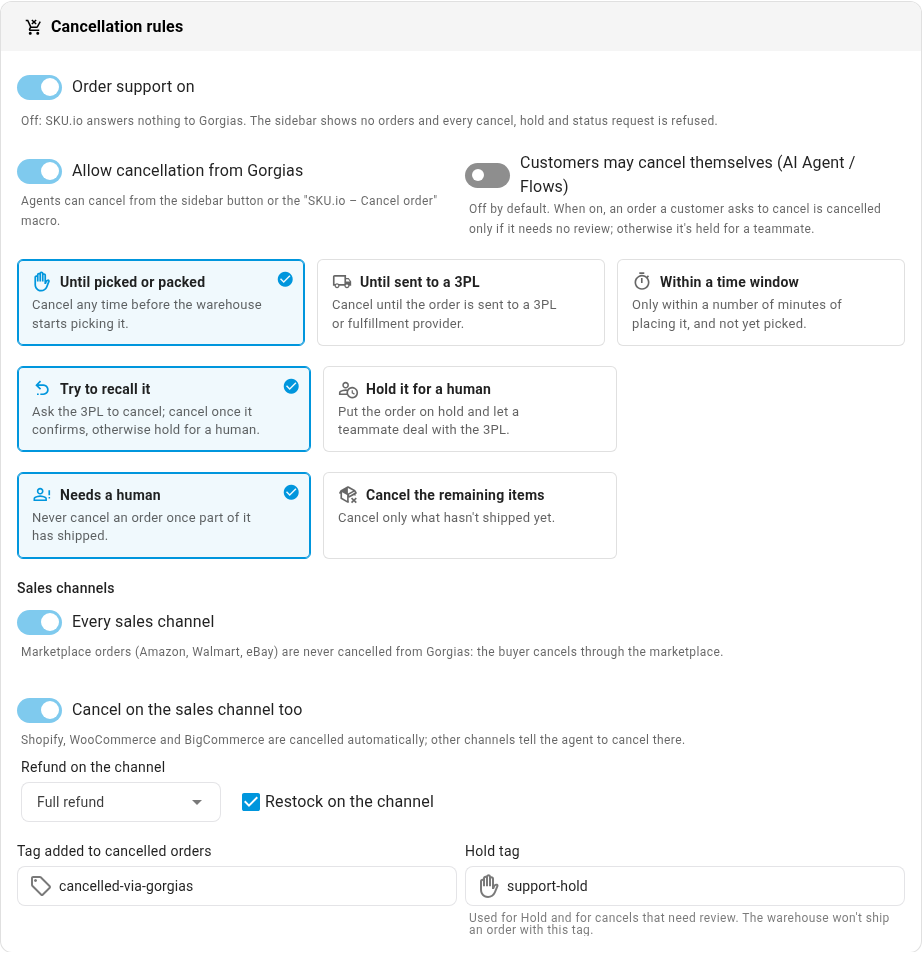
Under Cancellation rules, choose when an order can still be cancelled from Gorgias:
- Allow cancellation from Gorgias lets agents cancel from the sidebar button or the SKU.io – Cancel order macro.
- Customers may cancel themselves (AI Agent / Flows) is off by default. When it's on, an order a customer asks to cancel is cancelled only if it needs no review. Otherwise it's held for a teammate.
- The cancel window: Until picked or packed, Until sent to a 3PL, or Within a time window (a number of minutes after the order is placed, and not yet picked).
- For an order already with a 3PL: Try to recall it asks the 3PL to cancel and cancels once it confirms, or Hold it for a human.
- For a partly shipped order: Needs a human, or Cancel the remaining items.
- Every sales channel, or only the channels you pick. Amazon, Walmart and eBay orders are never cancelled from Gorgias: the buyer cancels through the marketplace.
- Cancel on the sales channel too, with Refund on the channel and Restock on the channel. Shopify, WooCommerce and BigCommerce are cancelled automatically; for other channels the agent is told to cancel there.
- Tag added to cancelled orders, and the Hold tag used for Hold and for cancels that need review. The warehouse doesn't ship an order with the hold tag.
-
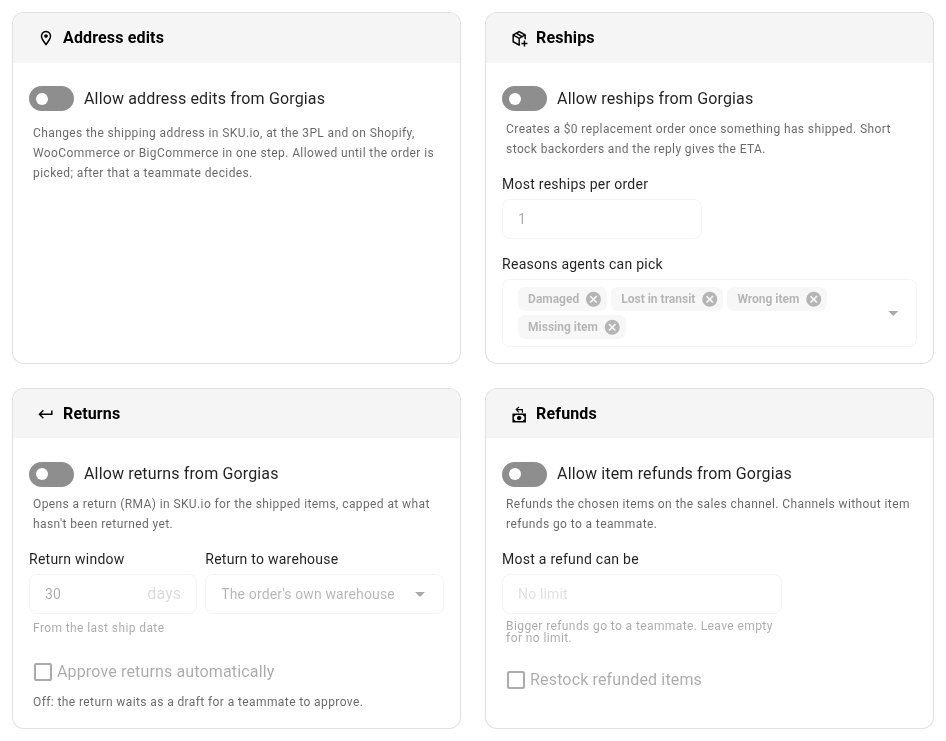
Turn on any other actions your team should have: Allow address edits from Gorgias, Allow reships from Gorgias, Allow returns from Gorgias and Allow item refunds from Gorgias. Each card holds its limits, such as the Return window in days, Most reships per order and Most a refund can be; bigger refunds go to a teammate.
-
Under Replies sent to customers, change any reply you want worded differently. Gorgias posts these on the ticket; they aren't emails from SKU.io. Leave one empty to use SKU.io's wording.
-
Click Save, at the top right of Order actions & replies. "Order support settings saved" confirms it.
Order support on, at the top of Cancellation rules, is the main switch. While it's off, SKU.io answers nothing to Gorgias: the sidebar shows no orders and every request is refused.
Open tickets when something goes wrong
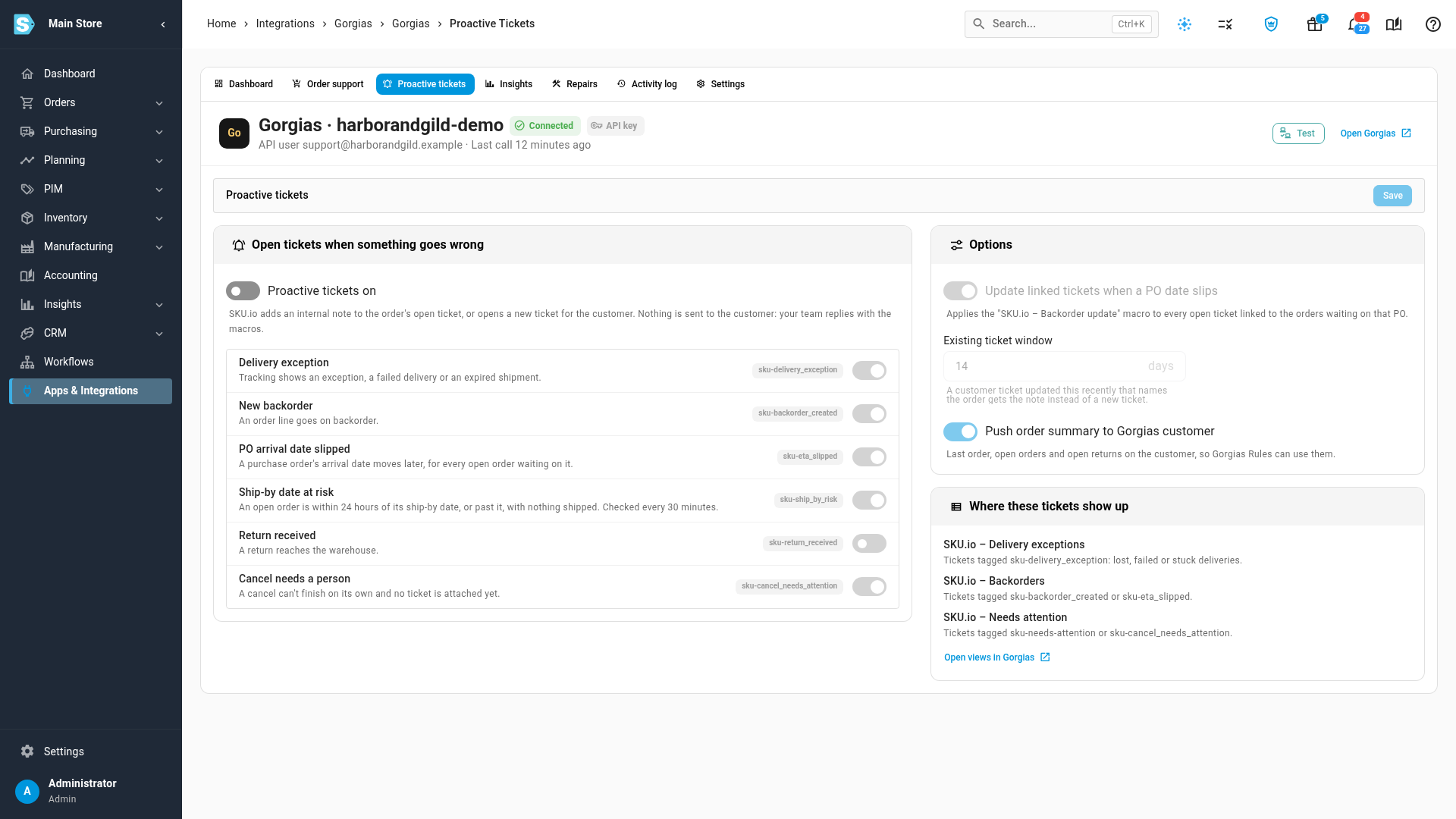
On the Proactive tickets tab, turn on Proactive tickets on and pick the events SKU.io should raise in Gorgias: Delivery exception, New backorder, PO arrival date slipped, Ship-by date at risk, Return received and Cancel needs a person. SKU.io adds an internal note to the order's open ticket, or opens a new ticket for the customer. Nothing is sent to the customer; your team replies with the macros. Where these tickets show up lists the three Gorgias views that collect them.
See what your support team did
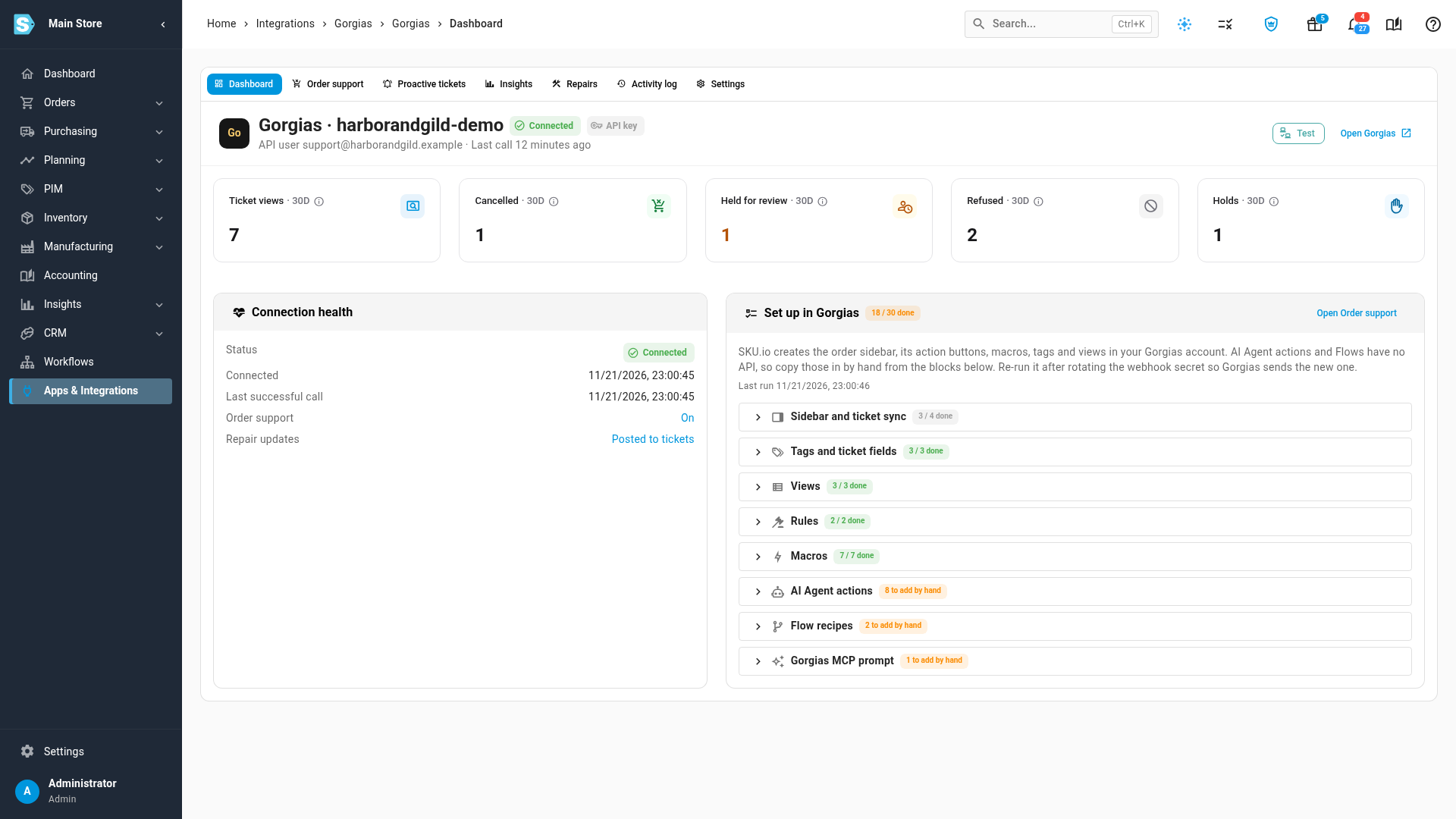
The Dashboard tab counts the last 30 days: Ticket views, Cancelled, Held for review, Refused and Holds. Connection health shows when Gorgias last reached SKU.io and whether order support is on.
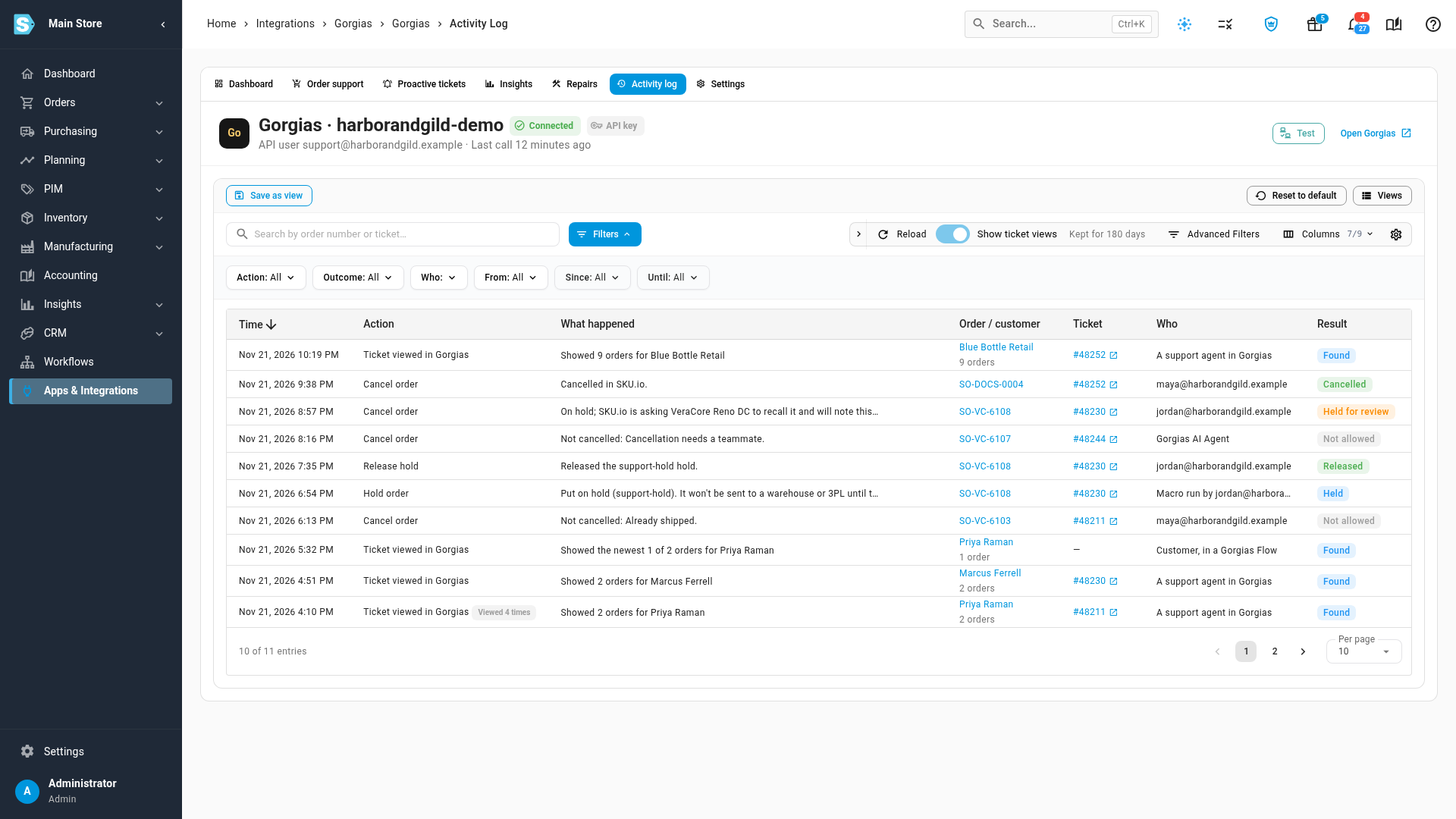
The Activity log tab lists every request Gorgias sent, newest first:
| Column | What it shows |
|---|---|
| Action | What was asked, in plain words: Cancel order, Hold order, Release hold, Change address, Send a replacement, Start a return, Refund items and more. |
| What happened | One sentence on the result, such as "Not cancelled: Already shipped." |
| Order / customer | The order, which opens it in SKU.io. |
| Ticket | The Gorgias ticket, which opens it in Gorgias. |
| Who | The agent's email, Macro run by an agent, Gorgias AI Agent, Customer, in a Gorgias Flow, or SKU.io. |
| Result | Cancelled, Held for review, Not allowed, Held, Released and so on. |
Each time an agent opens a ticket, Gorgias asks SKU.io for the orders. Those ticket views are hidden so they don't bury the actions. Turn on Show ticket views to see them. Views of the same ticket a few minutes apart fold into one row marked Viewed N times.
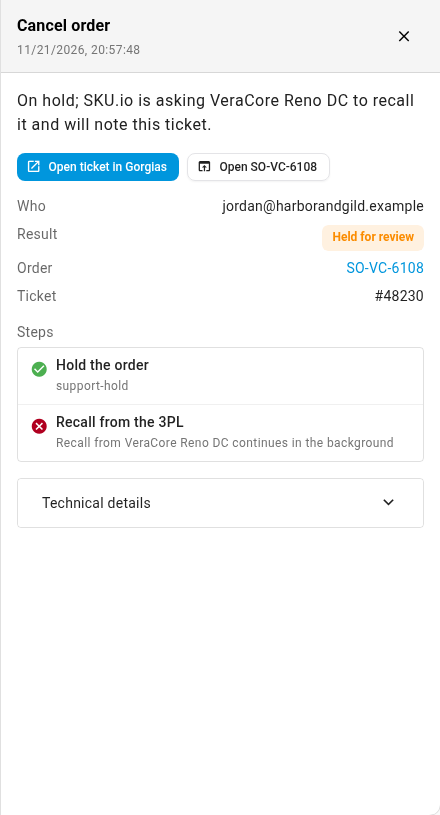
Click a row to open its details. They start with one sentence on what happened, then Open ticket in Gorgias, the order, and the Steps SKU.io took, such as holding the order and asking the 3PL to recall it.
Support tickets on the sales order
Tickets link to an order automatically when an agent cancels or holds it from Gorgias. On the sales order, open the Fulfillment tab. The Support tickets card lists each linked ticket with its subject, status and when it was opened; the ticket number opens it in Gorgias. Click Link ticket to link one yourself: enter a ticket number, or leave it empty to link the customer's newest ticket. The card only appears once Gorgias is connected.

Change or disconnect the connection
The Settings tab holds the credentials, the Endpoint base URL and the Webhook secret. After Rotate secret, Gorgias calls fail until you click Re-run set up on the Order support tab, which sends the new secret to Gorgias. Disconnect Gorgias removes the sidebar and the macros SKU.io created in Gorgias, and stops repair notes. Linked tickets and the activity log stay in SKU.io.
The Repairs tab holds the repair options for the same connection: Post repair progress to linked tickets, and the Repair webhook URL a Gorgias macro uses to open a repair.
Next steps
- Keep the customer in the loop — link a Gorgias ticket to a repair.
- Connect a returns or warranty app — take in repair claims from Gorgias.
- Close, cancel, archive, and delete orders — what cancelling does to stock and accounting.
Video transcript
Gorgias connects under Apps and Integrations, in the Customer support group. Click the search box at the top of the integrations list, and type Gorgias. Then choose Gorgias from the search results, listed under Customer support. Connect Gorgias signs in with your Gorgias account, or with an API key. Once it's connected, click its card to open the connection. The Dashboard counts what your support team did over the last thirty days. Ticket views, cancels, holds for review, refusals and holds each get a tile. Connection health shows the last successful call from Gorgias, and the order support status. Next, open the Order support tab. Set up in Gorgias builds the order sidebar in your help desk, in one click. It also adds the sidebar's buttons, tags, views, rules and seven macros. Open a group, such as Macros, to see each item, and whether it was created. AI Agent actions and Flows have no API in Gorgias. Each one is listed here, ready to paste into Gorgias by hand. Under Cancellation rules, choose how long an order can still be cancelled. An order already sent to a 3PL can be recalled, or held for a teammate. Customers can cancel through the AI Agent once you switch on this setting. An order that needs review is then held for your team instead. Address changes, reships, returns and refunds each have their own switch. Turn on the ones your support team should be able to use. Each card also sets its limits, such as the return window. Then click Save, to apply the rules and replies together. The Activity log lists every request Gorgias sent, newest first. Who shows the agent's email, a macro, or the Gorgias AI Agent. Ticket views are hidden, so turn on Show ticket views to list every view. Views of the same ticket fold into one row. Click a row to see what happened, in one plain sentence. Here the order went on hold, while SKU.io asks the 3PL for a recall. Open ticket in Gorgias takes you straight to that customer's conversation. Close the details to go back to the list. Every action also links its ticket to the sales order. Click an order number in the list to open that sales order. Then open its Fulfillment tab, just below the order details at the top. The Support tickets card lists each linked ticket and its status. Link ticket adds another one by number, or the customer's newest ticket.