Open a list in Google Sheets and pull edits back
Many list pages have a Sheets menu next to Import and Export. It opens the rows you're looking at in a new Google Sheet that stays linked to SKU.io. Edit the sheet with your team, add rows, then pull it back. SKU.io reads the sheet and runs it through the same importer as a file upload, so changed rows update records and new rows create them.
It's the quickest way to make a lot of small edits, such as fixing lead times across 40 suppliers or correcting warehouse addresses, without downloading, editing and re-uploading a file.
Before you begin
- You need a Google account that can create files in Google Drive.
- To see the Sheets menu on a list, you need that list's export permission. To pull changes back, you also need its import permission.
- Your Google connection and your linked sheets belong to you. Other users connect their own Google account and see only the sheets they created.
Which lists have it
| List | Open in a sheet | Pull edits back |
|---|---|---|
| Products and Listings → Publish | Yes | Yes |
| Listings (listing inventory) | Yes | Yes |
| Contacts → Suppliers, Customers, Warehouses | Yes | Yes |
| Inventory → Warehouse Transfers | Yes | Yes |
| Orders → RMAs | Yes, one row per RMA line | Yes |
| Orders → Sales Orders, Purchase Orders | Yes | No, the sheet is for reference |
| Manufacturing → BOMs | Yes | No, the sheet is for reference |
| The cost-of-goods breakdown in reports | Yes | No, the sheet is for reference |
The Getting Started steps for your catalog, suppliers and warehouses have the same menu, so you can fill in a blank sheet during setup.
Steps
1. Connect Google
You connect once, from any Sheets menu or from the integration page.
-
On a list such as Contacts → Suppliers, click Sheets.
-
Click Connect.
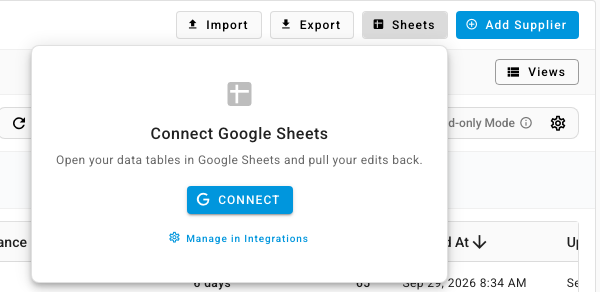
-
In the Google window, choose your account and allow access to your spreadsheets and to the Drive files SKU.io creates. Leave the Google Drive permission checked. Without it, SKU.io can't create the sheet.
The menu switches to its linked-sheets view. You can also connect from Apps & Integrations → Google, where the Google Sheets card shows whether you're connected.

2. Choose the rows
Filter or search the list down to the rows you want. The Sheets menu follows what the list shows:
- With rows selected, the button reads Open Selected in Sheet.
- With nothing selected, it reads Open All in Sheet and takes every row that matches your filters, not only the page you can see.
- With no rows at all, it reads Open a blank sheet. You get the column headings only, ready to fill in.
One sheet holds up to 5,000 rows. Narrow your filters if the list is bigger.
3. Open the sheet
- Click Sheets, then Open All in Sheet (or Open Selected in Sheet).
- Wait while the menu shows Building your sheet…. Large lists build in the background, and the job tray shows progress.
- When the sheet appears under Linked sheets, click its Open in Google Sheets icon.
The sheet lands in your Google Drive, named after the list and today's date, for example SKU Suppliers — 2026-10-06. Columns that point at another record, such as a brand, a category or a sales channel, are greyed out with a note in the heading. They're there for reference, and SKU.io ignores edits to them when you pull.
4. Edit in Google Sheets
- To update a record, change its row and keep its ID.
- To create a record, add a row and leave the ID blank.
- Keep the column headings as they are. If a heading SKU.io needs is renamed or deleted, the pull stops with "The sheet columns no longer match the linked mapping. Reconcile the columns before pulling."
5. Pull your changes back
Open the Sheets menu on the same list. Each linked sheet has two pull icons:
- Pull & review reads the sheet and opens the importer at its preview, so you can see which rows will be created, updated or rejected before you confirm. Use this the first few times, or for any large change.
- Pull & apply (skip review) imports every valid row straight away. Rows with errors are skipped and listed in the job tray. The list refreshes when the job finishes.
The review is the same one a file import uses. See Import products from a spreadsheet for how the preview decides between update and create.
If the sheet has no data rows, you see "No data rows found in the sheet." and nothing changes.
6. Refresh or tidy up a linked sheet
Each linked sheet in the menu shows when it was last pulled. Its ⋯ menu has:
- Push to Sheet. Overwrites the sheet with the current SKU.io data. Edits in the sheet that you haven't pulled are lost, so pull first if you need them.
- Rename sheet. Renames the file in your Google Drive too.
- Remove sheet. Unlinks it from SKU.io. The file stays in your Google Drive.
A sheet marked Stale couldn't be read last time, usually because it was deleted or its sharing changed. Remove it and open a new one.
Manage every linked sheet in one place
Apps & Integrations → Google, then Manage on the Google Sheets card, lists all your linked sheets across every list, with search, the last pull time and the same open, pull, rename and unlink actions. Sheets from reference-only lists show that they can't be pulled.
To disconnect Google, use the same page. You can choose to unlink all your sheets at the same time. The files themselves stay in your Google Drive.
Next steps
- Import RMAs in bulk: the RMA columns the sheet uses.
- Get your SKU.io data into a spreadsheet or BI tool: other ways to get data out.
- Sync due dates to Google Calendar: the other half of the Google integration.