Connect Shiptheory
Connect Shiptheory with the email and password of a Shiptheory user. Then pair your delivery services with shipping methods, choose the warehouses that ship through Shiptheory, and send fulfillment orders to it. Shiptheory books each one with a carrier and prints the label, and SKU.io records the shipment and its tracking.
Before you begin
- You need permission to connect integrations.
- You need a Shiptheory account with at least one carrier set up. Shiptheory has no test environment. To try it out, use a free-trial account with the Address Only Labels carrier and faux tracking numbers turned on.
- We recommend creating a dedicated user in Shiptheory for SKU.io. API activity then stays separate from your staff logins, and a staff password change won't break the connection.
- Each warehouse you route needs a full address (address line 1, city, postcode and country). Shiptheory prints it on the label as the sender.
Create the connection
-
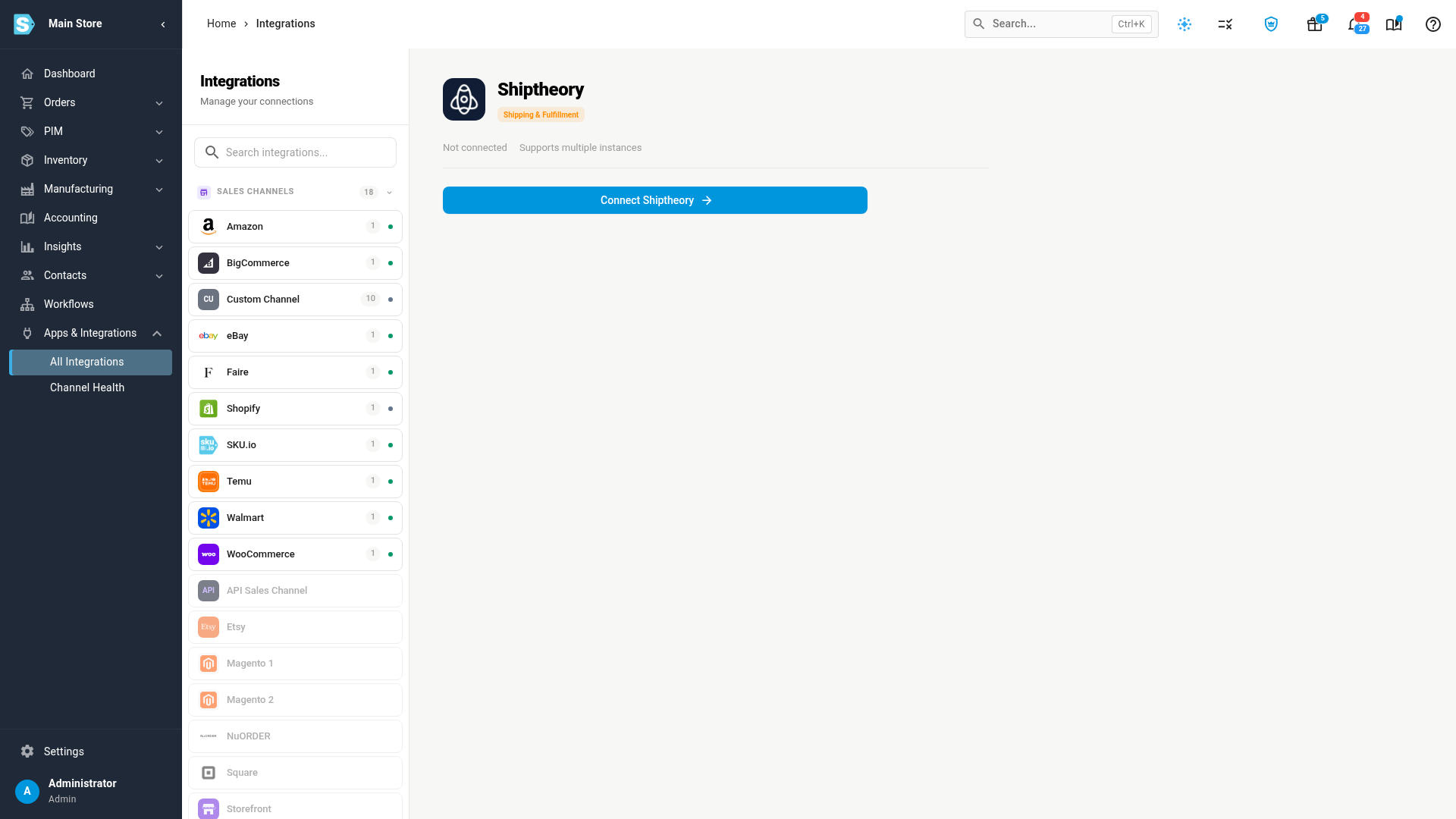
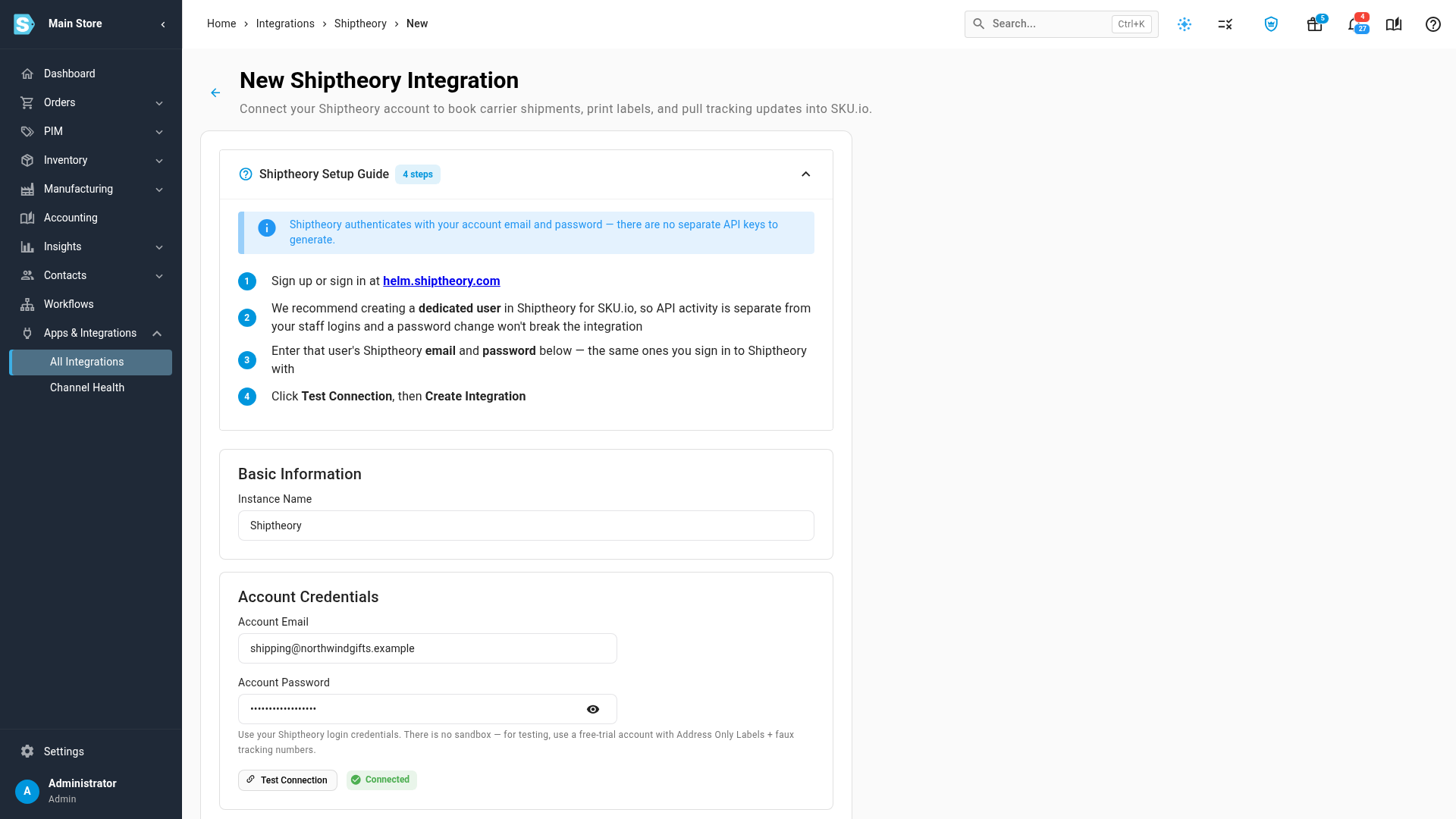
Go to Apps & Integrations, choose All Integrations, and choose Shiptheory under Shipping & Fulfillment. Click Connect Shiptheory. The New Shiptheory Integration page opens, with a four-step setup guide.
-
Enter an Instance Name. It defaults to Shiptheory.
-
Under Account Credentials, enter the Shiptheory user's Account Email and Account Password. These are the details you sign in to Shiptheory with. There's no separate API key.
-
Click Test Connection. You must pass this test before you can create the connection. It shows Connected.
-
Check the Sync Start Date. It's the earliest date orders are synced from, and it defaults to your inventory start date.
-
Leave Download package sizes from Shiptheory after connecting ticked, so you can pick a default package size later.
-
Click Create Integration.
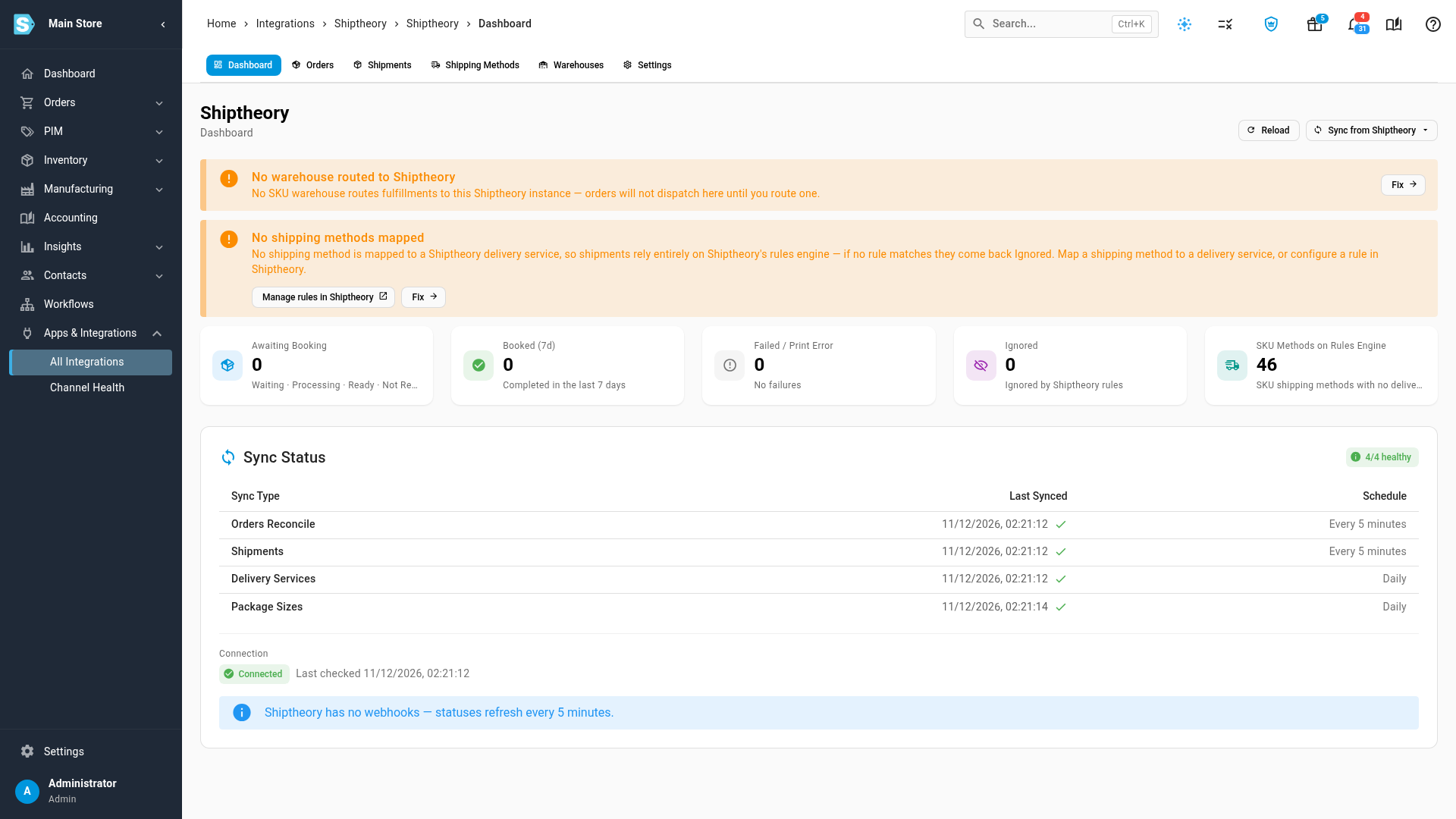
What you'll see: the Dashboard opens, and the first syncs run in the job tray. Two banners show what's left to set up: No warehouse routed to Shiptheory and No shipping methods mapped. Each has a Fix link to the tab that clears it.
Map delivery services to shipping methods
-
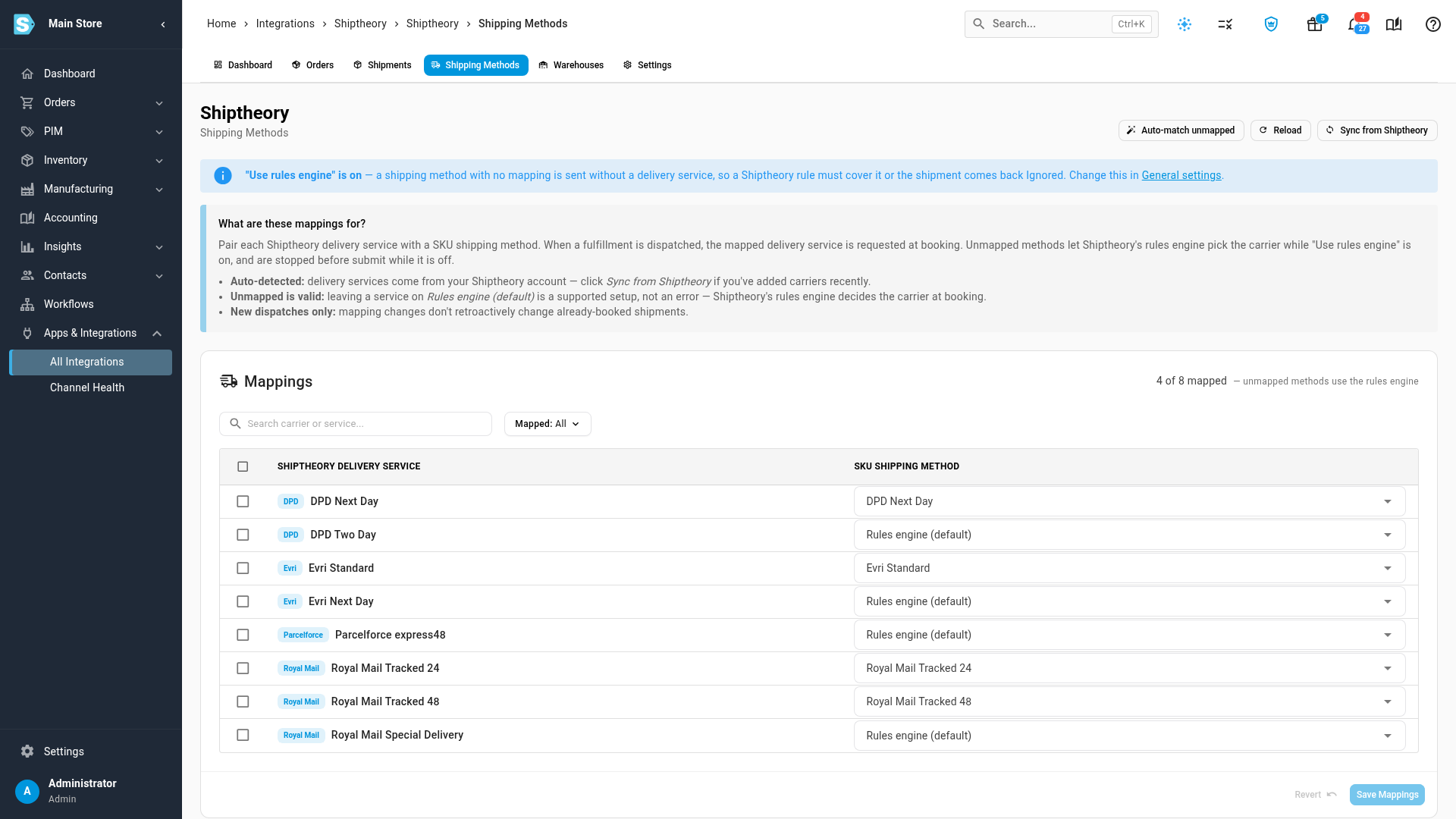
Open the Shipping Methods tab. It lists the delivery services on your Shiptheory account. Click Sync from Shiptheory if you've added carriers recently.
-
For each Shiptheory Delivery Service, pick the SKU Shipping Method it stands for. Click Auto-match unmapped to pair services and methods that share a name.
-
Leave a service on Rules engine (default) to let Shiptheory's own rules pick the carrier for orders with that method.
-
If you picked any methods yourself, click Save Mappings. Auto-match unmapped saves its pairings straight away.
Mappings apply to new orders only. An unmapped method is a valid setup, not an error. While Use rules engine is on, an order with an unmapped method is sent without a delivery service, and a Shiptheory rule must cover it or it comes back Ignored.
Route your warehouses
-
Open the Warehouses tab. It lists your warehouses.
-
Turn on the switch for each warehouse that ships through this Shiptheory connection. The row shows Routed.
-
Click Save Changes. The routing isn't saved until you do.
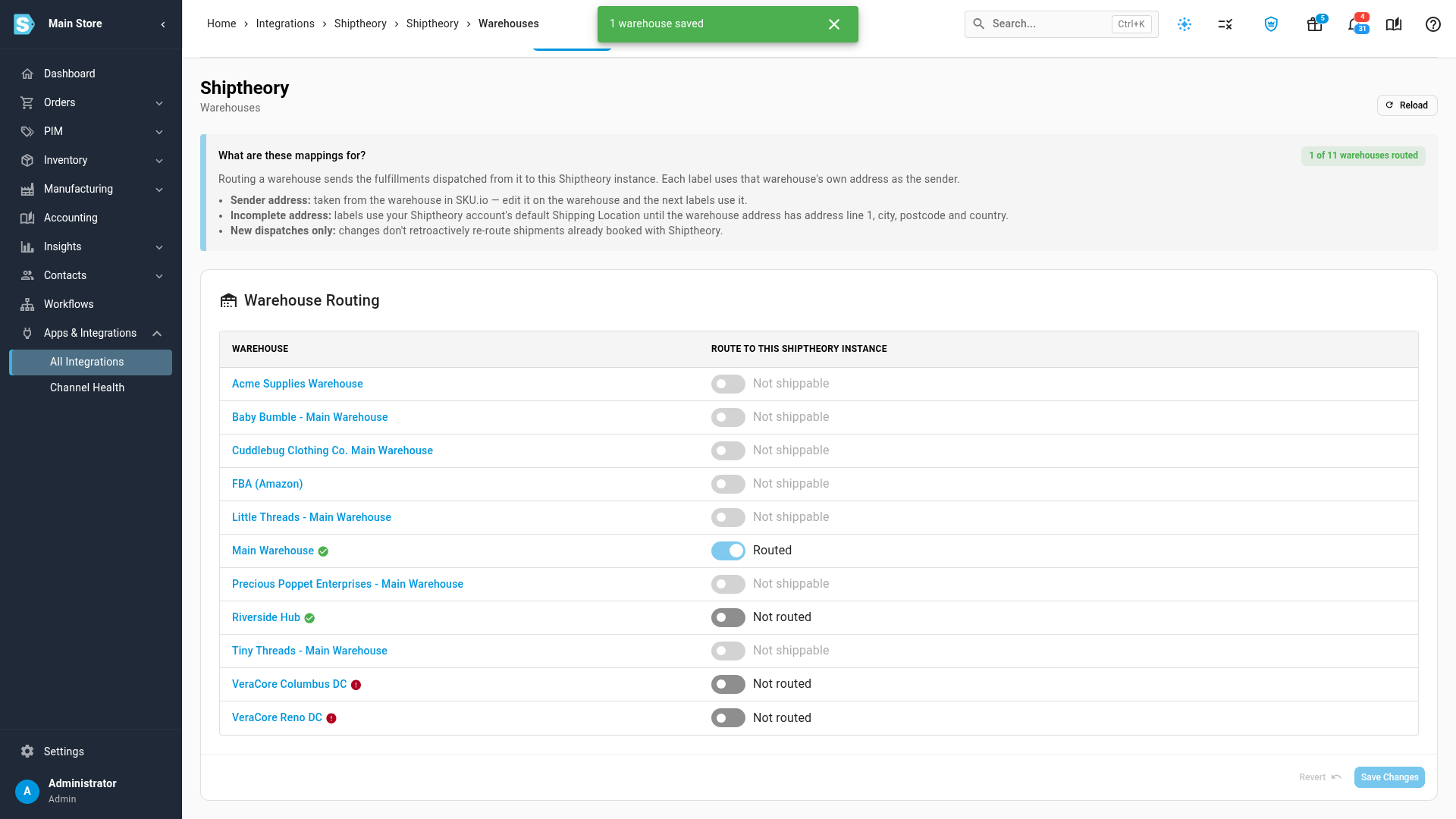
Routing a warehouse sends its fulfillment orders to this Shiptheory connection. Only your own warehouses and 3PL warehouses can be routed; supplier and marketplace warehouses show Not shippable.
The warehouse's own address is the sender on each label. A red mark next to a warehouse means its address is incomplete. Until it's fixed, Shiptheory uses your account's default shipping location. Changes don't re-route shipments Shiptheory has already booked.
Check the settings
Open Settings. Most connections work with the defaults.
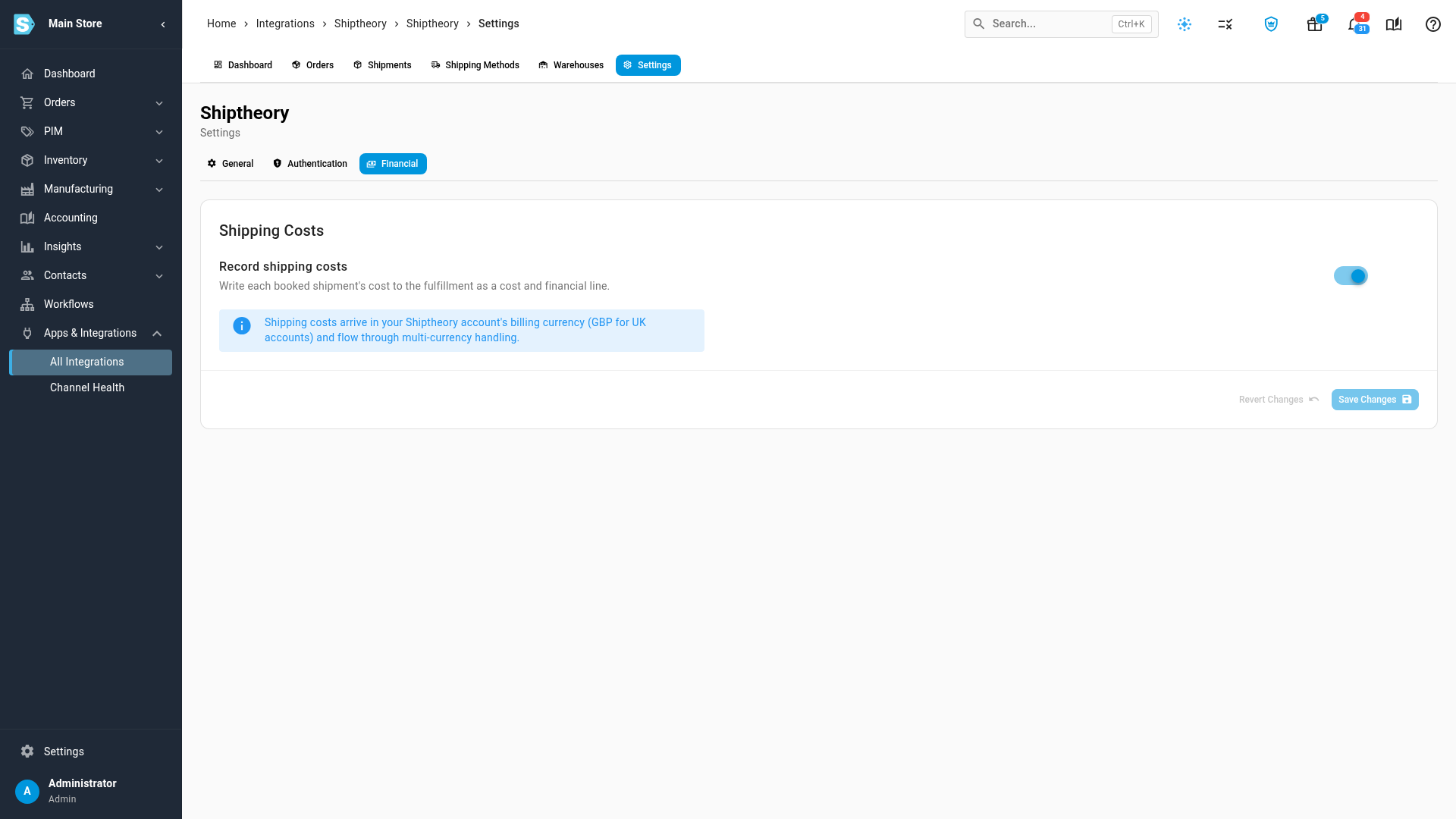
| Tab | Setting | What it does |
|---|---|---|
| General | Use rules engine | When on, an order whose shipping method isn't mapped is sent without a delivery service, so Shiptheory's rules choose the carrier. When off, that order is stopped before it's sent, with a link to map the method. |
| General | Mark for approval | Sends each shipment as Waiting, for you to release in Shiptheory instead of booking automatically |
| General | Default Package Size | The package size used when a fulfillment has no packaging of its own. Click Sync package sizes to fetch the latest from Shiptheory. |
| General | Sync Start Date | The earliest date orders are synced from, including the From Settings Start Date option when you refresh orders |
| Authentication | Test Connection, Account Email, Password | Checks the saved login, or replaces it. Leave the password blank to keep the current one. |
| Financial | Record shipping costs | Puts each booked shipment's cost on its fulfillment, as a cost and a financial line. Costs arrive in your Shiptheory account's billing currency, GBP for UK accounts. |
Send a fulfillment order to Shiptheory
-
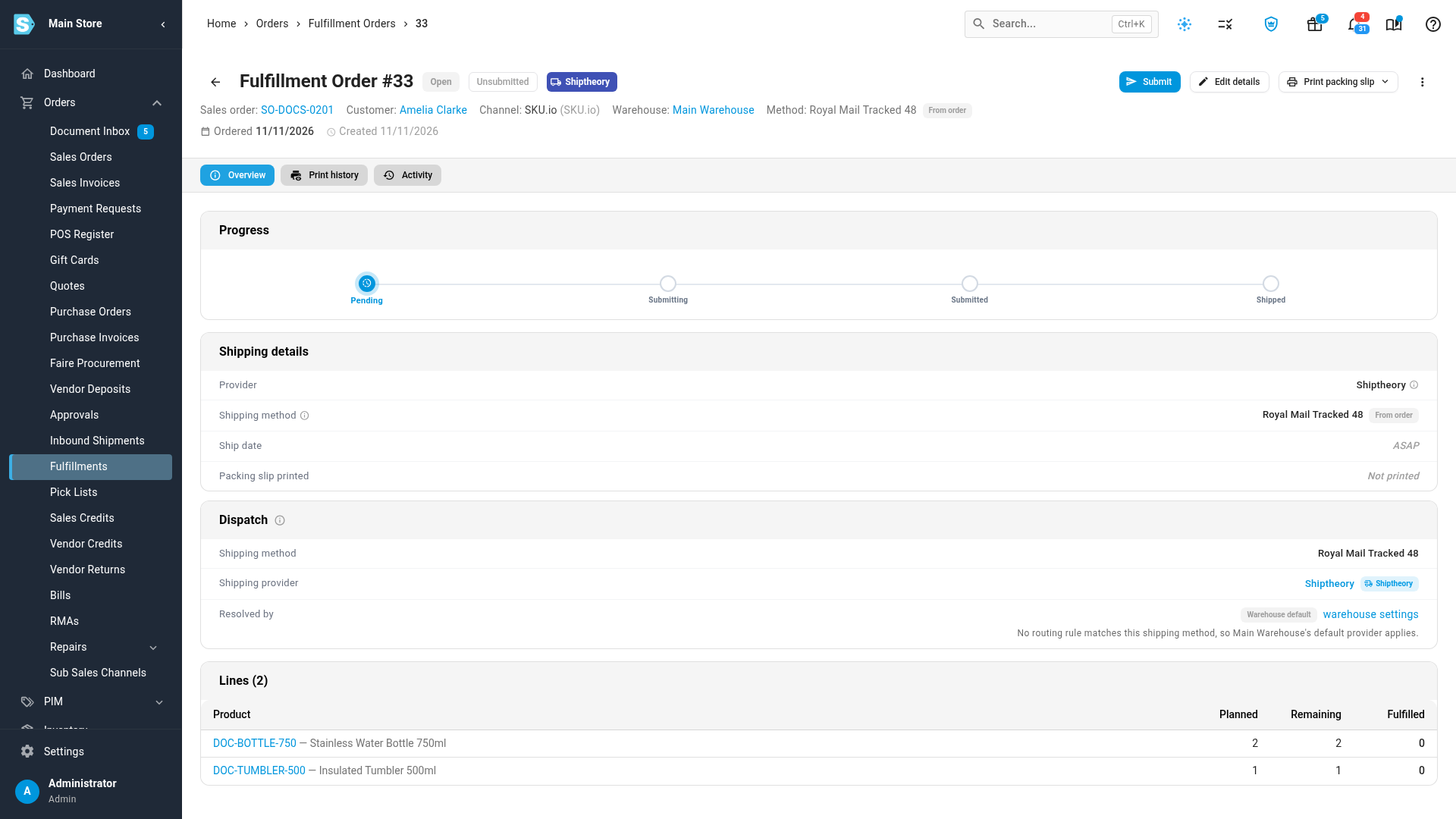
Open a fulfillment order from a routed warehouse. Under Dispatch, its Shipping provider shows Shiptheory.
-
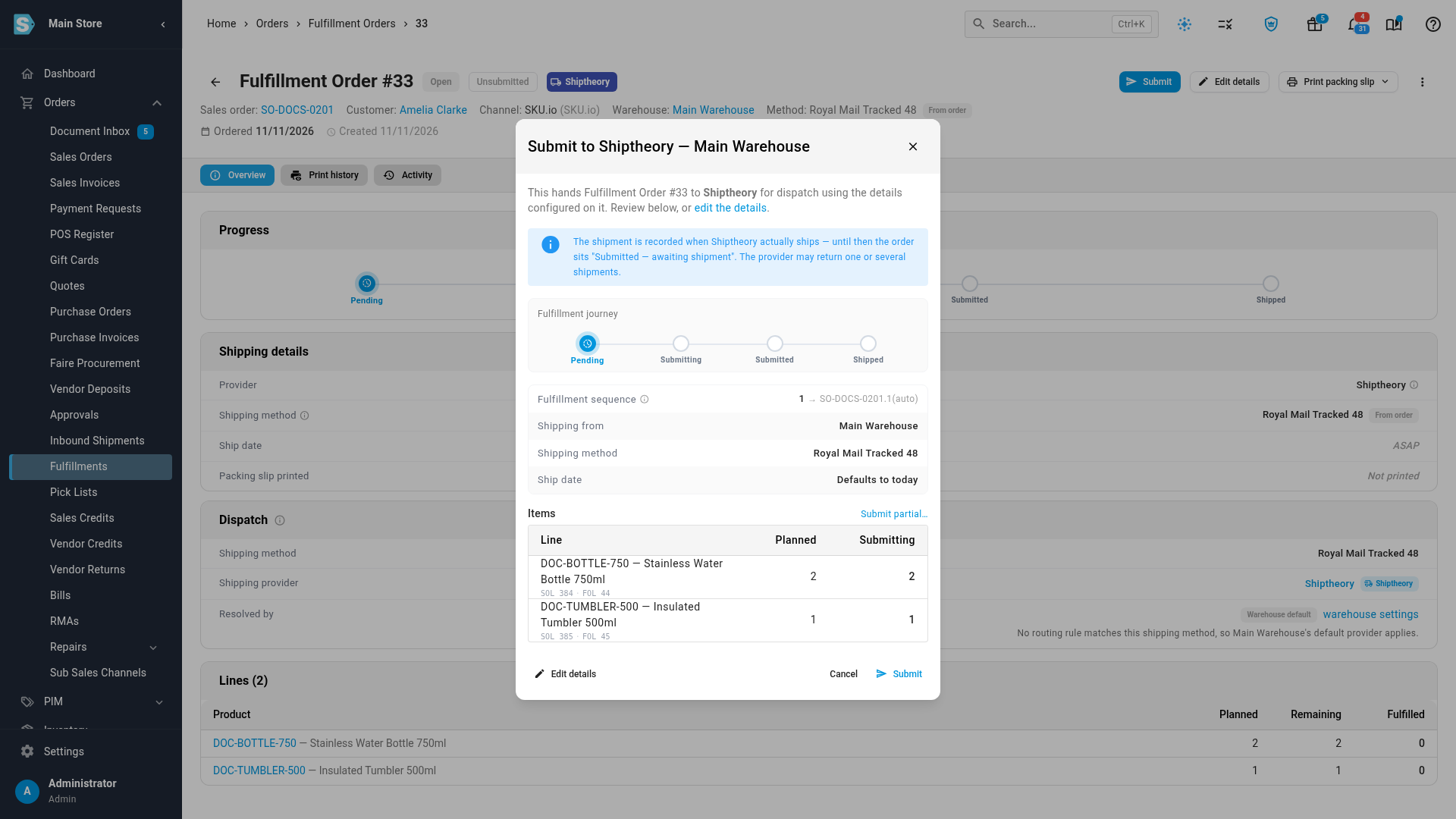
Click Submit. The Submit to Shiptheory dialog lists the items, the warehouse, the shipping method and the ship date.
-
Click Submit.
What you'll see: the fulfillment order shows Awaiting shipment, and the order appears on the Shiptheory Orders tab as Waiting while Shiptheory books it.
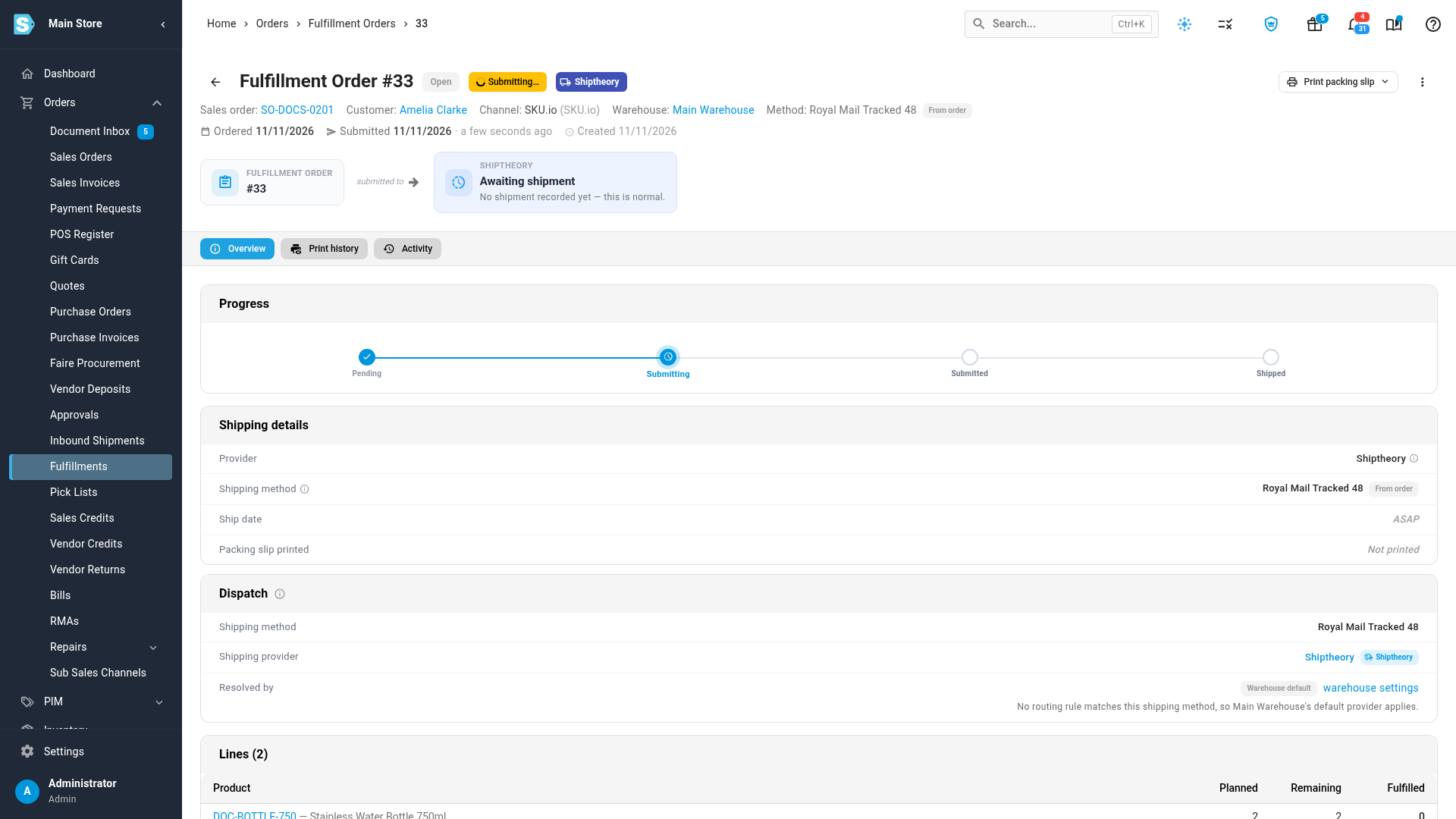
See it booked
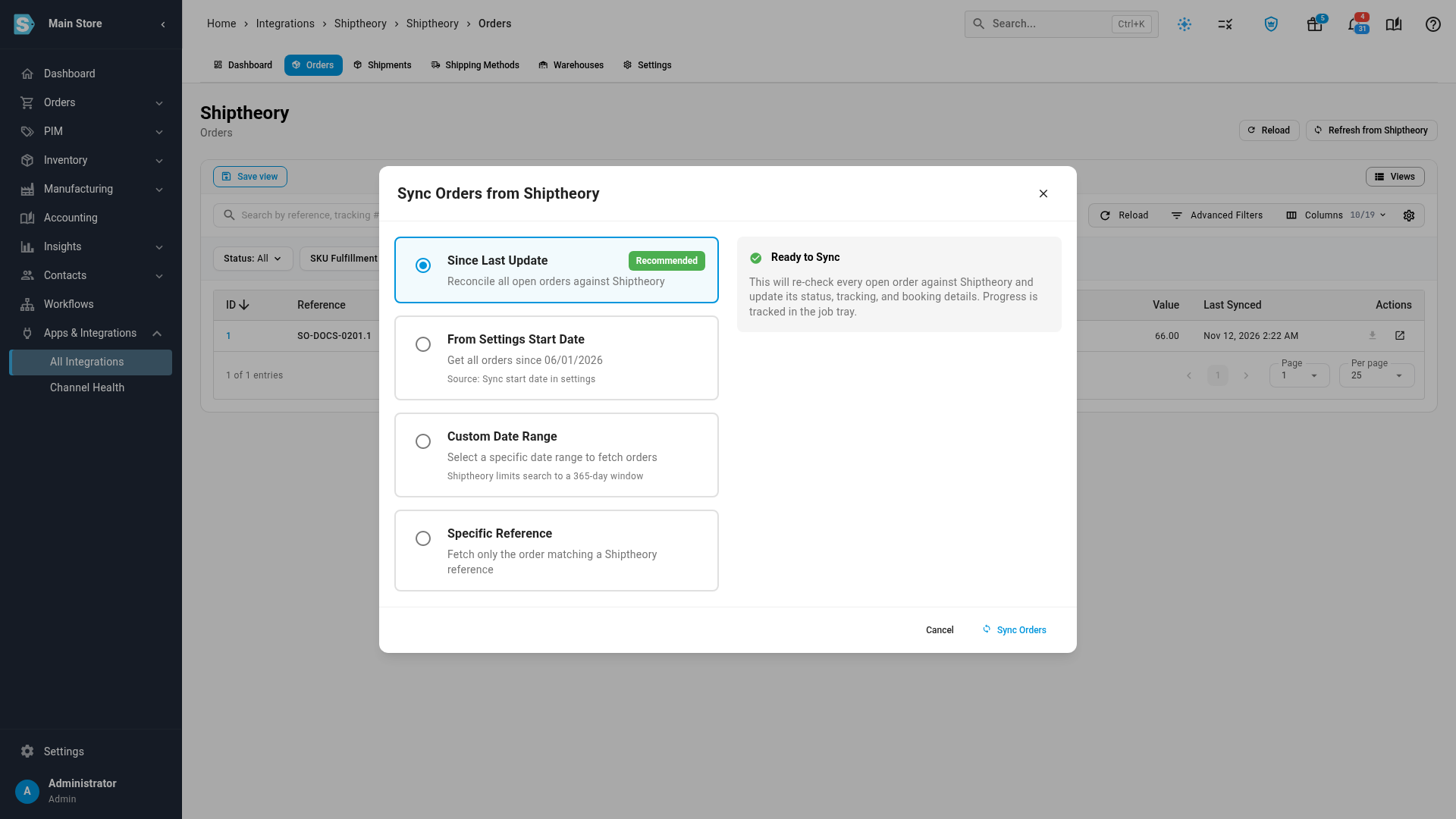
SKU.io checks Shiptheory every 5 minutes. To check now:
-
Open the Shiptheory connection and go to the Orders tab.
-
Click Refresh from Shiptheory. Leave Since Last Update selected, and click Sync Orders. The sync runs in the job tray.
What you'll see: once Shiptheory has booked it, the order shows Complete, with its carrier and tracking number. SKU.io records the shipment on the fulfillment order, adds the shipping cost if you record costs, and sends the tracking to your sales channel. The Shipments tab lists the booked shipment.
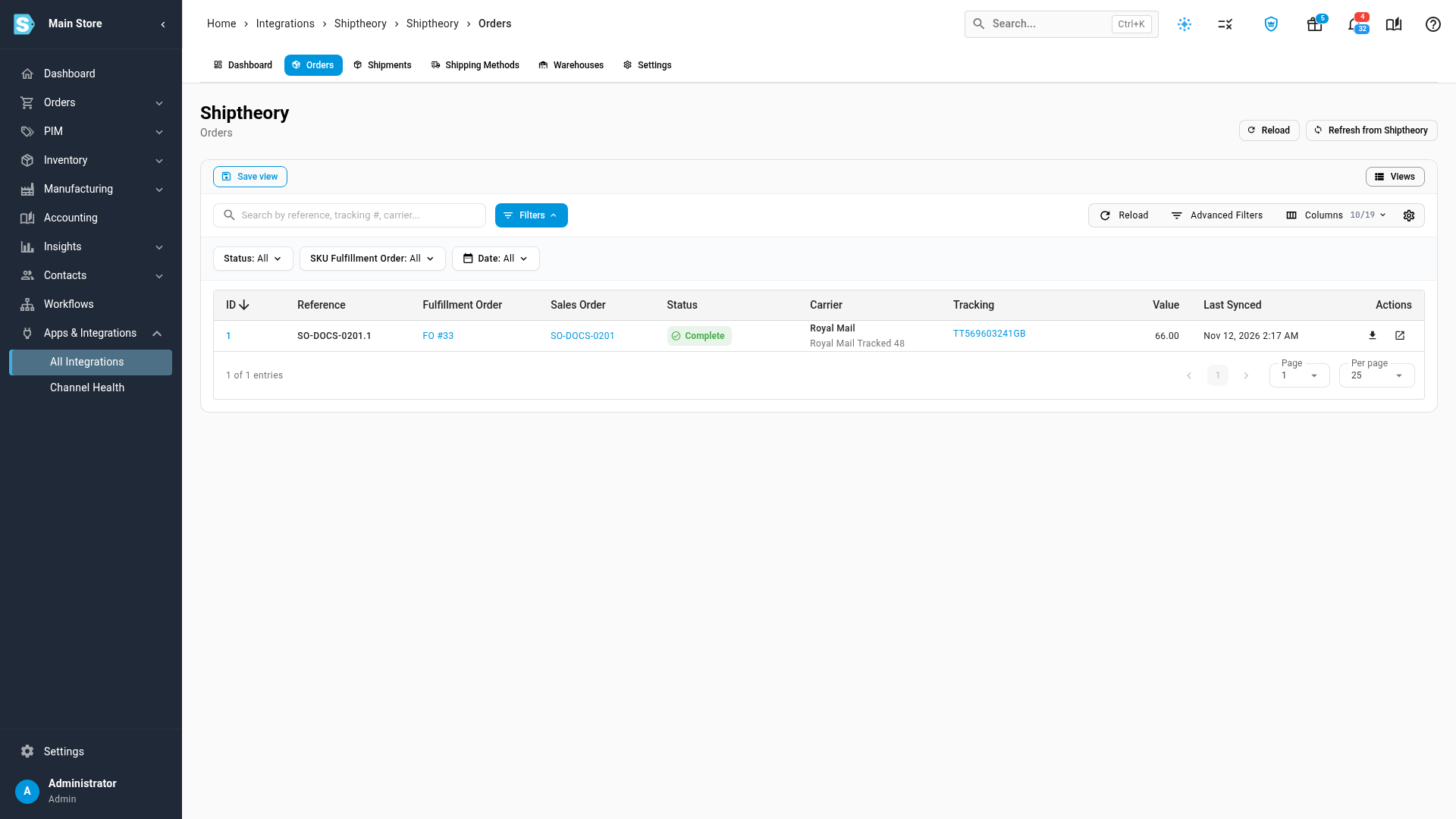
On the Orders tab, click Get Label on a booked order to download its label again at any time.
Shiptheory can't cancel a shipment for another app. If you cancel a fulfillment order Shiptheory already has, SKU.io cancels it locally and warns you to void the label with the carrier, or remove the shipment from its manifest in Shiptheory.
Next steps
Video transcript
Shiptheory books your parcels with UK carriers like Royal Mail, and prints the labels. Tracking numbers come through automatically. To connect it, open Apps and Integrations, then choose All Integrations. Under Shipping and Fulfillment, choose Shiptheory, and its details open on the right. Then click Connect Shiptheory to start a new connection. The New Shiptheory Integration page opens, with a short setup guide. Shiptheory signs in with your account login, not an API key. We recommend a dedicated Shiptheory user for SKU.io, so a staff password change can't break the connection. Click Account Email, and type the email address of that Shiptheory user. Then click Account Password, and enter their password. These are the login details for the Shiptheory website. Then click Test Connection, and wait for Connected. It checks the login with Shiptheory, which takes a moment, and then shows Connected. Leave Download package sizes selected, so you can pick a default package size in Settings later on. It's optional, and you can run it again any time. Click Create Integration now, and give the connection a moment to set itself up. Setting it up takes a few seconds. The dashboard opens, and the first downloads run in the job tray. Two banners show what's left to set up. No warehouse sends its orders here yet, and no shipping method is mapped. Shiptheory has no webhooks, so statuses refresh every five minutes. Start by mapping your shipping methods, on the Shipping Methods tab. Shipping Methods lists the delivery services on your Shiptheory account. Pair each one with the shipping method it stands for, in the column on the right. Auto-match unmapped pairs them up by name. A service you leave on Rules engine lets Shiptheory's own rules pick the carrier. Auto-match saves right away, and changes apply to new orders only. If you pick a method yourself, click Save Mappings. Next, open the Warehouses tab. Turn on routing for each warehouse that ships through Shiptheory. Its address goes on each shipping label as the sender, so check it's complete. Then click Save Changes, because routing doesn't save on its own. Its fulfillment orders now ship through Shiptheory. Now open the Settings tab, to check how your orders are booked. Use rules engine is on, so a method you didn't map is still sent, for Shiptheory's rules to book. Turn on Mark for approval to release each shipment by hand in Shiptheory. Pick a Default Package Size for orders without packaging of their own. On the Financial tab, Record shipping costs puts each booking's cost on the fulfillment. This fulfillment order ships from the warehouse you just routed, by Royal Mail Tracked 48. Its provider is now Shiptheory. To send it, click Submit at the top of the page. The dialog lists the items, the warehouse, and the shipping method. Check them, and then click Submit again. The order now shows Awaiting shipment, while Shiptheory books the parcel. Shiptheory now has the order. Click Shiptheory, under Shipping provider, to open the connection. Then go to its Orders tab, which lists every order you send to Shiptheory. The order arrived as Waiting, while Shiptheory books it with the carrier. To check for the booking now, click Refresh from Shiptheory, and then click Sync Orders. The sync runs in the job tray, and only takes a few seconds. When the sync finishes, click Reload to refresh the list. The order is now Complete, with its Royal Mail tracking number. The shipment is recorded, and the tracking number reaches your sales channel.