Choose and freeze table columns
Every list in SKU.io has a Columns button in its toolbar. It opens the column picker, where you decide which columns the table shows, in what order, and which ones stay pinned to the left edge while you scroll across a wide table.
Before you begin
- The picker works the same way on every list. The examples here use PIM → Products, which has more than 300 columns to choose from.
- Your column choices are part of the table's arrangement, so a saved view remembers them.
Show or hide columns
-
Click Columns in the list's toolbar. The button shows how many columns are visible out of how many exist, for example 29/356.
-
Type in Search columns, groups, or type to filter… to narrow a long list.
-
Use the scope tabs to see All columns, only the Visible ones, or only the Hidden ones. Press Tab to move between them.
-
Click a column, or its checkbox, to show or hide it. The label on the right of each row reads Shown or Hidden.
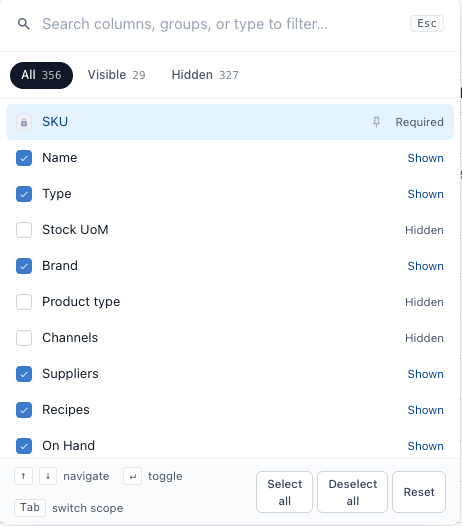
Columns marked Required have a lock instead of a checkbox. They're always shown, because the list can't be read without them, such as SKU on the products list.
To change many at once, use Select all or Deselect all at the bottom of the picker. Reset puts the list back to its default columns and order.
Change the column order
Drag a column by the handle at the right of its row to move it up or down. The table follows the order in the picker, top to bottom becoming left to right.
Dragging only works while the search box is empty. When you've typed a search, the picker says Clear the search to drag columns into a new order.
Freeze a column
A frozen column stays pinned to the left edge of the table while the rest scroll sideways underneath it. Freeze the column you read every row by, such as the name or SKU, so you can scroll out to the far columns without losing track of which row you're on.
-
Click Columns.
-
Point at the column you want to freeze. A pin appears on its row.
-
Click the pin. Its tooltip reads Freeze column (pin to left), and once the column is frozen the pin turns blue.

The frozen column moves to the left of the table, next to any other frozen columns. Scroll the table sideways and it stays where it is.
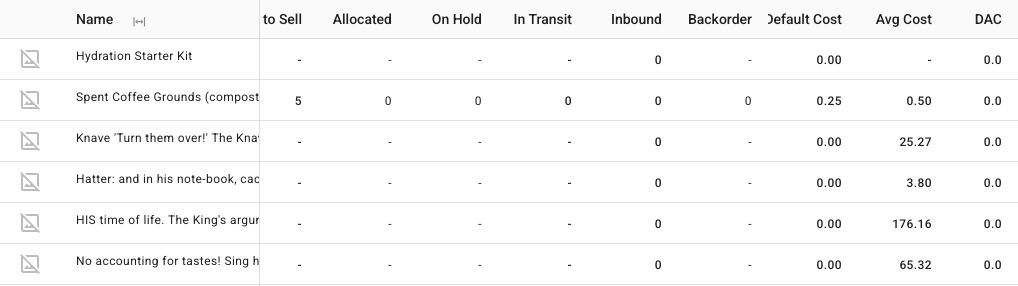
To unfreeze a column, open Columns and click its pin again. The tooltip now reads Unfreeze column.
A few things to know:
- Freezing a hidden column shows it as well, because you can't pin a column that isn't on the table.
- You can freeze more than one column. They line up from the left edge in the order they appear in the picker.
- Frozen columns are saved with the rest of the column layout, in the page address and in any view you save. Send someone the link and they see the same frozen columns.
Next steps
- Save and pin table views: keep a column layout you use every day.
- Total a column with Calculate: add a sum or average under a column.
- Products list columns, search & filters reference: every column the products list offers.