Switch a sales channel from your 3PL's store import to SKU.io
Many 3PLs and shipping apps can connect straight to your store and import its orders themselves. When you'd rather SKU.io send those orders, use the provider's Cutover tab to switch one sales channel over. Orders placed before a boundary you choose stay with the provider. SKU.io sends everything after it, and never sends an order the provider already has.
This works the same way for any sales channel and any 3PL or shipping app that has a Cutover tab. The example uses a ShipBob connection and a Shopify store.
Video chapters
- 0:00 Open the Cutover tab
- 0:32 Plan the cutover
- 0:57 Stop the provider's store import
- 1:13 Set the boundary
- 1:30 Preview what will happen
- 1:52 Check readiness and start
- 2:15 Watch it run
- 2:32 Complete the cutover
Before you begin
- The provider is connected under Apps & Integrations, and the warehouse it ships from is mapped to it.
- The sales channel is connected to SKU.io, so its orders already arrive in SKU.io.
- You need permission to change the provider's integration settings.
- Pick a quiet day. A planned date in the busiest week of the holiday season shows a warning, because a busy week is the hardest time to watch a switch.
Steps
-
Go to Apps & Integrations → All Integrations and open your provider from Quick Access.
-
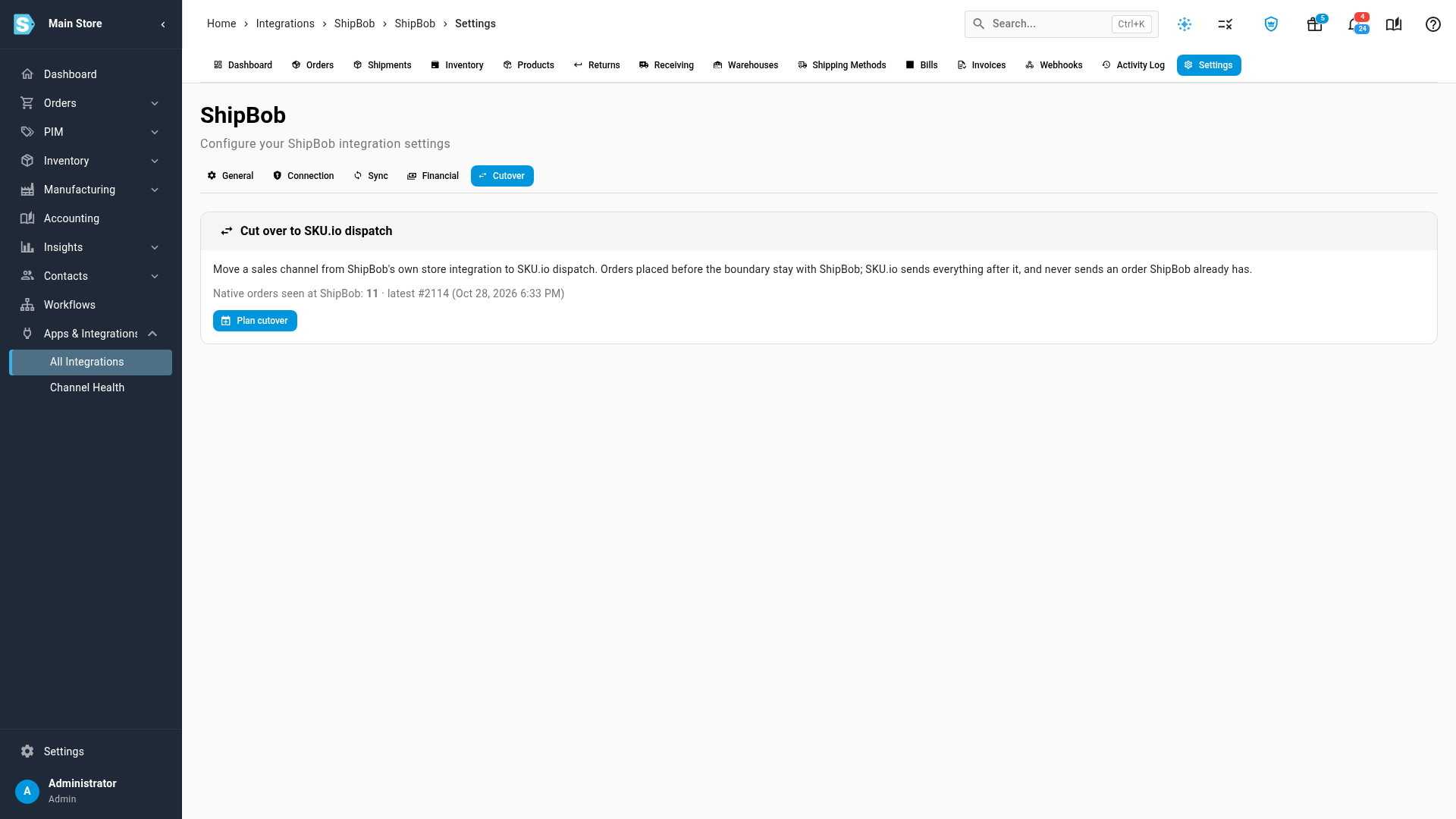
Open the Settings tab, then the Cutover tab.
The tab shows how many orders the provider has imported from your stores itself, and the latest one.
-
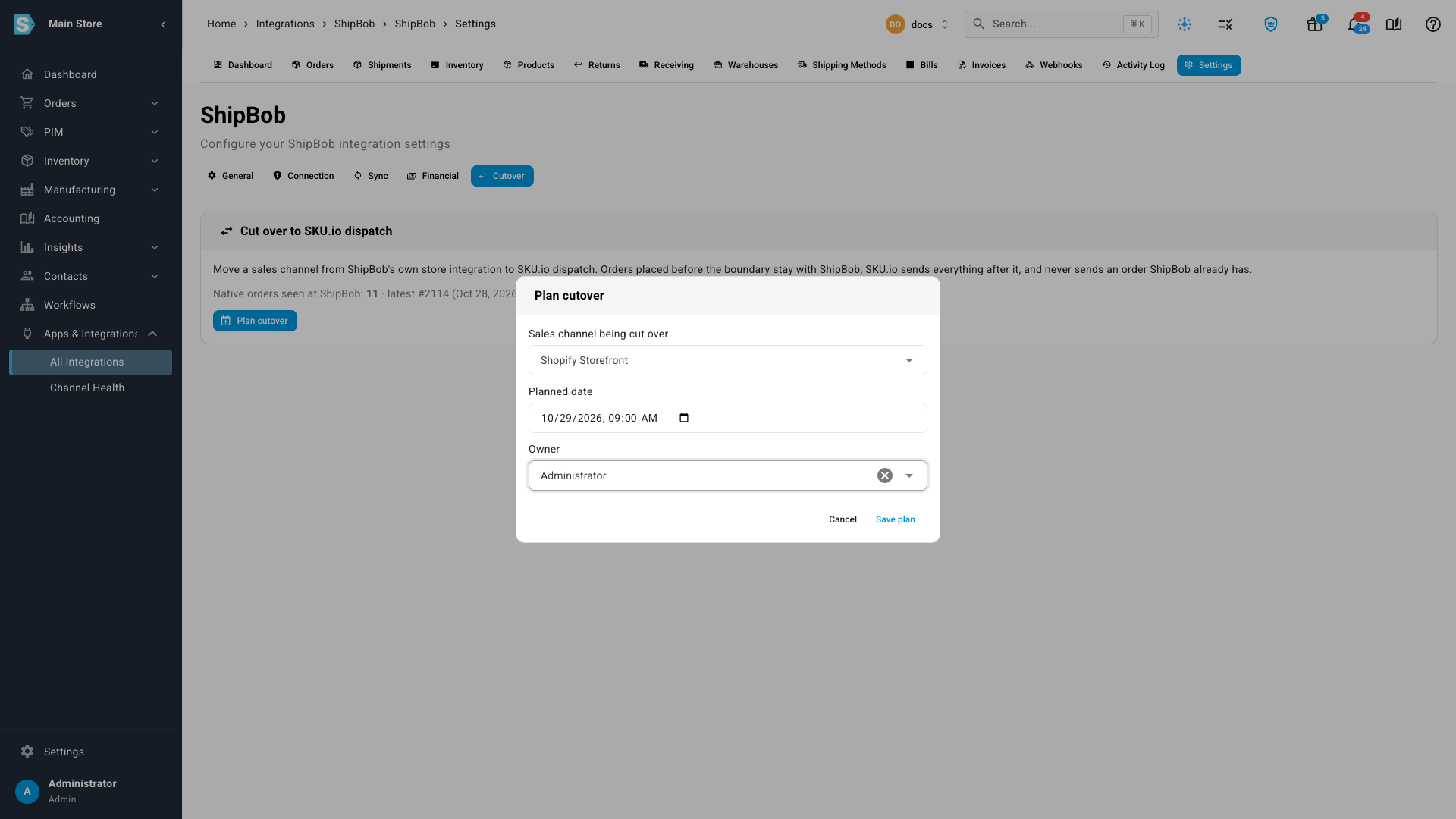
Click Plan cutover. Choose the Sales channel being cut over, a Planned date and an Owner, then click Save plan.
-
In the provider's own app, stop it importing orders from that store. Step 1 on the tab says where. For example, in ShipBob you turn off order import on the store connection under Integrations. Leave the store connected to SKU.io.
-
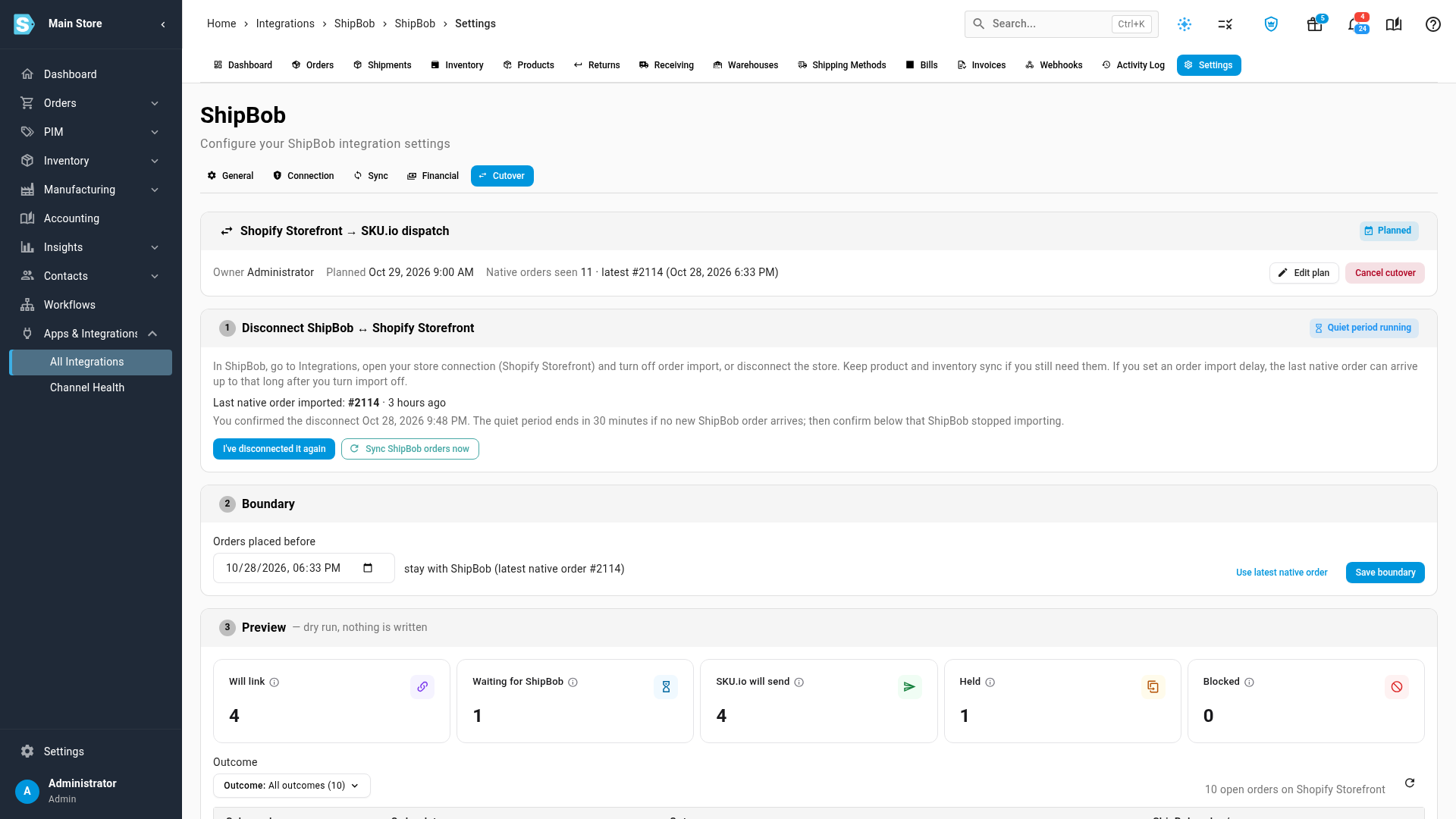
Back in SKU.io, click I've disconnected it.
A quiet period starts, usually about half an hour. If the provider imports another order from the store during it, step 1 turns red and names the order. Turn the import off, then click I've disconnected it again.
-
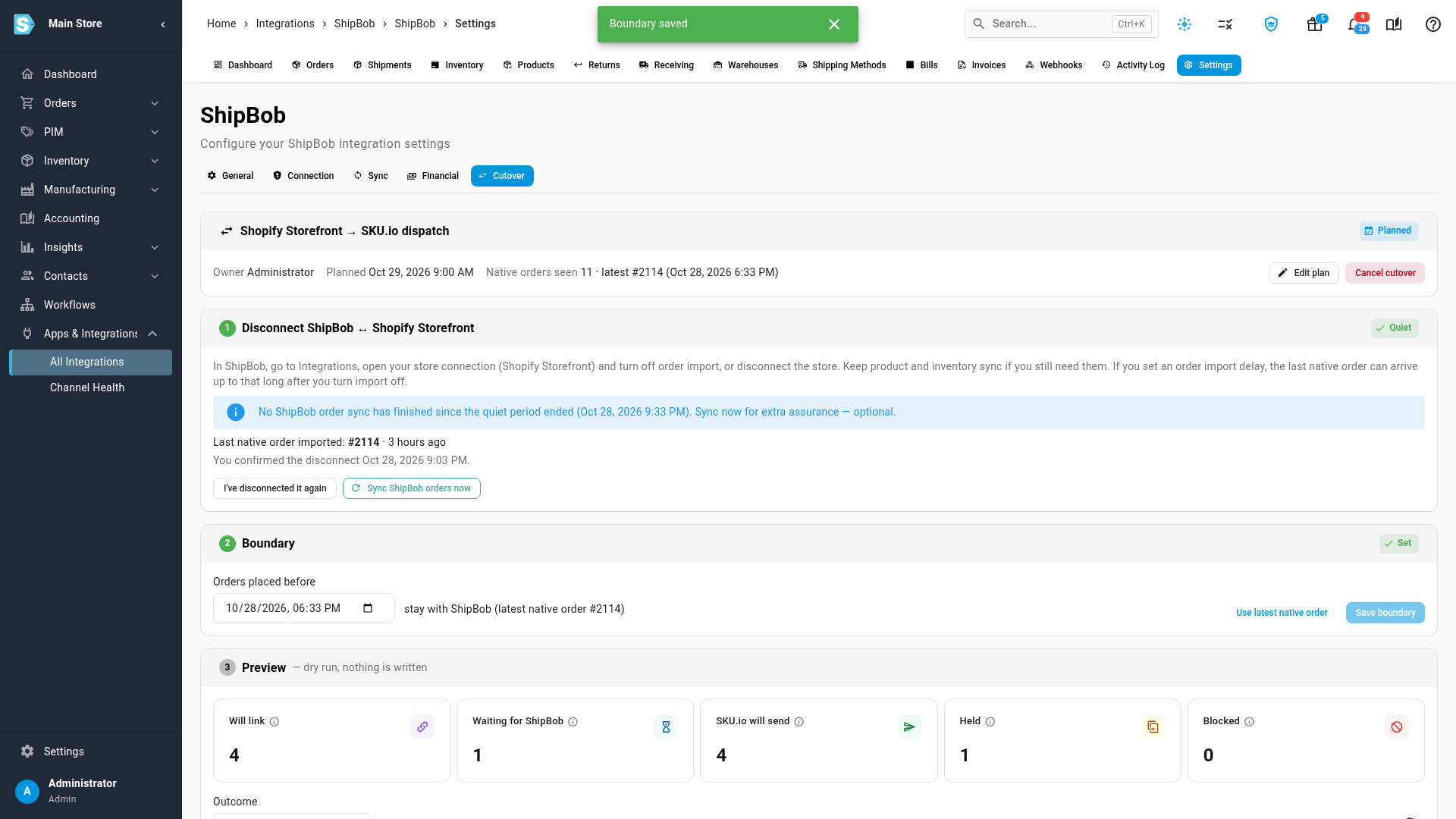
When the quiet period passes, step 1 shows Quiet. In step 2, check the boundary under Orders placed before, then click Save boundary.
The boundary starts at the provider's latest imported order. Orders placed before it stay with the provider. Click Use latest native order to go back to that suggestion after you change it.
-
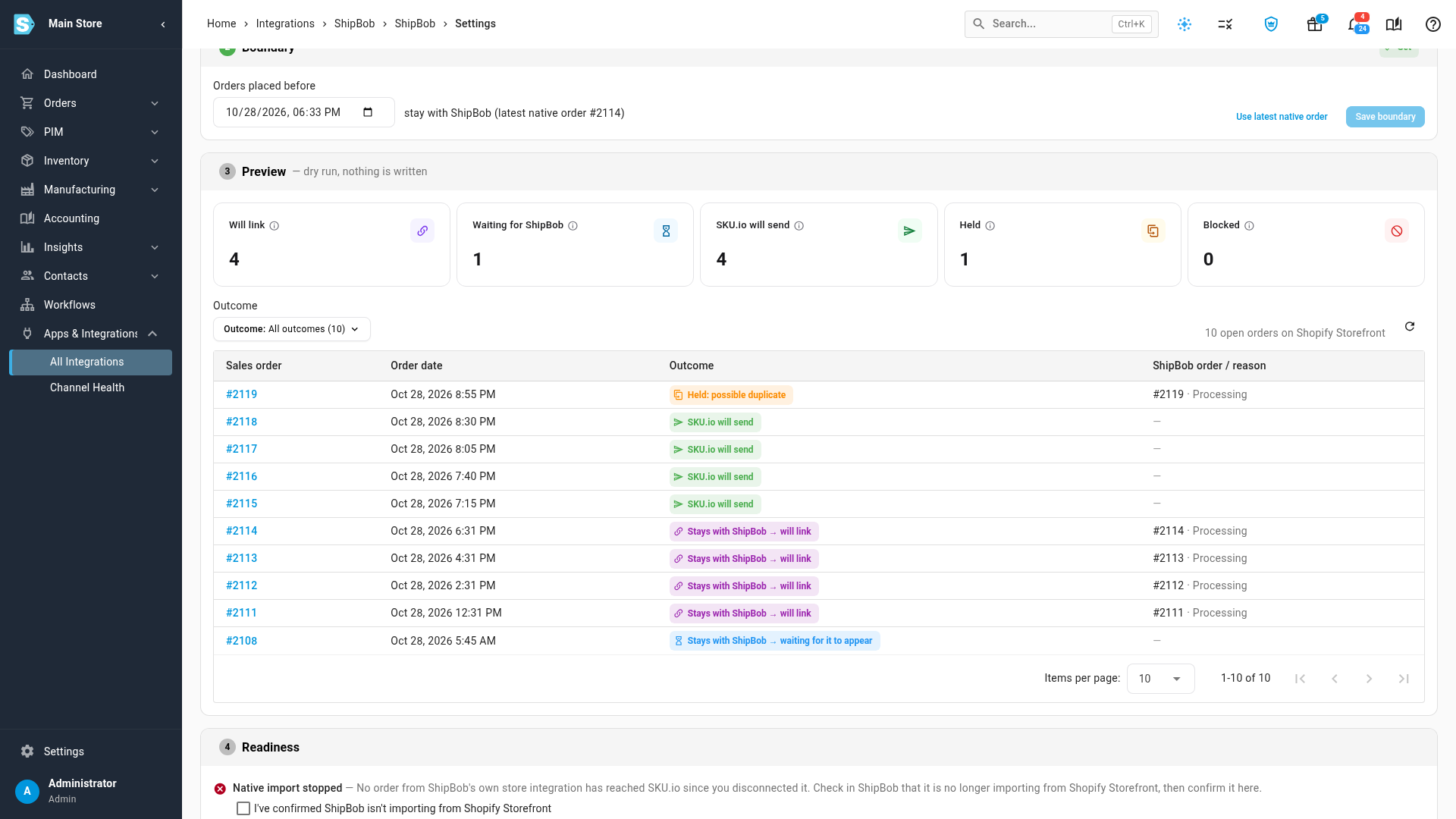
Read the Preview in step 3. It's a dry run: nothing changes yet. Each open order on the channel shows the outcome the cutover would give it (see What the preview outcomes mean). Fix any Blocked order now, or acknowledge it in the next step.
-
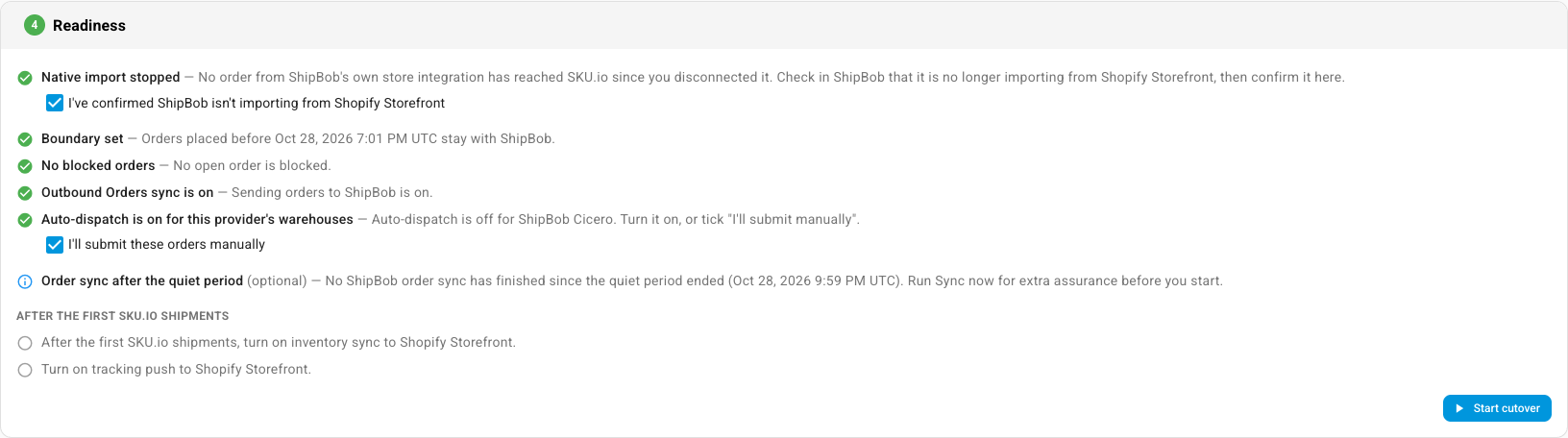
In step 4, Readiness, tick I've confirmed the provider isn't importing from the channel (the box names both). If the provider's warehouse doesn't send orders automatically, also tick I'll submit these orders manually.
-
Click Start cutover. While it stays greyed out, hold the pointer over it to see what's still missing.
-
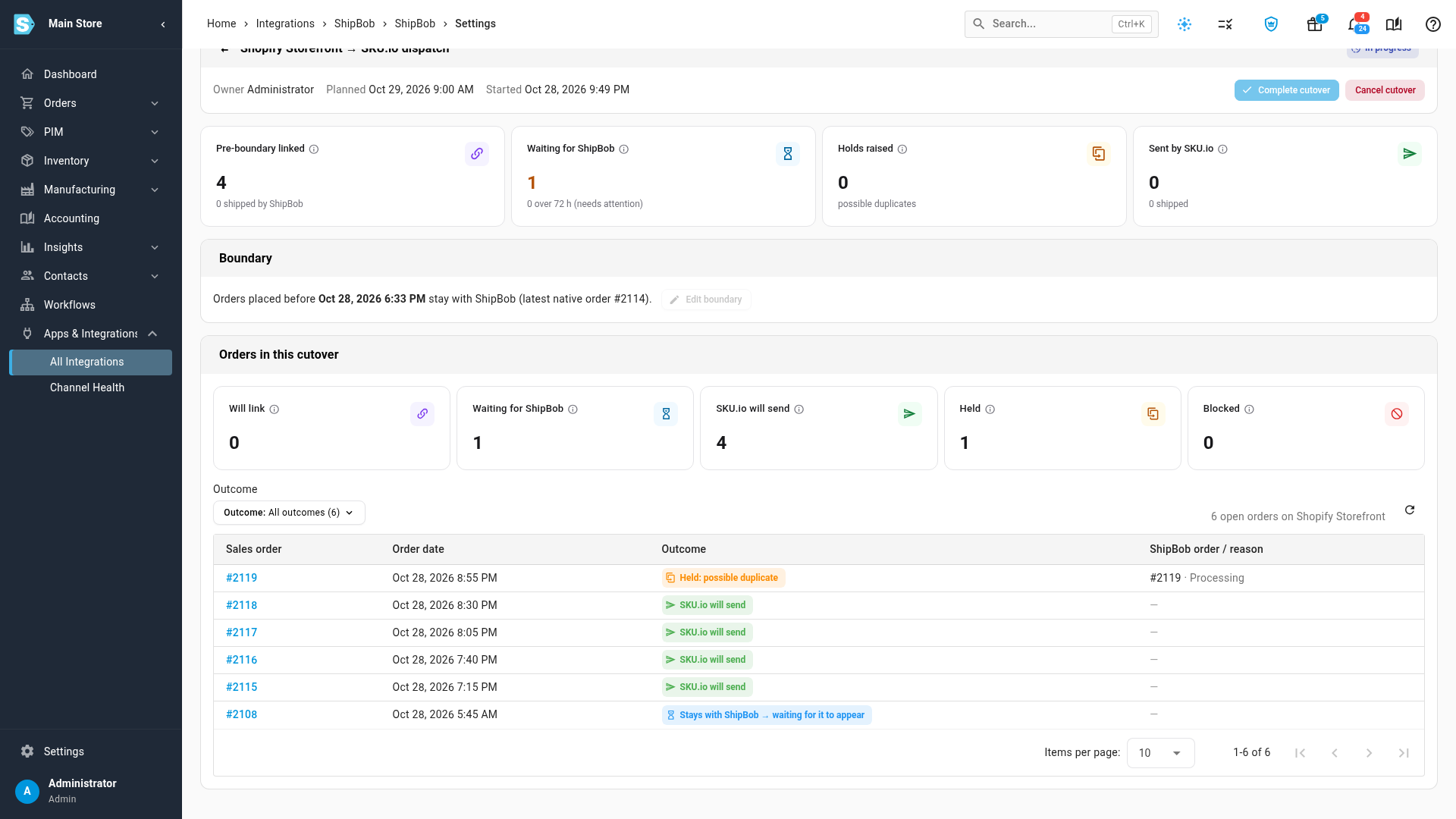
Watch the cutover while it runs. Orders placed before the boundary are linked to the provider's copies and close when the provider ships them. Waiting for the provider counts the ones it hasn't imported yet. Holds raised counts any order SKU.io held instead of sending.
-
When every order placed before the boundary is linked or shipped, click Complete cutover. Leave Restore the duplicate guard to "Hold for review" ticked, then click Complete cutover in the dialog.
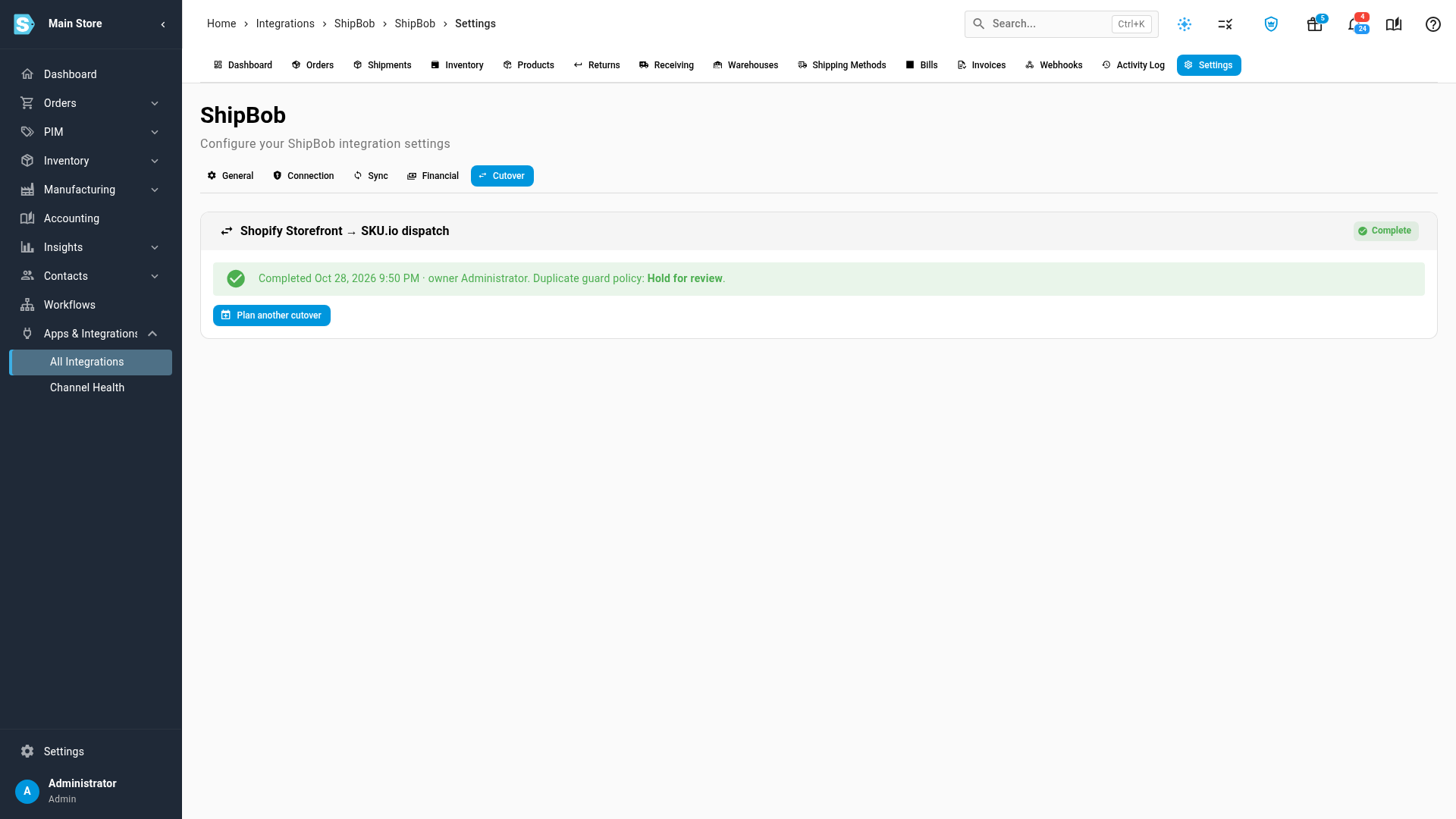
SKU.io now sends every new order on that channel to the provider, and writes a summary of the cutover to the integration's activity log. To move another channel, click Plan another cutover.
What the preview outcomes mean
| Outcome | What happens when you start |
|---|---|
| Stays with the provider → will link | Placed before the boundary, and the provider already has it. SKU.io links the order to the provider's copy and never sends it. |
| Stays with the provider → waiting for it to appear | Placed before the boundary, but the provider hasn't imported it yet. SKU.io links it as soon as it appears. |
| SKU.io will send | Placed after the boundary, with no matching order at the provider. SKU.io sends it as normal. |
| Held: possible duplicate | Placed after the boundary, but the provider has a similar order. It's held for you to review instead of sent. See Resolve an "Already at" hold. |
| Blocked | SKU.io would refuse to send it today, for example because a product isn't mapped. The table says why. |
In the table, each outcome names your provider, such as Stays with ShipBob → will link.
While a cutover runs
- You can't change the boundary. Edit boundary stays greyed out. Click Cancel cutover, then plan again.
- Cancel cutover stops the cutover. Orders that were waiting for the provider go back to normal sending, still checked for duplicates.
- An order the provider never receives. An order placed in the last minutes before you disconnected may never reach the provider. After 72 hours it moves to Needs attention as never received. See Resolve an "Already at" hold.
- Complete cutover stays greyed out while any order placed before the boundary is still waiting for the provider. The tooltip says how many. After 14 days the tab suggests completing.
Providers whose own orders SKU.io can't see
Some providers don't let SKU.io read the orders they import themselves, such as Shippit and ShipRush. Their Cutover tab runs as a checklist, with a banner saying duplicate protection isn't available, and there's no preview. You still confirm the disconnect and wait out the quiet period, but SKU.io can't tell whether an order arrived during it. Check the provider's order list yourself before you tick the confirmation and start.
Next steps
- Resolve an "Already at" hold — what to do with an order SKU.io held as a duplicate.
- How SKU.io spots an order the provider already has — strong and possible matches.
- Dispatch to a fulfillment provider — how SKU.io sends orders once the cutover is done.
Video transcript
When your 3PL imports orders straight from your store, SKU.io can take over sending those orders. You switch one sales channel at a time. Open Apps and Integrations in the sidebar, then choose All Integrations. Your connected apps are listed under Quick Access. Choose the provider whose own store import you're replacing. Open its Settings tab, at the end of the top row. The Cutover tab is the last one in the next row. Click it, and the cutover opens below the tabs. The tab counts the orders the provider imported from your stores itself. To start, click Plan cutover. First, open the sales channel list, and pick the channel you're moving. That's the store the provider imports from today. Then choose the date of the switch. Next, pick an owner for the cutover. That's the person who watches the cutover through to the end. When the plan looks right, click Save plan. The tab then lays out four numbered steps. Next, stop the provider importing orders from your store. Step one says where to turn that off in the provider's own app. Once it's off, click I've disconnected it. SKU.io then watches for new provider orders. This quiet period usually lasts about half an hour. If no new provider order arrives in that time, step one turns to Quiet. Step two sets the boundary. Orders placed before it stay with the provider, which ships them as usual. It starts at the provider's latest imported order. Most of the time, you only click Save boundary. Step three is a dry run, so nothing changes yet. It sorts every open order on the channel by its outcome in the cutover. Orders the provider already has will link to its copy. One the provider hasn't imported yet waits for it to appear. SKU.io will send the newer orders. And an order that looks like one the provider already has is held for review. Step four shows the readiness checklist. Confirm the provider really has stopped importing from your store. If the warehouse doesn't send orders automatically, tick that you'll submit them yourself. When every required item is green, click Start cutover to begin the switch. SKU.io links each order placed before the boundary to the provider's copy. On a busy account, that takes a moment. The cutover is now in progress. Orders placed before the boundary are linked to the provider's copies. Each one closes when the provider ships the parcel. One order is still waiting for the provider's import. Holds raised counts any duplicate SKU.io stopped instead of sending. When every order before the boundary is linked or shipped, click Complete cutover. In the dialog, leave the duplicate guard set to hold for review. Then click Complete cutover again, at the bottom of the dialog, to confirm. The cutover is complete. From now on, SKU.io sends every new order on this channel to the provider. A summary of the cutover is saved to the integration's activity log.