How the Send Planner works
The Send Planner answers one question every week: how much of the stock in your own warehouses should go to each fulfillment network, and from which warehouse? It reads what you have, what each network holds and sells, and what your self-fulfilled orders need, then splits the stock so that every network gets the days of cover you asked for, or a fair share when there isn't enough. You find it under Inventory → Send Planner.
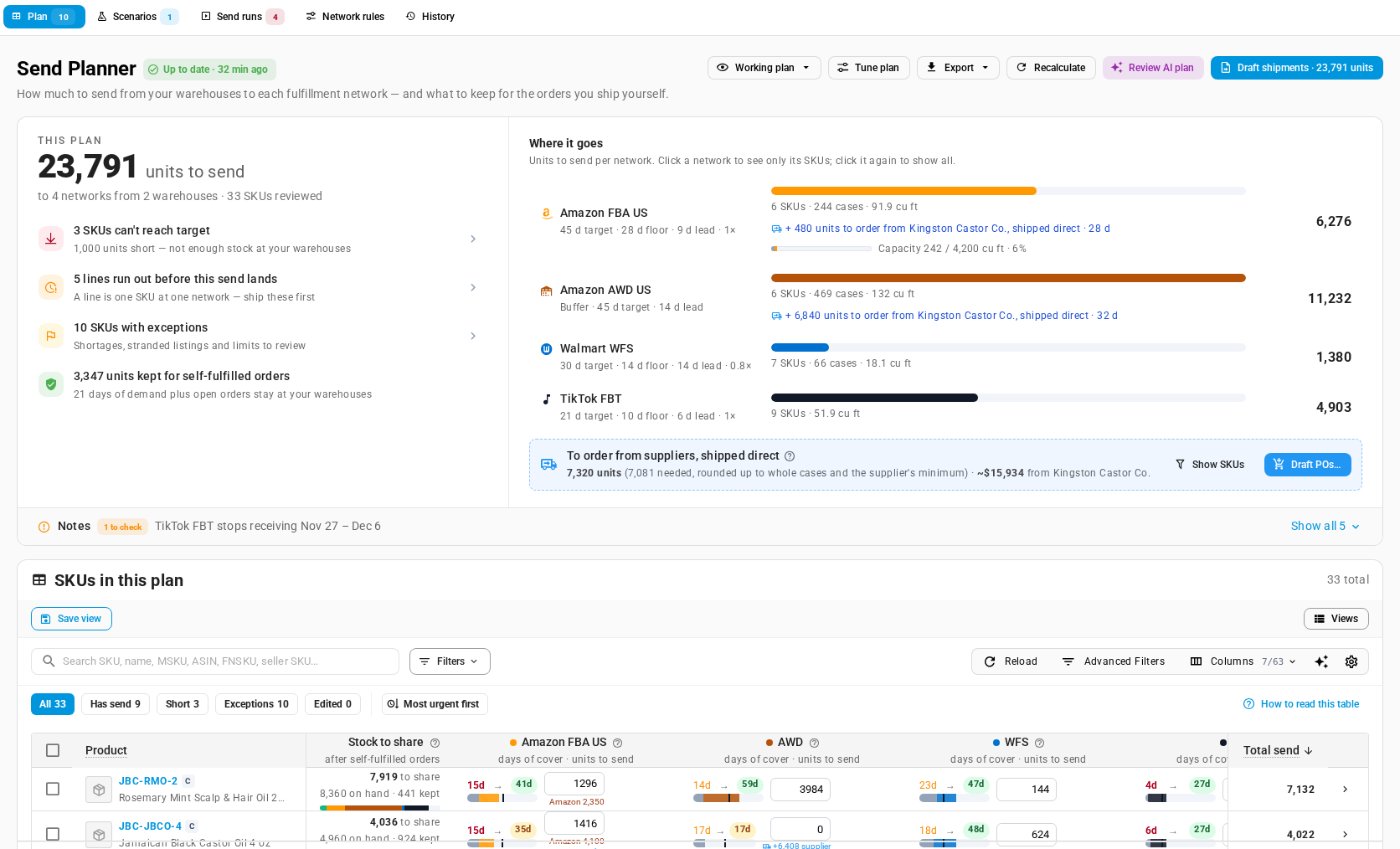
Fulfillment networks the planner sends to
A fulfillment network is a marketplace's own warehouse system that stores your stock and ships its orders. The planner plans these:
| Network | What the planner does with it |
|---|---|
| Amazon FBA | Plans one destination per Amazon connection and marketplace, so Amazon FBA US and an FBA destination in Canada are separate columns. |
| Amazon AWD | Plans AWD as a buffer: stock stored in bulk that feeds FBA. It gets stock last when stock is short, takes pallets of sortable items only, and can take the units an FBA capacity limit cuts. |
| Walmart WFS | Plans each WFS destination. Case-packed WFS sends need an ITF-14 case label. |
| TikTok FBT | Plans each Fulfillment by TikTok destination, with its carton size limits and its peak-season receiving pause. |
| Warehouse transfer | Optional. Plans your own warehouses or 3PLs that you choose to stock by warehouse transfer. See Stock your own warehouses and 3PLs by transfer. |
A network appears in the planner once its integration has a fulfillment warehouse in SKU.io. A few warehouses never get a column:
- Faire FBF warehouses. The planner doesn't plan sends to Faire Fulfilled by Faire.
- Network warehouses excluded from planning. If a marketplace warehouse has Exclude from Purchasing / Demand Planning turned on in its settings, the planner stops planning sends to it. Network rules lists it under "Not planned".
- A network whose integration is turned off. It has no column until the integration is back on.
When a destination can't be read during a calculation, for example because a connection lost a permission, the planner leaves that one network out and plans the rest. The plan says which network was left out and why. See Recalculate the plan and fix calculation problems.
SKU.io models each network's stock as a warehouse of its own. How warehouse types work explains the difference between a network warehouse and your own warehouses and 3PLs.
The five tabs
| Tab | What it's for |
|---|---|
| Plan | The working plan: how much each SKU sends to each network, and why. You adjust quantities, allocate stock and create shipment drafts here. |
| Scenarios | What-if copies of the plan with different settings, to compare and promote. |
| Send runs | The weekly checklist: scope, exceptions, approval per network, then drafts. |
| Network rules | Everything you set once: planner settings, targets and priorities per network, ship-from lanes, capacity limits and product overrides. |
| History | Every plan, scenario and send run, with their status. |
There are three ways to turn the plan into shipment drafts: Draft shipments on the Plan tab, a send run, or Review AI plan. See Choose how to send.
A line is one SKU at one network
The plan has a row per SKU, and inside that row a cell per network. Each cell is a line: one SKU at one network, with its own need, its own send quantity, its own flags, and its own explanation. When the plan says "5 lines run out before this send lands", it means five SKU-and-network pairs, not five SKUs.
How one plan is built
For each product, the planner works through six stages. Then it checks the whole plan against each network's capacity.
- Stock to share. The planner starts from what's available at your own warehouses and 3PLs after existing allocations. It adds kits you could build from components on hand and, if you count it, production and purchase orders due soon. Then it keeps back enough for your self-fulfilled orders: open orders, backorders, and a number of days of their forecast demand. What's left is the stock the networks can share.
- Need per network. Each network needs enough to reach its Target cover in days of sales, plus any buffer days and the days a send takes to check in, minus what the network already holds or has on the way. A listing with no sales history yet gets a First send instead.
- Sharing when stock is short. If the stock to share covers every need, each network gets its full need and nothing is shared. When it doesn't, every network first gets enough to stay above its Floor. The rest is shared by Priority, so a network at priority 2 ends up with about twice the days of cover of a network at priority 1, but never below either one's floor. Buffer networks such as AWD come last.
- Cases and minimums. Sends round to whole cases where the network ships in cases, and a send smaller than the network's Smallest send is dropped.
- Favor. A network set to Favor may take the part of the stock kept for forecast self-fulfilled demand to cover what it still needs. It never takes stock kept for open orders or backorders.
- Lanes. The planner decides which of your warehouses ships each send, in the lane Use order you set. Each source becomes its own shipment draft.
Kits are planned after their components, so a component sent on its own and the same component inside a kit aren't counted twice.
Every number on a line can be traced. Open a SKU's Why these numbers drawer to see each step, from the stock to share down to the warehouse that ships it. For details, read See why a SKU gets its quantity. The formulas are explained in How a network's send is calculated and How stock is shared between networks.
A plan keeps the rules it ran with
Each plan stores a copy of the network rules and planner settings it was calculated with. When you change a rule, the change applies from the next calculation, unless the working plan carries its own value for that field from tuning or a promoted scenario. That value wins over the rule until you click Reset to Network rules; see what a promoted scenario or applied tuning leaves on the working plan. An older plan still explains its numbers with the rules it used.
What runs on a schedule
The working plan doesn't recalculate on its own. It changes when you click Recalculate, when you promote a scenario, or when you apply tuning. The plan's freshness chip tells you how old it is, and after three days it shows the plan as out of date.
A few things do run in the background, from an hourly check at about five minutes past each hour:
- Unused allocations are released. Stock you allocated for a send that never became a shipment draft goes back to available once it's older than Release unused allocations after (hours) on Network rules.
- Old scenarios are archived. A scenario that hasn't changed for 30 days is archived.
- The weekly send run starts. If you schedule weekly send runs, the run starts at the first hourly check after the day and time you chose, in your account's timezone. A run set for 6:00 starts at about 6:05, and a run set for 6:30 starts at about 7:05. See Schedule weekly send runs.
Once a day, late in the evening, SKU.io also records the stock at your WFS and FBT destinations. Those networks don't keep a stock history of their own, and the planner needs one to tell days a SKU was out of stock from days it didn't sell.
Send Planner, a single network's screen, or Demand Planning?
| You want to… | Use |
|---|---|
| Decide what to make or buy in total, and what to move between your own warehouses along distribution-network routes | Demand Planning |
| Split the stock you have, or will soon have, between several fulfillment networks, while keeping enough for your self-fulfilled orders | The Send Planner |
| Send stock to one network only, and plan it on its own | That network's own screen: FBA replenishment, WFS replenishment, or Suggested for FBT when you create an FBT inbound plan |
The single-network screens use the same calculation. The FBA and WFS replenishment screens and the FBT Suggested for FBT panel use the same need formula, the same stock-out adjustment and the same network stock as the planner. What they don't do is share one pool of stock between networks: each plans its network alone. So:
- A network's own screen can suggest more than that network's column in the planner, because in the planner it shares stock with the others. Suggested for FBT, for example, can be higher than the share FBT gets in a multi-network plan.
- A network's own screen still plans that network even when you switch it off in the planner.
- The WFS replenishment screen shows "Same numbers as the Send Planner's WFS column." because both use the same sales velocity.
The FBA and WFS replenishment screens show a banner, "Planning more than one network? The Send Planner splits your stock across…". Click Open Send Planner on it to open the plan already filtered to that network.
Demand Planning and the planner can both plan transfers to your own warehouses. In Demand Planning, the make, buy and move plan transfers stock along the routes in its distribution network. The Send Planner can also stock a warehouse or 3PL by transfer once you turn it on under Stock your own warehouses. Plan each warehouse in one place only. If you turn on a warehouse in the planner that Demand Planning already feeds, the planner warns that it can be stocked twice. See Stock your own warehouses and 3PLs by transfer and Plan replenishment across warehouses.
Related
- Set up the Send Planner: connect a network and calculate your first plan.
- Set network rules: targets, floors, priorities and blackouts.
- Read the send plan: the Plan tab day to day.
- How sends reach each network: what a shipment draft becomes in each network.
- Plan what to make and buy: the Demand Planning side.