Disconnect or delete a Storefront store
To stop syncing for a while, pause the schedule; your orders and settings stay. Deleting the integration is permanent and takes the store's sales orders with it, so reach for it last.
Before you begin
- You need permission to change integrations, and to delete them to use Delete.
- To revoke SKU.io from the store's side, you need the store owner's sign-in.
Pause syncing
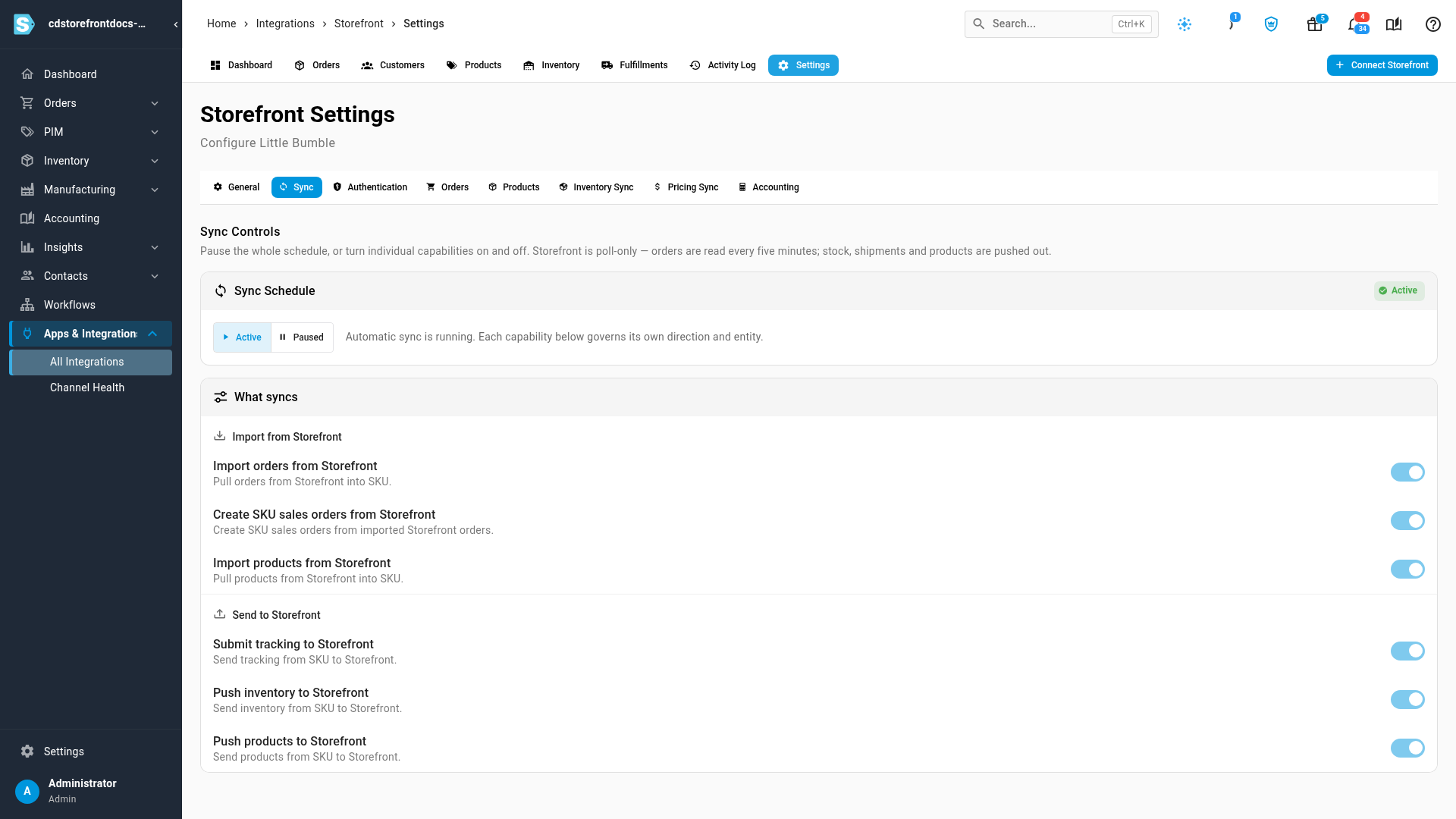
- Open your store under Apps & Integrations → All Integrations → Storefront, then Settings → Sync.
- Set Sync Schedule to Paused, then click Pause sync.
Nothing runs on a schedule until you set it back to Active. Anything you start by hand, such as Refresh from Storefront, still runs.
Revoke SKU.io from the store
The store owner can cut SKU.io off at any time, without opening SKU.io:
- In the store's admin, open Connections.
- Click Revoke on the SKU.io connection, and confirm.
SKU.io loses access straight away and shows Can't reach the store until someone reconnects. See Reconnect the store.
Switch to a pasted key
If the store has no owner account, SKU.io can use the store's API key instead:
- Open Settings → Authentication and click Replace with a pasted key instead.
- Paste the key into Store API key, and click Save & verify.
If the store doesn't accept it, you see The store didn't accept this API key. To go back to an owner-approved key later, click Connect through the store on the same tab. An owner-approved key is the better choice whenever the store has an owner, because the owner can see and revoke it under Connections.
Delete the integration
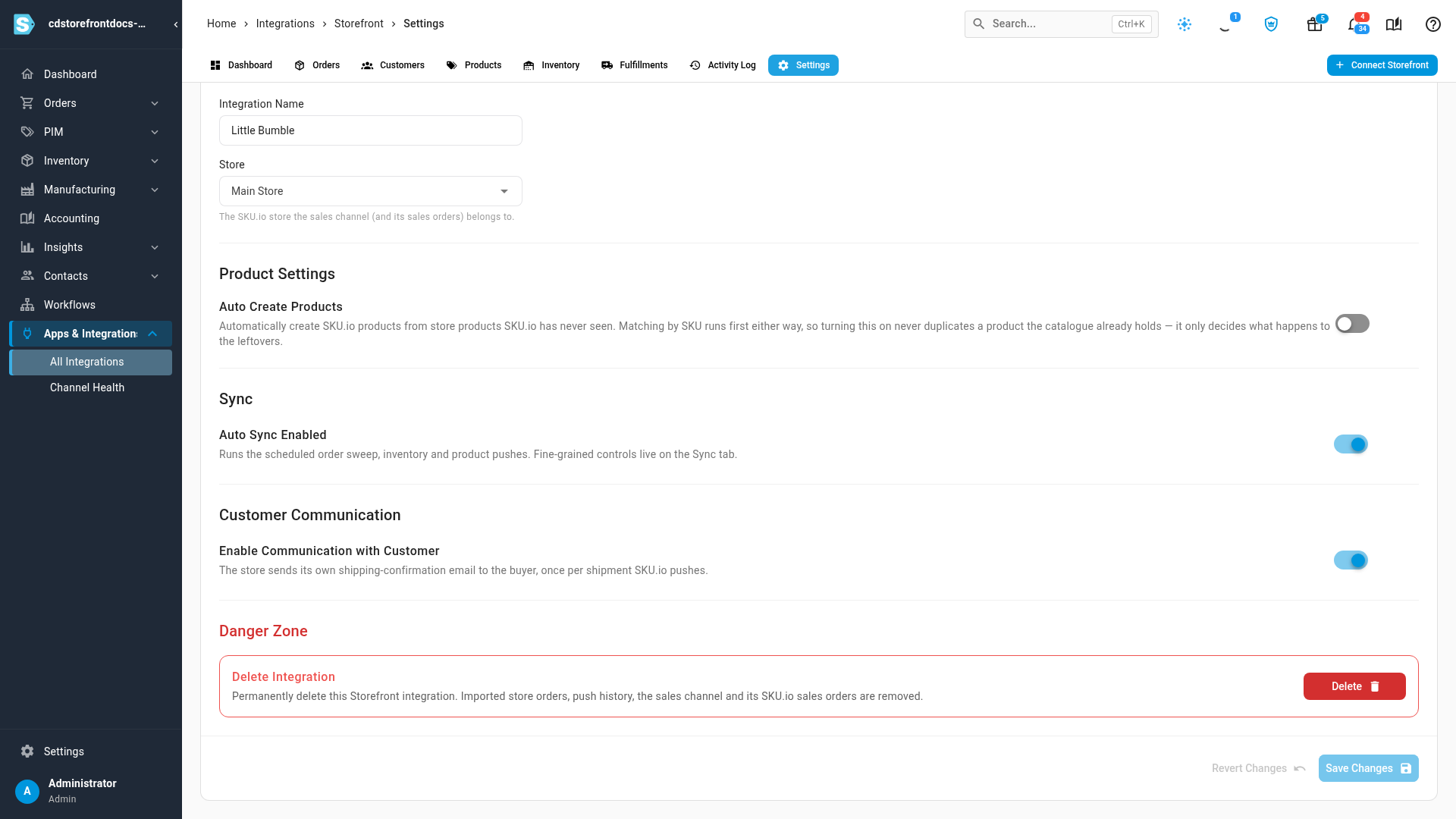
Deleting the integration also deletes every SKU.io sales order that came from this store, with their invoices. To stop syncing but keep your sales orders, pause syncing instead.
- Open Settings → General.
- Under Danger Zone, click Delete, and confirm.
SKU.io removes the connection, its imported orders, push history and sales channel. For an owner-approved connection it also tries to revoke its key in the store.
Next steps
- Troubleshoot Storefront.
- Manage a connected app: the controls every connection shares.
Video transcript
Your store's dashboard shows each sync under Sync Status, and when it runs next. To stop syncing for a while, click Settings, at the top right. Then click the Sync tab, which holds every sync switch and the schedule. Set the Sync Schedule to Paused, and click Pause sync to confirm. Nothing runs on a schedule until you make it Active again, and your orders and settings stay as they are. Deleting the integration is the last resort. On the General tab, scroll down to the Danger Zone. Click Delete, and SKU.io shows what it would remove before anything happens. Its SKU.io sales orders are removed along with the integration. To keep your sales orders, cancel, and pause syncing instead.