Connect Numeral
Numeral registers you for sales tax, files your returns and pays what you owe. Connect it, and SKU.io sends Numeral every sale and refund from every channel, so your returns come from one complete record. Setup is four short steps, and nothing is sent to Numeral until the last one.
Before you begin
- You need your own Numeral account, and permission to connect integrations in SKU.io.
- In Numeral, go to Dashboard › Developers and create a secret key. A test key (it starts
sk_test_) never files anything, so it's safe for a trial run. A production key (sk_prod_) files for real. - If you connected any sales channel (Amazon, Shopify, eBay, Walmart…) directly inside Numeral, disconnect it there. SKU.io sends all of your sales, and a direct connection would count them twice on your returns.
You can connect one Numeral account.
Step 1: Connect your account
-
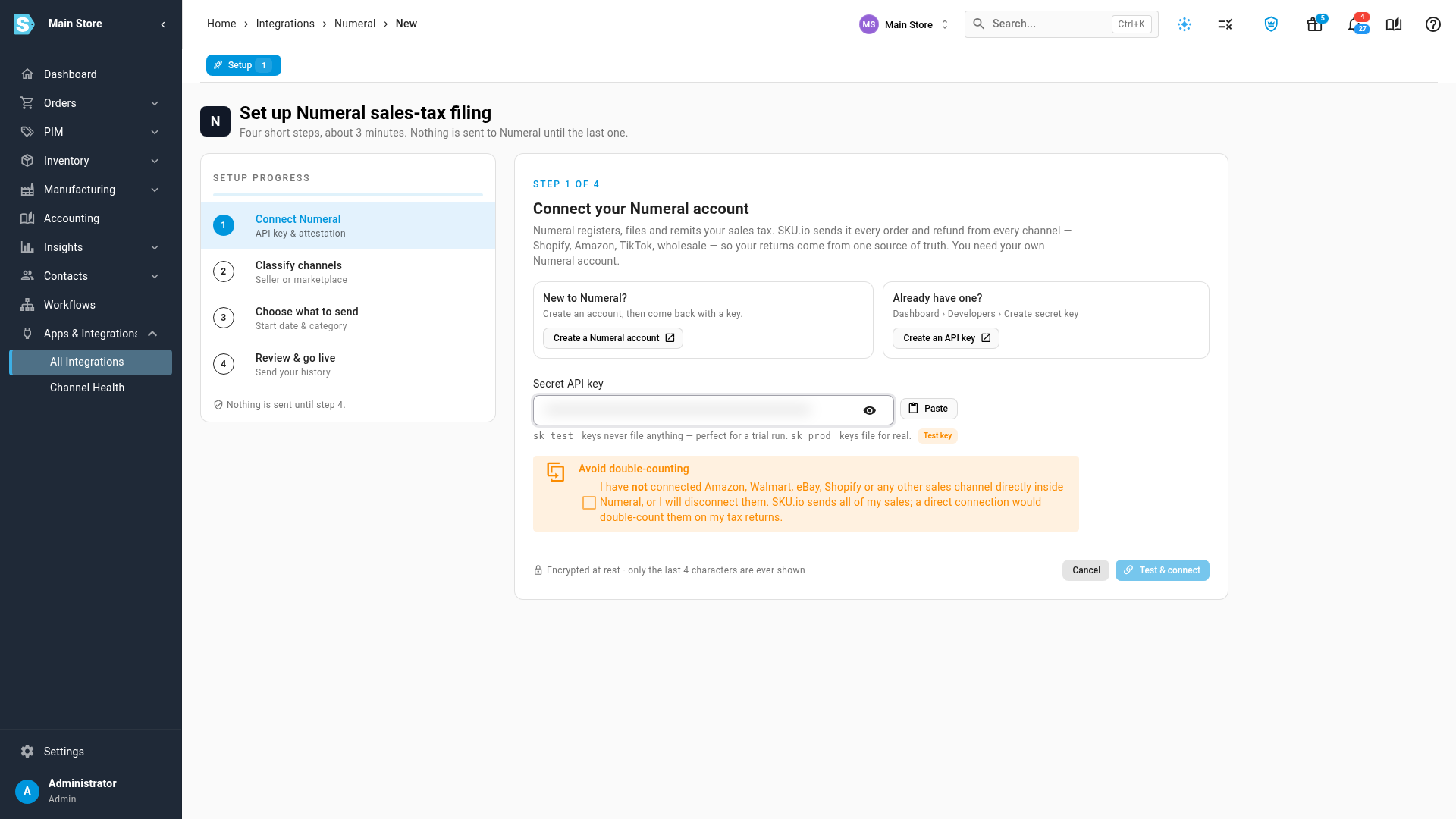
Go to Apps & Integrations → All Integrations. Search for Numeral, choose it under Tax, and click Connect Numeral.
-
Paste your key into Secret API key. Paste fills it from your clipboard.
-
Tick the Avoid double-counting box to confirm that no sales channel is connected directly inside Numeral.
-
Click Test & connect.
What you'll see: SKU.io checks the key with Numeral, and the page header shows Connected with a TEST or PRODUCTION chip. Only the last four characters of the key are ever shown again.
Step 2: Say who collects tax on each channel
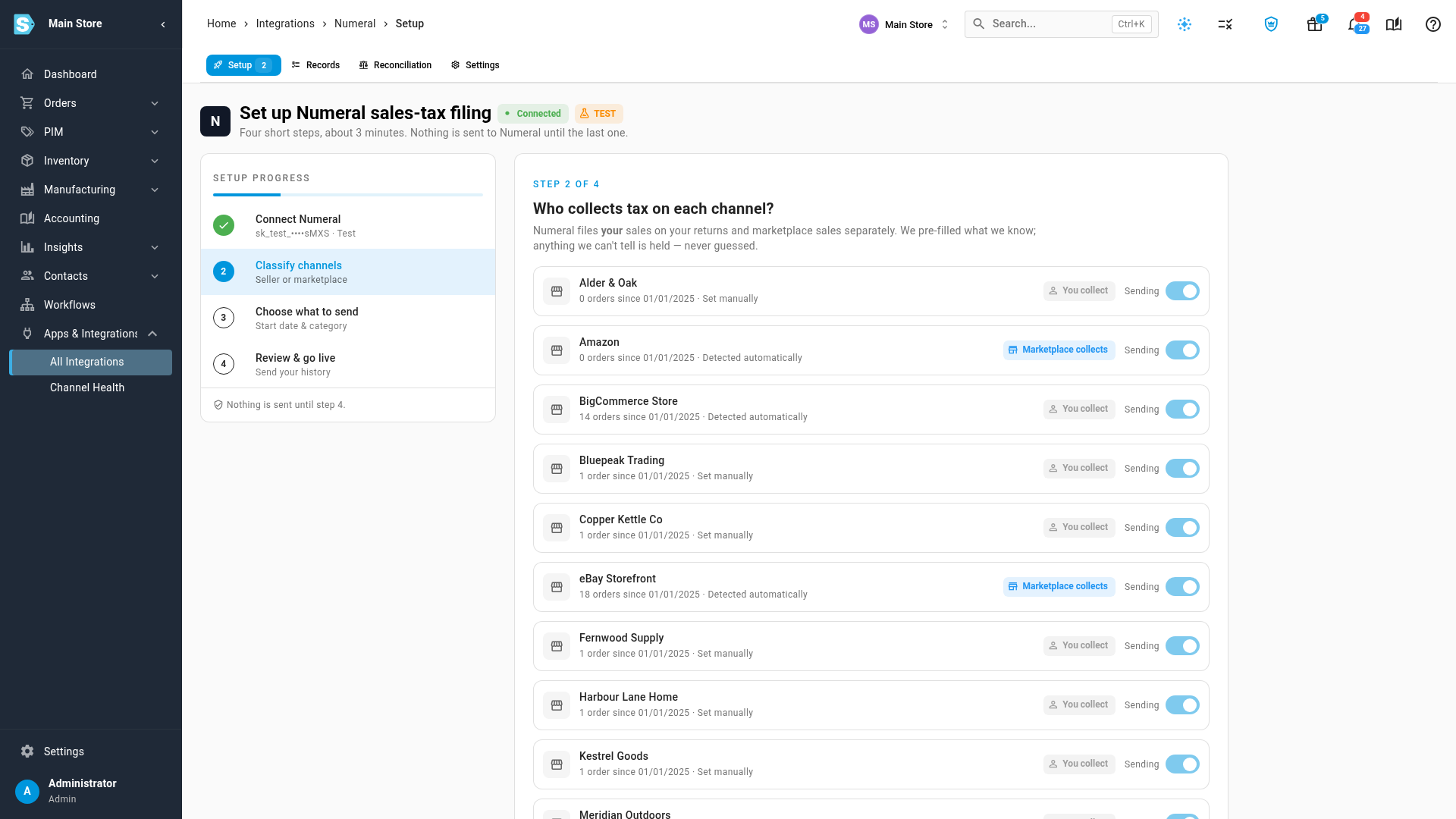
Numeral files your own sales and marketplace sales differently, so it needs to know who collected the tax on each channel.
-
Check the channels marked Detected automatically. Marketplaces such as Amazon, eBay and Walmart are filled in as Marketplace collects, and your own stores as You collect.
-
Answer every channel marked Needs your answer. SKU.io never guesses: until you answer, that channel's sales are held.
- Marketplace collects: the marketplace charged and paid the tax.
- Me (seller): you charged the tax and Numeral files it for you.
- Don't send: the channel's sales stay out of Numeral.
To give every remaining channel the same answer, use the buttons in the Answer all … remaining bar at the top.
-
Click Continue.
These are the same settings as Reports › Sales Tax › Channel Tax Settings. Changing them here changes the Sales Tax Liability report too.
Step 3: Choose what to send
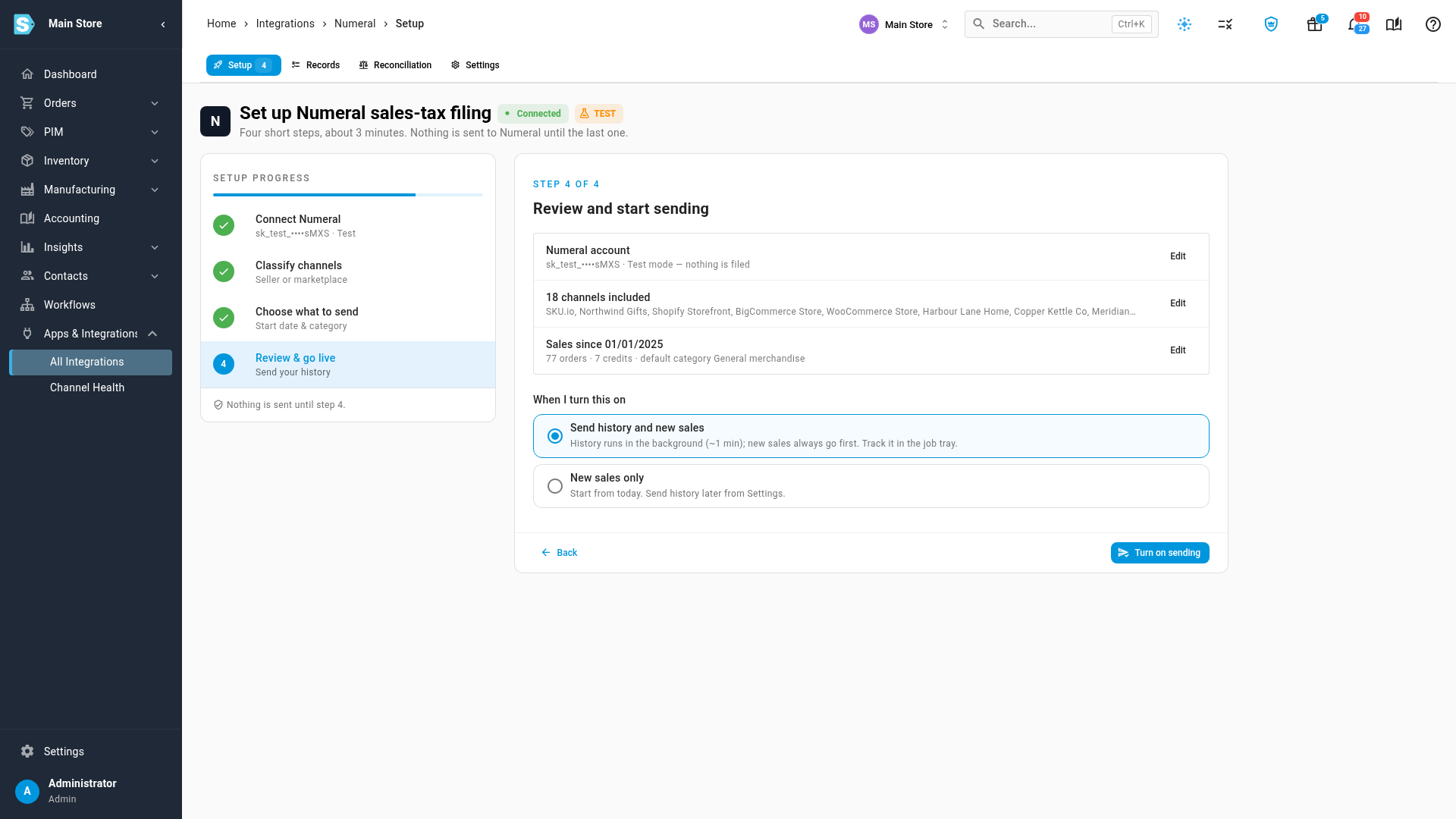
- Under Send sales dated on or after, pick where your history starts. The Recommended date is the start of last year: most states look back over the previous calendar year to decide whether you owe tax there. Each option shows how many orders it sends.
- Pick a Default Numeral tax category for taxable lines, and a Shipping & handling category. You can give individual products their own category later. Sales to tax-exempt customers are always sent as not taxable.
- Click Continue.
Step 4: Review and turn on sending
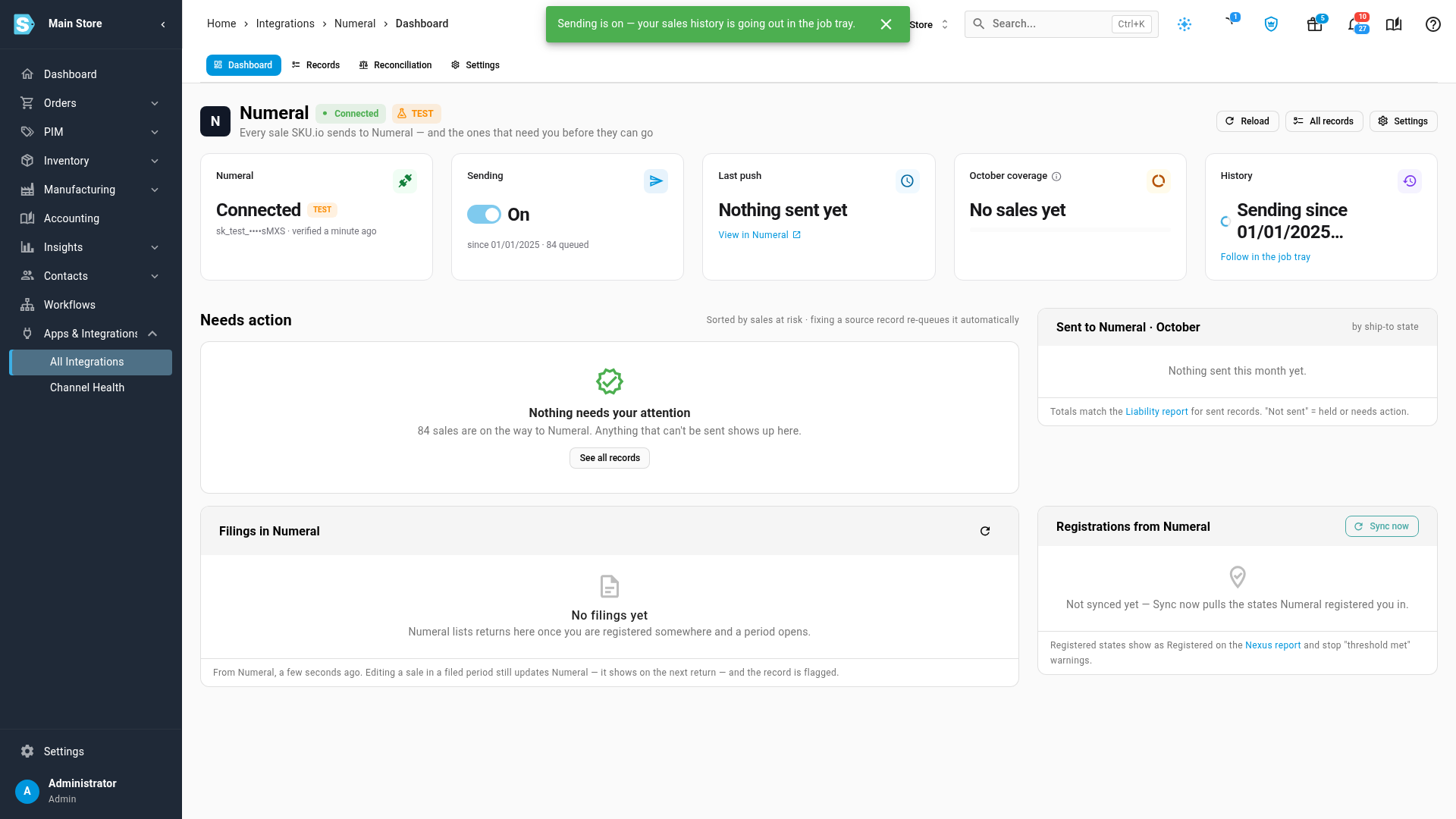
- Check the summary. Each row has an Edit link back to its step.
- Under When I turn this on, choose:
- Send history and new sales: your past sales go out in the background, and new sales always go first. You can follow the history in the job tray.
- New sales only: sending starts from today. You can send your history later from Settings.
- Click Turn on sending.
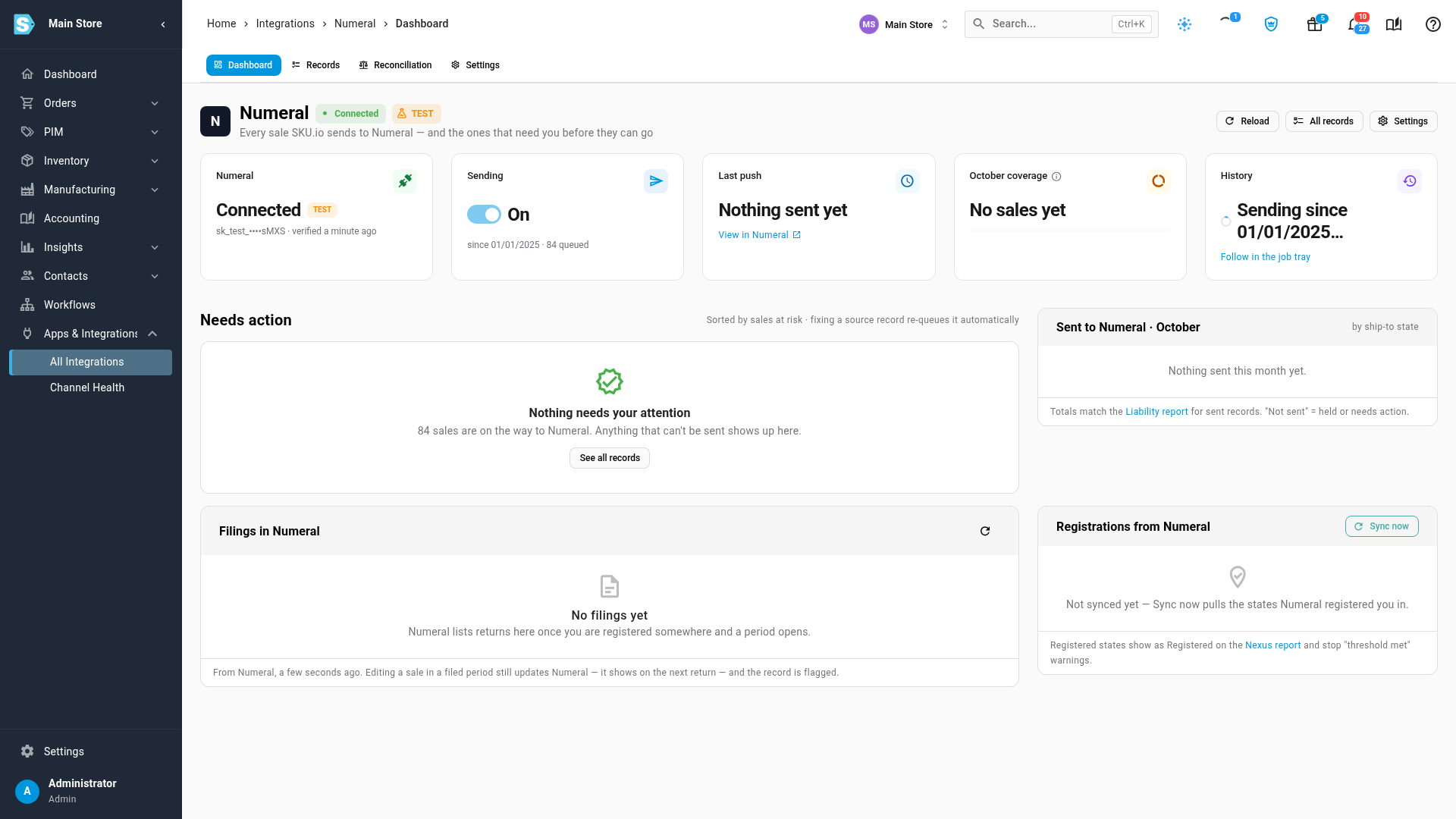
What you'll see: the Numeral Dashboard opens with Sending switched on. A sale that can't be sent appears under Needs action, grouped by what's wrong. See why sales are held.
Change it later
Everything you chose during setup is on the Settings tab:
| Card | What it does |
|---|---|
| API key | Shows the key masked, with Test connection and Replace key. Replace a test key with a production one when you're ready to file for real. |
| Sending | Send sales to Numeral: while it's on, new and changed sales go to Numeral within a minute. Turn it off to pause sending; turning it back on offers to send your history. |
| Live tax calculation | Calculate tax with Numeral for SKU.io orders has Numeral work out the tax on your B2B portal and manual orders. Until it's on, those orders are held. |
| Channels | Who collects the tax on each channel, and whether it's sent at all. |
| What to send | The start date and the default tax categories. |
| Danger zone | Disconnect Numeral stops sending and keeps the history in SKU.io. Nothing is deleted in Numeral. |
Next steps
Video transcript
Numeral registers, files and pays your sales tax, and SKU.io sends it every sale. To connect it, open Apps and Integrations in the menu on the left, then All Integrations. Click the search box at the top of the list, type Numeral, and choose it under Tax, the group for apps that handle your sales tax. Its panel appears on the right, marked Not connected. Then click Connect Numeral, the big blue button, and the setup begins. Its four steps are listed down the left side. Setup takes about three minutes, and nothing is sent to Numeral until the final step. First, paste your secret API key. You create one in Numeral, under Developers. A test key never files anything, so it's safe for a trial run. In this video, the key is blurred. Next, confirm that you haven't connected your sales channels directly inside Numeral. SKU.io sends all of your sales, so a direct connection would count them twice. Then click Test and connect, and SKU.io checks the key with Numeral. A moment later, the account shows Connected, and step two opens. Step two asks who collects the tax on each channel. A channel SKU.io can't tell about is marked Needs your answer, and its sales wait for that answer. If you collect the tax on all of those yourself, choose Me, seller, in the bar at the top. SKU.io saves the answers one channel at a time, with a progress bar beside the buttons, so this takes a few seconds. Channels it recognizes, such as marketplaces, were answered for you already. You can also answer any channel on its own row. Every channel now has an answer. These are the same settings the Sales Tax report uses, so changing one here changes both. Scroll down to the bottom of the list of channels. Then click Continue, and step three opens, asking for a start date. Step three sets the earliest sale to send. The recommended choice covers last year and this year, the period most states look back over when deciding if you owe tax. Keep the default tax categories, or pick the ones that fit your products. Then click Continue at the bottom, to go on to the last step. Finally, review your choices. Each row has an Edit link if something needs changing. Send history and new sales sends your past sales in the background, and new sales always go first. Click Turn on sending, and SKU.io starts sending your sales to Numeral. The Numeral dashboard opens, and Sending shows On. History shows your past sales on their way, and you can follow them in the job tray. Anything Numeral can't take appears under Needs action, ready for you to fix.