Connect EasyPost
Connect your EasyPost account to get carrier rates inside SKU.io: on sales orders and quotes, at checkout on your Customer Portal, and for Amazon FBA inbound transport. It takes an API key from your EasyPost account and nothing else. Rates are free on every EasyPost plan.
Before you begin
- You have an EasyPost account, with the carriers you ship with added to it. Without carriers, there's nothing to rate with.
- You can sign in to EasyPost to copy an API key.
Connect
- Go to Apps & Integrations → All Integrations, search for EasyPost and choose it, then click Connect EasyPost.
- In EasyPost, open Account Settings → API Keys, and copy a key:
- a Production key (it starts with
EZAK) for your real rates; - or a Test key (it starts with
EZTK) to try things out with sample rates.
- a Production key (it starts with
- Paste it into API key. Use the eye button to check what you pasted. Optionally, change the Connection name.
- Click Test connection. A green message confirms EasyPost accepted the key, and whether it's a test or production key.
- Click Save & Connect.
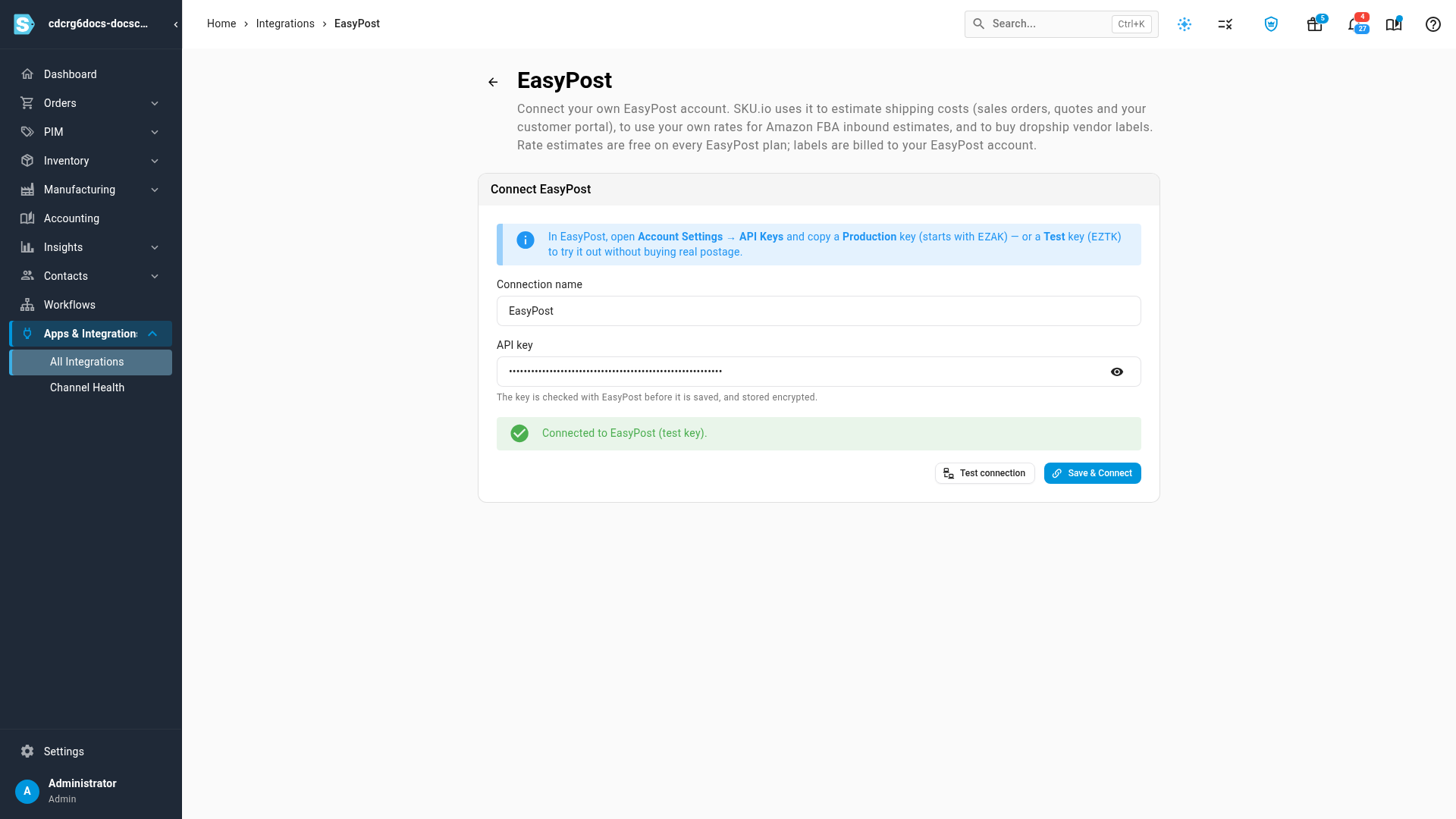
SKU.io checks the key with EasyPost before it saves it, and stores it encrypted. A key EasyPost rejects isn't saved.
You can also connect from the screens that use it. When EasyPost isn't connected, Quote shipping on a sales order or quote, the Shipping tab of Portal settings, and the FBA placement step all show a Connect EasyPost prompt that opens the same form in place.
Check your carriers
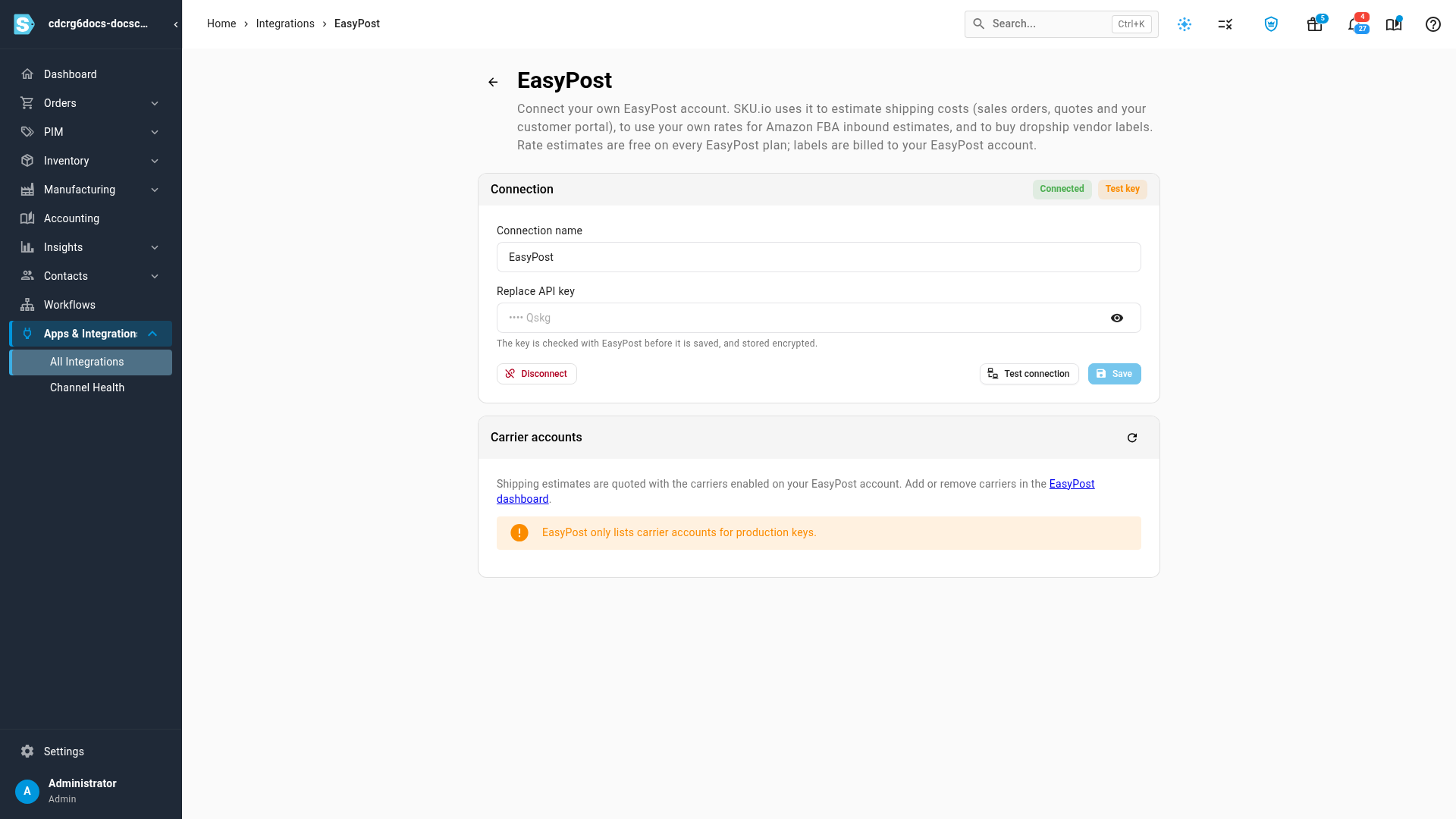
Once connected, the page shows Connected and whether the key is a Test key or a Production key.
With a production key, Carrier accounts lists the carrier accounts on your EasyPost account. Those are the carriers SKU.io gets rates from. To add or remove one, change it in your EasyPost dashboard, then click the refresh button on Carrier accounts. EasyPost doesn't list carrier accounts for test keys, so the list stays empty until you switch to a production key.
Change the key or disconnect
- To switch from a test key to a production key, or replace a key, paste the new one into Replace API key and click Save. The new key is checked first.
- Disconnect removes the connection. Quote shipping on sales orders and quotes stops, portal buyers get each method's fallback price, FBA inbound estimates go back to SKU.io's reference rates, and suppliers that use EasyPost for dropship labels need another label provider. Estimates, Shipping lines and labels you already have are kept.
Next steps
- Quote shipping on a sales order or quote
- Price shipping on the Customer Portal
- EasyPost overview — what SKU.io uses EasyPost for, and test keys versus production keys.
Video transcript
To get shipping rates from your own carriers, start by connecting your account. Open Apps and Integrations, then All Integrations. In the search box, type EasyPost, then choose it from the list. Then click Connect EasyPost, to open the connection form. This is where your API key goes. In EasyPost, copy an API key from your account settings. A production key gives your real rates. A test key lets you try it out with sample rates. Paste the key, then click Test connection. SKU.io now checks the key with EasyPost, which takes a moment. Nothing is saved yet, so you can try another key if this one fails. When the key is accepted, a green message says so. Click Save and Connect, and SKU.io saves the connection. The page shows whether the key is a test key or a production key. With a production key, Carrier accounts lists the carriers on your EasyPost account, and those are the carriers you get rates from.